


Description
Internal Post Linker helps editors create internal links while writing. Select text in the editor, open the internal link search, choose an existing site result, and the plugin applies the selected result’s permalink to the selected text.
The plugin supports the WordPress block editor and the Classic Editor/TinyMCE visual editor. Search results include useful context before insertion, including title, post type, publication date, excerpt, privacy status, current-post label, and a preview link.
Use Tools → Post Linker to manage custom keyword destinations, review generated suggestions, track saved links, and enable automatic linking for individual rules. Applied keywords are saved to the library automatically for users with library-management permissions.
Key Features
- Link selected text to posts, pages, and public custom post types.
- Scan the current article for internal link suggestions.
- Give saved keyword destinations priority over generated suggestions.
- Manage custom keywords, aliases, and Active, Pending review, or Paused rules under Tools → Post Linker.
- Save successfully applied keyword mappings automatically, including Apply all and selected-text linking.
- Enable automatic linking on save for individual rules.
- View distinct linked-article counts, post-type breakdowns, and source articles for each keyword.
- Preview and approve links for existing content, or rebuild usage counts without changing article content.
- Works in the block editor and Classic Editor/TinyMCE visual editor.
- Searches linkable content by title and slug.
- Shows result title, post type, date, excerpt, private status, and current-post label.
- Adds WordPress editor link metadata so newly inserted block editor links display correctly.
- Uses nonce-protected admin-ajax requests for editor search.
- Includes a REST search endpoint for editor integrations.
- Supports older block editor builds that expose toolbar APIs through
wp.editor. - Excludes attachments from link targets.
- Works without a build step.
Using It In The Block Editor
- Open a post, page, or supported custom post type in the WordPress block editor.
- Click inside a text block, such as a Paragraph, Heading, List, or other rich text block.
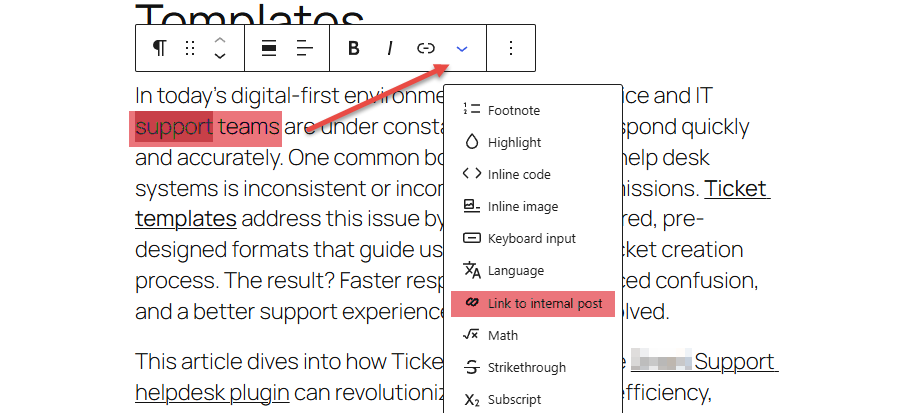
- Highlight the text you want to link.
- Click the Internal Post Link toolbar button.
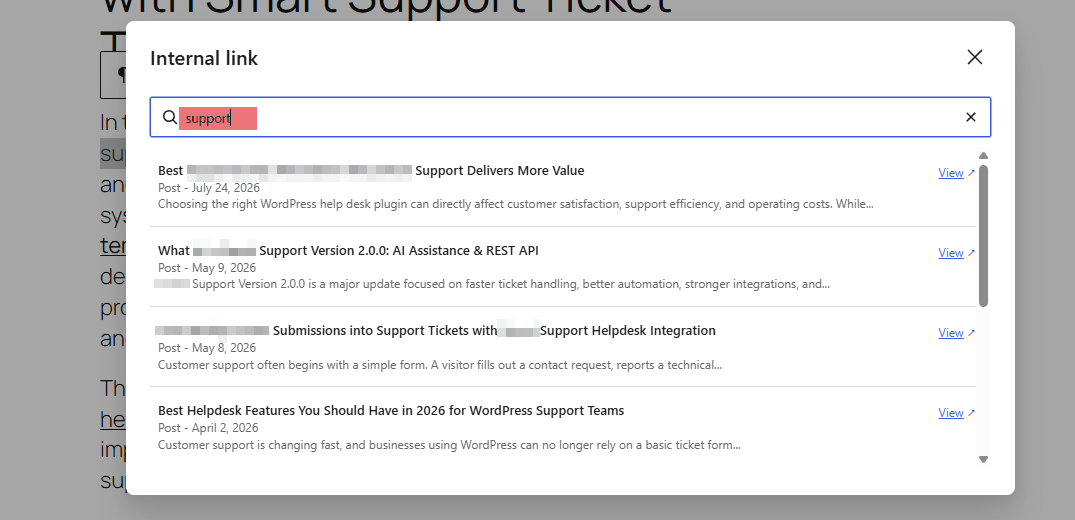
- In the modal, search for the page, post, or article you want to link.
- Review the search results.
- Click the result you want.
- The selected text is linked immediately. Users with Keyword Library permissions also have the keyword and destination saved automatically.
- Save, update, or publish the post to store the links and update Keyword Library usage counts.
Suggest Internal Links
The Suggest internal links feature helps editors find internal linking opportunities before publishing. Instead of manually searching for every possible link, editors can scan the current article and review a list of suggested keywords that match existing internal content.
This feature is not AI generated. It uses deterministic matching against existing site content, including:
- Post titles.
- Page titles.
- Product titles when products are available as a public post type.
- Public custom post type titles.
- URL slugs converted into readable phrases.
- Specific multi-word title phrases, standalone one-word titles, and explicit acronyms such as SEO, excluding common filler words.
Saved keyword rules are checked first and use their assigned destinations. Generated suggestions fill gaps where no active or paused saved rule reserves that keyword. The scanner ignores existing links, code, registered shortcodes, and protected content, so it focuses on eligible unlinked text.
How To Use Suggestions In The Block Editor
- Open a post, page, or supported custom post type in the WordPress block editor.
- Write or edit the article content.
- Click the Suggest internal links icon near the editor publish controls.
- Review the suggested keywords and target articles.
- Use the suggestion search field to filter the list by keyword, target title, content type, or excerpt.
- Click Apply to link one suggestion.
- Click Apply all to apply all available non-current-article suggestions in the current filtered list.
- Save, update, or publish the post to store the links and update Keyword Library usage counts.
How To Use Suggestions In Classic Editor
- Open a post or page in Classic Editor.
- Make sure you are using the Visual editor tab.
- Write or edit the article content.
- In the publish box, click Suggest internal links.
- Review the suggested keywords and target articles.
- Use the suggestion search field to filter the list by keyword, target title, content type, or excerpt.
- Click Apply to link one suggestion.
- Click Apply all to apply all available non-current-article suggestions in the current filtered list.
- Save, update, or publish the post to store the links and update Keyword Library usage counts.
Suggestion Details
Each suggestion can include:
- The suggested target title.
- The matched keyword or phrase.
- The target content type, such as Post, Page, Product, or another public custom post type.
- The number of times the keyword appears in the current article.
- A short excerpt from the suggested target.
- Highlighted keyword matches in the title, metadata, and excerpt.
- A quality rating for generated suggestions: Normal, Good, Best, or Ideal.
- A Saved rule label when the keyword uses an approved destination from the library.
Suggestions use one destination per keyword, and saved mappings take priority. Generic single words extracted from longer titles are excluded; standalone one-word titles and explicit acronyms remain eligible. Matching respects whole Unicode words and flexible whitespace, including nonbreaking spaces, and can link phrases across inline formatting. Existing links, code, registered shortcodes, and protected content are excluded, and phrases are not matched across separate blocks. Target articles are scanned in batches, including older articles, and the strongest 20 suggestions are shown.
Suggestion ratings are calculated without AI. Ratings are based on match strength signals such as keyword occurrence count, keyword length, and whether the keyword appears in the suggested target title, slug, or excerpt. Saved rules take priority. Generated suggestions prefer specific phrases, followed by rating and occurrence count.
Ratings also check the suggested target article body content on the server. If the keyword appears in the target article content, the suggestion receives an additional relevance boost. The target article body is not returned to the browser; only the suggestion metadata and match count are shown.
Applying Suggestions
Clicking Apply links the first available unlinked occurrence of the suggested keyword in the current article. For users with Keyword Library permissions, each successfully applied keyword and destination is immediately saved as an active, suggest-only rule. Existing approved automatic or paused rules retain their settings.
Clicking Apply all applies available suggestions in the current filtered list, skipping current-article suggestions and competing destinations for the same keyword. Only successfully inserted links have their mappings saved. The modal closes after all applicable links and keyword saves succeed. If some links cannot be applied or mappings cannot be saved, it stays open with the remaining suggestions or a retry message.
Current-article suggestions are highlighted so editors can identify possible self-links. They are not applied by Apply all, because linking an article to itself is usually not useful.
Use Retry saving keywords if a suggestion’s mapping could not be saved. Retrying saves the mapping without inserting the same suggestion link again. In the selected-text search modal, a failed mapping save explains how to select the destination again to retry. Remember keyword remains available to save a suggestion without applying its link.
Keyword mappings are saved separately from article content. Save, update, or publish the article to persist its links and refresh usage counts. Previously applied generated keywords can be recovered from indexed saved links, and saving an article approves matching pending generated mappings when eligible. Approved destination conflicts are reported instead of silently replacing an existing rule.
Using It In Classic Editor
- Open a post or page in Classic Editor.
- Make sure you are using the Visual editor tab.
- Highlight the text you want to link.
- Click the Internal Link button in the editor toolbar.
- Search for the internal content you want to link.
- Click a result.
- The selected text is linked immediately. Users with Keyword Library permissions also have the keyword and destination saved automatically.
- Save, update, or publish the post to store the links and update Keyword Library usage counts.
Search Results
Each result can show:
- Title.
- Content type, such as Post, Page, or a custom post type label.
- Published date.
- Excerpt.
- Private status, when applicable.
- Current post label, when the matching result is the post currently being edited.
- A preview link where available.
The plugin searches titles and slugs. For best results, search using words from the target content title.
Examples:
Product NameGravity FormsDocumentationREST API
Linking To The Current Post
The current post may appear in search results if it matches the search term. It is labeled Current post so editors can identify it before linking.
In most editorial workflows, linking a post to itself is not useful. If you see the Current post label, choose a different result unless you intentionally want a self-link.
Updating An Existing Link
In the block editor:
- Click or select the already linked text.
- Open Internal Post Link.
- Search for the replacement content.
- Click the new result.
The existing link is replaced with the selected internal link.
In Classic Editor:
- Select the linked text.
- Click Internal Link.
- Search and choose the replacement result.
Removing A Link
The plugin focuses on finding and applying internal links. To remove a link, use the editor’s standard unlink control:
- In the block editor, click the linked text and use the unlink option in the link popover or toolbar.
- In Classic Editor, select the linked text and click the standard unlink toolbar button.
Search Security
Search requests are protected with WordPress permissions and nonces. The plugin only returns search results for logged-in users who can edit posts or pages.
The plugin does not expose internal search to public site visitors.
Supported Content Types
The plugin searches public post types that have an editor UI, including:
- Posts.
- Pages.
- Public custom post types.
- Knowledge base articles, documentation articles, or other public editor-backed content types when registered by your site.
Attachments are excluded from search results.
Keyword Library
Open Tools → Post Linker to add or edit a keyword, search published content for its destination, and choose the rule’s status and behavior. Add aliases as separate keyword rules pointing to the same destination. One normalized keyword has one destination; case differences and repeated whitespace do not create separate rules.
Rule statuses:
- Active: the assigned destination takes priority in editor scans.
- Pending review: generated suggestions wait for approval until applied or explicitly remembered. Applying a keyword approves its mapping as a suggest-only rule.
- Paused: the rule is excluded from linking, and generated suggestions cannot substitute another destination for that keyword.
Choose Suggest only to review and apply links yourself, or Automatic on save to insert the first eligible occurrence when supported content is saved by a user who can edit it. Automatic linking uses active rules, processes longer keywords first, and skips existing links, self-links, code, registered shortcodes, and protected content. Pending and paused rules never run automatically.
The Linked content count shows distinct saved source articles linked by that keyword to its assigned destination. Hover over the keyword for a post-type breakdown, or click the keyword or count to browse source articles and occurrence counts. Multiple occurrences in one article count as one linked article. Saved drafts and published content are included when the current user can access them; unsaved editor changes do not affect counts.
Article saves, removed links, status changes, and deletions update usage. New keyword destinations schedule background indexing. Use Rebuild usage counts to index existing saved articles immediately without changing their content.
Use Preview existing content to review proposed keyword/destination pairs across all affected articles you can edit. The preview includes all active rules, including suggest-only rules, and supports multiple result pages. Apply this preview saves approved changes in batches. Changed articles are skipped; changes to rules or destinations require a fresh preview. Use Resume operation after a failed request to continue a pending operation.
Destinations must be accessible, published public content without password protection. Rules store the destination’s post ID, so renaming an article retains its assignment and new links use its current permalink. Unpublished, deleted, or password-protected destinations stop receiving new links. Existing saved links remain in place when a mapping changes, is paused, or is deleted.
Rules and usage are stored in site-specific database tables. Administrators and Editors receive the manage_post_linker capability during setup; other roles need an explicit grant to manage the library. Source-article editing permissions are checked before changes. Deactivating the plugin retains library data.
Installation
- Upload the
7sky-internal-post-linkerfolder to/wp-content/plugins/. - Activate 7Sky Internal Post Linker from Plugins -> Installed Plugins.
- Open a post or page in the editor.
- Select text and click Internal Post Link.
- Search for internal content and click a result to apply the link.
- Administrators and Editors can open Tools → Post Linker to manage saved keywords, enable automatic rules, review existing-content previews, or rebuild usage counts.
FAQ
Does it work with pages and custom post types?
Yes. It searches public post types that have an editor UI, excluding attachments.
Does it work in the Classic Editor?
Yes. In Classic Editor visual mode, use the Internal Link TinyMCE toolbar button.
Does it work in the block editor?
Yes. Select text in a rich text block, then use the Internal Post Link toolbar control.
Does it link private posts?
Manual search can include private posts for users with the required private-content permissions. Saved keyword destinations must be published public content without password protection.
What content does the search use?
The search matches post titles and slugs, then returns up to eight recently modified matching results.
Are internal link suggestions generated by AI?
No. Saved rules use their explicitly assigned destinations. Generated suggestions match existing titles, slugs, specific multi-word phrases, standalone one-word titles, and explicit acronyms. Target article body content is checked server-side only to improve generated suggestion ratings. The plugin does not infer synonyms; add aliases explicitly in the library.
Can users without editing permissions search posts?
No. Search requests require a logged-in user who can edit posts or pages. Managing global keyword mappings requires the separate Keyword Library capability.
Are applied keywords saved automatically?
Yes, for users with Keyword Library permissions. Applying an individual suggestion, Apply all, or a selected-text internal link saves each successful keyword/destination mapping automatically. Existing automatic or paused rules retain their settings. Remember keyword is useful when saving a suggestion without inserting a link.
Why does a saved keyword show zero linked articles?
Mappings can be saved before the article itself is saved. Save, update, or publish the article to refresh usage counts. For existing content or newly assigned destinations, use Rebuild usage counts. Counts include only saved links to the assigned destination and source articles the current user can access.
Does the plugin link keywords automatically on every save?
Only active rules explicitly set to Automatic on save run automatically. New applied mappings default to Suggest only. Automatic linking preserves existing links and skips self-links and excluded content.
Can I apply saved rules to existing articles?
Yes. Use Preview existing content, review the proposed changes, and choose Apply this preview. This explicit action includes active suggest-only rules and processes only articles you can edit. Stale articles are skipped, and changed rules or destinations require a fresh preview.
Screenshots


Changelog
1.0.4
- Feature: Added Tools → Post Linker with custom keyword destinations, explicit aliases, Active/Pending/Paused rules, and optional automatic linking on save.
- Feature: Added persistent linked-article counts, post-type breakdowns, source lists, occurrence counts, and batched usage reindexing.
- Feature: Added paginated previews and explicit batch application for existing editable content, with permission checks, stale-content detection, and resumable operations.
- Improvement: Saved keyword destinations take priority over generated suggestions; newly approved mappings default to Suggest only.
- Fix: Apply, Apply all, and selected-text linking now save successful keyword mappings automatically in Gutenberg and Classic Editor. Failed saves remain visible and support retry without duplicate suggestion links.
- Fix: Recovered previously applied pending generated keywords from indexed saved links, and approve matching eligible mappings when articles are saved.
- Fix: Preserve existing automatic and paused behavior, report approved-destination conflicts, and keep partial application failures visible.
- Fix: Match whole Unicode keywords across inline formatting and flexible whitespace while preserving source markup and block comments and excluding existing links, code, registered shortcodes, protected content, and self-links.
- Fix: Prefer specific multi-word phrases over generic single-word title fragments, retain standalone titles and explicit acronyms, and resolve competing destinations per keyword.
- Fix: Restored Classic Editor suggestion rendering, synchronized individually applied suggestions with bulk actions, added undo transactions, and updated Gutenberg content through parsed editor blocks.
- Fix: Corrected title and slug search, included older target articles through batched scanning, and aligned post/page editing permissions with search and scanning.
- Improvement: Added a dedicated keyword-library capability for Administrators and Editors, schema setup, published-destination checks, and per-source permission checks.
- Feature: Added the optional deactivation feedback modal.
- Refactor: Added focused services for keyword-library storage, source-preserving linking, and library management.
- Documentation: Updated editor, keyword-library, automatic-saving, usage-count, and existing-content workflows; updated the declared Tested up to metadata to WordPress 7.1.
1.0.3
- Refactor: Split content search, keyword matching, stopword data, and internal link suggestion scoring into focused include files while keeping the main plugin loader lightweight.
- Refactor: Moved the main plugin class into
includes/class-skyinpo-internal-post-linker.phpand reduced the main plugin file to a lightweight bootstrap. - Fix: Tightened internal link suggestion phrase generation to reject generic filler phrases, auxiliary verbs, common stopword combinations, generic single words, and low-value two-word phrases.
- Fix: Phrase generation now still checks internal one-word, two-word, three-word, and longer title or slug candidates even when the full title starts or ends with a generic stopword.
- Improvement: Expanded suggestion phrase generation to consider one-word, two-word, three-word, and longer title or slug keyword candidates when they pass the link-worthy filter.
- Improvement: Suggestion ratings now include server-side keyword matches from the target article body content.
- Improvement: Suggestion metadata shows how many times the keyword appears in the target article content without returning the full content to the browser.
1.0.2
- Feature: Added internal link suggestions that scan the current article for unlinked phrases matching existing internal content titles, slugs, and strong multi-word phrase candidates.
- Feature: Added deterministic suggestion quality ratings: Normal, Good, Best, and Ideal, based on keyword frequency, keyword length, and matches within the target title, slug, and excerpt.
- Feature: Added keyword highlighting in suggestion titles, matched phrases, and excerpts.
- Feature: Added a suggestion search field for filtering results by keyword, title, content type, or excerpt.
- Feature: Added an Apply all action that applies available non-current-article suggestions with unlinked keyword matches and respects the currently filtered suggestion list.
- Feature: Added internal link suggestion controls to the block editor header toolbar, rich text toolbar, Classic Editor publish box, and TinyMCE toolbar.
- Improvement: Current-article suggestions are included and highlighted to identify self-link opportunities while remaining excluded from bulk application.
- Improvement: Individual suggestions can be reviewed and applied to the first available unlinked keyword occurrence.
- Improvement: Moved the suggestion search field inline with the Apply all and Scan again actions.
- Improvement: Apply all now closes the suggestion modal after successfully applying available links.
- Improvement: Improved block editor compatibility with a fallback suggestion button near the Save and More controls when the standard header toolbar slot is unavailable.
- Improvement: Repositioned editor suggestion controls for easier access near the publish and standard link controls.
1.0.0
- Initial production release.
- Added block editor and Classic Editor internal post linking.
- Added secure internal content search and contextual result previews.
- Added compatibility fixes for older editor APIs and WordPress link metadata.
- Added Plugin Check-friendly search and translation handling.