

Description
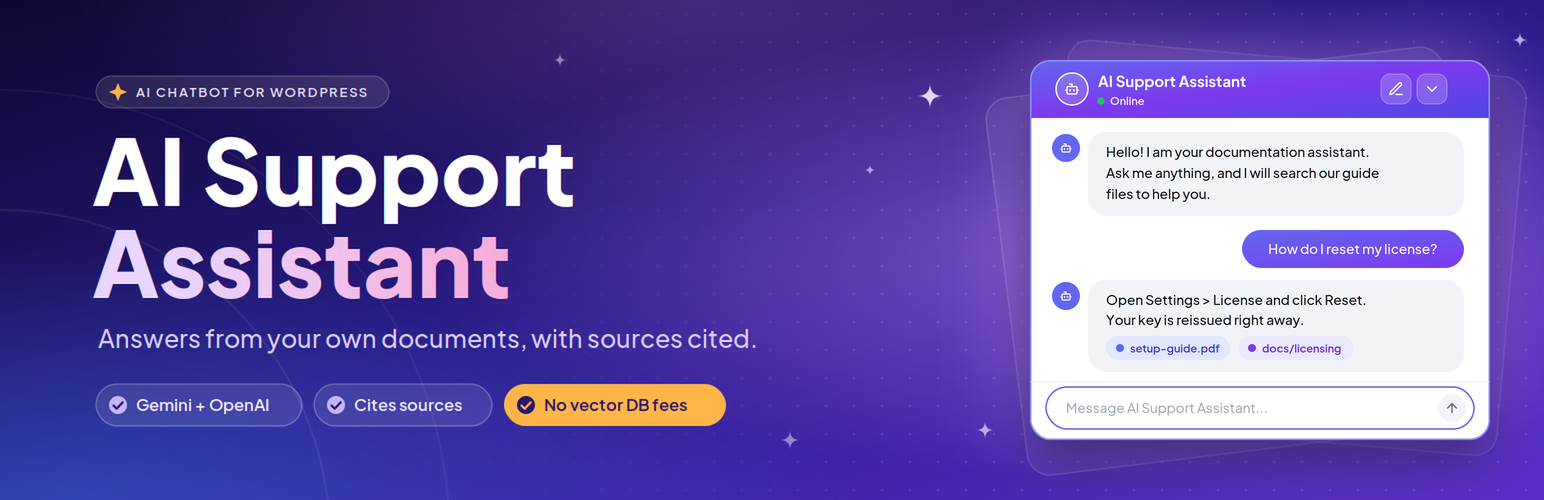
AI Support Assistant lets you build an on-site chatbot that answers questions based on your actual documentation, product manuals, and guides.
Most AI chatbots either hallucinate or require you to pay monthly subscription fees for external vector databases like Pinecone, Qdrant, or Milvus. This plugin takes a different approach: it stores embeddings and runs similarity queries directly inside your existing WordPress MySQL database.
When a visitor types a question in the chat widget:
1. The plugin converts the question into an embedding vector.
2. It runs a cosine similarity search across your document chunks in MySQL.
3. It sends the best matching excerpts to your chosen AI model (Gemini or OpenAI).
4. The assistant replies using your content and shows which documents it referenced.
If the answer is not in your documents, you can set a fallback response so the bot does not make things up.
Main Highlights
- Self-contained vector search: Embeddings are saved directly in your WordPress database. You do not need any external vector database accounts or recurring SaaS fees.
- Works with Google Gemini and OpenAI: Use Gemini models (like Gemini 3.1 Flash Lite or 1.5 Flash) or OpenAI (like GPT-4o or GPT-4o-mini).
- WordPress AI Connectors support: Ready for WordPress core AI Client and Connectors API.
- File uploads & URL crawling: Upload PDF, Word (.docx), or plain text (.txt) files, or crawl live webpage documentation URLs. The plugin splits content into searchable text chunks automatically.
- Background indexing: Document uploads and re-indexing are queued through WordPress Cron, so the admin request does not wait for embedding every chunk. Ensure WP-Cron or a server cron is running for queued work to complete.
- Public chat limits: Requests are limited to 20 per IP address per 10-minute window by default; administrators can adjust the limit in Settings.
- Real-time streaming responses: Direct OpenAI and Gemini responses stream through the WordPress HTTP cURL transport. Native AI and hosts without cURL may return buffered answers.
- Document citations: Responses can display badges showing which uploaded file or URL provided the answer.
- Locally hosted assets: The chat widget’s Plus Jakarta Sans font and scripts are bundled locally; the admin uses the WordPress system font stack. No external CDN or Google Fonts tracking calls are made.
- Customizable widget: Choose between Light, Dark, or Glass themes. Adjust widget height, width, title, and initial greeting.
- Usage insights and query logs: Review visitor questions, token usage, and response logs from the admin dashboard, with an option to export logs to CSV.
Quick Demo
Watch a walkthrough showing document upload and chat widget setup:
Features
Document Management
- File formats: Upload PDF, DOCX, and TXT files from the admin area.
- URL crawling: Ingest public documentation pages and knowledge base articles directly via URL.
- Text extraction & chunking: Automatic parsing with configurable chunk size and overlap.
- Chunk inspection: Review chunks or re-index documents whenever you update them.
AI Providers & Models
- Google Gemini and OpenAI: Direct API mode automatically loads chat and embedding models available to your API key. Model lists can be refreshed from the Settings page.
- Connectors API: compatible with core WordPress AI credentials.
- Custom system prompt: write your own instructions to control how the bot answers.
Chat Widget
- Floating launcher: Toggle button with a smooth slide-out chat window.
- Three built-in themes: Light, Dark, and Glass.
- Real-time streaming: Incremental OpenAI and Gemini responses when the host supports cURL and unbuffered output.
- Document citations: Displays source document and URL tags below answers.
- Session persistence: Signed conversation credentials persist in browser storage, separately for each widget position and provider.
Logs and Analytics
- Visual analytics: Admin graphs showing weekly query volume and token usage.
- Conversation history: Filter and search visitor queries and responses.
- CSV export: Export chat logs for team analysis or support review.
Privacy & Security
- 100% self-hosted assets: The chat widget’s bundled local WOFF2 font and local scripts avoid third-party tracking; the admin uses system fonts provided by WordPress.
- Permission checks: Admin actions are protected by nonce verification and
manage_optionscapability checks. - Safe SQL queries: Database queries use
$wpdb->prepare(). - Data disclosure: Document text is sent for indexing. Questions, matching document excerpts, and recent conversation turns are sent for answers. These texts may contain personal information supplied by visitors or administrators. The plugin does not deliberately attach visitor IP addresses or WordPress user profiles.
External Services
This plugin connects to third-party AI APIs to generate embeddings and generate chat responses. Data is sent over HTTPS only when documents are indexed or when a user submits a chat message:
- OpenAI API (https://openai.com): Used for text embeddings and chat answers if OpenAI is selected. See the OpenAI Terms of Use (https://openai.com/policies/terms-of-use/) and Privacy Policy (https://openai.com/policies/privacy-policy/).
- Google Gemini API (https://ai.google.dev): Used for text embeddings and chat answers if Gemini is selected. See Google Terms of Service (https://developers.google.com/terms) and Privacy Policy (https://policies.google.com/privacy).
- WordPress AI Connectors: If enabled on WordPress 7.0+, connections route through credentials defined in your site settings.
Questions, documents, and conversation history may contain personal data. Administrators must obtain appropriate authorization before indexing content or offering chat, and explain these transfers in the site privacy policy. Saving direct API settings sends a test embedding request; refreshing models sends the entered API key to the selected provider. The plugin does not deliberately attach visitor IP addresses or WordPress user profiles.
Requirements
- WordPress 6.2 or higher
- PHP 7.4 or higher
- MySQL 5.7+ or MariaDB 10.3+
- An API key from Google AI Studio (Gemini) or OpenAI
Shortcode
Display the chat box on any page, post, or widget area:
[ai_support_assistant]
Available Attributes
- theme: Visual style. Options:
light(default),dark,glass. - title: Header title displayed at the top of the chat box.
- width: Widget width, for example
width="450px". Default is450px. - height: Widget height, for example
height="600px". Default is600px. - provider_override: Choose the chat provider for that widget instance (
geminioropenai). Retrieval still uses the configured knowledge-base embedding model.
Examples
Default widget:
[ai_support_assistant]
Dark theme with custom size and title:
[ai_support_assistant theme=”dark” title=”Documentation Help” width=”450px” height=”600px”]
Aliases that work the same way:
* [ai_support]
* [support_assistant]
Local Search Capacity
Local search processes embeddings in batches of 100 and supports up to 10,000 chunks for the active embedding model. Work still grows with index size; benchmark your hosting before public use. A larger index returns an error rather than silently searching only part of the documentation.
After upgrading from an earlier version or changing embedding models, re-index documents in the document manager. Untagged legacy chunks and chunks from other models are excluded from retrieval. Native AI mode may select a fallback embedding provider; only chunks matching the actual successful provider and model are searched.
Maintenance Changes
Re-index PDF documents to populate page citations. Existing chunks retain their previous metadata until rebuilt.
A minimum cosine similarity of 0.50 now filters retrieval; tune Minimum Similarity in Settings for your embedding model.
Unsigned legacy browser sessions start a new conversation. Existing records remain subject to the retention policy.
Statistics count individual retained requests by their message timestamps. Old replies without outcome metadata are shown as unclassified rather than treated as resolved.
Streaming depends on the host and reverse proxy allowing unbuffered output. Native AI uses its available text-generation interface and can remain buffered.
Installation
From the WordPress Dashboard
- Go to Plugins > Add New.
- Search for AI Support Assistant.
- Click Install Now, then Activate.
Manual Installation
- Download the plugin zip file.
- Go to Plugins > Add New > Upload Plugin and select the zip file.
- Click Install Now, then activate the plugin.
Getting Started
- Navigate to AI Support Assistant > Settings in your admin menu.
- Select your AI provider (Google Gemini, OpenAI, or WordPress Native AI Client) and enter your credentials.
- In direct API mode, model choices load automatically after you enter the API key and leave the field. Review the chat and embedding models, then save your settings.
- Go to AI Support Assistant > Upload to upload your documents (PDF, DOCX, TXT) or ingest public documentation URLs. The plugin extracts text and generates vector embeddings automatically.
- Place the chat widget on your site using the [ai_support_assistant] shortcode or the AI Support Assistant Widget block in the block editor.
FAQ
Do I need a paid vector database subscription?
No. The plugin stores vector embeddings inside custom tables in your standard WordPress MySQL database and calculates cosine similarity directly. You do not need accounts with Pinecone, Qdrant, or any other vector database host.
What are the costs to run this?
The plugin itself is free. You only pay for the API tokens you use through Google Gemini or OpenAI. Both providers offer inexpensive models (such as Gemini Flash Lite or GPT-4o-mini), and Google AI Studio includes a free tier for light usage.
Which file formats and inputs can I train the assistant with?
You can upload PDF (.pdf), Microsoft Word (.docx), and plain text (.txt) files. Additionally, you can provide public webpage or documentation URLs directly—the plugin automatically crawls and indexes their text contents.
Can I train the chatbot on online documentation without uploading files?
Yes. Simply paste the URL into the document manager. The crawler fetches the page content, chunks the text, and stores semantic embeddings in your local WordPress database.
How does the plugin handle privacy?
Assets are hosted locally, but AI processing uses external providers. Document text, questions, relevant excerpts, and recent conversation turns may be transmitted. Local hosting alone does not establish GDPR compliance. Site administrators are responsible for appropriate notices, authorization, provider agreements, and handling data requests.
When Chat History Tracking is enabled, conversations are stored locally. Disabling it stops new conversation storage and reuse; existing records remain until deleted or expired. Conversations inactive for 30 days are removed by daily scheduled cleanup and when history is used. Diagnostic logging is disabled unless WP_DEBUG is enabled and uses the server-configured PHP error log. Existing upload logs from earlier versions should be removed by the administrator.
What if a visitor asks something not covered in the documents?
You can configure a fallback response under Settings (for example: “I do not have information about that in our documentation. Please email support@example.com”). The prompt instructs the model to stick to your reference material rather than guessing.
Can I customize the colors, title, and initial message?
Yes. You can edit the widget title, greeting message, input placeholder, and choose between light, dark, and glass styling directly from the settings page.
Does this work with page builders?
Yes. Insert the [ai_support_assistant] shortcode inside any shortcode module or text block in Elementor, Divi, Beaver Builder, or the WordPress Block Editor.
Are visitor conversations stored?
When Chat History Tracking is enabled, conversations are logged locally and may be reviewed, deleted, or exported by administrators. New storage and conversation reuse stop when it is disabled. Inactive conversations expire after 30 days; turning tracking off does not immediately erase existing records.
Screenshots


Changelog
1.0.2
- Protect CSV exports from spreadsheet formulas.
- Honor disabled history tracking and expire inactive conversations after 30 days.
- Stop writing diagnostics to public uploads and disable them outside debug mode.
- Serialize public chat rate-limit updates.
- Track embedding models and bound local search memory and capacity.
- Clarify external processing and privacy responsibilities.
- Record failed chat requests in admin history with a failure status and redacted diagnostic details.
- Ensure the document chunks table uses InnoDB, including an automatic upgrade for existing installations, so re-indexing can safely replace chunks transactionally.
1.0.1
- Switched admin and frontend typography to local self-hosted WOFF2 fonts to avoid external font requests.
- Enhanced WordPress Native AI Client connector detection with in-context guidance when connectors need configuration.
- Optimized admin settings layout and eliminated unnecessary database queries.
- Performance and code quality improvements complying with WordPress.org guidelines.
1.0.0
- Initial release.
- RAG search pipeline using MySQL for vector storage.
- Support for Google Gemini and OpenAI models.
- PDF, DOCX, and TXT file ingestion.
- Frontend chat widget with light, dark, and glass themes.
- Admin dashboard with query metrics and conversation logs.
- Block editor block and shortcode support.