

Description
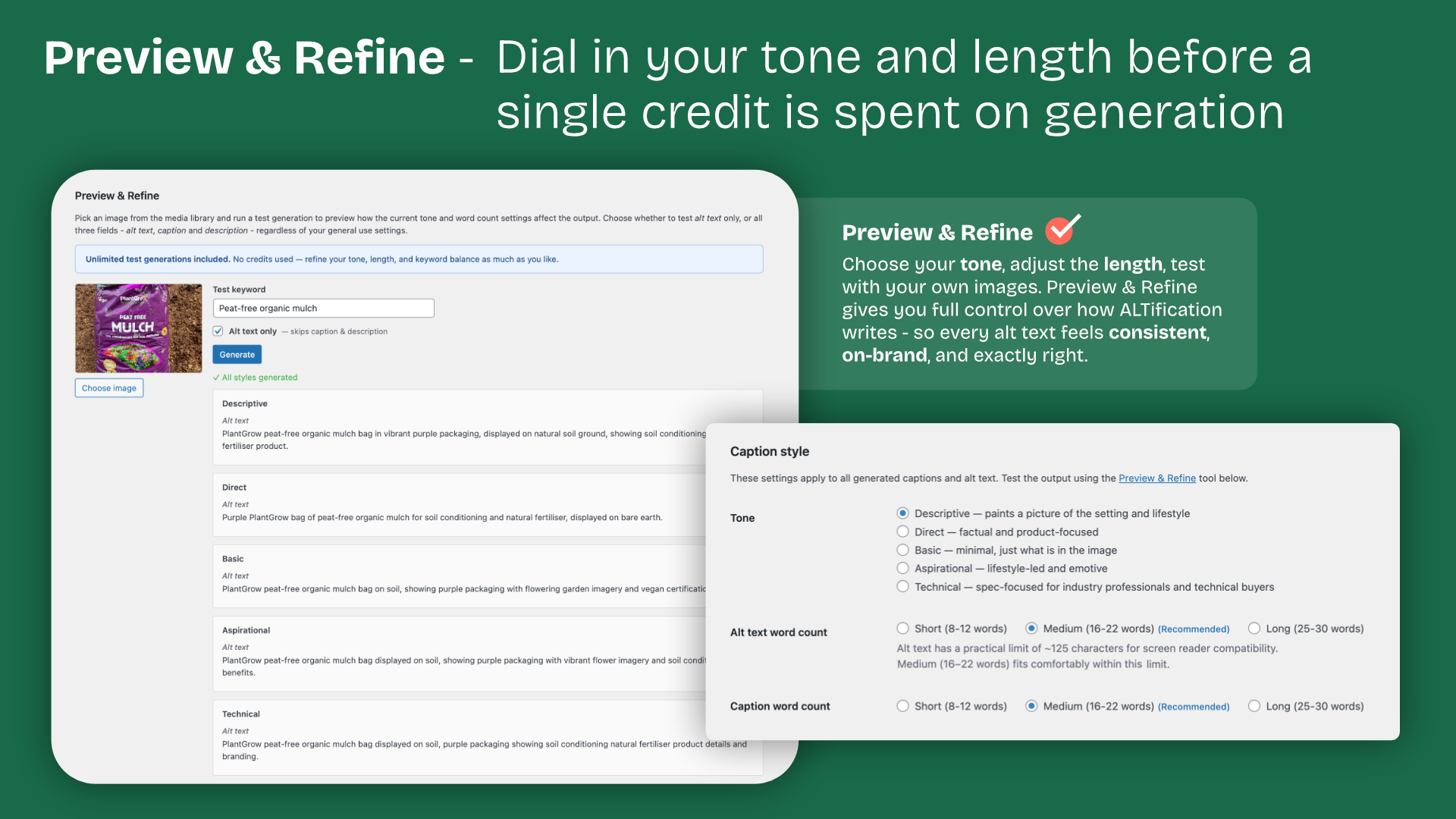
ALTification uses AI to generate keyword-aware alt text, captions, and descriptions for your images — directly from your SEO plugin’s focus keyphrase and page context.
Features:
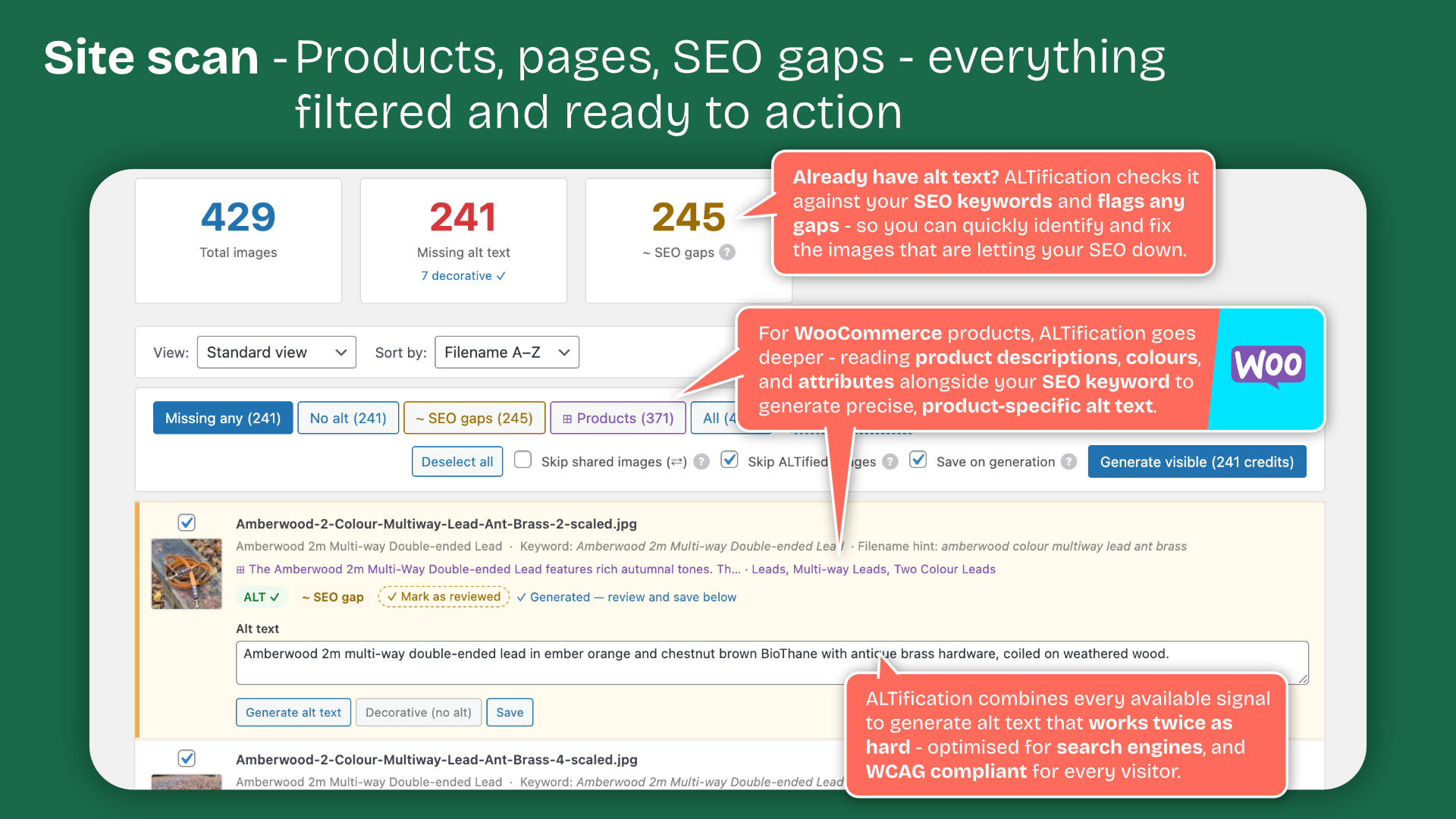
- Bulk generate alt text across your entire site with the Site Scan
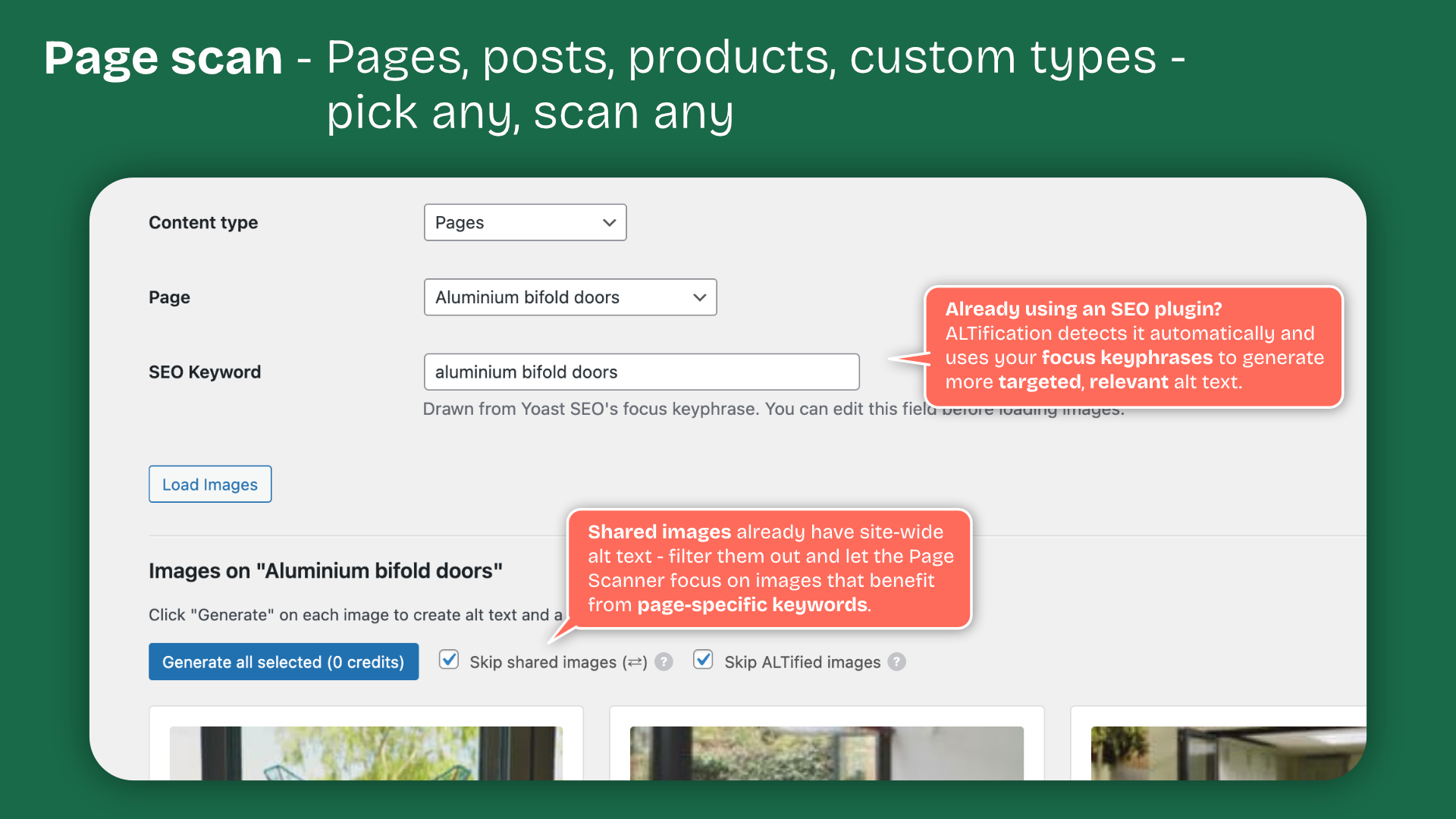
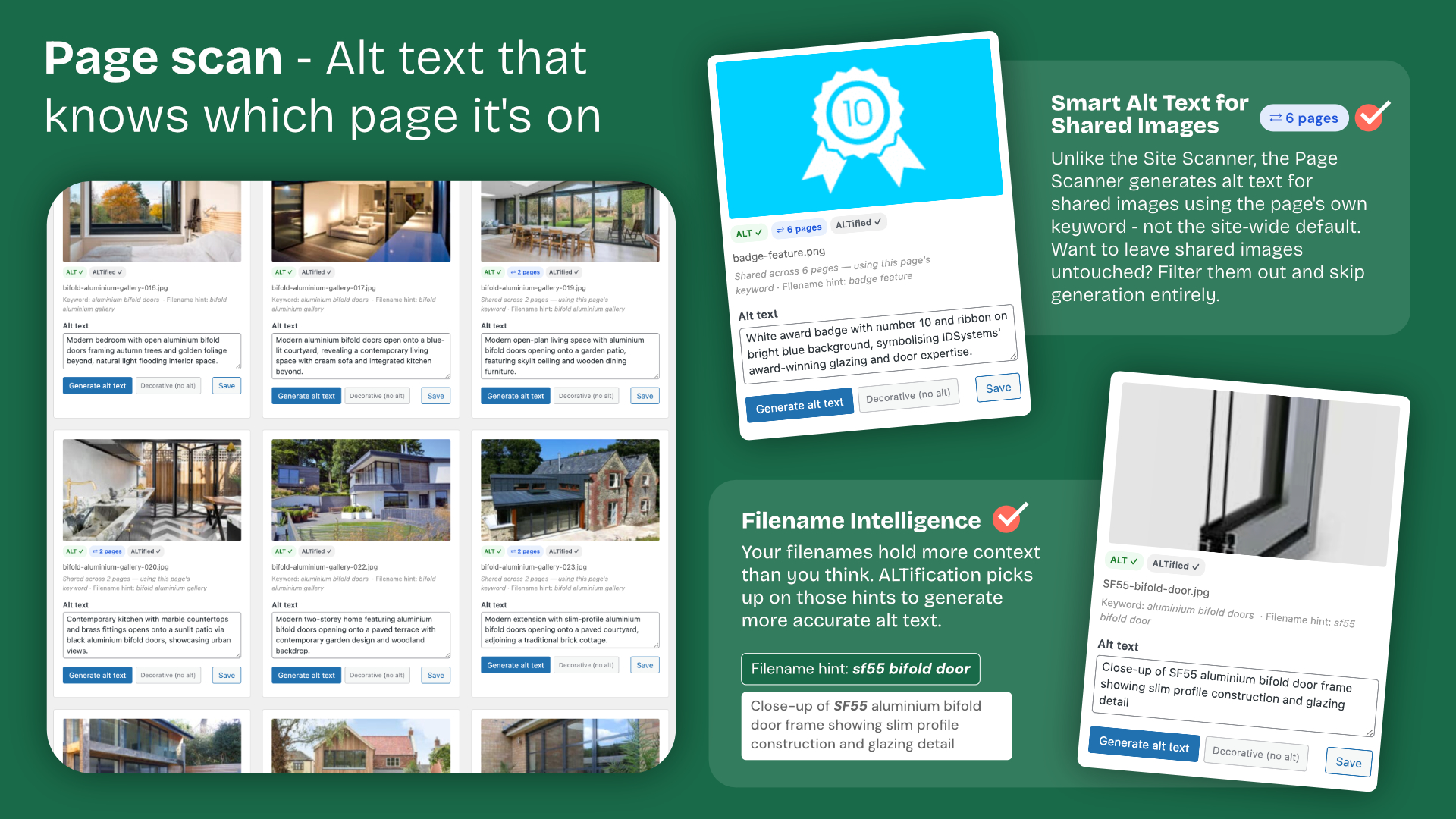
- Page-level generation with keyword context from Yoast SEO, Rank Math, AIOSEO, SEOPress, and The SEO Framework
- Generate captions and descriptions alongside alt text
- Media Library column showing SEO health badges for every image
- Post editor metabox for inline generation
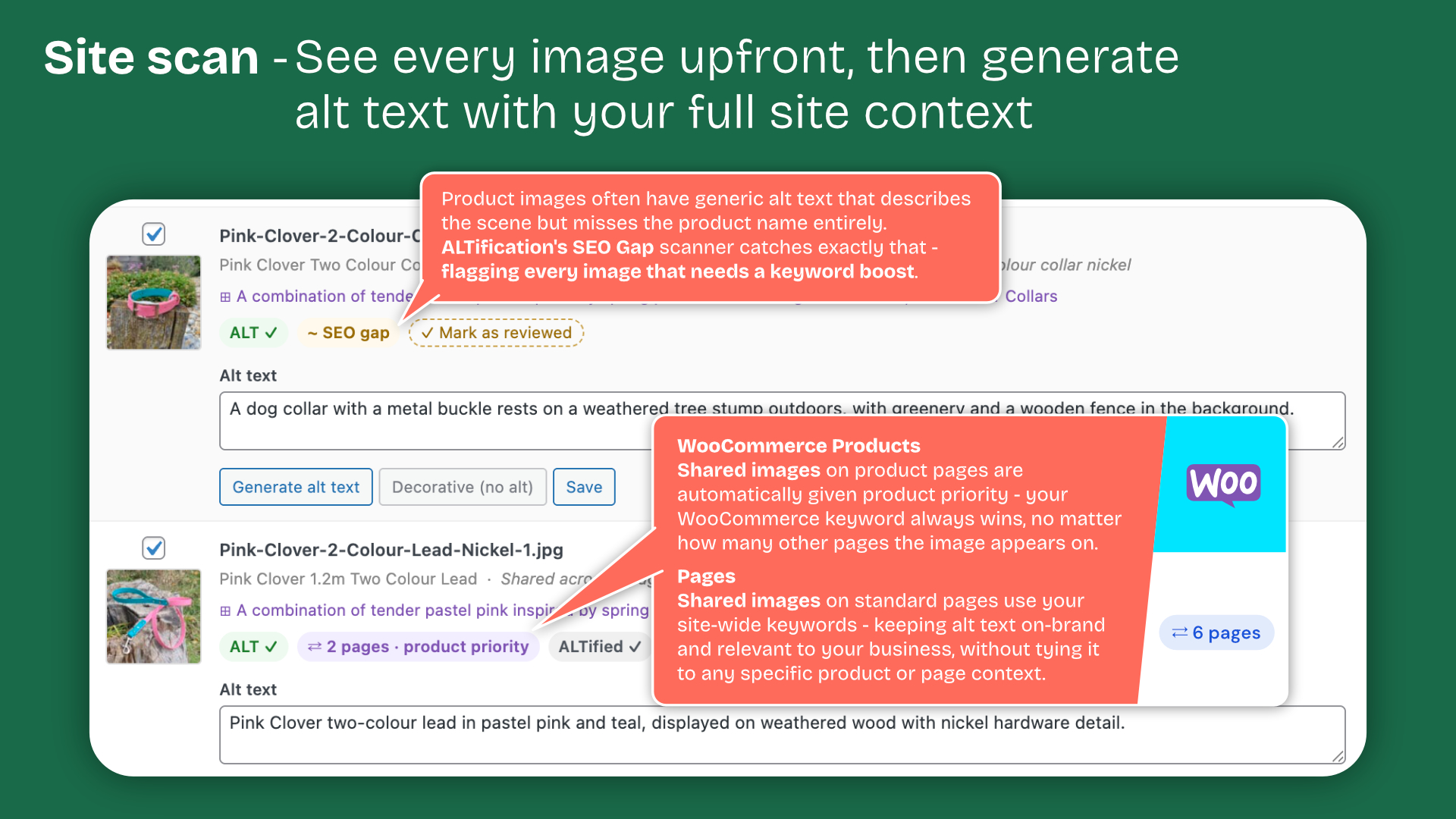
- Detect and fix SEO gaps where alt text doesn’t reflect the page keyword
- Mark decorative images to suppress alt text (WCAG compliant)
- Supports WooCommerce products, ACF image fields and shared images
- Before & After report for agency workflows
ALTification connects to the ALTification platform API to generate content. An API key is required.
External Services
This plugin sends data to the ALTification API and Anthropic (Claude) when you trigger a generation, scan, or credit check — never automatically in the background.
ALTification API
Endpoint: https://altification.ai/wp-json/altification/v1/
When you generate, the plugin sends:
- Your image (as a URL or base64-encoded data)
- The page’s SEO context (focus keyword, meta title, meta description, where available from your SEO plugin)
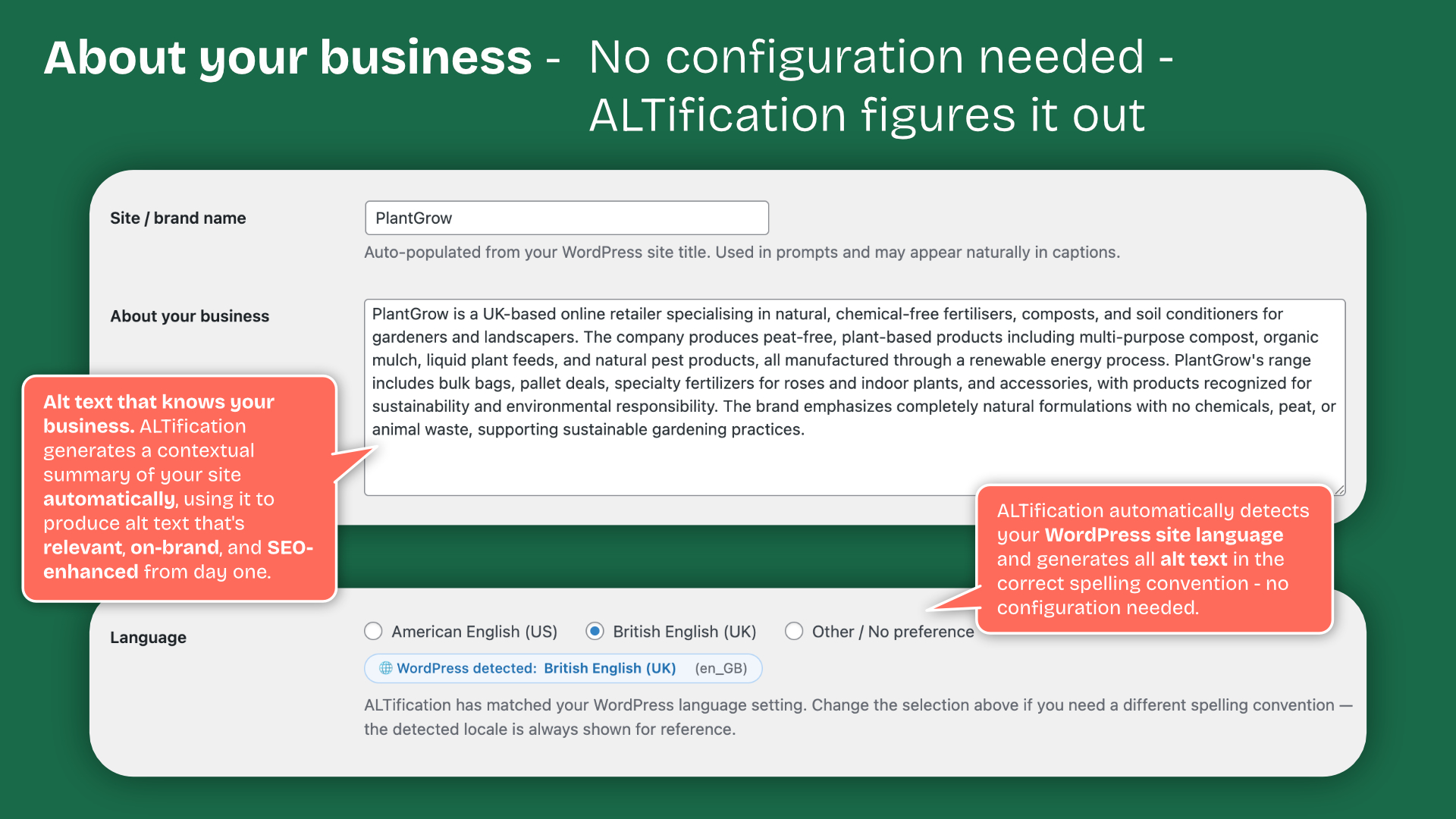
- Your site’s context (site name, language, WooCommerce product/category data if relevant, a short excerpt of your homepage text, ACF field content if you have configured ACF support)
- A non-identifying site fingerprint (an MD5 hash of WordPress’s COOKIEHASH and site URL, used to lock your API key to one site)
- Your ALTification API key
The API returns the generated text, your remaining credit balance and your account status.
When you open one of ALTification’s screens, the plugin checks your credit balance by sending your API key. If a discount on credits is currently running at altification.ai, that response also includes a short description of the offer and its end date, which is shown beside your balance. The notice appears only on ALTification’s own screens, can be dismissed, and its link contains no tracking. No additional request is made and no additional data is sent for it.
ALTification does not store the image after the response is returned.
- ALTification Privacy Policy: https://altification.ai/privacy-policy/
- ALTification Terms of Service: https://altification.ai/terms/
Anthropic (Claude)
ALTification’s server uses Anthropic’s Claude API to produce generated text. The plugin does not call Anthropic directly — no Anthropic account or key is needed.
- Anthropic Privacy Policy: https://www.anthropic.com/legal/privacy
- Anthropic Commercial Terms: https://www.anthropic.com/legal/commercial-terms
Use of this plugin requires an ALTification account and API key, available at https://altification.ai.
Installation
- Upload the plugin folder to
/wp-content/plugins/. - Activate the plugin through the Plugins screen in WordPress.
- Go to ALTification → Settings and enter your API key from altification.ai.
- Run the Site Scan to assess your images, then generate alt text in bulk or page by page.
FAQ
Do I need an API key?
Yes. You only need an ALTification API key — get yours from altification.ai/dashboard. You do not need to manage your own Anthropic or other AI provider key; generation is handled on the ALTification server. See the External Services section below for details on how data is processed.
Which SEO plugins are supported for keyword context?
Yoast SEO, Rank Math, All in One SEO, SEOPress, and The SEO Framework are all supported. The focus keyphrase is read automatically when you load a page in the scanner.
Can I generate alt text for WooCommerce products?
Yes. Product images — including the image set on each variation — use the product’s focus keyword, and the WooCommerce product context is included in the prompt.
Does it support ACF image fields?
Yes. ALTification scans for ACF image fields and prompts you to add any newly discovered fields to your settings.
Is the generated alt text saved automatically?
Yes, by default. “Save on generation” in the Site Scan is on unless you turn it off, in which case you review each result and save it yourself. Anything generated but not yet saved is labelled “not saved yet”, and you are warned before leaving the page so nothing is lost.
Which post types are scanned?
Pages and posts always, plus every public custom post type on your site — including any registered after you last saved your settings. You can exclude individual types under ALTification → Settings → Custom post types. Leaving a type unscanned means images used only in that type are never matched to a page, so they fall back to generic alt text instead of the page’s keyword.
Why does an image say it was uploaded from a page it isn’t on?
WordPress records which post’s editor was open when a file was uploaded and shows it as “Uploaded to” in the Media Library. It is not a record of where the image is used — uploading several files in one go leaves them all pointing at a single page. ALTification only takes a keyword from a page the image was actually found on, so where the two disagree it tells you and uses your site-wide default keyword instead.
Screenshots
Changelog
1.0.11
- The Page Scanner’s page list now shows child pages nested under their parents, the way the Pages screen does, so pages that share a title, such as “Our Products” in two different sections, can be told apart
- When the page you have chosen is a child page, the Page Scanner shows where it sits, for example “Child page: Architects › Our Products”, with links to scan its parent pages
- Fixed: in the Site Scan, images generated with “Save on generation” stayed listed on every filter tab until the page was reloaded, even once they no longer belonged there. They now stay on the tab you generated them on, and changing tab updates the list. Generated images that have not been saved yet stay listed so they are not lost
- Fixed: the out-of-credits “Save generated images” button and the “Saved X of Y” progress counted images that had already been saved automatically
1.0.10
- New: when a discount is running on altification.ai, the credits bar on ALTification’s own screens shows it beside your balance, with a link to your dashboard where it is applied automatically. It can be hidden with the × and stays hidden for that offer. Nothing is shown when no offer is running
- The offer arrives with the credit balance check the plugin already makes, so no extra requests are sent and no additional data leaves your site
1.0.9
- New: “Mark as reviewed” for Improvable images. An image listed as Improvable often has alt text that is already fine, and until now the only way to clear it was to regenerate it, using a credit. You can now mark it as reviewed at no cost, from the Site Scan, Page Scanner, editor sidebar and Media Library
- “Mark visible as reviewed” in the Site Scan now covers Improvable images as well as SEO gaps, so a whole list can be cleared in one click. Large lists show their progress as they are marked
- Marking an SEO gap as reviewed also clears Improvable for that image. An image with both shows a single “Mark as reviewed” button
- An image you marked as reviewed is checked again if you later change its alt text
- Marking an image as reviewed in the Site Scan now updates the row straight away instead of waiting for the server, and is undone with a message if the save fails
- The Site Scan now shows the Improvable badge on each image’s row, and tells you when images in the list have no alt text and need generating rather than reviewing
- Fixed: an image marked as decorative stayed in the Site Scan’s Improvable filter until the page was reloaded
- Fixed: the SEO gaps and Improvable filter tabs disappeared as soon as their last image was cleared, while that filter was still selected
1.0.8
- Fixed: generated alt text, captions and descriptions could be lost without warning. Unless “Save on generation” was ticked, results were only held on screen until you clicked Save, and the completion message read as though they had already been saved. Leaving the page discarded them, along with the credits spent on them
- “Save on generation” is now on by default in the Site Scan. If you had turned it off, your choice is kept
- The Site Scan, Page Scanner, Media Library and editor sidebar now label unsaved results “not saved yet” and warn you before you leave the page with any still unsaved
- Fixed: Save all in the Page Scanner and editor sidebar saved every image on the page, not just the ones you had generated or edited. Re-saving an untouched image cleared its “Mark as reviewed” decision and re-checked it against the page keyword, so images that were fine could turn into SEO gaps. Save all now saves only the images you changed, and saving an image without changing its alt text no longer alters its SEO gap state on any screen. Images already affected can be cleared with “Mark as reviewed”, at no cost
- Fixed: after saving in the Page Scanner, ALTified images showed two “ALT ✓” badges instead of “ALT ✓” and “ALTified ✓” until the page was reloaded
- The Page Scanner, editor sidebar and Media Library now show the SEO gap state that results from a save. Previously every save cleared the badge, and a gap that remained only reappeared on reload. Generated text you edit before saving is now checked against the page keyword, as in the Site Scan
- The editor sidebar now generates with the page’s SEO title and meta description, and WooCommerce product details, the same as the Page Scanner
- Fixed: the ALTification menu icon flashed black on every admin page load. It now appears in your admin colour scheme’s colours straight away, including on hover and on ALTification’s own pages
- Fixed: WooCommerce variation images — the image shown when a customer picks a size, colour or other option — were never linked to their product. They showed as “uploaded from … but not found in its content”, were missing from the editor sidebar, and were generated with the site-wide keyword instead of the product’s keyword and product details
- Variation images are now found on their product in the Site Scan, Page Scanner, editor sidebar and Media Library. Only an image a variation actually uses is linked; files that were merely uploaded from a variation’s image picker are not
- Alt text generated for a variation image now reflects the option it shows (for example “5 Litre”) where that is visible. An image shared by several variations is described without naming a single option
- Fixed: the Media Library notice could report images as improvable and link to an empty list. The count now comes from the same Site Scan result as the list it links to
- Generating from the Media Library or the media details popup now uses the page or product the image appears on, including WooCommerce product details, the same as the Site Scan
- Generate on upload: images uploaded from a product, or from one of its variations, now get the product’s keyword and product details in their first draft, and a variation upload names the option it was uploaded for. Previously a variation upload used the variation’s title as its keyword and had no product details. As before, this first draft is provisional until a Site Scan confirms where the image is used
- After updating, open the Site Scan once to refresh your counts. Variation images whose alt text was written with the site-wide keyword may now show as Improvable or as an SEO gap — this is expected, and regenerating them uses the product’s keyword
1.0.7
- Fixed: images whose SEO gap had already been addressed could all reappear as gaps after updating, with regenerating each one the only way to clear them. The Site Scan was treating “this scan did not find the image on a page” as proof the image is not on one, and discarding the page it had already been confirmed against. Images placed by page builders, theme templates, sliders or image optimisers are routinely invisible to the scan, so on a large site this affected hundreds of images at once
- Updating restores the confirmed page on every affected image automatically. Nothing needs regenerating and no credits are used
- The Site Scan now only re-attributes an image when it actually finds it on a different page, and re-points it at that page instead of discarding what it knew
- Alt text written from the upload page’s keyword is still flagged, but now only when the keyword really is present in the alt text and the same page produced a batch of files with the same guess — the case a batch upload creates. A single file uploaded into the page it is used on is no longer flagged
- Added: “Mark visible as reviewed” on the Site Scan, to dismiss the SEO gap flag on every listed image at once. Alt text is not changed and no credits are used
- Clearer wording on the SEO gap notice, naming the page the keyword came from and how many other images were given the same one
- Fixed: the Site Scan could open on the “Missing any” filter showing an empty list, on sites whose only outstanding image is one marked decorative. Decorative images and SVGs are no longer counted as missing anything
- Fixed: images were listed as Improvable whose alt text already contained the page keyword. Improvable was decided purely on whether the alt text had been written before the image was confirmed on a page, so it offered regenerations that would spend a credit reproducing what was already there. It now also checks whether the keyword is genuinely missing from the alt text
- Fixed: the Media Library and the Site Scan reported different Improvable counts for the same images. The Media Library ran its own query that could not tell whether a page keyword was available; both screens now read the same scan result
- Removed the one-time notice about post type scanning changes
1.0.6
- Fixed: the Page Scanner and the editor sidebar could report an SEO gap on alt text that already contained the page’s focus keyphrase. These two screens were missed by the 1.0.5 fix, so they still judged alt text against the site-wide default keyword. The Site Scan and Media Library were already correct, which is why the same image could show a gap on one screen and not another
- Fixed: images could stay in the Improvable filter permanently, reappearing after every regenerate and save. Images shared across several pages were the ones affected — they generate descriptively with no page keyword, so there was never a better keyword for them to move to and they should not have been listed at all
- Improvable now means a page-specific keyword is genuinely available for that image, rather than simply that the image appears somewhere on the site
1.0.5
- Fixed: images could be flagged as an SEO gap even when their alt text already contained the page’s focus keyphrase. The check was not looking at the page the image was found on, so it compared the alt text against your site-wide default keyword instead
- Fixed: the Media Library showed the site-wide default keyword rather than the keyword of the page an image appears on, and used it when generating from that screen
- Most visible on sites using custom post types, which 1.0.4 brought into the scan for the first time. If your SEO gap count jumped after 1.0.4, this corrects it — no need to regenerate anything
1.0.4
- Fixed: images could be generated using the keyword of the page they were uploaded from rather than the page they appear on. WordPress records which post’s editor was open at upload time, so a batch upload left every file pointing at one arbitrary page
- Fixed: alt text generated on upload was marked as reviewed immediately, so an incorrect keyword was never re-checked by a later scan. It is now provisional until a scan confirms which page the image is on
- Fixed: accurate alt text could be flagged as an SEO gap, and “Fix SEO gap” would then overwrite it using an unrelated page’s keyword
- Fixed: custom post types registered after your settings were last saved were silently left out of scans. All public post types are now scanned unless you exclude them in Settings
- Fixed: WooCommerce product context could be applied to an image that belongs to a different product
- New: the Site Scan and Media Library now show when an image was uploaded from a page it does not appear on, rather than presenting that page as its source
- Affected images are re-flagged for review on your next Site Scan. Images you marked as reviewed yourself are left untouched
1.0.3
- Account dashboard now shows the site language badge for American English (US) sites, not just non-default locales
- Each generation sends an explicit language display label to the account platform
- No change to language detection or generated output
1.0.2
- Fixed a bug where the editor metabox could interfere with ACF’s own field resolution on the post edit screen, occasionally causing ACF field values to display incorrectly until a hard refresh
- Editor metabox content now loads asynchronously for better compatibility with sites using Advanced Custom Fields
- Reduced the metabox’s performance impact on sites with a large number of pages
1.0.1
- Fixed bulk generation completion notification
- Fixed error filter label and scroll-to-error behaviour
- Error rows now persist across page navigation
- Updated plugin introduction
- Updated plugin name for better discoverability
1.0.0
- Initial release.