

Description
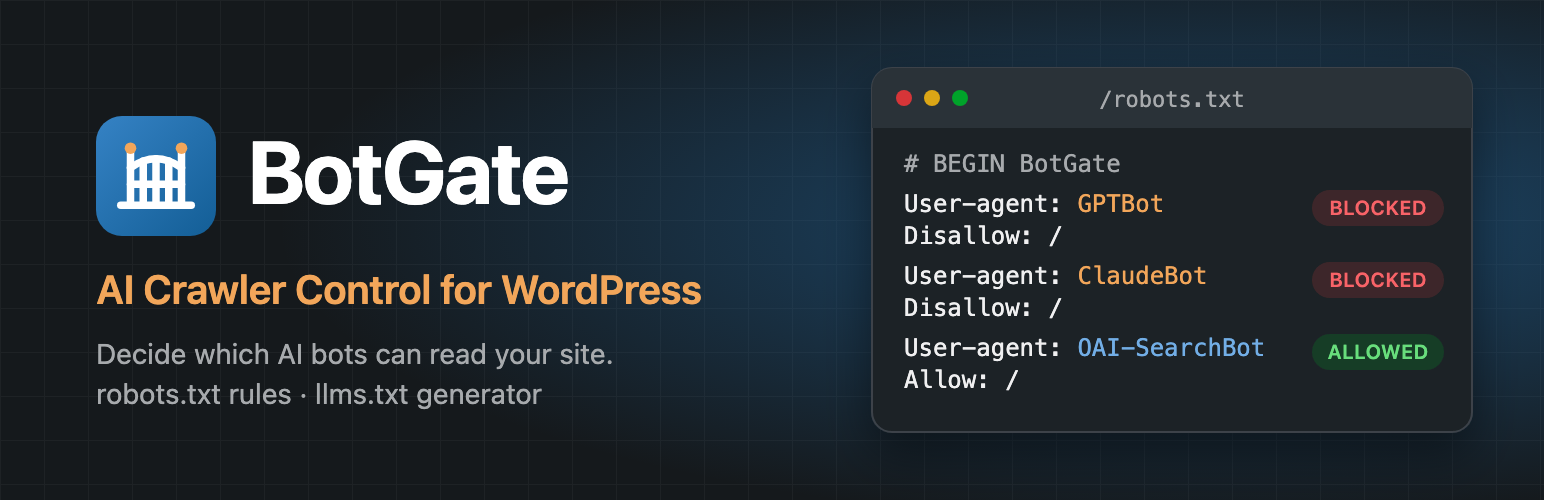
AI companies send crawlers to read websites, some to train models and some to answer questions in AI search. BotGate lets you decide which of them may read your site, from one screen under Settings → BotGate.
AI bot control
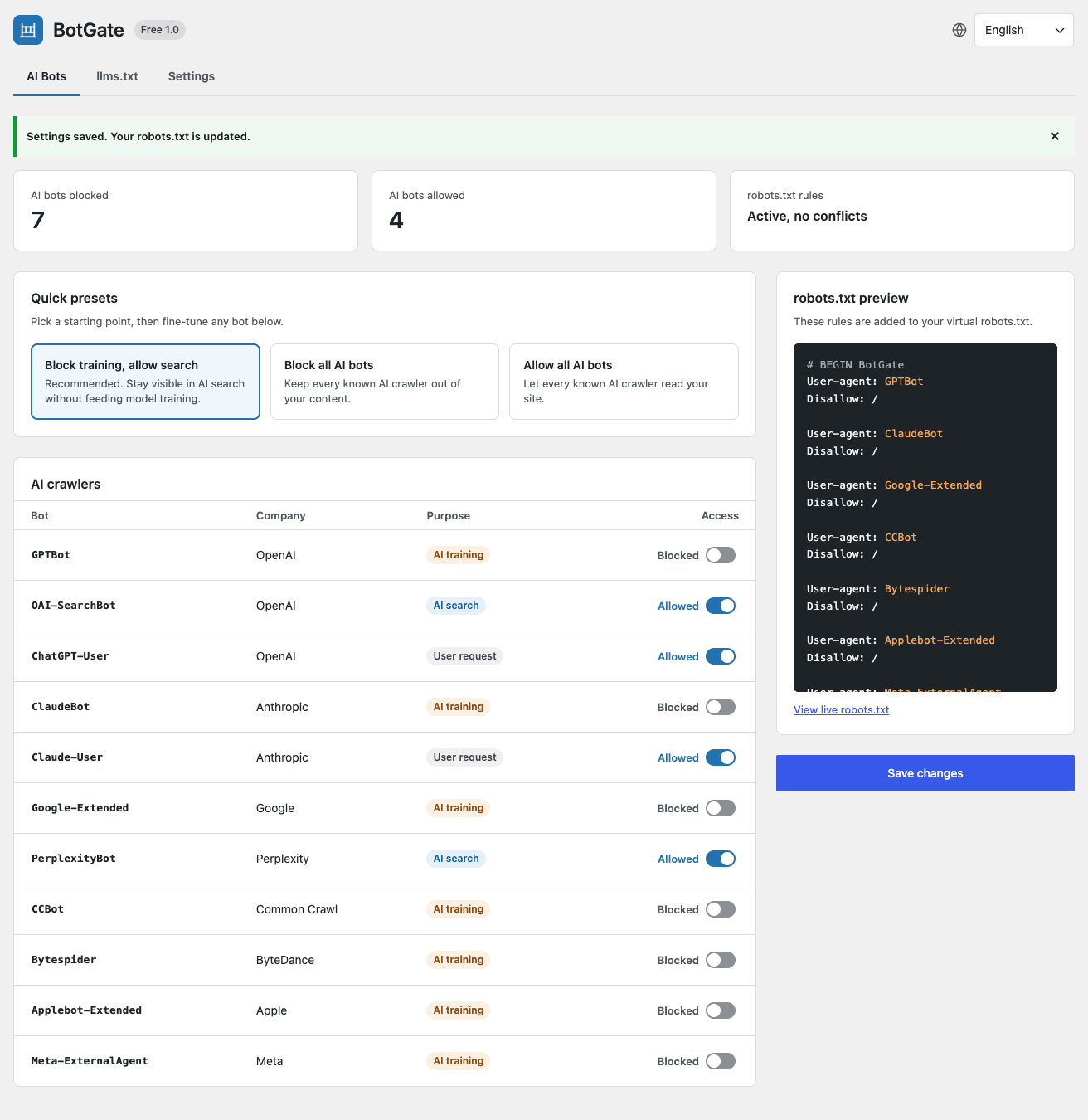
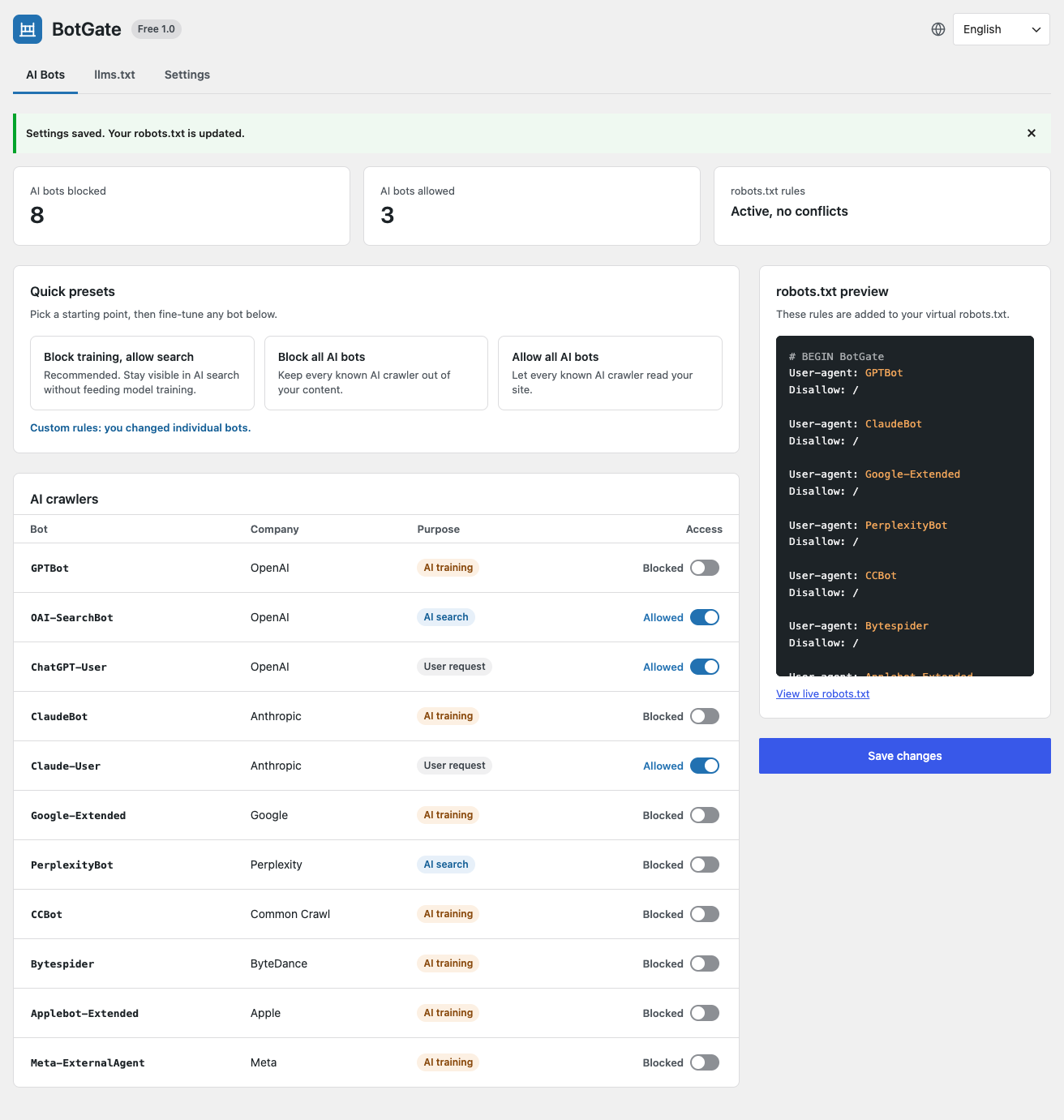
- A table of known AI crawlers: name, company, purpose (AI training, AI search or user request) and an Allow / Block switch, with a link to each company’s page about its bot.
- Search the table or filter it by company, purpose or access, then block or allow every bot shown in one click.
- Three one-click presets: Block training, allow search (recommended), Block all AI bots and Allow all AI bots. Fine-tune any bot after picking one.
- Add your own bots: type a user agent, pick its purpose, and it follows the presets like the built-in ones.
- When an update adds bots to the list, BotGate tells you which ones and how they are set, and marks them in the table.
- Folder rules keep the AI bots you allow out of chosen folders, such as
/members/. Quick rules do it for media uploads, RSS feeds, search results and the REST API in one click. - Rules are added to WordPress’s virtual robots.txt through the
robots_txtfilter, between# BEGIN BotGateand# END BotGate. BotGate never edits a file on your server. - A live preview shows exactly which rules will be added before you save. Copy the rules or download them as a file, for sites that use a physical robots.txt.
- Test a URL: pick a bot, or every bot at once, and a page to see whether your robots.txt allows it, and which rule decides.
- Check your live robots.txt: BotGate downloads it the way a crawler does, to catch a CDN, host or cache that serves something else, such as Cloudflare’s managed robots.txt.
- Conflict detection warns you when a physical robots.txt file overrides the virtual one, when another plugin removes BotGate’s rules, when other rules name the same bots (for example from an SEO plugin’s robots.txt editor), when the site discourages search engines, when WordPress is installed in a subdirectory, or when plain permalinks are used.
- A Site Health test (Tools → Site Health) reports the same conflicts.
AI usage signals
- Content Signals: tell every crawler whether your content may be used for search results, AI answers and AI training, with a
Content-Signalline in robots.txt. - TDMRep: reserve your text and data mining rights, the opt-out format used in the EU. BotGate publishes
/.well-known/tdmrep.jsonand adds atdm-reservationheader and meta tag to every page, with an optional link to your licensing policy. - noai and noimageai: a robots meta tag and an
X-Robots-Tagheader on every page that ask AI tools not to use your pages or images. - ai.txt: publishes
/ai.txtin the format of Spawning’s ai.txt generator, listing the types of files (text, images, audio, video, code) AI may not be trained on.
llms.txt generator
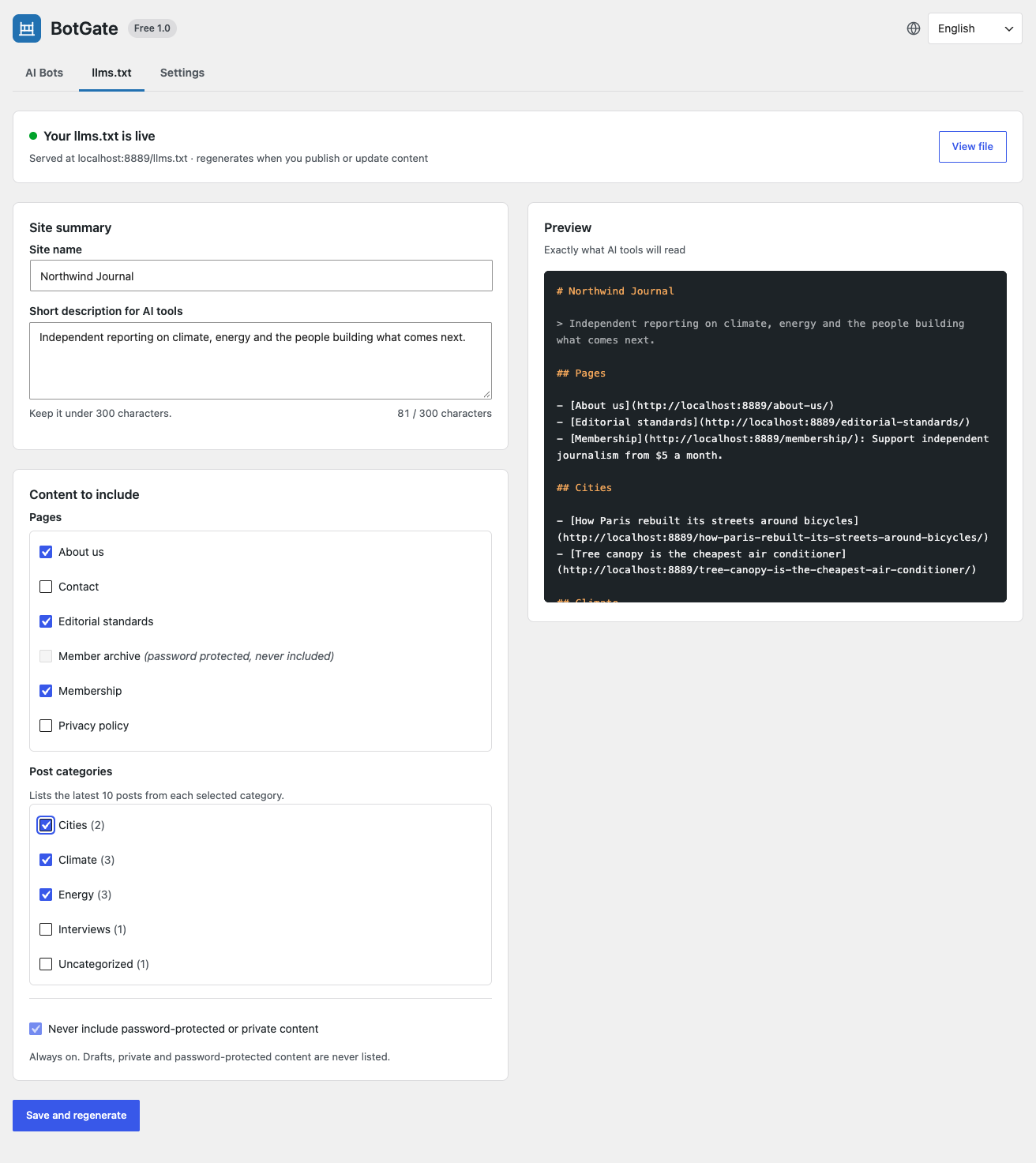
- Publishes a Markdown file at
/llms.txtwith your site name, a short description, the pages you choose and the latest posts from the categories you choose. - Lists other public content types too, such as WooCommerce products or documentation, and can add a section that links each selected category with its description.
- Put the sections in any order and rename their headings.
- Leave out chosen posts and pages by URL or ID.
- Extra links of your own go under the
## Optionalheading from the llms.txt spec. - Each link shows the meta description from Yoast SEO, Rank Math, All in One SEO or SEOPress, or the excerpt when there is none.
- With Polylang or WPML, each language gets its own file, such as
/fr/llms.txt, linked from/llms.txt. - Preview the file before saving.
- Regenerates automatically when you publish, update or delete content, and is sent with
ETagandLast-Modifiedheaders so tools that check back get a quick “not modified”. - Password-protected, private and draft content is never included.
Setup and overview
- A three-step setup wizard on a new install: choose a preset, the usage signals, and what llms.txt lists.
- A Dashboard widget with the bots blocked and allowed, any conflicts, and which signals are on.
- Recent changes: the last 20 changes to BotGate’s settings, with who made them and when, from the settings screen, WP-CLI or the REST API.
- Reset every setting to its default in one click.
WP-CLI
Manage BotGate from the command line: wp botgate status, wp botgate bots, wp botgate preset <preset>, wp botgate allow <bot>..., wp botgate block <bot>..., wp botgate add-bot <bot> [--purpose=<purpose>], wp botgate remove-bot <bot>, wp botgate paths [list|add|remove|clear], wp botgate signals, wp botgate robots, wp botgate test <url> [--bot=<bot>], wp botgate check-live, wp botgate llms [--regenerate], wp botgate history and wp botgate reset.
REST API
For headless sites and automation, under /wp-json/botgate/v1/: GET status, GET and POST settings, GET bots, POST bots/<bot> with access set to allowed or blocked, POST preset and GET test?url=<url>&bot=<bot>. Every route needs the same permission as the settings screen (manage_options).
Privacy
The free version sends no data anywhere and does no tracking. The only request it makes is the live robots.txt check, to your own site, when you click Check now.
Known bots in this release
GPTBot, OAI-SearchBot, ChatGPT-User (OpenAI) · ClaudeBot, Claude-SearchBot, Claude-User (Anthropic) · Google-Extended (Google) · PerplexityBot, Perplexity-User (Perplexity) · Meta-ExternalAgent, Meta-ExternalFetcher, FacebookBot (Meta) · Applebot-Extended (Apple) · Amazonbot (Amazon) · DuckAssistBot (DuckDuckGo) · MistralAI-User (Mistral AI) · cohere-ai, cohere-training-data-crawler (Cohere) · YouBot (You.com) · CCBot (Common Crawl) · Bytespider (ByteDance) · AI2Bot (Allen Institute for AI) · Diffbot (Diffbot) · ImagesiftBot (Hive) · omgili (Webz.io) · PanguBot (Huawei) · Timpibot (Timpi).
The list ships with the plugin and is updated with each release. Add any other bot on the AI Bots screen, or change the list in code with the botgate_bots filter.
Installation
- Upload the
anilsuwal-botgatefolder to/wp-content/plugins/, or install the plugin from the Plugins screen. - Activate it.
- Go to Settings → BotGate. The recommended preset (block training, allow search) is active by default.
- Open the llms.txt tab, choose the pages and categories to list, and click Save and regenerate.
FAQ
Does robots.txt actually stop AI bots?
robots.txt is a request. The major AI companies say their crawlers respect it, but a bot can ignore it.
I have a robots.txt file in my site root. Will BotGate work?
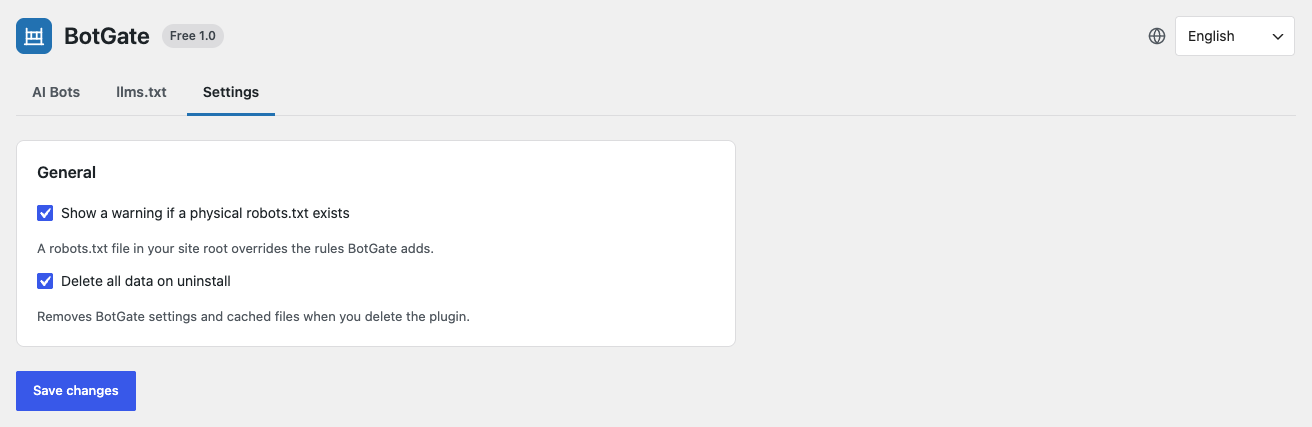
No. A physical file is served by your web server before WordPress runs, so the virtual robots.txt (and BotGate’s rules) is never used. BotGate warns you about this. Delete or rename the file, or copy the BotGate rules from the preview into it.
Does it work with Yoast SEO, Rank Math or All in One SEO?
BotGate is built to work alongside them. Those plugins also use the robots_txt filter; BotGate adds its block after theirs (priority 20) and never duplicates it.
Why does /llms.txt return a 404?
Go to Settings → Permalinks and click Save Changes to refresh the rewrite rules. With plain permalinks, the file is served at /?botgate_llms=1.
What do folder rules do to the rest of robots.txt?
A crawler that finds a group for its own name ignores the User-agent: * group. So when you add folder rules, BotGate repeats your User-agent: * rules (such as Disallow: /wp-admin/) for the AI bots you allow, and they keep applying.
Do crawlers have to follow Content Signals and TDMRep?
No. Like robots.txt, they state your terms in a machine-readable way, but nothing technically forces a crawler to follow them.
Do crawlers read noai, noimageai and ai.txt?
Few do. Neither is an official standard: noai and noimageai started with DeviantArt, and ai.txt with Spawning. They add to your robots.txt rules; they do not replace them.
The live check says BotGate’s rules are missing. What now?
Something between WordPress and the visitor serves a different robots.txt: a physical file in your site root, your host, or a CDN such as Cloudflare. Check the CDN’s robots.txt or AI bot settings, clear its cache, and run the check again.
Can I keep a page out of llms.txt without unticking its category?
Yes. Add its URL or post ID under Leave out on the llms.txt tab.
Which content is included in llms.txt?
Only the pages and categories you select, and only published content that is not password-protected or private.
Screenshots

Changelog
1.1.0
- Setup wizard on a new install, a Dashboard widget, a history of the last 20 settings changes, and a reset button.
- AI Bots: search and filter the table, block or allow every bot shown at once, and links to each company’s page about its bot.
- Quick folder rules for media uploads, RSS feeds, search results and the REST API. Folder rules can now match query strings, such as
/*?s=. - A notice when an update adds bots, with how they are set.
- Test a URL against every bot at once, and check the robots.txt your visitors actually get.
- Warns when another plugin removes BotGate’s rules, or when other rules name the same bots.
- noai and noimageai tags, and an ai.txt file.
- llms.txt: section order and headings, posts and pages to leave out, a Categories section, one file per language with Polylang or WPML, and ETag and Last-Modified headers.
- More WP-CLI commands:
add-bot,remove-bot,paths,signals,check-live,historyandreset. - REST API under
/wp-json/botgate/v1/.