

Description
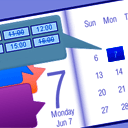
Appointment Booking Calendar is an appointment calendar plugin for accepting online bookings from a set of available time-slots in a calendar. The booking form is linked to a PayPal payment process.
You can use it to accept bookings for medical consultations, classrooms, events, transportation, and other activities where a specific time from a defined set must be selected, allowing you to define the maximum number of bookings that can be accepted for each time-slot.
Features:
- The customer can book an available time-slot from a defined set.
- The booking form is connected to a PayPal payment page.
- You can define the appointment booking capacity for each time-slot.
- A notification email is sent to the specified email addresses (one or more) after completing the booking payment.
- A confirmation email with the appointment data is sent to the user after completing the booking payment.
- You can assign a user to the appointment booking calendar. Users with “Editor Access Level” will get access to the appointment calendar only if it has been assigned to them.
- Exports the appointments to iCal format (Google Calendar, Outlook, Apple Calendar).
- Includes built-in captcha validation with a refresh button to prevent spam on the appointment calendar form.
- The appointment calendar has a printable list of bookings and a visual schedule view.
- You can edit the text of the notification and confirmation emails.
- Allows defining the product name at PayPal, the currency, the PayPal language, and the amount to pay for an appointment booking (you can set zero to let the user pay/donate the desired amount).
- Allows defining the working days, the exact time-slots available, and the appointment capacity of each time-slot.
- Multi-page calendar: You can configure it to show multiple months at once.
- Multiple time-slot selection: The customer can book multiple time-slots at once if allowed in the settings.
- Configurable date formats:
mm/dd/yyyy,dd/mm/yyyy,dd.mm.yyyy,yyyy-mm-dd, and full text dates. - Supports both 12-hour (AM/PM) and 24-hour (military) time.
- Export appointment data to CSV / Excel files.
- You can define the start day of the week on the appointment calendar.
- You can define the minimum available date and the maximum available date for the bookings.
- You can block specific dates or define special schedules for specific dates.
- WordPress Gutenberg Block and Elementor Widget integration.
- Modern, intuitive administration interface and publishing wizard.
Please note that this plugin is designed to accept appointment bookings linked to PayPal payments. The feature for accepting appointments without PayPal is available in the commercial versions: https://abc.dwbooster.com/download
Payments processed through the plugin are SCA ready (Strong Customer Authentication), compatible with the Payment Services Directive (PSD2 – EU).
Available Languages and Adding New Languages / Translations
The following translations are included in the appointment calendar plugin:
- Afrikaans (af)
- Albanian (sq)
- Arabic (ar)
- Armenian (hy_AM)
- Azerbaijani (az)
- Basque (eu)
- Belarusian (be_BY)
- Bulgarian (bg_BG)
- Catalan (ca)
- Central Kurdish (ckb)
- Chinese (China zh_CN)
- Chinese (Taiwan zh_TW)
- Croatian (hr)
- Czech (cs_CZ)
- Danish (da_DK)
- Dutch (nl_NL)
- Esperanto (eo_EO)
- Estonian (et)
- Finnish (fi)
- French (fr_FR)
- Galician (gl_ES)
- Georgian (ka_GE)
- German (de_DE)
- Greek (el)
- Gujarati (gu_IN)
- Hebrew (he_IL)
- Hindi (hi_IN)
- Hungarian (hu_HU)
- Indian Bengali (bn_IN)
- Indonesian (id_ID)
- Irish (ga_IE)
- Italian (it_IT)
- Japanese (ja)
- Korean (ko_KR)
- Latvian (lv)
- Lithuanian (lt_LT)
- Macedonian (mk_MK)
- Malay (ms_MY)
- Malayalam (ml_IN)
- Maltese (mt_MT)
- Norwegian (nb_NO)
- Persian (fa_IR)
- Polish (pl_PL)
- Portuguese Brazil (pt_BR)
- Portuguese (pt_PT)
- Punjabi (pa_IN)
- Russian (ru_RU)
- Romanian (ro_RO)
- Serbian (sr_RS)
- Slovak (sk_SK)
- Slovene (sl_SI)
- Spanish (es_ES)
- Swedish (sv_SE)
- Tagalog (tl)
- Tamil (ta)
- Thai (th)
- Turkish (tr_TR)
- Ukrainian (uk)
- Vietnamese (vi)
If you want to add a new translation you can add a new PO/MO file into the languages folder. If you want to provide the translation for a new language you can send us the texts and we will create the PO/MO files for you. We appreciate it if you allow sharing your translation with other WordPress users.
The Troubleshoot Area
Use the Troubleshoot Area if you are having problems with special or non-Latin characters. In most cases, changing the charset to UTF-8 through the option available in the Troubleshoot Area will solve the problem.
You can also use this area to change the script load method if the booking calendar isn’t appearing on the public website.
There are also two fields related to the iCal settings: “iCal timezone difference vs server time” and “iCal timeslot size in minutes”. The timezone difference can be adjusted to match your desired timezone relative to the server time. The “iCal timeslot size in minutes” defines the duration of each slot in the exported iCal file.
The Restricted Dates Tab
The “Restricted Dates” tab in the calendar settings lets you completely disable selected dates on the appointment calendar. This is useful for excluding public holidays or other specific dates where no appointments will be offered.
To restrict a date, click it in the date picker calendar that appears in this tab. To remove an already restricted date, click it again.
The Special Dates Tab
The “Special Dates” tab in the calendar settings lets you use a different time-slot schedule for specific dates. For example, you can have the same time-slots available for all Tuesdays in the appointment booking calendar, and use the “Special Dates” tab to override the time-slots for one specific Tuesday.
To use this section, click a date in the date picker that appears on the “Special Dates” tab and a floating panel will appear for editing the available time-slots for the selected date.
The Notification Emails
The notification emails with the appointment data entered in the booking form can be sent in “Plain Text” format (default) or in “HTML” format. If you select “HTML” format, be sure to use <br> or <p> tags for line breaks in the text.
Displaying a List of Appointments
A list of appointments on the calendar can be displayed by placing this shortcode on a page:
[CPABC_APPOINTMENT_LIST]
It can also be customized with parameters if needed, for example:
[CPABC_APPOINTMENT_LIST from="today" to="today +30 days" fields="DATE,TIME,NAME" calendar="1"]
The from and to attributes display only the appointments / bookings in the specified period (indicated either as relative days to today or as fixed dates).
There is also a group attribute to join the names of appointments made in the same time-slot (for time-slots with multiple capacity):
[CPABC_APPOINTMENT_LIST group="yes"]
The fields attribute modifies the columns to display and accepts the following items (uppercase):
CALENDAR
DATE
TIME
NAME
PHONE
COMMENTS
The styles for the list are located at the end of the file all-css.css (and can be overridden in Customization Area > Add Custom Styles):
.cpabc_field_0, .cpabc_field_1, .cpabc_field_2, ...
Opening the Calendar in a Different Month
There is a field in the settings area named “Open calendar in this initial month/year”. This can be used to display the calendar initially in a specified future month (for example, when taking bookings for an upcoming seasonal event).
Allowing Booking Multiple Appointment Slots
These settings fields are available for each appointment calendar:
- Minimum slots to be selected: The minimum number of slots that the customer must select in the booking form.
- Maximum slots to be selected: The maximum number of slots that the customer can select in the booking form.
- Close floating panel after selecting a time-slot?: Default: “Yes”. Set to “No” if the user needs to select multiple slots on the same date. The price can be set for each total number of slots below (request cost setting).
Note that the request cost field automatically updates to allow entering the price for each number of time-slots.
Exporting Appointments to CSV / Excel Files
The appointment data can be exported to a CSV file (Excel compatible) from the Bookings List page. Appointments can be filtered by date and search text so you can export only the needed appointments to the CSV file.
Appointment Calendar Theme Selection
Appointment Booking Calendar includes multiple pre-built CSS themes (including Modern, Modern II, Rounded, Friendly, Light, and Classic).
The theme can be selected in the administration area below the calendar in the settings field labeled “Calendar visual theme”.
Other Versions and Features
The free version published in the WordPress directory is a fully functional version for accepting appointments through PayPal. There are also commercial versions that include the following additional features:
- Ability to process forms/appointments without PayPal (or with optional PayPal / pay later options)
- Visual Form Builder for customizing the booking form fields
- Automated email reminders for appointments
- Coupons / discount codes
- Additional drop-down/checkbox fields for multiple prices/services
- Live calculation of appointment prices below the calendar
- Integration with Stripe, WooCommerce, Google Calendar API, Zoom, Twilio SMS, and more
For more information about the commercial versions, visit: https://abc.dwbooster.com/download
Installation
To install Appointment Booking Calendar, follow these steps:
- Download and unzip the Appointment Booking Calendar plugin, or install it directly through the WordPress Plugins > Add New screen.
- Upload the entire
appointment-booking-calendar/directory to the/wp-content/plugins/directory (if installing manually). - Activate the Appointment Booking Calendar plugin through the Plugins menu in WordPress.
- Configure your calendar settings under Appointment Booking Calendar in the WordPress administration menu.
- To publish the booking calendar on a page or post, click the Publish button next to your calendar to use the Publish Wizard, copy and paste the
[CPABC_APPOINTMENT_CALENDAR calendar="1"]shortcode, or use the Appointment Booking Calendar block in Gutenberg or Elementor.
FAQ
Q: What does each field mean in the appointment calendar settings area?
A: The product’s page contains detailed information about each appointment calendar field and customization:
https://abc.dwbooster.com
Q: How can I center the appointment calendar on the page?
A: To center the calendar, add the following styles into Customization Area > Add Custom Styles (at the bottom of the page that contains the list of calendars):
.appContainer{text-align:center;}
.appContainer2{margin-left:auto;margin-right:auto;width:200px}
After saving, refresh the page that contains the appointment scheduler form or clear your browser cache so the updated CSS styles are loaded.
Q: How can I cancel/delete an appointment to make its time-slot available again?
A: You can delete an appointment directly from the Bookings List page for your calendar, or locate it in the appointment calendar inside the settings area, clear the title (there is a button for that), and save it.
Q: How can I change the calendar’s width and height?
A: You can specify the size of the appointment calendar’s cells by adding custom CSS rules into Customization Area > Add Custom Styles (at the bottom of the calendar list page):
.yui-calendar td.calcell {
    padding:.3em .4em;
    border:1px solid #E0E0E0;
    text-align:center;
    vertical-align: top;
}
Q: Can I put an “acknowledgment / thank you message” after submitting an appointment and completing the PayPal payment?
A: The “acknowledgment / thank you message” shown to the user after submitting the appointment form should be placed on the page indicated in the field “URL to return after successful payment”. Note that after submission, the user is redirected first to PayPal and then to the “thank you” page once the payment for the booking has been completed.
Q: How do I change the background color of the selected date on the appointment calendar?
A: Add the following CSS rule into Customization Area > Add Custom Styles (at the bottom of the calendar list page) and replace the color code with your preferred color:
.yui-calendar td.calcell.reserveddate { background-color:#B6EA59 !important; }
Q: How can I sync the calendar iCal link with Google Calendar on a regular basis?
A: Please read the instructions on this Google page:
https://support.google.com/calendar/answer/37100?hl=en
To get the iCal feed URL, click the Copy iCal URL button next to the iCal link on the calendar list page (or right-click the “iCal” button and select “Copy Link Address”).
Note: This automatically exports the bookings stored in the calendar plugin to Google Calendar. The inverse process (importing items from Google Calendar into the plugin) is available in the commercial versions of the plugin.
Q: Does the plugin support Double-Opt-In E-mail Validation?
A: The Platinum version of the Appointment Booking Calendar supports double opt-in e-mail validation. The double opt-in process includes two steps. In step 1, a customer fills out and submits your online booking form. In step 2, they receive a confirmation email and click a link to verify their email, changing the status of the booking to “confirmed”.
Double opt-in e-mail validation is useful for complying with the European General Data Protection Regulation (GDPR).
More info at https://abc.dwbooster.com/documentation#doiemail-area
Q: After booking an appointment I’m not receiving the emails with the appointment data.
A: Please check if after completing the payment at PayPal the appointment appears registered in the appointment calendar (the time-slot becomes unavailable or appears in the Bookings List):
- If the appointment purchase is registered, then your server likely has additional configuration requirements to send emails from PHP. The Appointment Booking Calendar plugin uses WordPress’s standard mail function (
wp_mail) to deliver emails. If your hosting requires a fixed “From” address or a custom SMTP server, configure those settings in WordPress. - If the appointment purchase isn’t registered, first check if you are testing the appointment booking form on a local website or an online website. You must test this feature on a live online website (local websites cannot receive PayPal IPN callbacks).
- If the appointment purchase isn’t registered and you are testing it on an online website, check if the payment appears as “Completed” in the PayPal seller account (no red flags, no pending mark). Check also if your PayPal account is set up to automatically accept payments in the selected currency.
Q: Is referral / conversion tracking available?
A: Yes, it can be done through automatic integration with the CP Referrer and Conversion Tracking plugin.
Q: How do I make the appointment calendar 100% width?
A: Add this CSS rule into Customization Area > Add Custom Styles (at the bottom of the page that contains the list of calendars):
.yui-calcontainer{width:98%}
Screenshots


Changelog
1.4.09
- Modernized schedule calendar view
1.4.08
- Modernized the Calendar List, Publish Wizard, and Add Booking administration interfaces.
- Added Initial Status selection (Draft or Publish) and one-click shortcode/iCal copy buttons.
- Added a security code (CAPTCHA) refresh button on the public booking form.
- Replaced browser alert() popups for date/time selection and CAPTCHA validation with modern inline messages.
1.4.07
- Improved IPN verification.
1.4.06
- Submit button update.
1.4.05
- iCal verification improvement.
1.4.04
- Additional sanitization.
1.4.03
- Stronger permissions verification for accessing lists.
1.4.02
- Permissions adjustments.
1.4.01
- WordPress compatibility updates.
1.3.99
- New modern design.
1.3.98
- Compatible with WP 6.9.