

Description
People now find stores and services by asking ChatGPT, Perplexity, Gemini, Claude and Copilot. Arbling Beacon shows you that traffic in your Arbling dashboard:
- Visits from AI assistants. You see which assistant sent each visit and which pages they landed on.
- AI crawlers. You see which AI crawlers read your site. Add the crawler reporting key to turn this on.
- WooCommerce products. On a WooCommerce store, product pages also tell Arbling which product was viewed. WooCommerce is optional: the plugin works on any WordPress site.
- WooCommerce orders. The order confirmation page tells Arbling the order number and total, so an order is matched to the AI visit that led to it that day.
The plugin respects your visitors’ privacy choices:
- Nothing loads until you save your Arbling site key.
- It follows the visitor’s consent through the WP Consent API when your consent banner supports it.
- Visit counts made on your server carry no personal data.
You need an Arbling account to see the numbers. You copy the site key from your Arbling dashboard; the crawler reporting key is optional (see Installation).
External services
This plugin connects your site to Arbling (https://arbling.com), the service that shows you the numbers. It sends nothing until you save a key on its settings page (Settings → Arbling Beacon). Connecting with a code (6) and publishing articles (5) work only where Arbling has turned them on for your account; until then there is nothing to connect, and the plugin sends nothing for them.
1. The Arbling beacon script, once a site key is saved.
- What loads: your pages load
https://api.arbling.com/ati-beacon.js, tagged with your public site key. - What it sends for every page view: the page’s path, the host name of the site the visitor came from, and whether that site is an AI assistant. This carries no identifier.
- What it adds only when the visitor’s consent allows it and your Arbling account has this turned on: for a visit that arrives from an AI assistant, it sends that visit with a random identifier kept in the browser’s local storage. Arbling uses the identifier to connect the visit to what the visitor does next. With a WP Consent API banner, the visitor must allow both statistics and marketing.
- What it never does: set a cookie.
- Where:
https://api.arbling.com/api/ati/visits.
2. Visit counts, once a crawler reporting key is saved.
- What it sends: once a minute, your server sends how many requests each kind of page received in each closed minute. The kinds are home, product, collection and other. Each count says whether the visit came from a browser or something else, and which AI assistant referred it, if any.
- What it never sends: IP addresses, browser strings or page addresses.
- Where:
https://api.arbling.com/api/ati/v1/crawl-events.
3. AI crawler reports, once a crawler reporting key is saved.
- When: only when a request comes from a known AI crawler, such as GPTBot or ClaudeBot.
- What it sends: the crawler’s user agent, its IP address (Arbling uses it to verify the crawler is genuine) and the kind of page. Requests from people are never reported this way.
- Where:
https://api.arbling.com/api/ati/v1/crawl-events.
4. Orders on a WooCommerce store.
- On the order confirmation page, once a site key is saved: the beacon sends the order number and total with the page view. This carries no identifier.
- From your server, once a crawler reporting key is saved, and only when Arbling has turned order matching on and your Arbling account has accepted Arbling’s install terms: when checkout creates an order, your server sends the order number, its total, and the buyer’s IP address and browser string as WooCommerce recorded them on the order. Arbling uses the IP address and browser string only to find that day’s visit to your site, and does not store them. This matches an order to its AI visit even when the confirmation page never loaded.
- How the plugin knows whether it is turned on: once a minute, your server asks Arbling for your store’s setting and keeps a yes for at most ten minutes. Until Arbling says yes, the plugin does not read or send anything about the buyer.
- Where:
https://api.arbling.com/api/ati/v1/order-eventsandhttps://api.arbling.com/api/ati/v1/order-events/policy.
5. Publishing articles, only where Arbling has turned publishing on for your account, once you connect the site under Settings → Arbling Publishing.
- When you connect: your server sends the one-time connect code you pasted, your site’s address, and the WordPress user and category you picked for articles. Arbling answers with the connection and a secret, which the plugin keeps in your WordPress options and never shows.
- After that: Arbling sends each article you approve in your Arbling account to your site’s REST API (
/wp-json/arbling/v1/articles), signed with that secret. The plugin publishes it as a post by the author and in the category you picked, and refuses any request that is not correctly signed. - What it never does: change a post Arbling did not create, or overwrite a post you edited after Arbling published it.
- Disconnect: Settings → Arbling Publishing → Disconnect asks Arbling to end the connection, signed with the same secret, and deletes it from your site whatever the answer.
- Checking: Arbling can also ask your site whether an earlier article request arrived, using the same signed connection; this check reads only and never creates or changes a post.
- Where:
https://api.arbling.com/api/content/v1/connectors/wordpress/claimandhttps://api.arbling.com/api/content/v1/connectors/wordpress/revoke.
6. Connecting with a code, only where Arbling has turned it on for your account, and only when you press Connect under Settings → Arbling Beacon.
- What it sends: the one-time code you pasted and your site’s address. Arbling answers with a verification token, which the plugin prints on your home page as
<meta name="arbling-verify">. - What Arbling does: it opens your home page itself to find that tag. Only then does it answer with your site key, which the plugin saves as if you had pasted it. When you press Check again, your server asks Arbling to look again.
- What it never does: replace a site key you already saved, or show or log the code.
- The tag stays on your home page so Arbling can confirm the site later; clear “Website verification token” on the same page to remove it.
- Where:
https://api.arbling.com/api/ati/wordpress/beacon-binding/startandhttps://api.arbling.com/api/ati/wordpress/beacon-binding/complete.
Arbling’s terms of service: https://arbling.com/terms
Arbling’s privacy policy: https://arbling.com/privacy
Installation
- Install the plugin from Plugins → Add New, or upload the zip, and activate it.
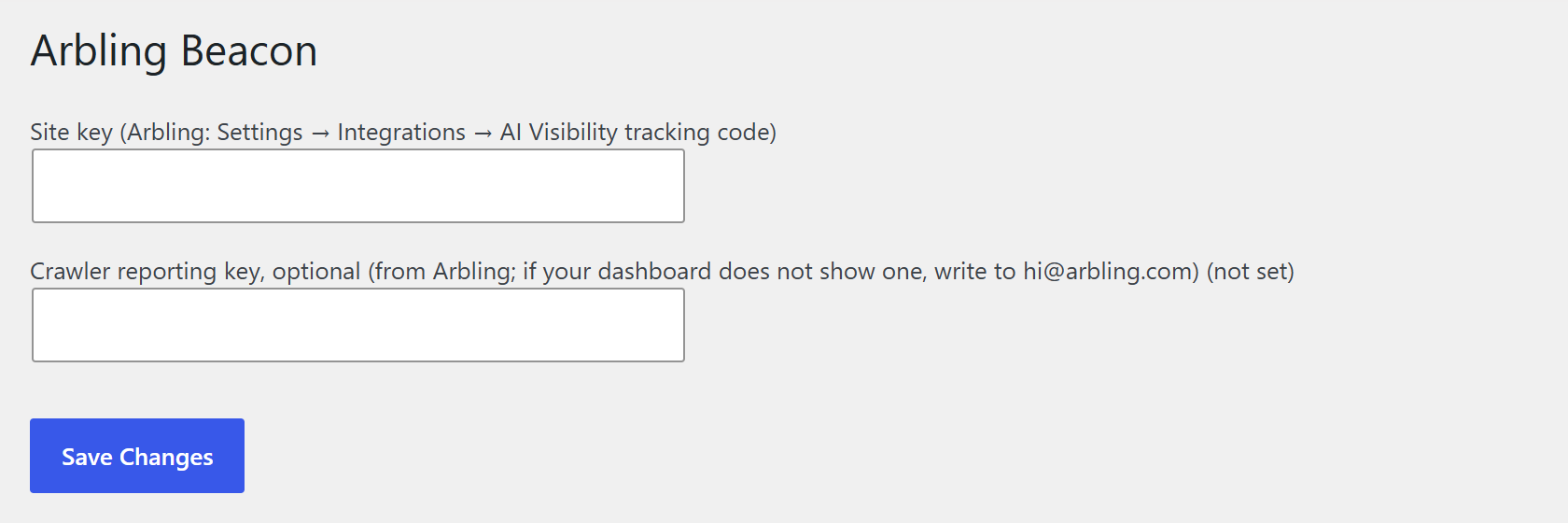
- In your Arbling dashboard, open Settings → Tracking code and copy “Your site key”. In WordPress, open Settings → Arbling Beacon, paste it and save.
- Where Arbling has turned on connecting with a code for your account, you can instead paste the connect code from your Arbling cabinet under “Connect with a code” and press Connect; Arbling checks your home page and saves the site key for you.
- Optional: AI crawler reports and server-side visit counts need a WordPress connector key from Arbling. If your dashboard does not offer one, ask us at hi@arbling.com. Paste it into “Crawler reporting key” on the same page and save.
- Open one of your pages, then check your Arbling dashboard. If your Arbling account limits which site addresses may send visits, visits from an address that is not on that list are refused. If no visits appear, write to hi@arbling.com with your site’s address.
FAQ
How do I disconnect Beacon?
In WordPress, open Plugins and deactivate Arbling Beacon. Clear your page cache and reload any pages that were already open. Deactivation also stops Arbling Publishing on this site, where it was turned on. Saved settings and reports already recorded in Arbling are kept; deactivation does not revoke your keys.
Do I need WooCommerce?
No. The plugin works on any WordPress site. On a WooCommerce store it also reports which product a visitor viewed.
Does it store personal data?
The plugin stores your two keys, per-minute visit counts and Arbling’s current yes for order matching in your WordPress database. None of them carries an IP address, browser string or page address. Each closed minute’s counts are deleted from your database when they are sent to Arbling. When order matching is turned on, your server sends the buyer’s IP address and browser string from the WooCommerce order to Arbling, which uses them only to find that day’s visit and does not store them.
Does it work with my consent banner?
If your banner supports the WP Consent API, the beacon follows the visitor’s choice. The page-view count carries no identifier and is sent for every visit. The identifier that connects a visit from an AI assistant to what happens next is kept only when your Arbling account has it turned on and, with a WP Consent API banner, only when the visitor allows both statistics and marketing.
I don’t see any visits in Arbling
Check that the site key is saved under Settings → Arbling Beacon. If your Arbling account limits which site addresses may send visits, visits from an address that is not on the list are refused; write to hi@arbling.com with this site’s address.
Will it slow my site down?
No. The beacon script loads with defer, and the server-side calls do not wait for an answer.
Screenshots
Changelog
0.4.3
- The readme now says only what the plugin and Arbling serve today: AI crawlers are shown by name, not by page, and order matching needs Arbling’s order-matching switch and your account’s accepted install terms. The plugin’s code is unchanged.
0.4.2
- Connect with one code from your Arbling cabinet, where Arbling has turned it on for your account: Arbling checks your home page and saves the site key here, with no key to copy.
- The readme says plainly that connecting with a code and publishing articles work only where Arbling has turned them on for your account.
0.4.1
- For publishing, where Arbling has turned it on for your account:
- Choose draft or publish when sending an article to WordPress.
- Connect with the site’s selected author and categories, with the site address checked.
- Check an article’s saved publishing result through a signed status request.
0.4.0
- The order confirmation page reports the order number and total, so an order is matched to its AI visit.
- With a crawler reporting key, and only when Arbling has turned order matching on and the Arbling account has accepted Arbling’s install terms, the server also reports each new order so it is matched even when the confirmation page never loads.
0.3.2
- The settings screen names the current Arbling dashboard paths.
0.3.1
- WordPress now prints the beacon tag itself, deferred.
- Request headers are sanitized before use, and addresses are parsed with WordPress’s own function.
0.3.0
- Counts visits on your server: browser and other requests, with the AI assistant that referred them, sent once a minute with no personal data.
- The list of AI assistants is updated.
0.2.0
- Works on any WordPress site; WooCommerce is optional.
- Reports AI crawlers when a crawler reporting key is saved.
0.1.0
- First release: the Arbling beacon on WooCommerce stores, with consent support.