


Description
Authyo Passwordless Login is a WordPress login security plugin. It protects your site with passkeys for administrators, brute-force protection, IP blacklisting, security activity logs, XML-RPC blocking, REST API protection, and a custom login URL. The security features and passkeys work immediately after activation — no API keys or account registration needed.
Optionally, add Authyo API credentials to enable passwordless OTP login, where users log in with a one-time password sent to their email instead of a traditional password.
One login method at a time. In Settings > General > Login Method you choose exactly one of:
- Email OTP login — users sign in with a one-time code sent to their email (requires free Authyo API keys).
- Passkey sign-in (administrators) — adds a “Sign in with passkey” button to the login page so administrators can sign in with a fingerprint, face or device PIN. Passwords keep working; this method does not block password logins.
- Passkey first, email OTP as the fallback (administrators) — administrators sign in with a passkey. If they cannot use it, “Sign in with an email code instead” sends a one-time code through Authyo. Passwords keep working for everyone. Needs finished passkey setup and Authyo API keys. The email code is for administrators only in this mode.
- Password + passkey (administrators) — administrators who have registered a passkey must confirm with it after entering their password (or use a backup code). Administrators without a passkey, and all other users, sign in as before.
Passkeys (verified on your own server, no API keys needed):
- Setup wizard with a progress bar — a passkey method can only be turned on after the administrator finishes the steps: site check, first passkey, backup codes, and a test sign-in. A second passkey on another device is recommended but optional.
- Backup codes — ten single-use codes, shown once and stored hashed. If every device is lost, a backup code replaces the passkey step of “Password + passkey”. Each use is logged and emailed to the account owner.
- Recovery safeguards — your own last passkey cannot be removed while a passkey method is on; another administrator can reset a lost-device administrator; an emergency switch in wp-config.php turns the passkey methods off.
- Hardened verification — single-use challenges, strict origin and domain checks, required user verification, signature-counter replay detection, and the same attempt limits and IP lockouts as the other login methods.
- Passkeys are bound to your site’s domain and need HTTPS (see the FAQ).
Security features that work without API keys:
- Brute-force protection — Limit login attempts per IP and username with progressive lockout durations. Repeat offenders are automatically blacklisted.
- IP Manager — Whitelist trusted IPs and blacklist attackers. Includes search, filter, pagination, and per-page selector for large lists.
- Security activity logs — Track every login, logout, failed attempt, lockout, and blocked access, including passkey events. Includes request URL tracking, date filters, search, and CSV export.
- Disable XML-RPC — Block xmlrpc.php requests at the server level using .htaccess rules. Removes X-Pingback headers and XML-RPC discovery links. Falls back to PHP blocking on Nginx.
- REST API Protection — Restrict access to WordPress REST API endpoints for unauthenticated users. Prevents data enumeration and unauthorized access while keeping essential endpoints functional.
- Custom login URL — Hide wp-login.php behind a custom URL slug to prevent automated attacks.
- Blocked IP logging — Every access attempt from blacklisted or locked-out IPs is logged with IP address, user agent, and request URL.
Email OTP features (requires free Authyo API keys):
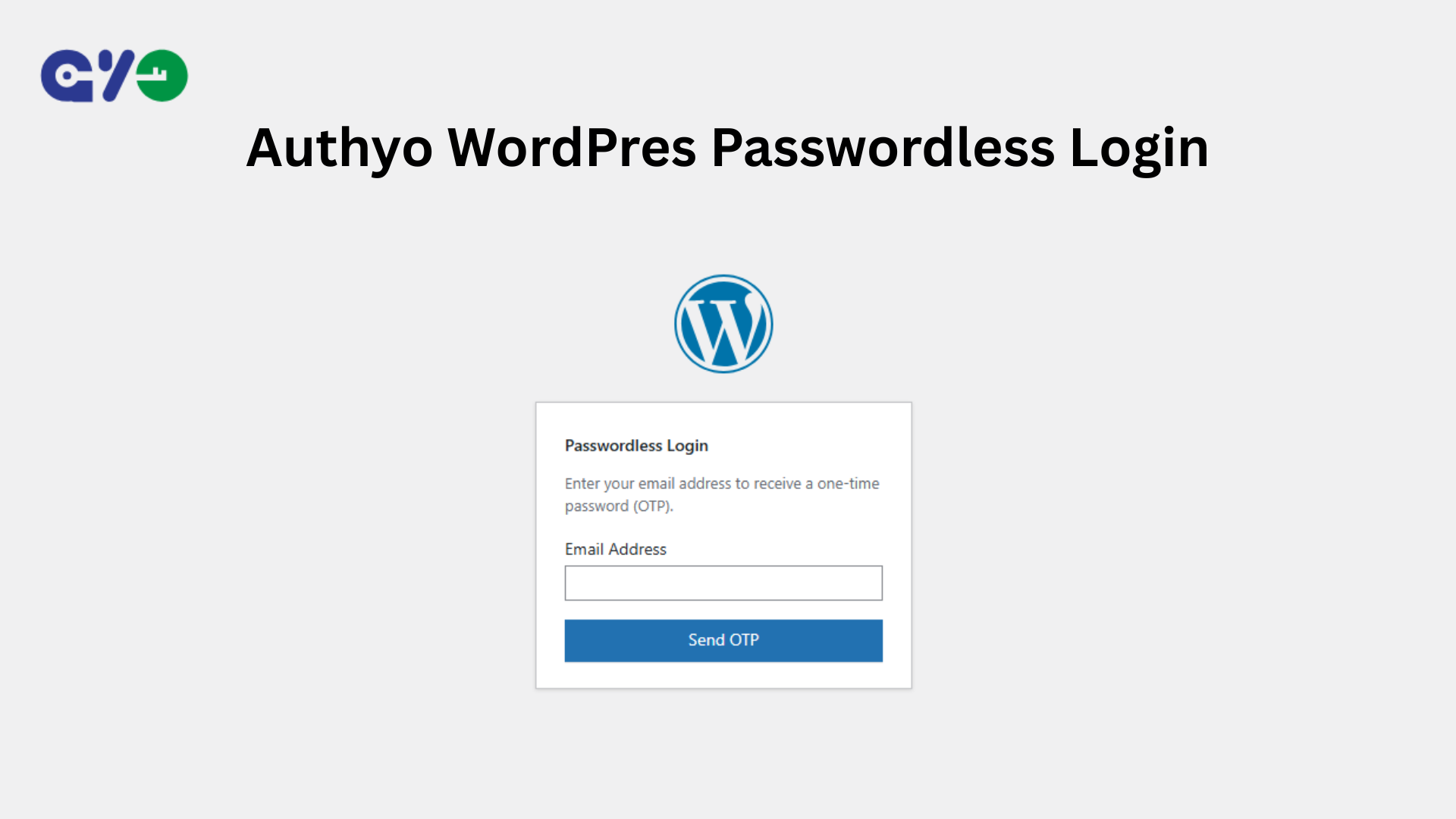
- Email OTP login — Users receive a one-time password via email and log in without a traditional password.
- Google Authenticator fallback — Server-side verified 2FA as a backup method after multiple OTP attempts (available while Email OTP is the selected login method).
- Secure login tokens — Cryptographically generated, single-use, browser-bound tokens that expire after 5 minutes.
- AJAX-powered login — Smooth login experience with no page reloads.
Video Tutorial
Learn how Authyo Passwordless Login works:
How It Works
Security (works immediately after activation):
- Activate the plugin — brute-force protection and security logs start automatically
- Go to Authyo Passwordless > Settings > Security tab
- Enable XML-RPC Protection, REST API Protection, and Custom Login URL as needed
- Visit Authyo Passwordless > Security Logs and IP Manager to monitor activity and manage IPs
Passkeys (no API keys needed):
- Open Authyo Passwordless > Settings > Passkeys and follow the progress bar: register a passkey, save your backup codes, and run the test sign-in (a second passkey on another device is recommended)
- Go to Settings > General, choose “Passkey sign-in” or “Password + passkey” under Login Method, and enable it
- With “Password + passkey”, an administrator who has registered a passkey enters the password and then confirms with the passkey (or a backup code)
Email OTP login (requires API keys):
- User enters their email on the WordPress login page
- A one-time password (OTP) is sent to their email
- User enters the OTP code
- WordPress logs the user in automatically — no password required
External Services
This plugin connects to Authyo’s external API only for email OTP login and Google Authenticator features. All security features (brute-force protection, IP manager, security logs, XML-RPC protection, REST API protection, custom login URL) and passkeys work locally without any external service.
Passkeys:
- Passkeys are created and verified entirely on your own server. Nothing about them is sent to Authyo or to any other service, and the bundled WebAuthn library makes no network requests.
- Your browser or device (for example the operating system, a password manager or a security key) handles the private key. Only the public key and a credential identifier reach your server.
- When a backup code is used to sign in, the plugin sends a notification email to that account’s own email address with the WordPress mailer (wp_mail). It can be turned off with the
authyo_passkey_notify_backup_usefilter.
OTP Authentication:
- User email address is sent to Authyo API when requesting an OTP
- OTP code and Mask ID are sent to Authyo API for verification
Google Authenticator Verification:
- During setup (Google Auth tab), the admin’s email address is sent from your server to the Authyo API to create the authenticator link and return a QR code
- The 6-digit authenticator code and the admin’s or user’s email address are sent from your server to the Authyo API for verification
- No Authyo script is loaded in the browser; all calls are made server-side
Usage Tracking (Opt-In Only):
If the user explicitly opts in, plugin version, WordPress version, and site URL are sent when settings are saved. Deactivation feedback is sent when the plugin is deactivated. No tracking data is sent without user consent.
Authentication Flow:
- After OTP or passkey verification, the plugin generates a secure single-use token using WordPress core functions
- Token is browser-bound using a hashed User-Agent signature and a random cookie to prevent session hijacking
- Token is stored temporarily in WordPress transients (5-minute expiry) and deleted immediately after use
Data Storage:
- OTP session data stored temporarily in WordPress transients (10-minute expiry)
- Login tokens stored temporarily in WordPress transients (5-minute expiry, single-use)
- Passkey challenges and pending password + passkey sign-ins stored temporarily in WordPress transients (5 to 10 minutes, single-use)
- One option remembers the domain the passkeys were set up for (
authyo_passkey_rp_id) - Passkeys are stored in a custom database table: credential ID, public key, name, signature counter, transports, the domain they are bound to, and created / last-used times. No private key is ever stored.
- Backup codes are stored only as password hashes in user meta (one row per unused code); each is deleted when used. A random, non-identifying passkey handle is stored per administrator.
- Security logs stored in a custom database table with configurable retention
- IP whitelist and blacklist stored in a custom database table
- All of this is removed when the plugin is deleted (see uninstall.php)
Service URLs:
Terms of Service: https://authyo.io/terms-service
Privacy Policy: https://authyo.io/privacy-policy
Third-Party Libraries
- lbuchs/WebAuthn 2.2.0 by Lukas Buchs — MIT license (GPL-compatible), included in
includes/modules/passkey/vendor/. Source: https://github.com/lbuchs/WebAuthn. It is used unchanged apart from a few small, documented adjustments (a prefixed namespace, WordPress functions instead of a few PHP ones, a stricter domain check and removal of an unused download function). They are listed inincludes/modules/passkey/vendor/README.txt.
Installation
- Upload the
authyo-passwordless-loginfolder to/wp-content/plugins/ - Activate the plugin from the Plugins menu
- Security features start working immediately
- For passkeys: open Authyo Passwordless > Settings > Passkeys. Your site must be served over HTTPS and run PHP 8.1 or newer with the OpenSSL and mbstring extensions; the Requirements list on that screen shows what is missing.
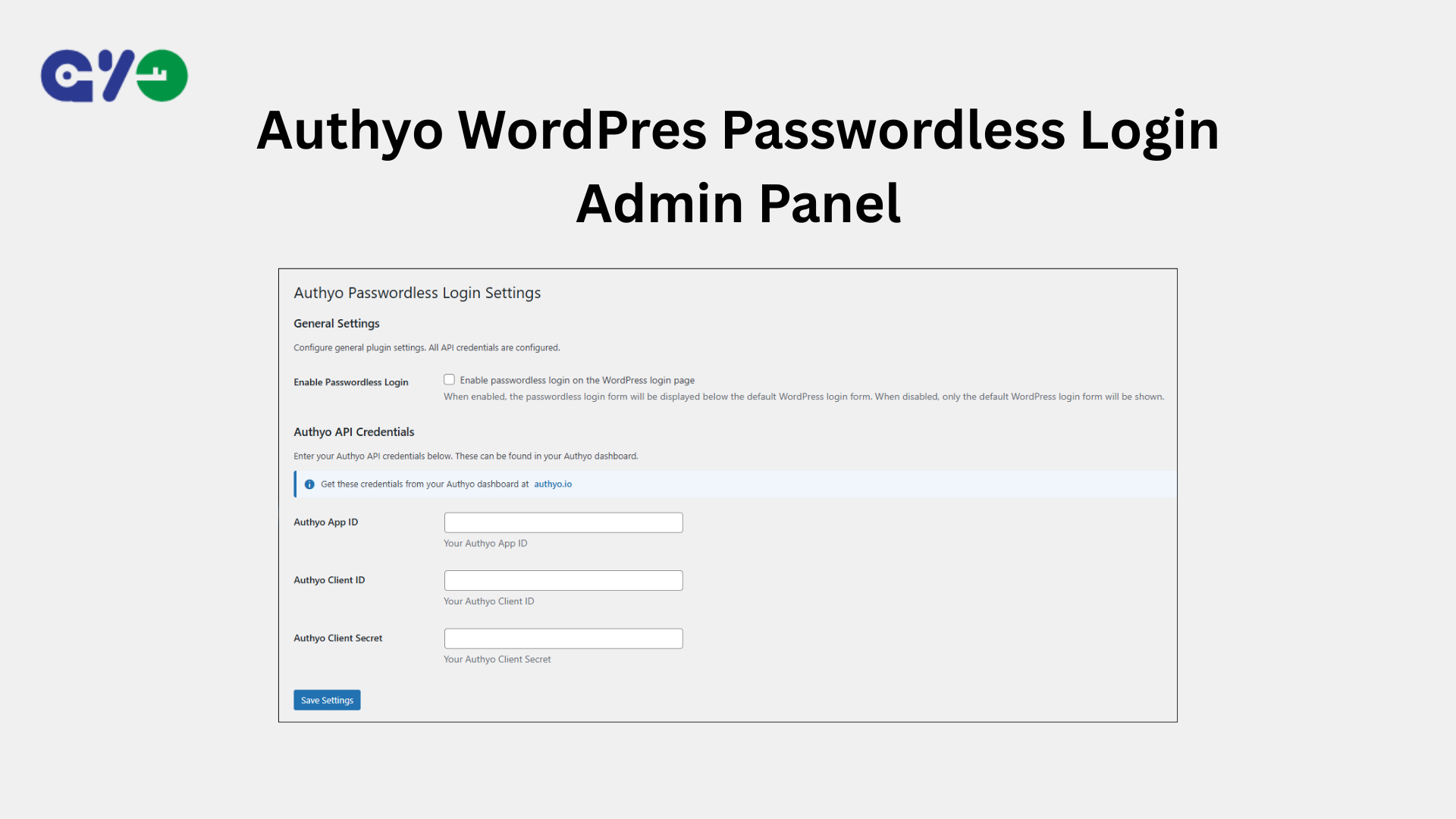
- For email OTP login: go to Authyo Passwordless > Settings and enter your Authyo API credentials from authyo.io
FAQ
Do I need API keys to use the security features?
No. Brute-force protection, IP manager, security logs, XML-RPC protection, REST API protection, custom login URL and passkeys all work without any API keys. You only need Authyo API keys for the email OTP login.
What is a passkey?
A passkey lets you sign in with a fingerprint, face or device PIN instead of typing a password. Your device keeps the private key; the site stores only the public key, so there is nothing secret on the server to steal. Passkeys work with phones, laptops, password managers and hardware security keys.
Who can use passkeys?
Administrators. Each administrator registers their own passkeys under Settings > Passkeys. Other users keep the normal WordPress login.
What is the difference between “Passkey sign-in” and “Password + passkey”?
“Passkey sign-in” adds a “Sign in with passkey” button to the login page; passwords keep working and are not blocked. “Password + passkey” requires administrators who have registered a passkey to confirm with it after their password (or with a backup code). Administrators without a registered passkey are not held back, so nobody is locked out before they enrol.
Can I use email OTP and passkeys at the same time?
Not as two equal methods: one login method is active at a time. The method “Passkey first, email OTP as the fallback” does combine them: the passkey is the main way in, and administrators who cannot use it can ask for an email code instead. Switching methods does not delete any passkeys or credentials.
Why does my site need HTTPS for passkeys?
Browsers only allow passkeys on secure (HTTPS) pages. The Requirements list on the Passkeys screen tells you if something is missing. It also needs PHP 8.1 or newer with the OpenSSL and mbstring extensions.
What happens to my passkeys if I change my domain?
Passkeys are tied to your site’s domain (for example example.com, and its subdomains) and cannot be moved. If the domain changes, administrators must register new passkeys. With “Passkey sign-in”, passwords keep working meanwhile. With “Password + passkey”, an administrator whose passkeys belong to the old domain is still asked for the second step and gets in with a backup code (or another administrator can remove their passkeys, or you can use the wp-config.php line below). After signing in, register a new passkey and save the General tab again so the new domain is remembered. A change from www.example.com to example.com (or back) is fine.
I lost my phone or security key. How do I get in?
In order of convenience: (1) With “Password + passkey”, enter your password and choose “Use a backup code instead”. (2) Another administrator can remove your passkeys under Settings > Passkeys, and you can then sign in with your password and register new ones. (3) If you are the only administrator and have no backup code, add define( 'AUTHYO_DISABLE_PASSKEY', true ); to wp-config.php. While that line is there the passkey methods are off and you can sign in with your username and password. Remove the line afterwards. (4) With WP-CLI on the server: wp authyo reset-passkeys <user> removes a user’s passkeys and backup codes, and wp authyo disable switches the login method off so the normal WordPress login works again. wp authyo status shows the login method and every administrator’s passkeys.
Why am I asked for my password when I add a passkey or generate backup codes?
So that someone who finds your browser still signed in cannot add their own passkey or replace your backup codes. Signing in counts as confirmation for 10 minutes; after that, enter your password once (or choose “Use my passkey instead”) and carry on. Removing a passkey and resetting another administrator’s passkeys work the same way. Developers can change the time with the authyo_passkey_reauth_window filter.
Why does the Dashboard suggest adding a passkey?
Administrators who have no passkey are shown one short suggestion on the Dashboard. “Remind me in 2 weeks” puts it off, “Do not show this again” ends it, and it disappears once you add a passkey. Developers can turn it off with the authyo_passkey_show_setup_prompt filter.
Can my browser offer my passkey in the username field?
Yes, where the browser supports it. When the passkey sign-in is on, the username field on the login page suggests your saved passkey, so you can sign in without pressing the button. Browsers that do not support this are not affected.
What if my site is not on HTTPS and I use “Password + passkey”?
The second step is still required, so a missing certificate cannot be used to skip it. Passkeys cannot be used without HTTPS, so the page opens the backup code box automatically. Fix the certificate, or sign in with a backup code.
Will I be told when my passkeys or backup codes change?
Yes. The account’s email address receives a message whenever a passkey is added or removed, backup codes are generated, or another administrator resets the account’s passkeys. The message never contains key material or codes. Developers can switch these emails off with the authyo_passkey_notify_account_change filter.
I use single sign-on or a headless login. Can I exempt it from the second step?
Yes. Return false from the authyo_passkey_require_second_step filter (it receives the user object) for logins that have already been strongly authenticated elsewhere.
Does “Password + passkey” cover XML-RPC, application passwords and the REST API?
Partly. XML-RPC cannot show a passkey prompt, so while “Password + passkey” is on, an administrator who has a passkey can no longer sign in over XML-RPC with the account password alone; the request gets the usual “Incorrect username or password.” (You can also turn on “Disable XML-RPC” in the Security tab.) Application passwords are separate credentials that you create and can revoke under each user’s profile, so they keep working. If you want every sign-in of such an administrator to need a passkey, return false from the authyo_passkey_allow_application_passwords filter and application passwords are switched off for them. The REST API with a browser session is covered, because that session starts at the login form.
Is anything about passkeys sent to Authyo?
No. Passkeys are verified on your own server. See External Services.
Why does the plugin require PHP 8.1?
The bundled passkey (WebAuthn) library and its cryptography need a modern PHP. WordPress only offers the update to sites that meet the requirement, so older sites simply stay on the previous version.
How does brute-force protection work?
The plugin tracks failed login attempts per IP address and per username. After exceeding the configured threshold, the IP or username is temporarily locked out. Each subsequent lockout lasts longer (progressive durations). Repeat offenders can be automatically blacklisted permanently. Rejected passkey sign-ins count toward the IP lockout too.
What does REST API Protection do?
It restricts access to WordPress REST API endpoints for unauthenticated users. By default, WordPress exposes REST API endpoints like /wp/v2/users that can reveal usernames and other site data. When enabled, only logged-in users can access the REST API while essential public endpoints continue to work normally.
What does XML-RPC protection do?
It blocks all requests to xmlrpc.php at the server level using .htaccess rules on Apache and LiteSpeed servers. On Nginx servers, a PHP-level fallback handles the blocking. It also removes the X-Pingback header and XML-RPC discovery links. Whitelisted IPs are exempt.
How does email OTP login work?
Users enter their email address on the login page, receive a one-time password via email, enter the OTP code, and are logged in automatically. No password is needed. Requires Authyo API keys.
How do I manage blocked IPs?
Go to Authyo Passwordless > IP Manager. You can search by IP or label, filter, and paginate through whitelisted and blacklisted IPs. The page also shows active lockouts with options to unlock or permanently blacklist IPs.
I blocked my own IP and can’t reach the login page. What do I do?
Add define( 'AUTHYO_DISABLE_IP_BLOCKING', true ); to your wp-config.php file. This temporarily turns off all IP blacklisting and lockouts. Log in, remove your IP from Authyo Passwordless > IP Manager (or whitelist it), then delete the line from wp-config.php again.
My site is behind Cloudflare or a reverse proxy. Will lockouts work correctly?
Yes. The plugin uses the connecting IP address, which cannot be faked. When a request really comes from a Cloudflare edge server it uses the CF-Connecting-IP header, and when it comes from a proxy on a private network it uses the X-Forwarded-For header, so each visitor is recognised individually. Private and unknown addresses are never locked out or blacklisted, so a shared proxy address cannot lock out all your visitors. For other setups, use the authyo_passwordless_client_ip filter to return the real visitor IP.
Are OTP and authenticator codes protected against guessing?
Yes. Each OTP or Google Authenticator session allows 5 attempts, each account allows 10 attempts per 15 minutes and 30 per day, and each email address can request at most 5 OTP emails per 15 minutes. Backup codes share the per-account limits; passkey sign-ins are limited per IP address. These limits apply even when brute-force protection is turned off. The login form also answers the same way whether or not an email address has an account, so it cannot be used to discover accounts.
Can I use this with custom login pages?
Yes. Use the shortcode [authyo_login] on any page, or call authyo_passwordless_login_form() in your theme templates. It shows the form of the selected login method. Passkeys also work with the custom login URL.
Is this plugin secure?
Yes. The plugin implements multiple security layers including XML-RPC blocking at server level, REST API protection, brute-force protection with progressive lockouts, nonce verification for all AJAX requests, cryptographically secure token generation, browser-bound single-use tokens, server-side Google Authenticator and passkey verification, open redirect prevention, and blocked IP logging.
Screenshots
Changelog
1.0.12
- New: Passkey login for administrators, verified on your own server (no Authyo account or API keys needed)
- New: Login Method setting with four methods: Email OTP, Passkey sign-in, Passkey first with email OTP fallback, and Password + passkey. One is active at a time
- New: Setup wizard with a progress bar to set up passkeys step by step
- New: Single-use backup codes, with “Use a backup code instead” on the login page if you lose your device
- New: Security Logs and email alerts for passkey activity
- Changed: Requires PHP 8.1+ and WordPress 5.9+
- Performance improvements and security hardening
- Third-party: includes lbuchs/WebAuthn 2.2.0 (MIT)
1.0.11
- Fixed: Logout did not work when a custom login URL was enabled
- Fixed: Failed-attempt counters did not reset after the configured time window
- Security: Real visitor IP detected behind Cloudflare and private-network proxies; private addresses are never locked out or auto-blacklisted
- Security: OTP and Google Authenticator forms no longer reveal which email addresses have accounts
- Security: Daily limit on incorrect codes per account
- Security: Login links are bound to the browser that completed verification
- Security: REST user-enumeration block can no longer be bypassed; users sitemap and oEmbed author URLs hidden when author scanning is blocked
- Security: Custom login URL no longer shown to logged-out visitors in login links
- Security: Security log flooding protection, safer debug logging and more precise XML-RPC blocking
- New: “Hide Login Links” option (Security tab). On for new installs; sites updating from 1.0.10 keep their current login links until they turn it on
- Upgrade: Automatic blacklist entries for private/proxy addresses created by earlier versions are removed (manually added entries are kept)
1.0.10
- New: Google Authenticator setup with live status, per-administrator setup and an overview of all administrators
- New: Google Authenticator login option shown only to accounts that have set it up
- Improved: Plugin settings moved to a top-level “Authyo Passwordless” admin menu
- Security hardening for OTP verification, login tokens and the custom login URL
- Bug fixes and performance improvements
1.0.9
- Performance improvements
1.0.8
- Performance improvements
1.0.7
- Performance improvements and stability enhancements
1.0.6
- Added REST API Protection to restrict unauthorized access to WordPress REST API endpoints
1.0.5
- Added XML-RPC protection with server-level .htaccess blocking and PHP fallback
- Added request URL tracking in security logs
- Added blocked IP logging for blacklisted and locked-out access attempts
- Added search and pagination to IP Manager with per-page selector (20, 50, 100)
- Added whitelist and blacklist count summary in IP Manager
- Added server-side verification for Google Authenticator
- Migrated IP whitelist/blacklist data from wp_options to a dedicated database table
- Improved login token security and validation
- Improved redirect security across login flows
- Fixed “page not found” issue with custom login URL after OTP verification
- Fixed database compatibility with MySQL strict mode
- Fixed database upgrade reliability on various server environments
- Multiple security hardening improvements
- General bug fixes and performance improvements
1.0.4
- Added new security logs feature
1.0.3
- Added video tutorial to readme
- Improved Google Authenticator fallback logic to hide on non-existent users
- Minor bug fixes
1.0.2
- Added two factor authenticator as backup method
- Performance improvements
1.0.1
- Performance improvements
- Screenshot addon
1.0.0
- Initial release
- Passwordless login with OTP verification
- Secure token-based authentication
- WordPress login page integration
- Custom login shortcode
- Admin settings page
- AJAX-powered login flow