

Description
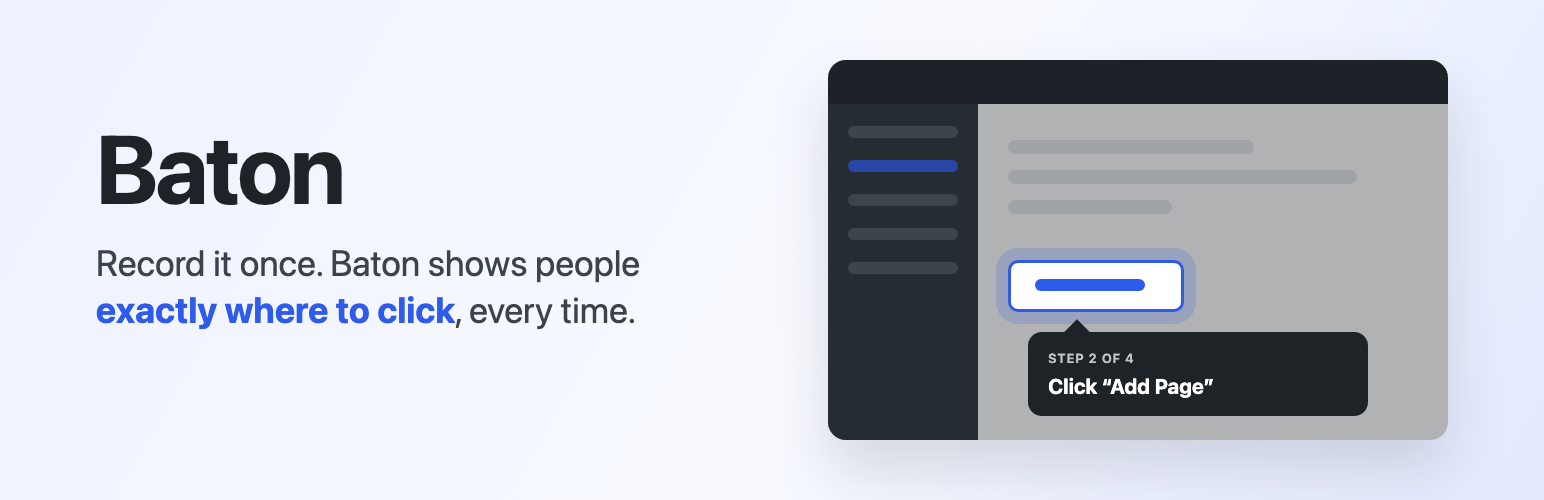
A site handover usually means a long call, a messy doc, or a screen recording that nobody watches. Baton shows your client around the real dashboard instead.
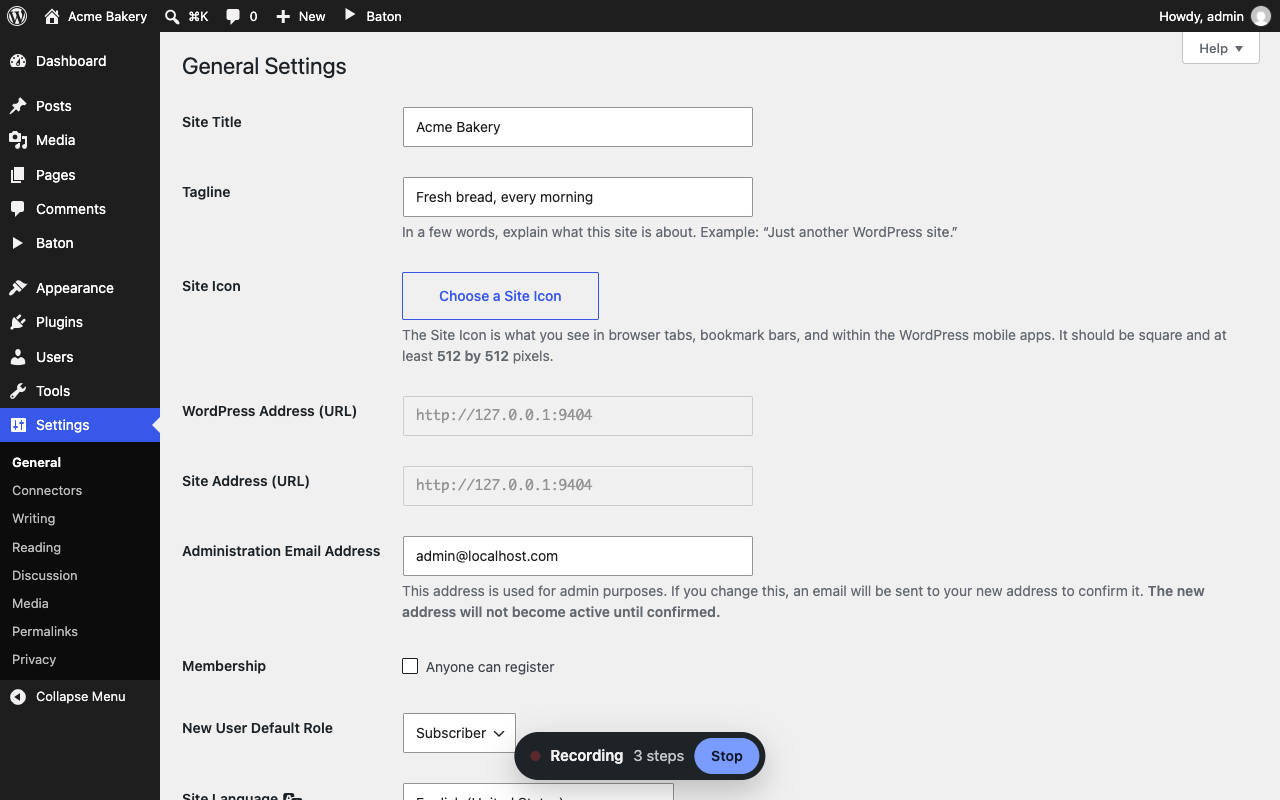
You do the task the way you always do. Add a page, update a product, or change the menu. Baton saves each click and a copy of each screen, and turns them into a walkthrough.
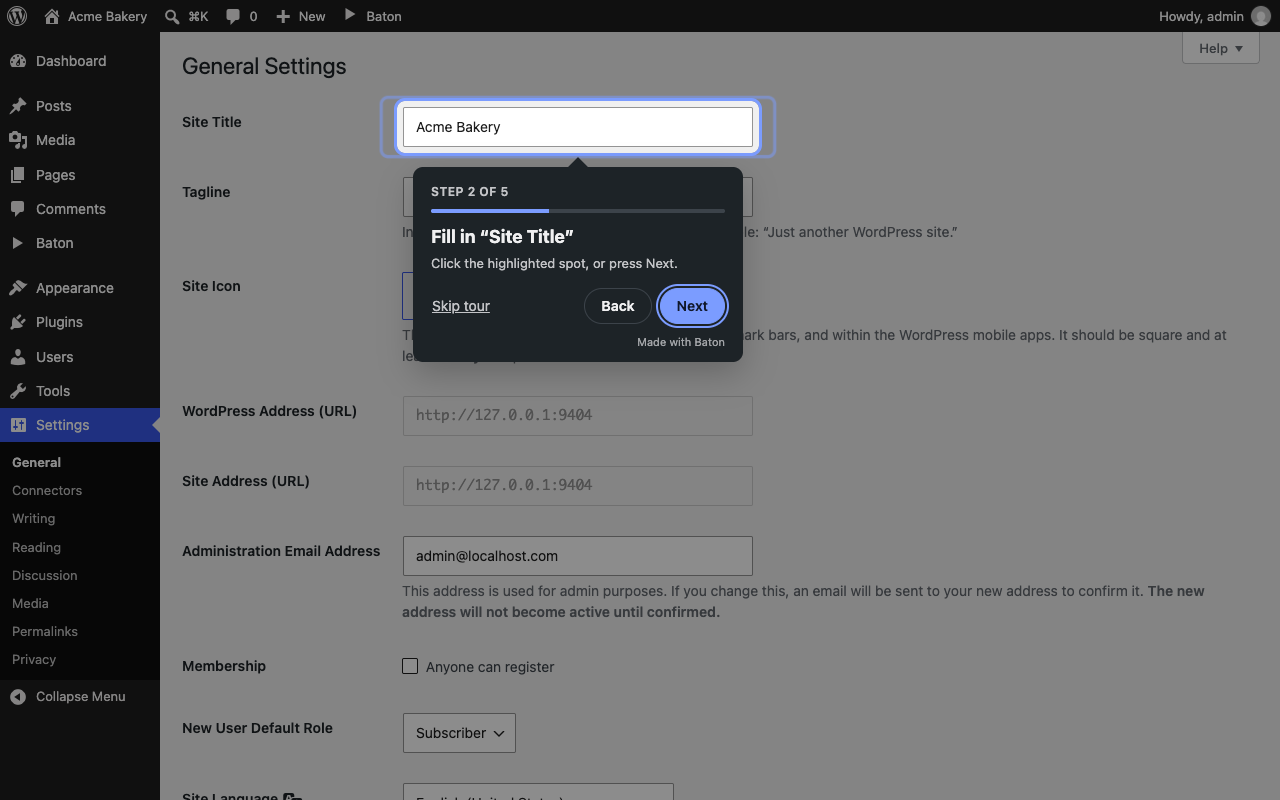
The next time your client logs in, they practise the task. The screens look the same as when you recorded them. Your client clicks the highlighted spot, one step at a time. A click in the practice copy cannot change the site.
The last steps of a task happen for real. When your client clicks Publish, WordPress publishes their post with the title and text they typed. Install installs the plugin, and Activate turns it on. Your client learns the task, and the work gets done.
To make a walkthrough, follow these steps:
- In the admin bar, click Baton → Record a walkthrough.
- Do the task that you want to show. Use as many screens as you need.
- Click Stop and give the walkthrough a name.
- Let AI write the steps, or write them yourself.
- Click Take the walkthrough to try it.
- Choose who sees the walkthrough, and publish it.
While you record, you might install a plugin or make a post for real. If you do, Baton offers to remove it, so your client can do the step fresh.
Baton gives you these features:
- A practice copy of every screen, with the menu, button, or box to use highlighted and a tip in plain words
- Practice that moves on when your client clicks the highlighted spot, with typing that goes into the boxes
- Publish, Install, and Activate steps that happen for real, for people that WordPress allows to do them
- Watch it, which plays the whole task step by step
- The same steps every time, even when the site changes after you record
- Block editor support, including the writing area
- AI that writes short steps such as “Click “Pages””, “Fill in “Site title””, and “Tick “Allow comments””, and leaves out side trips such as opening Help
- A choice of which roles see each walkthrough, and whether it shows once or at every login until they finish
- A list of walkthroughs in the admin bar, so people can take one again at any time
- A preview button that lets you try any walkthrough before anyone else sees it, including a draft or a single step
- Multisite support, where each site keeps its own walkthroughs and progress
- A tour link for each published walkthrough, for a button, a menu item, or a help doc
- Steps that you can edit, drag to reorder, or remove
Baton protects your data in these ways:
- Only site administrators can record, and only after they click Record.
- Baton saves only the clicks and a copy of each screen, on your own site.
- The screen copies never keep passwords, keys, or security codes.
- Baton leaves out clicks on its own menu.
- AI is optional. AI never sees what anyone types.
Baton Pro
Baton Pro is a paid add-on for guiding people outside your team. Baton works fully without it.
- Walkthroughs on the front end of your site, for customers, members, and students
- Tours for visitors who are not logged in
- Recording inside the Elementor editor
- Tours that start automatically, or that Baton suggests on the pages you choose
- Invite-only walkthroughs, shared with a private link
- Your own name in the dashboard menu, with no “Made with Baton” link
- Unlimited AI step writing
Read more about Baton Pro at baton.chidiebere.dev.
External services
Baton AI step writer
Baton connects to the Baton AI step writer. The plugin author runs this service at baton-ai.chidideveloper.workers.dev. The service turns your recorded clicks into short steps, such as “Click “Pages””. It runs on Cloudflare Workers and uses Cloudflare Workers AI to write the text.
When: Baton sends data only when a site administrator clicks Save and let AI write the steps after a recording, or Write steps with AI on a walkthrough’s edit screen. Nothing is sent otherwise. You can always write the steps yourself.
What is sent, for every step of the walkthrough:
- The name of the page that the step was on, such as “Settings › General”
- The kind of control that was clicked, such as “button”, “link”, or “checkbox”
- The text on that control, such as “Add Page”
The same service also checks the recording for side trips, such as opening Help without using it. Baton leaves those steps out, and you can put them back with one click.
- When: only after Save and let AI write the steps, and only if the recording has a side trip.
- What is sent: the text, page name, and kind of control for each step, and what the click opened, such as “menu “Options””.
Each request also carries a SHA-256 hash of your site address. A hash is a one-way scrambled code. The service uses it to count each site’s daily allowance without knowing which site it is. The service uses your server’s IP address to limit how many requests arrive at once. Baton never sends form entries, page addresses, or user details.
Send feedback
The Baton → Send feedback screen emails your message to the plugin author. Your site sends the email through WordPress’s own email, with a screenshot if you add one. A copy of the text, without the screenshot, also goes to the Baton AI step writer service. That copy arrives even if your site cannot send email.
When: only when you click Send on that screen. Nothing is sent otherwise.
What is sent:
- Your message
- Whether the message is a problem or an idea
- The email address in the reply box, which starts with your own address and which you can change or clear
- If Include this site’s address and versions is ticked: your site’s address, the site language, and the versions of Baton, Baton Pro, WordPress, PHP, Elementor, and your theme
You can untick Include this site’s address and versions. The service keeps messages for 90 days.
Answers to “How was this?” at the end of a walkthrough stay on your site. Baton never sends them anywhere.
- Terms of use: baton.chidiebere.dev/terms
- Privacy policy: baton.chidiebere.dev/privacy
- Cloudflare, which runs the service: terms of service, privacy policy
Installation
- Install and activate Baton.
- Open any page in your dashboard.
- In the admin bar, click Baton → Record a walkthrough, and do the task.
FAQ
Who sees a walkthrough?
Logged-in users with the roles that you tick see it. If you tick no roles, everyone who logs in sees it. Drafts never show.
When does a walkthrough start?
It starts in the dashboard after login, over the screen that the user lands on. You choose whether it starts at once or asks first. You also choose whether it shows once or at every login until the user finishes it.
What if a screen changes after I record?
The walkthrough still works. People practise on the screens as you recorded them, so every step stays where you left it. If the real screen changes a lot, record the walkthrough again.
What about pop-ups that show only once, such as the editor’s welcome guide?
If you click one while you record, it becomes a step. The practice shows it the same way that you saw it. To remove the step, open the walkthrough’s edit screen.
Do I have to use AI?
No. AI runs only when you click Save and let AI write the steps or Write steps with AI. Otherwise, Baton writes simple steps from the names of the buttons and links. You can edit every step.
How much AI can I use?
Each site can use AI to write steps 10 times a day for free. After that, Baton writes steps without AI until the next day. Baton Pro removes the daily limit.
How do I add a “Take the tour” button?
- Open the Walkthroughs list.
- Under a published walkthrough, click Copy tour link.
- Put the link on a button or a menu item.
Only people in Who sees it get the tour.
Does Baton add any links?
The practice in your dashboard shows a small “Made with Baton” link in the top bar. Baton never adds links to the public side of your site.
Can I use Baton on the front end of my site?
Yes, with Baton Pro.
Screenshots


Changelog
0.2.0
- Practice on a safe copy. People click through the screens as you recorded them, and a click there cannot change the site.
- Publish, Install, and Activate happen for real at the end, with the title and text that people typed and the categories that they ticked.
- Watch it plays the walkthrough by itself. After the end, it plays the walkthrough again.
- Record inside Elementor with the Record with Baton button in its top bar (a Baton Pro feature).
- AI leaves side trips out of recordings, and you can put them back.
- After you record, Baton offers to remove the test posts and plugins that the recording left behind.
- Walkthroughs go only to people who can open every page in them.
- “How was this?” shows at the end of a walkthrough, and a Send feedback screen reaches the author.
- The walkthrough list shows the size of each walkthrough.
- Screen copies never keep passwords, keys, tokens, or security codes.
0.1.0
- First release: record dashboard walkthroughs, click-by-click guided tours on login, block editor support, previews, tour links, and AI step writing.