


Description
Bookyzo turns your WordPress site into a real booking system, whatever you’re booking. Add a staff member for one-on-one appointments, a table for restaurant reservations, an event for ticketed occurrences, or a generic slot for anything else — set its availability, drop a booking form onto any page with a shortcode or block, and start taking bookings. No page builder plugin, no external booking service, no WooCommerce required.
Why Bookyzo?
- All four booking types — Appointment, Table, Event, Slot — in the free plugin, not locked behind an upsell
- No limits on bookable items, shifts or bookings
- Runs entirely on your own site — your booking data stays in your own database
- No WooCommerce dependency — works on any WordPress site
- A guided setup wizard and a real Vue-powered admin panel, not a wall of settings screens
Free features
All of these are in the free plugin, with no license needed.
Booking types
- Appointment — one staff member, one customer per time slot (haircuts, consultations, tutoring)
- Table — a restaurant table or venue space with a party-size capacity
- Event — a date and time you create yourself (a class, a workshop, a ticketed show), sold by ticket quantity
- Slot — a recurring time slot with room for more than one booking (a rental, a group session, anything that doesn’t fit the other three)
- No limits on bookable items, shifts or bookings
Bookable items & availability
- Name, description, photo, price, duration and capacity for each item
- A location and an online meeting link on any item
- A weekly schedule per item, with as many shifts per day as you like (e.g. lunch and dinner)
- Shared business hours an item can follow instead of its own schedule
- Date exceptions to block a holiday or change the hours for a single date
- Specific dates added by hand for events
- Available times kept up to date automatically in the background
Customer booking form
- The
[bookyzo_booking]shortcode, the Booking Form block and the Elementor widget - Show every item, one booking type (
[bookyzo_booking type="table"]) or a single item ([bookyzo_booking bookable_item_id="5"]) - Guest booking with a name, an email and a phone number, and you choose whether phone is required
- Party size for tables, ticket quantity for events and spots for slots
- Optional ticket holder names when someone books several event tickets
- Add to Google Calendar or download an .ics file from the confirmation screen
- Appearance settings for colors, width, font, corner rounding and shadow, with a live preview
- Spam protection with a honeypot field and a per-IP rate limit
Booking management
- Day, week, month and agenda calendar views, color-coded by status
- Drag a booking to another time on the calendar to reschedule it
- Add walk-in and phone bookings yourself
- Filter the booking list by date, bookable item or status, and change a status inline
- Export the filtered booking list to CSV
- Pending, confirmed, completed, cancelled, rejected and no-show statuses
- Confirm new bookings automatically, or review each one first
Dashboard
- Booking counts for today, this week and this month
- Revenue for the current month
- A chart of the last 14 days of bookings
- A list of upcoming bookings
Customers
- Customers saved automatically the first time they book
- Search by name, email or phone
- Your own notes and tags on each customer
- Import an existing customer list from a CSV file
Emails
- Automatic emails when a booking is received, confirmed or cancelled
- A reminder email the day before a booking
- An email to you for each new booking, which you can turn off
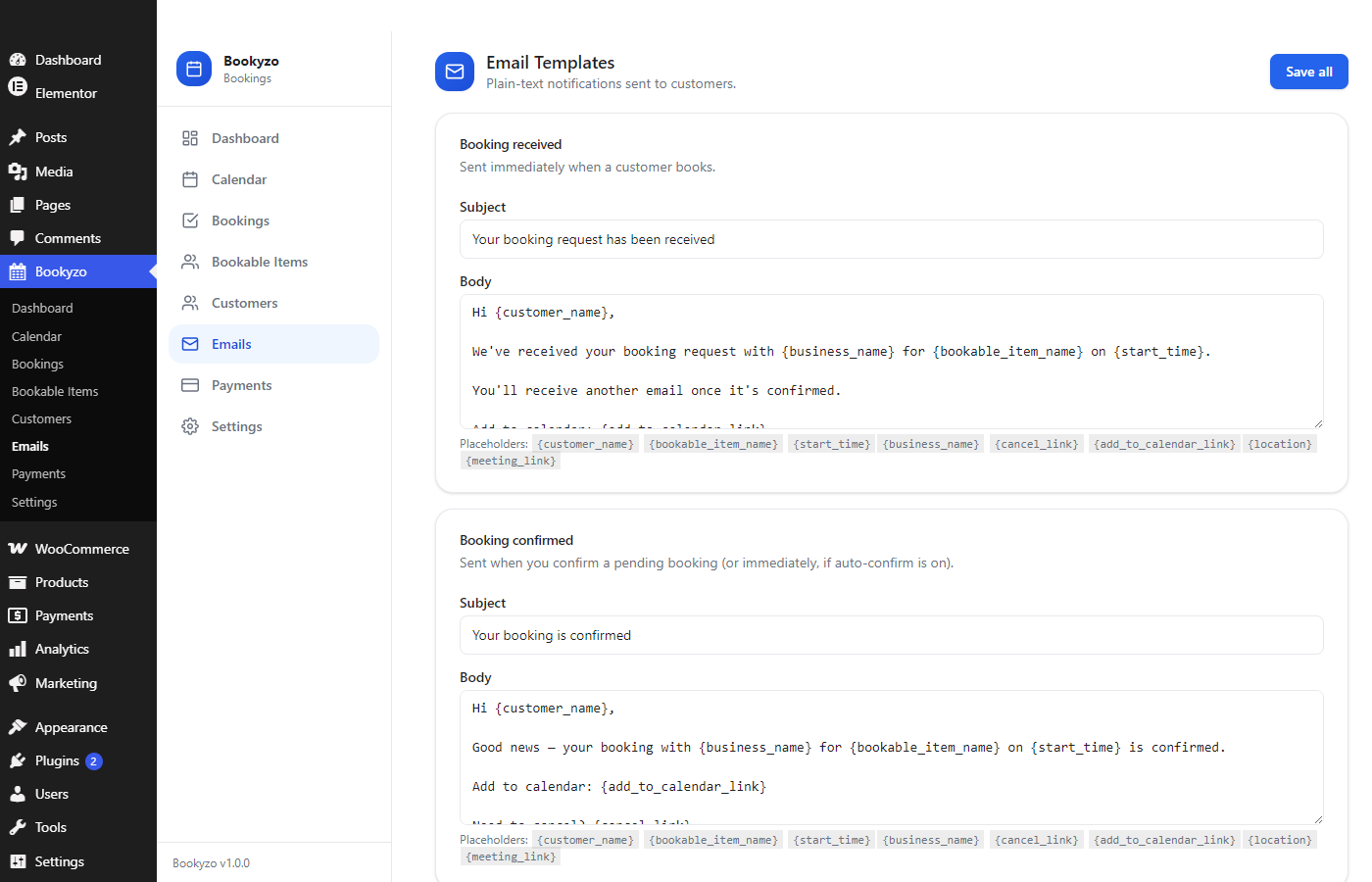
- Editable plain-text subject and body for every email, with placeholders for the customer’s name, the bookable item, the booking time, the total and your business name
Customer self-service
- A link in each email to move a booking to another open time or cancel it, up to your cancellation cutoff, with no account needed
- Optional customer accounts (off by default) with a
[bookyzo_account]page for upcoming and past bookings, rescheduling and cancelling
Payments
- Online card payments through your own Stripe account
- Mark bookings as paid manually for cash or in-person payments
- A “Pay in person” choice for customers, which you can turn off
- An optional flat tax rate on every paid booking’s total
- A time released automatically when a customer leaves an online payment unfinished
Privacy, translation & developer tools
- WordPress’s Export and Erase Personal Data tools
- Your booking data stays when you delete the plugin, unless you choose to remove it in Settings
- Translation-ready, including the booking form, the account page and the admin screens
- Actions, filters and a REST API under
bookyzo/v1
Pro features
These come only with Bookyzo Pro, a separate paid plugin that needs the free plugin installed. None of them are in the free plugin.
Booking tools
- Services with per-staff pricing and “any available staff” booking
- Recurring bookings you create for any non-event item, repeating every 1 to 4 weeks
- A waitlist for full times that emails the next person when a place frees up
- Bulk actions to confirm, complete, cancel or mark no-show on several bookings at once
- Internal notes and tags on a booking
- Duplicate a booking to start a new one
- Google Calendar and Outlook two-way sync — bookings go in, busy times block slots
Locations & staff
- Multiple locations, each with its own timezone and opening hours
- Staff logins that see only their own items’ bookings
Pricing & payments
- Deposits as a percentage or a fixed amount
- PayPal alongside Stripe
- Refunds on cancellation, approved by you — refund in full, keep the deposit or booking fee, or decline
- Discount codes as a percentage or a fixed amount, limited by item, booking type, date range and number of uses
- Prepaid packages (e.g. “10 classes for $150”) with their own store (
[bookyzo_packages], block and Elementor widget) - Seasonal and dynamic pricing by date range, day of the week or booking lead time
- Add-ons customers can attach to a booking
- Booking fees and per-item tax
- WooCommerce checkout when WooCommerce is active
Messages
- SMS (Twilio) and WhatsApp confirmations, cancellations and reminders
- Your own reminder timings (e.g. one 48 hours before and another closer to the booking)
- Email and SMS campaigns to a filtered customer list
- Post-visit follow-up emails, sent a set number of hours after a booking is completed
- Live admin alerts for new bookings, cancellations and no-shows
Tables
- A floor plan to arrange your tables and see each one’s state in a live view
- Combined tables for larger parties
- A walk-in waitlist
Events
- Ticket tiers (e.g. Early Bird, Regular, VIP) with their own prices and capacity
- QR e-tickets
- A web check-in scanner that uses the device’s camera, with no app to install and a manual fallback
- Attendee list export
Reports
- An analytics dashboard for revenue, occupancy, no-shows, repeat customers, conversion rate, popular items and hours, filterable by date and location, with CSV export
- Commission and payout tracking
- Customer list export with booking history
- Branded PDF invoices
Customization & integrations
- Custom form fields (text, dropdown, checkbox, date, number and address), for all items or just one
- Custom CSS for the booking form
- Signed webhooks when a booking is created or its status changes
- Marketing pixels for Facebook, GA4 and Google Tag Manager
License & updates
- Automatic Pro updates on the Plugins screen
- If a license expires, everything already set up keeps working; only creating new Pro items stops
External services
Bookyzo runs on your own site and stores bookings in your own database. It connects to these outside services only in the cases described.
Stripe (online card payments)
Used only if you turn on Stripe under Bookyzo → Payments and enter your own Stripe API keys.
- When a customer chooses to pay online, the booking widget loads Stripe.js from
https://js.stripe.com/v3/and the card details go straight from the customer’s browser to Stripe. They never pass through your site. - Your site sends Stripe the amount, the currency, the booking’s ID and the customer’s email address (for Stripe’s receipt), to create the payment, and later asks Stripe whether that payment succeeded.
- When you refund a booking paid by card, your site sends Stripe the payment’s reference and the amount to refund.
- Stripe calls your site’s webhook address to report payments it has completed.
Stripe is provided by Stripe, Inc.: Services Agreement, Privacy Policy.
Google Calendar (add to calendar link)
The booking confirmation screen and emails include an “Add to Google Calendar” link. Nothing is sent to Google unless the customer clicks it; the link then opens Google Calendar with the bookable item’s name and the booking’s time filled in.
Google Calendar is provided by Google LLC: Terms of Service, Privacy Policy.= Filters =
byzo_bookable_items_offering_service— ( int[] $bookable_item_ids, int $service_id ) Which bookable items offer a given service, for “any available staff” resolution. Defaultarray().byzo_service_price— ( float|null $price, int $service_id, int $bookable_item_id ) Resolved price for a service booked with a specific staff member. Defaultnull(falls back to the bookable item’s own price).byzo_deposit_amount— ( float|null $amount, float $payment_amount, int $bookable_item_id ) How much of a booking’s total is due online now as a deposit. Defaultnull(pay in full).byzo_default_settings— ( array $defaults ) Default values seeded into the business-settings option on activation.byzo_rest_controllers— ( array $controllers ) REST controller instances registered onrest_api_init.byzo_payment_gateways— ( array $gateways ) Registered payment gateways shown on the Payments settings screen, keyed by gateway id. Default: Stripe only.byzo_payment_gateway_defaults— ( array $defaults ) Default settings shape for each registered gateway, keyed by gateway id. Default: Stripe only.byzo_validate_payment_gateway_settings— ( array|WP_Error $current, string $gateway_id, array $data ) Validates and merges a settings patch for a non-Stripe gateway. Only consulted for a gateway thatbyzo_payment_gatewaysactually registered.byzo_rest_public_permission— ( bool $allowed, WP_REST_Request $request ) Permission check for guest-allowed REST routes.byzo_booking_rate_limit_max/byzo_booking_rate_limit_window— ( int ) Per-IP guest booking rate limit (default 20 requests / 600 seconds) and its window in seconds.byzo_client_ip— ( string $ip ) The IP address used for rate limiting.byzo_dev_server_url— ( string $url ) Vite dev server URL used only in local development.byzo_unit_price— ( float $price, int $bookable_item_id, array $slot ) Per-booking unit price adjustment applied right after service-price resolution and before tax. Default: unmodified$price.byzo_pdf_invoice_enabled— ( bool $enabled ) Whether a downloadable PDF invoice is available from the customer dashboard. Defaultfalse.byzo_custom_fields_for_bookable_item— ( array $fields, int $bookable_item_id ) Custom form fields to render on the booking widget for a given bookable item, each{ id, label, field_type, options, required }. Defaultarray().byzo_addons_for_bookable_item— ( array $addons, int $bookable_item_id ) Add-ons to render on the booking widget for a given bookable item, each{ id, name, price }. Defaultarray().byzo_resolve_addons— ( array $resolved, int[] $addon_ids, int $bookable_item_id ) Resolves client-submitted add-on ids into real, currently-active, correctly-scoped{ id, name, price }rows at booking-creation time — an id that doesn’t resolve is silently dropped. Defaultarray().byzo_appearance_css_vars— ( string $css, array $settings )--prop:value;custom-property pairs generated from the Appearance settings. Default: the built-in property set, or''when nothing was customized.byzo_appearance_css_declarations— ( string $css, array $settings )prop:value;plain CSS declarations generated from the Appearance settings. Default: the built-in declaration set, or''when nothing was customized.byzo_ticket_tiers_for_bookable_item— ( array $tiers, int $bookable_item_id ) Ticket tiers to render on the booking widget for a given Event bookable item, each{ id, name, price, capacity_remaining }. Defaultarray().byzo_ticket_tier_price— ( float|null $price, int $ticket_tier_id ) Resolved price for a specific ticket tier. Defaultnull(falls back to the bookable item’s own price).byzo_claim_ticket_tier— ( bool|null $claimed, int $ticket_tier_id, int $party_size ) Atomically claims capacity on a ticket tier at booking-creation time;falsemeans sold out (rolls back the slot’s own capacity claim). Defaultnull(no tier system installed, nothing to claim).byzo_qr_ticket_enabled— ( bool $enabled ) Whether a downloadable QR e-ticket is available from the customer dashboard. Defaultfalse.
Actions
byzo_loaded— Fires once the plugin is fully loaded.byzo_bookable_item_created— ( int $bookable_item_id ) After a new bookable item is created.byzo_bookable_item_activated— ( int $bookable_item_id ) After a bookable item transitions from inactive to active.byzo_booking_created— ( int $booking_id ) After a new booking is created.byzo_widget_rendered— ( array $config ) Each time a booking form is rendered on a page, so an add-on can enqueue its own front-end scripts.byzo_booking_status_changed— ( int $booking_id, string $new_status, string $old_status ) After a booking’s status changes.byzo_booking_payment_status_changed— ( int $booking_id, string $new_status, string $old_status ) After a booking’s payment status changes.byzo_notification_sent— ( string $event, int $booking_id ) After a notification email is sent (or attempted).byzo_notification_channels— ( string $event, array $booking, array $placeholders ) Fires after a notification email is sent, with the same placeholders — lets an add-on send the same event via another channel (e.g. SMS/WhatsApp).byzo_booking_rescheduled— ( int $booking_id, int $new_slot_id, int $old_slot_id ) After a booking is moved to a different slot (status itself is untouched, so this is separate frombyzo_booking_status_changed).byzo_release_ticket_tier— ( int $ticket_tier_id, int $party_size ) Fires when a ticket-tiered booking is cancelled/rejected/marked no-show, so its tier’s claimed capacity can be released back.
Installation
- Upload the plugin to
/wp-content/plugins/or install it via the Plugins screen. - Activate the plugin — you’ll be taken straight into a short setup wizard.
- Choose what you’re booking (appointment, table, event or slot), fill in your business details, and add your first bookable item.
- Add the
[bookyzo_booking]shortcode (or the Booking Form block) to any page. - Optionally connect Stripe under Bookyzo → Payments to accept card payments.
FAQ
Do I need WooCommerce?
No. Bookyzo has its own booking system and database tables — it doesn’t use WooCommerce products or orders at all.
Can customers book without creating an account?
Yes. Booking is a guest checkout by default — a customer only needs to give their name, email and phone number.
Can I edit the confirmation and reminder emails?
Yes, from Bookyzo → Emails in the admin panel. Every email is a plain-text template with placeholders for the customer’s name, the bookable item, the booking time and your business name.
How do reminder emails work?
An hourly background task checks for bookings starting in roughly 24 hours and sends a reminder — no setup needed beyond keeping the booking confirmed.
What happens when a payment arrives after the booking’s hold has expired?
When a customer starts paying online, their time is held for them for a short while (15 minutes by default, set under Bookyzo → Settings → General). If they don’t finish in time, the booking is cancelled so someone else can book that time, and the unfinished Stripe payment is cancelled.
If their payment still comes through afterwards (a slow bank check, for example), Bookyzo looks at the time again. If the place is still free, the booking is brought back and confirmed, and the customer gets the usual confirmation email. If someone else has taken it, the booking stays cancelled and is marked “Refund due”: you and the customer each get an email, and you refund the payment with your payment provider. You can list these bookings with the Payment filter on the Bookings screen.
Does this plugin hide or lock any features behind an upsell?
No. Every feature of this plugin is fully usable with no artificial limits, nag screens or disabled UI.
Does Bookyzo support anything besides one-on-one appointments?
Yes. It includes all four booking types: Appointment (one staff member, one customer), Table (party-size reservations), Event (ticketed occurrences on dates you set yourself), and Slot (a generic recurring slot with room for more than one booking).
How many staff members, tables or events can I add?
As many as you need, of every type. There is no limit on bookable items, shifts per day or bookings.
Where is the source code for the JavaScript?
The admin app, the booking widget and the account page are Vue apps, built with Vite into the minified files in assets/. Their full, human-readable source, with package.json and the Vite configuration, is public on GitHub: https://github.com/ashrafulsarkar/bookyzo. To rebuild, clone the repository, run npm ci and then npm run build.
Screenshots


Changelog
1.0.3 – 13-11-2026
- Fix: A payment that arrives after its booking’s hold has expired now takes the place again if it is still free, or marks the booking for refund and emails you and the customer. Before, it was recorded as paid on a cancelled booking with no notice. Thanks to PeepSo for flagging it.
- Fix: Two changes to the same booking at the same moment (for example an automatic cancellation and a payment confirmation) can no longer release a place twice.
- New: Online-payment holds are now a short, explicit window (default 15 minutes) and the unfinished Stripe payment is cancelled when it ends.
- New: Buffer time can be set per bookable item.
- New: Cancellation cut-off can be set per bookable item and is shown to customers before they book.
- New: A dismissible Black Friday notice for administrators offers 60% off Bookyzo Pro with the coupon code BLACKFRIDAY, through 30 November 2026 (site timezone). It is not shown while Bookyzo Pro is active, and dismissing it hides it until the next day.
1.0.2 – 04-11-2026
- New: A Get Pro page compares the free plugin with Bookyzo Pro, linked from the Bookyzo menu and the Plugins screen while Pro isn’t active. If Pro is installed but switched off, it offers to activate it instead.
- New: The setup wizard has an optional page about Bookyzo Pro near the end; “Continue with Free” carries on as before. It isn’t shown once Pro is active.
- Tweak: A redesigned setup wizard — a welcome screen that says what you’ll set up, an icon for each booking type, a currency picker instead of a text box, a Back button on the Type step, a wider layout that no longer changes width between steps, and “Skip setup” moved below the card.
- Tweak: The last setup screen shows your booking form’s shortcode with a Copy button.
- Tweak: Weekly hours on the Review steps are summarised (“Every day, 09:00–17:00” or “Mon–Fri 09:00–17:00 · Sat 10:00–14:00”) instead of listing all seven days.
- Fix: The booking form’s summary now shows the item’s own price whenever a discount, fee, add-on or tax turns the last line into a total.
- Fix: The Action column of the Bookable Items list was cut off on 1366px-wide screens.
- Fix: On phones, the closing time in the weekly hours editor was cut off. Its time fields are now the same 40px height as every other field.
- Fix: The time in a booking’s popup header was cut off next to its status.
1.0.1 – 14-10-2026
- Fix: Reloading the page in the middle of the setup wizard no longer loses your answers — the Review step used to show an empty type and name and “Closed every day”.
- Fix: Notices from WordPress and other plugins on Bookyzo screens were half hidden behind the Bookyzo sidebar. They now appear under the page header, all in the same style, and can still be dismissed.
- Fix: A blank strip above the WordPress admin menu on Bookyzo screens when PHP prints a warning.
- Fix: Search boxes, date pickers and dropdowns now share one height, and the Currency setting fills its column.
- Fix: In the booking form, the calendar now fills the form’s width when the times are listed below it.
- Fix: The WordPress admin menu lists Bookyzo’s screens in the same order as Bookyzo’s own sidebar, and no longer highlights Dashboard on add-on screens.
- Tweak: The setup wizard’s step bar fits the page and shows the current step’s name; label and value on the Review step no longer run together.
- Tweak: The Appearance preview shows the coming month instead of a fixed date.
- Tweak: The sidebar shows the installed version number.
- Dev: The Vue source and build setup are no longer bundled with the plugin; they are on GitHub (see the FAQ).
1.0.0 – 01-10-2026
- Initial release.