

Description
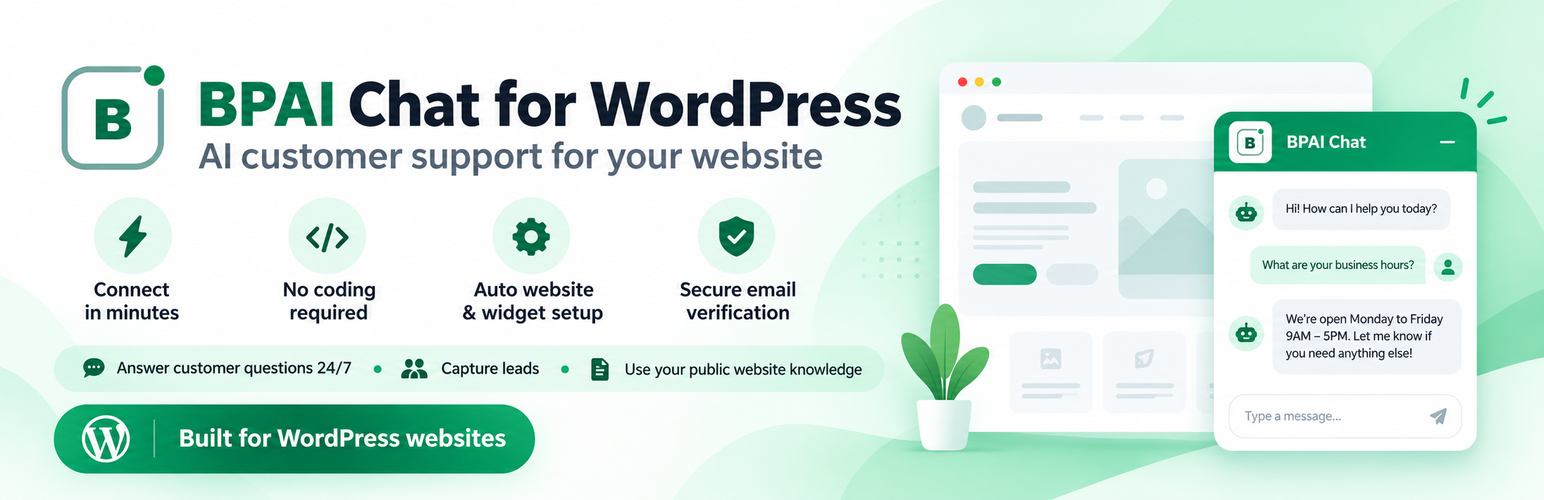
BPAI Chat helps businesses connect with website visitors through AI-assisted live chat and centralized customer support.
Connect your WordPress website to BPAI in a few simple steps. Once connected, the BPAI chat widget becomes available to website visitors, allowing them to ask questions and contact your business.
BPAI combines AI-assisted customer conversations with human support, helping businesses manage customer enquiries from a single workspace.
Why Choose BPAI Chat?
AI-Assisted Customer Support
Help website visitors find information and receive assistance through the BPAI chat experience.
Live Chat and Human Support
Manage conversations and allow your team to assist customers when human attention is needed.
Easy WordPress Integration
Connect your website without manually configuring API keys, tenant IDs, inbox IDs or widget code.
Centralized Conversations
View and manage customer enquiries through the BPAI workspace.
Team Collaboration
Allow authorized team members to manage customer conversations using the features available in BPAI.
WooCommerce Compatible
Use BPAI Chat on WordPress websites with or without WooCommerce.
Simple Connection Management
Check your connection status, disconnect your website or request reconnection from the WordPress administration area.
Get Started in Minutes
- Install and activate BPAI Chat.
- Navigate to Settings > BPAI Chat.
- Click Connect BPAI.
- Review and accept the BPAI Terms of Service and Privacy Policy.
- Open the verification email sent to the administrator.
- Complete the email verification and any required authorization.
- Return to WordPress and click Refresh Status.
- Once connected, visit your website to test the chat widget.
BPAI automatically associates the website with the appropriate workspace through its secure connection process.
Existing BPAI administrators can authorize an existing workspace. New workspace requests are processed according to BPAI’s verification and approval requirements.
Eligible connections may be approved automatically, while others may require additional review.
Manage Your Conversations
After connecting your website, access your BPAI workspace at:
https://bpai.in/conversations
The BPAI workspace provides access to customer conversations and other available platform features.
The WordPress plugin handles website integration and connection management. Conversations, AI configuration, team management and other support tools are managed through BPAI.
Connection and Security
BPAI Chat uses a secure installation process to connect WordPress to the hosted BPAI service.
The plugin:
- Identifies the WordPress website.
- Starts the connection using the WordPress administrator.
- Requests administrator email verification.
- Associates the installation with an authorized BPAI workspace.
- Stores the installation credentials required for subsequent communication.
- Loads the chat widget after BPAI confirms the connection.
The plugin does not require administrators to manually enter a public Website Key, tenant ID, inbox ID or API credential.
Connection tokens are stored locally in WordPress and are used for authenticated communication with BPAI.
The plugin does not display these credentials to public website visitors.
Connection Status
BPAI Chat displays the current connection status in WordPress.
Pending Email
The connection is waiting for the administrator to complete email verification or authorization.
Pending Approval
The administrator’s email has been verified, and the connection is awaiting any required BPAI approval or provisioning.
Connected
BPAI has confirmed the installation connection, and the website can load the BPAI chat widget.
Disconnected
The installation is disconnected, and the connected customer chat widget is no longer loaded.
Use Refresh Status to check the latest connection state.
Disconnect and Reconnect
Administrators can disconnect BPAI Chat from the WordPress settings page.
Disconnecting:
- Stops loading the connected BPAI chat widget.
- Does not automatically delete the BPAI workspace.
- Does not delete existing customer conversations.
- Does not remove other communication channels connected to BPAI.
To reconnect, select Reconnect in WordPress.
BPAI requests authorization from the administrator associated with the existing installation.
After authorization, use Refresh Status to confirm the connection.
If installation credentials are missing or the administrator cannot be verified, contact BPAI support.
External Services
BPAI Chat connects WordPress websites to the hosted BPAI customer support platform operated by Brightpath AI.
This external service is necessary for:
- Administrator verification and authorization.
- Website connection and workspace management.
- Chat widget configuration.
- Customer messaging and conversations.
- AI-assisted customer support.
- Human support and team collaboration.
- Other BPAI platform features enabled for the connected workspace.
Information Sent During Connection
When an authorized WordPress administrator selects Connect BPAI, the plugin sends the following information to the BPAI service:
- Website URL.
- Website name.
- Administrator email address.
- Administrator display name.
- WordPress version.
- BPAI Chat plugin version.
- Whether WooCommerce is active.
- WordPress administration callback URL.
This information is used to initiate and manage the requested BPAI connection.
Connection Credentials and Status Requests
After the connection process begins, the plugin communicates with BPAI using its installation identifier and connection token.
These credentials are used when:
- Checking connection status.
- Disconnecting the website.
- Requesting reconnection.
- Resolving the connected installation.
The connection token is stored locally and is not intended for public display.
External Chat Widget
Once BPAI confirms the website connection, the plugin loads the hosted BPAI chat widget.
Widget JavaScript:
https://bpai.in/api/widget/v2/loader.js
The widget provides the client-side interface through which visitors communicate with the connected BPAI workspace.
The widget is loaded only when the installation is connected.
Pending and disconnected installations do not load the connected customer chat widget.
The hosted widget is part of the BPAI customer support service. It is not used to install or update the WordPress plugin.
Visitor Information
When visitors use the chat widget, the information they voluntarily submit is transmitted to BPAI to provide customer support.
This may include:
- Chat messages.
- Contact details supplied by visitors.
- Information shared during customer enquiries.
Depending on the widget configuration and visitor interactions, BPAI may also process technical and contextual information necessary to operate the service, including:
- Current page URL.
- Browser information.
- Session information.
- Message timestamps.
Website administrators should inform visitors about their use of BPAI and update their website privacy disclosures where required.
BPAI Website: https://bpai.in/
Terms of Service: https://bpai.in/terms
Privacy Policy: https://bpai.in/privacy
Development Source
BPAI Chat includes human-readable source code for its PHP, JavaScript and CSS components.
The WordPress administration JavaScript source is available in the plugin at:
assets/js/admin-interactions.js
The administration CSS source files are available at:
assets/css/
No separate build process is required for these source files.
Installation
- Upload the BPAI Chat plugin through the WordPress administration area, or install it from the WordPress Plugin Directory.
- Activate the plugin.
- Navigate to Settings > BPAI Chat.
- Click Connect BPAI.
- Accept the applicable BPAI terms and privacy policy.
- Complete administrator email verification.
- Wait for any required workspace authorization or approval.
- Click Refresh Status to check the connection.
- Once connected, visit the website and test the chat widget.
FAQ
What is BPAI Chat?
BPAI Chat connects your WordPress website to BPAI, a hosted platform for AI-assisted customer support, live chat and customer conversation management.
Is BPAI Chat easy to install?
Yes. Install the plugin, open Settings > BPAI Chat and follow the guided connection process.
You do not need to manually configure widget code or API credentials.
Do I need a BPAI Website Key?
No. BPAI resolves the appropriate chat configuration automatically through the connected installation.
Do I need to enter an API key or tenant ID?
No. The normal connection process does not require manually entering an API key, tenant ID, inbox ID or Website Key.
Can existing BPAI customers connect their websites?
Yes. Existing BPAI administrators can authorize a connection to their workspace through the secure verification process.
Can new customers use BPAI Chat?
Yes. New administrators can begin the connection process using their email address.
New workspace requests are handled according to BPAI’s verification, eligibility and approval procedures.
Where can I manage customer conversations?
Open the BPAI workspace:
https://bpai.in/conversations
Customer conversations and other available support features are managed through BPAI.
Does BPAI Chat support WooCommerce?
Yes. BPAI Chat can be used on WordPress websites running WooCommerce.
No separate WooCommerce chat plugin is required.
When does the chat widget appear?
The widget is loaded after BPAI confirms that the website installation is connected.
Pending or disconnected installations do not load the connected customer widget.
What does Pending Email mean?
Pending Email means the connection is waiting for administrator email verification or authorization.
Open the BPAI verification email and complete the required action.
What does Pending Approval mean?
Pending Approval means the connection is awaiting any necessary BPAI review, approval or provisioning after verification.
Use Refresh Status to check progress.
What does Refresh Status do?
Refresh Status requests the latest connection information from BPAI and updates the displayed connection state.
The administration interface provides loading feedback and prevents duplicate requests while processing supported actions.
Can I disconnect BPAI Chat?
Yes. Open Settings > BPAI Chat and use the disconnect option.
Disconnecting stops loading the connected widget but does not automatically delete your BPAI workspace or conversation history.
How do I reconnect my website?
When the installation is disconnected, select Reconnect.
Follow the secure email authorization process and use Refresh Status to confirm reconnection.
What happens when I uninstall BPAI Chat?
Uninstalling the plugin removes locally stored BPAI connection information from WordPress.
It does not automatically delete your BPAI account, workspace, customer conversations or other information hosted by BPAI.
For data deletion requests, refer to:
https://bpai.in/privacy
What information does BPAI receive?
The plugin sends information required to establish and maintain the website connection.
When the chat widget is active, visitor messages and other submitted information are processed by BPAI to provide the requested service.
See the External Services section and the BPAI Privacy Policy for additional information.
Does BPAI Chat include a trial timer?
No. The WordPress plugin does not contain a local trial timer, feature paywall or usage-based mechanism that disables its included functionality.
Features available through the hosted BPAI service may depend on the applicable service plan.
Where can I find BPAI’s terms and privacy information?
Terms of Service:
https://bpai.in/terms
Privacy Policy:
https://bpai.in/privacy
Changelog
1.2.5
- Completed a security and coding-standards review.
- Tested the plugin on a clean WordPress installation with WP_DEBUG enabled.
- Verified plugin activation, connection, status refresh, widget loading, disconnect and reconnect flows.
- Validated the plugin with WordPress Plugin Check.
1.2.4
- Improved JavaScript source-code readability.
- Updated plugin asset organization for WordPress.org directory compliance.
- Corrected image filenames and administration interface logo references.
- Improved compatibility with WordPress coding standards.
- Added development source-code documentation.
- Preserved the existing BPAI connection and chat integration functionality.
1.2.3
- Added BPAI Chat plugin banners for the WordPress.org listing.
1.2.2
- Added automatic Starter approval for eligible new WordPress connections after administrator email verification.
- Improved the Open Workspace experience through BPAI’s secure authentication flow.
- Improved administrator email selection during connection.
- Updated connection instructions and status descriptions.
- Improved verification, approval and workspace provisioning guidance.
1.2.1
- Added AJAX-based connection submissions and in-page status updates.
- Added loading indicators and duplicate-request protection.
- Improved transitions between connection states.
- Added secure reconnection support.
- Improved connection errors and status feedback.
1.2.0
- Refactored the plugin into separate administration, API, connection and widget modules.
- Organized administration views into dedicated connection-status screens.
- Improved settings page rendering and connection management.
- Updated WordPress administration styling and compatibility.
1.1.4
- Introduced a unified email-first connection experience.
- Removed manual organization ID and access-key entry from normal setup.
- Improved connection-status synchronization.
- Updated the workspace navigation experience.
1.1.3
- Improved server-side tenant identification.
- Kept tenant identity out of the public WordPress interface.
- Used opaque installation identifiers and connection credentials.
1.1.2
- Improved WordPress Playground email verification.
- Added support for valid administrator email selection during Playground setup.
- Improved connection transport diagnostics.
- Expanded external-service documentation.
- Clarified widget behavior and disconnection handling.
1.1.1
- Updated the unified BPAI integration API.
- Improved detection of placeholder administrator email addresses.
- Improved connection diagnostics.
- Reduced sensitive information in diagnostic logs.
1.1.0
- Introduced automatic website onboarding.
- Added secure administrator email verification.
- Removed manual Website Key configuration.
- Added automatic website identification.
- Improved BPAI workspace integration.
- Added connection and disconnection management.
1.0.1
- Initial public Website Key connector.