

Description
PHP Compatibility Scanner helps you assess whether your site’s code (plugins and themes) is likely to run on newer versions of PHP. It performs static analysis using PHP_CodeSniffer and the PHPCompatibilityWP ruleset to flag code patterns that are incompatible with the selected target PHP version.
From BrightLeaf Digital, makers of the GravityOps add-ons for Gravity Forms.
What the plugin does (at a glance):
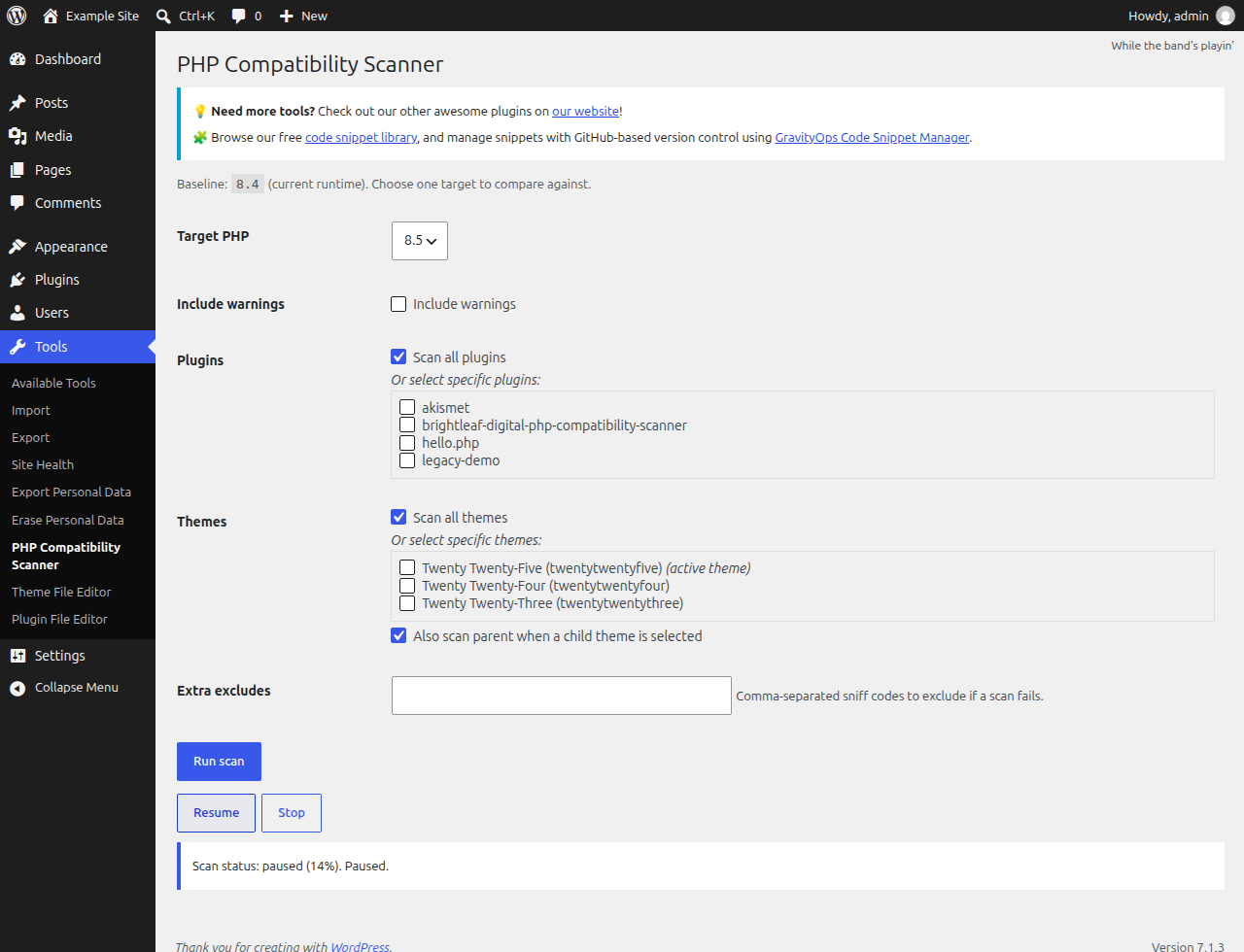
– Compares your current runtime PHP (baseline) to a selected target PHP version (8.0–8.5).
– Scans plugins and themes, then highlights only the new issues that would appear on the target version (the “delta”).
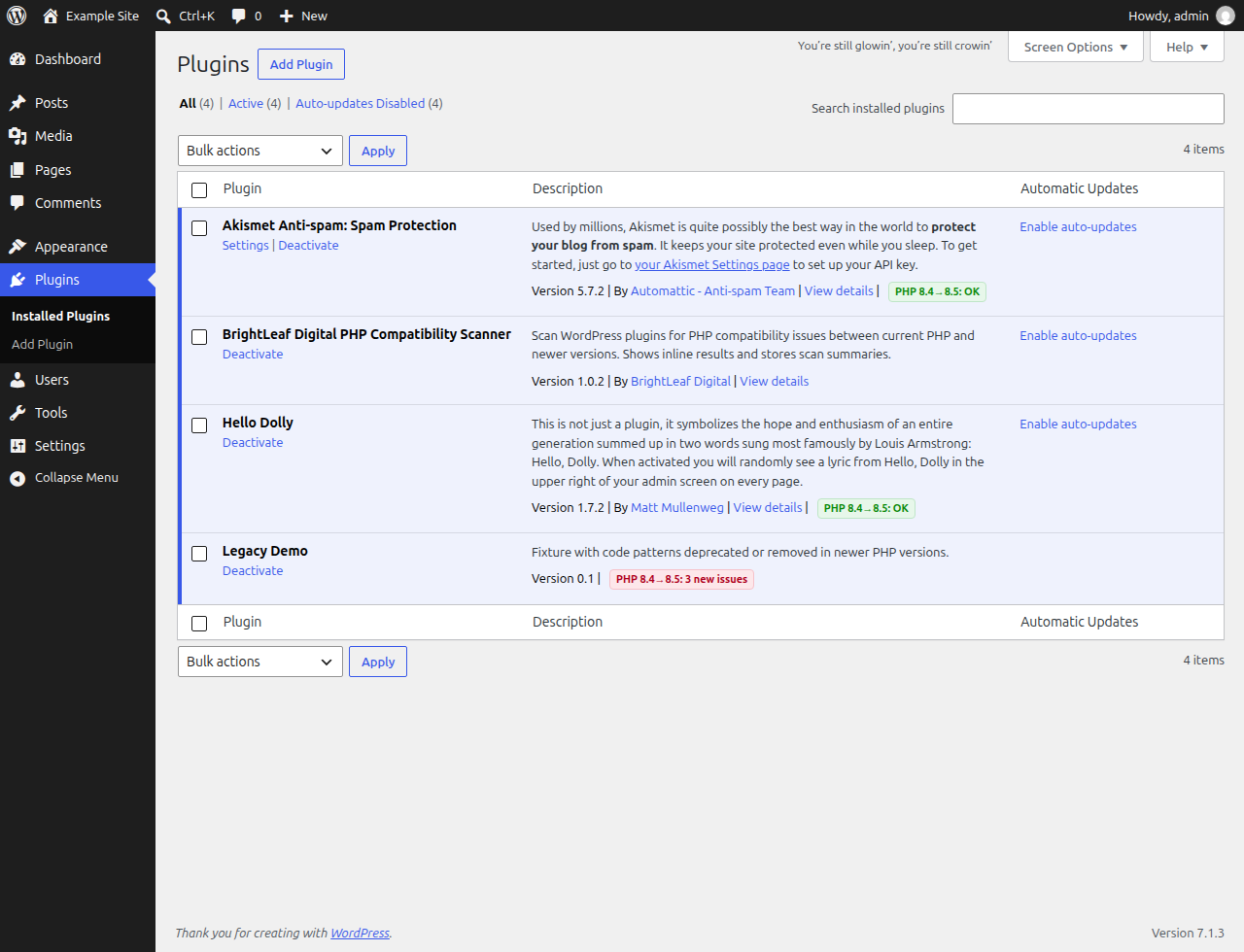
– Shows results in a clear report on the Tools screen and adds small badges on the Plugins list screen.
– Lets you pause, resume, or stop a running scan.
Important limitations of static analysis:
– Static analysis can miss issues in dynamic code paths and can generate false positives. Treat results as guidance, not guarantees. Always test site functionality on a staging environment before upgrading PHP in production.
Features
- Select a target PHP version (8.0, 8.1, 8.2, 8.3, 8.4, 8.5)
- Scan all plugins or select specific ones
- Scan all themes or select specific ones, with an option to also scan a parent if a child theme is selected
- Pause/Resume/Stop controls for long scans
- Clear report of only the new issues between baseline (current runtime) and target
- Plugin list badges showing a quick summary for the last scan
Community Help
For how-to questions and examples of what others have built, visit the GravityOps Help community.
If you opened a support thread on WordPress.org, continue that conversation there. The community is an additional place for help and ideas.
External services
Scanning runs entirely on your server. Your code and scan results are never sent anywhere.
The plugin includes the shared GravityOps library from BrightLeaf Digital, which connects to brightleafdigital.io in these cases:
- GravityOps product catalog. When an administrator uses the WordPress admin (or shortly afterwards, through WP-Cron), the library downloads the GravityOps product catalog (names, versions, icons, links and announcements) from brightleafdigital.io, at most about twice a day. The request sends no personal data or site content; like any web request, it reveals your server’s IP address.
- Newsletter signup. Only if you choose to subscribe to GravityOps Weekly, the email address you enter is sent to brightleafdigital.io.
- Feedback prompts. Only if you choose to answer the short GravityOps survey or open the review prompt, your answers, or the plugin and version being reviewed, are sent to brightleafdigital.io.
- Support access. Only if you grant BrightLeaf Digital support access, TrustedLogin creates a temporary login and notifies BrightLeaf Digital through TrustedLogin and brightleafdigital.io.
BrightLeaf Digital: Privacy Policy. TrustedLogin: Authorized User Terms, Privacy Policy.
Installation
- Install the plugin via Plugins → Add New → Upload Plugin, or place the
brightleaf-digital-php-compatibility-scannerfolder intowp-content/plugins/. - Activate the plugin through the “Plugins” menu in WordPress.
- Go to Tools → PHP Compatibility Scanner.
- Choose a Target PHP version higher than your current runtime.
- Select what to scan (plugins and/or themes) and click “Run scan”.
FAQ
What PHP versions can I target?
You can select one of: 8.0, 8.1, 8.2, 8.3, 8.4, or 8.5.
What is the minimum PHP version required to run this plugin?
The plugin requires PHP 7.4+ to run.
Does this modify my code?
No. It only analyzes code and reports findings.
Why are there false positives or missing issues?
Static analysis examines code without executing it. Dynamic patterns, conditional code paths, and environment-specific behavior can cause both false positives and false negatives. Use the results as guidance and verify on a staging site.
Does it scan MU-plugins?
No. MU-plugins are intentionally skipped.
Do I need WP-Cron for scans?
No. Scans advance via AJAX polling while the Tools page is open.
What should I do with the results?
Each row in the report is a new issue: code that is flagged on the target PHP version but not on the version your site runs now. Those are the spots that may break after you upgrade. Issues that already appear on your current version are left out, because your site is already running with them.
For each plugin or theme listed as not compatible:
- Check for an update. Authors often fix PHP compatibility in newer releases. Update (ideally on a staging site) and scan again.
- If you already have the latest version, contact the plugin or theme author. Share the File, Line and Message columns from the report and ask whether they support the target PHP version. The flagged code may never run on your site, or may be a false positive, and the author can tell you.
- If the author has no fix planned or the plugin or theme is no longer maintained, find a maintained replacement before you upgrade PHP.
- Scan again after each update or replacement, until the item shows no new issues.
Errors and warnings: an ERROR is code that was removed or changed in the target version and is likely to cause a fatal error or broken behavior. A WARNING is usually a deprecation: it still works on the target version but is likely to break in a later one. Warnings are hidden unless you tick “Include warnings”. Resolve errors before you upgrade; warnings can be planned for later.
Items listed as “could not be scanned” or “not scanned” have unknown compatibility. Select them and scan again.
Screenshots

Changelog
1.1.2 | Nov 15, 2026
- Added a one-time request to rate the plugin on WordPress.org, shown after two completed scans or two weeks, whichever comes first. You can dismiss it or ask to be reminded later; uninstalling removes its saved settings.
- Added an FAQ on what to do with scan results, and a note about BrightLeaf Digital.
- Updated the GravityOps shared library.
1.1.1 | Nov 11, 2026
- Fixed a stopped scan sometimes reporting every plugin as compatible. Items the scan never reached are now listed as not scanned.
- Fixed slow plugins being scanned twice at the same time, which could garble the progress of large scans.
- A plugin that keeps timing out no longer stalls the scan: after three tries it is listed as could not be scanned and the scan moves on.
- The scan screen now says when it cannot reach your server instead of retrying silently.
- Pausing or stopping while a large plugin is being scanned is no longer lost.
- Uninstalling the plugin now removes its stored scan data.
1.1.0 | Nov 10, 2026
- Joins the GravityOps suite: the plugin now includes the shared GravityOps library, which adds the GravityOps dashboard with other free and premium tools, announcements and an optional newsletter signup.
- The scanning engine now loads only while a scan is running, keeping it off every other admin page. If another plugin has already loaded its own copy of the engine (for example Plugin Check), the scan stops with a clear message instead of giving unreliable results.
- Fixed a possible error on the Plugins screen when another plugin passes unexpected plugin information.
- Added a Community Help section and an External services section to this readme.
1.0.2 | Oct 22, 2026
- Fix: scans reported every plugin and theme as compatible because the scanning engine did not load.
- Fix: a scan that cannot run is now reported as failed instead of compatible.
- Single-file plugins (such as Hello Dolly) can now be scanned and show a result badge.
- Temporary scan report files are now cleaned up after each scan.
- Tested with WordPress 7.1 and PHP 8.5.
- Corrected the menu and folder names in the installation steps.
1.0.1
- Add support for PHP 8.5