


Description
Images are usually the heaviest thing on a WordPress page. Editors upload a 4 MB photo straight from a camera, the alt text is left empty, and months later you have hundreds of files to check one by one.
Bubuku Media Library shows the file size and alt text status of every image in the Media Library, strips unnecessary metadata without recompressing, blocks oversized uploads and emails you regular reports.
Clean image metadata in bulk (new in 1.5)
- Choose what to remove: camera and GPS data, AI generation information, authorship, copyright or other embedded metadata.
- JPEG, PNG and WebP are cleaned without recompressing or resizing. Color profiles and orientation are kept.
- Clean new uploads automatically, or process existing images in small batches.
Find the heavy images
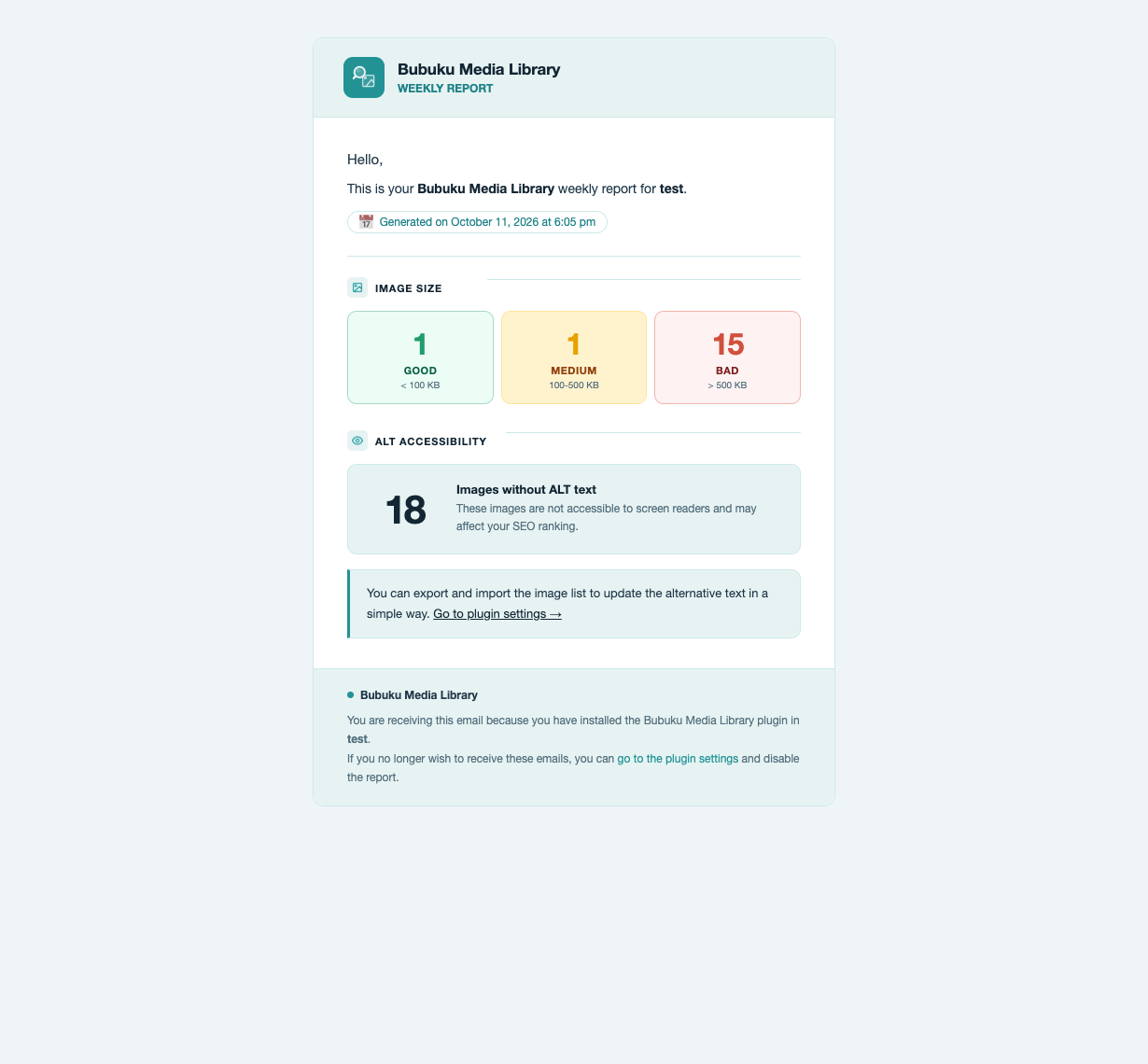
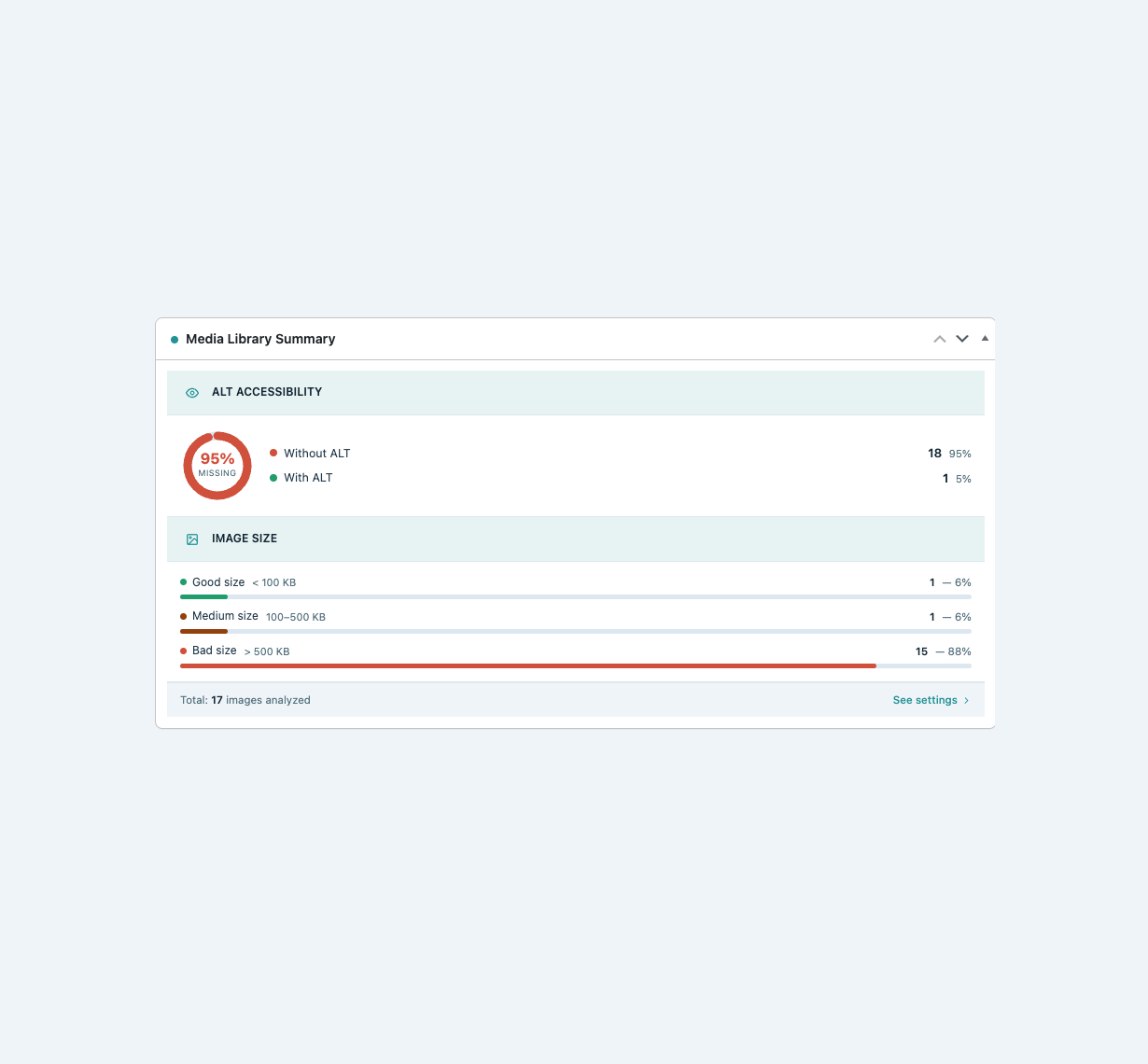
- A color-coded file size column in the Media Library: green up to 100 KB, orange up to 500 KB, red above.
- Sort by size or filter by good, medium and high file size.
Fix missing alt text
- Filter images with or without alt text.
- Export the list to CSV, complete the alt text in a spreadsheet and import it back.
Stop oversized uploads
- Set a maximum image size and show editors your own message when they go over it.
Keep an eye on it without logging in
- A Dashboard widget, weekly or monthly email reports and image checks in Tools → Site Health.
Connect AI assistants with MCP
Assistants such as Claude Desktop, Cursor or Codex can audit your Media Library through the official WordPress MCP Adapter (installed separately). Each ability can be enabled or disabled and restricted to a minimum role.
More information (in Spanish): How to know if we have to reduce weight to the image and Alt SEO attribute
Privacy Policy
The plugin stores file size and metadata cleanup state as attachment meta, plus a summary snapshot and your settings in the options table. It does not collect personal data or contact external services. Reports are emailed only to the addresses you configure.
Support
Need help or have a suggestion?
Please use the official WordPress.org Support Forum for any issues related to the plugin.
Want to know more?
Spot oversized images and review their alt text: the plugin page explains how it works, what it records and what it deliberately leaves out. For anything else, or to get in touch with the development team, visit our official website.
Like the plugin?
Please leave a 5-star review and help others discover Bubuku Media Library.
Installation
- Upload the plugin to the
/wp-content/plugins/directory, or install it from the Plugins screen. - Activate it through the Plugins screen.
- Go to Tools → Bubuku Media Library to choose your report frequency and upload limit.
- Run the “Calculate file size” bulk action in Media → Library, or use the Bulk processing tab, to measure existing images.
FAQ
Does the plugin send data to external servers?
No. It makes no requests to external services. Email reports go through your WordPress mail setup, only to the addresses you configure.
Can I stop editors from uploading very large images?
Yes. In the Settings tab, enable the upload size limit and choose a maximum size in MB. Larger images are blocked for every role and the editor sees your custom message. Other file types are not affected.
Does removing metadata reduce image quality?
No. JPEG, PNG and WebP files are cleaned without recompressing or resizing them, and color profiles and orientation are kept. The files are modified and the change cannot be undone, so make a backup first.
Can I process the images I already have?
Yes. The Bulk processing tab applies your metadata settings and calculates missing file sizes in small batches. You can pause, resume and retry errors.
What does each color mean?
Green is up to 100 KB, orange from 100 to 500 KB and red above 500 KB.
How do I recalculate sizes after optimizing images?
Use the “Calculate file size” bulk action in the Media Library, or the “Update size” link on each image.
How do I find images without alt text?
Use the “Alt Text” filter in the Media Library, or export the list to CSV from the Export/Import tab.
What does the CSV contain?
ID, image name, URL, file size, format, alt text, caption, image date and the title, URL and SEO title and description of the post where the image is used. SEO columns are filled when Yoast SEO, Rank Math, AIOSEO, SEOPress or The SEO Framework is active. The file has a UTF-8 BOM; in Excel, use Data → From Text/CSV with UTF-8 encoding if characters look garbled.
Can I disable the email reports?
Yes. Choose Weekly, Monthly or Disabled in the plugin settings.
How does the MCP connection work?
The official WordPress MCP Adapter publishes the plugin’s abilities to compatible AI clients. It must be installed and active, and WordPress 6.9 or later is recommended because the Abilities API is part of core from that version. The Tools & Abilities tab shows the server URL to use.
Can I control what AI assistants can access?
Yes. Each ability can be enabled or disabled individually and requires a minimum WordPress role.
Screenshots


Changelog
1.5.0
- New image metadata cleanup (JPEG, PNG, WebP) and Bulk processing tab for existing images.
1.4.3
- Fixed ALT CSV imports of more than 100 rows and added a per-row import report.
1.4.2
- Better compatibility with MCP clients; stricter permissions and rate limits on tools.
1.4.1
- New tabs and an optional upload size limit for images.
1.4.0
- Site Health checks for alt text and image size; security hardening.
1.3.0
- New Tools & Abilities tab to manage AI tools and their roles.
1.2.2
- CSV export adds post SEO title and description; redesigned email report.
Older versions: see docs/CHANGELOG.md in the plugin repository.