

Description
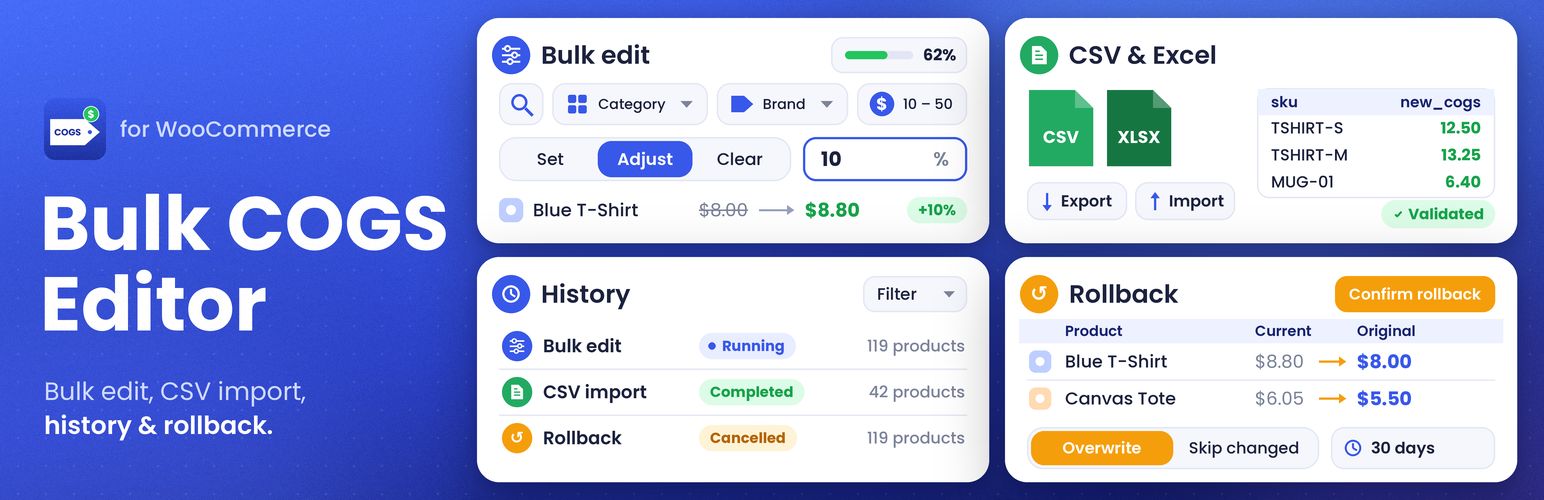
Bulk COGS Editor for WooCommerce is a fast, powerful bulk editing solution for managing WooCommerce COGS with WooCommerce’s native Cost of Goods Sold feature. Quickly filter large catalogs, save recurring filter setups as presets, preview proposed changes, and apply updates through background batch processing with live progress tracking.
Save reusable presets for recurring supplier cost adjustments, import WooCommerce cost of goods from UTF-8 CSV or Excel (XLSX), export cost data, and track operation history with safe or overwrite rollback options while retaining original values. Product selling prices and order data are never altered.
Use the editor to manage WooCommerce cost of goods for products and variations. There is nothing extra to configure beyond enabling Cost of Goods Sold in WooCommerce. For setup instructions and a step-by-step guide, see the Bulk COGS Editor documentation.
Watch the plugin in action
Why use Bulk COGS Editor?
- Save time on supplier price changes. Keep WooCommerce cost of goods current for a category, brand, or selected group instead of editing products one by one.
- Work from your spreadsheet. Bring WooCommerce COGS data into your catalog or prepare updates from exported product data.
- Make informed changes. Check the effect on product costs before committing an update.
- Keep a record of your work. Identify past WooCommerce COGS operations and decide whether eligible changes need to be reversed.
How it works
- Open Products > Bulk COGS Editor and choose Bulk edit.
- Choose your filters and find the matching products. Browse their selling prices, regular prices, and current COGS before choosing a cost update.
- Choose a WooCommerce COGS action, review the preview, optionally edit individual New COGS values with the pencil controls, and select the products to update.
- Review and confirm the update, then follow its results in the editor.
Quick 60-Second Demo – YouTube Short Video
Features
- Search by product name, SKU, GTIN, ISBN, EAN or UPC to find products and variations.
- Filter products and variations by category, brand, product type, stock status, current price, or current WooCommerce COGS.
- Find products with empty COGS, explicit zero COGS, positive COGS, or empty or zero COGS using the COGS value filter. Choose Greater than selling price to find products whose COGS exceeds their current selling price, including sales; products without a selling price are excluded. Choose Greater than regular price to compare COGS with the regular price before discounts; products without a regular price are excluded. Numeric COGS ranges remain available for Any value, Greater than zero, Greater than selling price, and Greater than regular price.
- Set an exact WooCommerce cost of goods value, increase or decrease it by a fixed amount or percentage, or clear it.
- Browse matching products with images, selling prices, regular prices, and WooCommerce COGS before entering a new cost. Then preview proposed COGS and the exact difference, with pagination and product selection. The three bulk editing steps use full-width sections.
- Process WooCommerce cost of goods updates through Action Scheduler, WooCommerce’s background task system, with progress and cancellation controls.
- Edit individual New COGS values with a pencil in bulk previews. Save, cancel, or reset each edit to Step 2; saved overrides stay across pages and are included in the confirmation summary.
- Import CSV or XLSX costs using product IDs or SKUs, edit valid products’ New COGS inline before applying, export matching WooCommerce COGS to CSV, and download validation and update reports.
- Inspect recorded outcomes and retained original WooCommerce cost of goods in History, with rollback review and confirmation.
- Save reusable filter presets to your account and manage their names, rules, and deletion in the Presets tab.
- Configure history retention and choose whether rollback overwrites later WooCommerce COGS edits or skips changed products.
- Recover a stuck editor operation through a confirmed force-clear action in Settings when normal cancellation does not work.
- Review cached notices for published products and variations with missing COGS or costs above selling prices, with background refresh and configurable notice placement.
- Bookmark or share the current editor tab using its URL, and move between tabs with browser Back and Forward.
- View operation timestamps and rollback deadlines in your WordPress date format, time format, and site timezone.
- See updated product counts and elapsed time after successful updates, with an optional review link and a dismissible review notice.
Performance for large catalogs
Bulk processing reduces repeated product searches and counts. It loads reusable product data in batches and groups cache cleanup to reduce repeated work. This makes managing WooCommerce COGS across thousands of products practical from the WordPress dashboard.
The plugin saves progress checkpoints and each product’s result to support recovery after interruptions. WooCommerce cost of goods values are saved through WooCommerce’s product APIs, preserving its hooks and cache handling.
All updates can be started and monitored from the WordPress dashboard, including on shared hosting. WP-CLI is not required. For larger catalogs, such as more than 5,000 or 10,000 SKUs, an optional WP-CLI runner may help WooCommerce COGS updates finish sooner. See Installation for details; any speed improvement depends on your hosting and workload.
Import and export WooCommerce cost of goods with CSV or Excel
CSV and XLSX import
Choose CSV mode and click Import on the Bulk COGS Editor page. Upload a UTF-8 CSV or XLSX file.
The upload limit follows WordPress’s maximum upload size, shown beside the file field. The plugin has no separate file-size or row-count limit. Hosting upload, memory, storage and execution limits still apply.
Sample CSV
Export products to CSV, fill in the blank new_cogs column, then import the file to preview your changes.
Use this format for your CSV file, replacing the example IDs, SKUs, and costs with your product data:
id,sku,new_cogs
123,PRODUCT-001,25.50
124,PRODUCT-002,40.00
Your file must include new_cogs and at least one product identifier: id or sku.
- You can omit either
idorsku. If both are provided, they must identify the same product. - Enter costs as decimal numbers without currency symbols, such as
25.50. - Leave a cost blank to skip that row.
- Duplicate product rows are excluded and listed in the error report.
Older files can use cogs when the new_cogs header is missing.
XLSX imports read raw values from the first worksheet. Replace formulas with values and store SKUs as text to preserve leading zeros.
XLSX requires PHP’s ZIP, XMLReader and DOM extensions. Exports use CSV format.
Preview and apply
Preview preparation runs in background batches without changing products. Progress is saved between batches, and you can close the page and return to check it. Preparation time varies with file size, product mix, hosting, and background worker availability.
When ready, review products and download validation errors if needed. Use the pencil beside New COGS to correct a valid product’s staged cost, then Save or Cancel. Saving changes only the preview; select products, review the selected changes, and confirm the update to change product costs. Preparation can be cancelled separately from an applied update. Completed imports with no skipped, failed, or unprocessed products have no update error report to download.
Original uploads are deleted after preparation. Staged previews and reports expire after about 24 hours. Retention extends while an applied update is active.
History and retention
Operation history and original cost records follow the retention period set in Settings. See the retention FAQ below. Daily cleanup preserves active operations and data needed for reports.
The plugin also keeps records that prevent the same preview from being applied more than once, including simultaneous Apply requests. These records follow the configured retention period and are removed only when they are no longer needed.
Requirements
- WordPress 6.7 or later
- WooCommerce 10.3 or later
- PHP 7.4 or later
- WooCommerce Cost of Goods Sold feature enabled in WooCommerce settings
If Cost of Goods Sold is unavailable or disabled, the editor is turned off and explains what is needed. When supported and permitted by your account, the availability notice offers Update Now for an older WooCommerce version or Enable Cost of Goods Sold for a disabled feature. Otherwise, ask an administrator to complete setup.
Privacy
Bulk COGS Editor for WooCommerce does not send product, customer, order, or store data to external services. All WooCommerce COGS calculations and WooCommerce cost of goods updates are performed locally on your WordPress/WooCommerce installation.
Developer resources
Bulk COGS Editor for WooCommerce is open-source software and is made to be extended. The source code is available in the GitHub repository.
Connect with the developer
Installation
- Upload the plugin files to the
/wp-content/plugins/bulk-cogs-editor-for-woocommercedirectory, or install the plugin through the WordPress Plugins screen. - Activate the plugin through the Plugins screen in WordPress.
- Make sure the Cost of Goods Sold feature is enabled in WooCommerce settings.
- Go to Products > Bulk COGS Editor in the WordPress admin menu.
- Filter your products, choose an action, preview the changes, then confirm to apply them.
Optional: run large updates with WP-CLI
The plugin works from the WordPress dashboard on shared hosting without enabling or installing WP-CLI. WooCommerce’s normal background runner handles the work.
For larger catalogs, such as more than 5,000 or 10,000 SKUs, you can optionally use Action Scheduler’s CLI runner for import preview preparation and confirmed updates while the editor continues to show progress and accept cancellations. See the Action Scheduler documentation for more information.
If you choose to use WP-CLI, import preview workers must run on the upload server under the same operating-system account as PHP. This lets them read the private temporary uploads.
If your shell uses a different account, ask your host to run the command under PHP’s account. Ordinary product updates do not need the uploaded file.
During preparation, worker logs show the stage, checked row count, and batch size. Total and remaining row counts become available after reading finishes.
After uploading an import for preview or confirming an update in the editor, run this command from your WordPress directory:
wp action-scheduler run --group=bulk-cogs-editor --batch-size=1 --batches=0
Check the queue with:
wp action-scheduler status --group=bulk-cogs-editor
The status report covers the site’s full Action Scheduler queue.
The run command processes due plugin actions for all users and exits when none remain. It does not wait for scheduled retries. --batch-size counts scheduled actions, not products.
If another worker owns the available batch, wait for it to finish or run:
wp action-scheduler run --group=bulk-cogs-editor --batch-size=1 --batches=0 --force
The plugin prevents two workers from changing the same operation simultaneously. Using --force can still increase server load.
Keep the normal background runner enabled for retries. If your host runs the command on a schedule, use a process lock to prevent overlapping command runs.
For performance checks, prefix the command with time. WooCommerce > Status > Logs under source dkbce records worker timing and runner details.
Reported performance for large catalogs
In the developer’s reported benchmark results, processing approximately 10,000 products improved from 50–60 minutes initially to 40–42 minutes, then 25–28 minutes.
The latest reported WP-CLI run updated 10,000 products in 15 minutes 24 seconds, with zero skipped and zero failed — about 69–74% less elapsed time than the initial implementation.
The completion screenshot records the editor operation’s elapsed time of 00:15:24. End-to-end CLI runtime was not measured separately. This is a single benchmark run, not a guaranteed completion time.
Actual performance depends on hosting, database speed, product types, installed extensions, and background worker availability. Repeated runs and larger catalogs still need benchmarking.
FAQ
Can I choose whether an update keeps rollback history?
Yes. Settings > Default rollback mode offers Keep rollback history (the initial default) and No rollback history. In the update confirmation popup, the Keep rollback history checkbox starts with that default and can be changed for the individual bulk update or CSV import. Its explanation updates as you change it.
With history enabled, original costs and detailed product changes remain available for the configured retention period. With history disabled, the operation cannot be rolled back and detailed cost-change history is not retained. Operation results and retry protection remain available. Temporary retry journals are removed by background cleanup after completion, failure, or cancellation. Changing the default does not change existing operations.
How often does progress refresh, and how can I enable diagnostic logs?
Update progress refreshes every 10 seconds for fewer than 1,000 selected items, or every 25 seconds for 1,000 or more. While the total is unknown, polling uses 25 seconds. Use Refresh status for an immediate update. Bulk-update progress is checkpointed after 50 products or 10 seconds, and at chunk boundaries or worker exit. Workers continue checking for cancellation every second between products.
Errors and operation completion summaries remain logged. Detailed worker timings and routine per-product diagnostics are disabled by default. To enable them temporarily for troubleshooting or benchmarking, add define( 'DKBCE_DIAGNOSTICS', true ); to wp-config.php. This does not change Query Monitor or other site-wide profiling settings.
How do I bulk update WooCommerce COGS?
Use Bulk edit for one WooCommerce cost of goods action across a selected group, with optional inline edits for individual products. Use CSV import for costs prepared in a spreadsheet. The steps for both workflows appear above.
Can I edit New COGS for one product before applying a bulk update?
Yes. Choose a cost action in Step 2, then use the pencil beside a product’s New COGS in the bulk review table. Enter a non-negative cost using your store’s decimal precision, then choose Save. Cancel leaves the saved preview unchanged; Reset to Step 2 removes that product’s override. Enter 0 to clear COGS; WooCommerce stores this as Empty.
In bulk previews, you can edit up to 500 individual costs. Saved edits are marked Edited, stay across pages, override Step 2 only for those products, and are counted for selected products in the confirmation summary. Saving an edit does not update the product; you must still select it and confirm the update. Save or cancel an open edit before continuing. CSV export previews and results browsed without a Step 2 action do not offer inline editing.
Changing filters or the bulk action clears inline edits. The automatic refresh after completion preserves them when the action and filters are unchanged, so New COGS continues to show the edited value.
Import previews also offer a pencil beside New COGS for valid products. Save replaces that product’s staged import value; Cancel leaves its saved staged value unchanged. Saved values remain across preview pages and are used when you select products and confirm Apply. Products are not updated when you save an edit. The 500-edit limit and Reset to Step 2 control apply only to bulk previews.
How do COGS health notices work?
The plugin scans published products and variations in background batches and caches counts for one hour. It warns about missing COGS or costs above the current selling price. If both apply, the missing-COGS warning appears first. Counts reflect the last completed scan, so recent edits may not appear immediately.
In Settings, choose whether the notice appears only in Bulk COGS Editor (the default) or across the site admin. Dismissing it hides it for your account for one hour. Refresh now starts a background recount, shows its progress, and updates or clears the notice when finished. Large catalogs or busy background queues can take several minutes. A scan does not change product costs.
Can I bookmark a specific editor tab?
Yes. Switch to Bulk edit, CSV, History, Presets, or Settings, then save or copy the browser URL. The selected tab is included in the URL; browser Back and Forward restore earlier tab selections.
Can I import WooCommerce cost of goods from CSV or Excel?
Yes. Both formats support product IDs or SKUs for importing WooCommerce COGS. See the import section above for required columns, file requirements, and validation steps.
Can I export product costs and import updated values?
Yes. Keep the exported product IDs or SKUs unchanged when preparing your WooCommerce cost of goods updates. Export produces CSV even if a previous import used XLSX; see the sample CSV above.
Does this plugin work with WooCommerce’s native Cost of Goods Sold feature?
Yes. It requires WooCommerce 10.3 or later with native WooCommerce COGS enabled. If the feature is disabled or unavailable, the editor explains what is required.
Can I increase all product costs by a percentage?
Yes. The percentage action applies to your selected products and adjusts WooCommerce COGS values. Products without a saved WooCommerce cost of goods are skipped; use Set exact cost to assign their initial values.
Does preparing a preview change product costs?
No. Finding products or validating an import only prepares a preview. Product costs change after you explicitly confirm the update.
Do I need to read the documentation or watch the video before using the editor?
No. The editor includes task-specific Help and instructions, field guidance, and cost examples. Use the documentation or video when you need more detail.
Where can I see the result of my last update?
Expand Recent activity for the latest completed operation, including updated counts, completion time, elapsed time, and highlighted problems. Open History to inspect earlier operations.
Can I update the same products again?
When a bulk update finishes in the open editor, its product selection is reused with current costs for another preview, even if those costs no longer match the original filters. Edit filters to narrow that selection. Choose Reset filters to start a new selection.
Can I use other tabs while an update is running?
Yes. You can move between Bulk edit, CSV import / export, History, and Settings while a background operation runs. Controls that could conflict with it stay disabled until the operation finishes.
How do I stop an update or rollback?
Choose Stop remaining updates, or Cancel rollback for a rollback, and confirm in the editor dialog. Cancel or Escape closes the dialog without requesting cancellation. Saved cost changes remain, and the active worker may take a short time to stop. Import preview preparation has its own Cancel preparation control with a confirmation dialog. Cancelling preparation does not change product costs; upload the file again to prepare another preview.
What should I do if an operation is stuck?
Try normal cancellation first. If it does not work, a WooCommerce manager can open Settings, choose Force clear current operation, review the warning, and confirm.
This resets the current user’s editor operation and import preview references and requests cancellation. It does not restore costs or immediately stop an active worker. Saved changes, operation history, and retained rollback data are kept. Check History before starting another update.
Can I roll back a completed update?
Open History, select View details, and choose Review rollback when original costs are retained. Compare current and original values, then choose Confirm rollback.
Expired operations and older records that contain only summary results cannot be rolled back. Restoring changes saved before cancellation also requires a separate rollback.
What if product cost changed after the original update?
Choose the skip-changed policy in Settings to preserve later cost edits. Choose overwrite to restore recorded original costs instead. The policy shown during review remains fixed for that rollback attempt.
If a rollback is cancelled or does not finish, review a new attempt for the remaining products. Already restored products are excluded, even if edited again later.
How long is operation history retained?
Choose 30 days, 90 days, or a custom period of 1 to 36,500 days in Settings. The default is 30 days.
Shortening retention also affects existing history. Extending it cannot recover original costs already deleted by scheduled cleanup.
How does the plugin handle variable products and variations?
Variations are treated as individual product records. You can filter and update WooCommerce COGS on variations directly, and variable parent products will not be changed when only variations are selected and updated. This makes managing WooCommerce cost of goods precise at the variation level.
How does “Select all” work in the filter dropdowns?
Each category, product type, stock status, and available brand dropdown has a “Select all” checkbox. Check it to select every option, or uncheck it to clear the selection. You can still select individual options. An empty filter does not restrict the results.
Why can selecting all categories return fewer matches than leaving the category filter empty?
Selecting all categories requires products to have a category assignment. Variations match the categories assigned to their parent product. Products without categories, and variations whose parent has no categories, are excluded. Use the “All categories” link in the dropdown or clear the category selection to remove this restriction.
Are child categories included?
Yes. The dropdown lists both parent and child categories in a flat list. Selecting a parent category also matches products in its child categories and variations of those products.
Does the matching total include variations?
Yes. The result message shows the total followed by separate product and variation counts, for example: “950 matches: 300 products and 650 variations.” The product count excludes variation records. The counts cover all matching results, not just the current preview page.
What happens to products without a COGS value during relative adjustments?
Percentage and fixed-amount adjustments skip products without a saved WooCommerce COGS value. Use Set exact cost to assign one. WooCommerce treats zero as empty; use Clear cost to remove a saved WooCommerce cost of goods value.
How are large catalogs processed?
Updates run in background batches, so you can close the browser and return to the editor for progress. Completion depends on hosting and background worker availability. Cancelling keeps changes already saved; it does not undo them.
Does this plugin modify product prices?
No. The plugin only modifies the WooCommerce cost of goods (WooCommerce COGS) value. Product selling prices and order data are never altered.
Where can I give feedback?
If you have a suggestion to improve the plugin, please open an issue on GitHub or use the support forum on WordPress.org.
Screenshots


Changelog
1.3.1 (2026-11-18)
- Fixed: Show a readable server-timeout message instead of a JSON parsing error when a request returns an HTML error page.
- Fixed: Keep Find products disabled when native WooCommerce COGS is unavailable or disabled.
- Fixed: Display operation timestamps and rollback deadlines using the WordPress date format, time format, and site timezone.
- Improved: Wait 750 milliseconds after action-value edits before refreshing the preview, allowing time to enter decimal values.
- Improved: Stack the three bulk editing steps at full width, align price and COGS filter fields, and place saved-filter loading and naming controls side by side.
- Added: Provide setup actions for updating WooCommerce settings when needed and enabling supported COGS features from the availability notice.
- Added: Show cached notices for published products with missing COGS or COGS above the current selling price. Choose whether notices appear only in the editor or throughout the site admin, and dismiss them for one hour. Refresh now recalculates counts in background batches, shows refresh progress, and updates or clears the notice when finished, including scans delayed beyond an hour.
- Added: Show a dismissible review notice after successful cost updates with the updated product count, elapsed time, and an optional review link.
- Added: Open editor tabs directly by URL, keep the URL in sync when switching tabs, and restore tab selection with browser Back and Forward navigation.
- Added: Filter products by empty, explicit zero, positive, or empty-or-zero COGS, or find COGS greater than the current selling price or regular price. Show help for the selected option and use indexed cost-state queries for large catalogs.
- Added: Browse matching products before choosing a cost update, with Selling price and Regular price columns available in Manage columns and visible by default.
- Added: Edit up to 500 individual New COGS values with pencil controls in bulk previews. Save or cancel edits, reset to Step 2, retain saved overrides across pages and the completion refresh (including zero costs stored as Empty), and review their count before confirming the update. Coordinate preview edits and confirmation across simultaneous requests to preserve reviewed values.
- Added: Edit New COGS inline for valid products in CSV/XLSX import previews before applying. Save replaces the staged value, including unchanged values; Cancel preserves the saved value. Keep edits across preview pages and coordinate edits with confirmation. The bulk preview’s 500-edit limit and Reset to Step 2 control do not apply to imports.
1.3.0 (2026-11-12)
- Fixed: Clear obsolete review counts after empty searches and require explicit product selection for new bulk previews.
- Fixed: Keep current and proposed costs together on mobile and prevent progress estimate text from overflowing its card.
- Fixed: Suppress unreliable remaining-time estimates while operations wait for progress, and support durations longer than one day.
- Fixed: Explain why rollback is unavailable and show the running-operation notice and progress link beside disabled rollback confirmation controls. Refresh confirmation availability as operation status changes.
- Fixed: Allow cleanup jobs and retention scans to schedule continuation batches without conflicting with Action Scheduler uniqueness checks.
- Fixed: Require at least one product identifier column for CSV exports.
- Fixed: Preserve import preparation cancellation, confirmation copy, and keyboard focus when preparation finishes.
- Fixed: Recheck reused selections after reviewed-product reads so Apply rejects sources entering retention cleanup during preflight.
- Fixed: Repair the early preset-table name index that prevented saving a second preset for the same user.
- Improved: Refresh editor layouts, align workflow steps, reduce inactive content, and place confirmation beside the product preview.
- Improved: Follow each user’s WordPress Administration Color Scheme for buttons, links, tabs, progress bars, and selection highlights.
- Improved: Distinguish Reset filters, Deselect all products, and Start over; provide actionable empty results and clearer search, selection, preview, and confirmation guidance.
- Improved: Use import/export-specific labels and explain blank versus zero costs. Show specific missing-file, format, and size errors and group row errors with correction guidance.
- Improved: Make history easier to scan with action-first columns, accessible full operation IDs, focused detail views, preserved list context, reloadable operation links, and operation-specific progress headings.
- Improved: Show rollback retention deadlines and the effective rollback policy, and confirm reductions to history retention before saving.
- Improved: Provide completion actions for reviewing changed products, skipped or failed results, and starting a fresh update.
- Updated: Set release metadata to 1.3.0, refresh translations and generated assets, update development dependencies and code graphs, and document the UI/UX review and implementation decisions.
- Updated: Refresh documentation, plugin, and social profile links. Require an explicit request for Playwright verification on each development task.
- Added: A CSV export column-selection toggle.
- Added: A Default rollback mode setting with Keep rollback history and No rollback history options. The update confirmation checkbox uses this default, allows a per-operation override, and explains the selected mode and potential time savings. No rollback history omits rollback and detailed cost-change history while preserving operation results and retry protection.
- Added: Account-based filter presets in a dedicated custom table, with unique names per user and access across browsers and devices. Existing browser and user-meta presets are not migrated.
- Added: A Presets tab before Settings with a native WordPress list table, created dates, editable names and filter rules, Edit/Delete row actions, and bulk deletion. Loaded presets hide duplicate-save controls, and deletion is available only in Presets.
1.2.1 (2026-10-27)
- Fixed: Round imported costs to the WooCommerce decimal settings instead of rejecting values with excess decimal places.
- Fixed: Reject reused selections while their source history is being cleaned up, including existing previews and Apply checks, so partially deleted selections cannot be accepted.
- Fixed: Allow returning to Bulk edit and CSV from History or Settings while a background operation is running.
- Fixed: Reuse the completed bulk operation’s product selection with current costs when preparing another update, even when changed costs no longer match the original filters.
- Fixed: Keep range selection controls within the editor layout.
- Fixed: Restore workflow step indicators and remove duplicate step badges from History progress.
- Fixed: Hide empty import error reports when every product succeeds, while retaining reports for failed, skipped, and unprocessed products.
- Improved: Show a spinner while cancellation is pending.
- Improved: Confirm stopping remaining updates or a rollback in an editor dialog explaining that saved changes remain.
- Improved: Confirm cancelling CSV/XLSX import preparation before requesting cancellation, explaining that costs are unchanged and the file must be uploaded again for another preview.
- Improved: Confirm force-clear recovery in an editor dialog before resetting saved operation references.
- Improved: Validate and stage CSV/XLSX rows in bounded batches with grouped SKU lookups and product cache preparation.
- Improved: Process multiple import preparation batches within each worker’s time and memory budgets, with cursor checkpoints and cancellation checks between batches.
- Improved: Batch import exclusions and reviewed-cost checks before Apply, continuing large reviews across bounded requests before queuing updates.
- Improved: Prepare variation-parent caches for CSV export, evaluate only requested column getters, and yield between batches under memory pressure.
- Improved: Reuse XLSX XML streams between batches within one worker while reopening safely after partial staging or a cursor change. New workers still scan to the saved position.
- Updated: Clarify the editor title as Bulk COGS (Cost of Goods Sold) Editor and refresh the translation template.
- Added: A force-clear recovery setting for stuck operations that resets the current user’s saved operation and import references and requests cancellation, while retaining saved cost changes, history, and rollback data.
1.2.0 (2026-10-24)
- Fixed: Restore green increases and red decreases in the review table’s Change column.
- Fixed: Load History reliably and preserve bulk and CSV previews and selected products when visiting History or Settings.
- Fixed: Reconcile costs saved before an after-save exception so successfully changed products remain recorded and eligible for rollback.
- Fixed: Allow reviewed retries after cancelled, failed, or skipped rollbacks, processing only remaining products and preserving later edits to products already restored.
- Fixed: Repair interrupted rollback startup claims, verify operation persistence before scheduling, and prevent concurrent starts with ownership locks.
- Fixed: Recheck configured retention before deleting queued history and prevent partially deleted records from being offered as complete rollbacks.
- Fixed: Refresh active historical operation details and requeue stalled workers through the existing recovery path.
- Fixed: Report import preview errors instead of leaving preparation failures unclear.
- Fixed: Copy uploads into private import storage so background preparation can reopen them after the upload request ends.
- Improved: Count matching products and variations through paginated database totals without loading every matching product ID into PHP.
- Improved: Resolve import SKUs through WooCommerce’s indexed lookup storage when available, verify candidates against product objects, and retain metadata fallback for unsupported or incomplete lookup data while preserving ambiguity checks.
- Improved: Reuse WooCommerce search matches within a request and the authorized preview lifetime, and persist search matches for applied operations rather than repeating broad searches for each batch.
- Improved: Process multiple bounded XLSX batches with one open XML reader per worker request, subject to the cooperative deadline, reducing repeated reader setup and prefix traversal within that request.
- Improved: Reuse staged import values in previews, read update values once per chunk, cache repeated XLSX shared strings within a bounded cache, and prepare product caches in batches for previews and exports.
- Improved: Save one durable outcome per operation and product in an indexed table instead of repeatedly rewriting growing chunk results, preserving retry protection and compatibility with existing chunk-backed operations.
- Improved: Reuse indexed outcome summaries during finalization and clean up completed chunks and outcomes in resumable background batches while preserving import report data.
- Improved: Acquire and release private product locks without invalidating unrelated WordPress negative-option cache entries, retaining atomic ownership and expiry checks.
- Improved: Refine import and export controls and progress displays, and include processed counts, remaining work, batch size, counter changes, and operation stage in worker timing logs and WP-CLI output.
- Improved: Clarify Bulk edit, Import, and Export guidance with task-specific previews, upload details, a nearby CSV template, structured confirmation, explicit export downloads, and expandable recent activity.
- Improved: Unify product selection with cross-page totals, page/all/range/clear controls, and a sticky action summary while preserving server-validated selection limits.
- Improved: Replace action cards with compact Set, Adjust, and Clear controls, contextual fields, cost examples, and a visible Find products prerequisite.
- Improved: Add searchable filter menus, selected-option counts, removable filter chips, Clear filters, and collapsible primary and advanced filters.
- Improved: Prioritize product and cost comparisons, retain optional columns and saved preferences, keep table headers and mobile product identity visible while scrolling, and group page size and direct page navigation in the footer.
- Improved: Change Help and instructions to match the selected Bulk edit, CSV Import, or CSV Export task.
- Improved: Keep previous preview rows visible during refresh and pagination, mark outdated results, and prevent selection or confirmation until fresh results are ready.
- Improved: Place preview refresh controls, validation errors, and recovery guidance beside the relevant workflow controls.
- Improved: Identify the active update task, avoid misleading percentages while preparation totals are unknown, clarify that cancellation keeps saved changes, and retain keyboard focus on progress controls when redrawn.
- Improved: Summarize recent activity with updated counts, completion and elapsed times, and prominent skipped, failed, or incomplete outcomes.
- Improved: Simplify editor styling and improve mobile touch targets, stacked controls, scrollable help, and safe-area spacing for the sticky summary.
- Improved: Reuse review tables and progress/result rendering across bulk updates and history; use consistent numbered pagination, page-size controls, Go to page, and inline Show entries controls.
- Improved: Collect remaining rollback product IDs through bounded cursor reads without repeating a full history-product count per batch.
- Improved: The latest reported WP-CLI benchmark updated 10,000 products in 15 minutes 24 seconds, with zero skipped and zero failed, compared with 50–60 minutes initially. This single run records editor operation elapsed time; results vary by store and require repeat benchmarking.
- Updated: Refresh the translation template, import and worker documentation, QA and performance review reports, and development code graph.
- Updated: Document History, rollback policies, retention settings, and recovery behavior, with refreshed screenshots from the wpdev development store.
- Added: Export matching products to CSV with a blank
new_cogscolumn for preparing cost updates. - Added: Import UTF-8 CSV and XLSX files, validate product IDs or SKUs and new COGS values with up to six decimal places, then preview changes before explicitly applying them. Continue accepting the legacy
cogsheader whennew_cogsis absent. - Added: Prepare import previews in background batches, with validation progress, paginated results, product selection, downloadable validation and update reports, and independent cancellation of preparation.
- Added: Store import rows in an indexed staging table, delete original uploads when preparation ends, and schedule staged preview and report cleanup after approximately 24 hours, extending retention while an applied update is active.
- Added: Generate CSV exports and import reports asynchronously on the server, with progress, cancellation, private download files, interruption checkpoints, and scheduled download cleanup after two days.
- Added: Browse and filter operation history in a third History tab, with operation details, recorded product changes, optional notes, and background rollback review, confirmation, progress, cancellation, and results.
- Added: Configure 30-day, 90-day, or custom history retention and overwrite or skip-changed rollback behavior in a fourth Settings tab.
- Added: Remove expired operation history, original cost records, and preview claims through bounded daily cleanup using the configured retention period, preserving active operations, import report dependencies, and preview replay protection.
- Added: Upgrade import and outcome database tables using
DKBCE_DB_VERSION, version comparison, and WordPressdbDelta()when the stored schema version is older. - Added: Load plugin classes on demand through a
DKBCE_prefix autoloader. - Added: Provide a development WP-CLI profiler for generated range-query SQL, EXPLAIN plans, installed indexes, repeated timings, and ordered-ID comparisons. Document local findings without changing runtime range predicates, indexes, or pagination.
1.1.1 (2026-10-20)
- Fixed: Recover background COGS updates that stop progressing and allow cancellation cleanup from the editor.
- Fixed: Keep matching product counts visible when changing the selected COGS action.
- Fixed: Allow preview pagination during background updates after the preview token has been consumed, while keeping product selection disabled.
- Improved: Scroll to the bottom of the editor when a background update starts so its progress is visible.
- Improved: Prevent filter changes while an update is running and require products to be fetched before choosing an action. The editor guides users to Get products when they try.
- Improved: Place the action warning in the Step 2 title row and center it on larger screens.
- Improved: Explain how to refresh an expired preview and scroll to the notice so the instructions are visible.
- Improved: Collect matching products using a product ID cursor, cache search matches per operation, and recover saved snapshot chunks after interruptions.
- Improved: Group WooCommerce product transient invalidations within each update batch to reduce repeated cache cleanup.
- Improved: Bulk update performance through batch preparation of product and variation-parent caches, fewer repeated reads, and progress checkpoints that retain durable per-product outcomes. A reported benchmark for this version updated 10,000 products in 21 minutes 34 seconds, compared with 50–60 minutes initially; results vary by store and require repeat benchmarking.
- Added: Select the first or last number of products across all matching results, or choose all results.
- Added: Clear a finished operation when using the Refresh now link.
1.1.0 (2026-10-14)
- Fixed: Admin notices appearing between the page title and description.
- Fixed: Alignment of the top and bottom select-all checkboxes with product row checkboxes.
- Fixed: Match variations through their parent product’s categories, including when filtering for variations only.
- Improved: Progress reporting with a right-aligned processed product count, percentage indicator, and elapsed and estimated remaining time.
- Added: A message during background updates explaining that you can close the browser and return later to view the results.
- Added: Keep the latest completed operation visible when returning to the editor.
- Added: Expanded page title to clarify Cost of Goods Sold (COGS).
- Added: Select-all controls in filter dropdowns and product counts beside category names.
- Added: Separate product and variation counts in matching results.
- Added: Documentation and video links in the plugin row and editor help section, with clearer COGS setup and usage instructions.
- Added: Clear cancelled updates from the editor using the Refresh now link.
1.0.0 (2026-10-10)
- Initial release.