


Description
Bulwarden is the site agent, installed on each managed WordPress site. It
exposes a signed REST API (jgm/v1) that a Bulwarden hub calls to read
health and security data, run checks and trigger updates. The hub is a separate
application — it is not part of this plugin — and this plugin talks to no hub
at all until you pair it with one. On its own it sends nothing anywhere.
It is built for the person who is responsible for a site they did not build:
an agency looking after forty of them, or an owner who wants one place that
answers “is this thing all right?” without logging into it.
What it reports
- Site health — WordPress, PHP and plugin versions, pending updates, disk
usage, and WordPress’ own Site Health tests, collected in one snapshot. - A full plugin and theme inventory, with each item’s version, whether it
is active, whether an update is waiting, and whether it came from
WordPress.org at all — which is what lets a hub match it against a CVE feed. - Must-use plugins, which WordPress runs on every single request with
nothing activating them and no way to switch one off from the admin. Nothing
else in wp-admin lists them properly, and dropping a file there is the tidiest
way to install a backdoor. - Configuration-level security checks with a posture score — file editing,
directory listing, XML-RPC, debug output, and the rest of the settings that
quietly decide how exposed a site is. - Unfinished updates. An update that already replaced a site’s files can
still fail to finish, and neither state clears itself: a pending database
schema upgrade that every administrator is sent to and the public site hides
completely, or a leftover.maintenancelock from an updater that died
mid-copy. Both are reported, and both can be finished from the hub by running
exactly what WordPress itself would have run. - Email delivery. WordPress keeps no record of the mail a site sends: when
a contact form stops delivering or an order confirmation never arrives, the
error is raised and thrown away. This counts what was attempted, what failed
and why, and reports which transport is doing it — PHP’smail(), an SMTP
server, or the plugin that configured one. No part of any message is stored:
not the recipient, not the subject, not the body.
What it finds
- A malware scan in three layers. Every core and WordPress.org file is
verified against its published checksums, so a modified file is found
whether or not anybody has written a signature for what was put in it; then
every file is read for the code patterns webshells and injected backdoors
actually use. Findings carry the file, the line and a short excerpt. - Backdoors that arrive dressed as an ordinary plugin — a forged
administrator login, a privileged action gated on a key baked into the file,
an account created from hard-coded credentials, users hidden from the users
list. A plugin absent from WordPress.org has no published files to check it
against, so without this a hostile one surfaced only as unverifiable. - A plugin hiding itself. Malware that conceals a plugin does it by
answering the question before WordPress can — and the hidden plugin is then
also the one plugin whose files are never checked. The scan counts what is on
disk itself and compares. - Server-configuration files.
.htaccess,php.iniand.user.iniare
the one part of a WordPress install that changes what the server does
rather than what WordPress does, and nothing in wp-admin shows them. A file
set to run before every request, a rule that makes uploaded images execute as
PHP, a redirect that only fires for search engines: all reported, with the
line. Nothing is ever changed for you — a good share of those directives are
written deliberately by a host or a security plugin, and the point is that
you get to decide which. - Leftover files. An interrupted backup, a finished restore and a migration
plugin all leave things behind and none of them clean up: a
wp-config.php.bak the web server hands out as plain text, adatabase.sql
in the web root, an installer that overwrites the site with no login. Found,
measured, and removable from the hub — and the site decides what may be
deleted, so a stale list can only ever be refused. - Signatures that keep up. The scan’s pattern list comes from your
provider rather than from this plugin, so a new detection reaches the site in
hours rather than waiting for a release to travel a whole fleet. The plugin
itself contains no malware signatures at all — a file full of them is exactly
what a hosting provider’s own malware scanner flags — and the site keeps the
list it receives in its database. - A scan that starts itself. When a plugin WordPress.org does not publish
appears in the plugins or must-use folder, the site starts a scan within
seconds and tells your provider what set it off, instead of waiting for the
next scheduled one. Fake plugins are how most WordPress break-ins arrive, and
a scan is a cheap thing to be wrong about: nothing is blocked, quarantined or
deleted — the site looks, and your provider decides.
What it does
- Remote core, plugin and theme updates, wrapped in maintenance mode so
visitors never see a half-updated site — and taken off the host’s PHP time
limit, so a core update on shared hosting finishes instead of being killed
part-way. - Zero-knowledge encrypted backups. The archive is built and encrypted on
this server, under a passphrase that is never transmitted anywhere;
only the ciphertext is uploaded. Nobody — including whoever runs the hub —
can read a backup without that passphrase. - Restores that fail safely. The same thing in reverse, and it can put back
the database alone if that is all that broke. Every table is rebuilt beside
the live one and swapped in only once it is complete, so a restore stopped by
a timeout or a server limit leaves the database exactly as it was rather than
half-replaced — and picks itself back up where it stopped. What could not be
done is counted and reported rather than discarded, so a restore that ran into
trouble says so instead of reporting success. - Page tracing. Your provider can ask this site to render one of its own
public pages and report which file produced each line of the HTML — core, a
plugin, the theme, a must-use plugin. It answers the question nothing in
WordPress answers: which plugin adds the Google Fonts tag, or the tracking
script, or the markup nobody can find a setting for. The page is never
altered to do it. - WP-Cron on a schedule that actually runs. A site with no visitors runs no
cron, which is how scheduled posts, order emails and licence checks quietly
stop. - A support card on the dashboard naming whoever maintains the site, how to
reach them, and a Request help button that files a ticket with them
directly — attached to the right site, without the owner having to explain
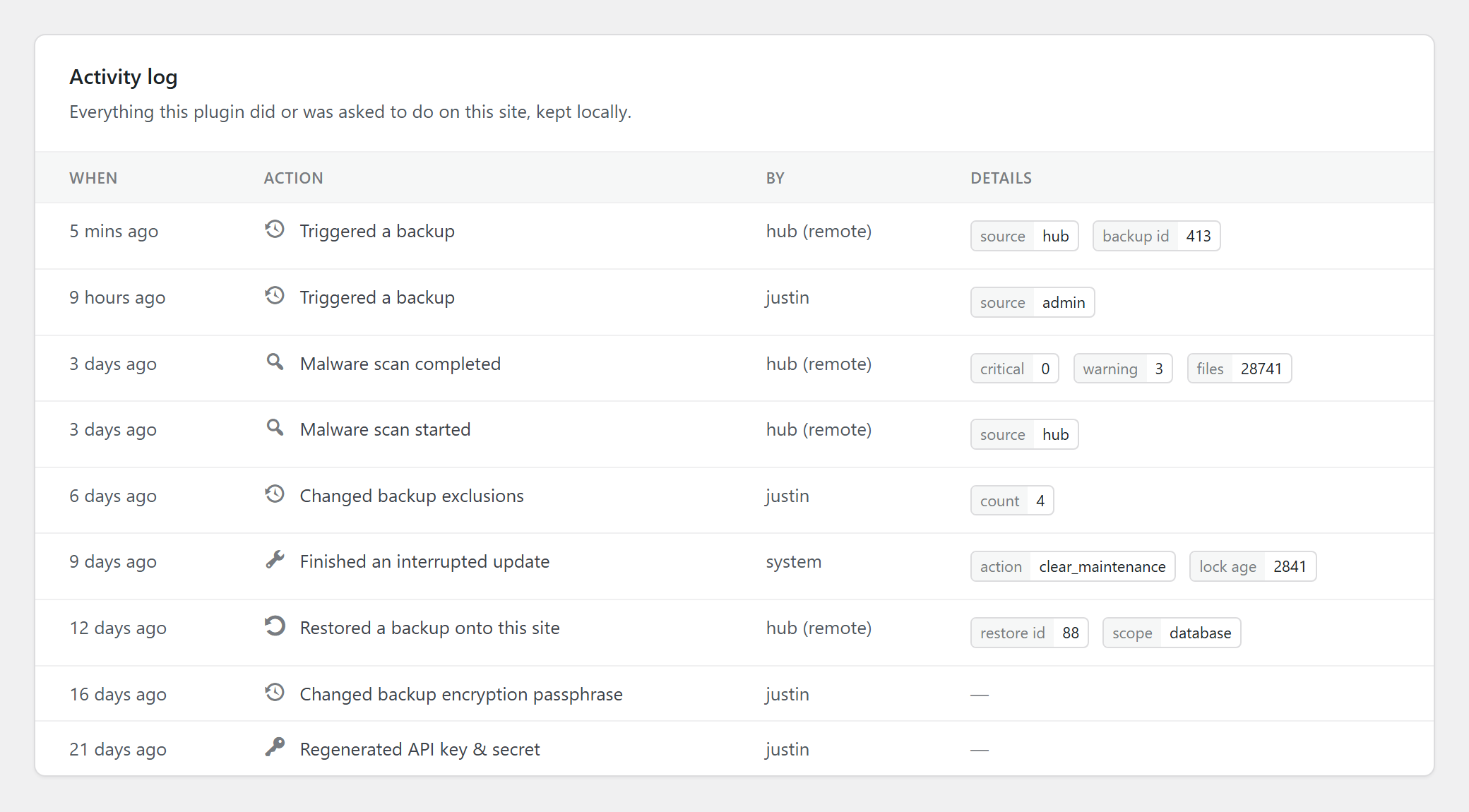
which one. - An activity log on the site itself, append-only, recording everything that
changed this site or sent part of it somewhere — and which side asked. Updates
installed by your provider and anything that failed with them, backups,
restores, scans, repairs, deleted leftovers, a file read off the server, a
traced page, and every change to the credentials, the passphrase or the
provider details. WordPress records what changed and never who asked, and the
answer belongs on your own server rather than only in somebody else’s console.
Pairing
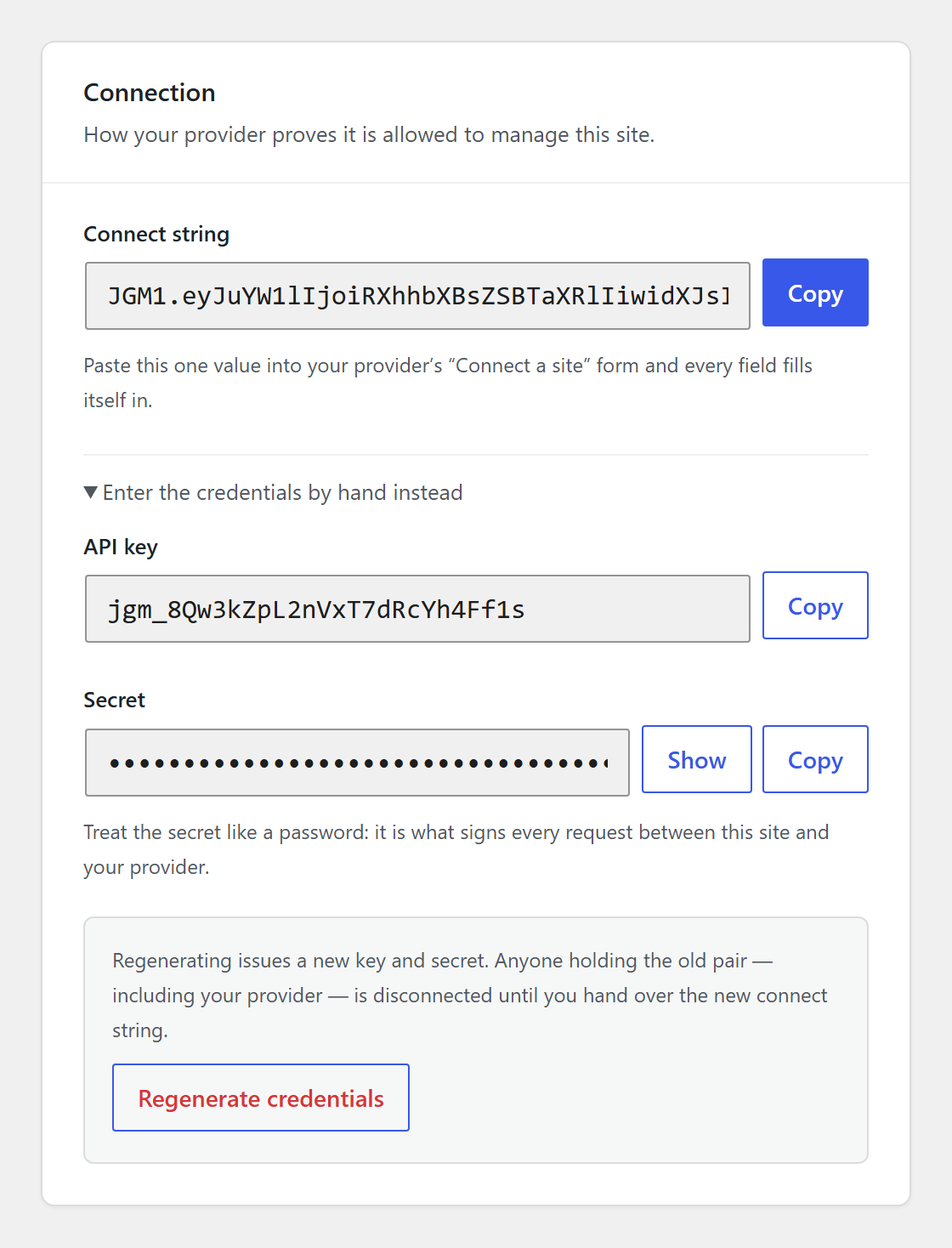
On activation the plugin provisions an API key + secret. Copy the connect
string from the Bulwarden entry in the WordPress admin menu and paste
it into the hub’s “Connect a site” form. Your provider’s support details are
then pushed to the site automatically by the hub and appear on the dashboard.
No hub account yet? Until the site is paired, the plugin’s banner and settings
screen offer Start a free trial, which opens the Bulwarden hub’s pricing
page (https://hub.bulwarden.net/pricing/) in a new tab. Start a trial there,
set your password from the email you receive, choose “Connect a site” in the
hub and paste the connect string. Opening that page sends nothing from this
site; it is an ordinary link.
Security
Hub → client requests are authenticated with the per-site API key and an
HMAC-SHA256 signature over the method, route, timestamp, a single-use nonce and
the body. The nonce is what makes a signature good exactly once: it is recorded
when the request arrives and refused if it comes back, so a captured request
cannot be replayed. Timestamps outside a 5-minute window are rejected outright,
which is also how long a nonce has to be remembered for. The secret never
travels on the wire — it lives only in this plugin and in the hub webapp.
Privacy
Bulwarden is a client agent: on its own it sends data nowhere. Pairing this
site with a hub (yours, or your maintenance provider’s) is an explicit,
opt-in action — you choose when to copy the connect string from the Bulwarden
screen in the WordPress admin menu and hand it to that hub. Nothing is
transmitted before that.
Once paired, data only moves in these cases:
- Health, inventory, and security checks. The paired hub reads these from
this site’s signed REST API when it polls or when a check is requested —
WordPress/plugin/theme versions and update status, a full plugin & theme
inventory, disk usage, and the configuration-level security posture score. - Backups, only when triggered (the Settings screen’s “Back up now”
button, or a request from the paired hub): the full site is archived and
encrypted on this server with a passphrase that is never transmitted
anywhere, then the ciphertext is uploaded to the hub. Only someone who has
the passphrase can decrypt a backup — the hub operator cannot read its
contents. - Malware scan results, only when a scan is triggered (admin- or
hub-initiated): findings (type, severity, file path, line, and a short
excerpt) are sent to the hub that requested the scan. - Finishing an interrupted update, when the paired hub asks. Nothing is
sent in that exchange; the site runs WordPress’ own database upgrade, or
deletes an expired.maintenancelock file, and reports the outcome. - Server-configuration files, when the paired hub asks: the contents of
this site’s.htaccess,php.iniand.user.inifiles, so the hub can show
what is in them and when they last changed. These are configuration, not
content — no post, page, media file or user data is read. - Email counters, as part of the health snapshot: how many messages this
site attempted and how many failed over the last seven days, the error text
the mail server returned, and which transport is sending. No part of any
message is recorded — not the recipient, not the subject, not the body. - Site activity, as the hub asks for it (unless you switch it off on the
Bulwarden screen): sign-ins, account, role, password and email-address
changes (the fact, never the password or the address), plugin, theme and
WordPress changes, content published, trashed, restored or deleted (its
title), changes to eight key settings with their old and new values, and
file editor saves (the file path). Each entry carries the account’s login
name and, for actions taken in a browser, a shortened IP address (the last
part removed). Failed sign-ins are only counted, never recorded one by one.
Entries are kept on this site for 90 days and are not part of backups. - Form checks, as the hub asks for them: a list of the site’s forms
(Contact Form 7, Gravity Forms, WPForms, Fluent Forms, Ninja Forms and
WooCommerce’s checkout) with each form’s title, whether it takes payments,
when it was last used and how many entries arrived in the last 7 and 30
days, and whether the site’s mail plugin looks fully set up (whether a
server, port and password or key are filled in — never the values
themselves). Nothing anybody submitted is read or sent. Unless you switch
it off on the Bulwarden screen, the hub can also have the site send one
short check email to the hub’s own address, and submit a test entry named
“Bulwarden form check” to a form your provider has switched on: every email
the form sends during the test goes to the hub’s check address instead of
its usual recipients, and the test entry is deleted straight afterwards.
Forms that take payments, and forms that have never been used, are never
tested. Each check email and test is recorded in the activity log. - A traced page, only when the hub asks for one: the HTML of a single
public page of this site, exactly as an anonymous visitor would receive it,
plus the file paths and line numbers that produced it. No file contents are
read and no logged-in view is ever rendered.
Independently of any hub pairing, this plugin verifies WordPress core and
wordpress.org-hosted plugin files by comparing local file hashes against the
public checksum APIs at api.wordpress.org and downloads.wordpress.org.
Those requests carry only what identifies the release to look up — the
WordPress version and locale, and each plugin’s slug and version. No file
contents, hashes, URLs or user data are sent: the reference checksums come
back and the comparison happens here, on this server.
Bulwarden does not call home on activation, does not collect analytics, and
stores data on no server this site hasn’t been explicitly connected to. The
hub itself is a separate service outside this plugin’s control; consult your
provider for how it handles the data described above.
External services
This plugin connects to the services below. Nothing here runs on activation.
Your Bulwarden hub
Bulwarden is the site-side agent for a hub — the management application an
agency or site owner runs to watch and maintain a fleet of WordPress sites. The
hub is a separate product and is not part of this plugin.
The default hosted hub is operated by Bulwarden at https://bulwarden.net/ —
terms of use: https://bulwarden.net/terms/ , privacy policy:
https://bulwarden.net/privacy/ . A hub can also be self-hosted, or run by the
maintenance provider you buy from, in which case this plugin talks to that
provider’s server instead and their terms and privacy policy apply.
No connection to any hub exists until you make one. You pair a site by
copying the connect string from the Bulwarden screen in the WordPress admin
menu and pasting it into the hub; before that the plugin contacts no hub at
all, and it never discovers or chooses one on its own. Once paired, data moves only in these …
Installation
Bulwarden is one half of a pair: this plugin runs on the site, and a hub
runs somewhere else and manages it. Installing the plugin on its own does
nothing until you pair it with a hub.
- Install and activate the plugin as you would any other — upload it under
Plugins → Add New → Upload Plugin, or install it from the directory. - Go to Bulwarden in the WordPress admin menu. The plugin generated an
API key and secret for this site on activation; the screen shows a single
connect string that carries the site name, URL and both credentials. - Copy that string and paste it into your hub’s “Connect a site” form. That is
the whole pairing step — there is nothing to type on this side, and no
hub address to configure here. - If you want encrypted backups, set a backup passphrase on the same
screen. It never leaves this server, and it is required to restore. Keep it
somewhere you will still have it after the disaster you are backing up
against — nobody, including your hub operator, can recover a backup
without it.
Do I need a hub?
Yes, for anything beyond installing it. The hub is separate software: use the
hosted one, run your own, or use the one your maintenance provider runs. Until
the site is paired, this plugin contacts nothing and does nothing.
Upgrading
Updates install like any other plugin. Your credentials, passphrase and settings
survive an update; nothing needs re-pairing.
FAQ
Does this plugin send my site’s data anywhere on its own?
No. Before you pair it with a hub it contacts nothing at all, and it never
discovers or chooses a hub by itself. After pairing, data moves only for the
things listed under Privacy below — health checks, backups, malware scan
findings — and only to the hub you paired with.
Can the hub operator read my backups?
No, provided you set a passphrase. The archive is encrypted on this server
with a key derived from your passphrase, and only the ciphertext is uploaded.
The passphrase is never transmitted, so a hub holds bytes it cannot decrypt.
The same property is why nobody can recover a lost passphrase for you.
What happens if I deactivate or delete the plugin?
The site stops answering its hub, which the hub will notice and report as the
agent going unreachable. Deleting the plugin removes its settings, its audit-log
table and its working directories (see uninstall.php); backups already stored
on a hub are unaffected.
Is the plugin available in German or Spanish?
Yes. Everything the plugin puts on screen — the settings page, the support
card on the dashboard, every status message and every scan finding — is
translated, and WordPress picks it up from your site’s own language setting with
nothing to configure. Both German locales are covered: Deutsch and Deutsch
(Sie). The Spanish is neutral, so it reads correctly in Spain and Latin America,
and is installed for Español (Spain, Mexico, Argentina, Colombia, Chile, Peru
and Venezuela). The wording is formal throughout (Sie, usted), because these
screens are read by the owner of the site rather than by the agency that
maintains it.
Does it work on multisite?
The plugin runs per site. A network-wide database upgrade is reported but not
performed — core’s own network upgrade screen walks every site in the
network, and that is where it belongs.
Network activation is not supported: it sets the plugin up for the main site
only, and every other site in the network would have no credentials to be
paired with. Activate it on each site you want managed, from that site’s own
Plugins screen, and pair each one with the hub separately.
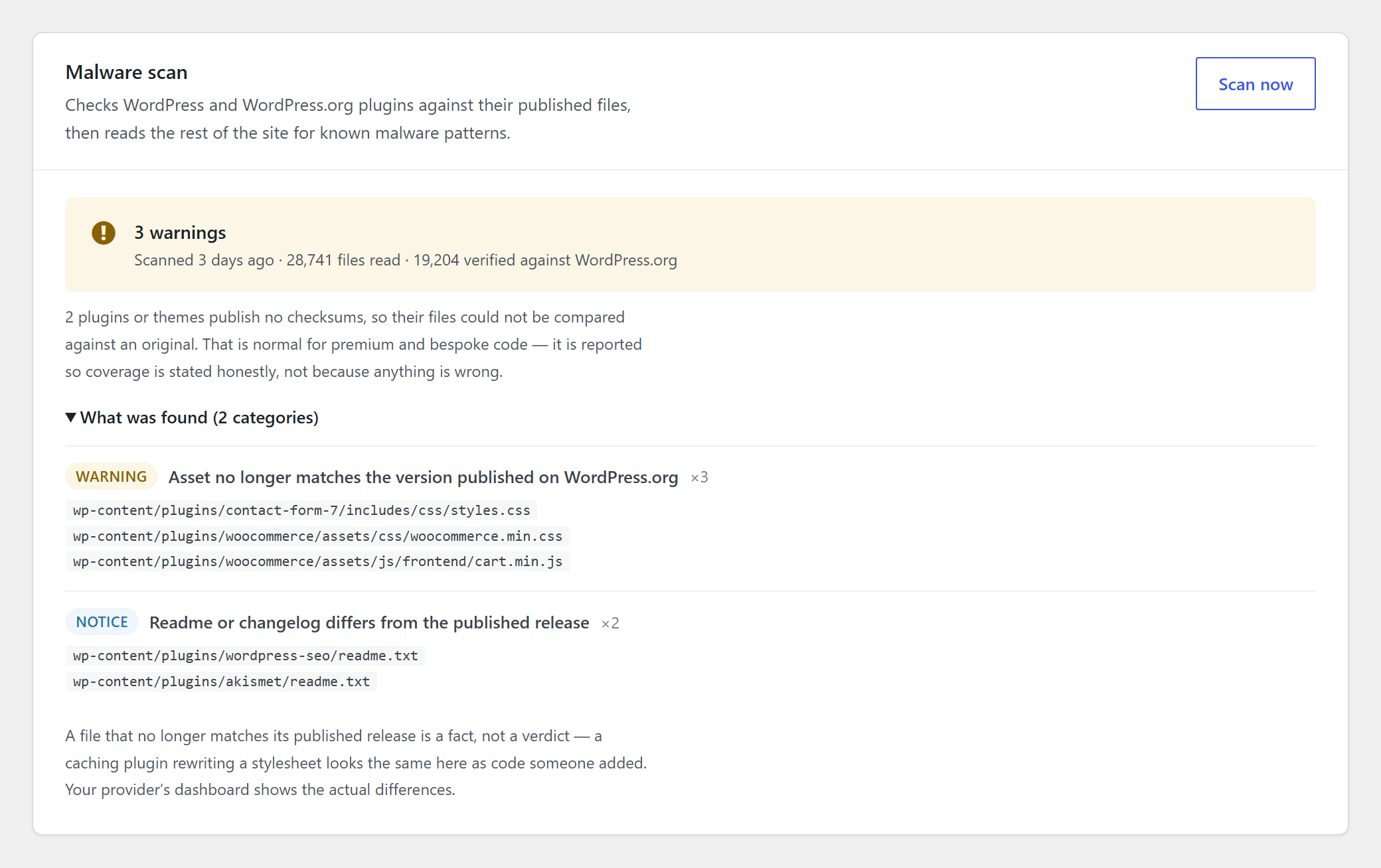
Why does the malware scan flag a file I know is fine?
The file-integrity check compares every core and WordPress.org-hosted file
against the checksums WordPress.org published for that exact release. A caching
or optimisation plugin that rewrites a stylesheet produces the same mismatch a
backdoor does, which is why “this file no longer matches what was published” is
reported as a fact rather than a verdict, and why non-executable files are
warnings rather than critical findings. Your hub can show you the actual diff.
What does it do to my site’s performance?
Nothing on page loads: there is no front-end code path. Backups and malware
scans are real work and run in the background across WordPress cron ticks, to a
time budget, so they do not block visitors. Health checks are answered on demand
when the hub asks.
Which PHP and WordPress versions are supported?
PHP 7.4 or newer and WordPress 6.0 or newer. Backups additionally need the
sodium extension (encryption) and either zlib or the zip extension
(archiving); the Settings screen tells you if either is missing.
Screenshots



Changelog
1.65.0
- New: the mail check now recognises WPO365 | Microsoft 365 Graph Mailer (and the same mailer inside WPO365 | Login). Your provider sees whether it is set up to send through Microsoft 365, without any of its settings leaving the site.
- Changed: a test message through a contact form is not sent while WPO365 is set to send every message as BCC to a default recipient, because that person would receive it.
1.64.0
- New: three more security settings your provider can switch on and off again from their dashboard. Pingbacks stops the site accepting pingbacks and trackbacks, which are mostly spam and can be used to make many sites request one address at once. Script combining stops the dashboard loading its scripts through load-scripts.php, so the server may then refuse that file to visitors. Author scans makes addresses like ?author=1 show “not found” to signed-out visitors instead of revealing a username, and leaves the list of users out of WordPress’ sitemap.
- Changed: switching XML-RPC off now also stops xmlrpc.php answering pingbacks and the other remaining requests, not only the ones that need a sign-in.
- New: the security checks now also report whether pingbacks are accepted, whether the dashboard combines its scripts, whether ?author= addresses reveal usernames, and whether the site’s key files and folders can be written by every account on the server (only reported, never changed). The security-key check now also covers the four salts.
1.63.0
- Changed: the site activity log no longer stores the username of customers, members and subscribers, because it is often their email address. Their sign-ins, new accounts and changes are recorded with the account number and role only. Administrators, editors, authors and contributors are still named, and so is any account that is given or loses such a role. Names the log had already stored for other accounts are removed when you update.
1.62.0
- Changed: the check email from your provider may now also go to an address on their dashboard’s main domain (for example mail.example.com for a dashboard at hub.example.com), not only on the dashboard’s own address. It still never goes anywhere outside your provider’s own domain.
1.61.0
- New: your provider can check that your contact forms still reach you. Their dashboard can now see which forms the site has (Contact Form 7, Gravity Forms, WPForms, Fluent Forms, Ninja Forms, and WooCommerce’s checkout), when each was last used and how many entries arrived recently, and whether your mail plugin looks fully set up — the most common reason a form stops working is an email password that expired while the form kept saying “thank you”. Nothing anybody wrote into a form is read.
- New: your provider can have the site send a short check email to their own address, to confirm that mail from the site arrives at all.
- New: for forms your provider switches on (Contact Form 7, Gravity Forms and Fluent Forms), they can submit a test entry named “Bulwarden form check”. It goes through the form exactly as a visitor’s would; every email the form sends during the test goes to your provider’s check address instead of the usual recipients, and the test entry is deleted straight afterwards. Forms that take payments, forms with a CAPTCHA and forms that have never been used are never tested. You can switch both checks off on the Bulwarden screen, and every check is recorded in the activity log (needs an up-to-date dashboard).
1.60.0
- New: a log of what happens on the site for your provider’s dashboard: sign-ins, accounts created or deleted, role, password and email address changes, plugins and themes installed, activated, updated or deleted, WordPress updates, posts and pages published, trashed, restored or deleted, changes to a few key settings (site title, addresses, admin email, registration, default role, permalinks, search engine visibility) and saves in WordPress’ file editor. Each entry names the account and a shortened IP address. Passwords are never recorded, failed sign-ins are only counted, and entries are kept on the site for 90 days. The log is not part of backups and is kept when a backup is restored. You can switch recording off on the Bulwarden screen; your provider then sees that it is off (needs an up-to-date dashboard).
1.59.0
- New: your provider can put the site into maintenance mode from their dashboard while they work on it. Visitors see a short “we will be back soon” page with your provider’s logo, an optional message and, if one was set, the time the site is expected back; search engines are told the break is temporary. Anyone signed in who can edit posts keeps seeing the site as usual, with a reminder in the toolbar, and administrators can switch the mode off there themselves. The admin area, the sign-in page and the connection to your provider keep working. If an end time was set, the site switches back on its own at that time. Every change is recorded in the activity log (needs an up-to-date dashboard).
1.58.0
- New: your provider can tidy up the site’s database from their dashboard: old post revisions (the newest few of each post are always kept), abandoned drafts, posts and comments in the trash, spam comments, expired temporary data, saved embed previews and leftover entries that belong to posts, comments or tags that no longer exist. Your provider first sees how much there is of each and then chooses what to remove; nothing is removed that was not chosen. Media files are never touched, and every clean-up is recorded in the activity log (needs an up-to-date dashboard).
1.57.0
- New: the plugin is now available in Spanish. Everything it shows in the WordPress admin, including the settings page, the support card, status messages and scan findings, appears in Spanish when the site’s language is set to Spanish (Spain, Mexico, Argentina, Colombia, Chile, Peru or Venezuela). Nothing needs to be configured.
1.56.0
- Improved: when an update breaks a site so badly that every page fails, including the requests the dashboard uses, an automatic rollback can now still put the site back. The plugin adds one small must-use plugin (bulwarden-safe-boot.php) that, only for the dashboard’s signed restore requests and the restore’s own scheduled steps, loads no other plugin. Every other request on the site is unchanged, and the file is removed when the plugin is deactivated (needs an up-to-date dashboard).
1.55.2
- Fixed: when two plugins that WordPress.org does not publish arrived on a site a few seconds apart, the second malware scan they started could fail to run, and your provider’s dashboard kept showing it as running for hours. Both scans now run to the end.
1.55.1
- Fixed: on WordPress 7.1, the scan reported two files of the default Twenty Twenty-Five theme (style.css and style.min.css) as modified on every site, which flagged the site and sent an alert although nothing had been changed. WordPress ships its own copy of that theme, which differs slightly from the theme’s own download on WordPress.org. A theme or plugin file that matches the copy WordPress itself installed now counts as untouched. A file that matches neither copy is still reported.
1.55.0
- Improved: the plugin no longer contains any of the patterns it used to check server settings files (.htaccess, php.ini, .user.ini) with. Your provider’s dashboard now runs those checks itself on the copies of these files the site already sends, so some hosts’ own malware scanners no longer mistake the plugin’s files for something harmful. The checks and their results stay the same (needs an up-to-date dashboard).
1.54.0
- Improved: restores now also run in short steps on hosts that stop PHP after a minute or so. Downloading the backup from the dashboard and decrypting it continue from where they were if the server stops a step, and a download that breaks off keeps what already arrived and carries on (needs an up-to-date dashboard; with an older one the download still runs in one go, as before).
- Fixed: a backup whose step was stopped by the server just as it finished packing or encrypting could fail on the next step with “Cannot open backup archive for encryption”. The site now records the next step before it removes the files it no longer needs.
- Fixed: a long upload to the dashboard during which the server stopped a step or two could be reported as stuck and failed, and an upload the dashboard had already stored could be reported as failed if the server stopped the site before it heard the answer.
1.53.0
- Improved: backups are now built in short steps that each run for about 25 seconds, one after another, instead of in one long run. Hosts that stop PHP after a minute or so (common on shared hosting) no longer stop every backup of a larger site at the same point. If the server stops a step anyway, the backup carries on from where it was. If it keeps stopping at the same place, the backup fails with a reason that names the step and the file, rather than going quiet.
1.52.1
- Fixed: when PHP stops a backup partway through (for example because the server’s memory or time limit for PHP was reached), the backup is now reported as failed straight away, with PHP’s reason, and its temporary files are removed at once. Until now the dashboard only learned hours later that the site was no longer working on it.
1.52.0
- New: when a backup, restore or update keeps failing, your provider can ask the site for a debug package with one click from their dashboard and pass it to Bulwarden support. It contains the WordPress, PHP and database versions and limits, the installed plugins and themes, the PHP configuration, the state and logs of the last backup, restore and scan, the end of the site’s error logs, the activity log, and whether the site can reach itself and the dashboard. The connection key, the backup password and the database login are never included, and passwords, tokens and email addresses are removed from the log lines before they leave the site. Every package is recorded in the activity log.
1.51.1
- Fixed: Google Fonts loaded by a link whose attributes are written without quotes, as page minifiers and some caching plugins output them, are now also served from the site.
1.51.0
- New: your provider can make the site load its Google Fonts from the site itself instead of from Google, with one click from their dashboard. The site downloads each font once, stores it in its uploads folder and swaps the addresses as pages are served, so visitors’ browsers no longer contact Google to show text. No theme or plugin file is changed, page caches are emptied so the change shows straight away, and fonts found later on other pages are downloaded in the background. Switching it off again removes the downloaded fonts. Both are recorded in the activity log.
1.50.0
- New: your provider can download a copy of an installed plugin or must-use plugin from their dashboard, for example to keep a premium plugin’s exact version or to look at a must-use file more closely. The copy is packed into a protected folder, handed over in pieces, and deleted as soon as it has been read. Every download is recorded in the activity log.
1.49.0
- New: when the site’s plugin policy is set to Lock, your provider can open it for a few minutes to install a plugin themselves. The lock closes again on its own when the time is up, even if your provider’s dashboard never calls back, and a plugin installed in that window is not held for review afterwards.
- New: your provider can switch on four security settings from their dashboard with one click, and switch each off again: turning off XML-RPC, hiding the public list of usernames from signed-out visitors, turning off the theme and plugin file editor, and closing open registration. Each change is recorded in the activity log.
1.48.0
- New: your provider can now read the site’s PHP configuration (what phpinfo() shows) from their dashboard, without uploading a file to the server. The server’s environment variables and the details of the request are never sent, and settings that look like passwords are withheld.
1.47.0
- New: your provider can now also activate a plugin on the site from their dashboard, just like the Activate link on the Plugins screen. It is refused while the site’s plugin policy is set to Lock, while the plugin is held for review, and when a plugin it needs is missing or the site’s WordPress or PHP is too old for it.
1.46.0
- New: your provider can now deactivate or delete a plugin on the site straight from their dashboard. It works exactly like the buttons on the Plugins screen: a deleted plugin is deactivated first and WordPress runs its uninstall routine. Bulwarden itself, a plugin another active plugin needs, and deleting on a multisite network are always refused, and a plugin that switches itself back on while being deactivated is reported rather than deleted.
1.45.0
- New: your provider can now remove a harmful entry the malware scan found in the site’s database (a setting, a post, a hidden administrator account or a scheduled task) straight from their dashboard. The site only removes an entry its own last scan reported, and only while the entry still contains what was found, so anything fixed by hand in the meantime is left alone. Posts go to the trash, a removed account’s content is handed to another administrator, and WordPress’ own settings and the last administrator are never removed.
- Changed: PHP code found in a .cache file is now reported as critical when the server is set up to run that file, and as a warning otherwise. Known attack code in such a file is still reported as critical by the malware signatures.
- Improved: the plugin’s own files no longer contain wording that hosting providers’ malware scanners can mistake for malicious code.
1.44.1
- Fixed: the leftover-file check no longer offers to delete the small protective index.php or .htaccess file in the WordPress update folder. Those files keep the folder from being listed in a browser and were never left behind by an update.
1.44.0
- Improved: on sites hosted with GoDaddy Managed WordPress, the WordPress files GoDaddy adjusts for its own platform are now reported as the host’s changes, for information, instead of as modified WordPress files. Each file is compared against the official release first, and is only reported this way when GoDaddy’s own additions are the sole difference; any other change is still reported as before.
- Fixed: signing in from your provider’s dashboard now also works on sites behind a page cache such as Cloudflare’s, which could keep the sign-in link’s answer and land you on the login screen instead.
1.43.1
- Fixed: the malware signatures your provider sends are now stored on the site in an encoded form, so a hosting provider’s malware scanner reading the database, or a database backup made by another plugin or by the host, no longer mistakes them for malware. Signatures already stored are converted the first time the updated plugin loads.
1.43.0
- Maintenance: every release is now checked with VirusTotal before it is published; no change to how the plugin behaves.
1.42.0
- Fixed: some hosting providers’ malware scanners flagged the plugin’s own scanner files as malware and suspended the site. The plugin no longer contains any malware signatures: your maintenance provider sends them to the site, which stores them in its database rather than in a file.
- Changed: the “Scan signatures” tile on the plugin screen now says when the site has not yet received the signatures from your provider. Until then a malware scan still checks the site’s files against the official WordPress versions, but cannot look for known attack code, and your provider is told so rather than shown a clean result.
1.41.1
- Maintenance: release of 1.41.0’s improvements with an internal code-style fix; no change to how the plugin behaves.
1.41.0
- Improved: the malware scan now finds the files of a web-shell kit seen on hacked WordPress sites in October 2026, which hides its commands by writing them as numbers, plants file uploaders, installs a hidden must-use plugin and replaces pages with gambling spam. Several of its files were missed before.
- New: the scan now reports PHP code in the plugins or themes folder that belongs to no plugin or theme — for example in a hidden folder — because WordPress never runs such a file and it can only be reached directly by its address.
- Improved: the scan now also reads files named like
file.php.tmporfile.php.bak, which many servers still run as PHP, and looks for the kit’s background process files in the server’s temporary folders.
1.40.2
- Maintenance: internal code-style fixes only, no change to how the plugin behaves.
1.40.1
- Improved: the plugin lock now also covers must-use plugins. When a site is locked, a must-use plugin dropped in after the lock is moved out of the mu-plugins folder instead of being allowed to run.
1.40.0
- New: your maintenance provider can set a site to “lock” plugins — no new plugins can be installed or activated at all. Existing plugins keep working and still receive updates, and you can still deactivate a plugin; only adding or switching on a new one is blocked. This is off unless your provider turns it on.
1.39.0
- New: if a plugin that is not from the WordPress.org directory appears on your site and then crashes every page, Bulwarden now switches it off by itself and brings the site back, instead of leaving it down until someone notices. It only does this to a plugin that arrived in the last few days; the files are left in place so they can be examined.
- New: your maintenance provider can set your sites to hold a new plugin that is not from the WordPress.org directory — switching it off the moment it appears and turning it back on only once a scan is clean, or only once the provider approves it. This is off unless your provider turns it on. A plugin you install yourself is held for a moment, not blocked.
- Improved: the malware scan now recognises a plugin that creates a hidden account and gives it administrator powers while calling it an “editor”.
1.38.1
- Improved: the malware scan now recognises a fake plugin that creates a hidden account with full administrator rights while calling it an “editor”, so it does not look like a new administrator. This is what the fake “maintenance toolkit” plugins installed on several sites in October 2026 do. Such a plugin is now reported as malware.
1.38.0
- New: the malware scan now finds PHP code hidden in “.cache” files, and in any file that an .htaccess tells the server to run as PHP whatever its name. This is how the malware in the compromised Rank Math SEO PRO 3.0.123 update stays on a site, and until now the scan never opened those files. Such a file is reported as a warning, or as critical when the server is set up to run it or the code looks like an attack. Cache files that only store data are not reported.
- New: the server-configuration check now reads .htaccess rules that span several lines, and says which kinds of file a rule makes the server run as PHP. A rule that makes data, cache or image files run as PHP is reported as critical.
- New: the malware scan reports a folder in your site’s main directory that has the same name as one of your published pages (for example “about-us”) and contains an index file. The web server shows that folder instead of your real page, which is how some spam kits take over a page without touching WordPress. It is a warning, or critical when the folder shows search engines something different from visitors.
1.37.5
- Improved: if you installed Bulwarden yourself from the plugin directory, the “not connected yet” banner, the setup steps on the Bulwarden screen and the dashboard card now offer a “Start a free trial” button. It opens the Bulwarden hub in a new tab, where you can start a trial and then connect this site with its connect string. Nothing is sent from your site when you click it. If a provider asked you to install the plugin, connect the site to them as before; the button disappears once the site is connected.
1.37.4
- Fixed: on sites behind a page cache with few visitors, a malware scan could take a day or more to finish, because each step of the scan waited for somebody to visit the site before the next one started. The scan now starts its next step itself, so it finishes in minutes. Restores already worked this way and now share the same mechanism.
- Improved: malware scans are much faster on sites with large media libraries. Images, videos, PDFs and other media files in the uploads folder are still checked for hidden PHP code, but the full set of malware signatures is only run on them when they actually contain PHP. On a test site with 9,000 images a scan went from five minutes to under two.
1.37.3
- Fixed: on sites where another plugin or a code snippet restricts the WordPress REST API to logged-in users (for example the “Disable REST API” option in Admin and Site Enhancements), every request from the maintenance hub was refused before Bulwarden could check it, so the site could not be paired, monitored or backed up. Requests signed by the hub are now let through that restriction, for Bulwarden’s own routes only; the rest of the REST API stays restricted, and nobody is logged in.
1.37.2
- Fixed: the malware scan was meant to look for PHP files in the cache folder (wp-content/cache) since 1.35.0, but on every site using the default backup settings it never did, because that folder is left out of backups by default. Leaving the cache out of backups no longer keeps the scan out of it. Only PHP files there are checked, so the scan does not slow down on a large page cache. If you want part of the cache left alone, exclude that subfolder instead.
1.37.1
- Fixed: on sites with large media folders the malware scan could keep re-reading the same folder and never finish. A folder that needs more than one pass now continues where the previous pass stopped, so every file is read once.
- Fixed: if the web host stopped the scan’s background process abruptly, the scan was left half-finished with nothing to resume it. The scan now arranges its next step before it starts working, so it picks up again by itself within ten minutes.
1.37.0
- New: your maintenance provider can ask the plugin what it is doing right now — whether a backup, malware scan or restore is running, how far it has got, and whether the scheduled tasks it waits for are running on time. Nothing is started or changed by asking, and no passwords, keys or file contents are included in the answer.
1.36.1
- Fixed: signing in with one click from your maintenance provider could end on the message “This sign-in link is not valid any more” even though the sign-in had worked — on sites where you were already signed in, and on sites using a custom login address. The link is still used exactly once; a browser that already holds an administrator session is now taken straight to the dashboard instead of being shown the error.
1.36.0
- New: your maintenance provider can check more than the homepage after an automatic update. The plugin lists the site’s pages — shop pages such as the checkout and the cart are marked — so the provider can pick the ones that matter, and each is compared before and after the update.
- New: for pages that only show their real content to a signed-in visitor, such as a customer account, the provider can ask the site to create a read-only account called bulwarden-check. It can do nothing but read, cannot sign in with a password, and is only ever signed in for a few minutes by the automatic check. If its role is ever given more rights, the site stops signing in as it. Deleting the account switches this off.
- Every creation of that account and every check sign-in is recorded in the activity log.
1.35.0
- New: the malware scan now checks the
wp-content/cachefolder for PHP files with code in them. Attackers who exploit a caching plugin write their web shells there, and the scan used to skip the folder entirely. Only PHP files are read, so a large page cache costs little; generated pages, stylesheets and images are never opened. Every PHP file found there is also checked against the full signature table. - Compiled Blade views (Sage/Acorn), compiled Twig templates (Timber) and generated data files are recognised and not reported.
- A very large cache is reported as not fully checked, rather than treated as clean.
1.34.1
- Maintenance release: code-style fixes only, with no change in behaviour.
It carries everything listed under 1.34.0.
1.34.0
- Security: a long backup can no longer undo settings changed while it
ran. Regenerating the connection credentials, setting a backup
passphrase or a change of hub address during a backup used to be reverted
when the backup finished. - Security: signed requests from your agency’s hub now refuse anything added
to the address that the signature does not cover, and each request stays
single-use for its whole validity window. - Security: the site keeps more secrets out of what it sends your agency.
Scan excerpts from configuration copies, database dumps, exports and logs
are redacted; password files and connection strings in server
configuration are no longer sent; files that look like keys, dumps or
backups are never handed out for a comparison; and a failed restore’s
error messages no longer quote the data that failed. - Fix: restores now finish correctly on Windows hosting and other servers
that store table names in lower case. Tables with capital letters in
their name (Wordfence’s, for example) kept their old contents before. - Fix: the site shows its maintenance notice while a restore writes files
back, not only while it writes the database. - Fix: a malware scan that takes longer than an hour is no longer restarted
from the beginning every hour, and a new scan no longer runs alongside the
one it replaced. - Fix: the leftover-file check no longer offers a running restore’s working
folder for deletion. - Hardening: a restore’s working files now have unpredictable names, and the
copy of this site’s connection details it keeps is removed as soon as it
has been used. - Fix: a restore that runs out of disk space now stops and says so, instead
of reporting half-written files as restored. - Fix: a restore that fails part-way no longer leaves a second copy of the
database behind in temporary tables, and backups never include them or a
restore’s working folder. - Fix: a malware scan that runs out of memory on the site, or cannot save its
progress, is now reported as failed instead of never finishing. - Fix: restores protect this plugin’s own folder and working folders on sites
with a customised folder layout, and a relativeauto_prepend_filethat
works is no longer switched off after a restore. - Security: the site only sends backups and scan results to, and fetches
restores from, the hub it is paired with; a restore rejects a backup file
with impossible sizes before reading it; signed requests and one-click
sign-in links can no longer be used twice by two requests arriving at the
same moment; the health report no longer lists subscribers and shop
customers; and deleting the plugin now also removes its working folders. - Multisite: network activation is not supported — activate the plugin on
each site you want managed.
1.33.1
- Security: malware scan excerpts sent to your agency no longer include
passwords in a few more cases the earlier protection missed: settings
stored as plain text, passwords written in capital letters, passwords
containing an escaped quote, and logins inside web addresses. Posts
behind a password, and form entries some plugins store as posts, are now
treated as private. - Fix: an interrupted plugin update can no longer make a folder-specific
scan rule run on every file.
1.33.0
- New: the malware scan now reports program code added to a plugin’s or the
active theme’s folder. For every plugin published on WordPress.org, and for
the active theme, the scan already checks that each file the release contains
is unchanged; it now also reports a PHP file in that folder that the release
does not contain at all, which is where an attacker hides a backdoor next to
genuine files. Empty guard files and protected data files are not reported.
1.32.0
- New: **the malware scan now reports PHP files with code in the …