


Description
ByteCoreStack – Lightsail CDN Cache Manager is the WordPress plugin built around one job — AWS Lightsail cache clear, done right. If your site, blog, or WooCommerce store runs behind an Amazon Lightsail content delivery network (CDN) distribution, this plugin puts you in full control of that cache directly from wp-admin: a one-click manual cache purge, an automatic cache clear the moment you publish or update content, or a scheduled cache invalidation on a recurring timer — all without ever opening the AWS console.
Search terms like “clear Lightsail cache,” “AWS Lightsail CDN plugin,” “Lightsail cache purge WordPress,” and “Amazon Lightsail cache invalidation” all describe exactly what this plugin does. It’s the missing piece between WordPress and the ResetDistributionCache action on your Lightsail distribution — a dedicated cache management plugin for Lightsail, not a generic multi-CDN tool with Lightsail bolted on as an afterthought.
Use it to manually purge your Lightsail CDN cache with one click, fire an automatic cache clear the instant you publish or update content, or set a scheduled cache clear so your cache invalidates itself on its own — hourly, daily, weekly, monthly, or at custom intervals.
Why Use This Plugin?
If you’ve wished WordPress cache management for Lightsail was as simple as clicking a button, this is it:
- Built specifically for Amazon Lightsail — not a generic CDN plugin awkwardly bolted on; it speaks the Lightsail API directly using AWS Signature Version 4.
- No stale content after publishing — auto-clear on publish/update means visitors never see outdated cached pages.
- Set-and-forget scheduling — interval, weekly, or monthly cache clears with a live countdown so you always know when the next clear runs.
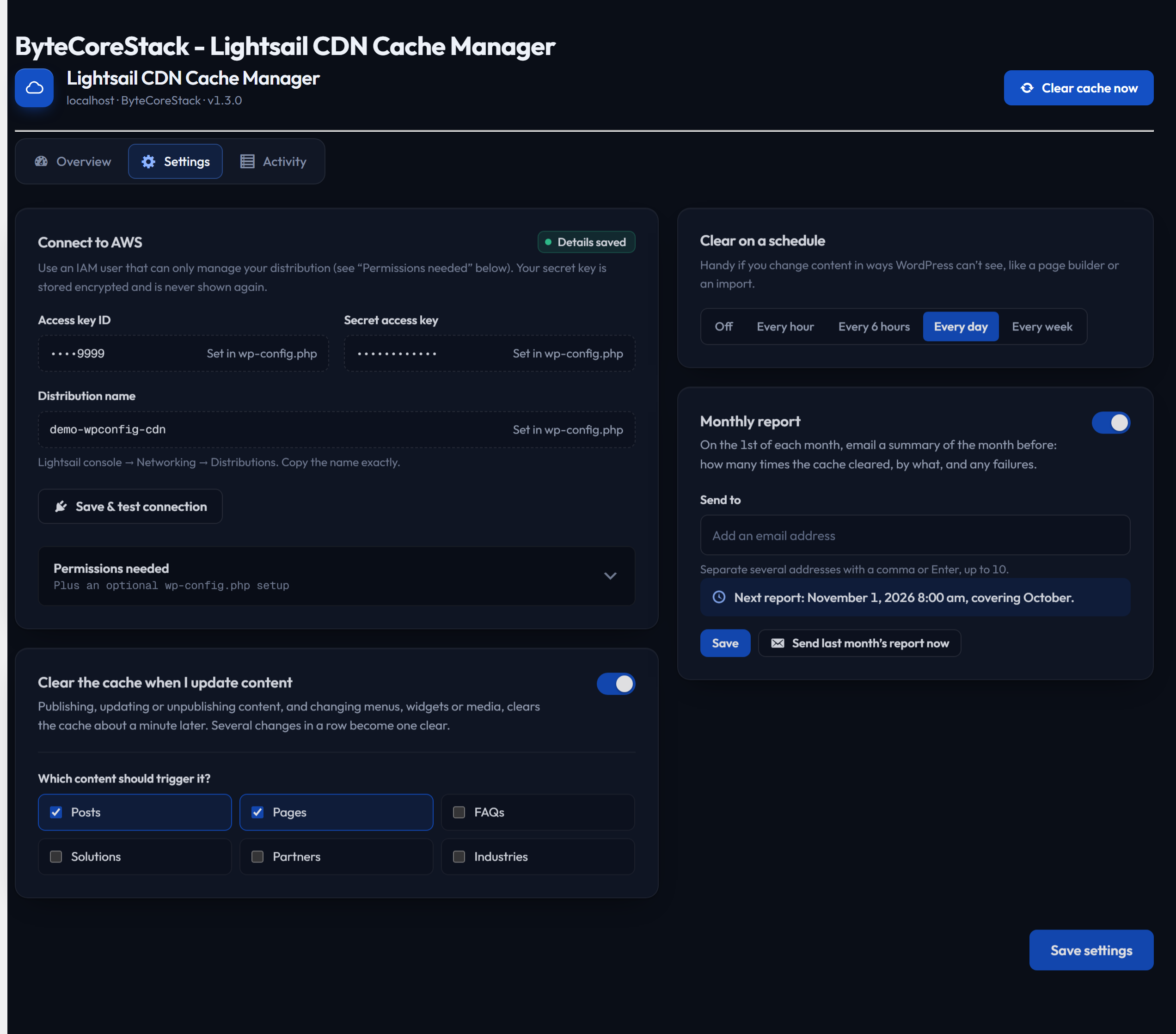
- Connect in a minute — paste your access key, secret key and distribution name on the Settings tab, or keep them in wp-config.php if you prefer. Constants in wp-config.php always take priority.
- Your secret key is protected — saved encrypted, never shown again after saving, and never sent back to the browser.
- One-click connection test — verify your AWS Lightsail credentials and distribution name are correct before you ever rely on it.
Key Features
Manual Cache Clearing
* Run a Lightsail cache clear in seconds, right from WordPress admin
* Instant feedback on cache clearing status
* Perfect for when you need immediate control
Automatic Cache Clearing
* Automatically clear CDN cache when content is published, updated, or unpublished
* Also triggers on attachment deletion, taxonomy term edits, nav menu changes, and widget changes
* Select which post types trigger cache clearing, with support for custom post types
* Rapid successive changes are batched into a single deferred clear (fired ~60 seconds later via WP-Cron) instead of one AWS call per save
* Note: Lightsail’s ResetDistributionCache API always resets the entire distribution — there is no per-page/per-path purge
Activity Log
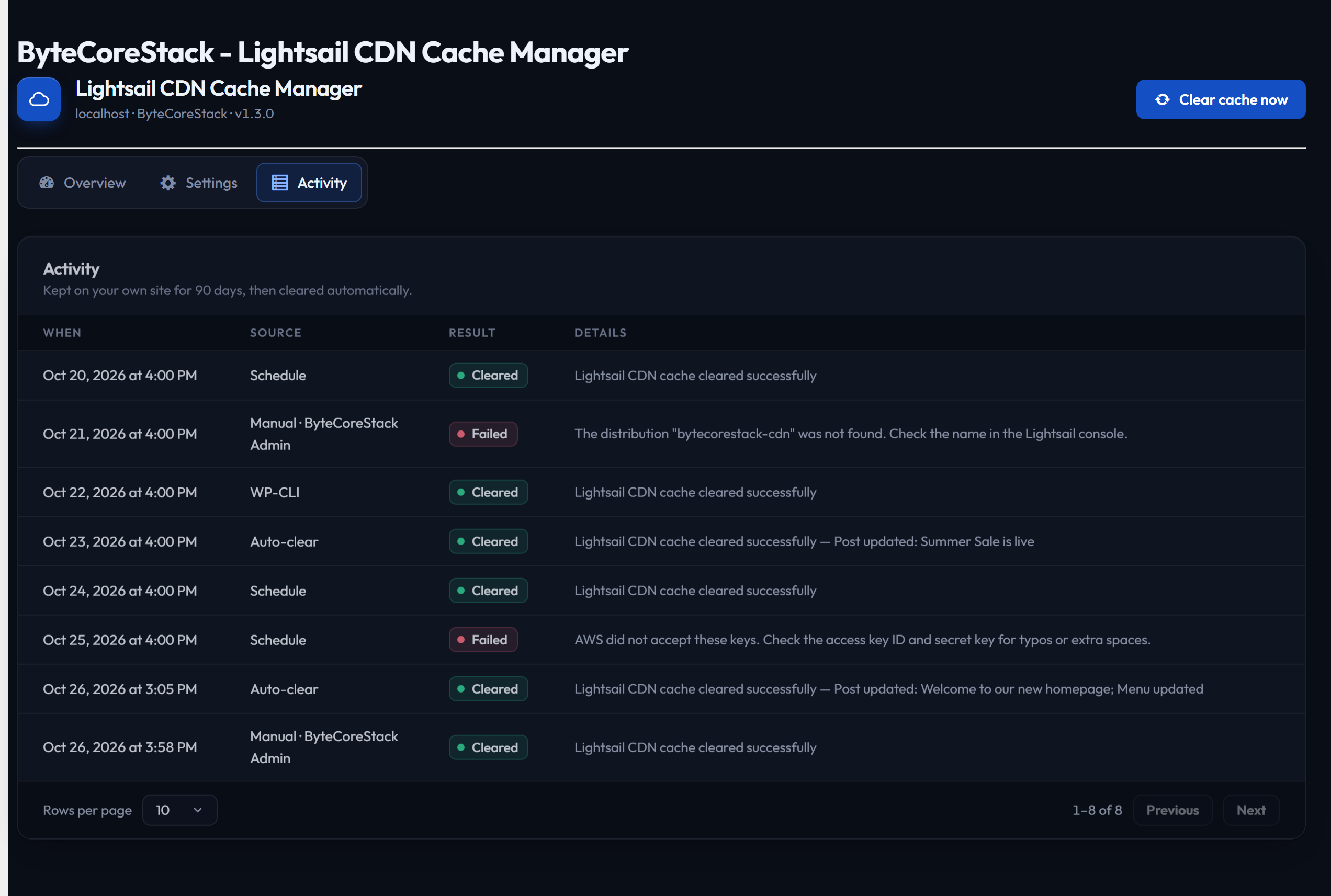
* A local history of every cache clear — manual, automatic, scheduled, and WP-CLI — with timestamp, status, and who/what triggered it
* Stored in your own WordPress database (Lightsail has no live invalidation-history API to pull from, unlike CloudFront)
* Paginated table, kept for 90 days and pruned automatically after that — nothing to manage by hand
WP-CLI Support
* Trigger a cache clear from the command line or a CI/CD deploy pipeline: wp bcs-lsm flush
* Every CLI-triggered clear is recorded in the Activity Log
Scheduled Cache Clearing
* Pick Every hour, Every 6 hours, Every day or Every week
* Choose the time (and weekday) for daily and weekly clears
* Schedules created by earlier versions (5-minute intervals, monthly, several weekdays) keep running and are shown as “Keep: …”
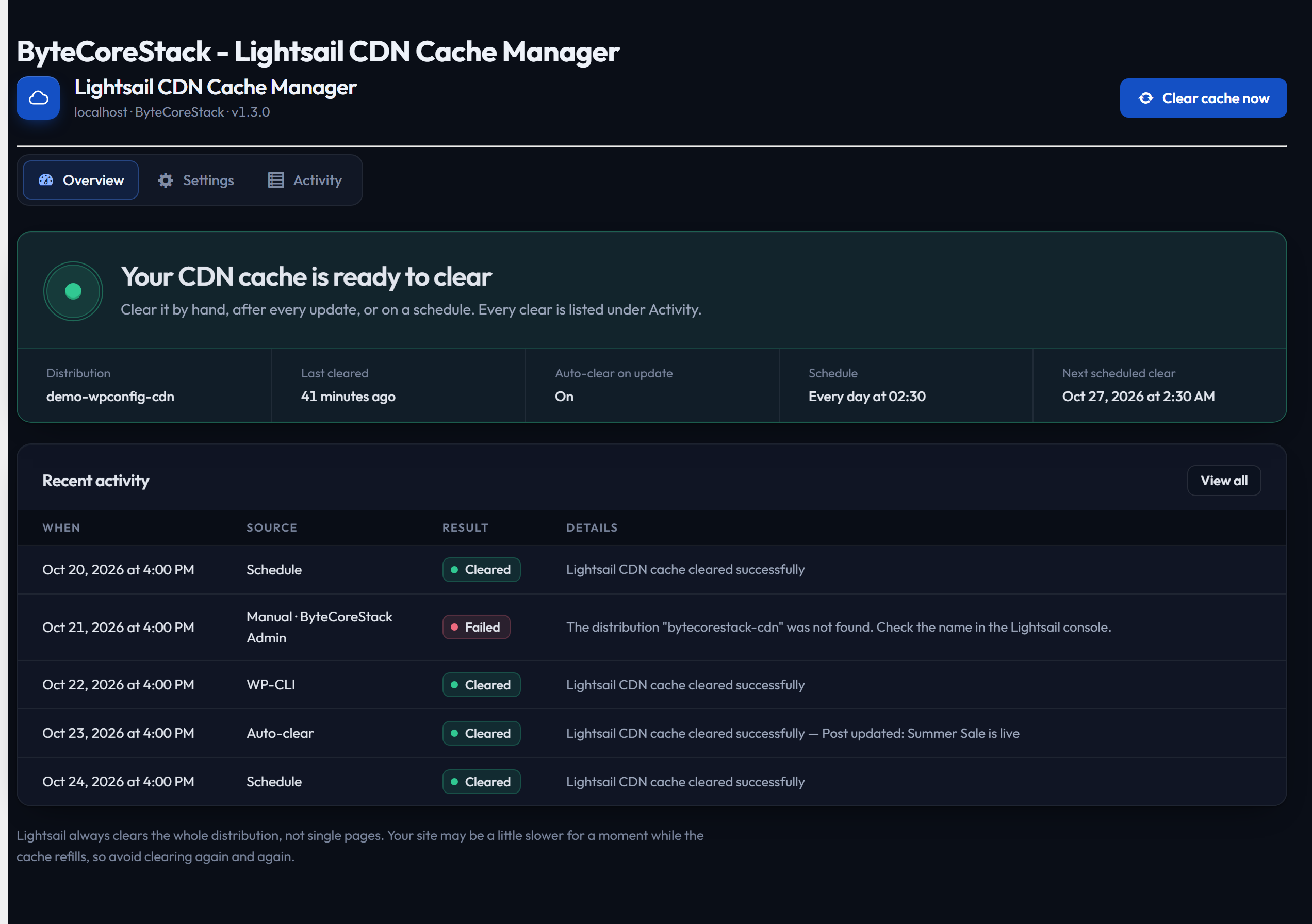
* Shows the next scheduled clear on the Overview
* Uses your WordPress timezone settings
Test Connection
* One-click AWS connection test before you rely on it
* Verifies your access key, secret key, and Lightsail distribution name
* Calls the read-only Lightsail API — never touches your cache
* Clear, specific error messages when something’s misconfigured
Simple Setup
* Three tabs: Overview, Settings and Activity
* Enter your keys on the Settings tab, or use wp-config.php constants (they override the saved values)
* “Save & test connection” confirms everything works before you rely on it
* Secure AWS Signature Version 4 authentication
Monthly Report
* Optional email on the 1st of each month summarising the month before: total clears, successes, failures, and which triggered them
* Send it to several addresses, entered as pills, each checked as you type
* Send last month’s report on demand any time, without waiting for the 1st
Site Health
* Adds a status check to Tools → Site Health → Status, so a broken connection or a failing clear is visible even to admins who never open the plugin
* Adds a read-only summary to the Info tab for troubleshooting and support
Perfect For
- WordPress sites and blogs hosted behind an Amazon Lightsail CDN distribution
- Agencies and freelancers managing multiple client sites on AWS Lightsail
- Publishers and news sites that need fresh content delivered fast after every update
- Developers who want automated, hands-off Lightsail cache invalidation
- WooCommerce and membership sites with frequently changing content
- Anyone replacing manual AWS console cache purges with a WordPress-native workflow
Requirements
- An AWS account with an active Amazon Lightsail content delivery network (CDN) distribution
- AWS Access Key ID and Secret Access Key with Lightsail permissions
- WordPress 5.3 or higher
- PHP 7.2 or higher
Documentation
Full setup instructions and documentation available at https://bytecorestack.com/plugins/lightsail-manager
External Services
This plugin connects to the AWS Lightsail API to perform CDN cache invalidation operations.
AWS Lightsail API
This plugin sends requests to the AWS Lightsail REST API endpoint:
https://lightsail.{region}.amazonaws.com/
What data is sent:
- Your Lightsail distribution name (stored on your site, in the plugin’s settings or wp-config.php)
- A cache reset request signed with your AWS credentials using AWS Signature Version 4
When data is sent:
- When you manually click “Clear cache now” or “Save & test connection” (the test only reads distribution status)
- When a post/page is published or updated (if Auto-Clear is enabled)
- On a recurring schedule (if a schedule is turned on)
- When you run
wp bcs-lsm flush
No personal data, user data, or site content is transmitted to AWS beyond the distribution name and the cache-clear command.
AWS Terms of Service: https://aws.amazon.com/service-terms/
AWS Privacy Policy: https://aws.amazon.com/privacy/
Support
For support, feature requests, or bug reports, please visit:
* Plugin page: https://bytecorestack.com/plugins/lightsail-manager
* Author website: https://bytecorestack.com/
Privacy Policy
This plugin does not collect, store, or transmit any user data. All AWS credentials are stored locally in your wp-config.php file and are only used to communicate with the AWS Lightsail API for cache management operations. See the External Services section above for full details on what is sent to AWS.
Credits
Developed by ByteCore Stack.
License
This plugin is licensed under the GPLv2 or later.
Installation
From WordPress Admin
- Go to Plugins > Add New
- Search for “ByteCoreStack – Lightsail CDN Cache Manager”
- Click “Install Now” and then “Activate”
- Configure your AWS credentials in wp-config.php
- Go to Settings > Lightsail Manager to manage your cache
Manual Installation
- Download the plugin ZIP file
- Upload to /wp-content/plugins/ directory
- Extract the ZIP file
- Activate the plugin through WordPress admin
- Open Settings → Lightsail Manager and connect your distribution (see Configuration section)
Configuration
Open Settings → Lightsail Manager → Settings, enter your access key ID, secret access key and distribution name, then click Save & test connection.
Prefer to keep keys out of the database? Add these constants to your wp-config.php file instead. Anything defined there overrides the matching field on the Settings tab:
define('AWS_ACCESS_KEY_ID', 'your_access_key_here');
define('AWS_SECRET_ACCESS_KEY', 'your_secret_key_here');
define('LIGHTSAIL_DISTRIBUTION_NAME', 'your_distribution_name');
Lightsail distributions are managed from the us-east-1 region, which the plugin always uses — AWS only serves domain and distribution APIs from us-east-1, so this is not configurable. A site-wide AWS_DEFAULT_REGION constant set for another AWS integration (such as an S3 offload plugin) does not affect this plugin.
Finding Your Distribution Name:
1. Log in to AWS Lightsail console
2. Go to Networking > CDN distributions
3. Find your distribution and copy its name
Creating AWS Credentials:
1. Go to AWS IAM console
2. Create a new user or use existing one
3. Attach Lightsail permissions
4. Generate access keys
5. Paste the keys into the plugin’s Settings tab (or add them to wp-config.php)
FAQ
How do I clear my AWS Lightsail CDN cache from WordPress?
Install and activate this plugin, add your AWS credentials to wp-config.php, then go to Settings > Lightsail Manager and click “Clear CDN Cache Now.” No need to log in to the AWS console at all.
What is AWS Lightsail CDN?
AWS Lightsail CDN is a content delivery network service from Amazon Web Services that caches your website content at edge locations worldwide, making your site faster for visitors globally.
Do I need an AWS account?
Yes, you need an AWS account with an active Amazon Lightsail distribution and appropriate IAM permissions.
How do I get my AWS credentials?
You can create AWS credentials (Access Key ID and Secret Access Key) from the AWS IAM console. Make sure the credentials have permissions to manage Lightsail distributions (the exact actions are listed under “Permissions needed” on the Settings tab: lightsail:GetDistributions and lightsail:ResetDistributionCache).
How do I know if my AWS credentials are set up correctly?
Click “Save & test connection” on the Settings tab. It verifies your access key, secret key, and distribution name against the AWS Lightsail API without clearing your cache, and tells you exactly what’s wrong if something fails.
Is this plugin secure?
Yes. The plugin uses AWS Signature Version 4 for authentication. If you enter your keys on the Settings tab, the secret key is stored encrypted, is not loaded on every page request, and is never displayed again. If you define the keys in wp-config.php instead, nothing is stored in the database at all. Use an IAM user limited to the two Lightsail actions listed on the Settings tab.
What’s the difference between Amazon Lightsail and Amazon CloudFront?
Amazon Lightsail CDN is the simplified content delivery network bundled with Lightsail distributions, while CloudFront is AWS’s standalone, more advanced CDN. This plugin is built specifically for Lightsail CDN distributions — if you’re using CloudFront instead, you’ll need a CloudFront-specific plugin.
Can I automatically clear the cache when I publish or update a post?
Yes. Enable Auto-Clear in the plugin and choose which post types (posts, pages, products, or any custom post type) should trigger an automatic cache invalidation whenever they’re published or updated.
Can I schedule cache clears at specific times?
Yes. Choose Every hour, Every 6 hours, Every day or Every week on the Settings tab. Daily and weekly clears run at the time you pick, in your site’s timezone.
What happens if cache clearing fails?
The plugin shows a plain-language message about what went wrong and records it in the Activity tab. If you turn on the monthly report, it also appears in next month’s summary email. Common causes are a mistyped key or distribution name — “Save & test connection” finds these before they matter.
Will this slow down my site?
No, cache clearing operations happen in the background and don’t affect your site’s performance. The plugin only communicates with AWS when you manually clear cache, when content is updated (if auto-clear is enabled), or during scheduled clears.
Does this work with WooCommerce?
Yes. WooCommerce registers its products as a custom post type, so you can enable auto-clear for products to keep your storefront’s CDN cache fresh whenever inventory or product details change.
Can I clear cache for specific pages only?
No — this is an AWS Lightsail API limitation, not a plugin limitation. The ResetDistributionCache action Lightsail exposes has no path/pattern parameter, so every clear (manual, automatic, scheduled, or WP-CLI) always resets the entire distribution. If you need per-path invalidation, that capability exists on Amazon CloudFront, not Lightsail CDN.
Can I see a history of past cache clears?
Yes. The Activity Log tab lists every manual, automatic, scheduled, and WP-CLI cache clear with its timestamp, status, and trigger reason, stored locally in your WordPress database (Lightsail has no live invalidation-history API to pull from). It’s paginated and kept for 90 days, after which older entries are pruned automatically.
Can I trigger a cache clear from the command line or a CI/CD pipeline?
Yes. Run wp bcs-lsm flush to reset the CDN cache from WP-CLI — useful for firing a cache clear automatically after a deploy. Every CLI-triggered clear is recorded in the Activity Log.
Does this work with multisite?
The plugin is compatible with WordPress multisite installations. Each site can have its own cache clearing schedule.
Is this plugin free?
Yes. ByteCoreStack – Lightsail CDN Cache Manager is completely free with no premium upsell, no ads, and no artificially limited features — every capability described in this readme (manual clear, auto-clear, scheduling, Activity Log, WP-CLI) is included.
Why is my Lightsail CDN still showing an old version of my page?
Amazon Lightsail CDN caches content at edge locations, so updates you make in WordPress don’t reach visitors until that cache is reset. This is exactly the problem this plugin solves — enable Auto-Clear so every publish/update automatically triggers a fresh ResetDistributionCache call, or click “Clear CDN Cache Now” to purge it immediately.
What’s the best WordPress plugin to purge Lightsail CDN cache?
This plugin exists specifically to answer that question — it’s a purpose-built Lightsail CDN cache manager, not a repurposed CloudFront or generic multi-CDN plugin. It talks directly to the Lightsail ResetDistributionCache API using AWS Signature Version 4.
Does this support the WordPress REST API?
The plugin’s own admin actions run through WordPress’s authenticated AJAX/REST layer with capability checks, and cache-clear triggers fire correctly for content changes made via the REST API (e.g. from the block editor or headless front ends), not just classic post saves.
Screenshots
Changelog
1.3.0
- New: simpler layout with three tabs — Overview, Settings and Activity — in the same design as the other ByteCoreStack plugins (ByteCoreStack – SMTP & Health Monitor and MCP Connector), using the bundled Outfit and Geist Mono fonts
- New: enter your AWS access key, secret key and distribution name on the Settings tab. The secret is stored encrypted and never shown again. wp-config.php constants still work and take priority, so existing sites need no changes
- New: “Save & test connection” in one click, with plain-language error messages for the most common AWS problems
- New: a “Clear cache now” button in the header, always on screen on every tab, next to a “Connect AWS” prompt until you’re set up — same pattern as the other ByteCoreStack plugins
- New: optional monthly report email, sent on the 1st and summarising the month before — total clears, successes, failures, and what triggered them. Add recipients as pills (the same pattern as the SMTP and MCP plugins), each checked as you type, and send last month’s report on demand any time
- New: a Site Health status check (Tools → Site Health → Status) flags a disconnected or failing setup, plus a read-only summary on the Info tab for support
- Changed: the Activity Log now keeps 90 days of history and prunes itself automatically; the manual “Clear Log” button was removed since there’s nothing left to manage by hand
- Fix: the saved secret key is now encrypted with a key independent of the site’s security salts (an optional BCS_LSM_CRYPTO_KEY constant can pin it further). Previously, a security plugin rotating salts (a known behavior of some “salt rotation” features) would silently make the saved secret undecryptable, requiring it to be re-entered
- Fix: Lightsail distribution calls always sign for the us-east-1 region, as required by AWS, even on a site where another AWS integration has defined a different AWS_DEFAULT_REGION — previously that constant was incorrectly honored here too, which would have made every call fail on such sites
- Fix: added plain-English messages for four more AWS error types this API can return (InvalidInputException, UnauthenticatedException, OperationFailureException, ServiceException) — previously these showed a raw AWS error string
- New: simpler scheduling presets (Every hour, Every 6 hours, Every day, Every week). Existing schedules keep running and are shown as “Keep: …”
- New: Settings link on the Plugins screen
- Improved: the manual clear no longer reloads the page
- Improved: the AWS region field is no longer needed — Lightsail distribution calls always use us-east-1, as required by AWS, regardless of any AWS_DEFAULT_REGION constant a site may already define for another AWS integration
- Fix: weekly schedules with more than one weekday only ran once a week
- Fix: a scheduled clear that went missing from WP-Cron (for example after a migration) is now restored automatically
- Fix: removed unnecessary rewrite-rule flushes on activation and deactivation, and PHP error-log writes
- Removed the standalone Configuration tab; its contents (including the wp-config.php snippet and IAM permissions) are in the collapsible “Permissions needed” section of Settings
1.2.0
This is the first version published to WordPress.org since 1.1.0. Everything below was built after 1.1.0 and is being released here for the first time — none of it shipped as a separate public update.
- Add automatic invalidation triggers beyond publish/update: unpublish/trash, attachment deletion, taxonomy term edits, nav menu changes, and widget changes
- Add batching: rapid successive auto-clear triggers are merged into a single deferred cache clear (fired ~60 seconds later via WP-Cron) instead of one AWS call per save
- Add a local Activity Log tab recording every manual, automatic, scheduled, and WP-CLI cache clear, with pagination and a “Clear Log” action to reset it (Lightsail has no live invalidation-history API, so this is stored locally, unlike the CloudFront sibling plugin’s live-fetched history)
- Add a custom cache-management capability, replacing the hardcoded manage_options check
- Add WP-CLI support:
wp bcs-lsm flush - Renamed to “ByteCoreStack – Lightsail CDN Cache Manager” — display name only, the plugin slug (
bytepresstech-cdn-manager-for-lightsail) and all your settings are unchanged - Note: Lightsail’s ResetDistributionCache API has no path/pattern parameter — every clear (manual, automatic, scheduled, or CLI) resets the entire distribution; there is no per-page purge
- Fix: the admin UI no longer loads DM Sans/DM Mono from the Google Fonts CDN (
@importinadmin.css); it now uses the system font stack instead, removing an external request that was previously made on every visit to the settings page
1.1.0
- Renamed to “Lightsail CDN Cache Manager” (same plugin, same settings — only the display name changed)
- Add “Test Connection” button in Configuration to verify AWS credentials and the distribution name without clearing the cache
- Migrate legacy option keys from prior plugin name variants (lightsail_*, bptcdnmgr_*, blsm_*) on activation
- Clean up deprecated individual schedule options
- Redesign admin UI: full-width layout, boxed page header, cards split into header/body sections, icon tiles on stat cards
- Fix admin fonts not loading in the dashboard
- Fix mobile/tablet layout issues: square header icon, badge alignment, single-line scrollable tabs, removed unwanted horizontal page scroll
- Fix duplicate checkmark rendering on Auto-Clear post type checkboxes
- Fix plugin text domain to match the plugin slug
- Raise minimum required WordPress version to 5.3 (already required by existing timezone functions)
1.0
- Initial release
- Manual cache clearing functionality
- Automatic cache clearing on content updates
- Scheduled cache clearing (interval, weekly, monthly)
- Live countdown timer for scheduled clears
- Support for custom post types
- Local timezone support for scheduled clears
- Comprehensive AWS error reporting
- Clean, modern admin interface
- Full WordPress coding standards compliance