


Description
Catalune builds the product feed file Pinterest reads for your shop’s catalog, and checks every product against Pinterest’s published catalog requirements before Pinterest reads the file. Each problem is one plain sentence (the product, the field, why Pinterest would refuse it and how to fix it) with an Edit link straight to that product. It is made for Pinterest’s catalog alone.
Why before: Pinterest’s page Get started with retail catalogs (read on 2026-10-27) says of a catalog’s required fields: “If they’re missing, or formatted incorrectly, your entire retail catalog will fail ingestion.” So a product with an error is left out of the feed and listed with the reason, and the products that pass stay in the feed without it.
Catalune does not connect to any external service: it reads your own WooCommerce products, everything happens on your site, and Pinterest reads the feed file from your site only after you add its address in your own Pinterest account.
The feed
Catalune writes your Pinterest product feed as one file on your own site, from WooCommerce’s own product data: each product’s name, description, page address, pictures, price and sale price, stock status, category, brand and barcode, with each variation tied to its main product. It is built again every day and about 10 minutes after you change a product, at the same address, so your Pinterest catalog gets your latest products every time the file is read.
The checks
Catalune looks for the Pinterest catalog errors and feed errors that would make the catalog’s ingestion fail: no price or a price of zero, no description or code left in it, the same SKU twice, a name or description too long, a stock status or currency Pinterest does not read, a variation without its main product. A product with an error stays out of the feed; a product with only a warning stays in, and Catalune says what to fix.
The pictures
The Pinterest image size for a main product picture is at least 1000 by 1500 pixels. Catalune reads each picture’s size from your media library’s own records, never by downloading it, and warns about product images too small: a main picture under that size, or a gallery picture under 75 by 75 pixels. It also warns about a comma in a picture’s address, and a new picture put under the old address.
The screen
Everything is on one screen under WooCommerce › Catalune, a product catalog feed checker that gives each feed validation result in plain words:
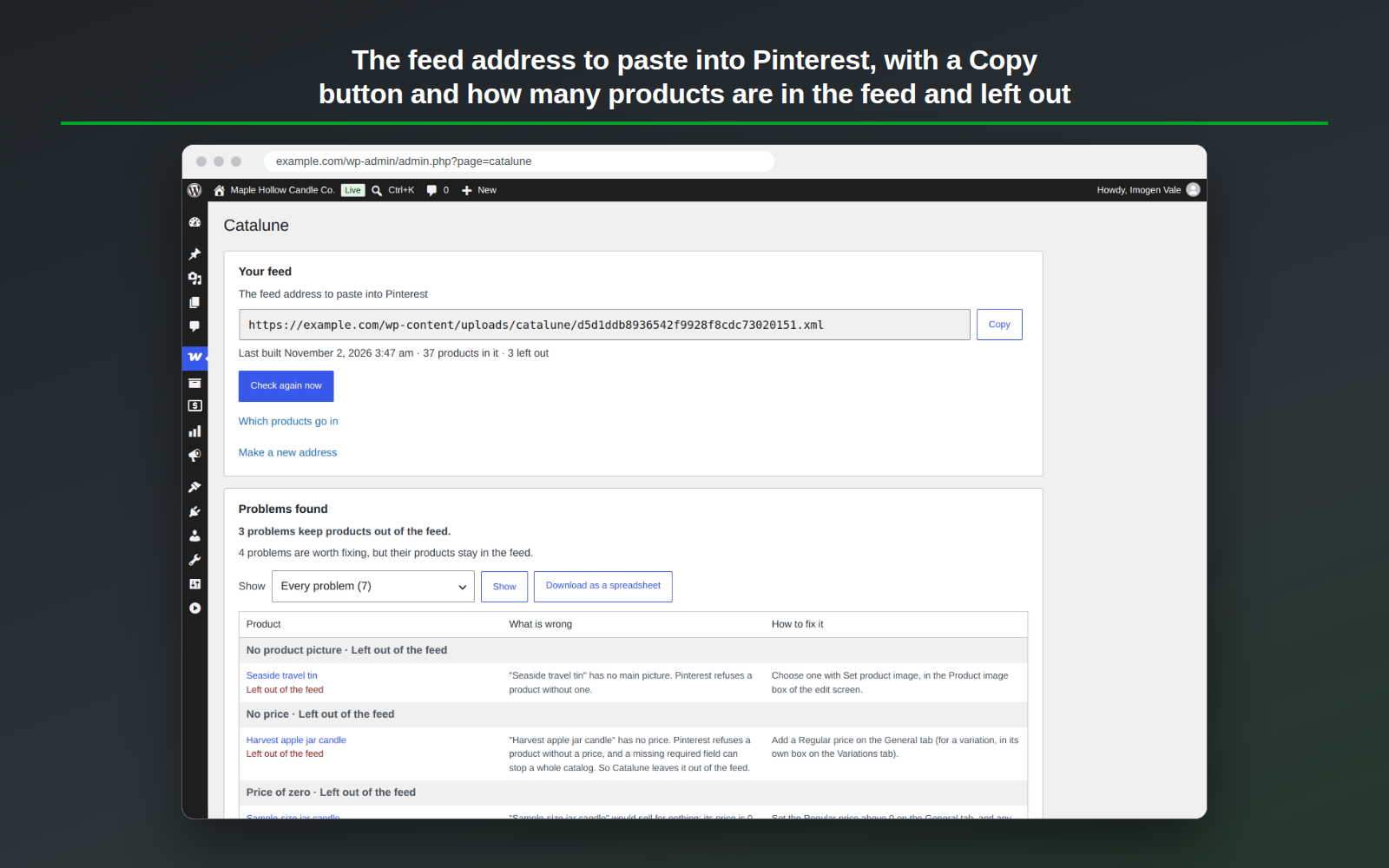
- The feed address to paste into Pinterest, with a Copy button, and how many products are in the feed and how many are left out.
- The feed built in the background in small batches, one job at a time. “Check again now” builds it at once.
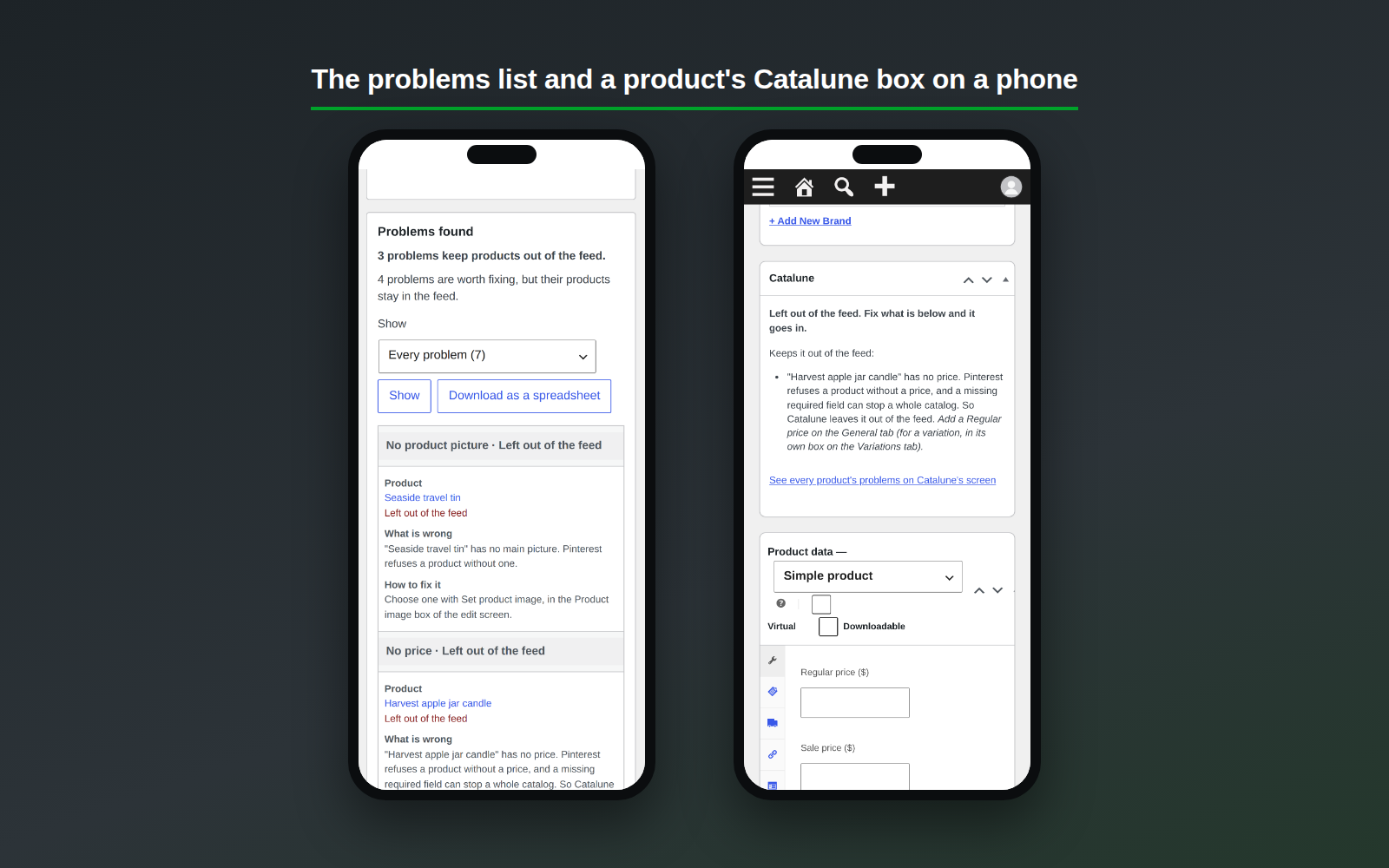
- The problems grouped by cause, errors first, 20 a page, with a filter by cause and a spreadsheet (CSV) download.
- How to add the feed address in Pinterest, step by step, with a link to Pinterest’s own help page.
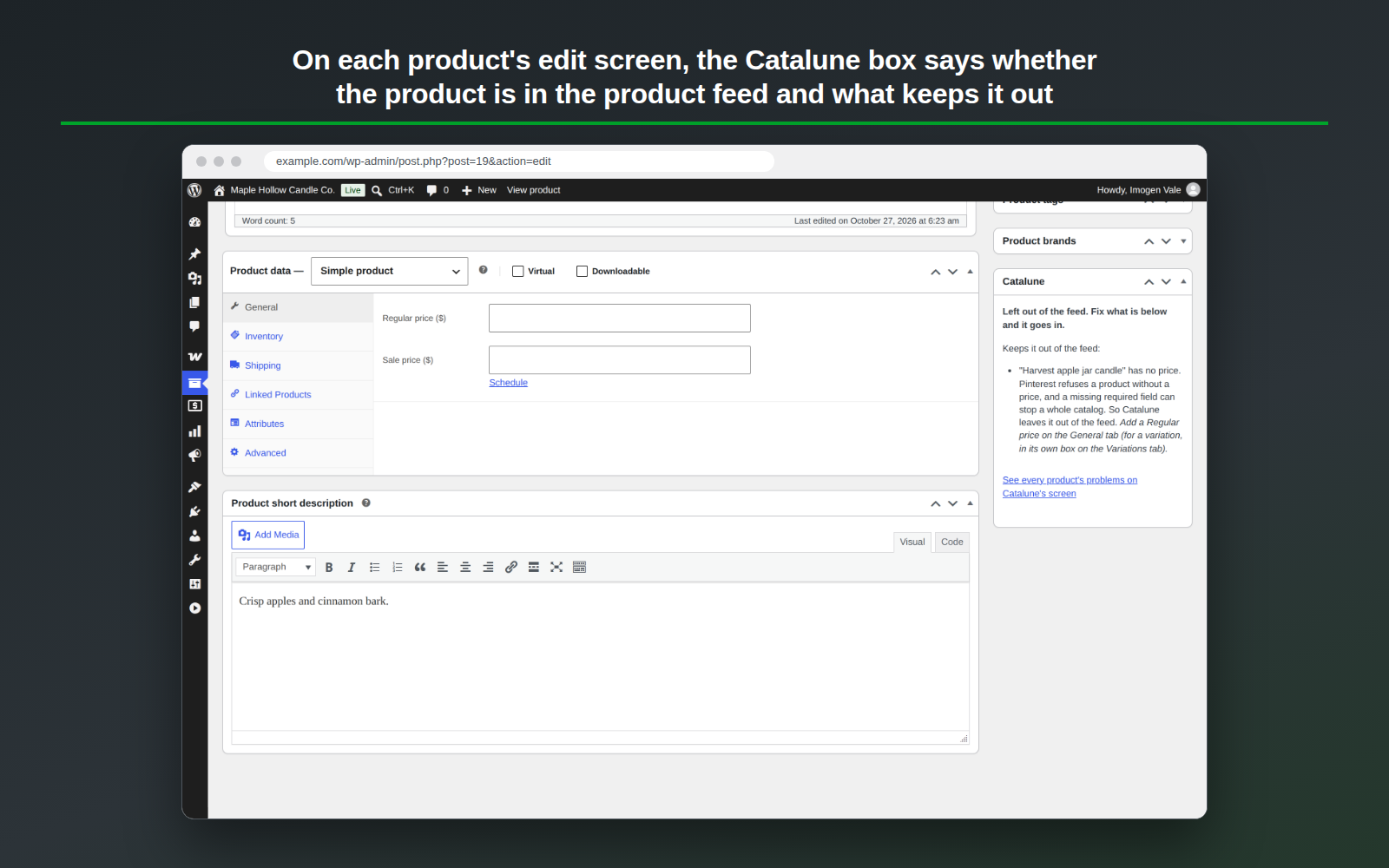
- A Catalune box on each product’s edit screen: whether that product is in the feed, and what to fix, for each of its variations too.
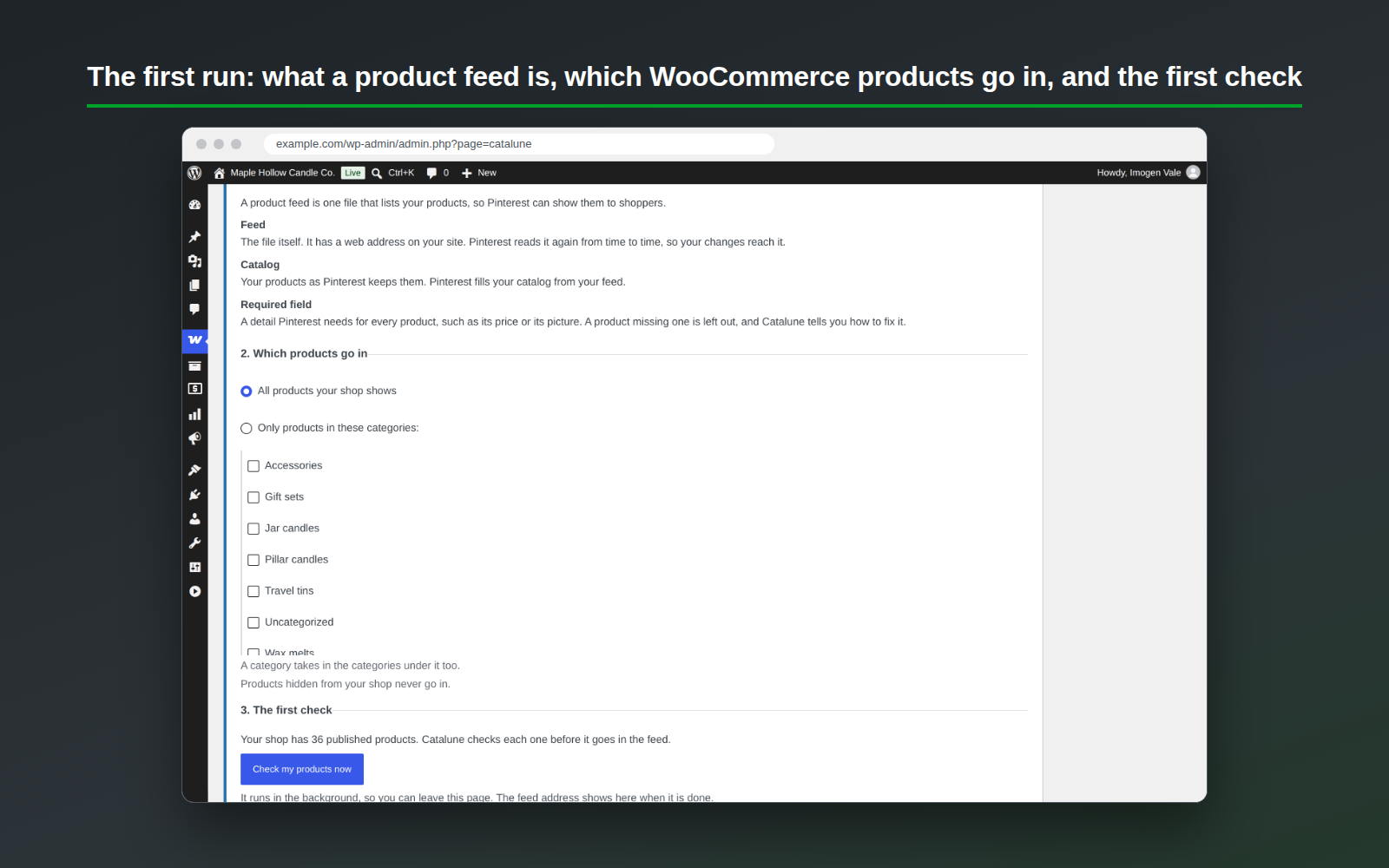
- A first-run guide that says what a product feed is, and lets you put in all your products or only the categories you choose.
- A suggested paragraph for your privacy policy page. Catalune keeps no personal data.
How Catalune is different
- Every product is checked against Pinterest’s requirements first; a product with an error is left out of the feed and listed.
- Each problem is one plain sentence with a link to that product’s edit screen.
- It is made for Pinterest’s catalog alone, and it sends nothing anywhere.
Installation
- Install and activate WooCommerce.
- In Plugins › Add New, search for Catalune, then install and activate it.
- Open WooCommerce › Catalune, choose which products go in, and copy the feed address into your Pinterest account.
FAQ
Does Catalune send anything to Pinterest or anyone else?
No. Pinterest reads the feed file from your site once you add its address in your own Pinterest account.
Do I need a Pinterest account?
To show a catalog on Pinterest, yes. Catalune never asks for it.
Which products go in?
Published products that shoppers can see: all of them, or only the categories you choose when you first open Catalune. You can change that choice later on Catalune’s screen. A product with an error is left out of the feed and listed with the reason.
Will it slow my shop?
Catalune does its work in the background, 100 products at a time and one job after another, apart from the pages your shoppers load. On a test shop of 50,000 products, a full check took less than 3 seconds for every 1,000 products, and Catalune’s screen opened in less than a second with 5,000 problems listed.
Does it work with another feed plugin?
Yes, side by side. Pinterest reads only the address you paste into it. When another plugin on your site can also make a product feed for Pinterest, Catalune’s screen says so, so you can check which address your Pinterest catalog uses.
Is Catalune made by Pinterest?
No. Catalune is not made, sponsored or endorsed by Pinterest.
How often is the feed built?
Every day, and about 10 minutes after you save a product. Press “Check again now” on Catalune’s screen to build it at once. The address stays the same, so you paste it into Pinterest only once.
Can I download the list of problems?
Yes, as a spreadsheet (CSV file) from Catalune’s screen: each product, what is wrong, why and how to fix it, with a link to its edit screen.
Does Catalune keep personal data?
No. It reads only your own products, never your orders or customers, and keeps the results of its checks. It adds a suggested paragraph to Settings › Privacy for your privacy policy page.
What happens when I delete Catalune?
Everything it kept goes with it: its settings, the results of its checks, its scheduled work, and the feed file with its folder. Your products, orders and the settings of WooCommerce and every other plugin stay as they are.
Does it work on a multisite network?
Yes. Each site of a network checks its own products, keeps its own list of problems and makes its own choice of which products go in. Deleting Catalune removes what it kept on every site.
Does it work on a phone?
Yes. Catalune’s screen works on any phone or tablet, an iPhone, an iPad and an Android phone included.
Is there a paid version?
Not yet. Everything described here is free and stays free, with no limits. We are thinking about an optional paid service for later: your feed address opened once a day from outside your site, and a word to you the same day if the file stops opening. The “Get early access” link at the foot of Catalune’s screen lets you ask to be told if it is built: it opens in your browser only if you tap it, and your email address reaches us only if you type it there. It is never shown as a notice, and nothing in this plugin is locked behind it.
Screenshots

Changelog
1.0.1
- New: a “Get early access” link at the foot of Catalune’s screen, for an optional paid service we are thinking about. It opens a page only if you tap it, and nothing in the plugin is locked behind it.
- New: when a newer Catalune is out, Catalune’s screen says so, with Update now, What’s new and Not now. It reads what WordPress already knows about updates and asks nothing of its own.
- After Catalune is switched off and on again, the feed’s daily rebuild goes back on the queue at once.
- The feed’s folder is kept from being listed by an empty index.html instead of an index.php: no PHP file in your uploads folder.
- The rule file inside the plugin holds only what Catalune reads.
- What makes Catalune different: each problem is one plain sentence, with a link to that product’s edit screen.
1.0.0
- The first release.
- The product feed file for Pinterest catalogs, built on your own site from your WooCommerce products, in the background, every day and about 10 minutes after a product changes.
- Every product checked against Pinterest’s requirements first; a product with an error is left out and listed with the reason.
- Catalune’s screen under WooCommerce: the feed address with a Copy button, the problems by cause with a filter and a spreadsheet download, and how to add the address in Pinterest.
- A Catalune box on each product’s edit screen, saying whether the product is in the feed and what to fix.
- A first-run guide: what a product feed is, and all products or only the categories you choose.
- A suggested paragraph for your privacy policy page; Catalune keeps no personal data.
- What makes Catalune different: it checks every product against Pinterest’s requirements first, says each problem in one plain sentence with a link to fix it, and is made for Pinterest’s catalog alone.