


Description
Built for stores that give back.
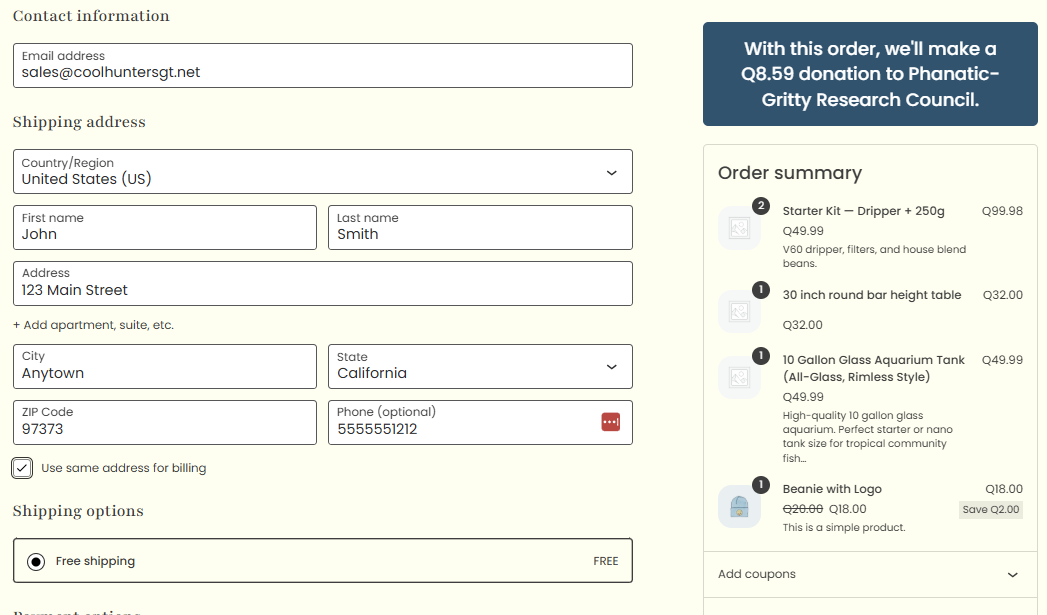
Cause Marketing for WooCommerce sets aside a donation from each sale, tells your customers about it, and keeps the records. Choose a flat amount or a percentage, for the whole store or per product. The plugin does the math, shows the message, and reports the totals.
Shoppers buy with more confidence when they can see that their purchase supports something they care about.
Free features
- Flat or percentage donations, set store-wide or per product
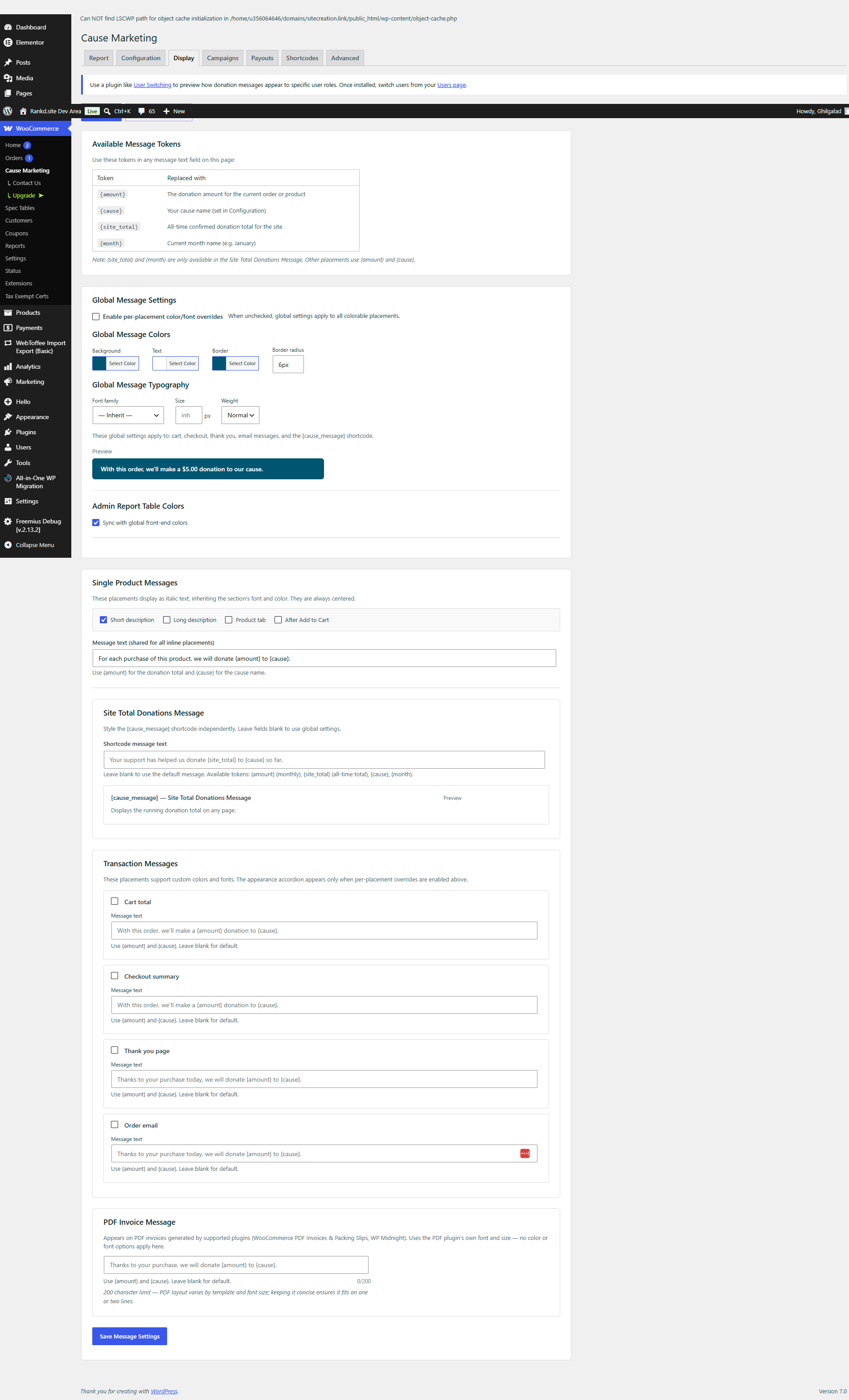
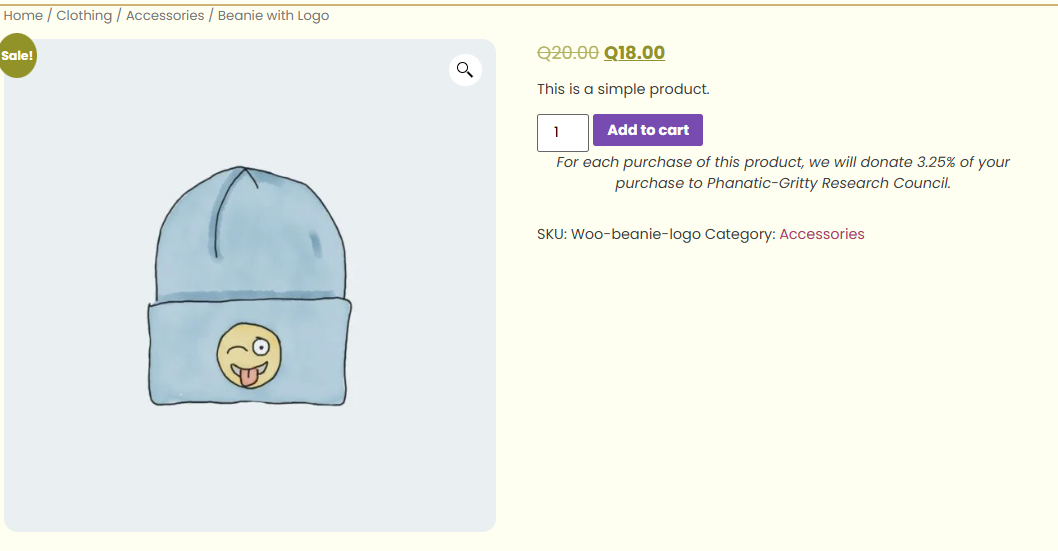
- Donation messages on product pages, in the cart, at checkout, on the thank-you page and in order emails. Each one can be turned on or off.
- Running public total on any page with the
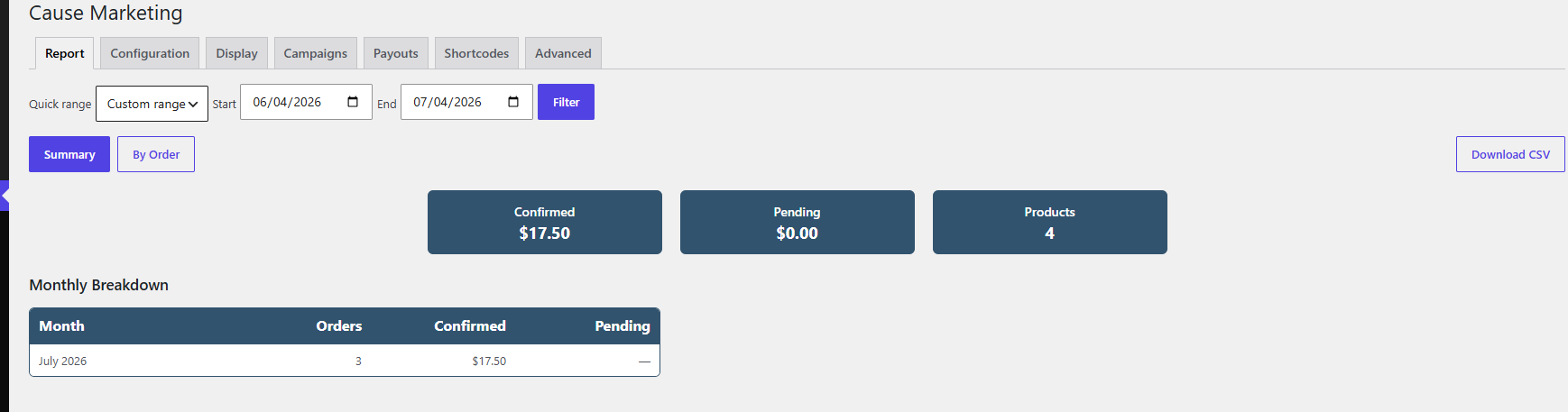
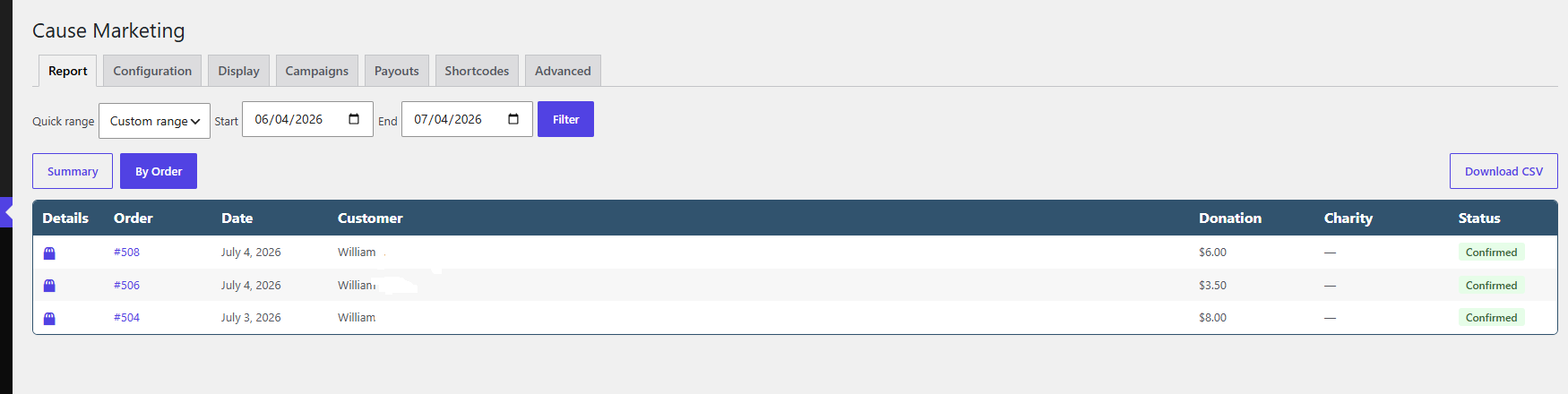
[cause_message]shortcode - Reports: totals for any date range, a monthly breakdown, and a per-order view with CSV export
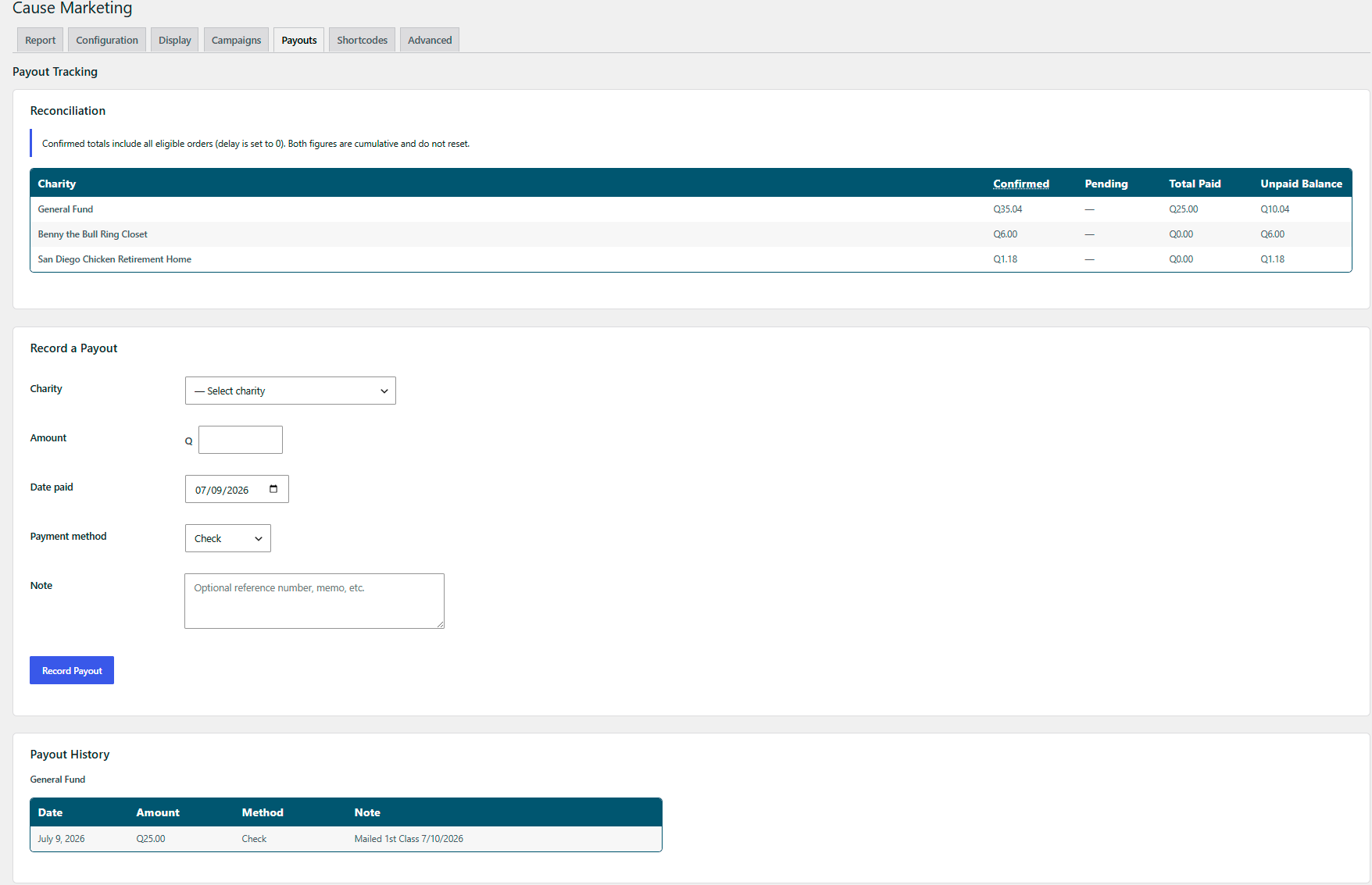
- Payouts: record what you have paid to your cause and compare it with what was raised
- Refunds handled for you: a full or partial refund reduces the donation to match
- Waiting period (45 days by default) before donations count toward public totals, so returns do not inflate them
- Monthly summary email to your team
- Your store’s look: colors, fonts and corner rounding for the messages
- Role exclusions: hide messages from chosen customer roles and leave their orders out of totals
- PDF invoices: a donation note on invoices from WooCommerce PDF Invoices & Packing Slips and WP Midnight
Pro features
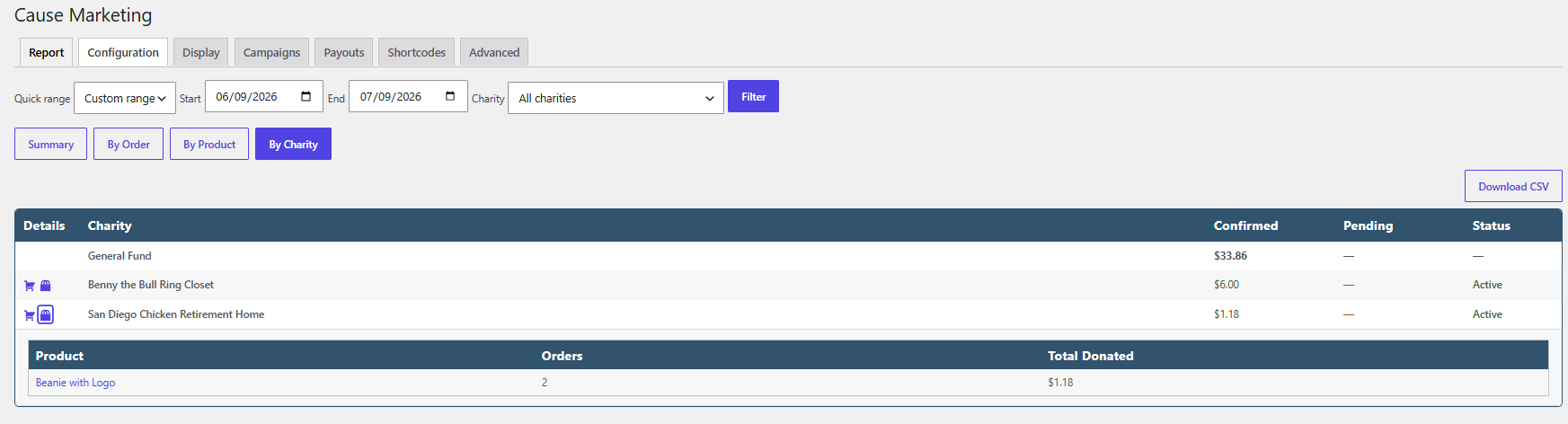
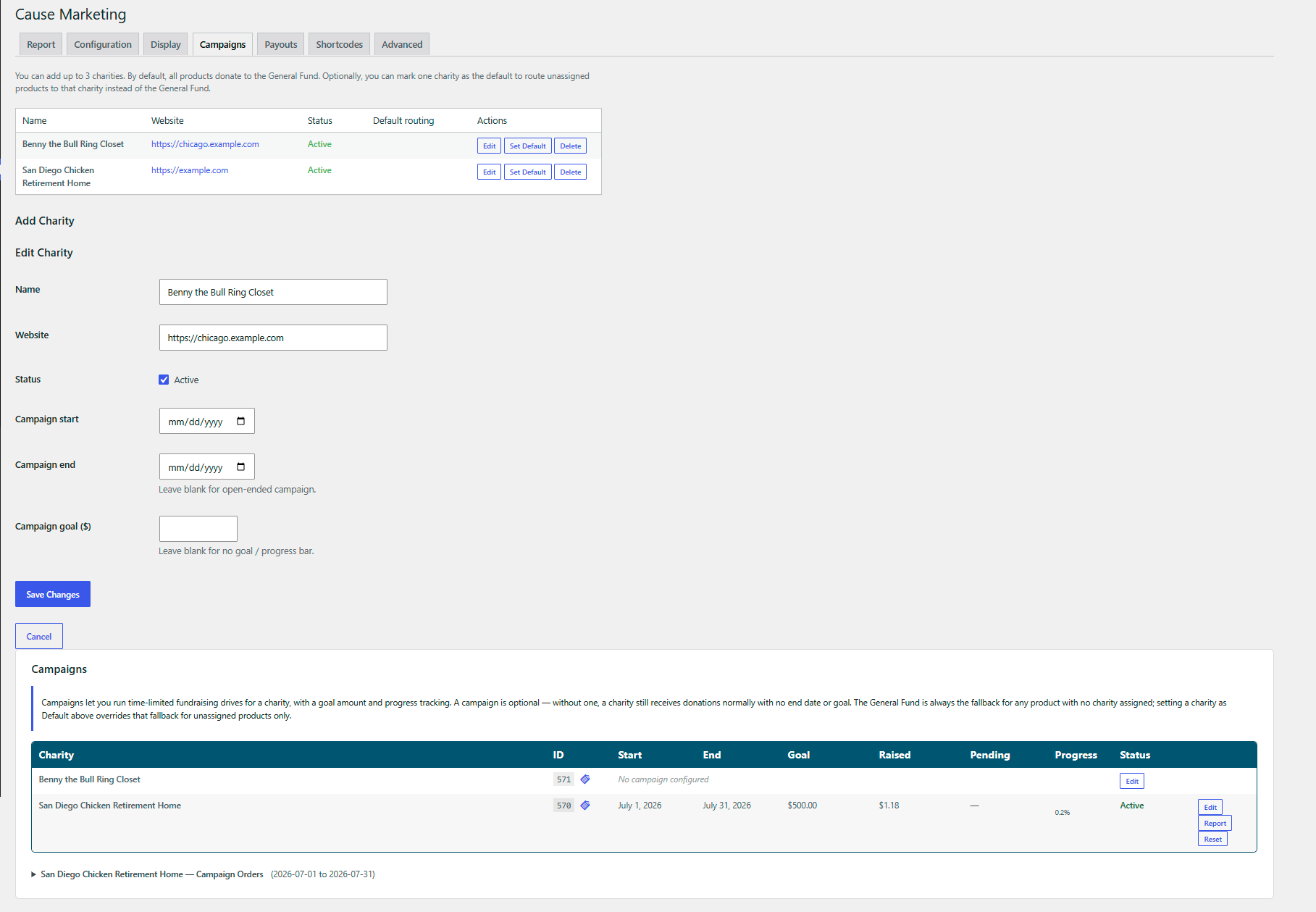
- Multiple charities: up to 3, with products assigned to specific causes
- Campaigns with a goal, dates, progress and history
- Donation amounts by product category
- Campaign progress bar on any page with the
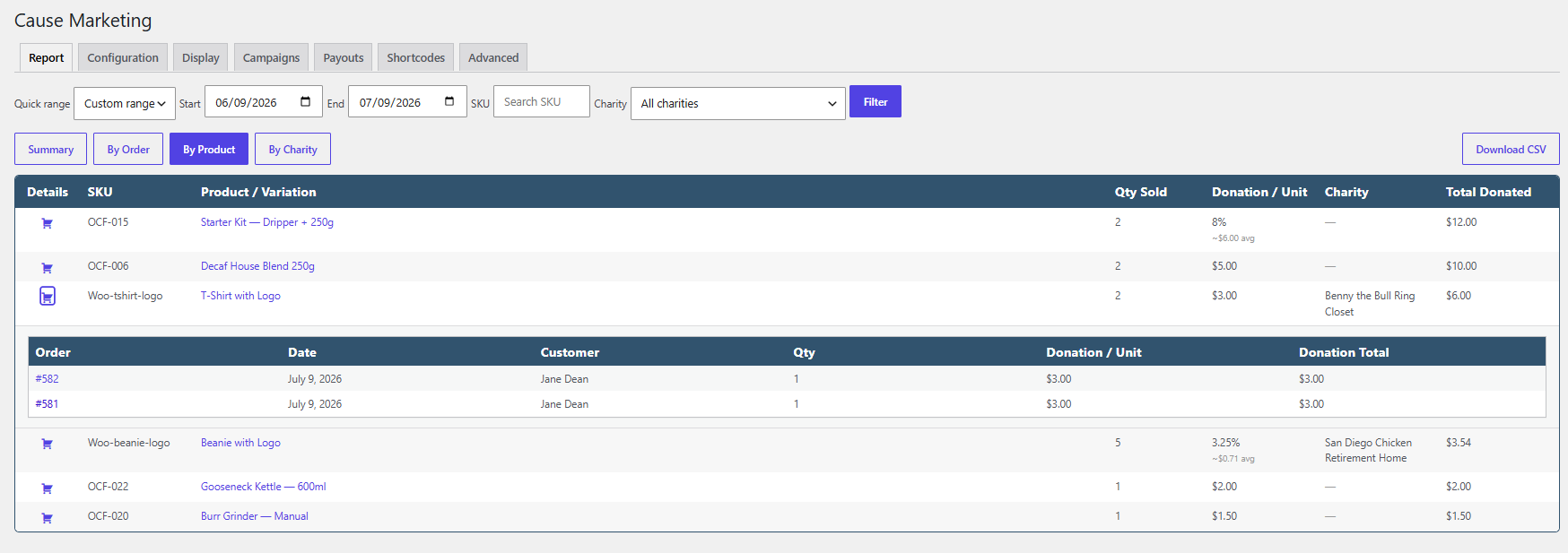
[cause_progress]shortcode - Reports by product and by charity, with CSV export
- Separate styling for each message location
- Sale item controls: optionally skip donations on sale-priced products
Works with
- Classic and block-based cart and checkout
- WooCommerce High-Performance Order Storage (HPOS)
- Elementor, Divi, Beaver Builder and the block editor
Shortcodes
[cause_message]
Shows the running donation total.
start_date: count donations from this date (YYYY-MM-DD)starting_amount: add an amount raised before you installed the plugintest_mode: set toyesto preview without the waiting period
Examples:
[cause_message]
[cause_message start_date="2024-01-01"]
[cause_message starting_amount="5000" test_mode="yes"]
[cause_progress] (Pro)
Shows a campaign progress bar.
charity: charity ID. Uses the default charity if left out.show_charity,show_amounts,show_percent:yesorno. All default toyes.include_pending:yesorno. Include donations still in the waiting period.test_mode: set toyesto preview a campaign that is not active
Examples:
[cause_progress]
[cause_progress charity="123" show_charity="no"]
Developers: other PDF invoice plugins can add the donation note through the donation_report_pdf_get_html filter.
Installation
- Install and activate the plugin. WooCommerce must be active.
- Go to WooCommerce → Cause Marketing → Configuration and enter your cause name and default donation amount.
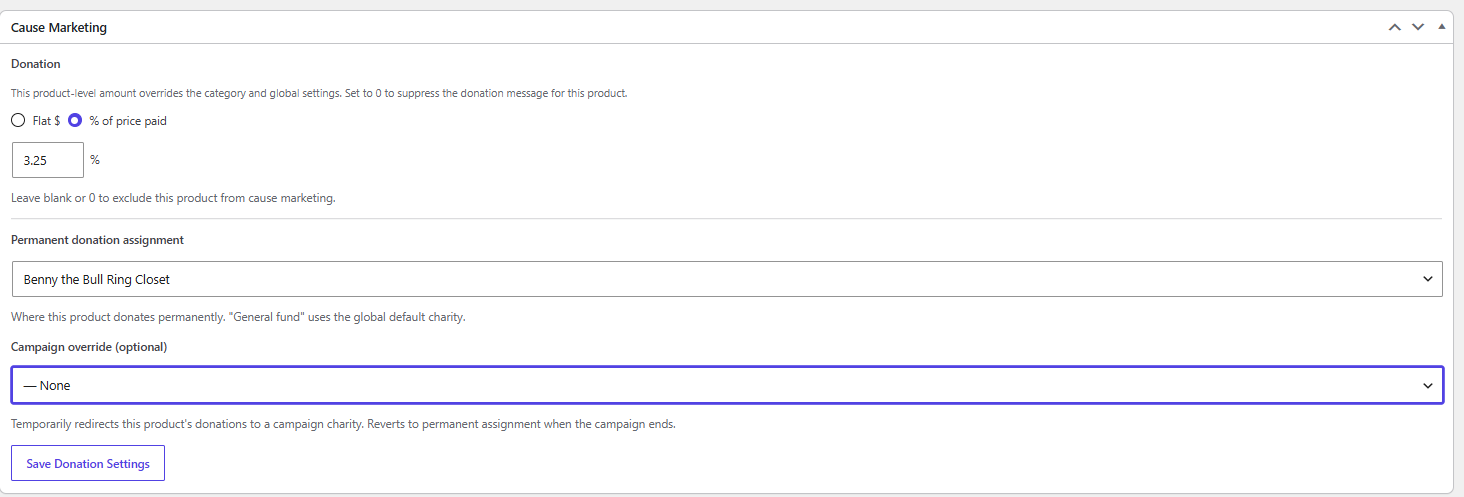
- To give a product its own amount, edit the product and use the Cause Marketing box.
- Choose where messages appear under WooCommerce → Cause Marketing → Display.
- Optional: add
[cause_message]to any page to show a running total.
Nothing appears on your store until you set a donation amount.
FAQ
Do I need any other plugins?
Only WooCommerce.
How do percentage donations work?
Set the donation type to “%” for the store or for a product. The donation is a percentage of what the customer pays for that item. If the product is on sale, the sale price is used.
What is the waiting period?
By default, a donation counts toward the public total 45 days after the order. This keeps orders that may still be returned out of the number your customers see. Admin reports always show current figures. You can change the waiting period, or set it to 0, in the Configuration tab.
How are refunds handled?
When an order is fully or partially refunded, the donation is reduced to match.
Can I set donation amounts by product category?
Yes, with Pro. Category amounts override the store default, and product amounts override the category.
Can I exclude wholesale customers or other roles?
Yes. Choose the roles in the Configuration tab. Those customers will not see donation messages and their orders are left out of totals.
Does it work with variable products?
Yes. The amount set on the product applies to all of its variations.
Does it work with Elementor and other page builders?
Yes. The [cause_message] shortcode works anywhere shortcodes do. If a message does not appear on your product page, try a different placement in the Display tab.
When is the monthly email sent?
On the 1st of each month. On sites with very little traffic it may arrive a little later in the day. Set the recipients in the Configuration tab.
How can I preview messages as a specific customer role?
Install the free User Switching plugin and switch to a test account with that role.
Screenshots
Changelog
1.3.10
(11/17/2026)
* Tested up to WordPress 7.2 and WooCommerce 11.3
* Fixed: fonts with multi-word names (Georgia, Trebuchet MS, Google Fonts) were not applied to donation messages; a font chosen earlier will now display
* Fixed: donation type options and the reset button on product category screens did not respond (Pro)
* Fixed: $ / % label in the product donation box did not update when switching type
* Fixed: duplicate donation message on classic checkout was not removed
* Improved: font list now includes fonts from block themes and the Font Library
1.3.9
(11/3/2026)
* Fixed: error when the monthly email report ran on schedule
1.3.8
(10/24/2026)
* Updated Freemius SDK to 2.13.5
1.3.7
(8/13/2026)
* Tested up to WordPress 7.1
* Removed unused code on the report screen
1.3.6
(8/10/2026)
* Tested up to WooCommerce 11.0
1.3
- Initial public release on WordPress.org