

Description
You do not need an IT team to secure your WordPress site. CloudScale Cyber & DevTools does that job for you. It puts the layers banks rely on in front of your site, free, stops the attack, says in plain language what is wrong, and gives you simple steps to fix it.
Why this matters now
Attackers do not choose targets. Scanners probe every site for flaws published hours earlier.
- 11,334 new WordPress vulnerabilities were published in 2025, up 42% in a year. 91% were in plugins and 9% in themes.
- 46% had no fix from the developer when they went public, so updating alone is not enough.
- 5 hours is the median time to first exploit for the most attacked flaws.
- 26% of attacks were stopped by hosting defences in a test of popular hosts, so your host alone is not enough.
- 573,000 infected sites were counted in one quarter on one vendor’s network, Q2 2026, alongside 18.2 billion blocked password-guessing attempts.
Nobody counts every hacked site, so these are what two security vendors measured: Patchstack, State of WordPress Security in 2026 and Wordfence Intelligence. A hacked site can be blacklisted, used to send spam or used to steal visitors’ data, and cleaning up costs far more than preventing it.
No IT team needed
- Insights, not jargon. Each finding says what is wrong, why it matters on your site, and what to do. The Home tab ranks everything worst first and links straight to the control that fixes it.
- Simple steps. Most fixes are one click, with undo. Where a fix belongs on the server, you get one block to paste, and a guide to opening your hosting panel’s terminal, or a button that sends the steps to your host.
- It watches for you. When a flaw is published in something you have installed, you hear by Telegram, email or webhook, with what to do.
- It is yours. It runs inside WordPress on your own server. Nothing leaves your site until you turn on a feature that needs it.
Technically deeper: proof, not a checklist
- It proves what it finds. Optional Active Verification sends safe test requests to your own site to show whether a flaw is reachable, and each scan is compared with the last so you can see a fix worked.
- AI that cannot talk it out of a risk. AI triage separates real risks from false alarms in plugin code, but it cannot clear the dangerous classes of finding.
- A firewall tested on every release. Each build runs the rules against 143 attack requests, all of which must be caught, and 142 ordinary ones, none of which may be refused.
- Protection before the update exists. CVE Shields, and signed virtual patches where one has been published, cover a flaw until you can update.
- It checks the ground truth. Files are compared with official checksums, and your database is scanned for hidden malicious code.
- Defence in layers. Login, application, Cloudflare edge and an optional OWASP Core Rule Set gateway.
How you use it
- See where you stand. Open Cyber & Devtools in the admin menu. Home shows a setup checklist and what needs attention, worst first, each linked to its fix.
- Protect the login first, the most attacked part of any site. On Login Security, turn on two-factor or passkeys for administrators and move the login address.
- Turn on the firewall safely. Start the firewall in Log only and watch what it would have refused on your real traffic. When that looks right, switch it to Block.
- Run an audit. Site Audit checks configuration, database and plugin health. Most findings have a one-click Quick Fix you can undo, or a Fix Recipe with exact commands.
- Let it watch. Turn on CVE Alerts and connect Telegram, email or a webhook to hear about a new flaw in something you run, with what to do.
What happens when a new flaw is published
Say a flaw is published in a plugin you use before an update reaches you. The daily check alerts you. CVE Shields close the plugin’s anonymous endpoints until you update, and a signed virtual patch, where one exists, refuses the attack. After the update, Upgrade Verification checks the site works and File Integrity confirms the files match the release.
Stop attacks before they do damage
- Request Firewall: blocks SQL injection, cross-site scripting, code execution and malicious uploads early. Starts in Log mode.
- Virtual Patching: narrow, signed rules that block a published flaw in an installed plugin or theme until you update. Few flaws have one yet.
- CVE Shields: close a vulnerable plugin’s anonymous endpoints until the fixed version is installed, then lift themselves.
- IP Reputation, Rate Limiting and Country Blocking shut out known bad traffic and floods.
- Fake Crawler Check: proves that a visitor claiming to be Googlebot or Bingbot really is, with no delay for visitors.
- Content Security Policy: start in Report-Only, see what real browsers would have blocked, and allow a source with one click.
- Comment Guard keeps comment spam out.
- Edge WAF Push sends the addresses you block to Cloudflare, so they are refused at the edge.
- Edge Gateway (optional): the OWASP Core Rule Set in front of your web server, on the same server, with no DNS change. If it stops, traffic goes back to the web server.
Hear about it first, with the fix
- Vulnerability feed: daily checks of your plugins, themes, core and server software.
- PHP Advisory Alerts: warn you that a PHP security release is coming, and say whether your server is affected.
- Certificate Expiry Warning: flags a certificate before it lapses.
- Alerts by Telegram, email or webhook.
- Quick Fixes: one-click hardening with undo.
- Fix Recipes: the exact commands to run, bundled in the plugin and never downloaded, so what you run is what shipped.
Lock down every login
- 2FA by authenticator app or email, and passkeys with Face ID, Touch ID or Windows Hello. You can make it mandatory for administrators.
- A hidden login address, lockouts and breached-password checks that never send the password.
- Emergency Lockdown: one switch for when someone may already be in. It stops new administrators, plugin changes and application password logins, and signs other administrators out.
- A documented way back in if you are ever locked out, from a wp-config.php safe mode to WP-CLI commands.
Prove your site is clean
- File Integrity: compares every core and WordPress.org plugin file with the official checksums, with repair and quarantine.
- Database malware scan looks for malicious code hiding in your database, where a file scan cannot see it.
- Upgrade Verification: after any change to WordPress, PHP, a theme or a plugin, it checks that the front page, login, REST API and admin still work.
- Threat Monitor, Persistence Watch, Activity Log and Live Traffic show what is changing and who is knocking.
AI that reviews your site like a penetration tester
- AI Cyber Audit: reviews your configuration, plugins, users, headers, DNS and TLS, then scores each finding and ranks what to fix first.
- Deep Dive: adds live checks and AI triage of suspicious plugin code, separating real risks from false alarms.
- Active Vulnerability Verification (optional, subscription): safe test requests to your own site, weekly or on demand, prove whether a flaw is reachable and that a fix worked.
- Use your own Anthropic Claude, Google Gemini or OpenAI key, including Gemini’s free tier, or choose Managed AI and hold no key at all.
Why people choose it
- Every protection layer is free. Two-factor, passkeys, the firewall, virtual patching and country blocking are not held back for a paid tier.
- It never acts behind your back. Nothing deletes or deactivates a plugin, and fixes are yours to apply and undo.
What is paid
Only two things, and both are optional. Managed AI is about $10 USD a month through PayPal if you would rather not hold an API key. Active Vulnerability Verification needs the same subscription. Everything else is free.
Developer tools included
- Code block with syntax highlighting, Mermaid diagrams and charts, all served from your own site.
- Export to PDF, SMTP Mail, Server Logs, Performance Monitor, and a SQL Query Tool.
External services
Nothing below is contacted on a default install: each service stays idle until you configure or click something. API keys are your own and go only to that service. Unless an entry says otherwise, no post content, visitor data, database contents, passwords or credentials are sent. A visitor’s page load triggers nothing except Telegram alerts you set up. Full reference
WordPress.org (integrity checks)
Service: WordPress.org. Endpoints: api.wordpress.org/core/checksums/1.0/, /plugins/info/1.0/ and /1.2/; downloads.wordpress.org plugin-checksums/, theme/, and on Repair only release/ and plugin/ zips. Data sent: WordPress version and locale, or a slug and version. When: A File Integrity check, Site Audit scan or Update Risk run. Privacy (no separate terms are published)
CloudScale lookups and data lists
Service: CloudScale Consulting, the plugin author. Endpoints and data sent, on api.cloudscale.consulting: Privacy · Terms
- /whoami: plugin name and version. At most daily after you turn on CVE Alerts (Security tab), or on Check my address.
- /vuln-lookup and /v1/software-releases: one component per request, never your hostname, site URL or plugin list. During a scan you start, and daily once CVE Alerts is on (Security tab).
- /v1/pwned-range/: the first 5 hex characters of the password’s SHA-1 hash, never the password. On setting a password, if you choose Warn or Block.
- /v1/php-advisories, /ip-reputation-feed, /v1/virtual-patches and /v1/plugin-models: nothing. Hourly at most, once the matching feature is on.
- Those feeds (not /v1/pwned-range/) add a random daily number to count sites, identifying nobody.
- /v1/usage/checkin: weekly after Yes to the optional community: random id, site address, versions, setup date, last admin visit, protections on. Leaving erases all.
- /v1/usage/leave: an optional deactivation reason.
- /remediation-event and /remediation-plan: licence key, versions, recipe or failed check ids. If you opt in to recipe usage or ask CloudScale for a fix order. The reply is never code.
CloudScale Managed AI and Active Verification (paid, optional)
Service: CloudScale Consulting. Endpoints: on api.cloudscale.consulting: /v1/messages, /v1/messages-async, /v1/images, /v1/openai-chat, /nuclei-scan, /checkout, /checkout-start, /status, /cancel, /refund-request, /recover, /recover/verify, /contact, /billing-portal, /manage. Data sent: AI features: as the AI providers below. Billing and messages: email address, site URL, message, any PayPal reference. Active Verification: the domain and a scan id; CloudScale then sends real HTTP requests to your site. Every request carries your licence key, plugin name and version. Never your own API keys. When: An AI feature with Managed AI on, or a billing, message or verification button; with a licence key, status at most every 10 minutes and Active Verification weekly unless unticked. Privacy · Terms
AI providers (optional, your API key)
Service: Anthropic (Privacy, Terms), Google Gemini (Privacy, Terms) or OpenAI (Privacy, terms at openai.com/policies/terms-of-use/). Endpoints: api.anthropic.com/v1/messages, generativelanguage.googleapis.com/v1beta/models/, api.openai.com/v1/responses and api.openai.com/v1/images/generations. Data sent: AI audits: site URL; plugin, theme, PHP and server versions; security settings and check results; usernames of administrators with a weak login or no two-factor; for the deep dive, flagged PHP snippets and file paths. Site Audit: sample post titles and URLs. Site Optimizer: DB table and column names, or text you paste. Images: post title and summary. When: An AI-labelled button, “Test connection” or a scheduled scan you enabled, to the provider you selected.
Cloudflare API (optional: cache purge, rate limit, edge blocking)
Service: Cloudflare, Inc. Privacy · Terms. Endpoints: api.cloudflare.com/client/v4/ips and /zones (purge_cache; /rulesets/phases/http_ratelimit/entrypoint, /rulesets/{id}/rules/; /firewall/access_rules/rules). Data sent: Nothing for the address list; otherwise your API token, plus URLs to purge, a rate-limit rule, or blocked IPs. When: Weekly if Cloudflare is your Visitor IP Source; with a zone ID and token, on publish or by button; Edge WAF Push every 5 minutes.
Other optional services
- Service: PayPal Privacy · Terms. Endpoints: api-m.paypal.com (or api-m.sandbox.paypal.com): v1/oauth2/token, v2/checkout/orders, v1/billing/subscriptions/ID; www.paypal.com/sdk/js. Data sent: Email address, amount, a reference and return addresses. When: You start or check a subscription.
- Service: Telegram Privacy · Terms. Endpoints: api.telegram.org, sendMessage and getUpdates. Data sent: Alert text and your site URL; alerts can include PHP errors, the username tried, IP address, country, request path, user agent and scan summaries. When: An enabled alert fires.
- Service: Wordfence Privacy · Terms. Endpoint: www.wordfence.com/api/intelligence/v3/vulnerabilities/scanner. Data sent: Nothing about your site. When: A scan, if you added a key.
- Service: OpenStreetMap Privacy · Terms. Endpoint: tile.openstreetmap.org and its a, b, c subdomains. Data sent: Tile coordinates, plus the browser’s IP address and user agent. When: An administrator views the attack map.
- Service: DB-IP Privacy · Terms. Endpoint: download.db-ip.com (dbip-city-lite .mmdb.gz). Data sent: File request; no visitor IP. When: On “Download DB-IP Lite”, enabling Country Rules, then monthly.
- Service: GitHub (Privacy, Terms) and GitLab (Privacy, Terms). Endpoints: api.github.com and gitlab.com, or a self-hosted GitLab host you allow. Data sent: Repository owner, name, branch and file path. When: An editor links a file or clicks Sync; daily for linked blocks.
Addresses you set (your own endpoint)
Endpoints: Yours, never CloudScale: the uptime heartbeat URL, the alert webhook URL, csdt_fpm_probe_url and csdt_devtools_cf_origin_refresh_url. Data sent: Heartbeat: site URL, time, your token, plugin version and health signals. Webhook: signed JSON alerts. Others: a GET with your host name and page path. When: Every 5 minutes with the heartbeat on (also while deactivated if you install the loader), on an alert, FPM status view or Cloudflare purge.
Installation
- Upload the plugin folder to /wp-content/plugins/
- Activate the plugin through the Plugins menu in WordPress
- Go to Cyber & Devtools in the admin menu to configure
FAQ
Where do Managed AI requests go?
To CloudScale. CloudScale runs them on secure frontier models from various providers, under its own account.
Why does a small site need serious security?
Because attacks are automated. Bots scan every reachable WordPress site, whatever its size, and try new exploits within hours of a flaw being published. Most flaws are in plugins and themes, so a site is only as safe as its least maintained plugin. AI now writes and adapts attacks faster than ever. A hacked site can be blacklisted by search engines, used to send spam or steal visitors’ data, and cleaning it up costs far more than preventing it.
What do you mean by “the layers banks rely on”?
The same kinds of controls a bank puts around its online services, built into WordPress:
- Strong sign-in: two-factor (authenticator app, email or passkeys), a hidden login address, lockouts and a breached-password check.
- A web application firewall against SQL injection, cross-site scripting, code execution, plus rate limiting, IP reputation and country blocking.
- Virtual patching: narrow, signed rules that block a published flaw in your installed plugins until you update.
- Integrity checking: every core and WordPress.org plugin file compared with the official checksums, with repair and quarantine.
- Browser protection: a Content Security Policy and security headers.
- Monitoring and response: activity log, threat monitor, alerts and an Emergency Lockdown switch.
- Optional edge protection: a gateway with the OWASP Core Rule Set in front of the web server.
This describes the controls. It is not a certification.
How does it warn me before an attack?
It watches for the conditions attackers look for, then tells you what to do. The vulnerability feed checks your plugins, themes, core and server software daily once CVE Alerts is on. PHP Advisory Alerts tell you when a PHP security release is coming and whether your server is affected. The Certificate Expiry Warning flags a certificate before it lapses. The audit finds exposed files, weak settings and missing headers. Each finding comes with a fix: a one-click Quick Fix with undo, or a bundled Fix Recipe with the exact commands to run.
How is this different from other security plugins?
- Every protection layer is free. Two-factor, passkeys, the firewall, virtual patching and country blocking are not held back for a paid tier. Only Managed AI and Active Vulnerability Verification are paid, and both are optional.
- It tells you what to do, step by step, instead of only raising a warning.
- It never changes your site behind your back: nothing deletes or deactivates a plugin, and fixes are yours to apply and undo.
- Nothing is sent anywhere on a default install. AI features use your own key unless you choose Managed AI.
What do the AI defences do?
The AI Cyber Audit reviews your configuration, plugins, users, headers, DNS and TLS the way a penetration tester would, then scores each finding and ranks what to fix first. The Deep Dive adds live checks and AI triage of suspicious plugin code, separating real risks from false alarms. Active Vulnerability Verification (optional, subscription) sends safe test requests to your own site to prove whether a flaw is reachable, and compares each scan with the last so you can see a fix worked.
Why does Own-IP discovery run when CVE Alerts is on?
So the automatic blocker always knows the server’s own public address and never blocks it.
How do I install the Edge Gateway?
Click Pair gateway in the Edge Gateway panel (Request Firewall tab), then run the command it shows as root on your web server. The command downloads the installer from api.cloudscale.consulting/edge/install (CloudScale Consulting, this plugin’s author). The plugin itself never calls that address and sends it nothing. The gateway takes the site’s traffic on the same server, with no DNS change, and hands it back to the web server if it stops.
What AI providers are supported?
Anthropic Claude (Sonnet 5 and 5.5, Opus 5 and 5.5, Haiku 4.5 and 5.5), Google Gemini (3.8 Flash, 3.6 Flash, 3.5 Flash Lite and 3.1 Pro Preview) and OpenAI (GPT-6.1 Sol, GPT-6 Astra and GPT-6 Luna). You supply your own API key, no keys are stored anywhere other than your WordPress database (wp_options). A free Gemini tier is available.
What does Live Traffic store?
Nothing until you switch it on (Firewall tab). Then, for each request that reaches WordPress: the time, address, Cloudflare country, method, path without its query string, HTTP status, the first 200 characters of the user agent, and the user ID if signed in. Never the query string, body, cookies or referrer. Rows are kept for 24 hours, at most 20,000, and uninstall drops the table. Pages served from a cache never reach PHP, so they are not shown.
How does the Fake Crawler Check work?
A visitor claiming to be Googlebot, Bingbot, Applebot, YandexBot, Baiduspider or Yahoo Slurp has its address checked with forward-confirmed reverse DNS, through your server’s own resolver. The lookup runs after the response is sent and the result is cached, so no visitor waits. It starts in Log only; Block refuses a proven fake on its next request.
How does virtual patching work?
When a plugin or theme you have installed has a published vulnerability, a virtual patch refuses the one kind of request it needs, for example a non-number in one AJAX action’s id field, until you update. The patches come from a feed signed by CloudScale and checked against a key built into the plugin; each one is drafted from the difference between the vulnerable and the fixed release and reviewed by an AI agent. A patch is a description, not code: it names an AJAX action, REST route or file inside that component, and one of a fixed set of checks the plugin carries. Only patches for a component installed here at an affected version are used, and each stops applying when you update. The feed is young and small: patches are drafted nightly from recent advisories, and one is published only after it passes the automatic checks and the review, so most flaws do not have one yet. The daily vulnerability check alerts you to every flaw either way. Off by default, and the Home setup list asks you to turn it on; Log only records matches as vpatch in Recent Matches, Block also refuses them. Signed-in editors are never checked, and the firewall’s exceptions apply.
What is the Out of Band Heartbeat?
An optional signed message, every 5 minutes, from WordPress to an uptime monitor you run (such as a Cloudflare Worker). It stops exactly when WordPress stops, and carries a few signals the monitor can alert on: a new administrator, the firewall switched off, a new must-use plugin, persistence watch changes, the plugin deactivated. The token is stored encrypted. Off by default.
What does Upgrade Verification check?
Every 5 minutes the plugin compares a fingerprint of what the site runs: the WordPress version, the PHP version the web server uses, the active theme and each active plugin with its version. When any of them changes, whether through an update in WordPress, copied files or a rebuilt server image, it waits 2 minutes and checks the front page, the login page, the REST API, admin AJAX, PHP fatals since the change, that each changed part reports its new version, core files against WordPress’s checksums (only while file integrity is on), and that scheduled tasks still run. A failure sends one alert. It is a report only: nothing is rolled back or changed, and the requests go only to your own site. On by default; never runs on a standby copy.
What does Edge WAF Push send to Cloudflare?
Only IP addresses, each as one IP Access Rule on your zone with a note marking it as this site’s. An address qualifies when it is blocked here now and was blocked by hand, is a repeat offender, made a firewall attack in Block mode, or is a proven fake crawler in Block mode; the newest 200. An administrator’s address from the last 30 days, your never-block list, private or reserved ranges, Cloudflare’s own ranges and the site’s own address are never sent. Off by default; switched on it starts in Dry run, which only reads. Rules without this site’s mark are never changed. The token needs Zone > Firewall Services > Edit.
What does Emergency Lockdown do?
One switch (Login Security tab, or the link in an alert) for when someone may already be in. While it is on: no registration, no new administrators or role grants, no plugin or theme install, update, edit, activation or theme switch, no application password or XML-RPC logins, and 3 failed logins refuse an address for 30 minutes. Other administrators are signed out. Two-factor and the hidden login page are untouched, and your own and recent administrator addresses are never refused. Release it in wp-admin. The automatic trigger only reports unless you set it to Enforce.
I’m locked out of my site
Try these in order, and undo each one once you are back in.
- Add
define( 'CSDT_SAFE_MODE', true );to wp-config.php. For as long as it is there, IP blocks, Auto-Block, country rules, the firewall, Emergency Lockdown and Comment Guard pause, and wp-login.php answers again. Two-factor is still asked for. Nothing is changed in the database, so removing the line turns everything back on. - From a shell, with WP-CLI:
wp csdt login show-urlprints the login address,wp csdt firewall unblock <ip>(or--all) lifts blocks, andwp csdt 2fa reset <user>clears one lost authenticator app so that user enrols again.wp csdt supportprints the support info, secrets removed. wp csdt fix rollback <fix> --user=<admin>undoes one Site Audit fix.define( 'CSDT_LOCKDOWN_DISABLE', true );in wp-config.php suspends Emergency Lockdown, orwp csdt lockdown releasereleases it.- Last resort: rename the plugin folder in wp-content/plugins. That switches off every protection, two-factor included, so rename it back as soon as you are in.
How does the deep dive scan avoid HTTP gateway timeouts?
The plugin uses fastcgi_finish_request() to close the browser connection immediately, then continues the scan in the same PHP-FPM worker. A progress bar polls every 3 seconds. This does not depend on WP-Cron.
How do I change the syntax color theme?
Go to Cyber & Devtools > Code Block tab > Code Block Settings panel. Select your preferred theme from the dropdown and click Save.
What languages are supported for code highlighting?
highlight.js with auto-detection. The bundled build registers 37 languages, and accepts 112 names in total once aliases are counted: Bash, Shell, Python, JavaScript, TypeScript, PHP, SQL, Go, Rust, Java, C, C++, C#, Objective-C, Ruby, Swift, Kotlin, Lua, Perl, R, VB.NET, WebAssembly, JSON, YAML, XML, HTML, CSS, SCSS, Less, Markdown, Makefile, Dockerfile, GraphQL, INI/TOML, diff and plain text.
HCL and Terraform are accepted and highlighted with the INI/TOML grammar: highlight.js has no HCL grammar of its own, and rather than ship an unmaintained third-party one we map it to the closest grammar that is bundled, which covers keys, quoted strings, numbers, booleans and comments.
Can the code block draw charts?
Yes. Set the block’s language to Chart (or paste a “`chart fence) and write one setting or series per line, for example type: bar, title: Revenue by quarter, x: Q1, Q2, Q3, then 2025: 12, 15, 17 and 2026: 19, 23, 26. Types are line, area, bar, hbar, stacked, pie and donut. Other settings: subtitle, x-label, y-label, y-min, y-max, prefix, suffix, source, height, colors. A line whose x values are numbers is plotted to scale, and a series may give its own points as 0:400, 5:700. Readers get a legend that hides or shows each series, tooltips, a Source button and the light or dark toggle. A chart with a mistake shows its source and the line that is wrong. The bundled chart library loads only on pages with a chart block.
Can I paste a Chart.js, Vega or Vega-Lite chart?
Yes. A code block whose language is Chart or Chart.js (a chart orchartjs fence) and whose content starts with { is read as a Chart.js configuration in JSON, the type, data and options object that Chart.js documents and that AI assistants write. A block whose language is Vega or Vega-Lite (a vega orvega-lite fence) is drawn from its JSON specification. Colours you set are kept and anything you leave unset follows the block’s light or dark theme. It must be JSON: no functions, comments or trailing commas. A Vega chart may load data files from your own site only, so put the data in the specification as values or upload the file to the media library. Vega expressions are run by Vega’s interpreter rather than eval, so charts draw on sites with a strict Content Security Policy. Each library loads only on pages that use it.
Can the code block draw Mermaid diagrams?
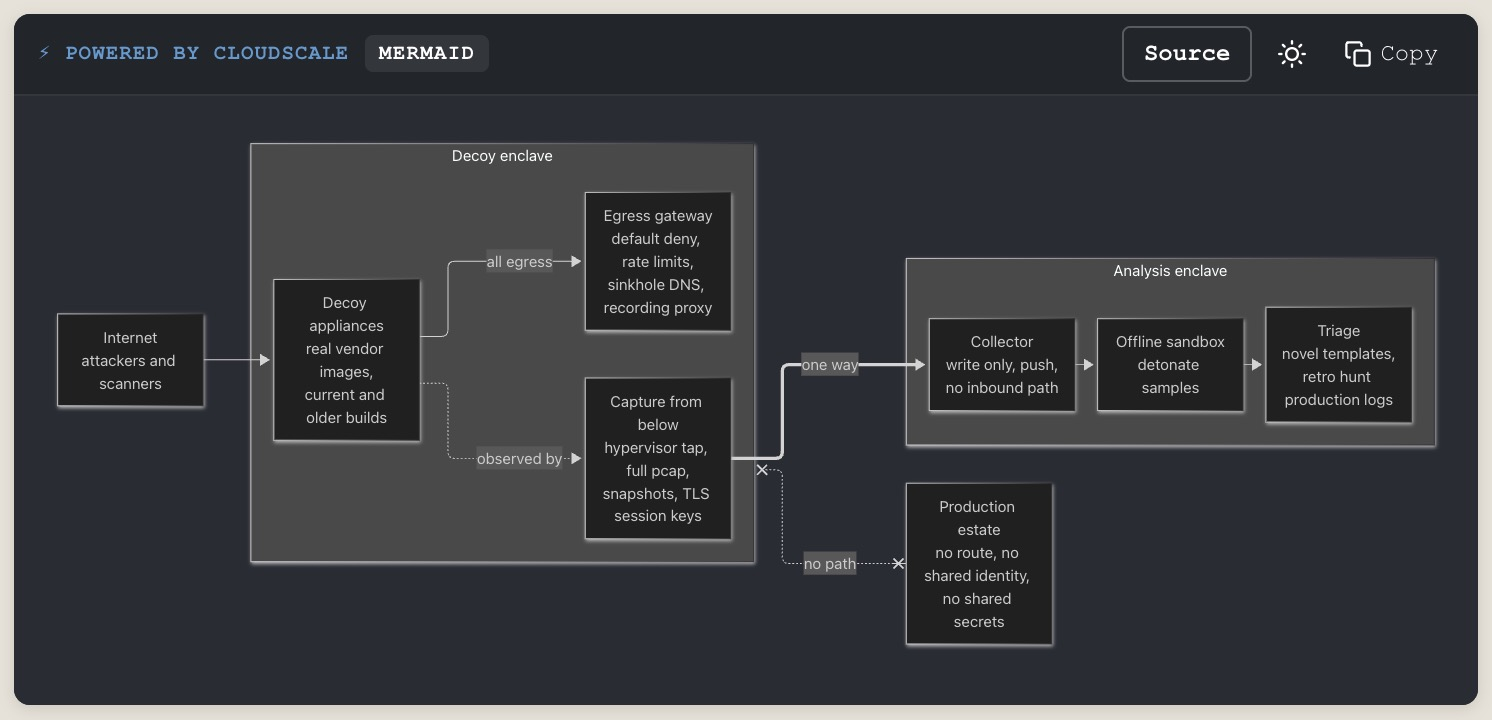
Yes. Set the block’s language to Mermaid diagram (or paste a “`mermaid fence) and the page draws the diagram. A Source button shows the text, Copy copies it, and the theme button redraws it in light or dark. If the diagram has an error, the block shows its source with a one-line reason. The bundled Mermaid library loads only on pages with a Mermaid block, and draws with its strict security level.
Why are the map tiles not bundled with the plugin?
A world basemap is hundreds of megabytes, so it cannot practically ship inside a plugin. The tiles are OpenStreetMap’s own rendering, credited in the map’s attribution control. They are fetched by the administrator’s own browser only while the attack-origin map is on screen, never by the server and never on a visitor’s page load; the full disclosure is under External services above.
What third-party libraries are bundled, and under what licences?
The following open-source libraries are bundled in minified form. Unminified source is available at the linked repositories.
- highlight.js 11.12.0, syntax highlighting engine. The bundled
assets/highlight.min.jsis upstream’s own published browser build, unmodified, andassets/hljs-lang-dockerfile.min.jsplus theassets/hljs-*.min.cssthemes are upstream files from the same 11.12.0 release. License: BSD 3-Clause. Source: highlightjs/highlight.js - Mermaid 12.2.0, draws diagrams from text in the code block. The bundled
assets/mermaid.min.jsis upstream’s own publisheddist/mermaid.min.js, unmodified, with its licence inassets/mermaid.LICENSE.txt. License: MIT. Source: mermaid-js/mermaid. The file contains documentation and licence links from Mermaid and the libraries it is built from (chevrotain.io, langium.org, www.eclipse.org, lodash.com, underscorejs.org, jquery.org, openjsf.org, opensource.org, tldrlegal.com, engelschall.com, en.wikipedia.org) in error messages and licence comments; it contacts none of them. - Chart.js 4.5.1, draws charts from text in the code block. The bundled
assets/chartjs.min.jsis upstream’s own publisheddist/chart.umd.min.js, unmodified, with its licence inassets/chartjs.LICENSE.txt. License: MIT. Source: chartjs/Chart.js. The file names its project site (www.chartjs.org) and a colour library it includes (github.com/kurkle/color) in its banner; it contacts neither. - Vega 6.4.0, draws Vega charts in the code block. The bundled
assets/vega.min.jsis upstream’s own publishedbuild/vega.min.js, unmodified, with its licence inassets/vega.LICENSE.txt. License: BSD-3-Clause. Source: vega/vega. It contacts no server unless a chart names a data file, and the plugin only allows files on your own site. - Vega-Lite 6.5.0, compiles the shorter Vega-Lite grammar to Vega. The bundled
assets/vega-lite.min.jsis upstream’s own publishedbuild/vega-lite.min.js, unmodified, with its licence inassets/vega-lite.LICENSE.txt. License: BSD-3-Clause. Source: vega/vega-lite. The file names vega.github.io/schema/vega/v6.json, the Vega schema’s address, as a label it writes into the specifications it compiles; it never requests it. - vega-interpreter 2.3.2, evaluates Vega expressions without eval. Upstream publishes it as an ES module only, so
assets/vega-interpreter.jsis upstream’s readablebuild/vega-interpreter.jswith its import line and its export line replaced so a script tag can load it; nothing else is changed and the file is not minified. License: BSD-3-Clause (assets/vega.LICENSE.txt). Source: vega/vega/tree/main/packages/vega-interpreter. - QRCode.js, QR code generator. License: MIT. Source: davidshimjs/qrcodejs
- Leaflet 1.9.4, interactive maps (project site leafletjs.com, named in the file’s own banner; the plugin never contacts it). The bundled
assets/leaflet.min.jsis upstream’s own publisheddist/leaflet.js, unmodified, with its copyright banner intact. License: BSD 2-Clause. Source: Leaflet/Leaflet - MaxMind DB Reader (PHP), GeoIP2 database reader, modified: namespace prefixed with CSDT\ and exception messages escaped. License: Apache 2.0. Source: maxmind/MaxMind-DB-Reader-php
- DejaVu Sans Bold, the font
assets/fonts/DejaVuSans-Bold.ttf, used by GD to draw text onto the social-share images the plugin generates. Bundled because a generated image must render identically on every host, and a server font cannot be relied on to exist. License: DejaVu Fonts License (a permissive, GPL-compatible free licence derived from the Bitstream Vera Fonts License). Source: dejavu-fonts/dejavu-fonts
All licences are GPL-compatible.
Does the plugin add public REST endpoints?
Two, both open by necessity and both limited. csdt/v1/csp-report (POST) receives the violation reports browsers send without credentials; it exists only while CSP violation logging is on, accepts 20 reports per address per 10 minutes, cuts each field to 512 characters and keeps the latest 100. The Custom 404 leaderboard (hiscore/<game>, GET and POST) lets visitors read and post game scores; posting is limited to 5 per address per game per 10 minutes. Edge Gateway routes and the PHP-FPM report route, when in use, also take requests without a login, but only with a valid signature or token. Nothing else is reachable without logging in.
Why does the Performance Monitor’s query list ask me to edit wp-config.php?
WordPress records each query and its timing only while the SAVEQUERIES constant is on, and a plugin may not switch that on for your whole site. Add define( 'SAVEQUERIES', true ); to wp-config.php (the DB tab has a copy button), and remove it when you have finished, because it records every query on every request. Everything else in the monitor works without it.
Is syntax highlighting loaded from a CDN?
No. highlight.js, Mermaid, Chart.js and Vega ship inside the plugin and load from its own /assets/ directory. No CDN request is ever made for syntax highlighting, diagrams or charts.
Outbound admin links (browser navigation only, the plugin sends no data)
Some admin screens contain ordinary hyperlinks you may click; the plugin itself never contacts these sites: ipinfo.io (whois lookup beside logged attacker IPs), documentation and product pages cited in audit findings and help text (gravityforms.com, wpml.org, learndash.com, affiliatewp.com, memberpress.com, paidmembershipspro.com, berocket.com, support.microsoft.com, help.yahoo.com, zoho.com, support.google.com), the pages where you obtain your own API key or manage your own account (console.anthropic.com, aistudio.google.com, platform.openai.com, dash.cloudflare.com), this plugin’s own help site (help.cloudscale.consulting), the public advisory page for a CVE or advisory listed in a scan result (a link the vulnerability lookup returned, or wordfence.com/threat-intel/… for a Wordfence advisory), and social-preview debuggers (facebook.com, linkedin.com, twitter.com). Separately, Social Preview Diagnostics, when you run it, fetches your own pages, your robots.txt and the image each page names in its og:image tag (wherever that image is hosted) the way link-preview crawlers do, sending their published user-agent strings to your own site; those strings contain www.facebook.com and www.linkedin.com, which the plugin never contacts.
How do I allow third-party services in the Content Security Policy?
The policy the plugin builds allows your own site and nothing else. Anything your pages load from elsewhere (analytics, adverts, fonts, embedded video, a payment form) you add yourself in the Allowed sources field, one directive per line, for example script-src analytics.example.com. Start in Report-Only: the Violation Log lists what real browsers would have blocked, and an Allow button beside each entry adds that source for you.
The plugin ships no list of third-party hosts and no service presets. Earlier versions did; a site upgraded from one keeps sending its policy as Report-Only until the panel is saved once, so nothing that used to be allowed is suddenly blocked.
What is CloudScale Managed AI, and do I need it?
No, every AI feature works with your own Anthropic, Google Gemini or OpenAI key, which you supply and pay for directly. Managed AI is the alternative for people who would rather not hold an API key at all: about $10 USD a month via PayPal.
One allowance, three capabilities: 200 text requests, 30 generated images and 500,000 characters of narration each month. Demanding work runs on CS-Text-Pro and everyday work on CS-Text-1.
It does not lock you in. If the managed service is ever unavailable, the plugin falls back to your own key automatically, so keeping a key configured is worth doing either way. The same subscription also powers the CloudScale SEO plugin. Card details are entered on PayPal’s hosted checkout and never reach this plugin, and your own API keys are never sent to CloudScale.
Tiers are named by capability (CS-Text-1, CS-Text-Pro, CS-Voice-1, CS-Voice-Pro, CS-Image-1) because which engine serves a tier is chosen per job and changes as better or cheaper options appear.
Can Active Vulnerability Verification scan a site other than mine?
No. It only ever scans the site your CloudScale license is registered to, there is no field for a different target. To audit another domain, that site needs its own license.
The scan is rate-limited per license and has a hard time limit per run.
Why do the fix commands ship inside the plugin instead of being downloaded?
Because they are shell commands you may run as root. Fetching them over the network would mean a compromised or impersonated server could hand your server arbitrary commands to run with full privileges. The recipes are bundled in the plugin and are never downloaded, so what you see is what shipped, reviewed, in the version you installed.
Does the plugin check my own site in the background?
Not unless you switch it on. The Exposed folders check is off by default: until you tick “Exposed folders check” in the AI Cyber Audit panel it makes no requests and schedules nothing.
Switched on, once a day it asks this site, and only this site, for the real folders on its own server, for the files whose content proves a leak (a .git folder, a copy of wp-config.php, a .env file, a backup, a database tool) and for about 1,500 common leftover, backup and staging folder names, in small batches. It contacts no outside service, has no target field and cannot be pointed at any site but its own. The result is kept in your own database for the site audit to read.
A name only becomes a finding when the content of the answer proves it, such as a real file listing or a real git file. A page that merely answers 200 is not a finding. The check sees the site as its own server reaches it; a proxy in front of the site may be stricter. Unticking the box stops the daily run and removes the stored result.
The Certificate Expiry Warning (Activity tab) is off by default too. Switched on, once a day it opens a secure connection to this site’s host name and to up to 10 other host names you list, reads the certificate each one presents and closes the connection. No page is requested and nothing about your site is sent. It contacts no CloudScale or third-party service, only the names you entered, and refuses one that points at a private address.
Does the plugin tell me about PHP security releases?
Yes. PHP Advisory Alerts (Security tab, beside Host Software) sends one alert each when php.net announces an upcoming security release (with the release time in your timezone and in UTC), when the release for your PHP branch is out (saying whether this site is affected), when your branch is end of life and will not get the fix, and when this site runs the fixed version. The version checked is the one your web server runs, read on an admin page load, never the command line PHP. Alerts go to Telegram, if set up, and the admin email address. It changes nothing on your site, and the dashboard widget shows the current state. Off by default: tick Send PHP advisory alerts to start it.
Does the plugin hide the WordPress version?
Only if you ask it to. “Hide WP Version” is off by default. Switched on, the plugin removes the generator tag that WordPress prints in the page head and the version numbers on script and style links. Switch it off and WordPress prints them again.
Does the plugin ever change or remove anything without being told to?
Nothing runs on a schedule that alters your site, and the plugin never executes a shell command: the fix recipes above are text for you to run yourself. Two presentation defaults apply from activation, each with its own switch in the admin: WordPress’s emoji image script is skipped so emoji render natively, and each post shows an Export to PDF button. The custom 404 page and the performance monitor are both off until you switch them on, so a new install leaves your theme’s 404 template and your admin requests exactly as they were.
No Quick Fix deletes or deactivates another plugin. “List inactive plugins”, offered by the site audit when it finds deactivated plugins still on disk, is read-only: it names each one with its version so you can review them and remove any you no longer need from Plugins, Installed Plugins yourself. The plugin does not edit wp-config.php either: the “Limit to 5 Revisions” fix applies its cap at runtime, and can be undone.
Screenshots
Changelog
1.10.1157
- Fix: a security scan that runs past the host’s time limit now ends with a clear failed status and the reason, instead of appearing stuck on “running” forever. This covers the AI Deep Dive, the vulnerability scan and the standard scan.
- New: before a scan starts, the plugin checks the host can finish it and warns you first when the time limit is too low, with what to ask your host to change.
- Change: outbound requests the plugin makes are kept under the host’s execution limit, so a slow third party can no longer cause a fatal timeout. A hung call now logs only its scheme and host, never the full address.
- New: the Home dashboard replaces the attack-origins map with a seven-day attack trend and an attack-mix bar, and the to-fix list keeps each live check’s real severity.
- New: Comment Guard can add an optional randomised math question to the comment form.
- Security: the editable AI system-prompt field has been removed.
- UI: clearer Cyber and DevTools section labels on the Home tabs, and a calm empty state on the Login panel when there are no failed logins.
1.10.1142
- Fix: across every admin tab, a failed action now explains what went wrong instead of showing “Unexpected token ‘<‘ … is not valid JSON” or a bare “Error”. When the host returns a login wall, a firewall block or a 500 page, the plugin reads the reply safely and shows the reason in words.
- Change: on the Security tab, the Active Vulnerability Verification step now follows the Deep Dive step directly, so the two run in order.
1.10.1141
- Security: new Edge Gateway installs get the current gateway, which signs the visitor’s address it passes to WordPress so it cannot be forged on the way. The plugin checks the installer’s fingerprint before it runs.
1.10.1140
- New: add a backup email to your profile as a way back in when your phone or passkey is not available. It is used only after you enter the code sent to it, the login screen shows it masked, and your account email is told whenever a code is sent there or used. Adding one, like generating recovery codes, ends codes to your account email standing in for your app or passkey, so recovery codes are now optional.
- Fix: with a Managed AI plan, AI work now runs on the plan first whichever provider is selected, and your own key is the backup, used only if the plan’s limit is reached or the service is down. AI Settings, the deep dive and every report say which AI was used.
- Fix: starting the AI Deep Dive on a host without PHP-FPM no longer ends in “Unexpected token ‘<‘ … is not valid JSON”. The scan runs in the background, and an error page from the host is explained in words.
- Fix: Virtual Patching’s Save shows its result beside the button, checks the mode was really stored, and Refresh now saves a chosen mode first.
- Fix: a failed save now says why: the server’s reason, a refused security token, being signed out, or a firewall blocking admin-ajax.php, named where the reply shows it (Cloudflare, ModSecurity, Imunify360, Sucuri, Wordfence, Apache, nginx) with what to ask your host, instead of a bare “Error”.
- Security: the Edge Gateway exemption now applies only to the gateway’s own two routes.
- Fix: a CSP report the site answered normally no longer pages as a critical Edge Gateway alert.
- Fix: scheduled and queued scans: cancel is reliable, a scan WordPress’s scheduler never starts says so, and HTTPS is detected correctly.
- Fix: a failed Managed AI job in a background scan falls back to your own key, and Test Key really tests the key.
1.10.1139
- Fix: the Edge Gateway’s reports of blocked or logged attacks were refused by this plugin’s own firewall, because a report quotes the attack. A report the gateway signed is now accepted; anything unsigned is still inspected.
- Fix: the Edge Gateway no longer sends a critical alert for a protocol-policy rule (CRS 920xxx, such as a restricted header) on a request the site answered normally. It stays in the daily summary. Attack rules, 5xx answers and requests with no answer reported still alert.
- Fix: a SQLite, curl or ImageMagick advisory that affects only the command-line program, not the library PHP uses, is listed as unconfirmed with the reason and no longer triggers the daily server-software alert.
- Fix: when the feed says no release fixes an advisory on any branch, the alert says there is nothing newer to install, instead of telling the host to update.
1.10.1138
- Fix: a standby copy no longer runs the weekly active scan with production’s settings, and so no longer sends a “could not start” warning. A promoted standby books the weekly scan again.
- Fix: the site monitor no longer reports a second-factor prompt (changing recovery codes or login security) as a critical failed request. It is logged as information.
- UI: a small gap between the Show buttons of Recent Security Events and Other Alerts on the dashboard widget.
- Fix: a scan report kept listing a server software finding (for example SQLite 3.53.4) after the server was upgraded. A finding about a version no longer running now shows under Good as resolved since the scan, with both versions, until the next scan re-checks the new one.
- UI: on the dashboard widget, the security scan and site audit are one table under the score, each row with its age and its own button.
- UI: the tab bar is two labelled rows, Security and Site tools, so a wrapped security tab no longer lands beside the Site tools heading. On a phone each row swipes on its own.
- Fix: two security events or alert counts written at the same moment could lose one when the lock was busy. Writes now wait for the lock and queue the update if it stays busy, instead of writing unlocked.
1.10.1137
- Fix: the daily vulnerability re-check alert said “Fixed in” the version already installed when an advisory had no fixed release yet. It now says how many have no fix in your branch.
1.10.1136
- Fix: a server software finding told you to update to the version you already run (“SQLite 3.53.4 or later” on 3.53.4) when an advisory had no fixed release yet. It now says which advisories have no fix in your branch.
- Improvement: the critical Linux kernel warning turns into a quieter reminder once its stopgap is measured in place on the server, and the Site Audit finding drops from critical to high. It goes completely once the fixed kernel runs.
1.10.1134
- Fix: the deep scan reported eval() and similar calls found in code comments, text strings and inline JavaScript as High findings. It now reads only code that runs.
1.10.1133
- Security: the licence key no longer appears in the admin page source. Copy Key and Cancel fetch it on click, for administrators only.
1.10.1131
- Fix: the Managed AI subscribe button did nothing on most sites. It now opens a secure PayPal checkout in a new tab and the plugin activates when you finish.
- Fix: with a mouse, tabs past the right edge of the tab bar could not be reached. The bar now wraps onto a second row.
1.10.1130
- New: an optional CloudScale community. Say Yes and the plugin checks in weekly so we can see which features sites use. Nothing depends on your answer, and leaving deletes it all.
- New: an optional reason box when you deactivate. Skip sends nothing.
1.10.1129
- Fixed: an automatic IPv6 ban pushed to Cloudflare covered no real visitor; it now blocks the whole /64.
- Improved: login and comment limits count an IPv6 /64 as one sender.
- Fixed: a private admin address could freeze the IP reputation list in Block mode.
- New: Active Vulnerability Tests run every week by themselves and alert when one fails.
- Security: Edge Gateway client addresses are signed; replayed and rewritten addresses are refused.
- Improved: Home asks you to turn on Virtual Patching; the readme no longer leads with it.
- Security: escaped four admin display paths, capped two downloads, tightened table name matches.
1.10.1125
- Fixed: API Attacks counted nothing with application passwords off; admin route probes now count too.
- Security: IP feed signed, patch feed expires, Edge installer hash pinned, licence key sent in a header.
1.10.1124
- Improved: comment flood alerts say how many were accepted, spam or refused, and why.
- Fixed: spam no longer makes a real reader wait for the comment gap.
1.10.1123
- Fixed: Country Rules work with or without Cloudflare: the database downloads itself and the panel says what is identifying visitors. A proxy other than Cloudflare can no longer pass on a forged country.
- Added: with CSDT_SECRETS_KEY in wp-config.php, AI keys, the SMTP password and authenticator secrets are encrypted at rest. Every copy of the site uses the same key.
1.10.1122
- Security: full review of the plugin itself, every fix with a build test. Login locks now hold (they were ignored), the hidden login cannot be reached by action spelling, 2FA guesses are limited per account, Force 2FA works with the method off, codes work once, removing a factor needs proof, and recovery codes are new.
- Security: AI output and CSP reports can no longer plant script in admin screens, keys are no longer in the page, and fetches stay on public addresses.
- Firewall: forged cookies and odd body encodings no longer skip rules; much wider SQL, script and code coverage, a new internal-address rule.
- Changed: every server script is now one paste that runs, with a guide to opening your server’s terminal. The plugin never asks for server passwords.
1.10.1120
- NEW: failed SSH logins on the Attack Origins map, from a small job the fail2ban script installs on the host. Shows the usernames tried and warns when one is a real account. Stores country and username totals only.
1.10.1119
- Fix: Home and Quick Fixes offer the fail2ban script on every server, including containers. Bans last 6 hours after 5 failed SSH logins.
1.10.1118
- The dashboard widget, Home card and security report count an open kernel or PHP critical in the scan, and no longer say Good while one is open.
1.10.1117
- Virtual patches are reviewed by an AI agent, and the plugin says so.
1.10.1116
- Clicking Scan Headers Now opens its panel, so you can see the result. The same goes for any action button in a collapsed panel’s header.
- CPU, IO and memory alarms list the top 10 processes on the host.
- The plugin page explains how the product works, and every address on it is a link.
1.10.1115
- Managed AI refunds: the money-back window is now 30 days, the same as the published policy.
- The readme says how Managed AI requests are processed.
1.10.1114
- Security: fixed a two-factor bypass. A correct password alone could sign in through XML-RPC, or other direct logins, when the request carried one URL parameter. Update now.
- Security: the visitor’s address no longer comes from the forgeable start of X-Forwarded-For.
- Security: logs moved to a folder name nobody can guess, because nginx ignores .htaccess.
- A stranger can no longer lock an administrator out: the lockout counts each username per address.
- A fresh install no longer blocks an address site-wide for failed logins unless you set a threshold.
- No more open_basedir warnings, or fatals where system functions are disabled.
- Removed other products’ prices from the Plugin Stack scan. Corrected wording in several places.
1.10.1113
- UI: actions are buttons, not bare text: Cancel subscription, Disconnect, Refresh status, Review, Open, Edit settings, paging and more.
- Fix: a complimentary licence no longer offers Cancel subscription, and says there is nothing to cancel. Needs the updated licence server.
- UI: the Use Managed AI switch now explains both positions, not only Off.
1.10.1112
- UI: on the dashboard widget, View full report and Run Audit Now are proper buttons that line up with the text above them.
- UI: one set of controls across the plugin: every button and text box now shares one style and height, and a label lines up with its control.
- UI: Home is tidier: status cards sit in rows of three, Quick Fixes put their action on the right with finished ones last, and security events use line icons.
- UI: Credentials uses the full panel width, an empty day on the attack charts is a quiet grey bar, and a panel inside a panel no longer has a second dark heading.
- Fix: a chart with one event no longer labelled two of its axis lines “1”.
1.10.1111
- UI: a calmer look. Tabs use one set of line icons, and colour emoji are gone from headings, buttons and dropdowns. Status ticks and warnings stay.
- UI: the Alerts channels and the Site Audit and AI Security Scan comparison are plain cards, and Run Site Audit matches the other main buttons.
- Fix: the “Manual command” link on the SSH brute-force notice was white on pale yellow and could not be read.
1.10.1110
-
Readme: the plugin page now leads with what the plugin does. Each external service keeps a short disclosure, with the full reference at cloudscale.consulting/external-services/.
-
UI: long tables start folded on every tab. A table over 8 rows shows its first 5 with a Show all button; tables of settings stay open, and Copy All and printing still include every row.
- UI: Edge Gateway tables scroll sideways on a phone instead of squashing their columns until a path broke every few letters.
1.10.1108
- UI: the importance badge on each Home setup row sits on its own line under the title, so every row lines up on a phone.
1.10.1107
- UI: every tab now shares the Edge Gateway panel’s look. One indigo header for every panel instead of a different colour each, rounded cards, tables with clear row lines and no stripes, and one style for text boxes, drop-downs and buttons.
- UI: firewall rule severities are coloured pills; field hints are plain grey text.
- Fix: Control Status pushed its Status column off the right of the panel. It now fits and wraps.
- Fix: the SMTP host, username and password boxes showed a drop-down arrow although they are text boxes.
1.10.1105
- UI: the Edge Gateway panel is redesigned. Each part is a card; status figures are tiles; states, actions and severities are coloured pills; mode selects are coloured Off, Log or Block; server commands sit in a terminal block; it fits a phone.
1.10.1104
- Fix: the AI Security Scan report no longer says “nothing critical” while the server has an open Linux kernel or PHP critical flaw. Those checks are read live each time a report is shown, lead its critical findings and keep the score below Good until fixed. The Latest Scan card and the scheduled scan alert say the same.
- UI: the plugin banner is light over the navy tab bar, so the two no longer blur together.
- UI: Home setup rows are colour coded: done rows green, steps still to do tinted by importance, and importance badges keep their colour.
1.10.1103
- Security: saved secrets are no longer written into admin pages. The Telegram bot token, the three AI keys and the image generator’s OpenAI key now show as saved (or by their last four characters) and stay on the server. Leave a field blank to keep the saved value.
1.10.1102
- Edge Gateway: an attack the site refused (4xx) or the gateway blocked no longer sends an alert. The daily summary counts it. Anything the site answered otherwise still pages at once.
1.10.1101
- Safe mode:
define( 'CSDT_SAFE_MODE', true );in wp-config.php pauses IP blocks, Auto-Block, country rules, the firewall, Emergency Lockdown, Comment Guard, the hidden login page’s refusals and the XML-RPC switch for as long as it is there. Two-factor is still required. It changes no settings, and a red notice shows on every admin page while it is on. - Copy support info (Diagnostics tab) and
wp csdt support: one plain-text block with versions, plugins, protections, Edge Gateway state, counts of recent blocks and the last PHP errors. Keys, passwords, tokens, the login address and usernames are removed; emails and IP addresses are masked. - New WP-CLI recovery commands:
wp csdt login show-url,wp csdt firewall unblock <ip>or--all, andwp csdt 2fa reset <user>, which clears one user’s authenticator without touching the site’s two-factor requirement and is recorded in the Activity Log. - FAQ: “I’m locked out of my site” lists the recovery steps in order. The same steps are in the Support info and Auto-Block Explain buttons.
- Edge Gateway: an All features to Log button stops every gateway refusal in one click.
1.10.1100
- The site audit and the weekly security email report the host firewall as the Edge Gateway sees it: confirmed, applied but not confirmed, or off. Without a gateway report it is unknown, never off.
1.10.1099
- Home Setup steps carry an importance badge (Critical, High, Medium, Optional), and a step still to do has an edge in that colour.
- Three new Home Setup steps: Keep WordPress patched, Protect comments and Turn off XML-RPC. Each ticks from the same check the site audit uses.
- The weekly security email has a Protection settings section: backups, security updates, two-factor, comment filtering, automatic IP blocking, XML-RPC and the hidden login, with anything off listed first and its risk. It also says how many comments Comment Guard caught that week.
1.10.1098
- Faster: the plugin page leaves out core’s command palette (about 1.3 MB of script it never used), so opening it from the dashboard widget, especially on a phone, no longer waits on React and the block editor. Other admin screens keep the palette.
- Faster: the Code Block tab fetches the 5.5 MB diagram library only when the example card scrolls into view.
- Faster: the Blocked IPs table draws every active block and the 25 newest lifted ones, not the whole 200-row history, which made the Login tab a megabyte of HTML. A line says how many older ones are kept.
- Fixed: the banner badges were light blue on a near-black banner. They are now solid fills with white text, the tab labels are pure white, and a thin line sets the tab bar off the banner.
1.10.1096
- Edge Gateway: a “Set up the Edge Gateway” checklist at the top of the panel. Six steps (pair, install, check traffic, lock down the server, a week in Log, switch ready features to Block), each ticked from what the gateway reports. The server lockdown step lists the commands in order with the rollback always shown, and ticks when the gateway reports its host firewall confirmed; an older gateway gets a Mark as done button. One button switches every ready feature to Block. The other sections appear once a gateway has reported.
- Edge Gateway: request shape no longer offers Switch to Block before its upload paths are confirmed, a switch the save then refused. It says to confirm the upload paths first.
- Home Setup: a new last step, “Put a gateway in front of the site”, ticked when the gateway checklist is complete.
1.10.1095
- Changed: the Site Audit no longer suggests closing comments. The comment item now checks that Comment Guard and its enforcing checks are on, and its one-click fix turns them on while comments stay open. Refusing comments with links stays a separate switch. A site that closed comments with the old fix can still undo it.
- Added: when the server kernel has a critical flaw, a step-by-step panel on the Security tab gives the commands to close the attack route now (with its undo), the update command for your distribution, and a Check again button. The red notice and the Fix button on Home open it.
- Fixed: the dashboard widget’s summary lines and the PHP version line now align in two columns instead of each row sizing its own label.
- Improved: the Setup steps on Home are one tidy list. Done steps are muted with a small Review link; the next step stands out, and on a phone its button moves under the text.
1.10.1094
- Fixed: the Site Audit recommendation for CloudScale Backup and Restore and CloudScale SEO AI now opens your own Plugins screen on the WordPress.org listing, so it installs and updates from WordPress.org instead of linking a download on our site. A re-check now finds CloudScale Backup and Restore installed from WordPress.org.
- Improved: the plugin tags now describe what it is: security, firewall, malware scanner, two-factor authentication, login security.
1.10.1093
- Improved: the Managed AI pitch now says it plainly: for a tiny fee we manage all your AI, keep you on newer models, look for vulnerabilities, and optimise and discount your usage. Our purpose is protection, not profit.
- Fixed: Getting started said “No backup plugin is active” when CloudScale Backup and Restore was installed from WordPress.org, because its folder name differed from ours. Backup plugins are now recognised by folder or main file, including network activations, and the audit uses the same check.
- Improved: Edge Gateway, Gateways reporting lists only the gateway running now for each paired key. A restart or upgrade reports under a new id, so older runs are counted and hidden instead of looking like extra gateways.
- Improved: the plugin page now explains why your site needs this, what each protection layer does, and how it warns you before an attack, with new FAQ answers.
1.10.1092
- Improved: the Managed AI card now explains what the plan gives you: newer models as they launch, included in the plan, each task routed to the cheapest model that does it well, bulk pricing, and no AI account or keys to manage.
- Improved: the fix recipe for files WordPress ships now denies every wp-config variant (the sample file, .bak and editor copies), for nginx and Apache, and its check includes wp-config-sample.php.
1.10.1091
- Improved: the Managed AI licence card is redesigned. Usage and subscription sit in two panels with clear headings, the licence key shows only its last four characters next to a Copy button, buttons share one style, and Cancel subscription is a quiet outlined button instead of a red bar.
- Fixed: the Use Managed AI switch lost its knob and showed a stray tick when turned on. Switches now always draw the knob and never the checkbox tick.
1.10.1090
- New: Edge Gateway scanner bans. An address that sends 5 critical requests in 10 minutes is banned at the gateway for a day, renewed while it keeps going. Private and loopback addresses and the admin’s own address are never banned. Ships in Log mode; the panel lists bans with an Unban button, and alerts and the daily summary name them.
1.10.1089
- Changed: Edge Gateway alerts now say what the site answered. A scanner the site refused (every probe got a 4xx or was blocked) is a warning, once per address a day. A request the site answered 2xx, 3xx or 5xx stays a critical alert.
- New: a daily Edge Gateway summary: would-blocks and blocks, top rules and paths, any logged critical request the site answered 2xx or 3xx, and which features are ready to block.
1.10.1088
- New: Edge Gateway rule exclusions. When “Ready to block?” says review first, Exclude stops the gateway acting on that one rule on that one path, and Restore undoes it. Needs a gateway that supports exclusions; older ones ignore them.
- Fixed: saving one Edge Gateway mode no longer restarts the week of features never saved before.
1.10.1087
- New: Edge Gateway “Ready to block?” gives each feature in Log a verdict from its last week of would-blocks: ready, review first (naming the rule and path that would have refused your own requests), or still gathering. Ready features get a Switch to Block button.
1.10.1086
- Fixed: the Site Audit tab said “Critical 0, no urgent problems” under the red kernel warning, because the stored audit was older than the check. Live flaws now show on every screen that reads the audit, and drop off once fixed.
- New: Explain buttons on Managed AI Settings (including what “cost cap reached” means and how to carry on), Notifications, Attack Monitor, Credentials and Latest Scan.
1.10.1085
- Fixed: Home said “No critical or high issues” while the kernel warning was showing. Live checks (kernel and PHP flaws) now count in To fix and the issue list, even before the first scan.
- Changed: the kernel warning is two short lines: the flaw, the kernel to install, and the stopgap. The detail is in the Site Audit finding.
1.10.1084
- New: a red warning, a critical Site Audit finding and one alert when the server’s Linux kernel has a critical flaw, starting with CVE-2026-98432 (the IPv4 TCP use-after-free, CVSS 9.8). Built in, nothing fetched. Kernels whose number cannot say whether the fix is in (Ubuntu, RHEL, Amazon Linux) are not judged.
- New: the Edge Gateway panel shows whether this site’s traffic is going through a gateway, and when each key’s gateway last forwarded a request.
- Changed: a gateway key that has never called this site, such as a standby’s gateway paired on production, is labelled as reporting to another copy instead of showing a bare “never”.
- Changed: Edge Gateway critical alerts come once per attacking address an hour, naming every rule it tripped, instead of once per rule. A scanner probing one page no longer uses up the hourly alert cap.
1.10.1081
- Fixed: a Cloudflare authentication error from Edge WAF Push or the comment rate-limit rule now names the exact token permission to add, instead of “the permission this feature needs”.
1.10.1080
- New: the Edge Gateway panel shows a ready-to-run install command with this site and the pairing token filled in. The gateway takes the site’s traffic on the same server, with no DNS change.
- Changed: Edge WAF Push and Edge Gateway are marked Beta and free for everyone while in beta.
- Fixed: with a paired gateway on the same server, signed requests now log the real visitor address instead of 127.0.0.1.
1.10.1079
- New: paste or drop a screenshot into the featured image prompt box (or use Add reference image) and the generated image is based on it.
- Changed: Edge WAF Push and Edge Gateway sit inside the Edge Protection panel, with readable colours.
- Fixed: Save modes and the other Edge Gateway buttons now show their success or error message beside the button.
1.10.1077
- Changed: the AI tab shows two panels, Managed AI Settings (pay monthly, no key) and Client AI Settings (your own key), so the choice is clear.
- Changed: the CSP, Notifications and new Comment Protection (Comment Guard plus Comment Flood) panels start collapsed. CSP warns to start in Report-Only.
- Changed: every Off or Not Working row in Control Status links to the setting that fixes it.
- Changed: tab introductions are colour coded, with the tip in its own callout.
- Fixed: faint lines between attack map tiles on scaled and high-DPI screens.
- Fixed: the AI key and its Show button did not appear on the AI tab.
1.10.1075
- New: AI Settings tab, second after Home. Choosing a provider and pasting a key used to sit at the bottom of the Security tab, where people missed it. A status line says whether AI features are ready and what is missing.
- Changed: the AI key field’s Show button is always visible and reveals what you typed. AI features now count as ready only when the selected provider has a key.
- Changed: a failed AI key test explains the network error (DNS, blocked port 443, timeout, TLS or certificate store) instead of showing only the cURL code.
- Changed: Edge WAF Push and Edge Gateway sit together under Edge Protection on the Request Firewall tab, marked Enterprise, with a short note on why most sites run both. A Cloudflare authentication error now says how to fix the token.
1.10.1072
- First release on the WordPress.org plugin directory. No functional change from 1.10.1070; 1.10.1071 and 1.10.1072 are release builds.
1.10.1070
- New: Edge Gateway panel (Request Firewall tab) and
wp csdt edgecommands to pair a CloudScale Edge Gateway, a separately installed reverse proxy. Nothing runs until one is paired. - Changed (WordPress.org review): plugins and themes are never updated unattended; Update now does it. External services names the CloudScale API’s terms and privacy policy up front; /proc is read through WordPress’s filesystem class.
- Changed: the DejaVu Sans credit now links to the font’s source repository on GitHub.
- Changed: the bundled Mermaid library is updated to 12.2.0, upstream’s latest release.
Entries before 1.10.1070 are kept in the author’s …