

Description
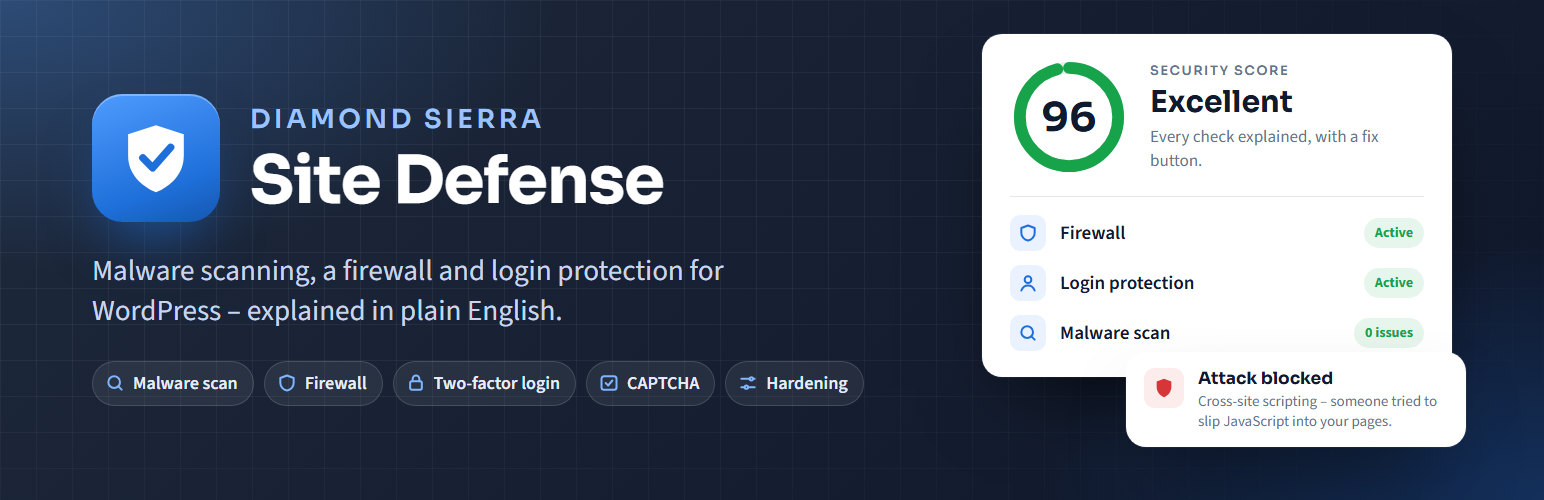
Diamond Sierra Site Defense checks your site once a day and tells you – in plain English – what is wrong and how to fix it. Everything below is free, with no account to sign up for, and no firewall rules held back for paying users.
In one plugin: 31 security checks with one-click fixes, 47 malware signatures and 14 firewall rule groups, plus file checks against WordPress.org. A three-step setup wizard switches on the right protection for your site the first time you activate it.
Daily malware scan
- Compares every WordPress core file against the official checksums from WordPress.org.
- Compares plugins and themes from the WordPress.org directory against their official copies, so tampered files (supply-chain attacks) are caught and verified files are skipped.
- Signature scan of themes, plugins, must-use plugins and uploads for web shells, obfuscated eval() backdoors, droppers, hidden-admin code and more.
- Detects ClickFix / fake CAPTCHA pages that trick visitors into running commands on their own computer, clipboard hijacking scripts, and EtherHiding loaders that pull code from BSC/Polygon smart contracts.
- Detects injected remote
import()calls in files and on the live homepage. - Fetches your homepage like a visitor coming from Google, and again as Googlebot, to catch injections and SEO spam that hide from logged-in users.
- Tracks new and changed PHP files between scans, and shows on the dashboard what changed since the previous scan.
- Checks accounts for what they can do, not what their role is called, and lists plugins that aren’t from WordPress.org, flagging the ones that show signs of malware.
- Catches malware that reinstalls itself: watchdog files, the settings and scheduled tasks it keeps in the database, and hostile .htaccess files.
- Reports copies of wp-config.php, database dumps, site backups, error logs, .env and .git left in the website folder, and whether anyone can download them.
- Risky plugin alerts with no setup and no API key: plugins removed from WordPress.org for a security issue, security updates waiting (found in the plugin’s changelog) and plugins abandoned for over two years.
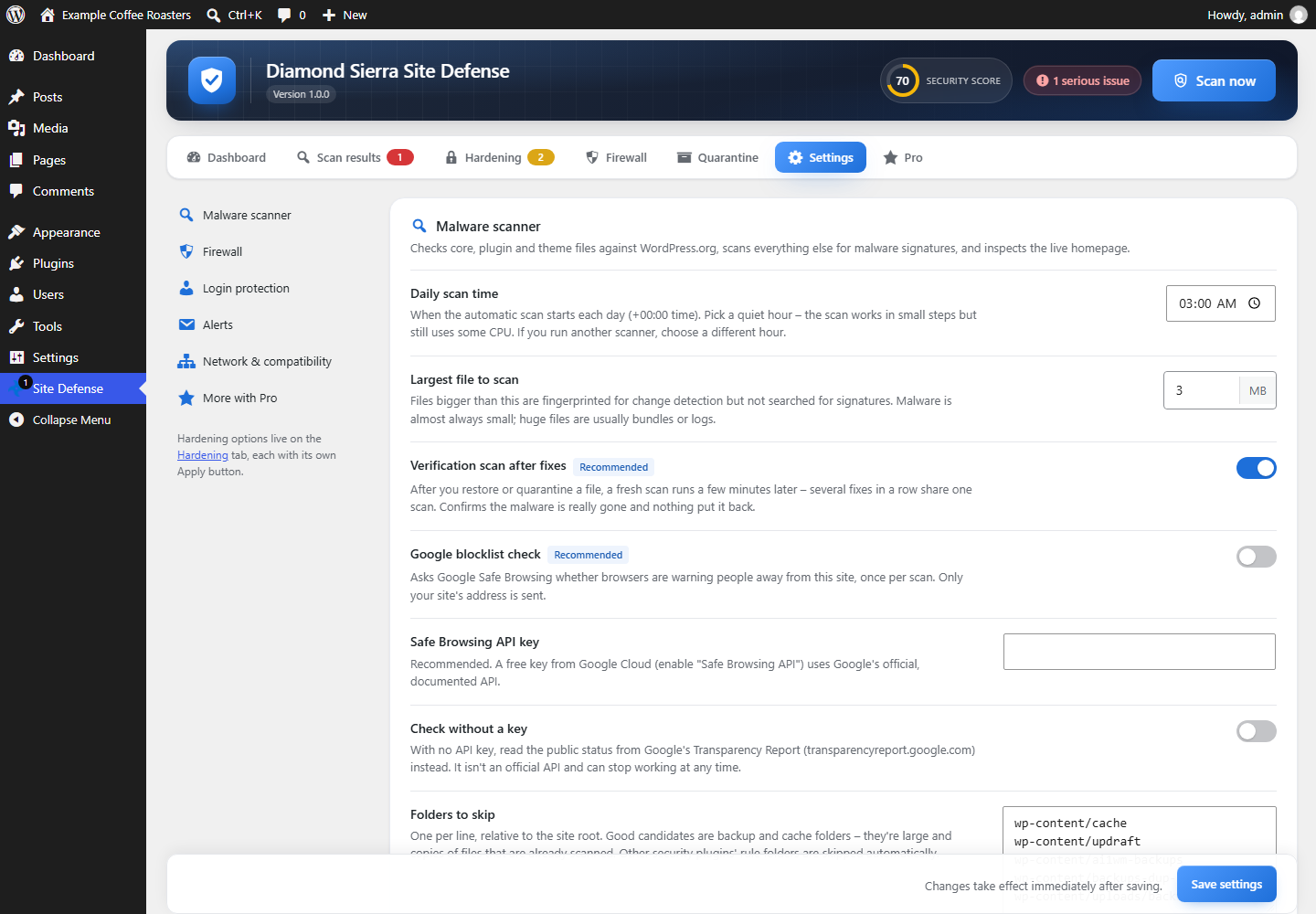
- Optional: checks whether Google Safe Browsing is warning visitors away from the site (off until you turn it on).
- Runs in small steps, so it works on shared hosting without timeouts.
Fixes
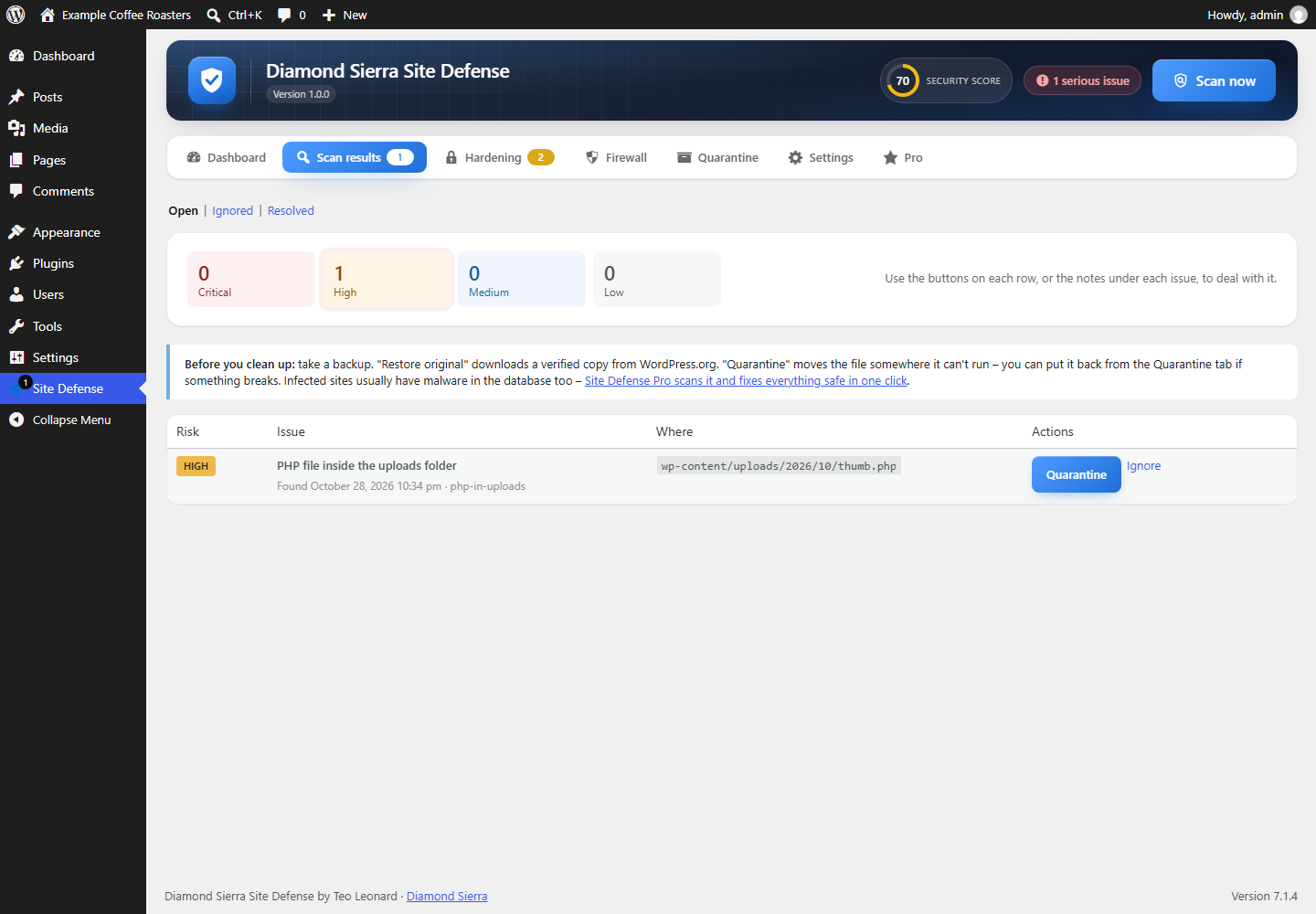
- Delete file: removes a file that isn’t part of WordPress, a plugin or a theme, and keeps a copy for 30 days on the Quarantine tab in case something needed it.
- Repair: puts back the verified copy of a changed core, plugin or theme file from WordPress.org. View differences shows what was changed.
- View file shows the code with the matched lines marked, before you decide.
- Remove tasks and Delete settings for self-restoring malware, and Remove admin rights or Delete account for fake administrators.
- A verification scan runs automatically after a fix to confirm the malware is really gone.
Tasks & hidden code
- Every scheduled task WordPress will run, with the plugin or theme behind it. Tasks of known malware families are flagged.
- Every must-use plugin and drop-in, which run on every page without showing on the Plugins screen, with what the scan found in each.
Firewall
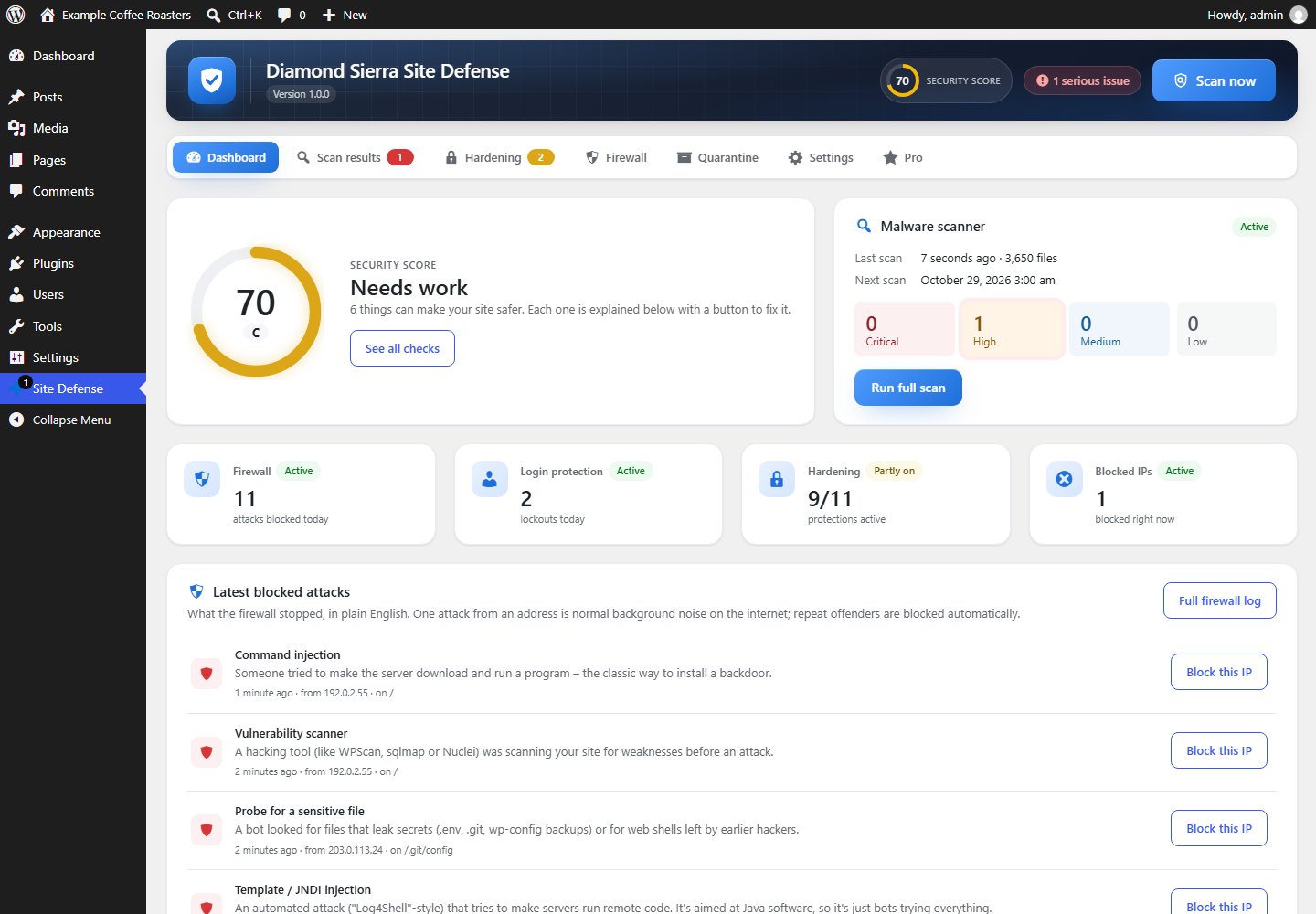
- Blocks SQL injection, XSS, path traversal, remote file inclusion, command injection and PHP object injection.
- Blocks executable and disguised PHP uploads and SVGs with embedded scripts.
- Blocks vulnerability scanners and probes for .env, .git, wp-config backups and known shell names.
- Inspects JSON sent to the REST API and cookies, not just forms.
- Repeat offenders are blocked automatically.
- Fake search engines: bots pretending to be Googlebot, Bingbot, Applebot, YandexBot or Baiduspider are checked against the real search engine’s network (the IP lists Google, Bing and Apple publish, then reverse and forward DNS) and blocked. Real crawlers and your SEO are not affected.
- Rate limiting: separate limits a minute for browsers and for bots, either slowing the visitor down (503 with Retry-After) or blocking them. Logged-in users, verified search engines, AJAX and the WooCommerce cart and checkout are never counted.
- Bad bots: site copiers, email harvesters and scraping frameworks, and form posts with no browser headers, are turned away. SEO tool crawlers (Ahrefs, Semrush and others) can be turned away too.
- Your own block list: IP addresses and ranges (IPv4 and IPv6), user agents, referring sites and visitor hostnames. A save can never block the admin making it.
- Comment spam bots are caught with an invisible decoy field and a time stamp, and go to the Spam folder. An IP caught three times in a day is blocked.
- REST API lock (optional): logged-out visitors can only use the routes front-end features need.
- 404 probing: an IP hunting for vulnerable plugins and old backups through dozens of missing pages is blocked. Missing images and styles don’t count, and real search engines are never counted.
- AI training crawlers (optional): GPTBot, ClaudeBot, CCBot, Bytespider and others are told in robots.txt and turned away if they ignore it, while AI assistants fetching a page for a user still get in. The Firewall tab shows which AI bots visit and how often.
- Log-only mode: see what would be blocked before anything is. New installs log for their first week, then start blocking on their own.
- Early firewall (one click): the firewall runs before WordPress and your other plugins load, so an attack on a vulnerable plugin is stopped before its code starts. Site Defense sets it up itself in .user.ini, .htaccess or wp-config.php, and works next to another firewall that already runs this way, such as Wordfence’s.
- A private unblock link for your password manager: if your own address gets blocked, opening it removes the block and trusts that address for an hour.
Login protection
- Passkeys: sign in with a fingerprint, face or device PIN on any current phone, laptop or security key. A passkey only works on your site, so it can’t be phished, and it counts as two-factor login. Each person adds theirs on their profile; passwords keep working.
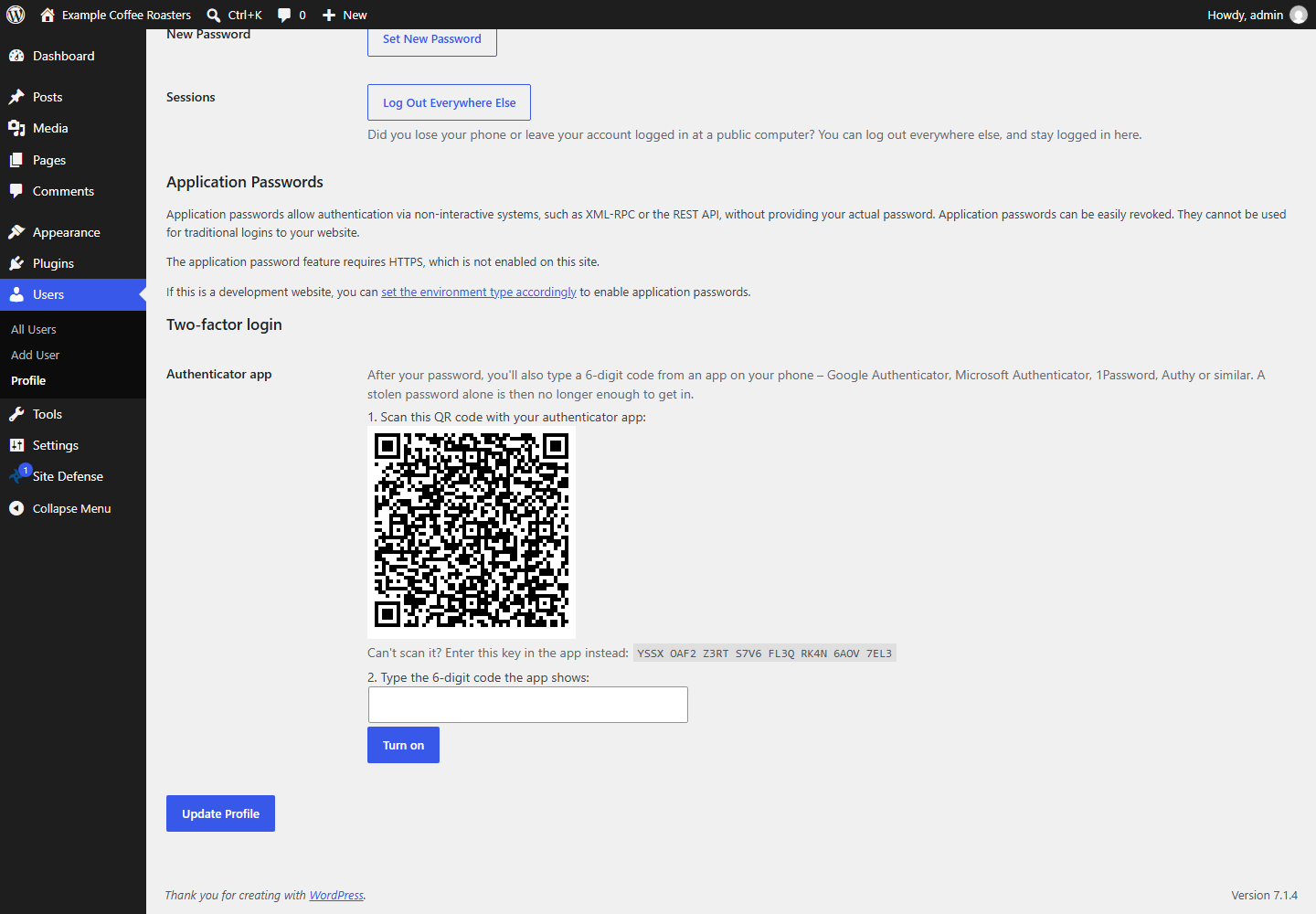
- Two-factor login with any authenticator app (Google Authenticator, Microsoft Authenticator, 1Password, Authy…) or with codes sent by email, plus one-time backup codes. Email codes are only turned on after a test code has arrived, so a mailbox that never gets the mail can’t lock anyone out.
- CAPTCHA on the login, registration, lost-password and comment forms: a built-in math question (no account needed), Cloudflare Turnstile, Google reCAPTCHA v2 or hCaptcha – with step-by-step instructions for getting the keys. A CAPTCHA outage or a wrong key never locks you out.
- Refuses passwords found in known data breaches (Have I Been Pwned, k-anonymity – the password never leaves your site).
- Custom login URL – move the login page off wp-login.php so bots can’t find it.
- Login form honeypot that blocks automated login bots with nothing for real visitors to solve.
- Limits failed logins per IP and per account, with escalating lockouts. IPs an account has used before are never locked out, so nobody can lock you out of your own site.
- Trap usernames (like “admin”) get bots locked out on the first try, and can’t be registered as new accounts.
- Strong passwords for administrators, editors and shop managers, checked on the server wherever a password is set.
- Login allowlist (optional): powerful accounts can only log in from the IPs you list, while customers log in as before.
- Generic error messages that don’t reveal whether a username exists.
Email alerts
By default you get one security email a week, on Monday morning, and only when something is new. You can switch to a daily email or to emails straight after every scan.
- Scans found something serious (and, if you like, an all-clear when nothing is new).
- An administrator signed in from a new IP (skipped while Wordfence already emails every admin login).
- A new administrator account was created, or someone was promoted to administrator.
- Diamond Sierra Site Defense itself was deactivated – malware often switches security plugins off first.
- Plugin, theme and WordPress updates are waiting (only when a new one appears).
- How many IPs and accounts were locked out after failed logins (optional).
A new administrator and Site Defense being switched off are always emailed straight away.
Hardening
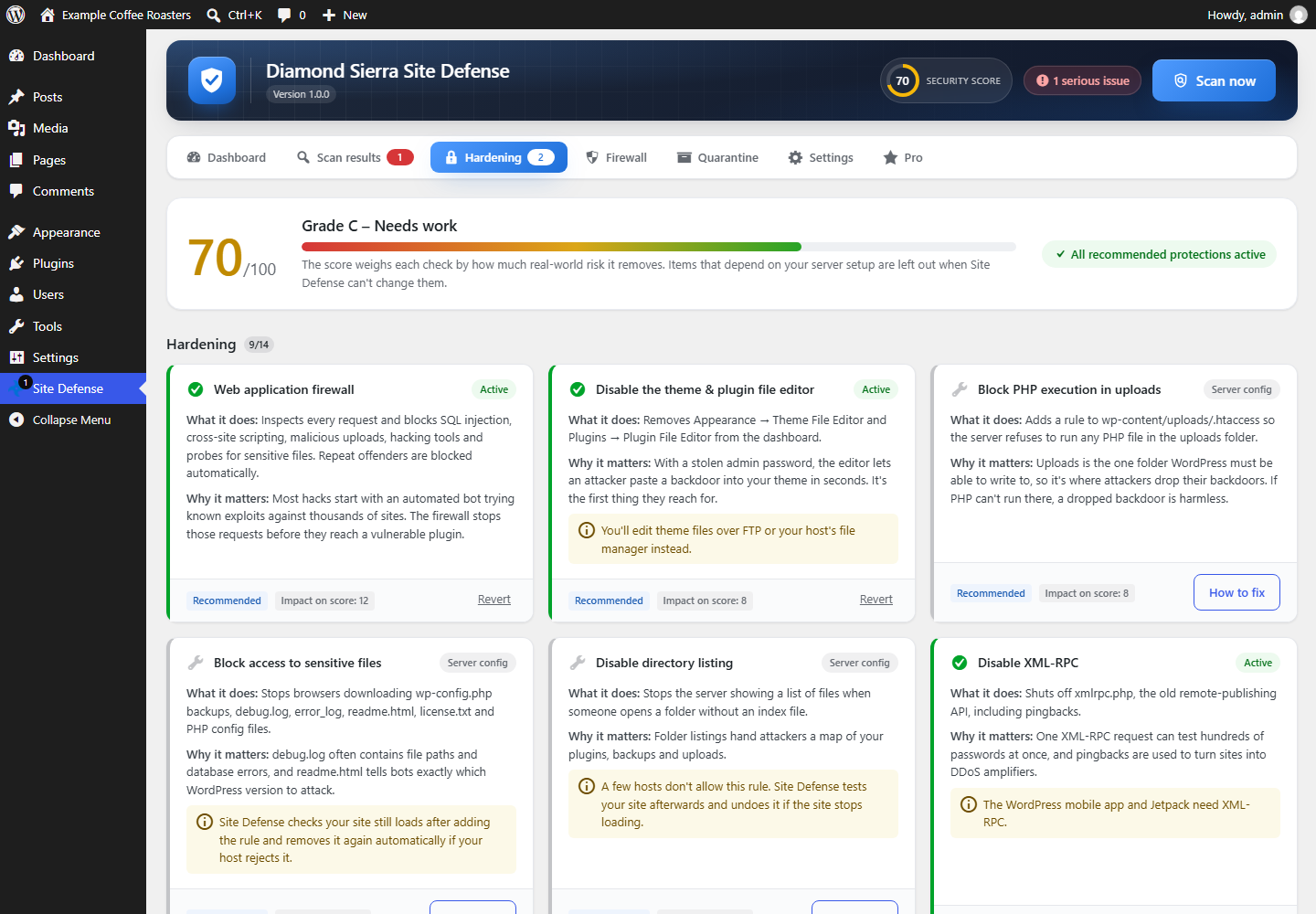
- Disable XML-RPC, the file editor, application passwords and username enumeration. The file editor switch works even when wp-config.php allows the editor, so there is no file to edit.
- Upload guard inside WordPress, on top of the firewall’s upload check: refuses names like photo.php.jpg and images with PHP code anywhere inside. It also covers REST API uploads and files plugins download, and keeps working when another plugin runs the firewall.
- Block PHP execution in uploads, sensitive files and directory listing.
- Security headers and hidden version numbers.
- A security score that explains every check, each with its own Apply button.
Also
- Works alongside Wordfence, All-In-One Security, Solid Security, Sucuri, MalCare, Defender, Shield, Loginizer and others: Site Defense pauses its own firewall and login limits so the same visitor isn’t blocked twice, and keeps scanning.
- Multisite: network-activate it to protect every site. The scanner and settings are for super admins only.
- Results in Tools → Site Health, and WP-CLI commands to get back in after a lockout (
wp site-defense unblock,reset-login-url,2fa-reset).
Diamond Sierra Site Defense Pro
An optional add-on for people who clean hacked sites or look after many: bulk actions, one-click database cleanup, “Recover from a hack”, an emergency lockdown, country blocking, live traffic, an AI security advisor, protection against stolen login cookies, supply-chain watches, WooCommerce card-testing and checkout protection, CVE matching, an alert centre with Slack/Discord, an activity log and white-labelling. Everything listed above stays free. Details at diamondsierra.com, and how to use every feature in the documentation.
External services
Diamond Sierra Site Defense connects to these services. Apart from the WordPress.org checks, each one is off until you turn it on.
- WordPress.org (api.wordpress.org, downloads.wordpress.org, core.svn.wordpress.org, plugins.svn.wordpress.org, themes.svn.wordpress.org) – to download official checksums, theme packages and clean copies of files when you restore or repair them, and to read the public directory entry of each installed plugin (whether it was closed, when it was last updated, and the changelog of a waiting update). Only the names and versions of WordPress, your plugins and your themes are sent – the same information WordPress itself sends when it checks for updates. Terms
- Have I Been Pwned – Pwned Passwords (api.pwnedpasswords.com) – only if you turn on “Block breached passwords”. When a password is set, and once a day at login, the first 5 characters of the password’s SHA-1 hash are sent; the password itself and the rest of the hash never leave your site. Terms and privacy
- Cloudflare Turnstile (challenges.cloudflare.com) – only if you choose Turnstile as the CAPTCHA. Its script is loaded on the protected forms, and on submit the visitor’s token and IP address are sent to Cloudflare to check them. Terms · Privacy
- Google reCAPTCHA (www.google.com/recaptcha) – only if you choose reCAPTCHA as the CAPTCHA. Its script is loaded on the protected forms, and on submit the visitor’s token and IP address are sent to Google to check them. Terms · Privacy
- hCaptcha (js.hcaptcha.com, api.hcaptcha.com) – only if you choose hCaptcha as the CAPTCHA. Its script is loaded on the protected forms, and on submit the visitor’s token and IP address are sent to hCaptcha to check them. Terms · Privacy
- Google, Bing and Apple crawler lists (developers.google.com, www.bing.com, search.developer.apple.com) – only while “Block fake search engines” is on (the default). Once a day the plugin downloads the public lists of addresses these search engines crawl from, to tell real crawlers from impostors. Nothing is sent. Google · Microsoft · Apple
- Google Safe Browsing – only if you turn on the blocklist check under Settings → Malware scanner. Once per scan, your site’s address is sent to Google to find out whether it is blocklisted. With an API key the request goes to safebrowsing.googleapis.com; without a key, and only if you also tick “Check without a key”, it goes to transparencyreport.google.com. Nothing else is sent. Terms · Privacy
Privacy
- Everything Site Defense records stays in your own database. Nothing is sent to us. The only outside connections are the ones listed under External services.
- The firewall and login logs store the visitor’s IP address, the address they requested and their browser’s user agent, so you can see who was blocked and why. Log lines are deleted after 30 days, and the log never grows past 20,000 lines.
- Blocked IPs are kept until their block ends.
- For each user it keeps the last 10 IP addresses they logged in from (so nobody is locked out of their own account and new-IP alerts work), and, if they turn on two-factor login, the authenticator secret and hashed backup codes.
- The plugin sets no cookies for visitors. While the early firewall is on, logged-in administrators and editors get one signed cookie, so the early firewall can recognise them before WordPress loads. It holds only their user ID, when it expires and a signature, and is removed when they log out.
- Only administrators (super admins on multisite) can see the logs and settings.
- Deleting the plugin removes its tables, settings, user data and quarantined files.
Installation
- Upload the plugin folder to
/wp-content/plugins/or install the zip from Plugins → Add New. - Activate it. The setup wizard opens: choose how much protection to switch on, an optional private login address and how often to get the security email.
- The first scan starts when you finish the wizard. You can also click Scan now on Site Defense → Dashboard at any time.
- If your site is behind Cloudflare, set Settings → Visitor IP comes from to Cloudflare.
The daily scan uses WP-Cron. On low-traffic sites, a real cron job calling wp-cron.php every 5 minutes makes sure it always runs on time.
FAQ
Do I need a Google API key for the blocklist check?
The blocklist check is off by default. To use it, turn on Settings → Malware scanner → Google blocklist check and either paste a free Safe Browsing API key from Google Cloud (recommended, it’s Google’s official API) or tick Check without a key to read the public status from Google’s Transparency Report instead.
My site is behind a load balancer. Which IP setting do I use?
Pick X-Forwarded-For. Site Defense reads that header from the right and takes the first public address, so a visitor can’t fake their IP by sending the header themselves. Behind Cloudflare, pick Cloudflare instead.
I use nginx – is the uploads protection active?
nginx ignores .htaccess files. Add this to your server block:
location ~* /wp-content/uploads/.*\.php$ { deny all; }
A finding is a false positive. What do I do?
Click Ignore. It stays hidden until that file or content changes.
Can I use it with Wordfence or All-In-One Security?
Yes. Run only one firewall – by default Site Defense steps aside and lets the other plugin handle the firewall and login limits, while it keeps scanning and cleaning. If you’d rather use Site Defense’s firewall, switch the other plugin’s firewall off and untick “Step aside for other security plugins” in Settings.
I use Jetpack / the mobile app
Untick Disable XML-RPC in Settings.
I locked myself out by the firewall
With WP-CLI: wp site-defense unblock <your-ip>. Without it, add define( 'DSSD_DISABLE_FIREWALL', true ); to wp-config.php, log in, add your IP under Settings → Never block these IPs, then remove the line again.
I lost my phone and can’t get past two-factor login
Type one of your backup codes instead of the 6-digit code. No backup codes? Ask another administrator to click Turn off under Two-factor login on your user profile, run wp site-defense 2fa-reset <your-user>, or add define( 'DSSD_DISABLE_2FA', true ); to wp-config.php, log in, set it up again, then remove the line.
Why does the firewall say “Would block (log only)”?
New installs spend their first week in log-only mode so you can spot false alarms – a contact form or plugin that legitimately sends code-like text. Check the Firewall tab, then click Start blocking now, or wait and it starts on its own.
I set a custom login URL and can’t find it
Add define( 'DSSD_DISABLE_LOGIN_URL', true ); to wp-config.php. wp-login.php works normally again straight away. Log in, check or clear the URL under Settings → Login protection, then remove the line.
Does the custom login URL work on multisite?
No. On a network, renaming the login page would break sign-on across sites, so the feature turns itself off there automatically.
Does Site Defense work on multisite?
Yes – network-activate it. The firewall, login protection, two-factor login, Turnstile and the activity log protect every site. The scanner, cleanup tools and settings live in the main site’s dashboard and are for super admins only, because they work on files shared by the whole network. Settings apply to all sites.
Can I extend it?
Yes. Filters and actions include dssd_signatures, dssd_firewall_rules, dssd_scan_recurrence, dssd_settings_defaults, dssd_settings_sanitize, dssd_settings_cards, dssd_admin_tabs, dssd_render_tab_{tab}, dssd_brand_name, dssd_menu_label, dssd_show_branding, dssd_import_allowlist, dssd_allow_xmlrpc and dssd_loaded.
Screenshots

Changelog
2.1.3
- Fixed: on sites with Wordfence, the login math question said “The answer to the security question was wrong” even when the answer was right. Wordfence Login Security checks the login in the background before the form is sent, which used up the answer. A solved question now counts for up to three checks within its 20 minutes, so both steps pass; a wrong answer is still refused.
2.1.2
- New: author names and author pages are hidden from visitors, on by default. Posts, feeds and the page code show no author name, author pages (/author/…) show “not found”, and author links go to the homepage. In Divi the author item is taken out of the post info line and the Blog and Post Title modules, so no stray “by” is left. The dashboard still shows the real names.
- New: Hardening check for administrators whose public name, nickname or author address is their login. One click gives them the public name “Webmaster” (webmaster-2 and so on when taken); logins and passwords don’t change.
- New: Hardening check for WordPress’s untouched sample content (“Hello world!” post, “Sample Page”, “A WordPress Commenter”). One click moves it to the Trash.
- Fixed: the early firewall card says “Paused” and why when Site Defense’s firewall steps aside for another firewall plugin (such as Wordfence) or is switched off. It used to say “Waiting for PHP” forever. When that plugin is switched off or on, the early firewall follows on the next dashboard page load.
2.1.1
- Fixed: “Block access to sensitive files” and “Disable directory listing” could stay “Not active” after Apply. When another plugin or the host removed the rules from .htaccess while they were switched on, Apply now writes them back instead of only saying they are active.
- Fixed: applying those two rules could overwrite the early firewall’s block in .htaccess, which stopped the early firewall until it repaired itself. Each block now only touches its own marked lines, and a leftover second copy is cleaned up.
- Fixed: a single slow or busy answer from the server (an occasional 503) no longer makes Site Defense undo the rule. It only undoes it when the site loaded before the change and keeps failing after it.
- Fixed: when the early firewall says “Waiting for PHP” because another setting on the server wins over ours, turning it off and on again now really starts it from wp-config.php, as the card says. Before, it tried the same file again.
2.1.0
- New: a setup wizard on first activation. Three choices: recommended hardening, a private login address and the security email, then the first scan runs.
- New: passkeys. A “Sign in with a passkey” button on the login form and a Passkeys section on every profile. Works with Windows Hello, Apple and Google passkeys and security keys, and counts as two-factor login. Turn it off under Settings, Login protection.
- New: upload guard. WordPress itself now refuses files named like photo.php.jpg and images with PHP code anywhere inside, including REST API uploads and files plugins download, and keeps doing so when another plugin runs the firewall. Refusals are logged. Text files, exports, PDFs and plugin zips are not affected.
- New: administrators without two-factor login or a passkey see a reminder on the dashboard until they add one. It never blocks the dashboard. Turn it off under Settings, Login protection.
- New: a “Send a new code” button when turning on email codes, in case the first email doesn’t arrive.
- Changed: “Disable the theme & plugin file editor” is now a one-click switch on every site. It used to ask you to edit wp-config.php when that file allowed the editor.
- Changed: PHP 8.0 or newer is now required.
- Changed: other plugins’ notices (payment gateway setup, upsells and the like) no longer show on Site Defense’s screens. They still show everywhere else in the dashboard. WordPress’s own notices, such as update and recovery messages, still show.
- Fixed: with a private login address, logged-out visits to wp-login.php now show the 404 page your page builder designed (Divi Theme Builder, Elementor and others), not the theme’s plain 404. Logged-out visits to wp-admin are sent to the site’s 404 page, because builders don’t draw their layouts inside wp-admin.
2.0.2
- Fixed: “An .htaccess in uploads lets PHP files run there” is no longer reported for Wordfence’s code execution protection, which maps PHP to CGI and then turns CGI off. Only a handler or type that really runs PHP counts.
- Fixed: data files that plugins save with a .php name so the web can’t read them are no longer reported as hidden PHP, PHP in uploads or PHP in a backup folder. This covers LiteSpeed Cache’s .litespeed_conf.php, Sucuri’s and All-In-One Security’s logs and settings, and All-in-One WP Migration’s backup folder index. A file only counts as data when it has no PHP at all or stops on its first line; anything that runs code is still reported.
- Fixed: MailPoet’s welcome video, preloaded in a 1×1 Vimeo frame, is no longer reported as an invisible iframe. Hidden Vimeo and YouTube player embeds are left alone; a hidden frame to any other address still counts.
- Changed: plugins that aren’t from WordPress.org and show no warning signs are listed together in one low-priority row instead of one row each. Ignoring it keeps it quiet until another such plugin is added. Plugins with warning signs still get their own row.
2.0.1
- Fixed: the scan no longer reports the early firewall’s own line in .user.ini or .htaccess as a foreign auto_prepend_file.
- Fixed: “Redirects visitors arriving from search engines” is only reported when the rule really sends visitors somewhere. LiteSpeed Cache’s WebP rules and bans on search engine bots were reported by mistake.
- Changed: the readme now lists the crawler address lists the fake-search-engine check downloads, and the early firewall’s sign-in cookie.
- Fixed: map and video embeds with marginheight=”0″ are no longer reported as invisible iframes.
- Fixed: with Pro 1.1.1 or older, the Tasks & hidden code tab now flags tasks of known malware families too.
- Fixed: WordPress’s privacy request cleanup task and the Pro add-on’s own tasks no longer show a Delete button.
- Fixed: a hacking tool blocked on xmlrpc.php now gets a 403 page instead of an empty one.
- Fixed: Restore and Delete line up on the Quarantine tab.
- Changed: the More with Pro card in Settings lists every Pro setting by the name it has in Pro, the 2.0 additions included.
2.0.0
- New: Delete file on every file finding. The file is removed from the site at once, and a copy is kept for 30 days on the Quarantine tab in case something needed it. Official WordPress, plugin and theme files can’t be deleted, only repaired.
- New: Repair puts back the verified copy from WordPress.org, View file shows the code with the matched lines marked (the database login and keys in wp-config.php stay hidden), and View differences compares a changed file with the official one.
- New: Mark as fixed, for a finding you dealt with by hand.
- New: Remove tasks and Delete settings on findings for self-restoring malware, and Remove admin rights or Delete account on findings for fake administrators.
- New: Tasks & hidden code tab. Every scheduled task with the plugin behind it, and every must-use plugin and drop-in, with what the scan found in each.
- New: the scan reports copies of wp-config.php, database dumps, site backups, error logs, .env and .git left in the website folder, and says whether anyone can download them. It also reports PHP errors shown to visitors with the server path.
- New: early firewall. One click puts the firewall in front of WordPress (auto_prepend_file in .user.ini or .htaccess, or the top of wp-config.php where the server allows neither), so attacks on a vulnerable plugin are stopped before its code runs. Administrators and editors keep working in page builders through a signed cookie. Turning it off is just as safe: the small loader file stays so pages keep working while PHP forgets the setting.
- New: the early firewall works next to another firewall that already runs before WordPress (such as Wordfence’s): Site Defense runs first, then hands over, so both keep working and there is nothing to edit by hand.
- New: private unblock link on the Firewall tab. If your own address gets blocked, opening it removes the block and trusts that address for an hour. It gets nobody past a password or two-factor login.
- New: the dashboard shows what changed since the previous scan: new issues by name, and how many were resolved.
- Improved: “Hide version numbers” also removes the PHP version header and the old Windows Live Writer and RSD links.
1.2.1
- New: email two-factor codes can go to your account email, the site admin email (administrators only) or another address you choose. A new address only counts once a code sent to it is typed back.
- New: “Change where codes go” on the profile page. Moving the codes needs a code from the current address first, and the old address gets an email saying they moved.
- Improved: backup codes show as a numbered list with Copy and Download buttons.
1.2.0
Lessons from cleaning a WooCommerce shop with malware that kept reinstalling itself.
- New: accounts are checked for what they can do, not what their role is called. A “customer” with administrator powers is reported as critical, and so are administrators with the machine-made names known malware uses.
- New: plugins that aren’t on WordPress.org are listed, and reported as critical when they also show signs of malware (obfuscated code, creating administrators, hiding from the Plugins screen, a “security helper” from an unknown personal domain, or a known fake plugin name).
- New: detection for malware that reinstalls itself: code that turns a plugin back on when you turn it off, restores itself from a zip or a private GitHub repository, or drops must-use plugins. Known watchdog file names and folders are reported too, including renamed copies of the plugins folder.
- New: the settings and scheduled tasks such malware keeps in the database are reported, so they can be removed together with the files.
- New: hostile .htaccess files are reported: a root file that blocks PHP but lets the attacker’s own files run, a wp-admin file that locks you out of the dashboard, mixed-case “php” tricks and uploads rules that let PHP run.
- New: disguised scripts built from meaningless sums, the way card skimmers hide, and links hidden from visitors with screen-reader-text.
- Fixed: the custom login URL showed “Active” even when wp-config.php turned it off. Settings and Hardening now say so and show the line to remove.
- Fixed: after saving a login URL, Site Defense now asks the site for it the way a visitor would, and tells you if the server doesn’t serve it. It checks again every day.
- Fixed: the login URL text box was squeezed by the status line next to it.
- Fixed: “Block PHP execution in uploads” said it was active when the file couldn’t be written. It now tries to make the file writable, says why it couldn’t (permissions and owner), tests the rule with a harmless file, and tells you when the server doesn’t enforce it.
- Fixed: when one protection couldn’t be written, the others in the same save were marked as on without being written.
- New: an alert when Site Defense’s own uploads rule is removed or edited.
- Changed: one security email a week by default, instead of an email after every scan. Scan results, waiting updates and lockouts are collected, and anything fixed before Monday is left out. Daily, or straight away as before, can be chosen under Settings, Alerts. A new administrator and Site Defense being switched off are still emailed straight away.
- Changed: a file that several checks match is listed once in emails and counted as one thing to check.
- Changed: no new-IP login email while Wordfence is active and already emails every administrator login.
- New: rate limiting, with separate limits for browsers and bots, and a choice between slowing down and blocking.
- New: bad bot blocking (site copiers, email harvesters, scraping frameworks, form posts with no browser headers) and optional SEO crawler blocking.
- New: the fake search engine check uses the crawler IP lists Google, Bing and Apple publish, so it still works when the server’s DNS doesn’t answer.
- New: your own block list for IP ranges, user agents, referring sites and hostnames, under Settings, Access rules.
- New: login allowlist for administrators, editors and shop managers, with a wp-config.php escape hatch.
- New: optional REST API lock for logged-out visitors, with the routes front-end features need left open.
- New: strong passwords for powerful accounts, and trap usernames can no longer be registered.
- New: comment spam bot check without a CAPTCHA. On themes and page builders that print their own comment form without WordPress’s hook, it stays out of the way instead of marking real comments as spam.
- New: more malware signatures from the November cleanup: files that load other files named by the request, uploader backdoors in uploads and mu-plugins, and the watchdog family’s class and author names.
- New: signatures for 2025 and 2026 WordPress malware campaigns published by GoDaddy, Patchstack and Sansec: DollyWay, the Help TDS fake plugin, the Steam profile injector, the fake WooCommerce security patch, the Gravity Forms, EssentialPlugin, Smart Slider 3 Pro and OptinMonster supply-chain backdoors, WP Smart Thumbnails, the stolen UpdraftCentral key backdoors, the FunnelKit checkout skimmer and the SocGholish loader. Their files, settings, scheduled tasks, admin names and domains are reported.
- New: two-factor login by email code, for people without an authenticator app. Codes work once, for ten minutes, with a “send a new code” link and backup codes.
- New: file permissions check on the Hardening tab, with a one-click fix that only takes away write access for others.
- Changed: requests the site makes to itself (cron, Site Health, plugins fetching their own pages) are never blocked, whatever name they send.
- Fixed: “not from WordPress.org” findings had an Update button with nothing to update. It is now “Go to Plugins”.
- Scan emails no longer repeat a file they already told you about when a second check finds it too.
1.1.1
- Calmer scan emails. A scan only emails findings it hasn’t emailed before, so the same list never arrives twice.
- Scans you start yourself (button or WP-CLI) no longer send an email: you are already looking at the results.
- Updates waiting, known vulnerabilities and closed plugins are emailed as “things to do, no sign of a hack”, apart from findings that could point to a break-in.
- No more “Critical” and “High” labels in emails, and plainer wording in the alerts.
1.1.0
- New: alert emails are sent as clean HTML in the plugin’s own style (a plain-text copy is included), with the details in a table and a button to the right screen. White-labelled sites show their own name.
- New: fake search engine blocking. Bots calling themselves Googlebot, Bingbot, Applebot, YandexBot or Baiduspider are checked with reverse and forward DNS.
- New: 404 probing protection. IPs hunting for missing plugins, backups and shells are blocked.
- New: optional AI training crawler blocking through robots.txt and the firewall, and a list of the AI bots that visit on the Firewall tab.
- New: email when updates are waiting, and an optional email for login lockouts (at most one an hour).
- Fixed: official old jQuery files (1.0.4 to 1.2.6, packed) were reported as “Packed JavaScript, common in injected code”. They now show as a low-priority note that the file is jQuery’s own and out of date.
- Clearer wording for other packed JavaScript findings.
1.0.0
- First release.