


Description
Full Description:
Display Server Info is a powerful WordPress plugin that provides detailed server information for administrators directly within the dashboard.
It adds server, PHP, and database information to the dashboard, top admin bar, and footer for quick access.
The settings menu includes a “Display Server Info” submenu with two tabs:
-
Server Information Tab:
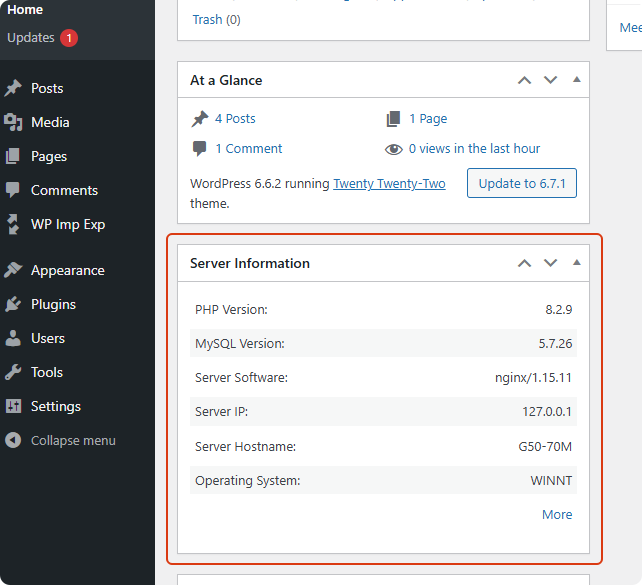
In this tab, you will see the information about:
Operating System
Hostname
Server IP
Protocol
Server Software
Web Port
CGI VersionPHP Version
Memory Limit
Max Execution Time
Upload Max Filesize
Max File UploadsDatabase Server version
Database Client version
Database host
Database username
Database name
Table prefix
Database charset
Database collationPlease rate the Plugin if you find it useful, thanks.
-
Settings Tab:
Configure plugin behavior with four toggle switches to enable or disable server information display in the dashboard, admin bar, and footer.
Additionally, users can activate shortcode functionality, allowing[disi_server_info]to display server information anywhere in posts or pages. The shortcode supports ashowattribute to control exactly which fields are output, e.g.[disi_server_info show="php_version,mysql_version"]. For security, only the following fields are available to the shortcode: PHP Version, MySQL Version, Server Software, and Operating System. Sensitive fields such as Server IP and Server Hostname are never exposed through the shortcode.
The plugin is fully translated into 7 international languages, making it accessible for a global audience.
Privacy
This plugin respects your privacy. Any data collected (such as anonymous usage stats or optional feedback) is handled transparently and securely.
All data, including any optional email address, is transmitted securely (via TLS/HTTPS) and retained only as long as necessary. For example, feedback data is retained for a maximum of 12 months to help us improve the plugin.
For complete details on what data is collected, how it is stored (including hashing and encryption for email addresses), the legal basis under GDPR/CCPA, and your rights, please read our full privacy policy:
https://robertwp.com/privacy-policy
Installation
Installation from within WordPress
Visit Plugins > Add New.
Search for Display Server Info.
Install and activate the Display Server Info plugin.
Manual installation
Upload the entire display-server-info folder to the /wp-content/plugins/ directory.
Visit Plugins.
Activate the Display Server Info plugin.
If everything is all right, you will see the “Server Information” widget under the dashboard “At a Glance” widget.
FAQ
Does this plugin slow down my website?
No. Display Server Info is lightweight and optimized. It performs simple server checks and does not impact your site’s performance.
Where can I see the server information after installing the plugin?
You can view it in multiple places:
Dashboard widget
Top admin bar
Admin footer
“More Info” page
PHP info page
And via shortcode on posts or pages
Does the plugin clean up after uninstalling?
Yes. All plugin options are removed during uninstall to keep your database clean.Lorem ipsum dolor sit amet, consectetur adipiscing elit. Ut elit tellus, luctus nec ullamcorper mattis, pulvinar dapibus leo.
Is the plugin compatible with the latest WordPress version?
Yes. The plugin is tested with the latest WordPress releases and maintained with ongoing updates.
Can I display server information on the frontend?
Yes. Use the shortcode [disi_server_info] to display server details anywhere on your site.
The shortcode accepts an optional show attribute to limit which fields are displayed. Only non-sensitive fields can be shown: php_version, mysql_version, server_software, operating_system.
Examples:
* [disi_server_info] — shows PHP Version, MySQL Version, Server Software and Operating System.
* [disi_server_info show=”php_version”] — shows only the PHP version.
* [disi_server_info show=”php_version,mysql_version”] — shows PHP and MySQL versions.
Sensitive information such as Server IP and Server Hostname is intentionally excluded and cannot be requested via the shortcode.
Screenshots


Changelog
2.2.1
- Security: Shortcode no longer exposes server IP address and hostname
- Added
showattribute to the [disi_server_info] shortcode to control which fields are displayed (whitelist-based) - Shortcode output is now escaped
2.2.0
- Added feedback form in settings page
- Implemented star rating system with half-star support
- Added option to leave feedback with email (optional)
- Enhanced user experience with toast notifications
2.1.3
- Update author name
2.1.2
- Added Author URI to the plugin header: https://robertwp.com
- Replaced namespace DisplayServerInfoPlugin with RobertWP\DisplayServerInfo
- Removed
load_plugin_textdomain()call since it’s no longer needed for WordPress 4.6 and above.
2.1.1
- Added uninstall cleanup functionality — plugin options will now be removed when uninstalled.
2.1.0
- Added uninstall cleanup functionality — plugin options will now be removed when uninstalled.
2.0.0
- Code refactored to object-oriented
- Added new feature: Display server information in the upper right corner of the management bar
- Added new feature: Display server information in the footer
- Added more pages: Display more server information, PHP information and database information
- Added configuration page: Configure whether to display in the dashboard, top management bar and footer
- Added shortcode support: Server information can be called in posts and pages
1.0.1
- Initial version