

Description
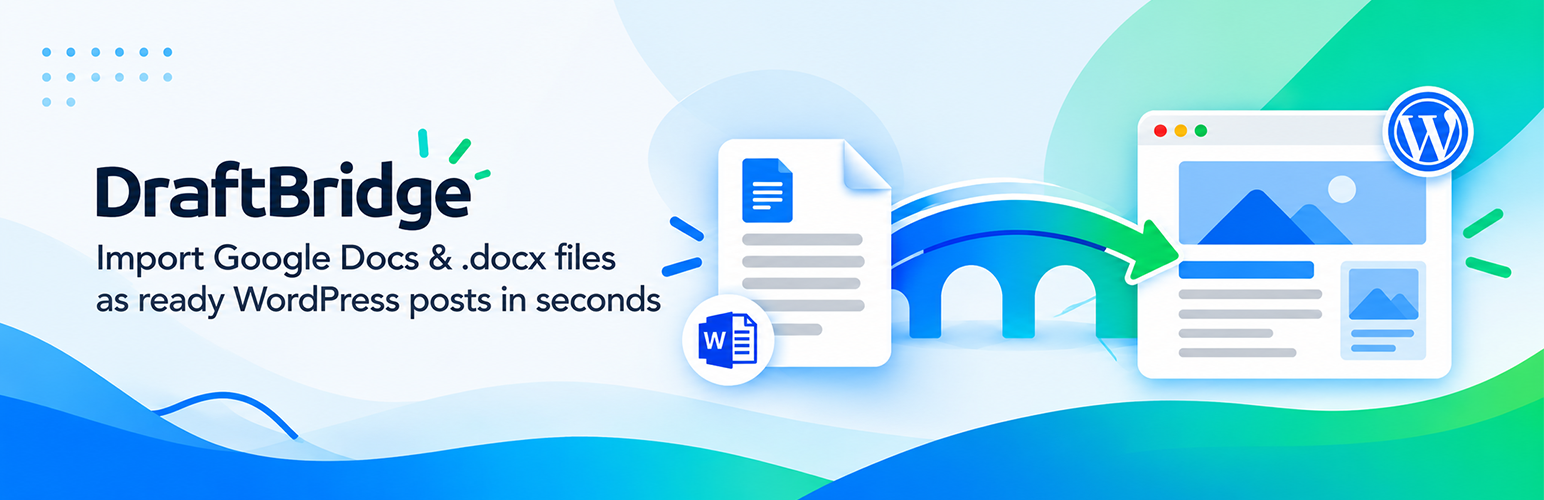
DraftBridge turns a finished Google Doc or Word file into a ready-to-review WordPress post in one click: no copy-pasting, no broken formatting, no re-uploading images one by one.
Paste a Google Doc link (or upload a .docx file), click Preview to check the headings, SEO fields and any problems, then click Import now. The post is saved as a draft for you to review.
What comes across automatically
- Title and headings: the doc’s Title (or first Heading 1) becomes the post title; Heading 2-6 become H2-H6.
- Formatting: bold, italic, strikethrough, superscript, subscript and links.
- Lists: bullet and numbered lists, including nested lists.
- Tables: with header rows and merged cells.
- Images: uploaded to the Media Library with their alt text and SEO-friendly file names. The first image can become the featured image.
- Footnotes and endnotes: every footnote and endnote comes across with its number in the text and the note text at the end of the post. On the block editor (WordPress 6.3+) they use WordPress’s own Footnotes block, so you can still edit them. Hovering or tapping a footnote number shows the note in a pop-up, like Wikipedia.
- Picture and table captions: captions added with Word’s References → Insert Caption (including captions Word puts in a text box next to a floating picture) become the Image block’s or Table block’s caption, not a separate paragraph.
- Image links: put an image URL on its own line (optionally followed by
| alt text) and it is downloaded into the Media Library.
What makes DraftBridge different
- SEO fields from the doc: lines like
Meta Title:,Meta Description:,Focus Keyword:,Slug:,Category:,Tags:andExcerpt:are filled into Rank Math, Yoast SEO or SEOPress and removed from the post body. - FAQ schema: if the doc has an “FAQs” section, FAQPage structured data is added to the page and stays in sync when you edit the FAQs later. Search engines decide whether to show it as a rich result.
- Preview before import: see the heading outline, word count, links, SEO fields and warnings (missing alt text, no H2, long meta description) before anything is created.
- Bulk import: up to 20 Google Doc links or .docx files at once.
- Real Gutenberg blocks: every heading, paragraph, list, image and table becomes its own editable block. Classic Editor sites get clean HTML instead.
- Safe by default: posts are saved as drafts, duplicates are skipped, and user roles are respected (for example, Contributors’ imports are saved as “Pending review”).
Free tools for your imported posts
DraftBridge is made by SiteAuditHub, which also offers free online SEO tools that need no signup. These fit well around an import:
- Before import: shrink large photos with the free image compressor, so the images DraftBridge uploads to your Media Library load fast.
- While writing the doc: draft your
Meta Title:andMeta Description:lines with the meta tag generator, which shows a live Google preview and length counters. - After publishing: run the SEO analyzer on the live post to check the title, headings, image alt text and schema.
External services
DraftBridge connects to outside services only when you ask it to import something:
Google Docs (docs.google.com): when you paste a Google Doc link and click Preview or Import, DraftBridge downloads Google’s own “.docx” export of that document. Only the document ID from your link is sent, as part of the download address. No data about your site or users is sent.
Google Terms of Service: https://policies.google.com/terms
Google Privacy Policy: https://policies.google.com/privacy
Google Drive (drive.google.com): only if your document contains a Google Drive image link. DraftBridge downloads that image into your Media Library. Only the file ID from the link is sent. The same Google terms and privacy policy apply.
Image links in your document: if your document contains an image URL on its own line, DraftBridge downloads the image from that address into your Media Library. The request goes only to the website in the link you wrote; its own terms and privacy policy apply.
DraftBridge does not track you, send analytics, or contact any server of its own.
Review and suggestion links: the DraftBridge screen and the review reminder link to WordPress.org and to the SiteAuditHub feedback page (siteaudithub.com). These pages open only when you click a link, and the plugin sends no data about you or your site. Anything you enter on those pages is covered by that site’s own terms and privacy policy.
The review reminder keeps its dates and simple click totals in your own WordPress database. They contain no personal information, are never sent anywhere, and can be seen under Tools → Site Health → Info.
Installation
- Upload the plugin from Plugins → Add New → Upload Plugin, or install it from the plugin directory.
- Activate DraftBridge.
- Go to DraftBridge in the admin menu.
- For Google Docs, set the document’s sharing to “Anyone with the link” (Viewer) and paste the link. Or upload .docx files.
FAQ
Why do my headings import as normal text?
DraftBridge reads the paragraph style, not the font size. In Google Docs, choose “Heading 2”, “Heading 3” and so on from the style dropdown (“Normal text”). Text that is only bold and large imports as a paragraph.
Are footnotes and endnotes imported?
Yes. Footnotes and endnotes are numbered in reading order (1, 2, 3…) and listed under a “Notes” heading at the end of the post. With the block editor on WordPress 6.3 or newer they use the core Footnotes block; on the Classic Editor or older WordPress versions a plain numbered list is added instead. To change or remove the “Notes” heading, use the draftbridge_notes_heading filter. To turn off the hover pop-ups: add_filter( 'draftbridge_note_popups', '__return_false' );
How are image captions detected?
A caption counts when it was added with Word’s Insert Caption (the “Caption” style or a caption number field), placed directly above or below the picture or table. Plain text under a picture that isn’t styled as a caption stays a normal paragraph.
Why does my Google Doc link fail?
Google only allows the download when the doc’s sharing is set to “Anyone with the link”. Private docs send back a sign-in page, and DraftBridge will tell you when that happens. “Publish to the web” links cannot be used. Use the normal share link instead.
Which SEO plugins are supported?
Rank Math, Yoast SEO and SEOPress. With All in One SEO or no SEO plugin, the SEO lines are shown in the preview but not saved.
Is my document stored anywhere?
No. Documents are downloaded or uploaded to a temporary folder on your own server, read, and deleted straight away. Files kept between Preview and Import are deleted after import or within a few hours.
Can I import pages?
Yes, choose “Page” under “Import as” (requires permission to edit pages).
Do the SiteAuditHub tools send my documents anywhere?
No. The plugin never contacts siteaudithub.com on its own. The free tools on siteaudithub.com are separate web pages that you open yourself, and only when you choose to use them.
Screenshots


Changelog
1.1.6
- New: footnotes and endnotes are imported, with numbered references in the text and the notes at the end of the post (WordPress Footnotes block in the block editor).
- New: hover or tap a footnote number to read the note in a pop-up.
- New: Word picture and table captions become real Image/Table block captions (figcaption), including captions in text boxes next to floating pictures.
- Improved: floating (text-wrapped) pictures become their own Image block instead of sitting inside a paragraph.
1.1.5
- Fix: version 1.1.4 could stop sites with a critical error because a file was missing from the release. Please update.
1.1.4
- New: Send a Suggestion and Leave an Honest Review buttons on the DraftBridge screen.
- New: an optional, dismissible reminder for admins asking for an honest review after 14 days and 3 imported docs. It appears on the Dashboard and DraftBridge screen, at most three times.
1.1.3
- New plugin name: DraftBridge: From Doc/Docx to Blog Post.
- The step-by-step guide link in the description is now a text link.
- Tidier description layout.
1.1.2
- The DraftBridge logo now appears at the top of the plugin screen.
- Added a link to the step-by-step guide on the plugin screen and in the description.
1.1.1
- New interface icons designed for DraftBridge.
1.1
- New: Gutenberg block output, tables, nested and numbered lists.
- New: SEO fields from the doc (Rank Math, Yoast SEO, SEOPress), FAQ schema, image links.
- New: Preview, bulk import, categories, tags, author, status and scheduling.
- Fixed: special characters in titles, bold text that was switched off, private Google Doc message, permissions for Authors and Contributors.
1.0
- First release.