

Description
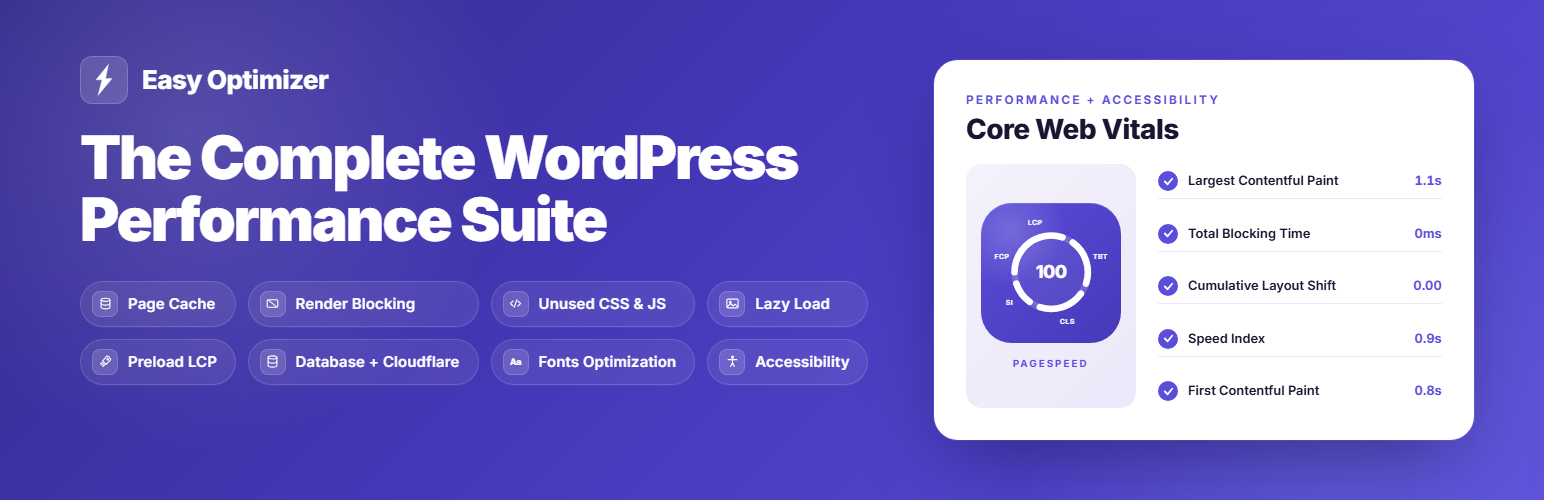
Speed up your WordPress site and improve your Google PageSpeed score from a single dashboard. Easy Optimizer is a free, all-in-one performance optimization plugin that can replace the 3–5 separate speed plugins most sites run today — page caching, unused-CSS removal, JavaScript delay/defer, image lazy loading, LCP preloading, WebP/AVIF delivery and more — to help you pass Core Web Vitals: Largest Contentful Paint (LCP), Cumulative Layout Shift (CLS) and Interaction to Next Paint (INP). It runs on Apache, Nginx, LiteSpeed and OpenLiteSpeed, and is fully WooCommerce-aware.
One cache plugin, one dashboard, no premium upsells for core features. Prefer to keep your current cache plugin? Turn off the modules that overlap and use only the tools you want (see the FAQ).
Every toggle maps to a specific Google Lighthouse recommendation — enable it, save, and your Core Web Vitals improve immediately. Features you don’t enable never touch your page load or your admin.
Core Features
- Full Page Caching: Serve static HTML with sub-millisecond TTFB, with separate mobile and desktop caches and automatic preloading that warms your homepage, menus and content in the background, and again after a full cache clear.
- Compression & Browser Caching: Turn on Gzip or Brotli text compression and long-lived browser-cache (Expires) headers to shrink transfer size and stop repeat visitors re-downloading the same assets — resolving Lighthouse’s “Enable text compression” and “Serve static assets with an efficient cache policy”.
- Redis Object Cache: Add a persistent object cache that keeps repeated database and option lookups in Redis, cutting MySQL load on dynamic, logged-in and WooCommerce pages. Works with Relay, PhpRedis or the bundled Predis client (no PHP extension required) and reads your host’s
WP_REDIS_*constants automatically. It defers to any object-cache drop-in already installed instead of overwriting it, never editswp-config.php, and includes a one-click flush plus a live status panel (connection, memory, Redis version). - Remove Unused CSS: Fix Lighthouse’s “Reduce unused CSS” by serving a slim, per-page-type stylesheet — eliminating render-blocking CSS and lifting your LCP. A built-in fail-safe keeps your original styles until a valid stylesheet is generated, so pages never render unstyled.
- Minify CSS & JavaScript: Strip comments and whitespace from your local CSS and JS files, caching each minified file on disk so it is processed only once. Already-minified files are skipped, and relative
url()/@importpaths are rewritten so assets keep resolving. Works independently of Remove Unused CSS and Delay JS. - Delay & Defer JavaScript: Cut Total Blocking Time and improve INP by delaying script execution until user interaction, deferring scripts natively, or both, each with its own exclusion list. jQuery is excluded by default, common analytics, ads and chat tags and your active plugins can be excluded in one click, and a script’s dependencies and inline data stay with it.
- Smart Lazy Loading: Defer offscreen images, iframes, videos and CSS background images, show a preview image in place of YouTube players until the visitor presses play, and add missing width/height attributes to prevent layout shift (CLS).
- Automatic LCP Preload: Detect each page’s Largest Contentful Paint image and preload it — including responsive
srcset,<picture>and CSS background heroes — stored per URL so every page preloads its own correct hero for faster visual loading. - Image Optimization (WebP & AVIF): Convert your images to WebP and AVIF on your own server for free, and serve the smaller file to browsers that support it, or connect the optional Cloud Optimization CDN (paid, 14-day trial) to deliver every image resized for each device. Resolves Lighthouse’s “Improve image delivery”.
- Prefetch Pages: Start loading the next page while the visitor is still deciding. Easy Optimizer writes one compact set of browser speculation rules into the top of every page, so the browser itself picks the moment — a short hover starts a lightweight prefetch, and, if you switch on prerendering, the mouse going down starts a full prerender. A small inline script also predicts the likeliest next page, such as your most-linked page or a link where a phone stops scrolling, up to four pages per visit. Cart, checkout, account, feed, admin, download and query-string URLs are never touched, and while it is on it replaces WordPress’s own speculative loading so a page never carries two competing rule sets.
- Font Optimization: Add
font-display: swapso text stays visible during webfont loads, with optional per-device font preloading learned from a lightweight beacon. - WordPress Cleanup: 15 independent toggles to safely switch off unused WordPress core scripts and features (emojis, embeds, XML-RPC, jQuery Migrate, Dashicons, Block Library CSS and more).
- Database Cleanup & Optimization: Schedule cleanups of revisions, auto-drafts, trashed posts, spam and transients — each with a pre-cleanup snapshot so you can restore safely. The built-in Autoload Health auditor finds the heaviest autoloaded options and lets you switch off the ones you don’t need, directly resolving the Site Health warning “Autoloaded options could affect performance.”
- Heartbeat & Cron Manager: Limit WordPress Heartbeat frequency and throttle WP-Cron from the dashboard (no
wp-config.phpedits), and view, run or delete scheduled cron events. - Your Own CDN: Serve CSS, JavaScript, fonts and images from your own CDN address (any pull-zone or CNAME CDN). A failed stylesheet falls back to your site, and a CDN that stops answering is set aside until it is back.
- Cloudflare Integration: Purge your Cloudflare edge cache (tag-based or full zone) whenever the page cache clears, and test your API connection instantly without saving credentials first.
- Hosting Integrations: Detect your environment and purge server-level cache on managed hosts including Kinsta, WP Engine, SiteGround, Cloudways, GridPane, RunCloud, SpinupWP, Rocket.net and WordPress.com.
- Accessibility & SEO Fixes: Resolve common Lighthouse accessibility warnings in real time — missing form labels, ARIA names, iframe titles and un-crawlable links — without editing your theme.
- PageSpeed Speed Test: Run a Google PageSpeed test from your dashboard and compare your score with and without Easy Optimizer, for both mobile and desktop, including Core Web Vitals (LCP, CLS, INP). Works out of the box, or add your own free Google API key for unlimited tests.
- Debug Issues Panel: If a page ever looks wrong, switch individual optimizations off for a single page load and find the cause in a couple of clicks — no settings changed, no cache cleared, and no private browsing window needed. It tells you which feature caused it and takes you straight to the exclusion field that makes the fix permanent.
- URL Inspector: See everything Easy Optimizer knows about one page — cache, preload, Used CSS, LCP element and which rules skip it — and “Test this page” to catch JavaScript errors with a suggested fix for each.
- WP-CLI & AI Diagnostics: Clear the cache, run the preload, inspect a page and export or import settings with
wp easyopt. On WordPress 6.9+, AI assistants connected through the MCP Adapter can read diagnostics (never credentials, never changes). - Find Slow Plugins & Themes (Backend Analyzer): Profile any page or your admin area on demand to see exactly which plugins, themes and database queries take the most time — so you can pinpoint what is slowing your site down. Nothing runs for real visitors, so there is no added overhead.
PageSpeed Insights & Lighthouse Recommendations Addressed
Lighthouse 13 renamed and merged many performance audits. Where the name changed, the previous wording is shown in brackets so you can match either against your report.
Performance
- Render blocking requests (was: Eliminate render-blocking resources) — Remove Unused CSS, Defer JavaScript
- Reduce unused CSS — Remove Unused CSS
- Reduce unused JavaScript — Delay JavaScript Execution
- Minimize main-thread work — Delay JavaScript Execution
- Third parties — Delay JavaScript Execution, YouTube preview image
- Minify CSS / Minify JavaScript — Minify CSS, Minify JavaScript
- Improve image delivery (was: Serve images in next-gen formats / Properly size images) — Optimize images on this server (WebP/AVIF), Cloud Optimization
- Layout shift culprits (was: Image elements do not have explicit width and height) — Add Missing Image Dimensions
- LCP request discovery (was: Preload Largest Contentful Paint image) — Preload LCP
- Font display (was: Ensure text remains visible during webfont load) — Force Font Display Swap
- Use efficient cache lifetimes (was: Serve static assets with an efficient cache policy) — Browser Caching
- Document request latency (was: Enable text compression / Reduce server response time) — Page Cache, Gzip / Brotli Compression
- Network dependency tree (was: Preconnect to required origins) — Preconnect, Smart Preload Fonts
Accessibility
- Form elements do not have associated labels
- Links do not have a discernible name
- Buttons do not have an accessible name
- [user-scalable=”no”] in viewport or [maximum-scale] < 5
- Frame or iframe elements do not have a title
- ARIA progressbar elements do not have accessible names
- Some elements have a [tabindex] value greater than 0
- Image elements do not have [alt] attributes
- Skip links are not focusable
- Document does not have a main landmark
SEO
- Links are not crawlable
- Image elements do not have [alt] attributes.
Works With Your Setup
- WordPress & PHP: WP 6.4+ and PHP 7.4+
- Web Servers: Apache, Nginx, LiteSpeed, OpenLiteSpeed
- WooCommerce: Fully compatible. Cart, checkout, and my-account pages are automatically excluded from caching and optimization to protect the purchase flow.
- Page Builders: Elementor, Beaver Builder, Divi, Gutenberg, Bricks, Oxygen, Breakdance.
A Free Alternative to Premium Speed Plugins
Easy Optimizer is a genuine free alternative to paid performance plugins such as WP Rocket, FlyingPress and Perfmatters: page caching, Remove Unused CSS, Delay/Defer JavaScript, LCP preload, lazy load, Cloudflare and hosting-cache purging, database cleanup and the Backend Analyzer are all included, with no premium-locked features and no upsells. Run it as a complete all-in-one, or use just the tools you need alongside your existing setup — the only rule is to never run two of the same optimization (especially two page caches) at once.
Want It Done for You?
Easy Optimizer is free, and you can set it up yourself in a few minutes. If you would rather hand the job over, our WordPress speed optimization service sets up caching, fixes render-blocking requests and unused CSS, optimizes your images and works through your Core Web Vitals for you.
External Services
Each service below is optional and used only for the feature noted.
- FluxPress Adaptive Images (optional, paid) — with Smart Images connected, your public image URLs are rewritten to your CDN for WebP/AVIF conversion and resizing. Contacts fluxpress.io with your license key and site URL on connect and about hourly. Originals are never uploaded. Terms & Privacy
- FluxPress PageSpeed proxy — the default speed test; sends your public home URL so no Google API key is needed. Terms & Privacy
- Google PageSpeed Insights — if you use your own API key, your public home URL is sent to Google. Terms · Privacy
- Cloudflare API — if connected, purges your edge cache when the page cache clears; sends only the URLs and zone ID. Terms · Privacy
- FluxPress usage analytics — opt-in, off by default; non-personal data only (versions, theme, host, site URL). Terms & Privacy
Privacy
Easy Optimizer’s usage analytics are opt-in and disabled by default. When enabled, it sends the data listed under External Services over an encrypted connection. It never collects your email address, IP address, user data, or site content.
Installation
- In your WordPress admin, go to Plugins → Add New and search for “Easy Optimizer”, or upload the plugin to
/wp-content/plugins/easy-optimizer/. - Activate the plugin.
- Open Easy Optimizer in the admin sidebar. On a new install the setup wizard opens automatically — nothing is enabled until you choose a preset.
- Pick a preset: Safe (best for shared hosting), Balanced (recommended for most sites) or Maximum. If you’re not sure, choose Balanced.
- Save. The cache preloader starts warming your site automatically. You can fine-tune any individual feature from the tabs at any time, and the top bar includes a one-click Safe Mode if you ever need a known-good baseline.
FAQ
Is Easy Optimizer compatible with WP Rocket, FlyingPress, Perfmatters, LiteSpeed Cache and other popular plugins?
Yes. Easy Optimizer is built to play nicely alongside other plugins, including WP Rocket, FlyingPress, Perfmatters, LiteSpeed Cache, W3 Total Cache, WP Super Cache, WP Fastest Cache, Autoptimize, NitroPack and the common page builders (Elementor, Divi, Beaver Builder, Oxygen) and SEO plugins (Yoast, Rank Math). It also works with WooCommerce and Cloudflare.
The only rule is simple: don’t run the same optimization twice. Every module is independent and only runs when you switch it on, so just turn off whatever overlaps with another plugin you’re already using. Most importantly, never run two page caches at once — if another plugin is handling caching, leave Easy Optimizer’s Page Cache off (or turn the other one off and let Easy Optimizer handle it). The same applies to features like unused CSS, delay JavaScript, or lazy load: pick one plugin to do each job.
This means you can use Easy Optimizer as a complete all-in-one replacement, or keep your current setup and use only the parts you want — for example the Backend Analyzer, Autoload Health, database cleanup, or heartbeat and cron controls — while another plugin keeps doing the caching. Either way works.
Is Easy Optimizer a free alternative to WP Rocket, FlyingPress or Perfmatters?
Easy Optimizer is free and open, with no premium-locked core features and no upsells: caching, Remove Unused CSS, Delay/Defer JS, LCP preload, lazy load, Cloudflare and hosting-cache purging, database cleanup and the Backend Analyzer are all included. Those paid plugins are mature and excellent; Easy Optimizer aims to give you the same core speed wins for free, and to coexist cleanly if you already run one — just don’t run two of the same optimization at once.
Something on my site looks broken — how do I find which feature caused it?
Use the Debug Issues button in the top bar. Pick the page that looks wrong, tick one optimization at a time, and open the generated link — that single page load runs with the feature switched off, while your settings and your cache stay exactly as they are. Answer “did that fix it?” and Easy Optimizer tells you which feature was responsible and takes you to the exclusion field that keeps the fix permanently.
You do not need a private browsing window. Some optimizations are normally skipped while you are logged in, so the panel’s links quietly render the page the way a visitor sees it. If the page is still wrong with everything switched off, the cause is your theme, another plugin or your server — and the panel says so rather than sending you round the loop again.
Will Easy Optimizer speed up my WooCommerce store?
Yes. Every optimization module runs on your shop, while Cart, Checkout and My Account are automatically excluded so the purchase flow is never cached or altered — including custom or translated slugs. Multi-currency stores cache a correct copy per selected currency, and you can disable WooCommerce cart fragments from Backend → WordPress Cleanup to speed up pages that don’t need them.
Does it work on Nginx, LiteSpeed and OpenLiteSpeed, or only Apache?
All of them. On Apache it can optionally write .htaccess rules (after a per-server safety probe that prevents a bad rule from ever 500-ing your site); on Nginx, LiteSpeed and OpenLiteSpeed it serves cached pages through PHP. On hosts with their own server-level cache (Varnish / LiteSpeed / nginx FastCGI), preloading and on-visit caching are handled correctly.
What’s the difference between Delay JS and Defer JS — which should I use?
Defer keeps scripts in order but runs them after HTML parsing; it is the safer choice and rarely breaks anything. Delay goes further, holding scripts until the first user interaction (scroll, tap, move) for the biggest INP and blocking-time win, at a slightly higher chance of needing exclusions. Start with Defer if you’re cautious, or Delay (jQuery excluded by default) for maximum speed, and add any problem script to the exclusion list.
Does Delay JavaScript break Google Analytics, the Facebook Pixel or ads?
Usually not. Delayed scripts run on the first interaction, so analytics and pixels still fire for engaged visitors. If you need a tag to load immediately — for example to measure bounces or run consent logic — add it to the Delay JS exclusion list and it will load normally.
My site looks broken after enabling Remove Unused CSS — how do I fix it?
Add the affected stylesheet or CSS selector to the exclusion fields under Optimization → CSS and rebuild. Remove Unused CSS also learns JavaScript-generated classes (sliders, menus, tabs) automatically so their styles aren’t stripped. To confirm it really is the cause, use the Debug Issues panel. To revert quickly, use Safe Mode in the top bar to return to a conservative baseline.
How do I exclude a page from caching, or a script from Delay JS?
Use the exclusion fields on each tab — Cache → Rules has URL and cookie exclusions for pages you never want cached, and Optimization → JavaScript lets you exclude scripts by name or URL from Delay/Defer. For a one-off test, the Debug Issues panel builds the right link for you; you can also append ?nocache, ?nodelayjs, ?norucss or ?nooptimize to any front-end URL by hand to disable that feature for that single request.
Does it minify and combine CSS and JavaScript?
It minifies your local CSS and JS (caching each file on disk and processing it once). It does not force-combine files into one — under HTTP/2 and HTTP/3 that usually no longer helps and can hurt caching — so Easy Optimizer focuses on minification, delay/defer and removing unused CSS instead.
Do I need a CDN to use Easy Optimizer?
No. Every core feature works without a CDN, including WebP and AVIF conversion on your own server. Cloud Optimization can optionally deliver images resized for each device, and you can connect Cloudflare for edge-cache purging, but neither is required.
Will it slow down my wp-admin dashboard?
No. Optimization features run on your front end, and modules you don’t enable are never loaded, so your admin stays responsive. The Backend Analyzer’s profiling is on-demand and never runs for real visitors.
What’s the best starting configuration to improve my PageSpeed / Core Web Vitals score?
Enable Page Cache, Remove Unused CSS, Delay or Defer JavaScript, Lazy Load, LCP Preload and Font Display Swap, then turn on the accessibility and SEO toggles relevant to your site. Save and re-run the built-in speed test to compare before and after. The dashboard’s “What to fix next” card then lists what is still worth changing, ranked by impact, so you don’t have to guess. If you used the setup wizard, the Balanced preset already enables most of these.
How do I fix “Render blocking requests” in WordPress?
Turn on Remove Unused CSS (Optimization → CSS) so each page gets only the styles it uses, and Defer JavaScript (Optimization → JavaScript) so scripts stop holding up the first paint. Force Font Display Swap (Media → Fonts) keeps text visible while web fonts load. Re-run the speed test on the Dashboard to see the change.
How do I fix “LCP request discovery” in WordPress?
Turn on Preload LCP (Media → Preload LCP). Easy Optimizer measures each page’s main image, including srcset, <picture> and CSS background heroes, then preloads it with high priority and makes sure it is never lazy-loaded.
How do I fix “Improve image delivery” in WordPress?
Turn on “Optimize images on this server” (Media → Images) to convert your images to WebP and AVIF for free; browsers that support them get the smaller file. To deliver every image resized for each device, connect Cloud Optimization (optional, paid). Add Missing Image Dimensions (Media → Lazy Load) also stops images from moving the layout as they load.
How do I fix “Use efficient cache lifetimes” in WordPress?
Turn on Browser Caching (Cache → Page Cache). On Apache and LiteSpeed it adds long-lived cache headers for images, CSS, JavaScript and fonts, so repeat visitors don’t download them again. On Nginx these headers come from your server configuration, so ask your host to add them.
How do I fix “Document request latency” or a slow TTFB?
Turn on Page Cache so visitors get a ready-made copy instead of WordPress building the page, and Gzip / Brotli Compression (Cache → Page Cache, Apache and LiteSpeed) to shrink it. For pages that can’t be cached, such as logged-in or cart pages, Object Cache (Backend → Object Cache) cuts database time, and the Backend Analyzer (Diagnostics) shows which plugin or theme is slow.
How do I fix “Network dependency tree” in WordPress?
Turn on Preconnect (Cache → Page Cache) so the browser connects early to the other sites your page loads files from, and Smart Preload Fonts (Media → Fonts) so each page’s fonts start downloading before the CSS that asks for them. Remove Unused CSS also takes stylesheets out of the critical path.
How do I fix “Layout shift culprits” (CLS) in WordPress?
Turn on Add Missing Image Dimensions (Media → Lazy Load) so images reserve their space before they load, and Force Font Display Swap (Media → Fonts). Shifts caused by ads, cookie banners or content added by other scripts come from those scripts and have to be fixed there.
How do I fix “Reduce unused JavaScript” and “Minimize main-thread work”?
Turn on Delay JavaScript Execution (Optimization → JavaScript). Scripts wait until the visitor scrolls, taps or moves the mouse, so they no longer run while the page loads. For the safest start, turn on “Delay external scripts only”, and use One-click exclusions for any script that must run straight away.
Can Easy Optimizer fix “Forced reflow” or “Legacy JavaScript”?
Not directly. Both come from the code of your theme or another plugin: forced reflow when a script reads the layout while changing it, legacy JavaScript when a file is built for old browsers. If that script isn’t needed while the page loads, Delay JavaScript Execution keeps it out of the way; otherwise ask its author for an updated version.
Why does my Core Web Vitals assessment fail when my PageSpeed score is green?
The Core Web Vitals assessment at the top of PageSpeed Insights uses real visits from the last 28 days (Chrome UX Report), while the score below it comes from one lab test. After you change settings, the score moves straight away, but the assessment takes up to 28 days to catch up. Sites with little traffic may show no assessment at all.
Which preset and preload speed should I use for my hosting?
As a rule of thumb — shared hosting: the Safe wizard preset with the Gentle preload speed; most sites and managed hosting: Balanced; VPS or high-performance managed hosting: Maximum with the Turbo (or Balanced) preload speed. Preload also auto-tunes to your server’s real capacity and backs off automatically if it detects errors or rate-limiting, so you can’t overload your host.
Do I need Redis, and does it work without the PHP extension?
The Object Cache module needs a running Redis server (many shared hosts ship the PhpRedis extension but no server — if the status panel shows “not connected”, leave Object Cache off). You do not need a Redis PHP extension, though: the pure-PHP Predis client is bundled, so the object cache works without PhpRedis or Relay. Enter your host, port and password in the settings, or define WP_REDIS_* constants in wp-config.php and they’ll be used automatically. Easy Optimizer never edits wp-config.php, and if another object-cache plugin is active it defers to it rather than overwriting its drop-in.
What do “Pages cached” and “URLs in waiting” actually count?
Both count unique URLs, not files. With Separate Mobile Cache on, one page can have a desktop copy and a mobile copy on disk, but it is still one page in both figures. The two numbers are not meant to converge: a page whose desktop copy is cached while its mobile copy is still queued is legitimately counted in each at the same time.
Can I use this with Cloudflare?
Yes. Add your API token and Zone ID under Cloudflare & CDN. Cache purges sync automatically.
Does it support multisite?
Works on individual sites within a multisite network.
How do I migrate settings between sites?
Export settings as JSON from the Settings tab, then import on the destination site. Credentials (Cloudflare token, Redis password, CDN key) are deliberately left out of the export, so re-enter those on the destination site.
What happens to my cache when I edit a post or product?
Editing content clears only the affected URLs — the post or product itself plus its archives, author, date and taxonomy pages (with pagination) — instead of wiping the whole cache, and changing a slug also clears the old URL. Comment and term edits trigger the same targeted, lightweight clears.
Does Easy Optimizer collect any data? Is it privacy-friendly?
The usage analytics are opt-in and off by default. When enabled they send only technical, non-personal data (plugin/WordPress/PHP versions, theme, locale, host flags and your site URL) — never your email, visitor IPs, user data or page content. With analytics left off, nothing is sent anywhere. See the Privacy and External Services sections for the full list.
How do I completely uninstall Easy Optimizer and remove all of its data?
On the Settings tab, turn on “Delete all plugin data on uninstall” before deleting the plugin. With it on, removing the plugin cleans up its options, cache files, drop-ins and snapshots; with it off, your settings are preserved in case you reinstall.
Is there a developer API for clearing the cache?
Yes. You can trigger purges from your own code with these action hooks:
do_action( 'easyopt_purge_all' ); — clear the entire page cache.
do_action( 'easyopt_purge_url', 'https://example.com/some-page/' ); — clear one URL.
do_action( 'easyopt_purge_url_type', 'home' ); — clear a key page type (home, front or posts page).

do_action( 'easyopt_purge_url', get_permalink( $post_id ) ); is the call to use from a plugin that shows content on a page other than its own, for example forum replies embedded in a post. It also clears that URL in Cloudflare and in your host's cache when those are connected.
The plugin also fires events you can listen to: easyopt_cache_cleared_all, easyopt_cache_cleared_url (passes the URL) and easyopt_page_cached. For Cloudflare, EasyOpt_Cloudflare::purge_url( $url ) and EasyOpt_Cloudflare::purge_all() are available when the integration is connected.
Screenshots


Changelog
2.8.1
- Fixed: with Remove Unused CSS on, the preload for the main image was placed after the Used CSS, so the browser could not start loading that image until it had read all of the CSS. The image preload now comes first, then the Used CSS, then the font preloads.
- Fixed: the Used CSS kept every animation (@keyframes) of an animation library, even on a page that uses one or two. Animations that neither the kept CSS nor the page refers to are now left out. On Elementor pages this can remove a third of the inline CSS. Clear Used CSS once to rebuild it.
- Fixed: the preload for the main image could name a different file than the image itself loads, for example the original file when the image is served from the CDN, so the image was downloaded twice. The preload now copies the address and sizes from the image tag.
- Fixed: when the main image differs between phones and desktops, both were marked as top priority on every device, along with the first large image WordPress marks itself (often the logo). Only the main image of the device the page is built for is top priority now; the others still load straight away, at normal priority.
- Fixed: Add Missing Image Dimensions skipped the images that shift the page most. It left out the main image (any image marked top priority or eager), every image served through Cloud Optimization, and images that have a srcset but an empty src. All three now get their width and height.
2.8.0
- Changed: a new admin layout. The sidebar is shorter: Dashboard, then Speed (Cache, Optimization, Media, Cloudflare & CDN), Server (Backend), Tools (Lighthouse Fixes, Diagnostics), Cloud Optimization and Settings. Each section’s pages are tabs across the top, settings are grouped into cards, every main on/off switch is the same size, and every exclude list opens in a popup. Nothing was removed and your settings are unchanged. Bloat Removal is now WordPress Cleanup, under Backend, and Autoload Health has its own tab there.
- Fixed: on sites using plain permalinks, the URL Inspector, the Debug Issues page check, Backend Analyzer’s per-page results and the Compatibility refresh failed with a “No route” error.
- Fixed: the dashboard speed test could stay on “Testing your site… 0/4 done” forever, with no way to run it again, if its background request was stopped before it finished, for example by a host time limit. After 10 minutes it now says what happened and the Run button comes back. It won’t restart by itself after that, and it tries again if it was only held up by another run.
- New: Delay JavaScript and Defer JavaScript can now be on together, each with its own exclusion list. Before, Defer was a mode of Delay and they shared one list. Existing settings carry over unchanged: a site that deferred keeps deferring, with the same exclusions.
- New: “Delay external scripts only” in One-click exclusions under Delay JavaScript Execution, off by default. Your site’s own scripts and jQuery run as normal, while analytics, ads and chat scripts wait for the first interaction. Much less likely to break anything, but scores improve less.
- New: one-click Delay JavaScript exclusions. Tick an analytics, ads or chat tag, or an active plugin or theme, to keep its scripts running on page load. Nothing is ticked for you. Entries survive Minify JavaScript renaming files.
- Improved: Delay JavaScript keeps what an excluded script needs with it: its WordPress dependencies and its inline data (
-js-extra,-js-before,-js-after) run straight away too. - Changed: Defer JavaScript now defers every script file except the ones you exclude, jQuery (while Exclude jQuery is on) and a built-in list of scripts known to break when deferred. Inline code that uses jQuery waits until the page has loaded. Defer now runs before Delay.
- New: URL Inspector (Diagnostics). Enter a page address to see, in one place, whether it is cached for desktop and mobile, its last preload result, its Used CSS, its measured LCP element, the JavaScript settings that apply and which exclusion rules skip it.
- New: “Test this page” in the URL Inspector loads the page as a visitor would, at desktop and at phone width, in a frame only you can see, records JavaScript errors and suggests the exclusion that fixes each one. Nothing changes for real visitors.
- New: “Replace YouTube videos with a preview image” (Lazy Load, under iframes). The video player loads only when the visitor presses play. Off by default; embeds controlled by a script, playlists and autoplaying videos are left alone.
- New: “Lazy Load CSS Background Images”. Background images set in the page’s inline
<style>blocks, including inline Used CSS, load as they come near the screen. The LCP image and your lazy load exclusions are never deferred. Off by default. - New: “Your own CDN” (Cloudflare & CDN). Enter your CDN’s address and CSS, JavaScript, fonts, images and video under /wp-content/ and /wp-includes/ load from it, with srcset and preloads kept in step. Script modules stay on your site, and if your CDN sends no CORS header, so do fonts and stylesheets; “Check now” tells you. It is used only while FluxPress asset delivery is off.
- New: CDN safety net. If a stylesheet or script fails to load from a CDN, it loads from your site instead. A check every 15 minutes stops using a CDN that does not answer, and starts again when it does. A new CDN address is checked when you save it and is never used if it cannot be reached. “Check now” shows the result.
- Fixed: Cloud Optimization no longer loads script modules, such as the Navigation block’s, from the CDN. Browsers need extra permission (CORS) to load them from another address, and the page’s import map already points to your site.
- Fixed: with bbPress, forum, topic and reply pages, along with topic tags and profiles, are no longer warmed ahead of visitors. They are cached when someone visits them, so a large forum no longer fills the preload or logs hundreds of warnings.
- Improved: a page the preload cannot cache is retried up to 3 times, then left until the next full preload. The log shows one line per check instead of one per page, with the server’s answer for one of them.
- Fixed: Remove Unused CSS now notices when a stylesheet changes, for example after a theme or plugin update. That page serves the original stylesheets while its Used CSS is rebuilt in the background, instead of keeping the old Used CSS. A rebuilt file replaces the old one only once it is complete.
- Improved: saving settings no longer waits for the cache to be cleared.
- Fixed: in Apache mode, visitors with a cookie on your “Never cache for cookies” list were still served cached pages straight from the server. The server rules now include your list.
- Security: all stored credentials (Cloudflare token, Redis password, PageSpeed API key, legacy Image CDN key and licence) are now kept out of the autoloaded settings and are never sent to the browser. Their fields are write-only and show only that a value is saved.
- Fixed: settings exports included the PageSpeed API key and the legacy Image CDN licence. Every credential is now left out. Restoring the Safe Mode snapshot no longer deletes saved credentials and licence keys.
- Security: a request is treated as the preload’s own only when its marker is signed. Sites that upgraded from before 2.6.0 without a preload secret trusted any unsigned marker; the secret is now created before the first preload. The LCP beacon no longer accepts the token used by 2.5.x pages (the
easyopt_beacon_accept_legacy_tokenfilter turns it back on). - New: WP-CLI commands:
wp easyopt cache clear [<url>],wp easyopt cache status,wp easyopt preload start|stop|status,wp easyopt inspect <url>andwp easyopt settings export|import. - New: read-only diagnostics for AI assistants (WordPress 6.9 Abilities API, reached over MCP through the MCP Adapter plugin): settings without credentials, what a setting does, a page’s status, preload health, conflicts and a redacted error log. Administrators only; nothing can be changed through them. Turn off with the
easyopt_enable_abilitiesfilter. - Improved: the Fonts tab explains that Smart Preload Fonts and Smart Lazyload Fonts follow Remove Unused CSS page by page.
- Improved: after you start a Cloud Optimization trial, the Cloud Optimization page waits for your license key. It shows the address the key was emailed to, with the paste box at the top, and keeps asking after a reload or a closed tab. The Cloud bar on every other screen says the same until the key is in. Before, one line said to check your email, and a reload brought back the trial offer.
- Fixed: wording in the plugin and this readme that promised more than the plugin does, such as prerendering in Prefetch Pages, which is optional.
- Security: with “Cache for logged-in users” on, cached copies are tied to a signed cookie, so a forged cookie can no longer open another user’s or role’s cached page. New “Separate Cache for Each User” setting, off by default.
- Fixed: in .htaccess mode with Separate Mobile Cache on, some phones were served the desktop copy. The server rules now use the same phone test as the plugin.
- Fixed: the preload could stop after a few pages on some hosts, for example behind a CDN that blocks bursts of requests, and wait until a visitor happened to start WP-Cron. Easy Optimizer now sends its background requests straight to your own server, and opening wp-admin restarts a stalled preload.
- Fixed: preload results no longer list addresses from 404 pages (such as bots probing for old theme files) or files under /wp-content/ and /wp-includes/. Rows an earlier run left “pending” are cleared.
- Improved: the Warm-up status card now says first whether a preload is running: “Preloading. 3 pages waiting, 120 pages cached.” or “Preload finished. 120 pages cached.”
2.7.5
- Fixed: Independent Analytics counts visitors again with “Limit REST API” or Delay JavaScript on.
2.7.4
- Fixed: Bloat Removal toggles now take effect; bbPress replies clear the cached topic and forum; faster image optimization.
2.7.3
- New: optimize or restore a single image from the Media Library, a Stop button for image optimization, two accessibility fixes.
2.7.2
- Fixed: Remove Unused CSS with Tailwind classes, LCP preload with Cloud Optimization, lazy load inside noscript.
2.7.1
- Fixed: page-builder background images through the CDN; Debug Log warning count.
2.7.0
- New: Cloud Optimization (images, CSS, JS and fonts from the edge) and free WebP/AVIF image optimization on your own server.
2.6.7
- New: Prefetch Pages rebuilt on browser speculation rules, with a head start on phones. Fixed: slider gaps with Remove Unused CSS.
2.6.6
- Fixed: Cache for Logged-in Users now serves cached pages; fewer background prerenders.
2.6.5
- New: safely takes over page caching from another cache plugin. Fixed: Excluded URLs with Defer, wildcards in every exclusion field.
2.6.4
- Changed: a smaller, faster CSS parser for Remove Unused CSS.
2.6.3
- Fixed: Remove Unused CSS keeps modern CSS (@layer, @container and more); the before/after speed test runs by itself.
2.6.2
- Fixed: fatal error on hardened hosts (Flywheel, WP Engine); host and Cloudflare purging with page cache off.
2.6.1
- New: Cache Query String. Fixed: multilingual sites, Nginx and Apache edge cases.
2.6.0
- New: Debug Issues panel, “What to fix next” card, a setup wizard that checks your site first.
2.5.6
- Fixed: font preloading on mobile; robots.txt cached too long.
2.5.5
- New: browser-native lazy load, preconnect, optional Nginx rules. Fixed: OpenLiteSpeed pages downloading instead of displaying.
2.5.4
- Performance release: faster purges, minify, Used CSS and preload.
2.5.3
- New: Smart Images, cache for logged-in users, Cron Events tool.
2.5.2
- Fixed: Remove Unused CSS across template variants; blank very large pages.
2.5.1
- New: Redis ACL, TLS and socket support. Fixed: Elementor animations with Remove Unused CSS.
2.5.0
- New: Redis Object Cache, adaptive preload speed, per-page LCP preload.
2.4.2
- Fixed: open_basedir warnings on restricted hosts.
2.4.1
- New: per-plugin timings in Backend Analyzer; developer purge hooks.
2.4.0
- New: dashboard speed test and Backend Analyzer.
2.3.2
- Improved: editing a post clears only its pages; WooCommerce cart and checkout never cached.
2.3.0
- New: setup wizard with presets, Minify CSS and JavaScript, Safe Mode.
2.2.2
- Fixed: cached page count; cache files written safely.
2.2.1
- Fixed: HTTP 500 on some servers after writing .htaccess.
2.2.0
- New: automatic purging of host caches (Cloudways, Kinsta, WP Engine, SiteGround and more).
2.1.0
- New: separate settings tabs, Heartbeat & Cron, settings import and export.
2.0.3
- New: Heartbeat control, Cron manager, Defer JavaScript, Autoload Health.
2.0.2
- Improved: database snapshot restore.
2.0.1
- Improved: modules load only when switched on.
2.0.0
- Rewrite: page cache, Remove Unused CSS, Delay JavaScript, LCP preload and 20+ more features.
1.1
- Initial release: lazy load and image CDN.
Full release notes for 2.7.5 and older are in the 2.7.5 readme.