


Description
AI site builders produce a polished Vite/React + Tailwind site in minutes, exported as a ZIP. Esipher turns that export into a real, activatable theme. The core conversion – extraction, parsing, asset rewriting, theme generation and installation – runs entirely on your own server: no third-party upload service, no external API call.
Developed by Samuel Olaosebikan and Moses Adebayo.
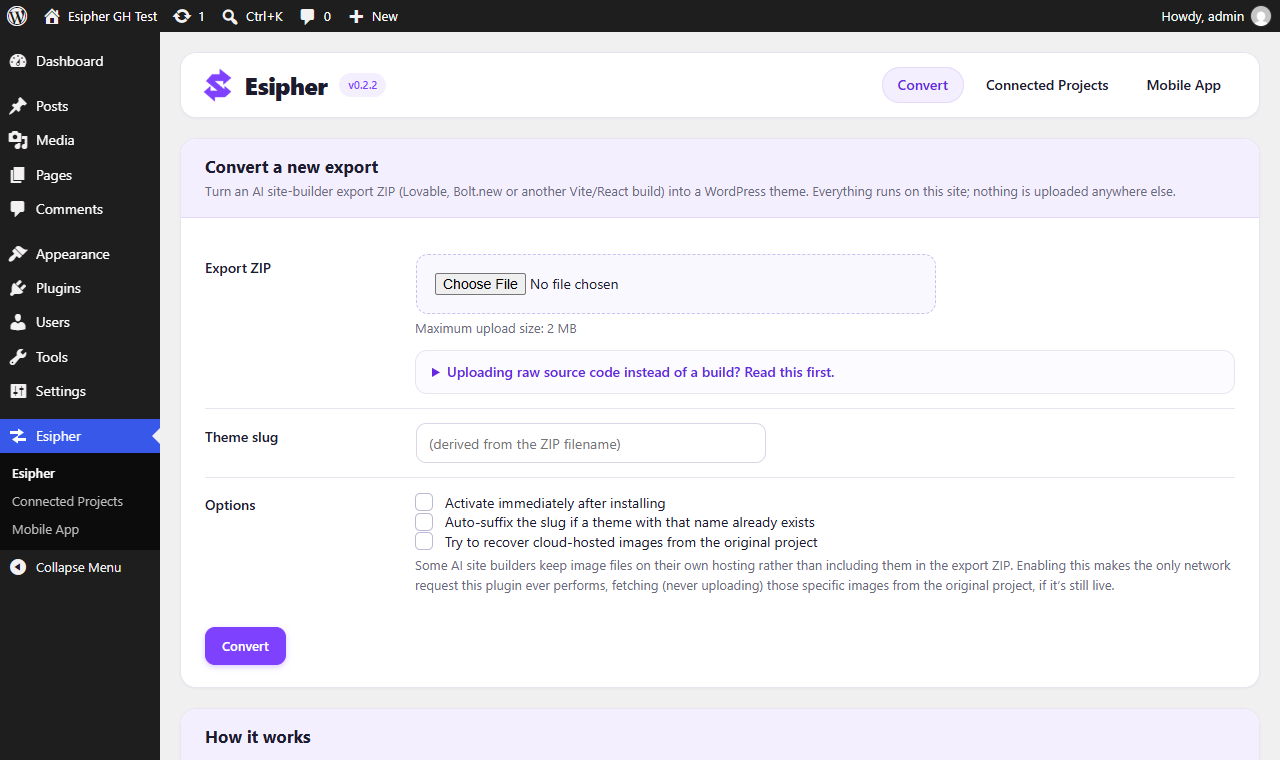
Work from the admin screen (Esipher in wp-admin) or from WP-CLI (wp esipher convert).
Two optional features connect to third-party APIs, and only when you set them up (see “External services” below):
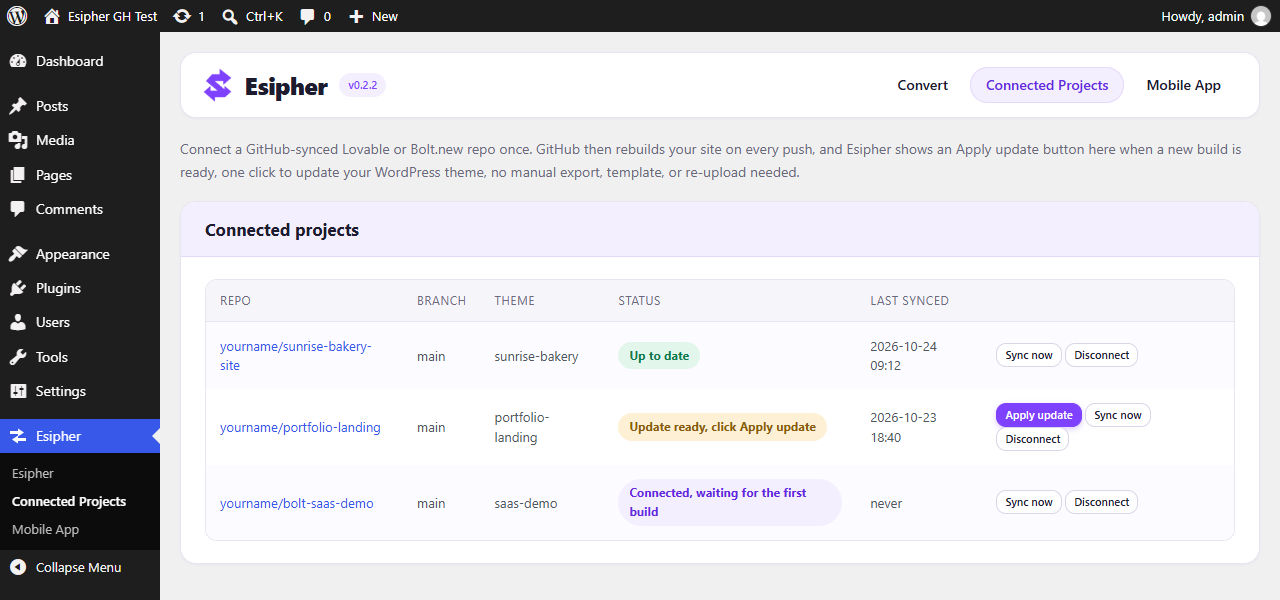
- Esipher > Connected Projects – connect your own GitHub account and repo. GitHub rebuilds on every push and Esipher shows an “Apply update” button; an administrator clicks it to update the theme. Nothing is installed or activated without that click.
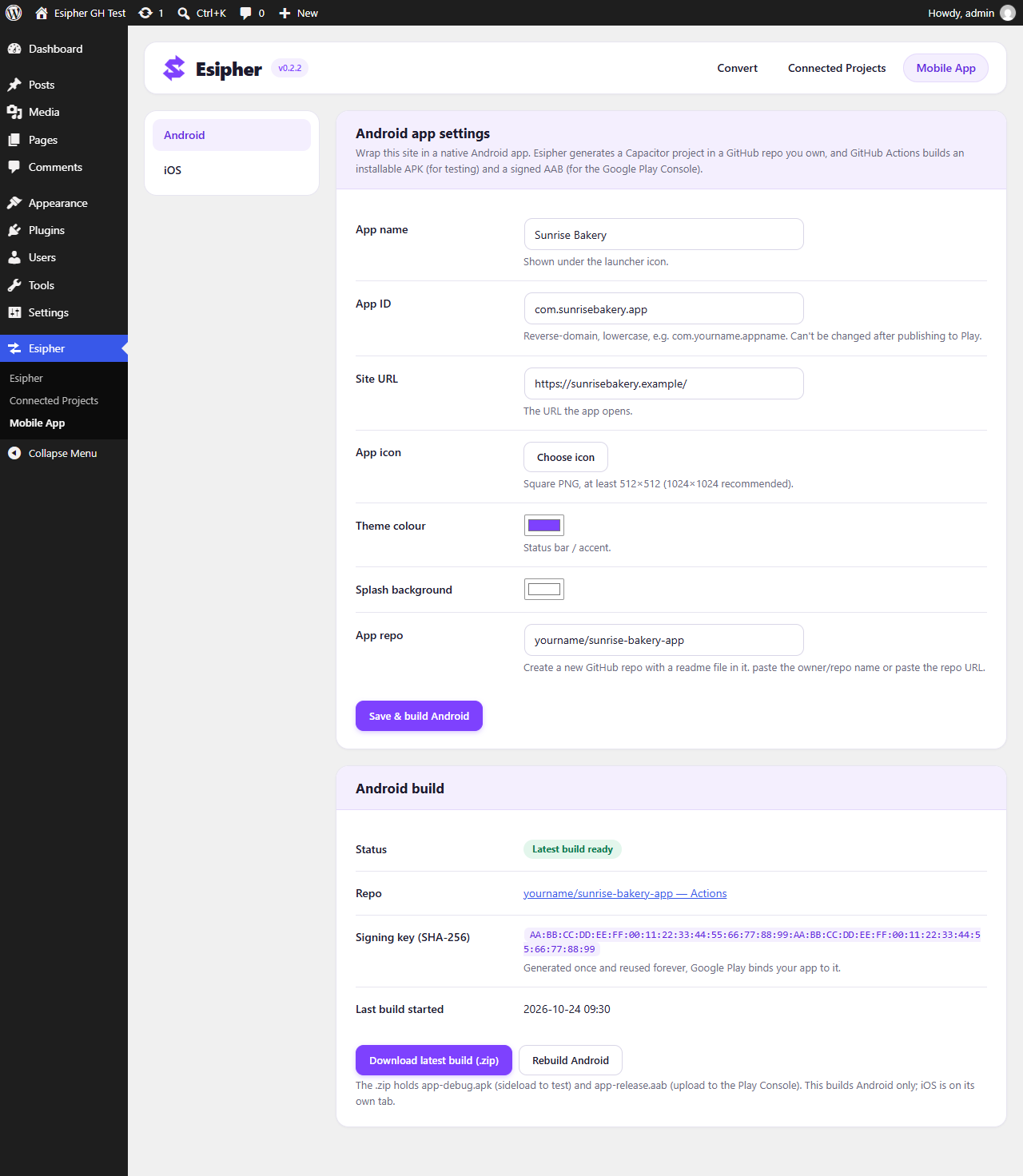
- Esipher > Mobile App – Esipher generates a build project in a GitHub repo you own; GitHub Actions builds a native Android (and, optionally, iOS) app from your site.
This is an early development build; per-builder adapters beyond the generic fallback and a conversion history/rollback screen are still to come.
What does not convert
- Supabase-backed auth, database reads/writes, and live data – detected and reported, never silently dropped.
- Client-side routing beyond what exists in the built HTML.
- Custom component layouts (cards, nav bars, icons) – these display exactly as exported, but aren’t broken into individually editable pieces yet. Headings, paragraphs, and images within multi-page conversions are: they come through as real, native Block Editor blocks.
External services
The core “upload a ZIP and get a theme” flow makes no external requests. The features below
do, and only after you enable them and provide your own credentials. You can use the plugin
indefinitely without ever touching them.
GitHub (github.com, api.github.com)
Used by Connected Projects and Mobile App. When you connect a repo, sync, or build an
app, the plugin talks to the GitHub REST API as your own GitHub account, using an OAuth access
token you obtain by authorising your own GitHub OAuth App. It sends: that access token, the
repository owner and name you enter, the contents of the build workflow file it commits into
your repo, webhook configuration (including a random shared secret), Actions repository
secrets and variables it sets for the build, and, for the Mobile App feature, an
App-Store-Connect-signed certificate request routed to Apple (see below). It downloads the
build artifacts your workflow produces. The OAuth sign-in also redirects your browser to
github.com. For Connected Projects, GitHub also calls this site’s REST route
(/wp-json/esipher/v1/github-webhook) when a build finishes; the request is verified with the
webhook’s shared secret and only records that an update is ready. Nothing is sent to GitHub
unless you have connected an account.
GitHub Terms of Service: https://docs.github.com/en/site-policy/github-terms/github-terms-of-service
GitHub Privacy Statement: https://docs.github.com/en/site-policy/privacy-policies/github-general-privacy-statement
Apple App Store Connect (api.appstoreconnect.apple.com)
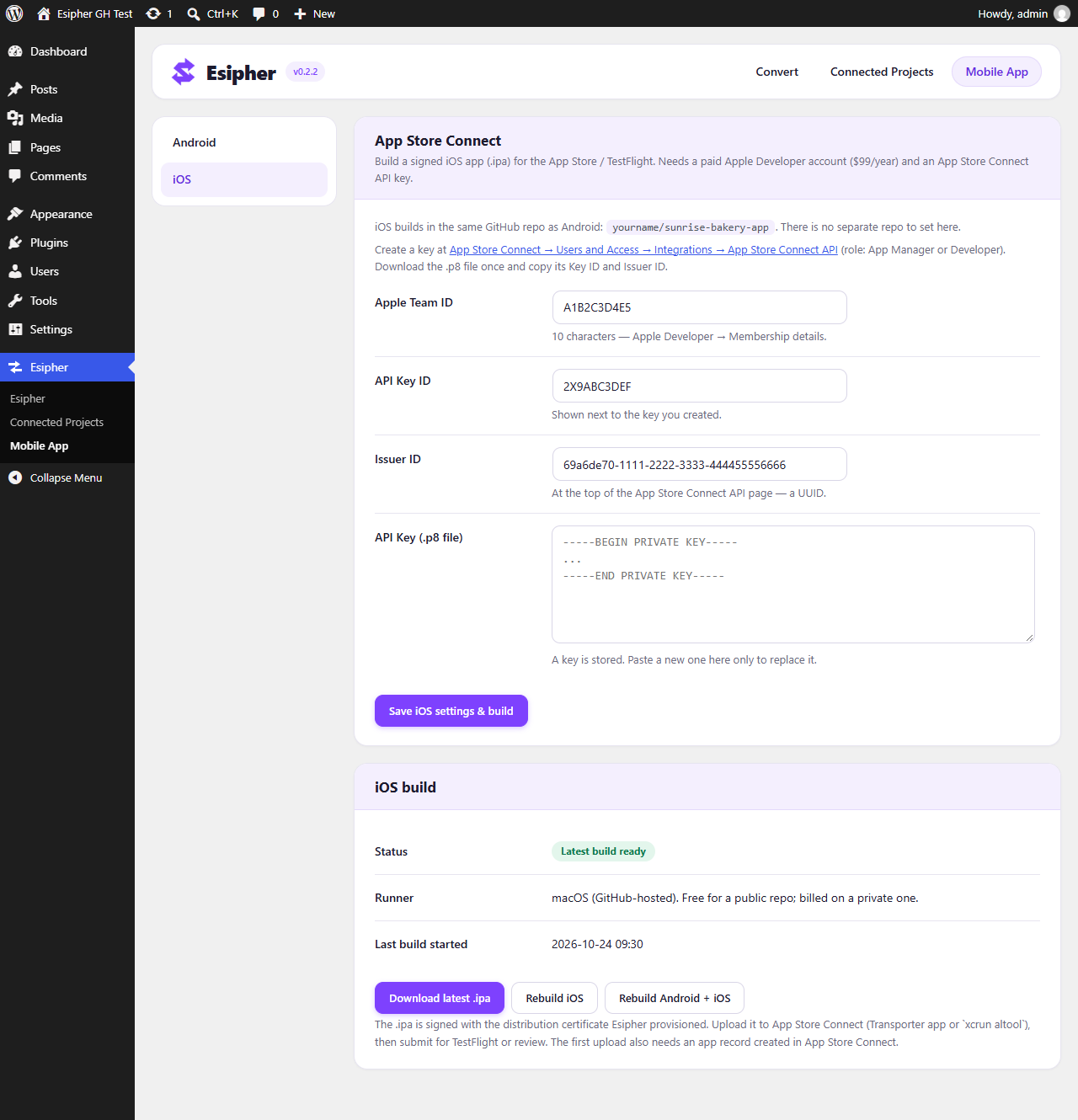
Used by the Mobile App feature only, and only if you fill in the iOS fields (Apple Team
ID, App Store Connect API Key ID, Issuer ID and .p8 key). When you save those and start an
iOS build, the plugin calls the App Store Connect API, authenticating with a short-lived
JSON Web Token it signs locally with your .p8 key. It sends: a certificate signing request
(to obtain an Apple Distribution certificate), your app’s bundle identifier (to register it
if needed), and a request to create an App Store provisioning profile. It receives the
certificate and provisioning profile, which are stored encrypted on your site and set as
GitHub Actions secrets for the build. No request is made to Apple unless you provide an App
Store Connect API key.
Apple Media Services Terms: https://www.apple.com/legal/internet-services/itunes/
Apple Privacy Policy: https://www.apple.com/legal/privacy/
Original project image hosting (on by default, can be switched off)
The multi-page conversion option “Try to recover cloud-hosted images from the original
project” (and the WP-CLI --recover-images flag, which stays opt-in) fetches image files from the URL your AI
site builder still hosts them at (for Lovable exports this is a *.lovableproject.com
address derived from a descriptor file inside your own export). The request sends only a normal
HTTP GET for each image path, so the host sees your site’s IP address. This happens only when that
setting is on, and only for images your export references but did not bundle. It is ticked by default on
the Convert and Connected Projects screens; untick it to make no request to that host. No other
request is made to that host. This service is provided by Lovable.
Lovable Terms of Service: https://lovable.dev/terms
Lovable Privacy Policy: https://lovable.dev/privacy
Installation
- Upload the plugin to
/wp-content/plugins/esipher, or install it from the Plugins screen. - Activate it through the “Plugins” screen.
- Follow the short Setup guide that opens, or go straight to Esipher in the wp-admin menu and upload your export ZIP, or run
wp esipher convert from WP-CLI.
FAQ
Is there a video walkthrough?
Yes: https://youtu.be/aHOtMFkEVgc covers exporting from Lovable, building it with the Esipher Build template, and converting it here, start to finish.
Does my code ever leave my server?
No. The entire conversion pipeline – extraction, parsing, asset rewriting, theme generation, and installation – runs locally within your WordPress install.
Can Esipher skip the manual export/upload entirely and just stay in sync?
Yes, under Esipher > Connected Projects. Connect your own GitHub account (you register a free GitHub OAuth App once and paste its Client ID/Secret in – no third-party broker, same “your account, your server” model as the rest of this plugin), then connect the GitHub repo your AI builder syncs to (e.g. GitHub sync from the Lovable or Bolt.new project menu). Esipher commits a small build workflow into that repo and registers a webhook; from then on, every push builds on GitHub and Esipher flags it as “Update ready”; an administrator clicks “Apply update” to download that build and update the theme – no export, no template repo, no manual artifact download. The incoming webhook only records that a build is ready: it can never install or activate anything by itself. A “Sync now” button triggers a rebuild without waiting for your next push. This is separate from, and doesn’t replace, the manual ZIP-upload flow below.
My build on GitHub fails, or Esipher says “this project builds a server app” – what do I do?
Newer projects from AI builders like Lovable and Bolt.new (built on TanStack Start) produce a server app by default, not static pages, so there is nothing for Esipher to import. Esipher checks this when you connect a project and tells you. Ask your AI builder: “Enable static prerendering for every page in this TanStack Start project, so that npm run build outputs a static HTML file for each page. Use prerender: { enabled: true, crawlLinks: true } and list every page in the tanstackStart pages option in vite.config.ts. Do not change the design or content.” When Lovable has synced the change to GitHub, click Sync now and then Apply update.
I added a page in my AI builder but it did not appear in WordPress. Why?
Esipher imports what your project’s build produces. On newer projects from AI builders like Lovable and Bolt.new (TanStack Start), a page only becomes a real WordPress page if the project pre-builds it: it has to be in the prerender “pages” list in vite.config.ts, or be linked from a page that is built. AI builders do not always add a new page to that list. After “Apply update”, Esipher lists any page that exists in your project but was not built, for example “/contact”. Then ask your AI builder: “Add this page to the prerender pages list in vite.config.ts so it is built as a static page”, wait for it to sync to GitHub, and click Apply update again. Sites that are a single-page app (for example Lovable projects using React Router) do not create separate WordPress pages: their pages live inside the app and open at their own address.
My Lovable or Bolt.new export was rejected as “raw source, not a build” – what do I do?
Esipher converts a Vite build’s finished output, not a project’s raw, uncompiled source. If you exported straight from Lovable or Bolt.new and have never run a build on it, use the Esipher Build template: a free, one-click GitHub Actions workflow made for this. Open that page, click “Use this template” to get your own copy, upload your export’s raw .zip to it, and a build runs automatically – no installs, no command line. Download the finished result from that run’s Artifacts and upload it to Esipher instead of the original file.
This template is the recommended path for Lovable and Bolt.new exports; StackBlitz (build in your own browser) is a general-purpose fallback for other builders’ exports.
Screenshots
Changelog
0.5.1
- New: the theme name is now optional when you connect a project. Leave it blank and Esipher names the theme after your repo, and reuses the theme that repo used before, so reconnecting always lands on the same theme. A name you type is used as typed. If the repo name is already taken by a theme Esipher did not make, Esipher picks a free variant and never overwrites it.
0.5.0
- Fix: reconnecting a GitHub project under a different theme name no longer makes a second copy of every page. Pages of a connected project are now matched by its repository, so renaming or recreating the theme updates the same pages and your menu keeps working. (Before, each new theme name created a full new set of pages such as blog, blog-5 and blog-6, and the menu stayed on the first set, so new posts seemed to be missing.)
- New: “Duplicate pages” on the Connected Projects screen finds pages that exist more than once. You tick the themes that are copies of the same site, review exactly what will happen, then confirm. For each address the oldest page stays (it is the one your menu points at) and receives the newest content; menu items, the front page, child pages and links between pages are moved to it; the extra copies go to the Trash, not deleted. Nothing changes until you confirm.
- New: connecting a project when other Esipher themes already exist now warns that a different theme name can create copies, and the “auto-suffix” option on Manual Convert says it makes a second copy of every page.
- Change: the advice about pre-building pages (shown when you connect a project, when a build produces no static pages, and in the help text) now says “AI builder (like Lovable or Bolt.new)” instead of naming only Lovable.
0.4.4
- New: when GitHub no longer accepts the sign-in saved on your site (“Bad credentials”, which can happen after it is revoked, expires, or is replaced by authorising Esipher somewhere else), Esipher now says so in plain language and shows a “Sign in to GitHub again” button on the Connected Projects screen. Your connected projects are kept. Before, you had to disconnect your GitHub account by hand and connect it again.
- Change: the “Convert” tab is now called “Manual Convert”, to tell it apart from the automatic GitHub sync.
0.4.3
- New: Esipher now tells a new customer what to do about static pages. When you connect a Lovable (TanStack Start) project that does not pre-build its pages, Esipher says so straight away and gives the exact sentence to send to Lovable. A build that fails because it produced no static pages is explained the same way, and a failed build now names the step that failed. The manual-upload message for server apps no longer says there is nothing to convert.
0.4.2
- New: Esipher now recognises multi-page sites whose pages are pre-built into folders next to the home page (for example about/index.html), as produced by TanStack Start prerendering. Before, only the home page was imported and the other pages were silently dropped. To avoid mistaking an ordinary app for a multi-page site, a folder only counts when its page contains real visible text.
- New: “Which pages were left out?” The build workflow now compares the project’s route files with the pages that were actually built and Esipher shows the difference after Apply update (for example “1 page exists in your project but was not built: /contact”), with the sentence to send to your AI builder. Click “Sync now” once on a connected project to refresh its workflow file.
- Fix: “Apply update” now always installs the newest finished build. One edit in an AI builder can cause several builds, and applying the first to finish could install an older version without your latest page. If a newer build is still running, Esipher asks you to wait a minute and click again.
- Fix: reconnecting a project under the same theme name failed with “Theme slug already exists”, because disconnecting leaves the theme behind. If that theme was made by Esipher it is now replaced like any other sync. A theme Esipher did not make is never overwritten, and Esipher explains why.
- Fix: apostrophes in some error messages showed as “‘”.
- Change: “Sync now” refreshes the build workflow in your repo when it is out of date, and the hourly check now looks only at Esipher’s own workflow.
- Change: the Convert screen’s help box explains how to get missing pages built.
0.4.1
- Fix: for single-page app sites (most Lovable and Bolt.new exports), pages you add in your AI builder (for example /blog) are now served by the theme with a normal 200 status. Before, WordPress answered them as “404 Not Found” with a “Page not found” title, even though the app displayed them, which search engines, caches and some hosts treat as a missing page. Real missing files and WordPress’s own addresses still return 404. Click Apply update once on each connected project to regenerate the theme with this fix.
- Change: the note after Apply update now explains that app pages live inside the app rather than under Pages in WordPress.
0.4.0
- New: Setup guide. After you activate Esipher you are taken once to a short three-step guide that checks your server (ZIP support, writable themes folder, upload size, public address), asks what you want to do first (convert a ZIP, keep a site in sync through GitHub, or build a mobile app) and walks you through just that. It reuses the real forms and shows what is already done. You can skip it, and reopen it any time from “Setup guide” in the Esipher menu bar.
- Change: a “Setup complete” note now shows on the Convert screen when you finish the guide.
0.3.3
- New: after “Apply update”, Esipher now says what it did, for example “Updated 6 pages (1 new)”, and the Connected Projects list keeps that note under each project.
- New: clear heads-ups after an update – images that could not be found, a build that contains only the home page (new pages need the project’s build to pre-render them), or a build with fewer pages than the last one.
- Change: “Try to recover cloud-hosted images” is now ticked by default (on the Convert screen and when connecting a project), with a plain explanation of what it does. Untick it to make no request to the original project.
0.3.2
- Change: the Convert screen’s help box is now a clear step-by-step guide with a link to the video walkthrough.
0.3.1
- Change: clearer wording on the Convert screen’s help box (“New to Esipher? Click here to learn how to prepare and upload your export”).
0.3.0
- New: redesigned admin dashboard. All Esipher screens (Convert, Connected Projects, Mobile App) share a branded header with navigation, card-based sections, clearer forms and colour-coded status labels. The Mobile App screen uses a side menu for Android and iOS.
- Change: new Esipher menu icon, and the “how it works” steps now sit below the convert form.
- Fix: removed an outdated note about a server-side build option that no longer exists.
- Housekeeping: added screenshots to the plugin page.
0.2.2
- Credits: developers listed in the readme and plugin header.
0.2.1
- Fix: plugin author is now shown correctly in the directory.
0.2.0
- New: Bolt.new exports are supported alongside Lovable (built Vite/React output converts the same way; raw Bolt.new source is detected and pointed at the Esipher Build template), and Connected Projects works with Bolt.new’s GitHub sync as well.
- New: Esipher > Connected Projects – connect a GitHub-synced AI-builder repo
once (your own OAuth App, your own account). Every push builds on GitHub; a
webhook (with an hourly cron safety net) flags “Update ready” and an
administrator applies it with one click. A manual “Sync now” button
triggers a rebuild. - Fix: the GitHub connection now also requests the “workflow” OAuth scope,
which GitHub requires to commit the build workflow file. Without it,
connecting a project failed with a bare “Not Found”. If you connected a
GitHub account on an earlier build, disconnect and reconnect once to grant
the added permission – the settings screen warns when this is needed. - Fix: downloading a build artifact failed with “HTTP 401” – the request to
the artifact’s signed storage URL was still carrying the GitHub auth
header. The download now follows that redirect without it. - Fix: an auto-sync would report “Up to date” while the site still showed a
different theme. With “Keep this theme active” enabled (the default), a
connected project now re-activates its theme on any sync where the site
isn’t already on it, not only the first – and a successful sync that
leaves the theme inactive now says so instead of a bare “Up to date”. - Fix: disconnecting a project now always forgets it locally even if GitHub
won’t remove the webhook, so a later reconnect starts from a clean slate
instead of silently reusing stale sync state. - New: multi-page conversions now bundle a tiny dependency-free script that
restores the mobile menu. Because a multi-page conversion ships no framework
JavaScript, the hamburger button had nothing wiring it up; the helper wires
it – toggling an existing hidden menu panel, or, when the panel only existed
in the framework’s runtime, synthesising one from the nav’s own links. - New: Esipher > Mobile App – wrap the site in a native app. Esipher generates
a Capacitor project in a GitHub repo you own and a bundled GitHub Actions
workflow builds it:- Android (always): a debug APK (sideload to test) and a signed release AAB
(for the Google Play Console). The signing keystore is generated in pure
PHP (no Java), stored encrypted, and set as encrypted repo secrets. - iOS (optional, “iOS” tab): a signed .ipa for App Store Connect / TestFlight,
built on a macOS runner. Needs a paid Apple Developer account and an App
Store Connect API key (Team ID, Key ID, Issuer ID, .p8) – leave those blank
and the iOS build is skipped. From that key Esipher provisions a
distribution certificate and an App Store provisioning profile via the App
Store Connect API (no Mac, no manual certificate steps), stores them
encrypted, and the workflow signs with them.
Android and iOS build independently: the Android tab builds Android only, the
iOS tab builds iOS only, and an “Rebuild Android + iOS” button builds both.
So an Apple-side problem never blocks or red-flags an Android build.
Uses the same GitHub connection as Connected Projects.
- Android (always): a debug APK (sideload to test) and a signed release AAB
- Change: removed the server-side “build it now” /
wp esipher convert --build
option, which ran a project’s own npm/yarn/pnpm/bun install and build on the
server. Build raw source with the Esipher Build GitHub template, a local
build, or Connected Projects instead, then upload/sync the output. - Housekeeping: uploads now go through wp_handle_upload(); ZIP extraction and
cleanup go through WP_Filesystem; renamed to “Esipher – AI Site to Theme
Converter”.
0.1.0
- Initial development build: headless conversion engine driven by WP-CLI, generic adapter only.