


Description
Food Online turns WooCommerce products into a restaurant menu where customers browse, choose options and order without leaving the page.
Build the menu page with the Food Online Menu block, or use the classic shortcodes on any page.
Food Online Menu block
- Add the menu in the block editor and style it in the block settings.
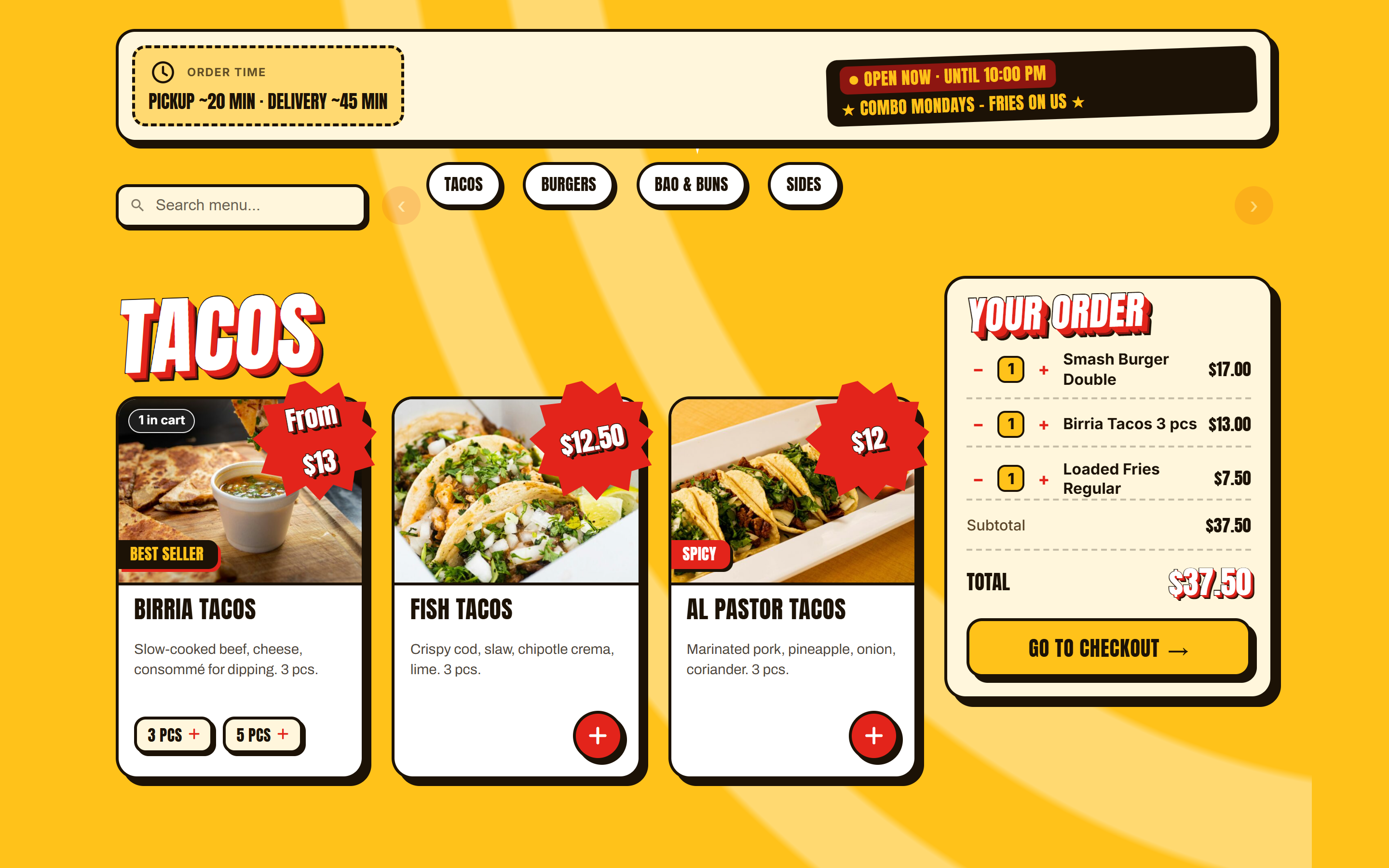
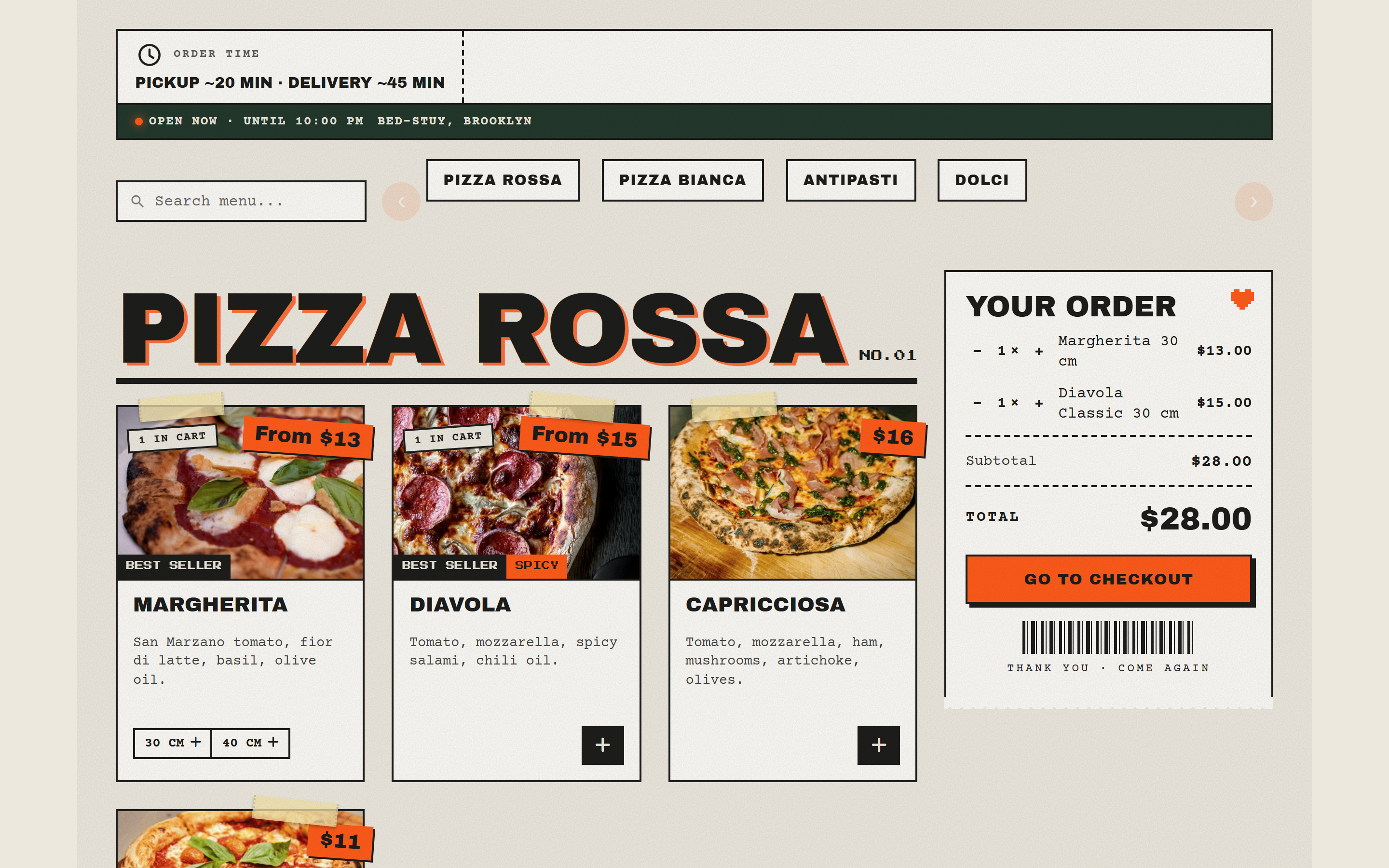
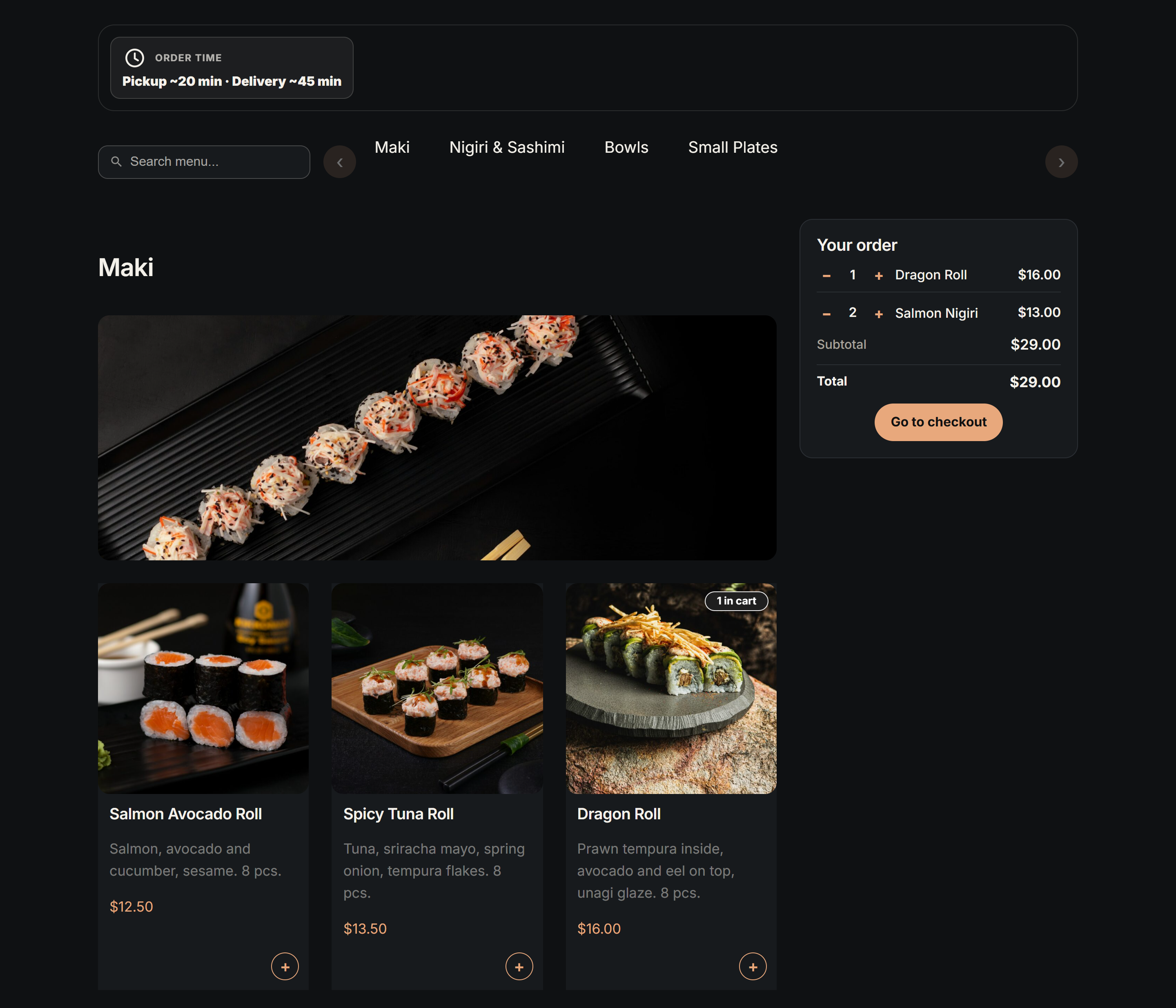
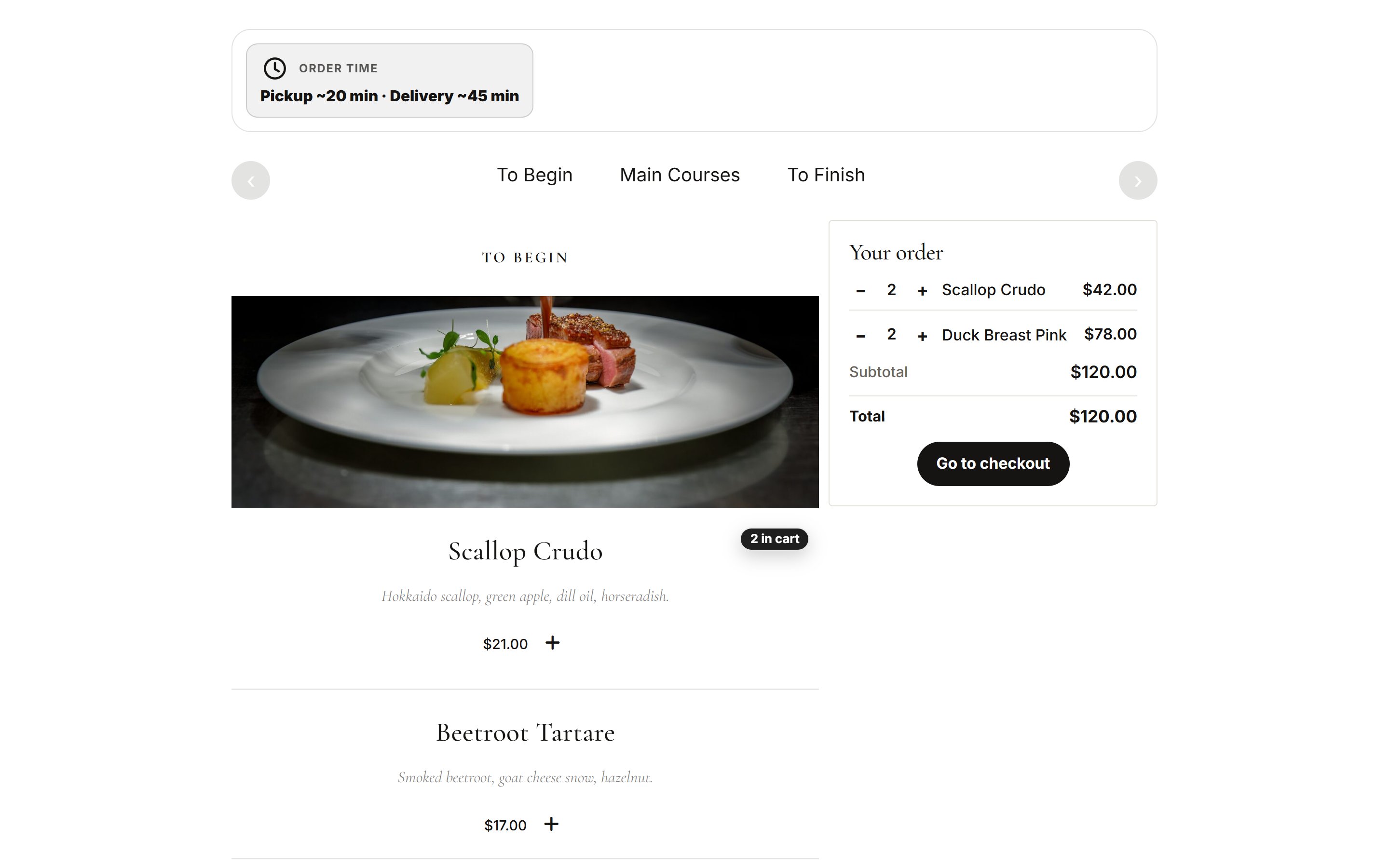
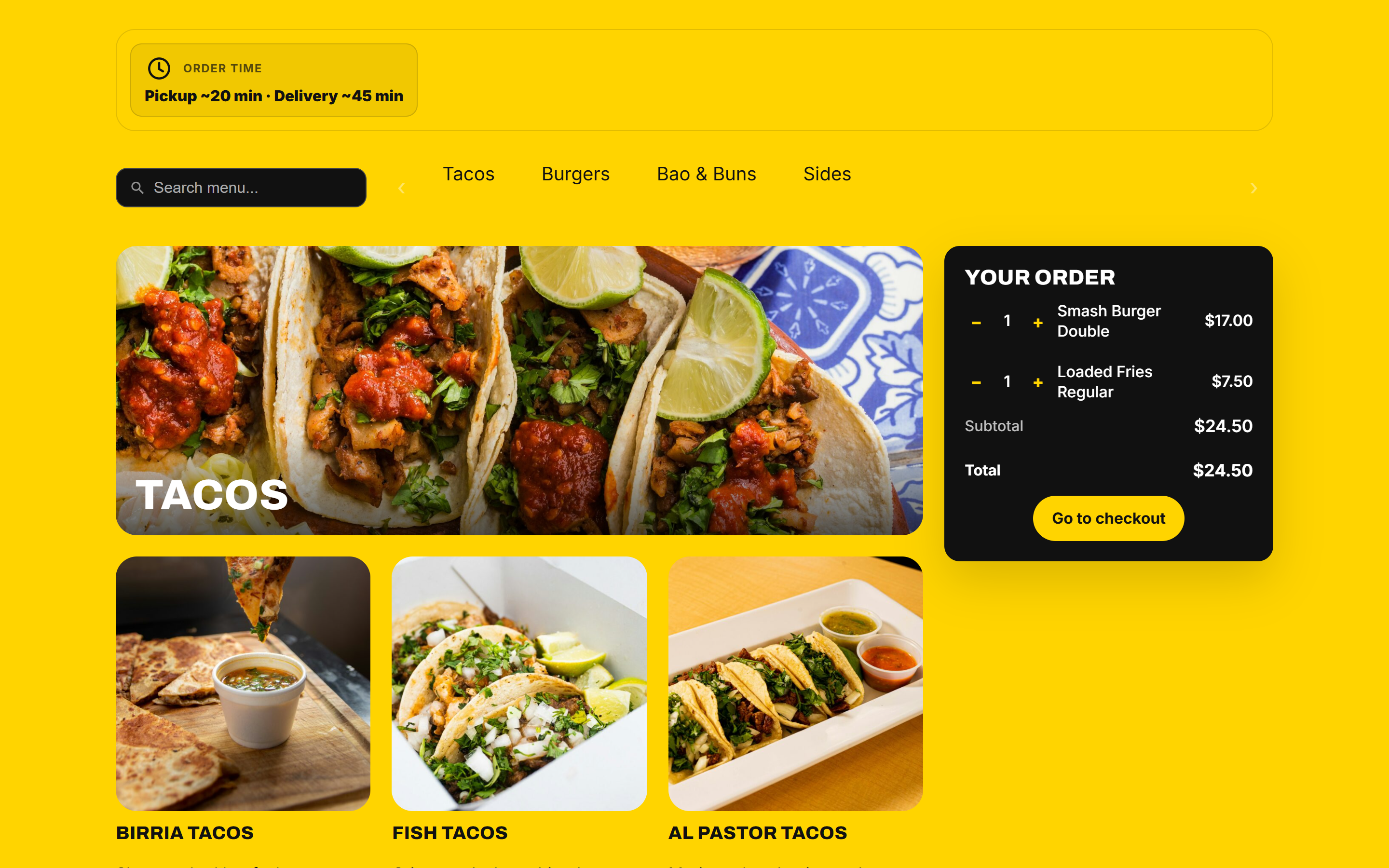
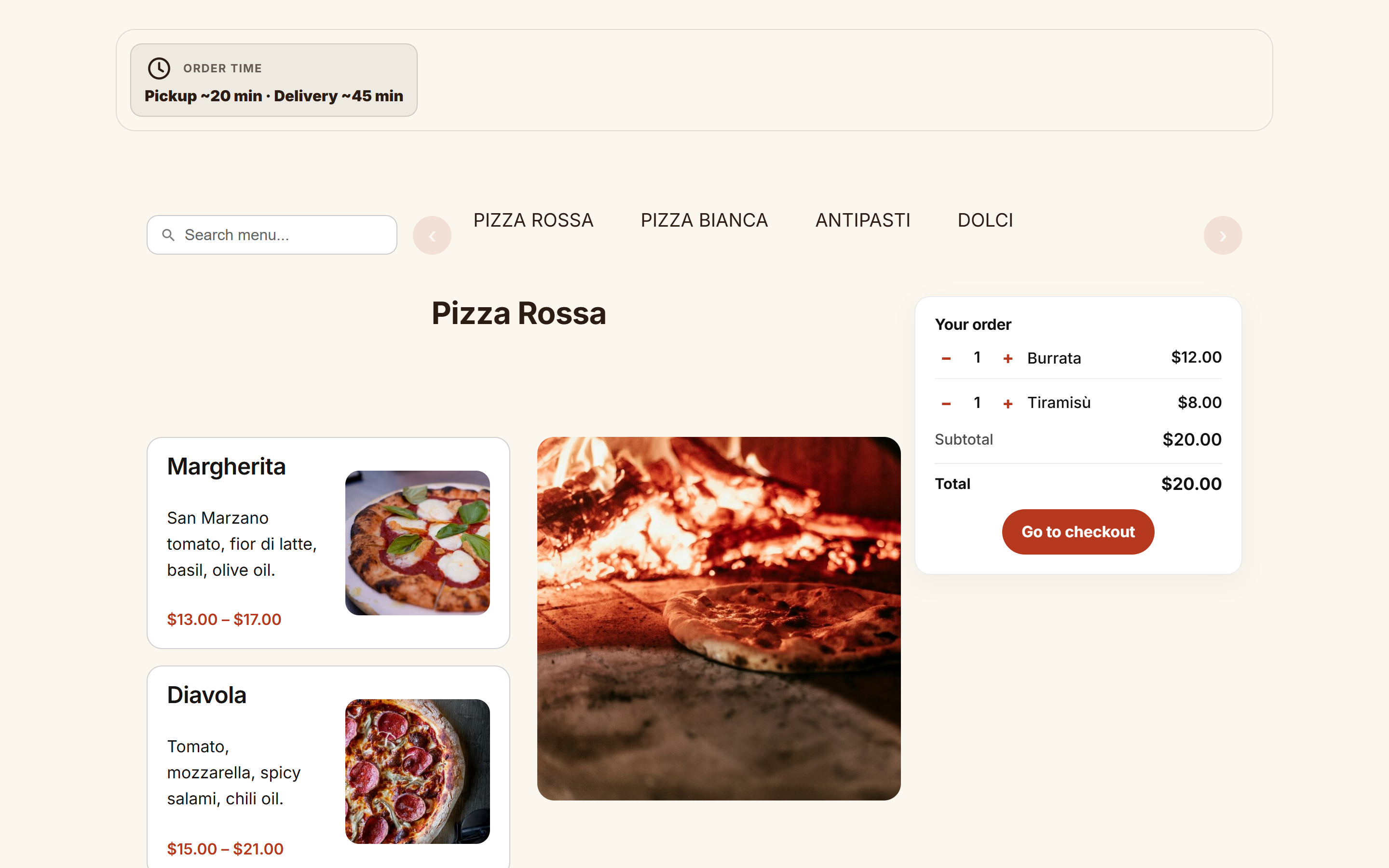
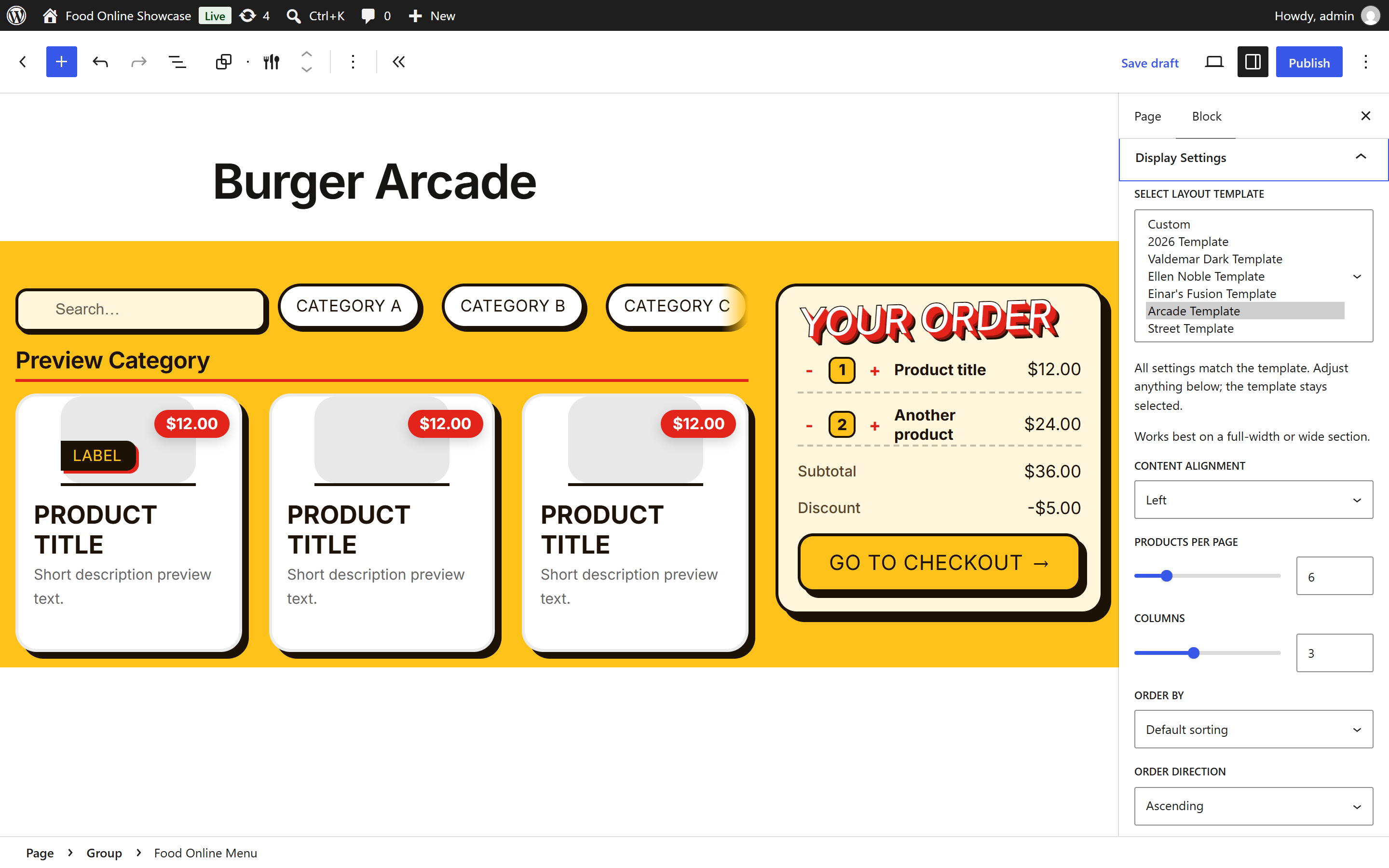
- Start from a ready-made template: Valdemar Dark, Ellen Noble, Einar’s Fusion, Arcade, Street or the 2026 Template.
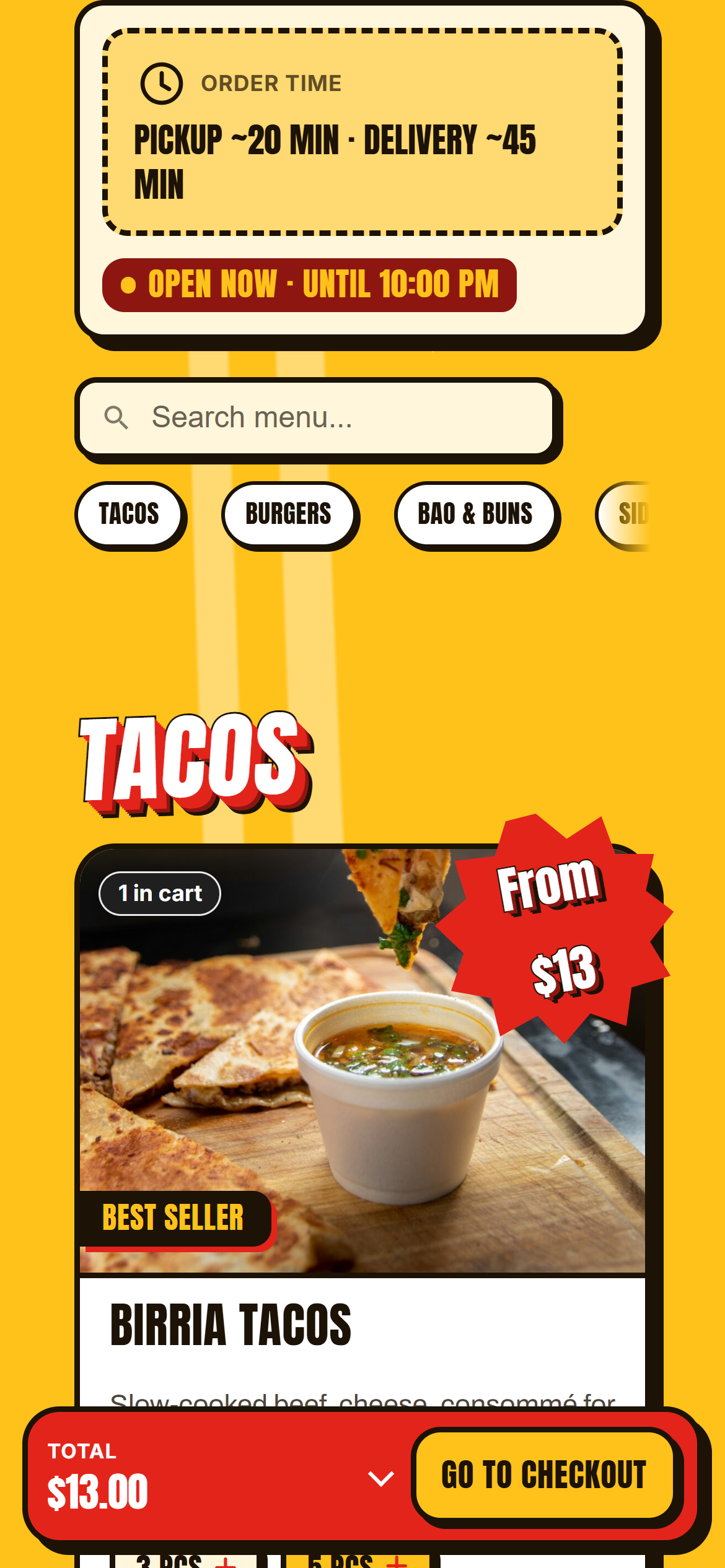
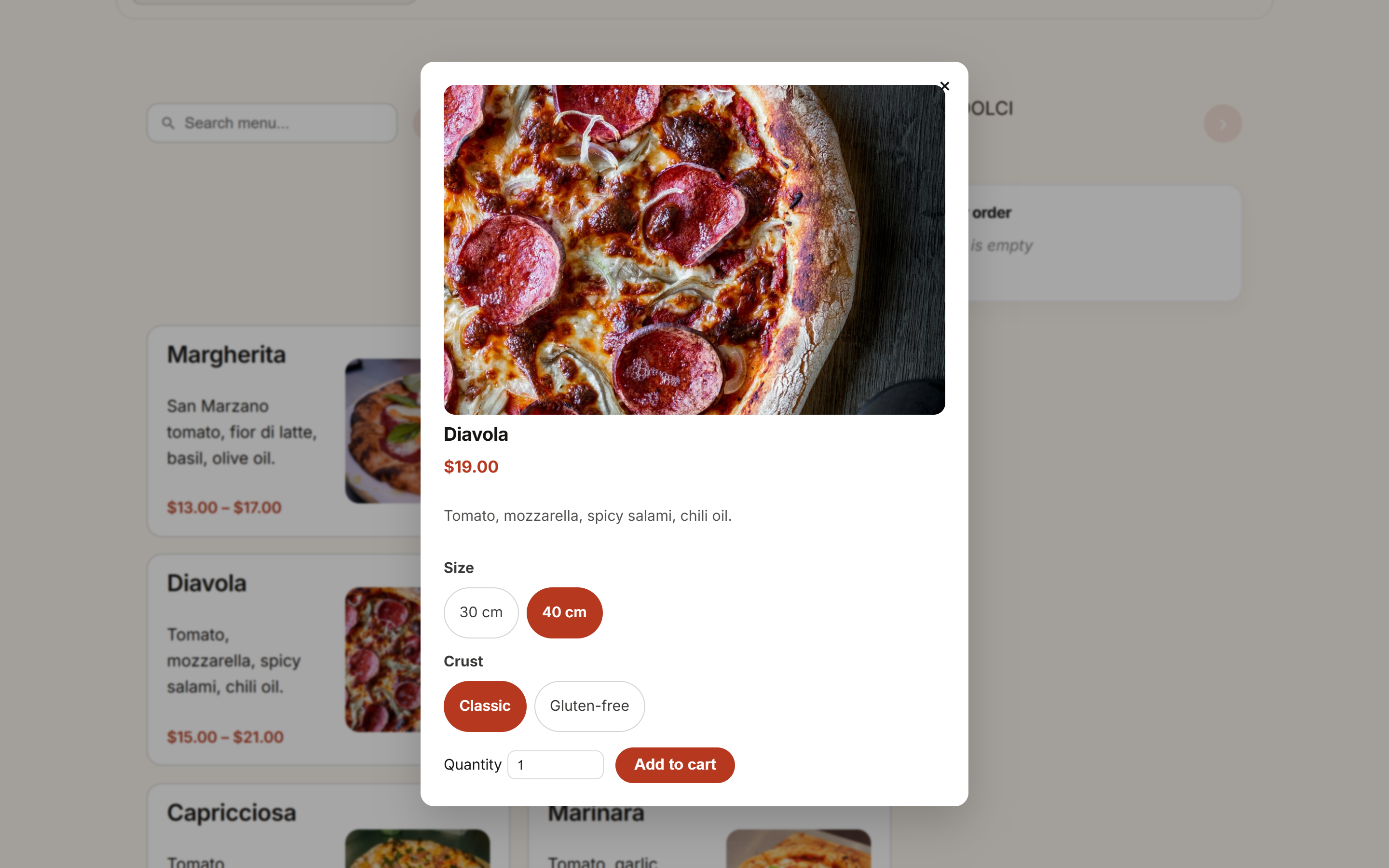
- Product popup with options, mini cart and category navigation.
- Show opening hours and the estimated order time above the menu.
- Works with block themes and classic themes.
Classic shortcodes
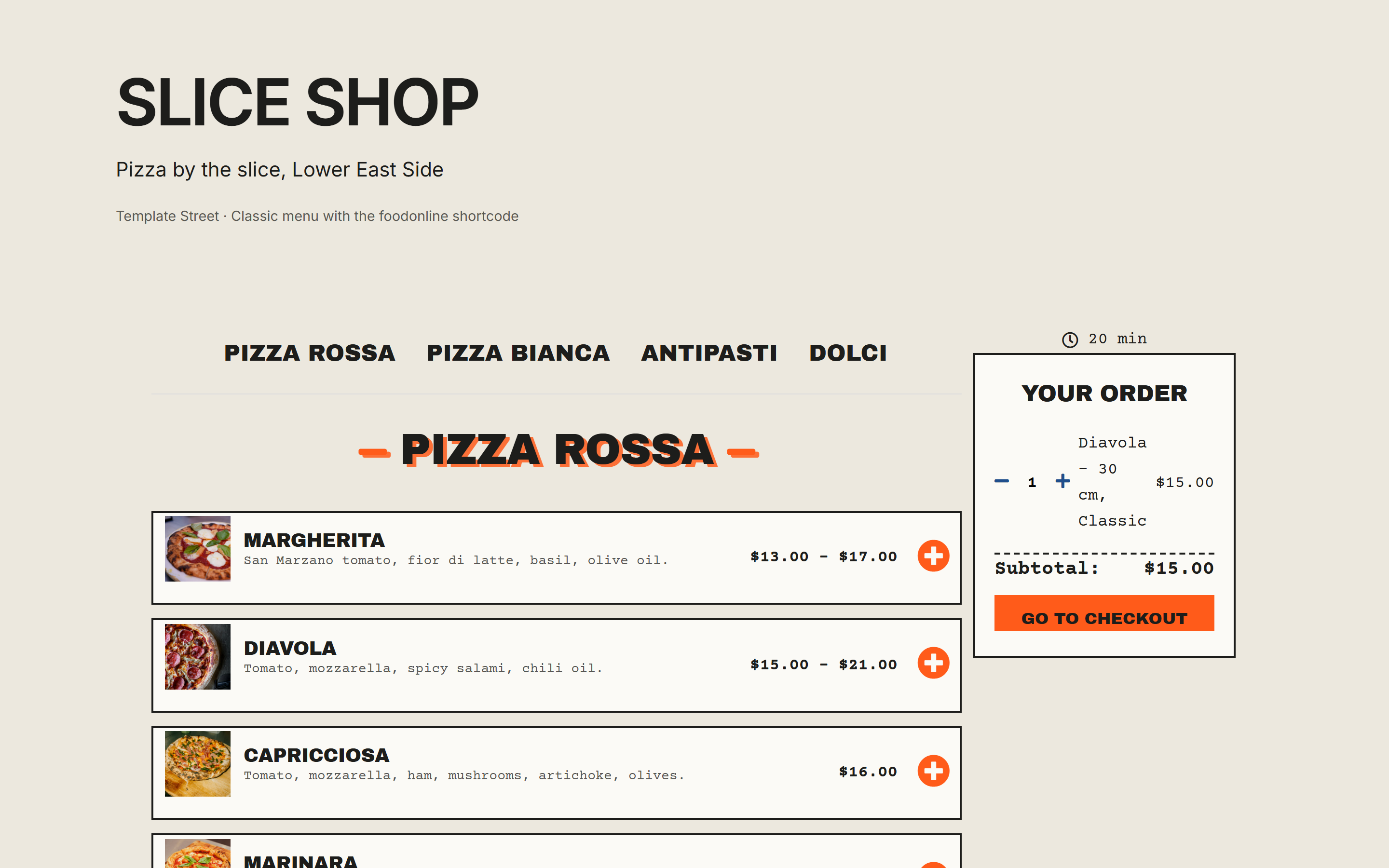
- [foodonline] or [foodonline2] shows the full menu with categories, product popup and mini cart.
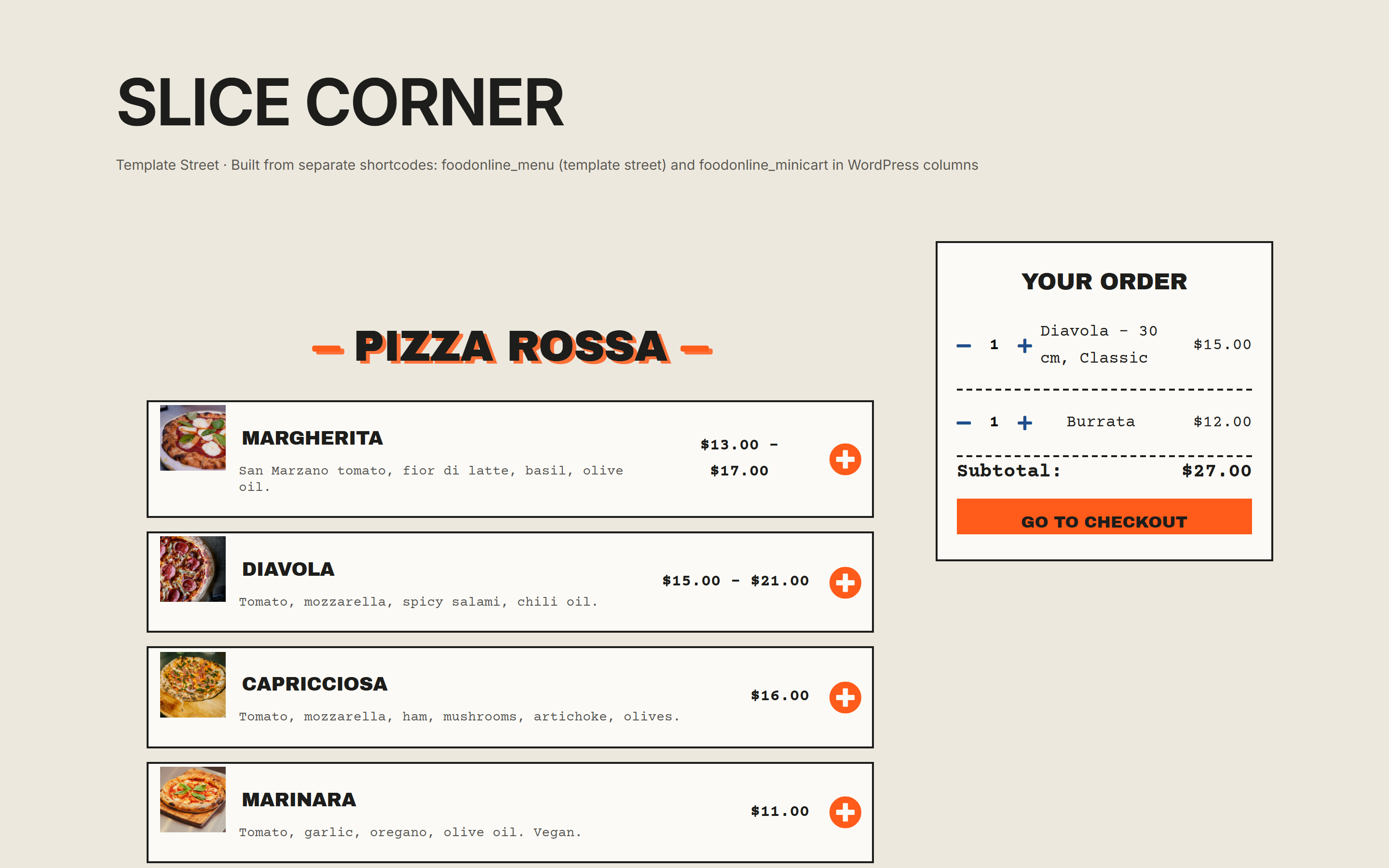
- [foodonline_menu] and [foodonline_minicart] place the menu and the cart separately, for example in a page builder layout.
- Choose categories, tags, products and order: [foodonline categories=”pizza,salad”].
- One column, two columns or the 2020 layout. Choose per page with layout=”twocols”.
- Give the classic menu the look of a block template with template=”arcade”, and show category images with category_image=”yes”.
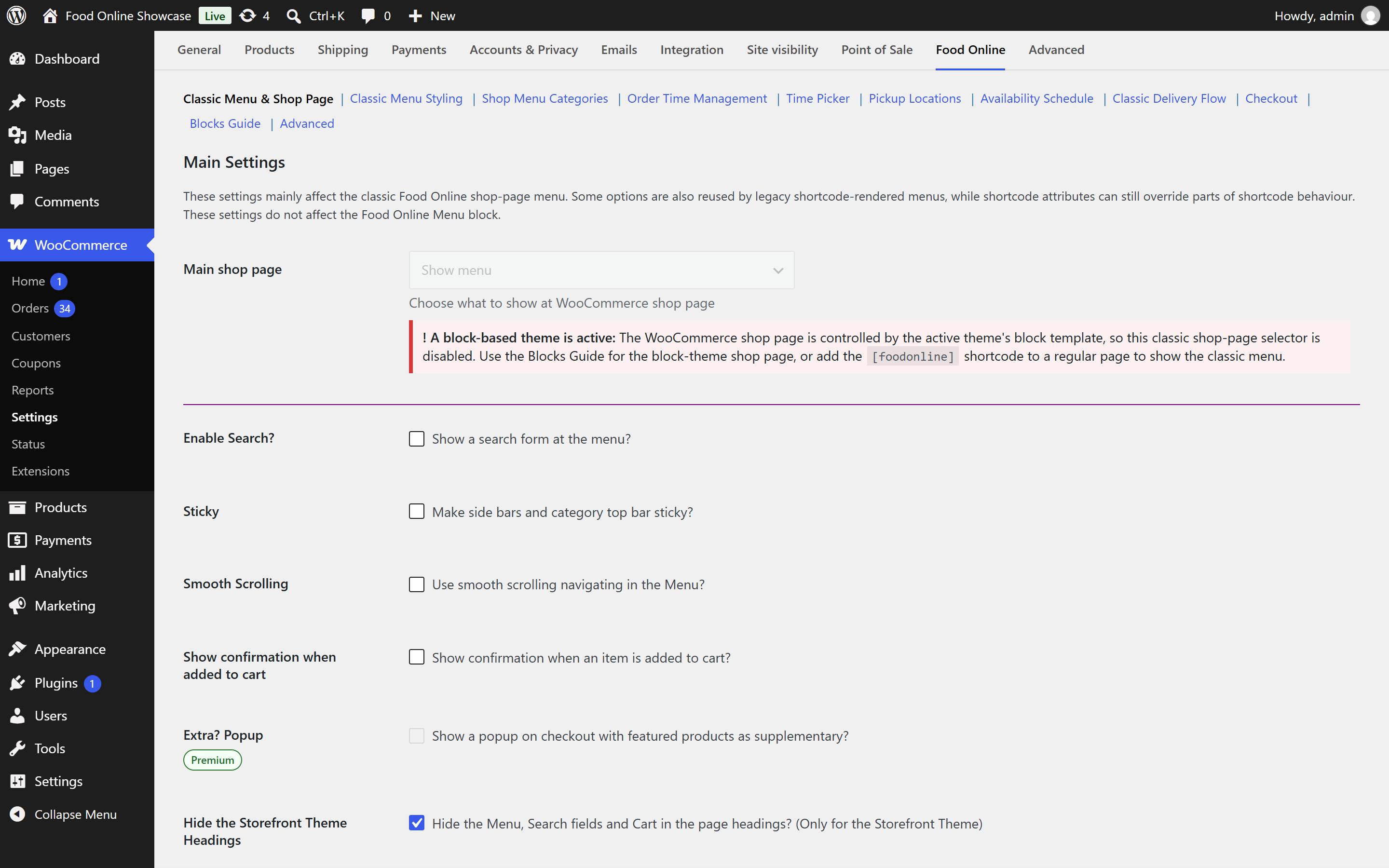
- Settings for colors, icons, product images, popups, search, sticky category menu, accordion and the mobile bottom bar.
Products
- Use WooCommerce simple and variable products. Attributes give choices such as sizes, toppings and sides.
- Product options: sauces, sides, extra toppings, removing ingredients, comments and half and half, with required choices, extra prices, images and stock.
- Compatible with WooCommerce Product Add-Ons.
- Menu sections follow your WooCommerce product categories and their order.
Works with
- Shipping Zones by Drawing for delivery areas drawn on a map.
- Live Order Confirmation for incoming orders in real time and order approval.
- Food Online Premium, an optional separate plugin with delivery modes, address validation, pickup locations, time selection and checkout blocks.
Installation
- Make sure WooCommerce is installed and active.
- Install and activate Food Online for WooCommerce.
- Add your dishes as WooCommerce products and put them in product categories. The categories become the menu sections.
- Create a menu page:
- Block editor: add the Food Online Menu block and choose a template.
- Classic: add the shortcode [foodonline] (or [foodonline2] if your theme changes the WooCommerce product loop).
- Classic menu settings are in WooCommerce > Settings > Food Online. The Blocks Guide on the same page explains the block.
FAQ
Block or shortcode?
Use the Food Online Menu block on new pages. The shortcodes remain for existing pages and page builders. Both work with block themes and classic themes.
Can a page use other settings than the global ones?
Yes. The shortcodes accept template=”…”, layout=”…” and category_image=”…”. The first menu shortcode on the page that sets them decides.
How do I change the order of categories and products?
Categories follow the order in WooCommerce > Products > Categories, or the Food Online category sorting. Products follow the WooCommerce menu order, or orderby=”…” in the shortcode.
Can I offer toppings and side dishes?
Yes. Add Food Online product options under Products > Options (Food Online), or use variable products and attributes, or WooCommerce Product Add-Ons.
Can I define the delivery area with a drawn zone?
Yes, with Shipping Zones by Drawing.
Can I translate Food Online?
Yes. Translations are managed on translate.wordpress.org, and you can adjust texts with a plugin such as Loco Translate.
Screenshots
Changelog
6.1.0
- New: Food Online product options. Add option groups such as sauces, sides, extra toppings, removing ingredients, comments and half and half, with required choices, min/max, quantity per choice, images and stock. Edit them under Products > Options (Food Online) or in the product tab. They work in the block menu, the classic menu, the product page, cart, checkout, orders and emails.
- New: Menu designs in the Blocks Guide. Pick a design and click “Use this design” to get a new draft page with the menu in that design.
- New: WooCommerce Product Add-Ons and YITH add-ons are chosen in the block menu’s own popup or inline layout.
- Changed: The classic menu follows the popup setting exactly. When popups are off, product options are shown under the product.
- Changed: Display Settings, with the design choice, is now the first panel of the Food Online Menu block and open by default.
- Fix: The block menu could request the cart from a wrong address on some pages (404 in the browser console).
- Fix: The product popup button no longer sticks out on small screens, and the popup edge is easier to see on dark designs.
6.0.5
- Translations: The “Order” label in the Menu Flow bar now has translator context, so it is translated as a noun.
- Changed: The store’s order heading “Order fulfillment?” is now “Expected ready time”.
6.0.4
- Translations: The heading and help text in the Menu Flow time panel can now be translated.
- Fix: Long mode names on the Menu Flow mode buttons now fit on small screens.
6.0.3
- Translations: More texts in the Food Online Menu block (product popup, mini cart, pickup times) and the block names in the editor can now be translated.
6.0.2
- Fix: The [foodonline_menu] and [foodonline2] shortcodes printed their product data directly instead of returning it. This could break REST and AJAX requests that render page content, for example SEO data indexing in Yoast SEO.
6.0.0
- Major release. Please test on a staging site before updating a live store.
- New: Food Online Menu block with six ready-made templates.
- New: Menu templates for the classic shortcodes, chosen in the settings or with template=”…”.
- New: Shortcode attributes layout=”…” and category_image=”…” for [foodonline], [foodonline2] and [foodonline_menu].
- New: Manual category sorting.
- Changed: Reorganized settings.
- Fix: Shortcode settings are now applied in block themes.
- Fix: Product names with “&” in the mini cart.
- Fix: Stray output from bundled files could break REST and AJAX responses.
- Compatibility: WordPress 7.1 and WooCommerce 11.2.
- Requirements: WordPress 6.6 and WooCommerce 9.8 or later.
5.4.6.11
- Fix: Prevented a fatal error in WooCommerce’s New order email preview when it uses an unsaved preview order.
5.4.6.10
- Compatibility: Compatible with WooCommerce 9.8 & WordPress 6.8
5.4.6.9
- Compatibility: Compatible with WooCommerce 9 and blocks checkout.
- PHP: Updated compatibility with PHP 8.3.
5.4.6.1
- Fix: Script wc_cart_fragments needs to be manually loaded since WooCommerce 7.8. Conditional checks fixed.
5.4.6
- Fix: Script wc_cart_fragments needs to be manually loaded since WooCommerce 7.8
5.4.5
- Compatibility: Increased compatibility with Divi page builder
- Compatibility: Compatibility with WooCommerce HPOS (beta)
5.4.4
- Fix: Menu category images
5.4.3
- Added: New filters ‘fdoe_is_shortcode_topbar’ and ‘fdoe_is_shortcode_delivery’
5.4.2
- New: New option to show a sale badge in the menu
- Added: New filter ‘fdoe_is_shortcode_minicart’
- Fix: Minicart increment buttons don´t work in shortcode ‘foodonline_minicart’ for some cases
5.4.1.14
- New behavior: Product sorting now default to “menu order”
5.4.1.12
- New behavior: Category sorting now default to “menu order”
5.4.1.10
- Improvement: Shortcodes improvement
5.4.1.7
- Compatibility: Compatible with WP 6.1
5.4.1.6
- New option: Category Menu horitazional scrollable
- Version harmonization
5.3.0.5
- Compatibility: Compatible with Live Order Confirmation Plugin
5.3.0.2
- Fixes: Minor bug fixes and adjustments
5.3.0
- Compatibility: Compatible with Shipping Zones by Drawing 2.7.0
- Fixes: Minor bug fixes and adjustments
5.2.0.3
- Fix: Trailing whitespace may cause incorrect output
5.2.0
- Fix: Ajax nonces
- Improvement: Improved jQuery 3 compatibility
- Improvement: Coding standard improvement
5.1.3
- Fix: Option “Show subcategories together with their parent category and not as an independent category” cause the menu to stop loading
5.1.0
- New feature: Live search in menu
- Improvement: jQuery 3 compatibility
- New behavior: Availability schedule categories and tags now work as an AND condition if both are set for a schedule
5.0.5
- Fix: Remove button in mini cart does not show for some configurations
- Improvment: Improved rtl language support
- Improvment: Uppdated templates ‘simple.php’ & ‘product-image.php’ for ‘single-product’
5.0.2
- New behavior: Removed stripping html-tags from product short description
- New behavior: Order status ‘on-hold’ is now included when counting “extra time”
5.0.1
- Fix: CSS fix cart modal
5.0
- MAJOR UPDATE *
- New behavior: If you have schedules with the application “Place Order”, it is now mandatory to choose some product categories to which the schedule applies to
- New feature: New abilities on how to calculate order times
- Fix: Closing tag missing on the shop link element
- New feature: Popup informing on which products that are not available to order according to availability schedules