


Description
The best Glossary Tooltip plugin for WordPress automatically highlights glossary terms within your website’s content and displays their definitions via tooltips. It’s boost SEO & UX, increase user engagement, and improve conversions.
Glossary plugin automatically detects the terms on your site, turns each one into a hoverable definition, and links it to a clean glossary page. Visitors stay engaged, and search engines get the internal-link structure they love.
Readers hit a wall the moment they meet a term they don’t know — and every wall is a visitor who might click away. Use this plugin and stop losing visitors.
Here’s what the plugin gives you:
- More engaged readers — instant tooltips answer “what does that mean?” without anyone leaving the article.
- Stronger SEO — automatic internal links and a wiki-style glossary index help search engines understand and rank your content.
- Better user experience (UX) — readers learn the meaning instantly without leaving the article; friendly, clear tooltips keep them reading instead of searching elsewhere.
- Less manual work — publish a term once; it is highlighted and linked everywhere automatically, across every post type you choose.
- Full design control — match the tooltips, links, and index to your brand, not the other way around.
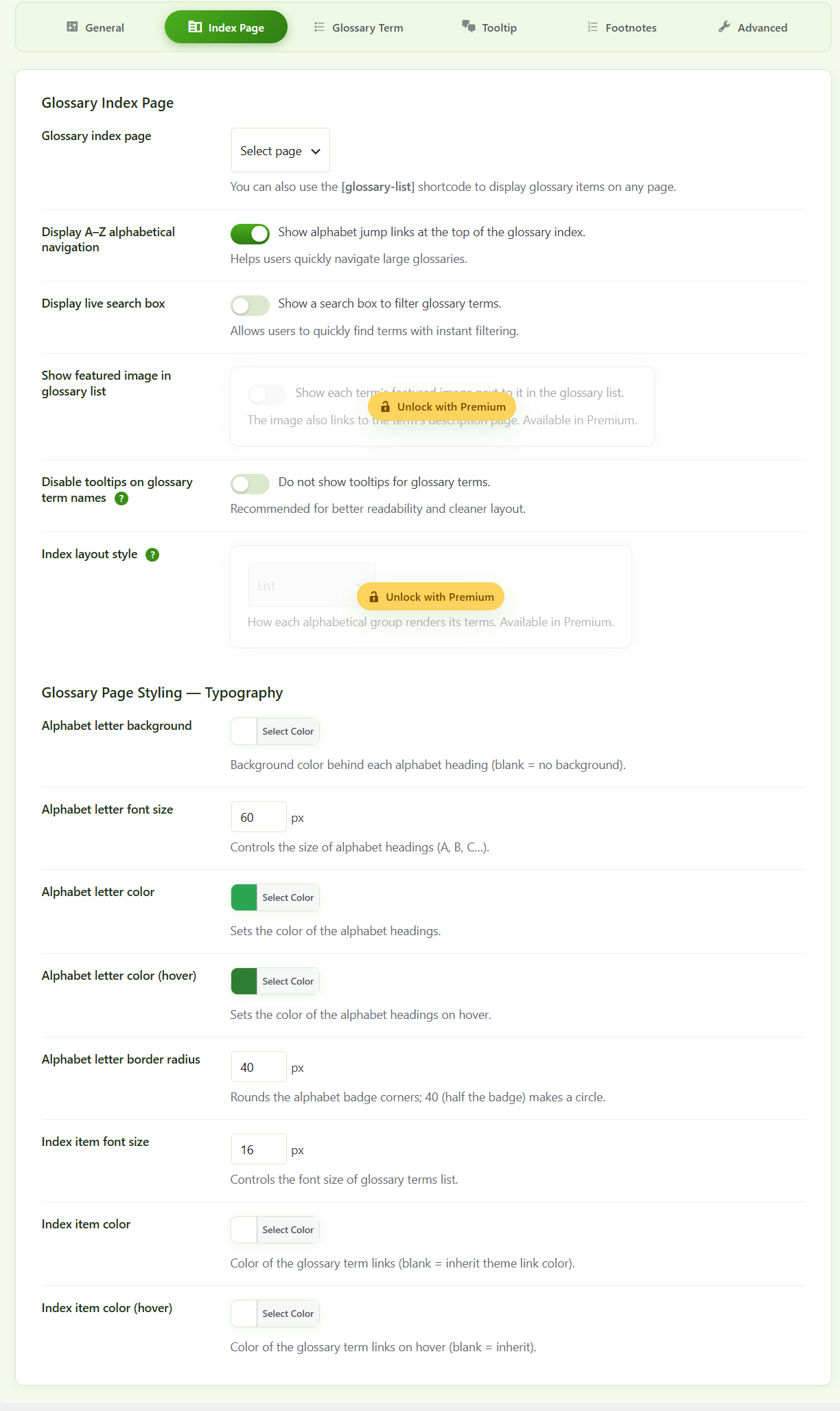
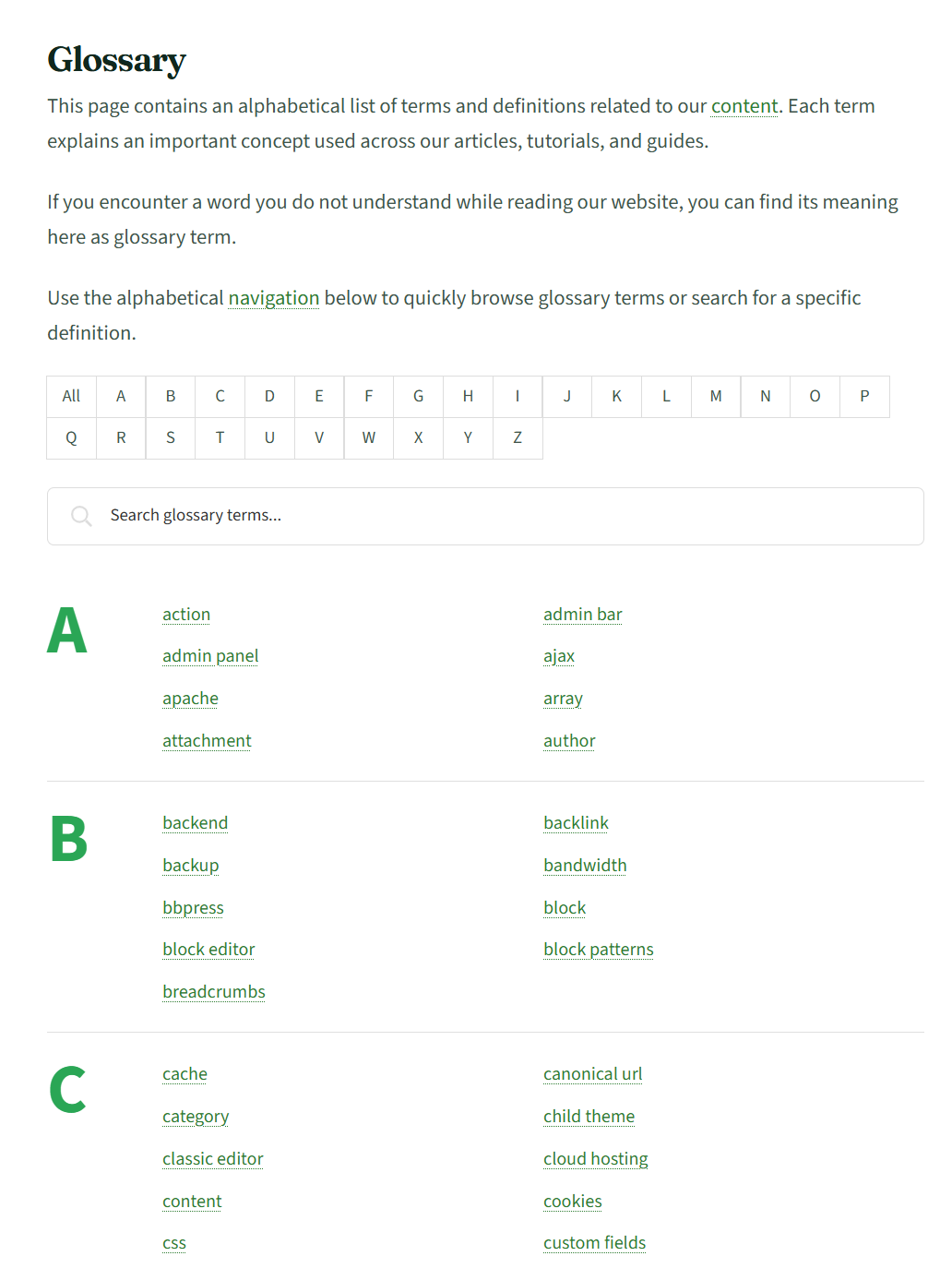
Beyond highlighting, the plugin includes a complete A–Z glossary index page (a wiki-style dictionary powered by the [glossary-list] shortcode) with alphabetical navigation, live search, categories, and flexible sorting and layout options.
It’s a natural fit for blogs, documentation sites, knowledge bases, online courses, SaaS products, and any business, medical, financial, legal, or technical website that relies on specialized terminology.
Everything described below — automatic highlighting, rich tooltips, the full A–Z index, sorting, search, performance options, and more — is included in the free version, with no usage limits and nothing locked behind an upgrade until you choose to go further.
✨ Automated highlighting
- Publish once, link everywhere — add a term and it is automatically detected and linked across every post type you select. There is no manual linking.
- Synonyms and aliases — give any term alternate spellings, abbreviations, or acronyms. Each one is recognized, highlighted, and linked to the same term.
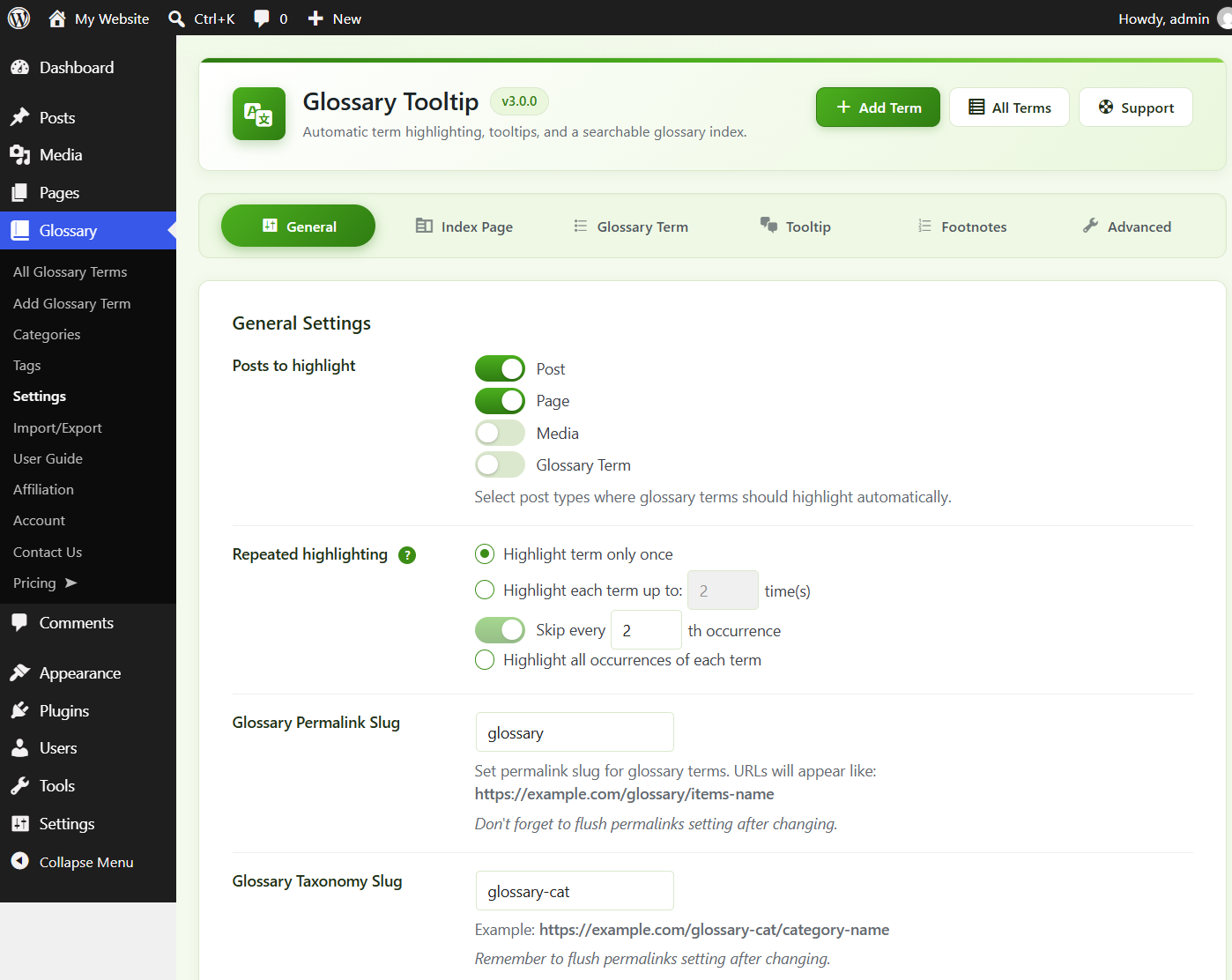
- Post-type control — choose exactly which post types (posts, pages, products, custom post types) get highlighted.
- Per-post and per-term overrides — switch highlighting or tooltips on or off for an individual post, page, or term, independent of the site-wide settings.
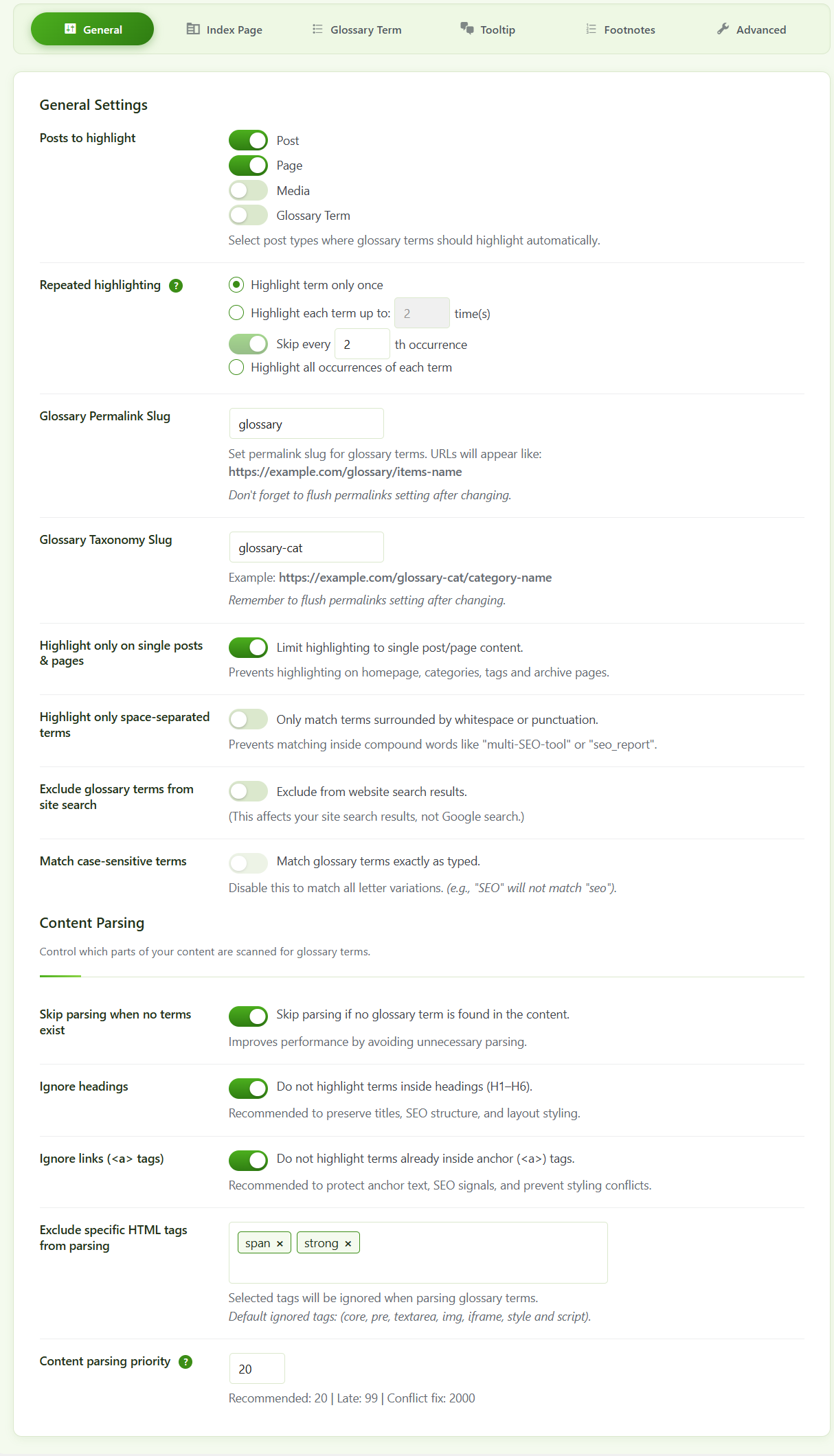
- Repeat control — highlight each term once, a set number of times, every Nth occurrence, or every occurrence on a page.
- Per-page first-occurrence override — on an individual post, choose to highlight each term only its first time, overriding the site-wide repeat rule for that page.
💬 Tooltips
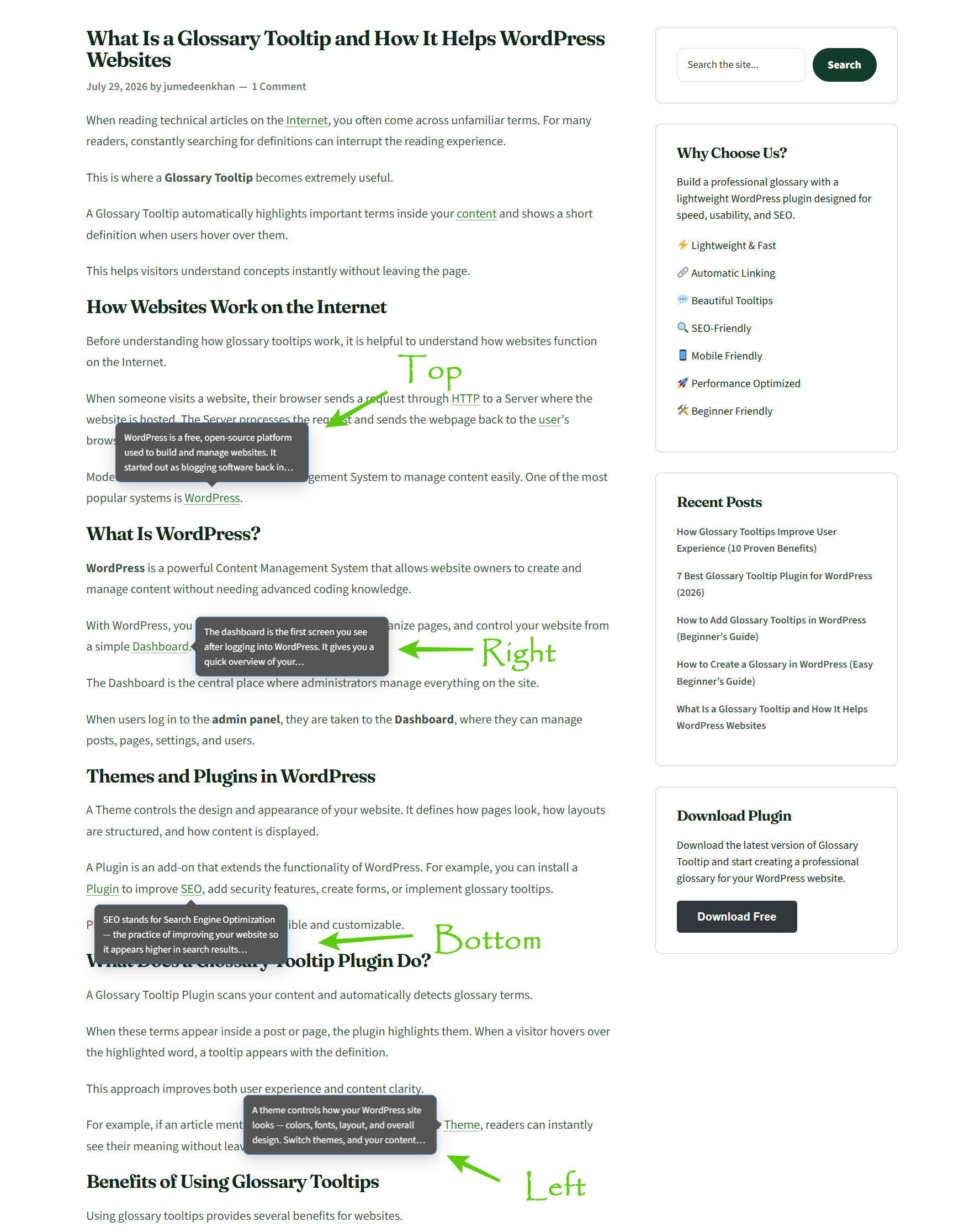
- Responsive behavior — definitions appear on hover on desktop and on tap on mobile, with a configurable mobile breakpoint.
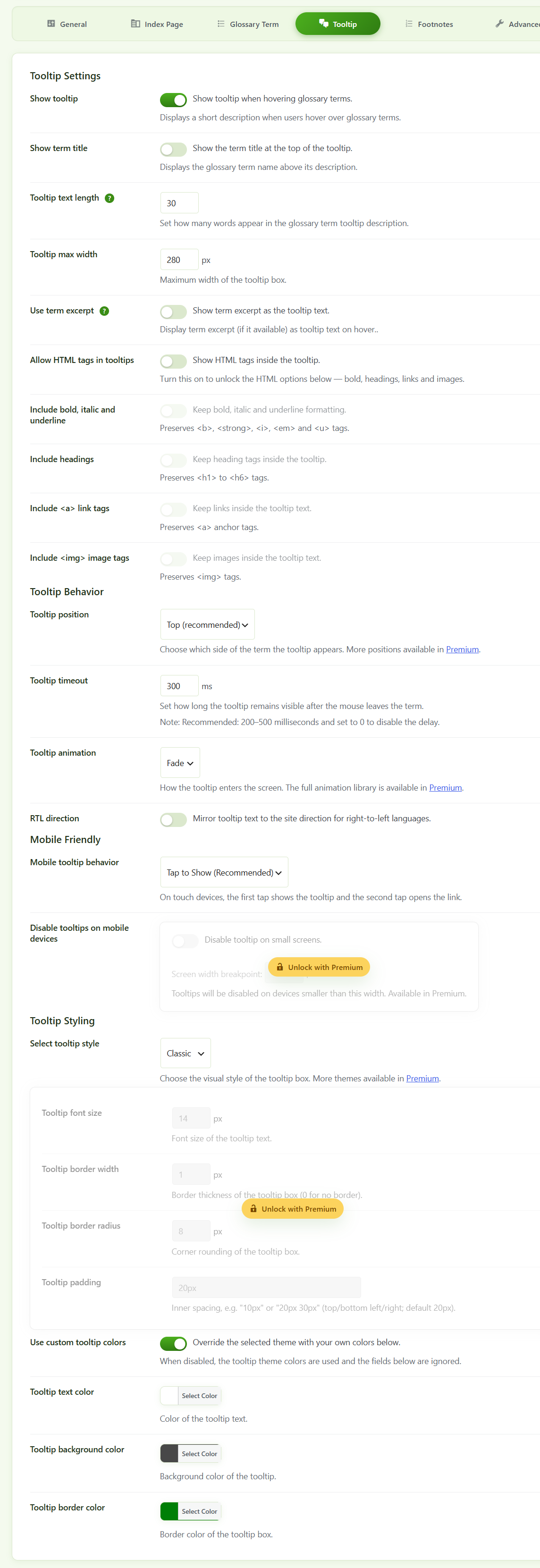
- Position and placement — place the tooltip above, below, left, or right of the term, with a fine position offset.
- Styling — choose a built-in style (Classic, Light, Dark, Minimal, Shadow) or override any style with your own text, background, and border colors.
- Sizing — set the tooltip font size, border width, border radius, and padding to match your design.
- Excerpt length — control how many words of the definition appear, based on the term’s excerpt or content.
- Accessible — tooltips work with the keyboard (focus shows them, Esc closes them) and respect reduced-motion preferences.
📚 A–Z glossary index
- Full index page — display every term alphabetically via the
[glossary-list]shortcode. - Alphabetical navigation — jump straight to a letter; digits and symbols group into 0–9 and special-character sections.
- Search — a search box lets visitors filter terms as they type.
- Categories — show terms from one or several categories in a single index.
- Nested categories — include child categories automatically so sub-category terms appear in the index too. A category filter bar and a category-tree view are available with Premium.
- Sorting and layout — sort by name, date, custom order, or randomly; choose ascending or descending; show or hide letter headings; cap the number of terms per letter; and arrange terms in 1–6 columns.
🔗 Related terms
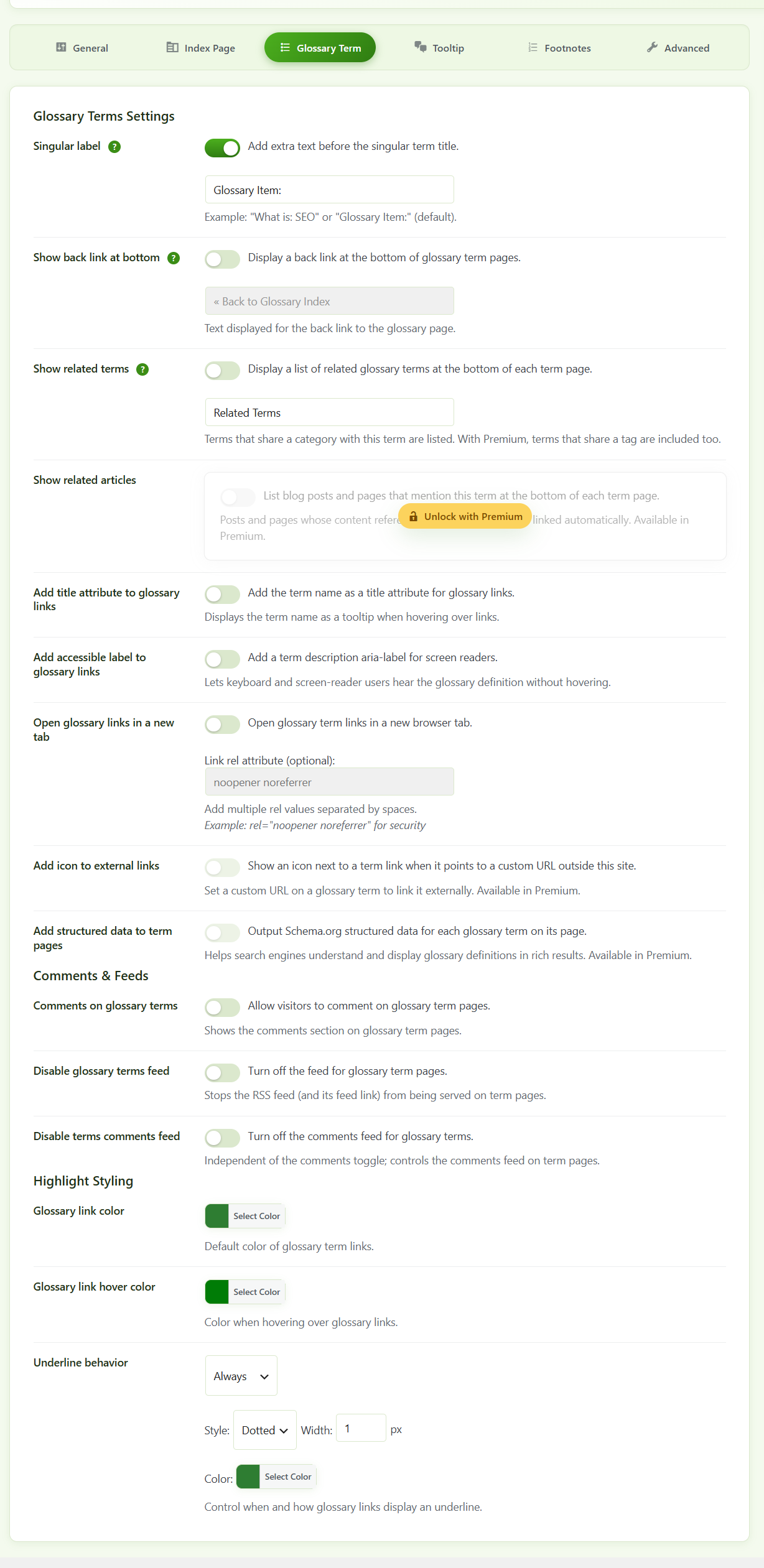
On each glossary term page, an optional “Related Terms” box lists other terms that share a category, giving visitors a natural way to keep exploring.
🗨️ Comments & feeds
- Comments on terms — let visitors comment on glossary term pages.
- Disable glossary terms feed — turn off the RSS feed for glossary term pages (both the feed URL and its link).
- Comments feed toggle — independently disable just the comments feed of a term, separate from the comments section.
🎯 Parsing control
- Exclusions — skip headings, skip text already inside links, and exclude specific HTML tags from parsing.
- Section exclusions — wrap any part of a post with
[glossary-exclude]...[/glossary-exclude]to leave it untouched, or place a single marker to skip everything after it. - Selective highlighting — with
[glossary_parse], highlight just the block of content you choose. - Term blacklist — never highlight terms from selected categories (a global “never highlight” list in the settings), handy for keeping automatic linking off certain parts of your glossary.
- Accent-aware matching — terms with accented or non-ASCII characters are matched correctly, with optional case-sensitive matching.
⚡ Performance
- Content caching — store parsed output so repeat views are served without re-parsing.
- Smart skipping — content with no matching terms is left untouched, so empty pages parse almost instantly.
- Asset delivery — load scripts in the footer and inline assets to reduce render-blocking requests.
- Main-query control — optionally limit parsing to the main article on a page.
🧩 Compatibility
- Themes — works with any standards-compliant theme (Twenty Twenty-Five, GeneratePress, Astra, Kadence, Blocksy, and more).
- Page builders — Elementor, Divi, Bricks, Genesis, Avada/Fusion, Beaver Builder, WPBakery, Oxygen, and Enfold/Avia.
- Table plugins — coordinates with NinjaTables and avoids interfering with heading scraping in Fixed TOC and Easy Table of Contents.
- SEO — avoids double-highlighting content that Yoast SEO re-processes internally.
- Multilingual — works with WPML and Polylang, including translatable admin strings and a bundled
wpml-config.xml. - AMP — on AMP pages, terms render as plain links with no JavaScript.
💾 Settings backup and migration
Export all plugin settings as a JSON file, import them on another site, or reset everything to defaults from the Advanced tab.
Glossary terms are a standard WordPress content type, so they move between sites with the built-in Tools → Export and Tools → Import screens.
⌨️ Shortcodes
[glossary-list] displays the full A–Z glossary index.
category— show terms from one or more category slugs, comma-separated. Defaults toall.orderby—name,date,menu_order, orrand. Defaults toname.order—ASCorDESC. Controls both sort direction and the direction of the letter groups. Defaults toASC.letters—showorhidethe letter headings. Defaults toshow.limit— max terms per letter group, or-1for no limit. Defaults to-1.columns— arrange terms in 1 to 6 columns. Defaults to2.include_children—yesornofor including child categories.category_filter—yesornoto show a category filter bar (Premium).category_tree—yesornoto group the index by category (Premium).
Example: [glossary-list category="wordpress" orderby="date" order="DESC" columns="3"]
Use [glossary_parse] to highlight the content you wrap, e.g. [glossary_parse]This sentence gets highlighted.[/glossary_parse].
Use [glossary-exclude] to turn highlighting off for a section: [glossary-exclude]...[/glossary-exclude] for a block, or a single [glossary-exclude] marker to skip the rest of the post. The older underscore forms ([glossary_list], [glossary_exclude]) still work.
Use [glossary_footnote] to add a numbered footnote on any text: [glossary_footnote]A quick note.[/glossary_footnote] (Premium).
Use [glossary_tooltip] to show a tooltip on any text or link without a glossary term: [glossary_tooltip link="https://example.com" title="Title" content="Definition"]hover me[/glossary_tooltip]. Reference an existing term by term_id="123" or by its name/slug with term="TermName"; the term’s tooltip follows the same excerpt, length and ellipsis rules as the auto-tooltips. With Premium you can add an image (image="URL") and embed a YouTube video (youtube="VIDEO_URL_OR_ID", Business) inside the tooltip.
🏆 Why it stands out
- Free without the catch — automatic highlighting, tooltips, the A–Z index, live search, sorting, and performance options all work in the free version, with no usage limits.
- Built for speed — caches parsed output, inlines assets, loads scripts in the footer, and skips the parsing work when a page has no terms.
- Accessible by default — tooltips work with the keyboard (focus shows, Esc closes) and respect reduced-motion preferences.
- Plays nicely with your stack — any standards-compliant theme, the major page builders, caching and SEO plugins, AMP, and WPML/Polylang multilingual sites.
- Private by design — highlighting and tooltips are generated entirely on your own server; the free version never calls out to third-party services.
- No lock-in — glossary terms are a standard WordPress content type, so they move between sites with WordPress’s built-in export and import tools.
👑 Glossary Tooltip Premium
Take your glossary to the next level with Glossary Tooltip Premium — a companion plugin that unlocks powerful features right inside the same Glossary → Settings screen. Turn a simple word list into a rich, search-friendly knowledge center your visitors can explore and search with ease.
Standout Premium features:
- Modern tooltip styles — Modern, Material, Gradient, and Card designs with entrance animations, plus per-term placement and style.
- AI-generated definitions — generate a term’s definition with ChatGPT or Google Gemini right from the term editor.
- Featured images — show a term’s image inside its tooltip and in the glossary index.
- Media-rich tooltips — combine a term’s featured image with an embedded YouTube video right inside its tooltip (Business).
- Advanced live search — instant index filtering, including synonyms, abbreviations, and definitions.
- Google Translate — translate tooltips and definitions with the free Google Translate widget or server-side via the Google Cloud API.
- URL tracking — append a tracking query string (e.g.
utm_content=service) to every term link for campaign and Analytics tracking. - Exclude areas — stop auto-linking inside any element carrying a CSS class you choose.
- Tags & related terms — a Tags taxonomy and related-term links by tag.
- Category tree & filters — filter the index by category and present it as a category tree.
- Footnotes & external links — numbered footnotes (including a
[glossary_footnote]shortcode for notes on any text) and custom external term links with icon, new-tab, and nofollow options. - Advanced per-post overrides — Smart Term Control with per-term placement, style, and repeat settings.
- Whitelist & blacklist support — choose exactly which terms and categories are highlighted on each post.
- Import & export terms data — move terms, settings, and media between sites.
- Multilingual & multisite support — runs on multilingual (WPML/Polylang) sites and adds network glossary tools.
Upgrade whenever you’re ready — every Premium feature appears right inside your settings and activates the moment you connect your license.
See our: Official Website · Pricing · Docs · Demo · Video tutorials
Installation
Automatic installation
- In your WordPress admin, go to Plugins → Add New Plugin.
- Search for Glossary Tooltip.
- Click Install Now, then Activate.
Manual installation
- Download the plugin ZIP file.
- Go to Plugins → Add New Plugin → Upload Plugin.
- Choose the ZIP and click Install Now, then activate it.
After activation
- Go to Glossary → Add New Glossary Term.
- Enter the term as the title and its definition in the editor, then publish.
- Visit any post or page containing that word — it is now highlighted with a tooltip.
- To show the full index, add
[glossary-list]to a page or choose a glossary index page under Glossary → Settings.
FAQ
Do I have to link glossary terms manually?
No. Terms are detected and linked automatically once you publish them.
How do I show a full list of terms?
Add the [glossary-list] shortcode to any page, or select a glossary index page under Glossary → Settings.
Can I disable highlighting for a single post or page?
Yes. Every post, page, and supported post type has its own Highlight and Tooltip options, each set to Default, On, or Off.
How do I skip one paragraph?
Wrap it with [glossary-exclude]...[/glossary-exclude]. For a whole post, set its Highlight option to Off.
Can a term have alternate names?
Yes. Add synonyms or abbreviations and each one will be highlighted and link to the same term.
Will highlighting break my headings or links?
No. The plugin skips headings and existing links by default; both behaviors are optional in the settings.
How often is a term highlighted?
You can highlight each term once, a set number of times, every Nth occurrence, or every occurrence.
Can I change the tooltip position and look?
Yes. Position, offset, size, padding, border, radius, style, and colors are all under Glossary → Settings → Tooltip.
I changed the glossary slug and now get 404s. How do I fix it?
Go to Glossary → Settings → Advanced → Flush Rewrite Rules, or Settings → Permalinks → Save Changes.
How do I move settings or terms to another site?
Export or import settings as JSON from the Advanced tab. Terms move with Tools → Export and Tools → Import.
Does it work with my theme and page builder?
It works with any standard theme and includes compatibility for Elementor, Divi, Bricks, Genesis, Avada/Fusion, Beaver Builder, WPBakery, Oxygen, Enfold, and NinjaTables, plus Yoast SEO, Fixed TOC / Easy Table of Contents, WPML, and Polylang.
Does it slow down my site?
No. It caches parsed content, loads scripts in the footer, inlines assets, and skips content with no matching terms.
Which content types get highlighted?
Posts, pages, and any public custom post type — you decide which ones. The glossary terms themselves are a standard WordPress content type.
Can I use images or videos inside tooltips?
With Premium you can show a term’s featured image inside its tooltip and embed a YouTube video (Business plan and up).
Does it work with caching plugins and page builders?
Yes. The plugin caches its own parsed output and plays well with caching, SEO, and page-builder plugins (Elementor, Divi, Bricks, Genesis, Beaver Builder, and more) and with WPML/Polylang multilingual sites.
Is the plugin translation-ready?
Yes. The admin interface is fully translatable, it ships with a wpml-config.xml, and glossary strings can be translated on WPML and Polylang sites.
Screenshots


Changelog
3.0.7
- Fixed: straight-apostrophe terms now match curly quotes.
- Fixed: escaped [[glossary_exclude]] no longer turns into “[]”.
- Performance: tooltip HTML is sent once per term (deduplicated).
- Improved: glossary terms sort correctly in your language (ICU collation).
- Improved: tooltip border color is neutral unless custom colors are set.
- New: [glossary_tooltip] can reference an existing term by name/slug.
- New: ‘Use custom highlight colors’ toggle (off by default).
- Premium: per-term case-sensitive & prefix matching.
- Premium: global “never highlight these terms” blacklist in Settings.
- Premium: per-post whitelist & blacklist term controls.
- Premium: media-rich tooltips with an embedded YouTube video.
- Premium: [glossary_tooltip] shortcode supports image & youtube attributes.
- Upgraded the bundled Freemius SDK dependency from 2.13.4 to 2.13.5.
3.0.6
- Fixed: glossary terms now highlight on a static front page.
- Fixed: native title attribute no longer adds a second tooltip.
- Fixed: double-click Wikipedia URLs are restricted to http/https.
3.0.5
- Added the
[glossary_tooltip]shortcode. - Shows a tooltip on any text — no glossary term required.
- Premium: improved uninstall cleanup when the free plugin is inactive.
- Premium: added the
[glossary_footnote]shortcode and per-post control of the footnotes box. - Premium: URL tracking on term links.
- Premium: exclude areas by CSS class.
- Premium: Google Gemini as an AI provider.
- Premium: Google Translate (free widget or API).
- Fixed tooltip definitions cut mid-tag by the word limit.
- No more unbalanced HTML markup.
- Improved premium plugin detection for accurate feature toggling.
- Fixed unsafe tooltip HTML and URL handling.
- Fixed large-glossary matching with 100-term batches.
- Added the gtt_parse_array_chunk_size filter.
- Fixed HTML entity matching and source-site tooltip lookups.
- Fixed tooltip position, style and animation settings never saving without Premium.
- Fixed per-term tooltip theme overrides being ignored on the frontend.
3.0.2
- Added AI-generated term definitions in Premium (Business and higher).
- Added plan-aware upgrade labels in Premium — see which plan unlocks each feature.
- Added a Performance & Asset Loading section in Premium.
- Added category exclusions in Premium.
- Added index styling controls in Premium.
- Symbol-only terms now group under a single # letter on the A–Z index.
- Fixed the color picker so the Save and Discard bar appears as soon as a color is picked.
- Fixed gradient tooltip arrow background alignment.
3.0.1
- Fixed a PHP “undefined array key” warning for the tooltip animation.
- Fixed large glossaries silently cut off from highlighting terms.
- Fixed uninstall leaving saved widget data behind.
3.0.0
- Added featured images, tags, and footnotes.
- Added external term links and advanced per-term controls.
- Added glossary term data import/export.
- Improved multilingual and multisite support.
- Premium settings are now preserved across license changes without reconfiguration.
- Improved tooltip placement, styles, and animations for consistent Free and Premium behavior.
- Added improved settings, editor, and Premium account interfaces.
- Improved compatibility, code quality, and WordPress Plugin Check compliance.
2.8.0
- Added AMP support — terms render as plain links on AMP pages with no JavaScript.
- Added a Related Terms box on term pages.
- Added nested category support — child categories included automatically.
- Category filter and category-tree options when Premium is active.
- Added tooltip sizing controls (font size, border width, radius, padding, position offset).
- Added glossary page styling for index letters and items (size, color, hover, background, radius).
- Added the
[glossary_parse]shortcode for selective highlighting. - Improved compatibility with Enfold/Avia, NinjaTables, Bricks, Divi, Genesis, and blog/archive excerpts.
- Added selectable tooltip styles with custom color overrides.
- Added a per-page “highlight first occurrence only” override for repeating terms.
- Added a category blacklist so terms from chosen categories are never highlighted.
- Added comments on glossary term pages.
- Options to disable the glossary terms feed and the terms comments feed.
- Multiple bug fixes and performance improvements.
2.7.0
- Added highlighting for Bricks, Divi, and Genesis.
- Fixed repeated-highlighting controls and the index item font size limit.
2.6.0
- Fixed highlighting issues with images, nested code, and links.
- Fixed attributes, accented terms, and special characters.
- Fixed blank posts using [glossary_exclude], cache refreshes, and tooltips on blog and archive pages.
- Improved tooltip keyboard and reduced-motion support.
2.5.0
- Compatibility and code quality improvements.
2.4.8
- Improved compatibility with Elementor, Avada, Divi, Beaver Builder, WPBakery, and Oxygen.
- Fixed accented and non-ASCII term highlighting.
2.4.0
- Added tooltip position settings, maintenance tools, system info, and import/export.
2.2.0
- Redesigned the settings screen and added advanced parsing, performance, and asset-loading options.
2.1.1
- Added synonyms, aliases, and per-term visibility controls, plus tooltip accessibility improvements.
2.0.0
- Added advanced settings, tooltip customization, and glossary index improvements.