

Description
Image Ticker Carousel by Creavi is a WordPress plugin for Elementor that lets you create responsive image tickers, logo carousels, and image sliders without coding. Choose continuous scrolling, a step carousel, or a single-image cross-fade slider in one widget. It works with Elementor Free.
Display client and partner logos, artwork, sponsor banners, certifications, products, posts, portfolio projects, and testimonials. Add items directly in Elementor or connect a registered post type from your site. Map the image, title, caption, badge, and link, then adjust image dimensions, spacing, typography, and movement for desktop, tablet, and mobile.
View the live demo: Image Ticker Carousel for Elementor
Need help or want to suggest a feature? Contact the Creavi support team.
Image ticker, logo carousel, and cross-fade slider
Choose the movement style that fits your content:
- Continuous ticker: Keep logos, sponsors, or partner images flowing in a smooth horizontal loop.
- Step carousel: Move one item at a time so visitors can comfortably read titles, descriptions, or product details.
- Single item cross fade: Keep attention on one message at a time with a clean fade between items.
Every movement style supports image only, text only, and mixed content items.
Turn posts and custom post types into a carousel or slider
Choose Content > Content Source > Site Content — Posts & Custom Types to build cards from content already on your website. The searchable picker discovers Posts, Pages, and custom post types registered by installed plugins, including products, portfolio projects, team members, testimonials, and reviews stored as posts.
Suggested mappings use the featured image, title, excerpt, and entry link. WooCommerce products suggest their formatted price as the caption. Override any mapping with a custom field, taxonomy names, product details, custom text, or a custom URL. Mappings are saved separately for each post type, so switching types keeps their individual choices.
Choose Entries controls the count, sort order, included or excluded entry IDs, offset, and taxonomy filters such as categories or tags. Map Card Fields controls caption length, image fallback, entries without images, and link behavior. The same connected cards work in the ticker, step carousel, cross-fade slider, and supported 3D oval layouts.
Map custom fields, ACF fields, and WooCommerce product details
Searchable field choices include registered metadata, stored field names sampled from up to 100 recent published entries, and available Advanced Custom Fields definitions, including group subfields. You can also enter a stored field name directly. Image fields support attachment IDs, image URLs, and common image-array formats. Text fields support plain text and flat lists; link fields support URLs and link arrays.
For WooCommerce products, map the formatted price, SKU, average rating, sale badge, or availability. Sale prices keep their price formatting. Product cards respect catalog visibility and the store’s hidden out-of-stock setting. WooCommerce and ACF are optional; the core post-type connection works without them.
Only published entries without a password are displayed. Non-public post types require an explicit display switch for that type, and protected custom fields require permission for each mapping. Drafts, private entries, and password-protected entries remain excluded. Types that have no public page do not get an automatic entry link.
Discovery uses registered WordPress post types and post metadata. It does not import WooCommerce product-review comments, standalone plugin database tables, ACF repeater rows, or gallery rows. An empty query stays hidden on the live page and shows guidance in the Elementor editor.
Navigation arrows and pause on hover
Optional previous and next arrows let visitors browse carousel and cross-fade layouts at their own pace. Customize arrow size, colors, position, hover state, and shape. Arrows stay hidden for continuous tickers and layouts with only one usable item. Enable pause on hover to give visitors time to view an item before movement resumes.
Edge fades for tickers and carousels
The optional side fade blends moving content into the viewport edge in ticker and multi-item carousel layouts. It switches off when one carousel item fills the viewport so the complete item remains visible.
Clickable images, captions, and badges
Each item can include an image, title, subtitle, badge, and destination link. The complete item becomes clickable when linked. New tab and nofollow options are supported.
For manual items, you can enable one default link for items that do not have a custom link. This option is disabled by default. The field is prefilled with the Creavi demo page as an editable example, and you can replace or remove it. A custom item link always takes priority. Site Content cards use their mapped link instead.
Image proportions, card styling, and movement controls
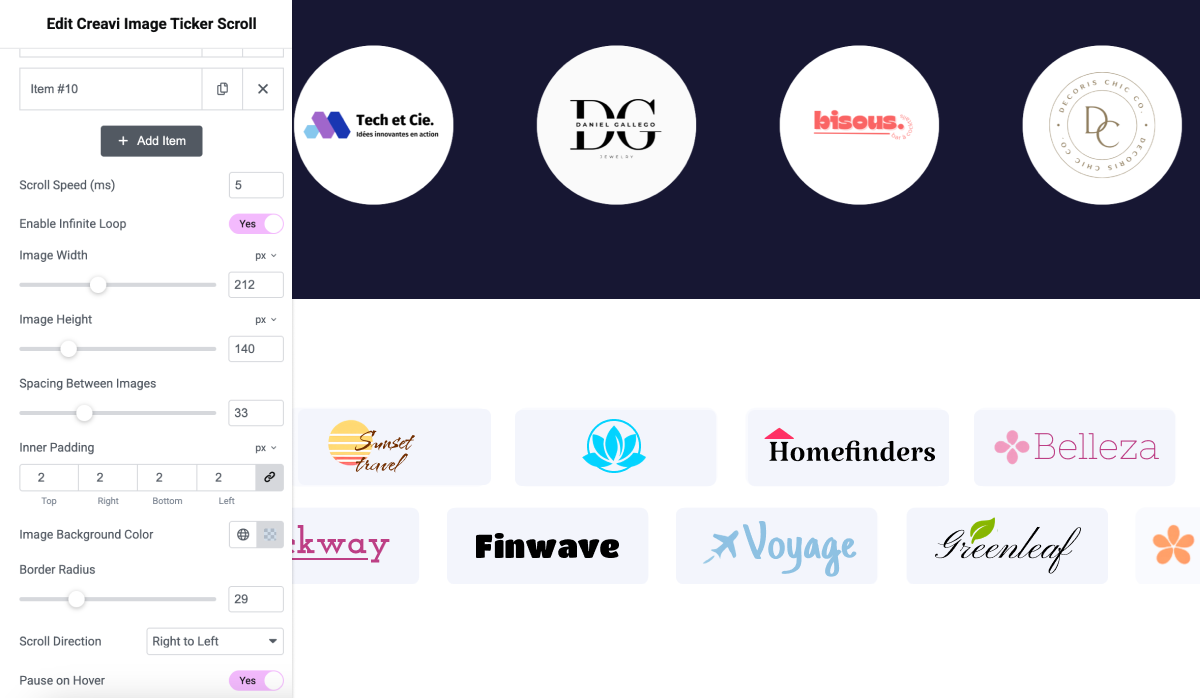
Display images with different proportions and control their width and height. Style text width, spacing, padding, backgrounds, corner radius, and typography inside Elementor. Set ticker duration, slide timing, direction, and looping, and add optional hover or wave effects.
Optional 3D oval curve for tickers and carousels
Choose 3D Oval Curve in Content > Layout & Effects > Item Layout for a ticker or step carousel. The center stays prominent while items at the sides rise, turn, and recede along an oval. Style > Curved Layout provides responsive curve height, edge scale, and edge turn controls. Images, text, badges, and links move together; image proportions and the original artwork files stay intact.
The curve is optional and starts off for existing widgets. It needs at least three usable items and room for two of the widest item slots. Narrow rows, single-item cross-fade sliders, and reduced-motion preferences use a straight layout.
Responsive images and native lazy loading
Responsive Images lets the browser choose from existing WordPress image sizes while preserving your artwork’s proportions and saved layout. Native lazy loading can defer eligible offscreen images, while the starting image loads eagerly. Both options are enabled by default and can be adjusted in Content > Image Loading. Original files are never changed or regenerated.
Elementor content and style settings
- Content: Content Source, Items & Links for manual items, Choose Entries and Map Card Fields for Site Content, Movement & Timing, Layout & Effects, Image Loading, Privacy, and Creavi Resources.
- Style: Images, Cards & Spacing, Text Layout, Title, Subtitle, Badge, Curved Layout, Edge Fade, and Navigation Arrows.
Movement Type offers Ticker — Continuous Scroll, Carousel — Slide by Slide, and Slider — Cross-fade. The panel shows the timing, navigation, and effect settings available for your selected movement style.
Elementor compatibility and accessibility
- Works with Elementor Free. Elementor Pro is not required.
- Responsive controls help the design fit desktop, tablet, and mobile layouts.
- No external slider library is loaded.
- Navigation buttons have accessible labels, and cloned loop items stay out of keyboard focus.
- Reduced motion preferences are respected for decorative animation and transitions.
- Empty repeater rows are ignored instead of creating blank slides.
Installation
- Install the plugin through the WordPress Plugins screen, or upload the plugin folder to
/wp-content/plugins/. - Activate Image Ticker Carousel.
- Make sure Elementor is installed and active.
- Edit a page with Elementor.
- Search for Creavi Image Ticker Scroll and drag the widget onto the page.
- Under Content Source, keep Manual Items to add your own cards, or choose Site Content — Posts & Custom Types and select a content type.
- Review the suggested mappings, choose entries, select a movement style, and adjust the design controls.
FAQ
How do I create a logo carousel in Elementor?
Install Image Ticker Carousel and activate Elementor. Edit a page with Elementor, add the Creavi Image Ticker Scroll widget, and add your logo images under Content > Items & Links. Choose Carousel — Slide by Slide under Movement & Timing, then adjust image dimensions, spacing, timing, and optional navigation arrows.
Do I need Elementor Pro?
No. The widget works with Elementor Free.
How do I create a carousel from a custom post type?
Choose Content > Content Source > Site Content — Posts & Custom Types, select the content type, then review Choose Entries and Map Card Fields. The suggested image, title, caption, and link mappings work immediately when the entries contain those fields. Select custom fields or enter their stored names to use your own data.
Can I show WooCommerce products with prices?
Yes. With WooCommerce active, choose the Product content type. The caption suggests the formatted product price, including sale-price formatting. You can also map product SKU, average rating, sale badge, and availability. Catalog visibility and hidden out-of-stock settings are respected.
Does this support every review or testimonial plugin?
It discovers registered post types regardless of which plugin creates them. Review and testimonial entries stored as posts can be mapped. Reviews stored as WordPress comments, including WooCommerce product reviews, and records stored only in custom database tables are not imported. A plugin’s data must be available as posts and compatible post fields or metadata.
Will upgrading change my existing manually created carousels?
No. Manual Items remains the default, and existing image lists, captions, links, styles, and movement settings are retained. Site Content is selected separately for each widget. Switching back to Manual Items restores its saved list; mapped cards do not overwrite it.
What happens when I publish or edit a connected entry?
Site Content reads matching entries when the widget renders. New or edited entries appear according to its filters and order. Existing page, Elementor element, or CDN caches can delay the visible update; clear the relevant cache when needed.
Can I use artwork and images with different proportions?
Yes. Images can keep their individual proportions within your chosen display dimensions. Responsive image loading uses existing WordPress image sizes with matching proportions when available, without modifying or replacing the original files.
Which movement style should I choose?
Use the continuous ticker for logos and short visual items. Use the step carousel when visitors need time to read each item. Use the cross fade layout when you want to show one focused item at a time.
Why can I not see the side fade option?
Side fade works with ticker and carousel modes, not the single item cross fade mode. Front end safeguards also prevent it from appearing when there is only one usable item or when one carousel item fills the viewport.
Can every item have a different link?
Yes. Add a custom link to any item. You can also enable an optional default link for items with an empty link field. Custom links always override the default.
Does the plugin add a Creavi credit link to my page?
No. The plugin does not automatically display a public credit or footer link. The optional default item link is disabled by default and works only when a site editor deliberately enables it.
Is it responsive and motion aware?
Yes. Relevant layout and style controls are responsive. Decorative effects and transitions are reduced for visitors who prefer reduced motion.
Can images load faster without resizing or replacing my original artwork?
Yes. Responsive Images is enabled by default, including on existing widgets. For Media Library images with a saved attachment ID, the widget uses WordPress srcset and per-image sizes hints so browsers can select an existing smaller version at an appropriate resolution. Only sources matching the full image’s proportions are offered. Your existing image width, height, proportions, and styling remain in place; original files are never changed or regenerated.
Lazy Load Images is also enabled by default. The starting item loads eagerly, and browsers can defer offscreen images. Images without usable dimensions keep immediate loading so older layouts can still be measured. You can disable either feature in Content > Image Loading. No page migration or re-saving is required.
For compatibility, layouts with percentage-based image dimensions or with both image dimensions cleared retain their original image loading. Those layouts depend on the image’s natural size; responsive source switching can otherwise change their appearance. Pixel-based width or height constraints, including mixed-width artwork with only a fixed height, support responsive loading.
Does the plugin convert JPG images to WebP?
No files are converted by this plugin. Existing WebP images and compatible image optimization or CDN plugins can use the standard WordPress attachment-image and responsive-source filters. Available formats and file sizes depend on your Media Library and optimizer.
What if older images have no smaller sizes or attachment ID?
The saved image URL remains the fallback. URL-only images, external images without matching attachment data, deleted attachments, SVGs without dimensions, and saved custom image variants continue to display as before. If an attachment has no suitable smaller versions, WordPress may continue serving its full image. Missing sizes can be generated separately with a thumbnail regeneration tool; this plugin does not modify your Media Library.
Screenshots


Changelog
1.5.0
- Added Site Content as an optional source for tickers, carousels, and cross-fade sliders, with discovery of registered custom post types, Posts, and Pages.
- Added suggested featured-image, title, excerpt, and entry-link mappings, with formatted-price captions for WooCommerce products.
- Added per-post-type mapping for images, titles, captions, badges, and links using custom fields, taxonomy names, product fields, or custom text and URLs.
- Added searchable field choices from registered and sampled metadata and ACF field definitions, including group subfields, plus manual field-name entry.
- Added entry counts, ordering, included/excluded IDs, offsets, taxonomy filters, caption limits, image fallback, and mapped-link options.
- Limited connected cards to published, non-password-protected entries. Added explicit per-type display switches for non-public types and per-field switches for protected metadata.
- Added WooCommerce catalog visibility checks, sale-price formatting, and product SKU, average rating, sale badge, and availability mappings.
- Kept existing manual widgets, saved settings, image loading, motion modes, and 3D oval controls compatible with 1.4.0. Empty connected results stay hidden on the live page and show guidance in the editor.
1.4.0
- Added an optional 3D Oval Curve layout for multi-item tickers and carousels, with responsive curve height, edge scale, and turn controls.
- Added automatic straight-layout fallbacks for narrow rows, too few items, and reduced-motion preferences.
- Added WordPress responsive image sources, per-image size hints, asynchronous decoding, and native lazy loading, with the starting image loaded eagerly.
- Preserved original artwork, image proportions, saved dimensions, custom/external image fallbacks, and image/CDN optimizer filters. Added switches for responsive and lazy loading.
- Updated movement measurements after image loads and viewport changes so deferred images do not leave stale loop distances or navigation positions.
- Organized existing settings into focused Content and Style sections and clarified ticker, carousel, and cross-fade choices without changing saved names or defaults.
- Kept curve transforms separate from image sizing, navigation boundaries, and loop measurements; limited animation work for offscreen, paused, completed, or removed curved widgets.
- Retained the 1.3.1 non-loop carousel boundary fix, existing links, captions, badges, and manual item content.
1.3.1
- Fixed the non-loop Step Carousel stopping position so the final visible group no longer leaves empty space at the end.
- Improved navigation boundaries when the full carousel already fits inside the viewport.
1.3.0
- Added three movement styles: continuous ticker, step carousel, and single item cross fade.
- Added optional, customizable navigation arrows for carousel and cross fade layouts.
- Added responsive side fading for supported multi item layouts.
- Added an opt-in default link for items without a custom link. Custom item links always take priority.
- Added context aware safeguards for arrows, side fades, timing controls, and single item layouts.
- Improved looping, non-loop boundaries, resizing, direction support, timing, navigation, and accessibility.
- Removed the public Creavi credit experiment. Older saved credit settings are ignored.
- Added official Plugin URI and Author URI metadata, plus clearer readme and privacy information.
1.2.4
- Added movement effects, responsive controls, accessibility improvements, optional metrics, and improved review prompts.
1.2.3
- Added an update opt-in prompt, improved review and support links, and removed the legacy release notice.
1.2.2
- Added optional item badges with position, color, typography, padding, and radius controls.
1.2.1
- Added an optional email subscription, a Creavi resource page, and subscription management.
1.2.0
- Added item titles, subtitles, text styling, and full card links.
1.1.1
- Added an optional item hover effect.
1.0.0
- Initial release with image items, ticker speed, direction, spacing, sizing, links, hover pause, looping, and design controls.