

Description
Sync content and media between WordPress sites: staging, production, client sites. No full migration needed.
Pick the posts or pages you changed and push them to the live site, or pull them back. Images and featured images, ACF fields (repeaters, groups, flexible content, galleries, clones), Elementor and Gutenberg layouts, synced patterns, categories, authors and comments come along. Links and media addresses are rewritten for the target site, and nothing else on it is touched.
Need files instead? Import and export posts, pages, comments and media as CSV, XML (including WordPress export files), JSON, XLSX or ODS, with field mapping, previews and background jobs. Move a whole site’s content with Content Migration, or register files uploaded by FTP in the Media Library with Media Folder Sync.
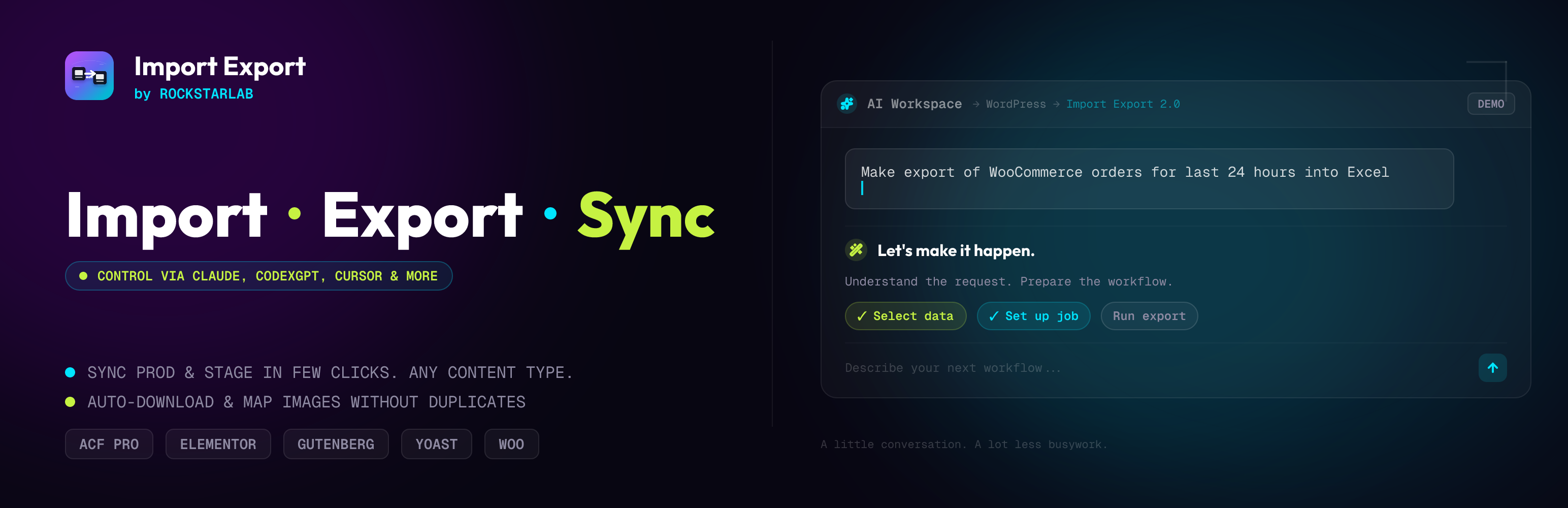
Works with AI agents. Connect Claude, Cursor, Codex or another MCP client and ask it to sync pages, prepare an import, export content or check a job. The plugin exposes its operations through the WordPress Abilities API and the official WordPress MCP Adapter. AI is optional: every workflow also works in WP Admin and WP-CLI, without an AI account or API key.
Read how to sync content between two WordPress websites without export files and how to use the plugin with AI agents like Claude, Codex and Cursor.
Test: AI browser agent vs Content Sync. We had an AI agent copy a WordPress page between two sites by clicking through wp-admin, then did the same with Content Sync. See the time, the steps and what went missing.
The free plugin includes Content Sync for posts, pages and media; import/export for posts, pages, comments and media; Content Migration; All Site URLs export; Media Folder Sync; WP-CLI and background jobs. The optional PRO addon adds custom post types, menus, users, taxonomy terms, WooCommerce data, database tables, Content Updater and field transformations, for both the admin tools and connected agents.
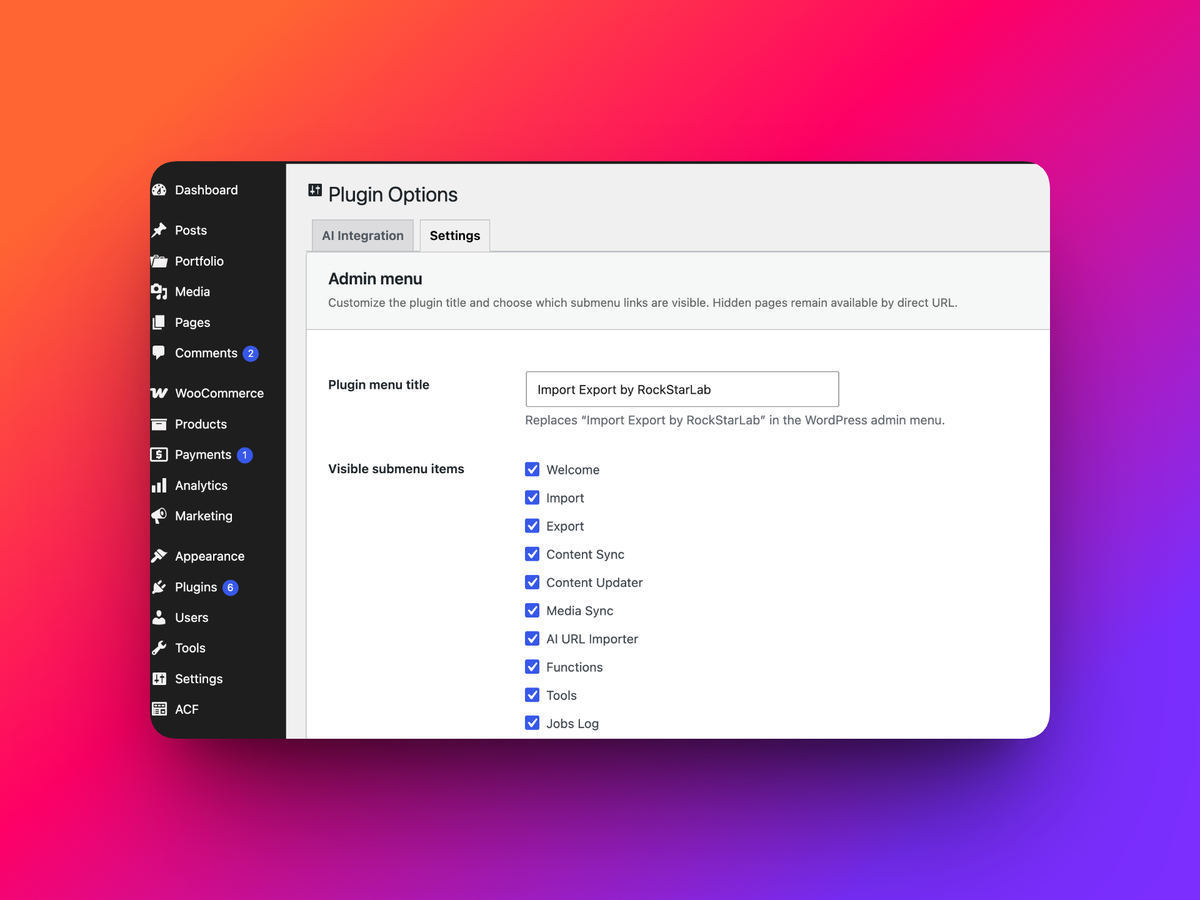
Formerly named “Import Export by RockStarLab”: same plugin, same settings, same updates.
🌐 Website: wpimportexport.com
📖 Video Tutorials: wpimportexport.com/import-export-video-tutorials-for-wordpress
📰 Blog: wpimportexport.com/blog
🚀 PRO version: New users can try PRO free for 1 month, no credit card required.
⏳ LIMITED OFFERS: Lifetime license for the first users | Get PRO For Free
Want to try it before installing? Open the Live Plugin Preview on WordPress.org to explore the admin screens in a temporary WordPress Playground site with sample content.
Work with AI Agents
Describe the task in your connected AI assistant and let it use the plugin’s available actions. For example:
- “Export my published posts to CSV, including titles, URLs, and SEO metadata.”
- “Preview this CSV and suggest a field mapping before importing it as draft pages.”
- “Sync these selected pages from staging to my connected production site.”
- “Show the progress and errors for my latest import job.”
Send requests like these from your connected agent’s interface. Available actions depend on your plugin edition, installed integrations, and WordPress permissions.
Connect your agent
- Open Plugin Options → AI Agent Connection in WP Admin and turn on Enable Abilities API.
- Follow the setup wizard to check your site and enable the official WordPress MCP Adapter.
- Create a WordPress Application Password for an account with administrator permissions.
- Add the displayed MCP endpoint and credentials to your compatible agent or MCP bridge, then ask it to list the plugin’s available actions.
For step-by-step instructions and workflow examples, read the WordPress Abilities API guide for AI agents: exports, imports, content sync, and backups.
Agent access requires the WordPress Abilities API and a client that can reach your site and authenticate with its MCP endpoint. The connection screen checks the site’s requirements. Client setup varies; some assistants need an MCP bridge for the supported authentication method. Developers can also use the Abilities REST API directly.
You choose when to enable agent access. It is off by default and can be turned off independently of the admin tools. Agent operations check WordPress permissions, and premium operations require an active PRO license.
AI agent access and AI URL Importer are separate features. Connecting an agent does not require an OpenAI API key in this plugin. The AI URL Importer uses a configured AI provider to extract content from public URLs; your external AI assistant uses its own account and service settings.
Common Use Cases
- 🔄 Push edited pages and posts from staging to production, and pull them back
- 🌐 Keep several sites in step: copy posts, pages and media between them
- 🖼️ Sync media with its titles, alt texts and ACF fields, without duplicates
- 🚚 Move content to a new site with media, ACF, Elementor and SEO data
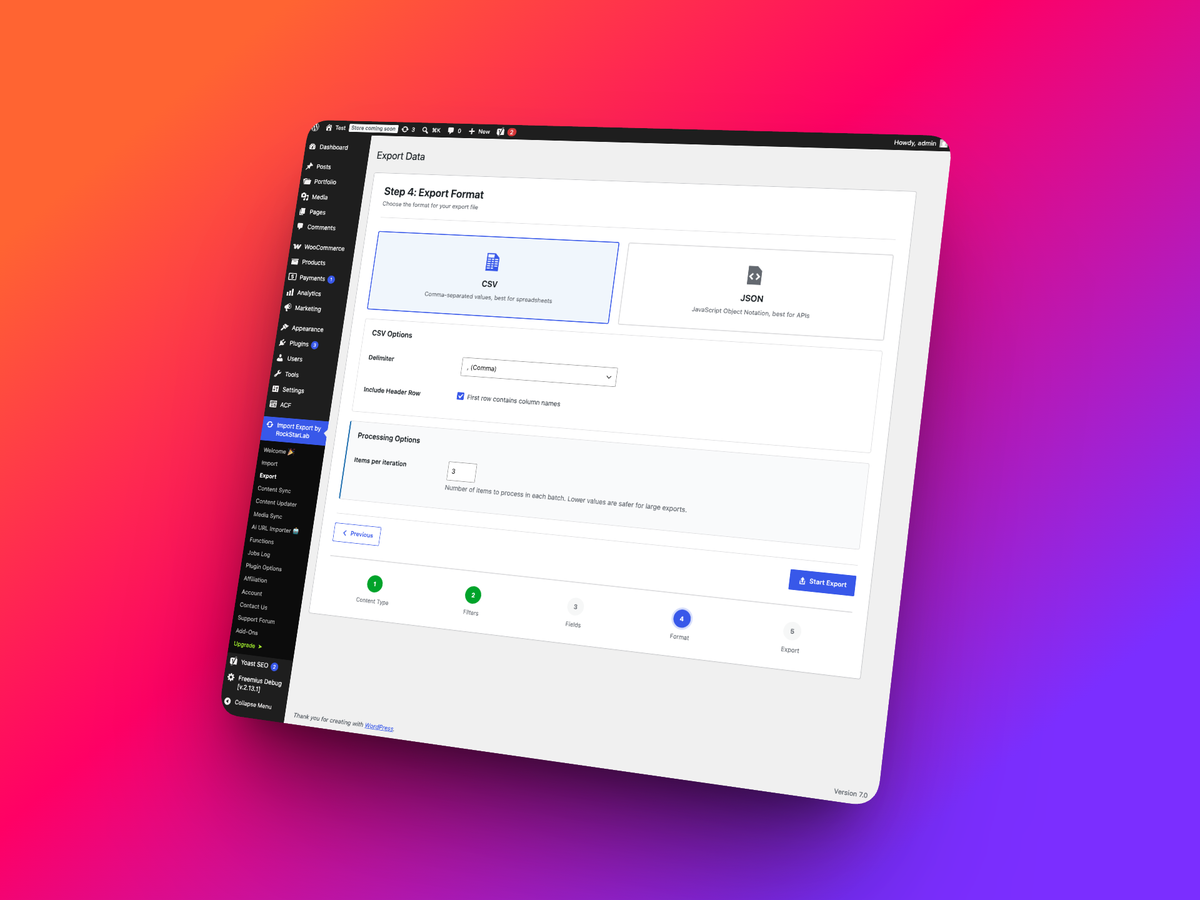
- 📄 Import and export CSV, XML, JSON, XLSX and ODS files with field mapping
- 💬 Run sync, import and export tasks from a connected AI agent
- 🔎 Build a full public URL inventory for SEO audits
- 🧾 Re-run imports, exports and sync jobs from history
- 🤖 Convert public URLs into draft WordPress content with AI
- 🚀 Use PRO for custom post types, users, menus, taxonomy terms, WooCommerce data, transformations and bulk content updates
Features
Choose the WordPress admin interface or a connected AI agent for your data workflows:
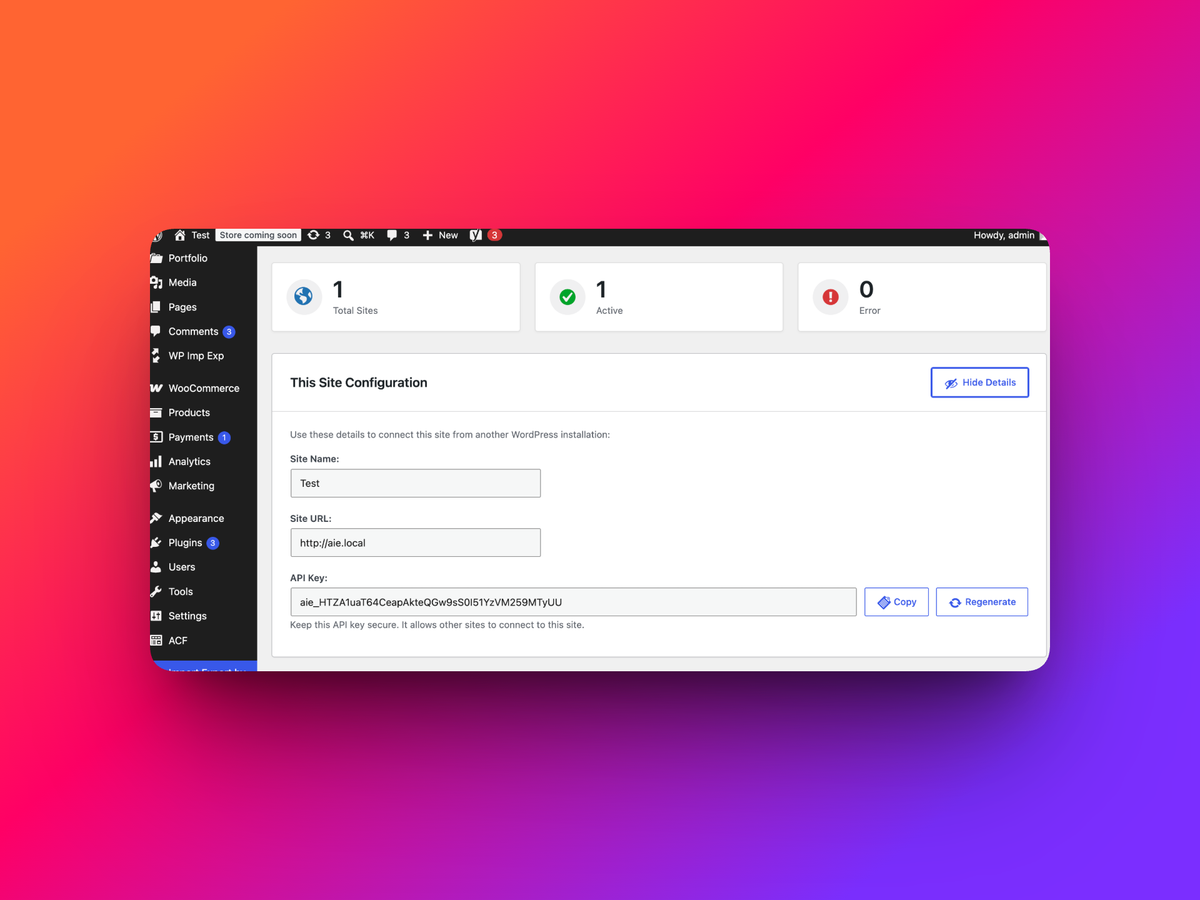
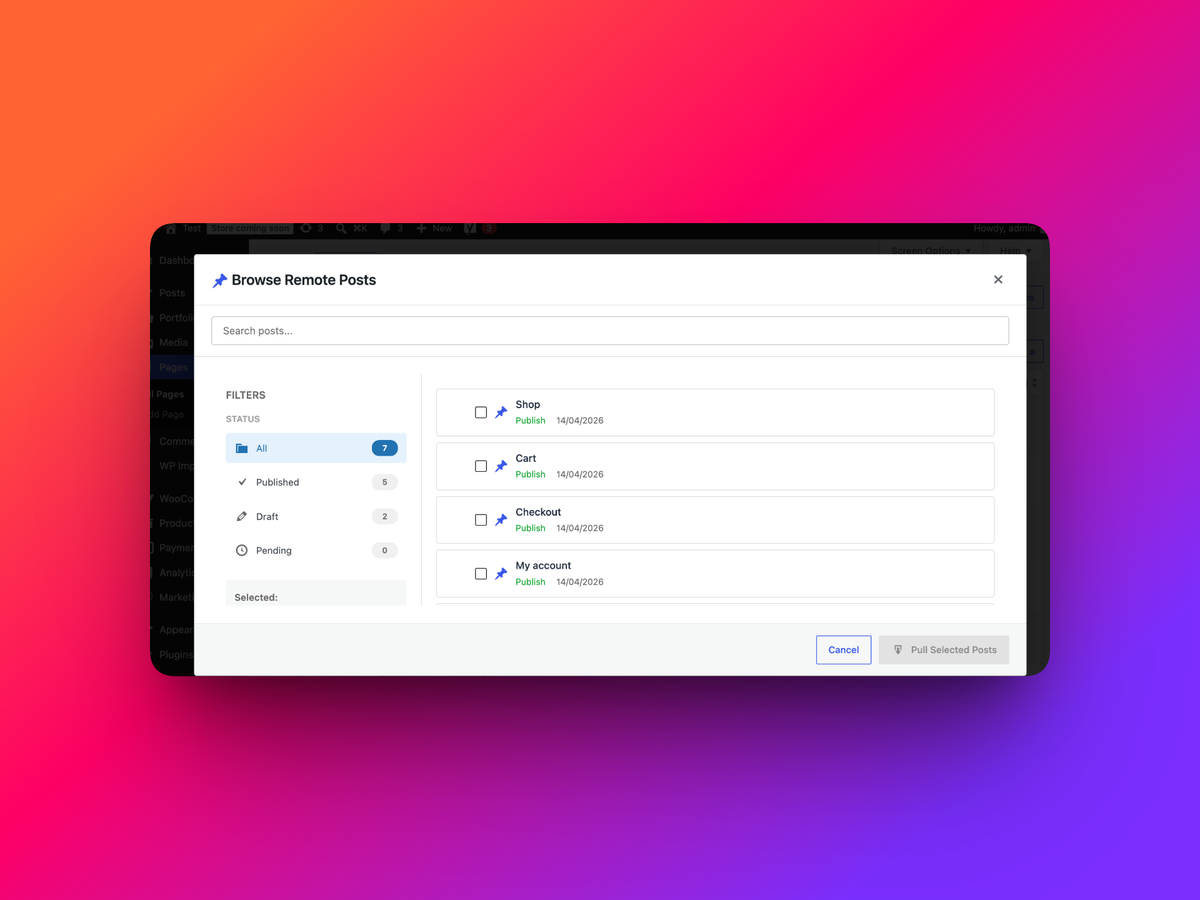
- 🔗 Site-to-Site Content Sync: Connect WordPress sites with API keys, then push or pull selected posts, pages and media with their images, ACF fields, Elementor/Gutenberg layouts and synced patterns.
- 💬 AI Agent Access: Connect compatible agents through MCP to discover and run supported plugin operations.
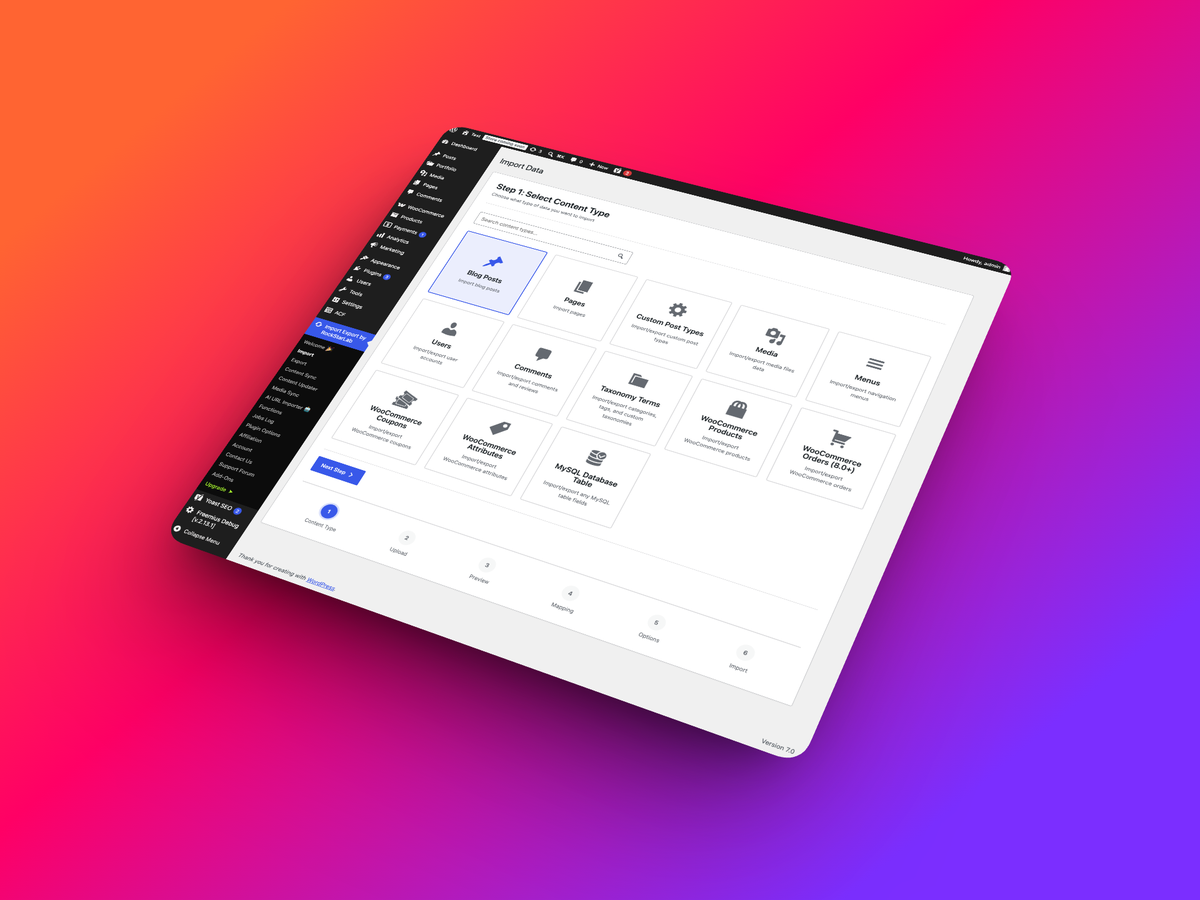
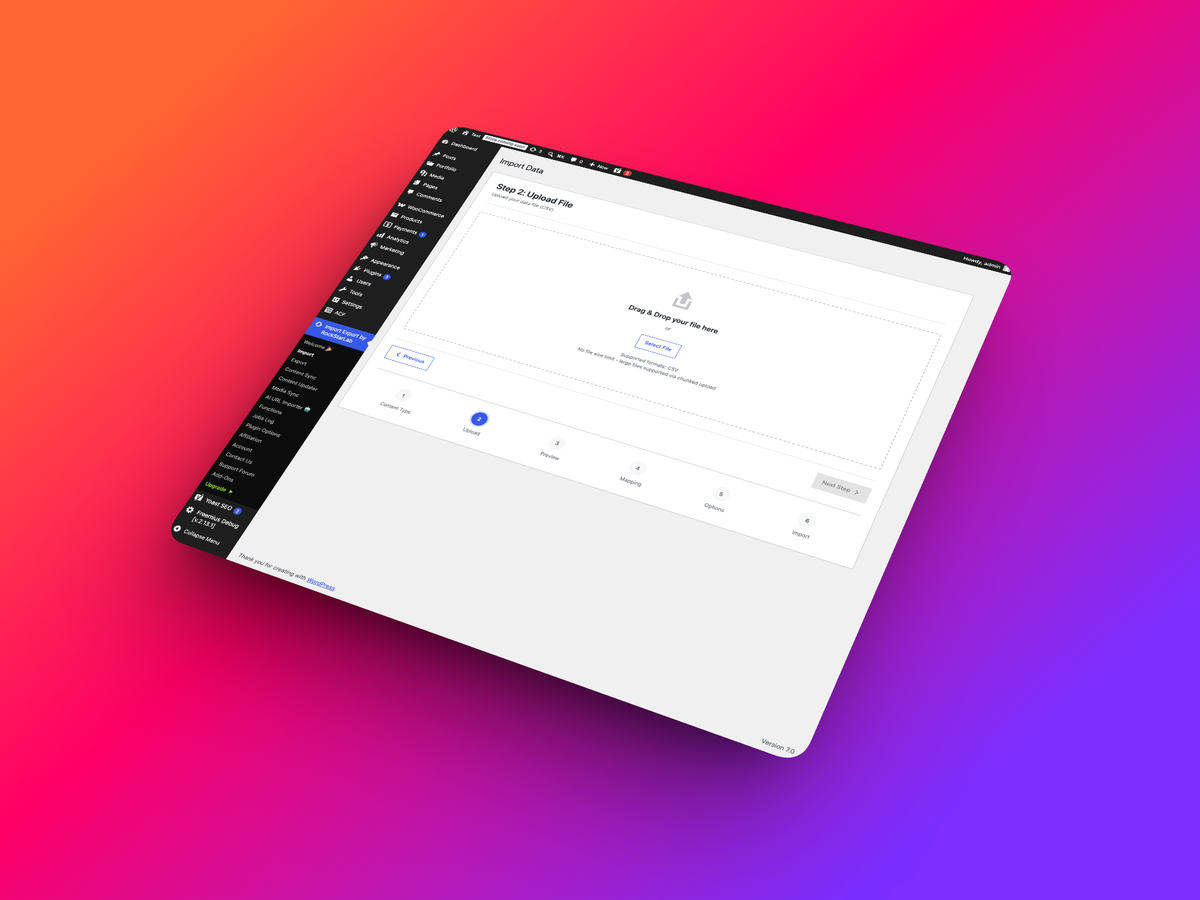
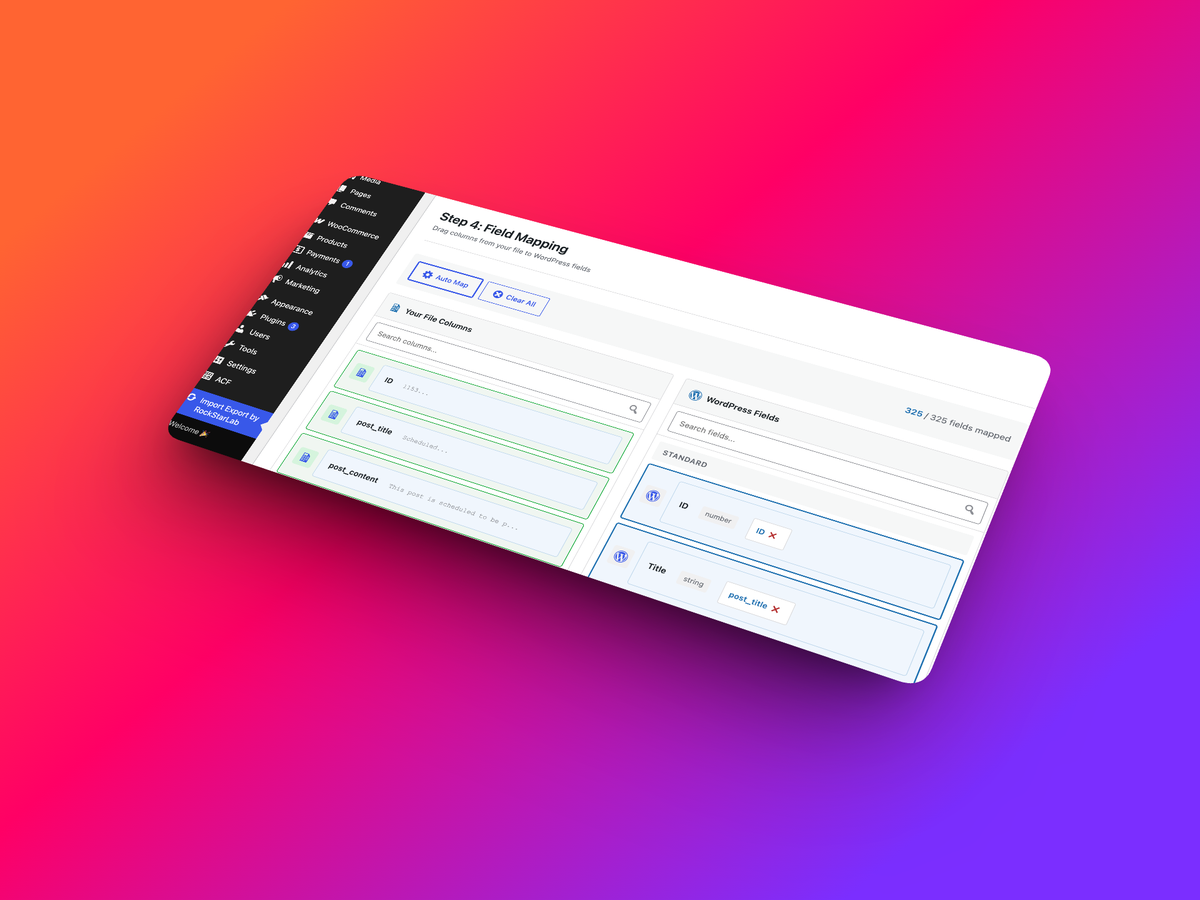
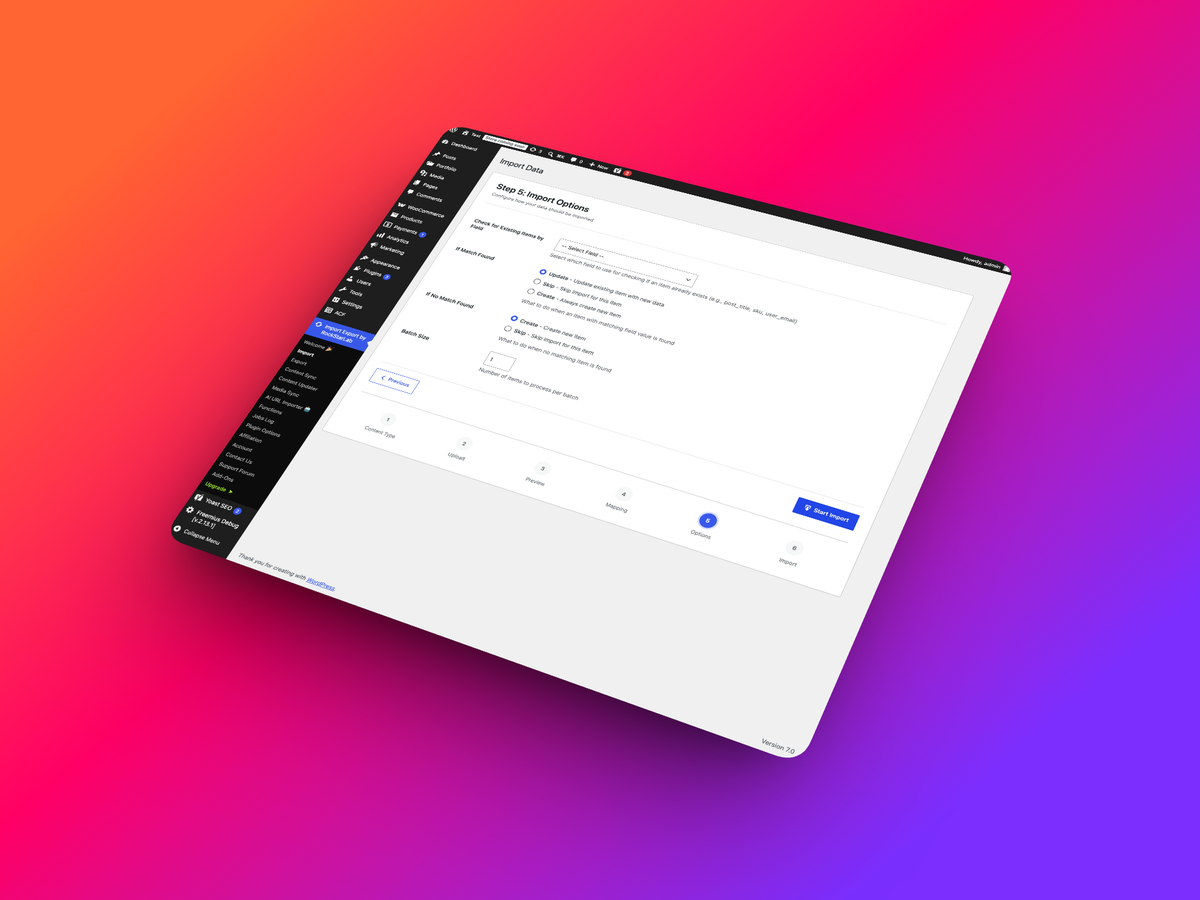
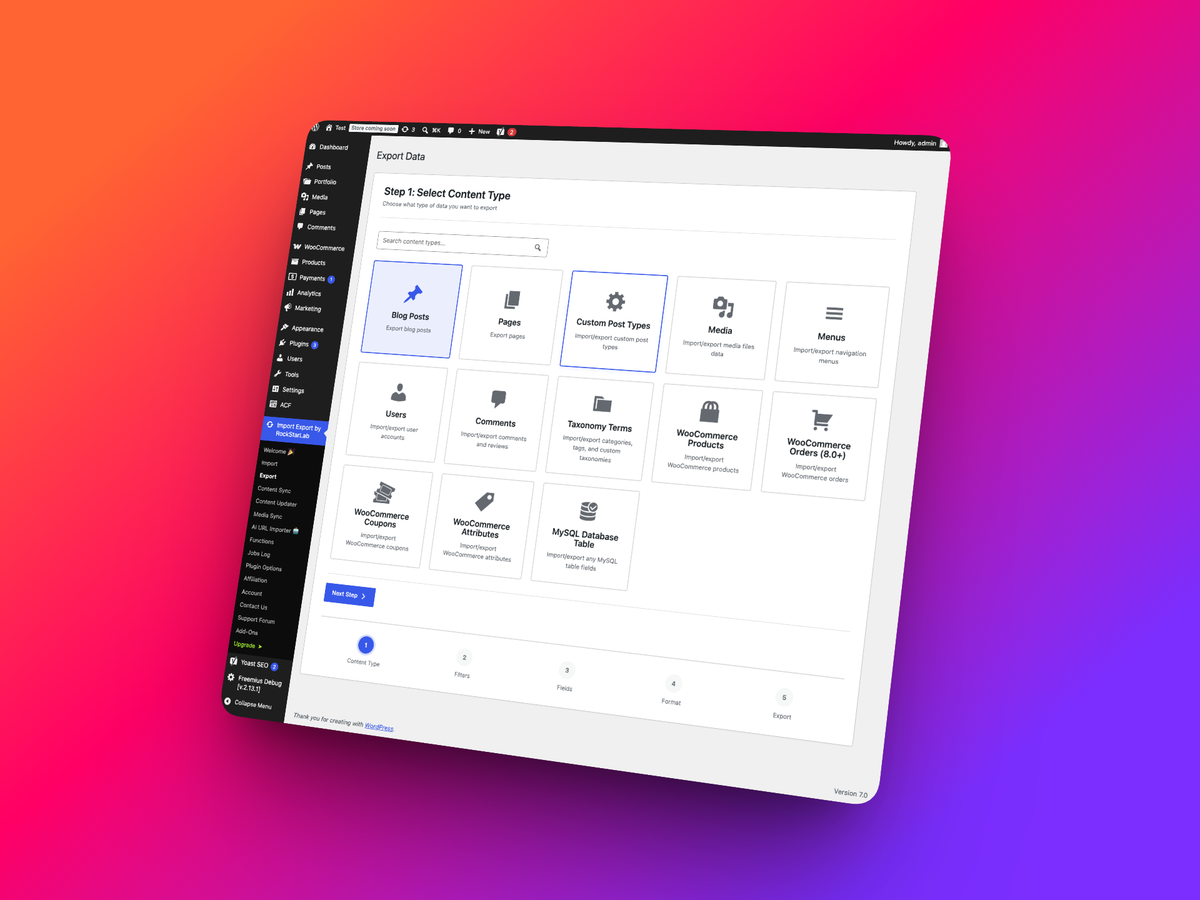
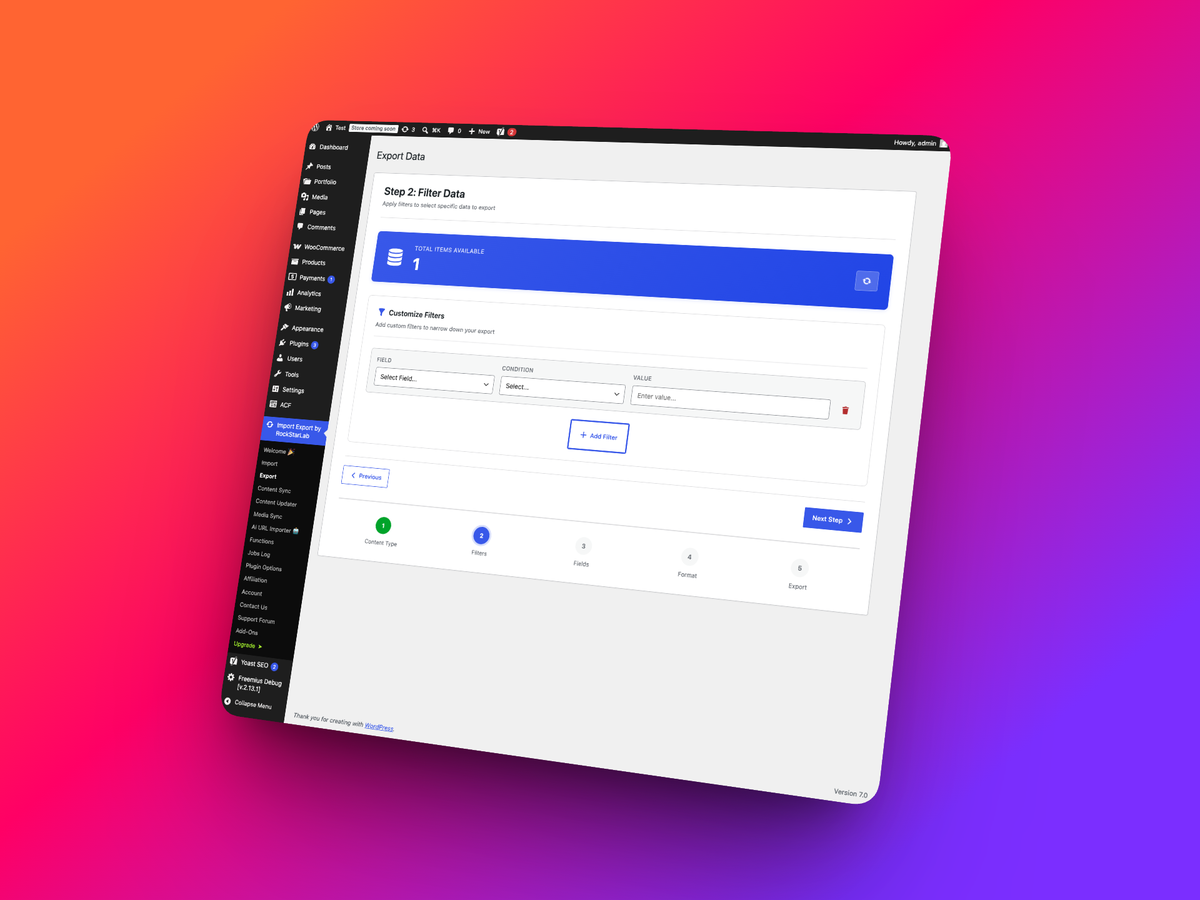
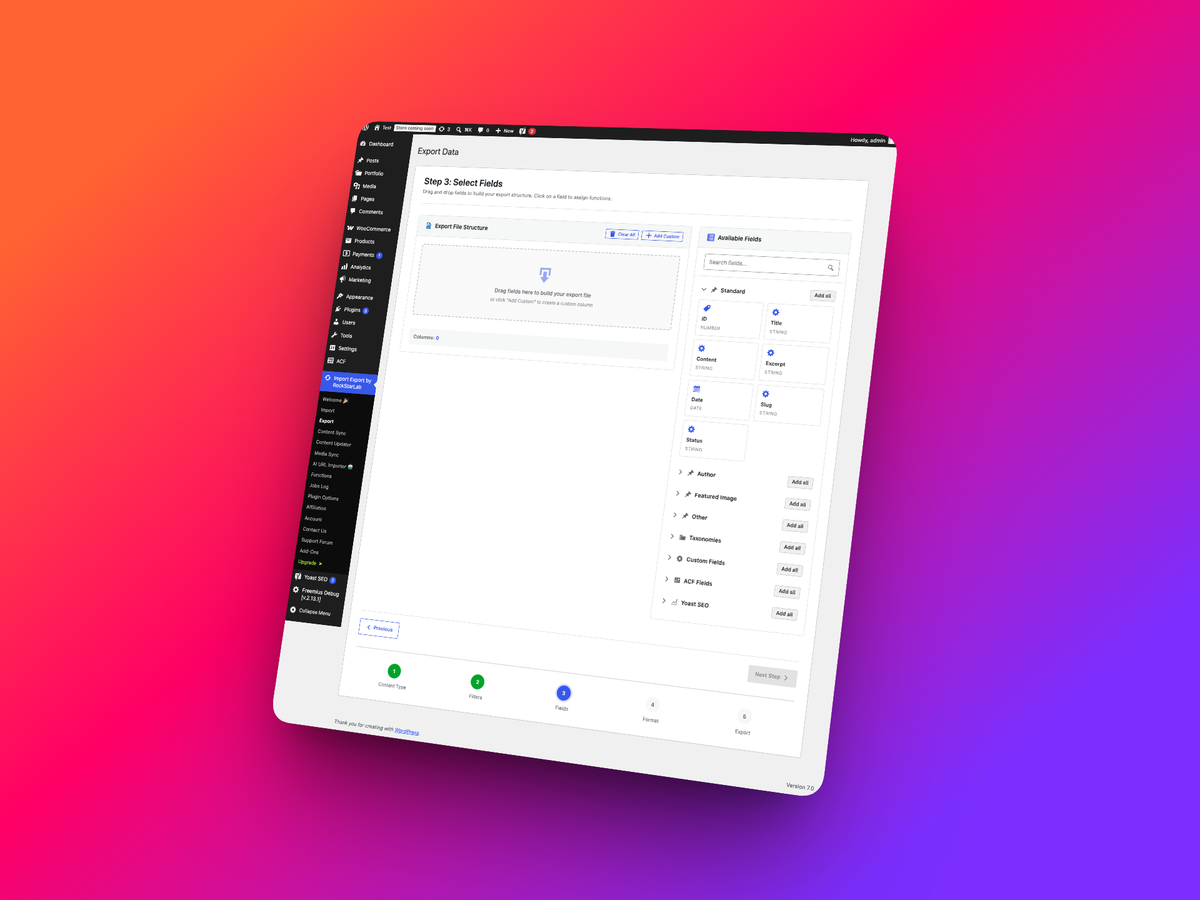
- 🖱️ Visual Admin Tools: Upload files, map fields, preview data, and manage jobs directly in WordPress.
- ⌨️ WP-CLI Commands: Run imports, exports, schedules and triggers from the command line or CI with
wp rsl-ie importandwp rsl-ie export, without waiting for WP-Cron. - 📥 CSV, XML, JSON, XLSX, and ODS Import/Export: Move posts, pages, comments, and media with flexible field mapping, previews, validation, and background processing.
- 🌍 All Site URLs Export: Export a clean CSV or JSON list of public frontend URLs from posts, pages, custom post types, taxonomies, archives, feeds, and REST API endpoints.
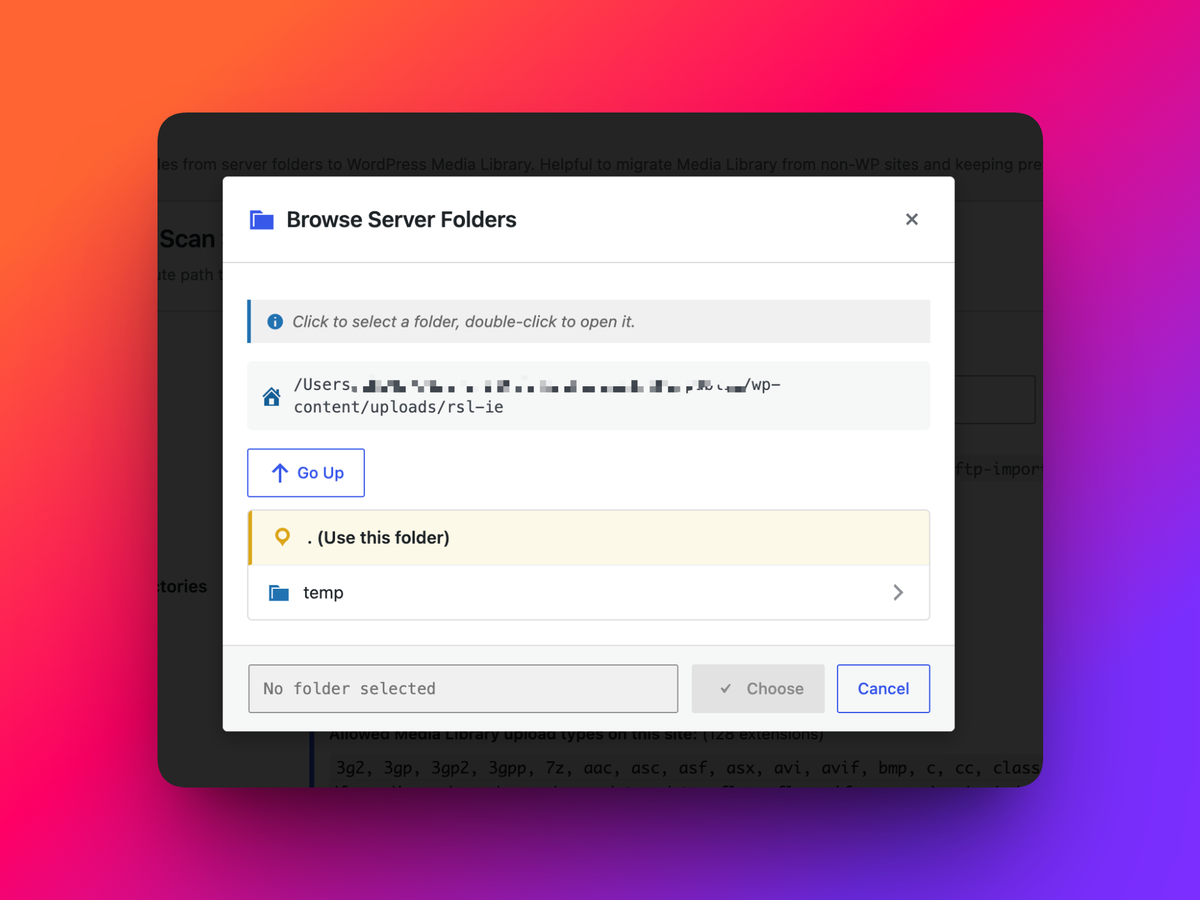
- 🖼️ Media Folder Sync: Scan server folders and register uploaded files in the WordPress Media Library with duplicate detection.
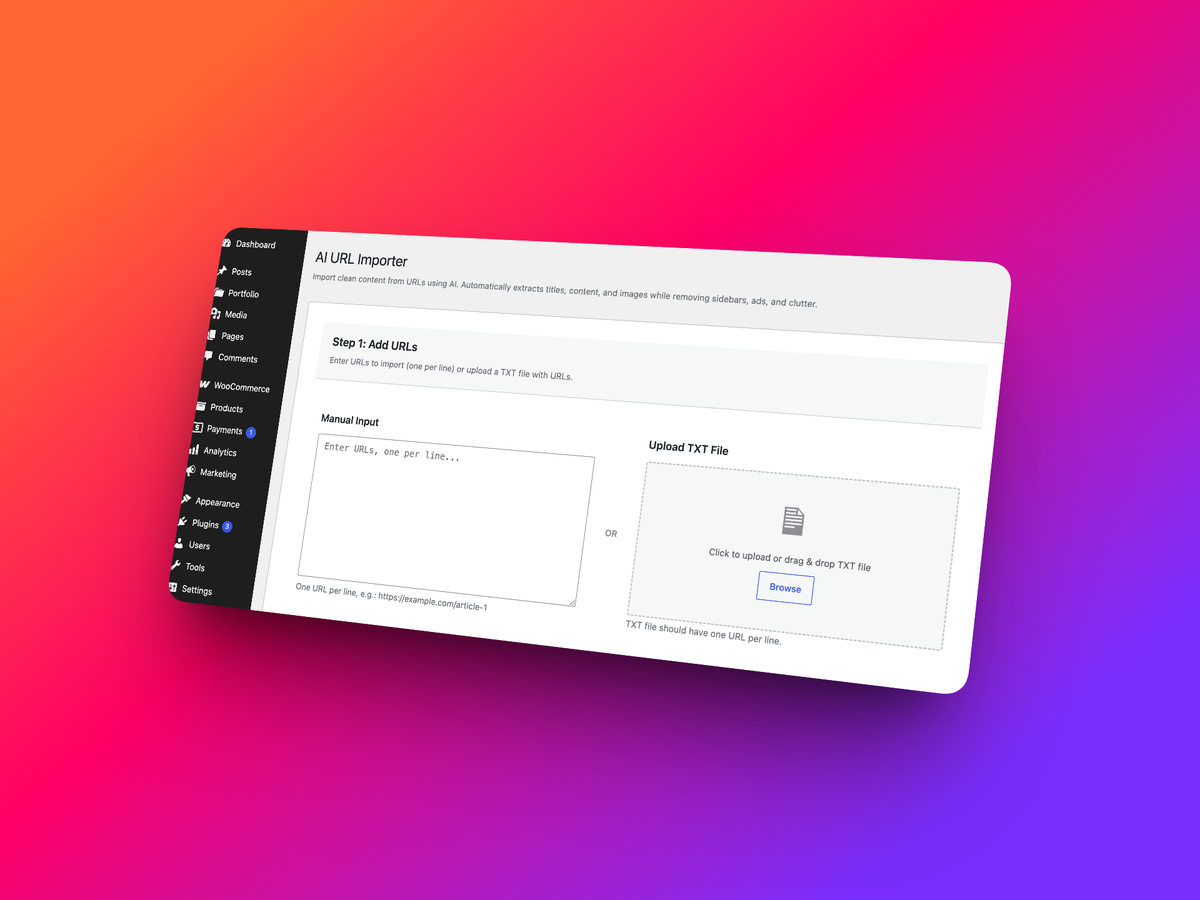
- 🤖 AI URL Importer: Extract structured content from public URLs with a configured AI provider, including OpenAI.
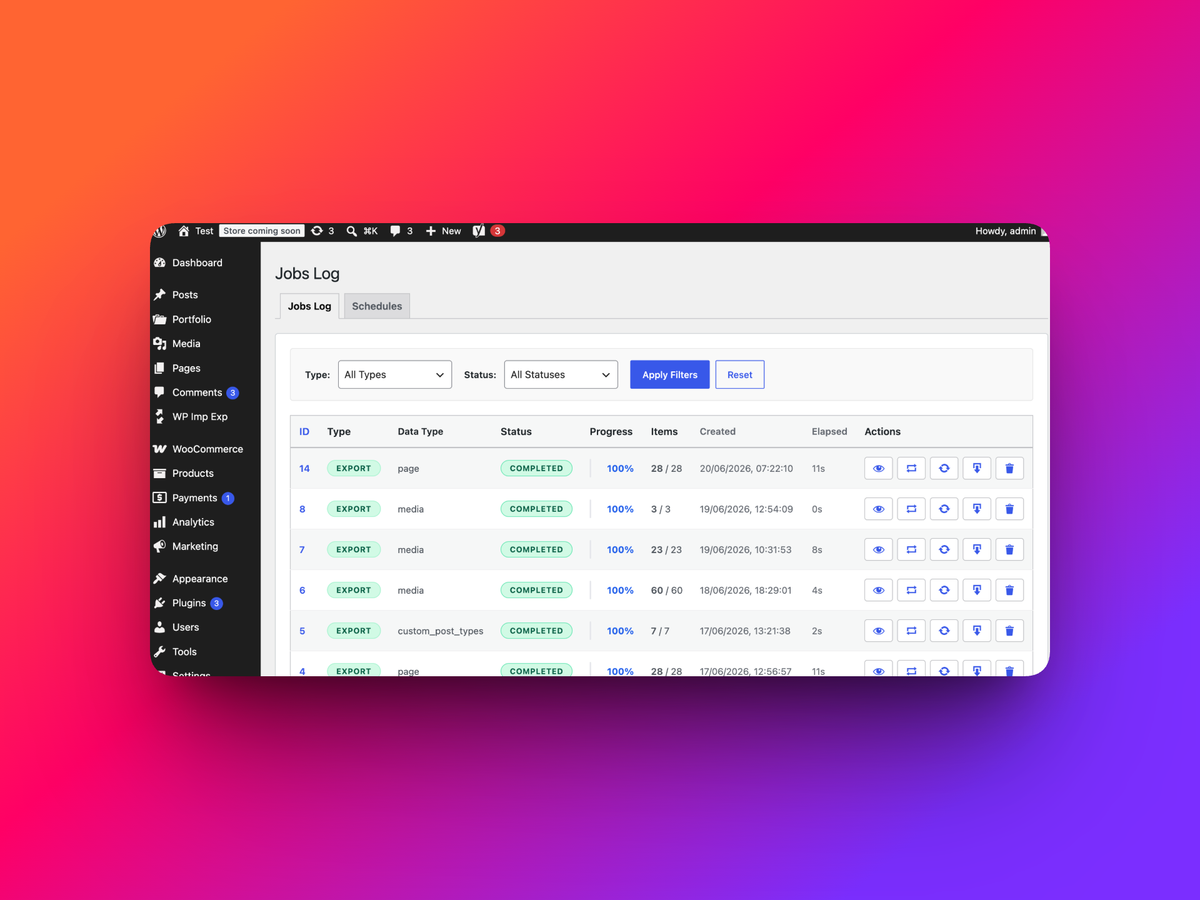
- 🧾 Jobs Log: Re-run previous imports, exports, and sync jobs without rebuilding the whole setup.
- 🧪 Live Plugin Preview: Try the plugin in a temporary WordPress Playground demo powered by the included blueprint.
- 🧩 Metadata-Aware Workflows: Designed for custom fields, SEO metadata, media references, and builder-heavy sites.
PRO Addon
Start free with posts, pages, comments, media, URLs, and core content sync workflows, using WP Admin or a connected AI agent. Choose PRO when you need custom content types, WooCommerce data, bulk updates, or transformations. AI agent access is included in free; PRO expands what your agent can work with.
New users can try the PRO version free for 1 month, no credit card required. Want PRO for lifetime? See how to get it for free here: wpimportexport.com/get-pro-for-free
PRO adds:
- 🧱 Import/export for Custom Post Types, Menus, Taxonomy Terms, Users, Database Tables, and WooCommerce Products, Orders, Coupons, Refunds, Customers, Reviews, and Attributes
- ✏️ Content Updater for changing existing content in bulk without doing a full import cycle
- 🪄 Transformation functions for cleaning, combining, changing, or normalizing values during workflows
- 🧬 Advanced custom-field and metadata workflows for ACF, SEO plugins, builders, and WooCommerce stores
- 🔄 More site-to-site sync coverage for custom content models
- 💬 Premium agent operations for supported PRO import, export, sync, Content Updater, and transformation workflows
- 🏢 Workflow tools built for agencies, WooCommerce teams, content teams, and developers managing staging-to-production releases
Affiliate Program
Love Content Sync, Media Sync, Import, Export? Join our affiliate program and earn commissions by recommending the plugin to WordPress agencies, WooCommerce stores, content teams, and site owners who need reliable import, export, migration, and sync workflows.
Affiliate details are available on our website: wpimportexport.com
Why Choose This Plugin?
Manage content, metadata, media, sync, jobs, and URL audits in one plugin. Start with visual admin tools, connect an AI agent when it suits your workflow, and add PRO when you need more data types or bulk editing tools.
- Built for Real WordPress Sites: Works with posts, pages, media, metadata, ACF, Elementor, Yoast SEO, Rank Math SEO, and WooCommerce workflows.
- Background Processing: Large jobs run in batches, with progress tracking and logs.
- Repeatable Operations: Save time by re-running jobs from history.
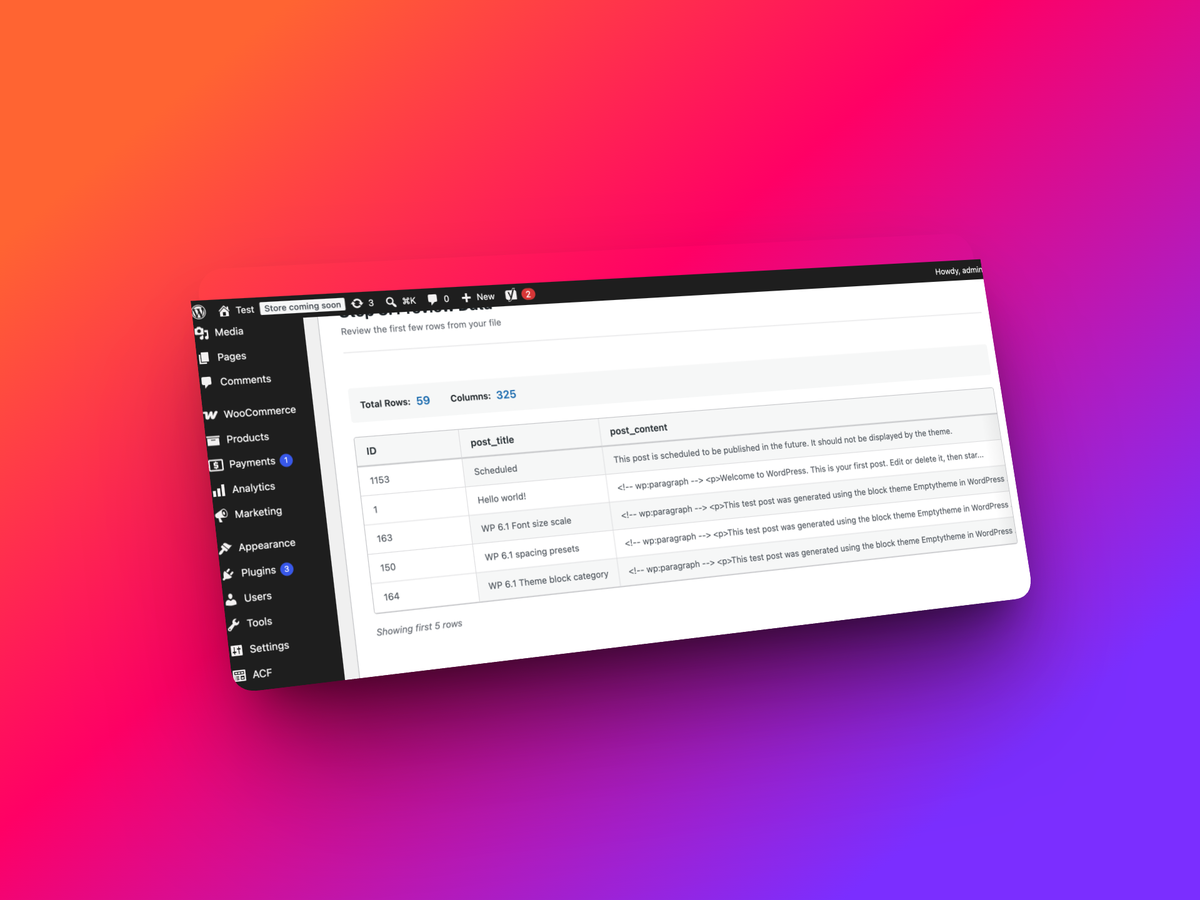
- Human-Friendly Mapping: Preview source data and map it to WordPress fields before the job runs.
- Built for Humans and AI Agents: Work in WP Admin or use a connected assistant to run supported data operations.
- Optional AI Content Extraction: Turn public URLs into WordPress content with the separate AI URL Importer.
- Free to Start, PRO When You Grow: Start with core migration and sync tools, then upgrade when you need custom content types, transformations, WooCommerce data, or Content Updater.
Core Features
- Multiple Data Types: Posts, Pages, Comments, and Media in free; additional content types via the optional PRO addon
- All Site URLs: Export public site URLs from posts, pages, custom post types, taxonomies, post type archives, author/date/search archives, RSS/Atom/comments feeds, and REST API endpoints
- File Formats: Import and export CSV, XML, JSON, XLSX, and ODS files
- Background Processing: Handle large datasets in batches to reduce timeout and memory-limit problems
- Field Mapping: Intuitive field mapping interface with preview
- Validation System: Comprehensive data validation before import
- Media Folder Sync: Synchronize FTP-uploaded files with WordPress Media Library
- Site-to-Site Sync: Connect and sync content between two WordPress sites
- Progress Tracking: Real-time progress bars and detailed logs
- History & Logs: Complete history of all import/export operations
- Live Preview Blueprint: WordPress Playground blueprint support for the Live Plugin Preview on WordPress.org
All Site URLs
Create a clean inventory of public frontend URLs from your WordPress site:
- Content URLs: Posts, Pages, Media, and public Custom Post Types
- Taxonomy URLs: Categories, Tags, WooCommerce taxonomies, and other public term archives
- Archive URLs: Post type archives, author archives, date archives, homepage/front page, and search results URL
- Technical URLs: Optional RSS feeds, Atom feeds, comments feed, post type feeds, REST API root, and REST post type endpoints
- Simple Output: CSV or JSON file with a single URL column
- Bulk Selection: Quickly select or deselect Posts, Taxonomies, REST endpoints, RSS feeds, Atom feeds, and Comments feeds
- Jobs Log Support: Re-run URL export jobs or download completed files from the Jobs Log
Site-to-Site Content Sync
Synchronize content between two WordPress sites with secure API-based connection:
- API Key Connection: Connect sites with secure 64-character API keys
- Bidirectional Sync: Pull from remote site or push to it
- Content Types: Posts and Pages (additional content types via the optional PRO addon)
- Selective Sync: Filter by ID, date, author, status, taxonomy
- Conflict Resolution: Skip, Update, or Duplicate strategies
- Media Sync: Automatically download and sync media files
Media Folder Sync
Easily synchronize files from server folders (uploaded via FTP/SFTP) to your WordPress Media Library:
- Scan Server Folders: Browse and select folders with recursive scanning
- File Type Filters: Choose specific file types or all WordPress-allowed types
- Duplicate Detection: Three methods (Hash, Filename, Filesize) to skip duplicates
- Preserve Structure: Maintain original folder hierarchy
- Batch Processing: Handle large numbers of files efficiently
- Auto Alt Text: Generate alt text from filenames
- Real Media Library: Automatically create folder structure in Real Media Library plugin (the plugin is not included)
PRO Content Types and Tools
The PRO addon extends Import and Export with additional content types, adds the Content Updater, and enables field transformation integrations.
Perfect For
- 🚚 Site Migration: Moving content between WordPress sites
- 🌐 Multi-Site Management: Sync content across multiple WordPress installations
- ⚡ Bulk Operations: Updating hundreds or thousands of posts at once
- 🔌 Data Integration: Importing data from external systems
- 📝 Content Management: Exporting for backup or analysis
- 🖼️ Media Organization: Organizing FTP-uploaded files into Media Library
- 🏢 Agency Workflows: Moving content from staging to production without manual rebuilding
- 🔎 SEO Workflows: Exporting URLs and preserving SEO metadata during migrations
- 🛒 WooCommerce: Product catalog management (via the optional PRO addon)
Works With
- 🧱 WordPress
- 🧩 ACF (Advanced Custom Fields) and ACF Pro (Flexible content, repeaters)
- 🛒 WooCommerce (PRO addon)
- 🎨 Elementor
- 🔎 Yoast SEO
- 📈 RankMath SEO
- 🗂️ Real Media Library
- 🤖 OpenAI (AI URL Importer)
- 💬 Compatible MCP clients, including Claude Code, Cursor, and Codex (connection setup required)
External services
This plugin connects to the following external services:
OpenAI API
Used for AI-powered features:
- AI URL Importer (extracts clean content from a URL)
What data is sent and when:
- When you use the AI URL Importer, the plugin fetches the target URL content and sends the cleaned page content and the URL to OpenAI for extraction.
Service provider:
Tutorials
Learn how to use the plugin in real WordPress workflows:
- How to use the WordPress Abilities API with AI agents: exports, imports, content sync, and backups
- How to export all WordPress URLs to CSV or JSON
- How to use Jobs Log and schedule WP import and export jobs
- How to export and import WordPress media files without duplicates
- How to import posts, pages, and custom post types with ACF Pro fields
- How to export WordPress posts, pages, and custom post types with ACF Pro fields
- How to sync content between two WordPress websites without export files
- How to import content from a URL into WordPress with AI
- What are transformation functions and how to use them during import or export
- How to register FTP/SFTP uploaded files in the WordPress Media Library
FAQ
Can I sync just one page from staging to the live site?
Yes. Connect the two sites once with an API key, then use Sync on the page (in the editor or in the Pages list) and choose Push. Only that page, its images and the fields it uses are sent; the rest of the live site is not touched. Pull works the other way.
Can I import a WordPress export (WXR) file from Tools → Export?
Yes. Upload the .xml file in a Posts or Pages import. Posts and pages are imported separately, with their featured images, categories, tags, custom fields, Elementor designs, page hierarchy and comments. A Media import of the same file adds its images to the Media Library and attaches them to the imported posts.
Is this the plugin formerly called “Import Export by RockStarLab”?
Yes. Only the name changed. The plugin, its settings, jobs, connections and updates stay the same.
Do I need an AI agent to use this plugin?
No. You can import, export, map fields, sync content, and manage jobs in WP Admin as before. Agent access is optional and disabled by default.
Can I use Claude, Cursor, or Codex to manage my WordPress data?
Yes, with a compatible MCP connection. Open Plugin Options → AI Agent Connection and follow the setup wizard. Your client must support the site’s MCP transport and authentication, directly or through a bridge. The agent can discover and run the operations available to your account and plugin edition.
Does it work on WordPress Multisite?
Yes. Activate it for the whole network or for single sites. Each site keeps its own jobs, schedules, settings and files, and Content Sync can copy posts and pages between sites of the network. Site administrators can use it on their own site.
Can I run imports and exports with WP-CLI?
Yes. wp rsl-ie import posts.csv --type=post --user=admin imports a file and wp rsl-ie export --type=post --format=xlsx --output=posts.xlsx --user=admin exports one. The job runs in the same process until it finishes, so WP-Cron is not needed. Run wp help rsl-ie for all commands, including jobs, schedules, triggers and calling any ability. Exit codes: 0 done, 1 error, 2 finished with failed rows.
Is AI agent access included in the free version?
Yes. The free plugin exposes supported free workflows to connected agents. An active licensed PRO addon adds premium content types and tools, including Content Updater and transformations.
Do I need an OpenAI API key?
Not for ordinary imports, exports, sync, or connecting an external agent. Your agent uses its own service setup. The separate AI URL Importer requires a configured AI provider; using OpenAI for extraction requires OpenAI credentials.
Can I disable AI agent access and keep using WP Admin?
Yes. Turn off Enable Abilities API on the AI Agent Connection screen. The plugin’s agent operations become unavailable, while the admin tools remain usable. Turning it off does not cancel background jobs that have already started.
Can I import large files without timeout issues?
The plugin processes large jobs in background batches to reduce timeout and memory-limit problems. Practical limits depend on your hosting resources, file contents, and server configuration.
Can I transform data during import?
Yes. The optional PRO addon includes field transformations for import, export, and Content Updater workflows.
How do I avoid importing duplicate media files?
Use the Media Folder Sync feature with duplicate detection. Choose from three methods: Hash (most accurate), Filename (fastest), or Filesize (balanced).
Can I sync content between two WordPress sites?
Yes! Use the Site-to-Site Content Sync feature. Connect two sites with API keys and sync supported core content in free, with expanded custom content workflows available through the optional PRO addon. Choose between Pull (import from remote) or Push (send to remote) operations.
Screenshots
Changelog
2.2.21
- Fix: Content Sync no longer replaces an image in the pushed post with another file when an attachment ID of the receiving site is also the ID of a different file on the sending site.
- Fix: the “file could not be downloaded” message of a schedule is shown in the admin language.
2.2.20
- Fix: a damaged .xlsx or .ods file gets the message “The spreadsheet could not be read” with what to do, instead of a technical error from the spreadsheet reader.
- Fix: job durations in the Jobs Log and on the progress page are shown in the admin language.
2.2.19
- Fix: when a JSON file can’t be read, the message says what is wrong with it (for example, that the file was cut off) also when the admin language is not English.
- Fix: in step 5 of an import, custom fields and taxonomies added in step 4 are listed as “Custom field: event_id” and “Taxonomy: category” instead of “Meta Event Id”.
2.2.18
- Fix: notification emails, Slack messages and webhooks use the site language, also when the notification settings were saved in another language.
- Fix: import, export and upload durations and the Recent notifications results are shown in the admin language.
- Fix: the Jobs Log shows the name of the uploaded file instead of “source.csv”.
2.2.17
- Fix: the n8n workflow downloaded from a webhook trigger works when the admin language is not English.
- Fix: the Triggers screen names WooCommerce jobs in the admin language, for example “WooCommerce Orders” instead of “WooCommerce Order”.
- Fix: Russian and Ukrainian: FTP/SFTP connection errors, trigger wait times and file sizes read correctly.
2.2.16
- New: the plugin interface is translated into Russian and Ukrainian. The translations ship with the plugin and work right away.
- Tweak: texts in the admin screens, notices, job messages and errors can now be translated into any language.
- Tweak: import auto-mapping also matches columns by the English field name, so files with English headers map correctly when the admin is in another language.
- Fix: long translated labels fit in the Triggers table and the Functions pagination on phone screens.
2.2.15
- Fix: re-importing a Content Migration package on the site it came from with “skip existing” no longer creates duplicate comments or terms.
- Fix: term slugs with Cyrillic and other non-Latin letters are kept on import.
- Fix: the import wizard stops at the preview step when a file has column names but no data rows.
- Fix: confirmation dialogs show real line breaks instead of “\n”.
- Fix: the Content Sync, Jobs Log, Schedules and Export / Sync Buttons tables fit phone screens.
- Tweak: on WordPress 7 and later the AI screens point to Settings → Connectors instead of OpenAI API keys.
- Tweak: clearer messages in Media Sync (unknown folder, skipped files), Content Migration (progress while a package is read), Triggers and Content Sync; Esc closes the Media Sync folder browser.
2.2.14
- New: product exports have Product Title and Product Slug columns (the parent’s on variation rows), a Variation Options column such as “Size: S | Color: Navy”, and Option 1–3 Name and Value columns for Shopify and other shop systems.
- New: Shipping Zones on the export and import screens (with PRO) and the WP-CLI type shipping-zone.
- Fix: importing a JSON file with a whole settings object (such as Elementor site settings) no longer also saves its parts as separate custom fields.
2.2.13
- New: Import from URL accepts a Google Sheets link as you copy it from the browser or the Share dialog and downloads the sheet (the open tab) as CSV; a sheet that is not shared gets a message that explains how to share it.
- New: the AI Agent Connection wizard sets up Claude Desktop (configuration block or one command).
- New: user exports have a Custom Fields group (one column per profile field) and a User Meta (JSON) column.
- Fix: Content Sync to a site in a subfolder keeps cover image addresses correct.
- Fix: Content Sync waits for a connection that is busy instead of failing with “already in use”.
- Fix: product categories and brands keep their images, upsells and cross-sells point to the right products, and downloadable files are copied with the product through Content Sync.
- Fix: Remote Comments show Pending, Spam or Trash next to comments that are not approved.
- Fix: the Primary Category column of Yoast SEO and Rank Math holds the category slug, and the import accepts a slug, a name or an ID of the receiving site.
- Fix: Yoast SEO shows imported category and tag titles and descriptions right away.
- Fix: changing a custom field filter condition in Export works again.
- Fix: images downloaded from post content by the import get the alt text of their image tag in the Media Library, when they have none yet.
- Fix: an import no longer stops with “Gateway Timeout” when one request times out (504, 502, 503, a dropped connection or a host error page): the wizard waits and tries again, up to six times, and the import continues where it stopped.
- Fix: the “Import failed” notice no longer shows “%s” before the error.
- Fix: Auto Map of an RSS feed maps pubDate to the post date and description to the excerpt (or to the content when the feed has no full text), and no longer maps link and guid to unrelated custom fields.
2.2.12
- Fix: Yoast SEO and Rank Math data (titles, robots, social images, primary category, category SEO) arrive complete through Content Sync and file export/import.
- Fix: the same image is no longer downloaded twice when its name has non-Latin letters.
- Fix: Content Sync to a multisite subsite keeps correct social image URLs.
- Fix: a clear message when the other site’s PRO is not licensed.
- Fix: when the other site cannot be reached or its connection check failed, Content Sync says why and what to do instead of a raw cURL error; a file the other site refuses (for example SVG) is named in the message, and Job Details shows why a background sync failed.
- Fix: Trigger sources show readable content names; Debug Site Info shows the PRO version.
2.2.11
- Fix: Content Sync refuses a connection to the site itself, and an address without WordPress gets a clear message instead of “error status 405”.
- Fix: the Content Sync sites list and the post screens no longer send the stored API keys of connected sites to the browser.
- Fix: Edit Site says that an empty API key keeps the current one, Test Connection no longer changes “Last Sync”, and Escape closes the dialog.
- Fix: “Sync This Post” in the block editor saves your unsaved changes before it pushes; a pull over unsaved changes asks first.
- Fix: the WooCommerce orders screen with HPOS order storage has the Export button.
- Fix: the results of pulling terms, users, comments, menus, attributes and reviews, and of Media Sync, stay visible after the page reloads. Media Sync says how many files were copied and how many were already there.
- Fix: pushing a reply whose parent comment is not on the other site no longer fails; the reply arrives as a top-level comment. Push errors are shown in the push dialog.
- Fix: on multisite, deleting a site also removes the plugin’s tables of that site. Before, they stayed and a new site with the same ID inherited them.
- Fix: Content Migration shows readable content names, names the package after the site and the date, explains why a ZIP file cannot be read, and enables “Start migration” only for a prepared package.
- Fix: choosing Custom Post Types or MySQL Database Table on the export screen no longer logs an error, and the Taxonomy Terms count waits for a taxonomy.
- Fix: the Jobs Log fits the screen without hiding the action buttons, and Job Details shows the file name instead of the server path.
- Fix: Restart in the Jobs Log runs a Content Sync again. Before, it created a job that waited forever. Product syncs are logged as products.
- Fix: Notifications keep your choices when an email address is not valid.
- Change: MySQL table export and import work with every table of the site, including the WordPress core tables.
- Change: FTP / SFTP Servers moved from the Jobs Log to Plugin Options.
2.2.10
- Fix: WP-CLI and AI agent imports of WordPress export (WXR) files now map titles, content, custom fields and terms. Before, such an import created nothing.
- Fix: WXR imports keep post passwords, the sticky flag and comment/ping settings, and the custom fields of every item (not only of the first previewed items). Several values of one custom field are all kept.
- Fix: product exports without chosen columns (WP-CLI, AI agents) now include the WooCommerce data: SKU, prices, stock, categories, attributes, variations and grouped products.
2.2.9
- Fix: Content Sync now carries a post’s password, its comment and ping settings and the “sticky” flag, in both directions. Before, a password-protected post arrived public on the other site.
- Fix: post and page exports include the password and the comment and ping settings by default, so protected posts stay protected after an import on another site.
2.2.8
- Fix: Content Sync could leave the old site’s media ID on Cover blocks with a fixed or repeated background, on images inside ACF WYSIWYG fields and on gallery images. The image the page shows now decides.
- Fix: repeating a sync or an import moved comment dates by the site’s time zone offset every time.
- Fix: imports and site migrations that carry both the local and the GMT date of a post keep both, like the WordPress importer. Before, posts could show another date and time on the new site.
- Fix: Gallery blocks keep pointing at their images after a file import or a site migration.
- Fix: media files with non-Latin names (for example Cyrillic) keep their names in site migrations and media imports.
- Fix: importing comments after a Content Sync no longer adds the synced comments a second time.
2.2.7
- Fix: Excel (XLSX) and LibreOffice (ODS) exports cut every cell at 32,767 characters, the spreadsheet limit. Elementor pages and other long content lost their design and custom fields when such a file was imported. Longer values now continue in extra “…__part2” columns, which the import joins back.
- Fix: XML exports of pages built with Elementor stopped with “Export stopped unexpectedly”, and keys with characters such as “:” or spaces were changed in XML files. Every key is now written so that it reads back exactly.
- Fix: re-importing pages from a file without a parent column no longer detaches them from their parent pages.
- Improved: post and page exports include the parent page and page order by default, so page trees and their order move with the file.
- Improved: comment exports include the GMT date, the author’s website and the comment’s custom fields (ACF) by default.
- Fix: Imported content now points File blocks, gallery images and images with non-Latin file names at the new site’s media.
- Fix: Images in page-builder HTML keep their responsive sizes (srcset) after import.
- Fix: A child page imported on its own finds its parent from an earlier import.
- Fix: ACF image, file and gallery fields on comments are exported as files, not as attachment IDs of the old site.
- Fix: Content Sync could show the wrong image in a post when a new media ID on the receiving site matched another media ID of the sending site. Gallery images now also get the new media IDs.
- Fix: Images and files with non-Latin names (for example Cyrillic) are imported with their real names and are no longer skipped as invalid links.
- Fix: Custom fields with several values under one name (for example podcast enclosures) are imported as separate values again; before, they were merged into one value that grew with every export and import.
- Fix: XML exports keep empty lists inside theme and plugin settings (Blocksy, Stackable) as lists.
- Fix: imported and synced posts no longer send pingbacks to every site they link to, and WordPress no longer adds extra “enclosure” fields for linked audio and video files after an import (the same as the WordPress importer).
2.2.6
- Fix: importing comments from a file exported by this plugin skipped every comment since 2.2.4 (they were taken for WordPress export rows), and site migrations did not bring comments. Comment imports work again; only the post rows of a WordPress export (WXR) file are skipped.
- Improved: every ability that AI agents see now starts its description with what that ability does. Before, related abilities (schedules, functions, comment, review and term sync, WooCommerce push and pull, Content Updater) shared one text, and the term and review sync texts talked about comments.
- Fix: the list of jobs a schedule can be made from no longer starts a job’s label with a dash when the job has no name.
- Fix: media files whose names contain non-Latin letters (for example Cyrillic) failed in media imports and migrations with “Local files can be imported only from the uploads folder”.
- Fix: media imports and migrations now bring SVG files (icons and logos of Elementor sites), cleaned of scripts the same way as in Content Sync, when Elementor is active on the site. Before, WordPress refused them and migrated pages lost their icons.
- Fix: the migration step list no longer offers WooCommerce’s internal order placeholders (“shop_order_placehold”); orders move with the order steps.
- Improved: pausing or cancelling a migration while it works on a batch now says to try again in a few seconds, instead of a generic “cannot continue” message.
2.2.5
- Fix: importing an exported file back into the same site with “Import media” off (the default for WP-CLI and AI agents) emptied every ACF image and file field and broke ACF galleries. Files that are already in this site’s Media Library are now found by their URL without downloading anything; URL and text fields keep their URLs.
- Fix: WP-CLI imports without –mapping and AI agent imports (import-prepare) now map the ACF columns (“acf_…”) of the file, like Auto Map in the admin. Before, ACF fields were filled from the raw custom fields of the other site, with its image, post and term IDs.
- Fix: media files with non-Latin letters in their names (for example Cyrillic) are found in the Media Library during imports instead of being downloaded again.
- Changed: the plugin name in the WP-CLI help, Site Debug Info and the PRO addon’s Freemius screens is now “Content Sync, Media Sync, Import, Export with AI Agents Support”.
- Fix: All Site URLs export listed sticky posts twice and could leave out other posts or terms of the same batch. The Shop page is listed once (WooCommerce’s product archive is the same URL), and Elementor site settings records, which have no page, are left out.
2.2.4
- New: importing a WordPress export (WXR) file also creates the comments of each post and page, with replies in their threads, their status (approved, pending, spam) and pingbacks/trackbacks. A second import adds no duplicates.
- Fix: importing a WordPress export now keeps the category tree: the file’s categories (and the terms of other mapped taxonomies) are created with their parents before the posts. Before, every category was created at the top level.
- Improved: posts from a WordPress export whose author login does not exist on this site go to the user with the same email (from the file’s author list). No users are created.
- Fix: a Posts import of a WordPress export created its pages as posts too (and a Pages import the posts as pages). Each import now takes only its own type; skipped items are summarized in one note per kind instead of one per row.
- Fix: a Comments import of a WordPress export reported every post as a failed row. The rows are skipped with a note: the comments come with the Posts/Pages import.
- Fix: synced patterns and Query Loop categories in XML export files (new in 2.2.3) were not re-pointed on import. CSV, JSON and Excel files were not affected. Lists keyed by IDs in XML files keep their keys.
- Fix: importing a WordPress REST API JSON (/wp-json/wp/v2/posts): Auto Map now maps title, content and excerpt (the “rendered” values) and no longer maps the other site’s post ID, author, featured media, categories, tags or links.
- Improved: the plugin name in the admin is now “Content Sync, Media Sync, Import, Export with AI Agents Support”; the Welcome page starts with Content Sync (and a typo in its header is fixed).
- Fix: Content Sync now carries the categories of synced patterns (created by slug on the other site when missing), and a pattern that is synced again on the source no longer stays “not synced” on the target.
- Fix: Media Sync and Content Sync now update the title, alt text, caption and description of a file that was synced before, when they change on the source site. Before, only the first sync carried them. Other files on the target that merely have the same bytes keep their own text.
- Fix: Content Sync: when the other site already had the same file under another name, File block download links, Cover, Media & Text and video URLs still pointed to the source file name (a broken link). They now point to the file actually used, like images already did.
- Improved: Content Sync no longer uploads large files again (videos and other files over 16 MB) that the other site already has. A page with a 28 MB video re-synced in 30 s instead of 64 s.
- Fix: images and files whose names contain non-Latin letters (for example Cyrillic) were not matched to the existing Media Library file during imports run from WP-CLI or cron and in some Content Sync URL checks. The URL path is now kept exactly as written.
- Fix: Content Sync: a child page pushed or pulled before its parent stayed at the top level, even after the parent was synced. It is now attached to the parent when the parent arrives (unless you chose another parent on that site in the meantime).
2.2.3
- Changed: the plugin is now called “Content Sync, Media Sync, Import, Export with AI Agents Support” (formerly Import Export by RockStarLab). Same plugin, settings and updates; Content Sync is now first in the admin menu.
- Fix: Migration through the Abilities API / MCP (migration-prepare) failed with “invalid output” since 2.2.2. The admin wizard was not affected.
- Fix: Importing a WordPress export (WXR) file now brings featured images (from the image items in the same file) and custom fields (“Meta: …” columns that Auto Map maps), including Elementor designs. WordPress bookkeeping fields are left out.
- Fix: The XML import wizard listed only the columns of the first record. A WordPress export starts with its images, so categories, tags, featured image and custom fields were missing from Field Mapping. Columns now come from the first 50 records.
- Fix: Pages from a WordPress export (or any file with wp:post_parent / post_parent IDs) were attached to unrelated pages on the new site. They are now attached to the imported copy of their parent, even when the child comes first in the file.
- Fix: Posts using synced patterns or a Query Loop filtered by category showed “This block has been deleted or is unavailable” (or the wrong category) after a file import or migration to another site. The file now carries the patterns and terms; the import creates or matches them and re-points the blocks. Images inside the patterns are downloaded too.
- Fix: ACF Clone fields shown as a group (with or without prefixed names), also inside repeaters and flexible content layouts, are now exported and imported. Before, their values were lost or written over another field.
- Fix: Media import of a WordPress export: posts and pages in the file are skipped instead of reported as failed rows, Auto Map maps the file address, and each file is attached to the post imported from the same source post (not to an unrelated post with the same ID).
2.2.2
- Security: serialized PHP objects in import data are no longer turned into objects (PHP object injection through post meta, ACF, SEO and Elementor values).
- Security: a media import row with a local file path can only use files from allowed import folders. Before, any readable server file could be copied into the Media Library.
- Fixed: PRO Content Updater and ACF: see Import Export PRO 2.1.21; the shared ACF importer now keeps relationship, post object, taxonomy and user values (also from spreadsheet cells: slugs, titles, term names, logins) and ACF Clone fields.
- Fixed: importing the plugin’s own CSV or Excel export kept no custom fields (ACF, Elementor data, SEO meta), because the post_meta column was ignored.
- Fixed: ACF on import, migration and sync. Re-importing an unchanged ACF value no longer writes the source site’s IDs over it. Linked images inside WYSIWYG fields are re-hosted. [gallery] IDs inside ACF HTML point to the right images. A “Replace links” rule no longer empties ACF images. Relationship and Post Object values on users, terms, comments, media, products and menus are kept, also inside repeaters, groups and flexible content.
- Fixed: an export no longer removes other plugins’ database query filters for the rest of the request (ACF’s field lookup among them).
- Fixed: CSV files with Mac line endings, blank lines or a blank line above the header; Excel and LibreOffice dates, formulas, empty top rows and the table on a second sheet; JSON Lines and other JSON shapes; deeply wrapped XML records and XML attributes; files with the wrong extension.
- Fixed: post import. Authors given by login, email or name; Unix timestamps; update by slug finds drafts; parent given by slug, path or title; untitled posts from a full export; update files with no title column no longer create empty posts.
- Fixed: WordPress export (WXR) files. Media items, revisions and menu items in the file are skipped with a note instead of becoming empty posts.
- Fixed: comment import dates, duplicate spam/trash comments on re-import, media “Attached Post Title”.
- Fixed: number filters in Filter Rows compare numbers (“$25.50”, “1,234.5”, “12,5 €”).
- Fixed: Content Sync. Backslashes and CSS variables in content are kept; empty block attributes stay {}; links keep the other site’s port and path on pull; a featured image that could not be sent no longer leaves a foreign ID; SVGs are not duplicated on round trips; images and SVG icons inside Elementor repeaters (Icon List, slides, carousels) are sent; synced patterns, navigation menus and Query Loop / Latest Posts categories are carried and re-pointed, with the images inside patterns.
- Fixed: Content Sync speed. Media capabilities are negotiated once per sync, and new images no longer cost one request per thumbnail size.
- Fixed: Content Migration. Site migration carries ACF values portably; a package with PRO content opens on a site without a PRO license (those parts are skipped with a note); a media file the site does not accept (such as SVG) no longer stops the whole migration.
- Fixed: Media Library sync in list view sends the rows you tick.
- Fixed: export. Comment type filter, parent page filter, stable order of items with the same date, large JSON/XML/Excel exports no longer run out of memory, the Jobs Log shows the real export duration.
- Fixed: admin. “[object Object]” error notices; an error on the ACF Categories/Tags screens; empty browser tab titles on some plugin screens; a “-1-day free trial” banner on sites that skipped opt-in.
- Fixed: Content Sync dialog. The success message stays on screen (no more empty dialog with only its title); a push from the block editor no longer reloads the editor; posts synced before (also drafts) show “Update” instead of “Create New Post”.
2.2.1
- New: importing taxonomy terms (PRO) has a Taxonomy option in step 5, for example Product categories. Rows of a file without a taxonomy column are imported into it, so a plain spreadsheet with names, descriptions and images can update WooCommerce product categories. Needs Import Export PRO 2.1.20.
- Fixed: Auto Map no longer matches the comment columns of a WordPress export (WXR) file, such as wp:comment/wp:comment_author_email, or the feed columns link, guid, pubDate and description, to post fields. Before, the comment author email could be mapped to the post author email and the link column to a custom field named link.
- Fixed: a term import whose Parent column names the parent category (for example Accessories) instead of giving its ID now sets the parent. Before, the term was created at the top level.
- Fixed: in a WordPress export (WXR) file, tags are no longer imported as categories. The category column now holds only the categories, tags are in a new tag column (Auto Map sends it to the post tags), and other taxonomies are in category: columns. The column list also includes columns that only later items of the file have.
- Fixed: an ACF Relationship or Post Object cell can name a draft by its slug. Drafts have no saved slug, so the slug their title would get is used. Before, the field stayed empty when the referenced post was imported as a draft.
2.2.0
- New: the plugin’s screens follow your WordPress admin color scheme (Users → Profile → Admin Color Scheme). Buttons, links, tabs, step numbers, badges and highlights use the scheme’s colors in all nine built-in schemes; the Default scheme uses WordPress blue. Custom color schemes keep the plugin’s purple colors.
- New: import only some rows of a file. Import, step 5, Filter Rows: keep the rows where a column equals, contains, starts with, is one of, is greater or less than a value (numbers and YYYY-MM-DD dates), or is empty. Combine conditions with all or any. Works with CSV, Excel, JSON and XML files, including WordPress export (WXR) files, for example only the posts of one category or only the items published after a date. The job log says how many rows were left out. AI agents pass the same conditions as options.row_filters.
- New: import option “Dates in the File” for numeric dates: Detect automatically, Day first (DD/MM/YYYY) or Month first (MM/DD/YYYY). AI agents use options.date_order.
- Fixed: a post date such as 15/03/2024 (day first) is now imported as 15 March 2024. Before, the row was not imported.
- Fixed: an ACF Relationship or Post Object cell whose post is not found (yet) leaves the field empty instead of saving post ID 0. The reference is still filled in when that post is imported later in the file.
- New: the WooCommerce Customers export (PRO) offers the “Last Order Date” column and filter, for example “Last Order Date less than 2026-05-01” for customers who have not ordered for six months. Needs Import Export PRO 2.1.19.
2.1.61
- New: the WooCommerce Coupons export (PRO) offers the “Used By (Array)” column: the billing email or user ID of each customer who used the coupon. You can also filter on it, for example to find the coupons one customer used.
- Improved: the WooCommerce Coupons export (PRO) can now filter on Discount Type, Coupon Amount, Usage Count, Usage Limit, Minimum and Maximum Spend, Free Shipping and Allowed Emails, for example “Usage Count equals 0” for codes nobody used.
- Changed: the “Abilities API & AI agents guide” link in the What’s new box of the plugin’s start screen opens the AI agents video tutorials.
2.1.60
- New: the Media export has a “File Hash (MD5)” column. Identical files get the same hash whatever their names, so you can sort the export by this column to find duplicate images and documents in the Media Library. Build the index first in Import Export → Tools → Media Hash Index.
2.1.59
- Fixed:
wp rsl-ie job getandwp rsl-ie job waitnow work for Content Sync jobs (push, pull, comments and media) started withwp rsl-ie ability sync-push-startand the other sync abilities. They print the created, updated, skipped and failed counts and exit with 0, or 1 when the job failed, so a CI script can push content and check the result. Before, both commands stopped with “job_runner_unavailable”.
2.1.58
- Improved: Media Library sync (Media → Sync) pushes or pulls any number of selected files in batches of 50, one batch after the other, and shows which batch is running. Before, a selection of more than 50 files stopped with an error.
- Fixed: a media file whose file is missing on the source site no longer stops the whole media sync. The file is reported as not copied and the other files continue.
- Fixed: the list of remote media now loads more files when you drag the scrollbar or scroll with the keyboard, not only with the mouse wheel.
2.1.57
- Fixed: when content moves through more than two sites (for example dev > staging > production), the push or pull mapping no longer suggests a post on the chosen site only because it has the same ID as the post on the …