


Description
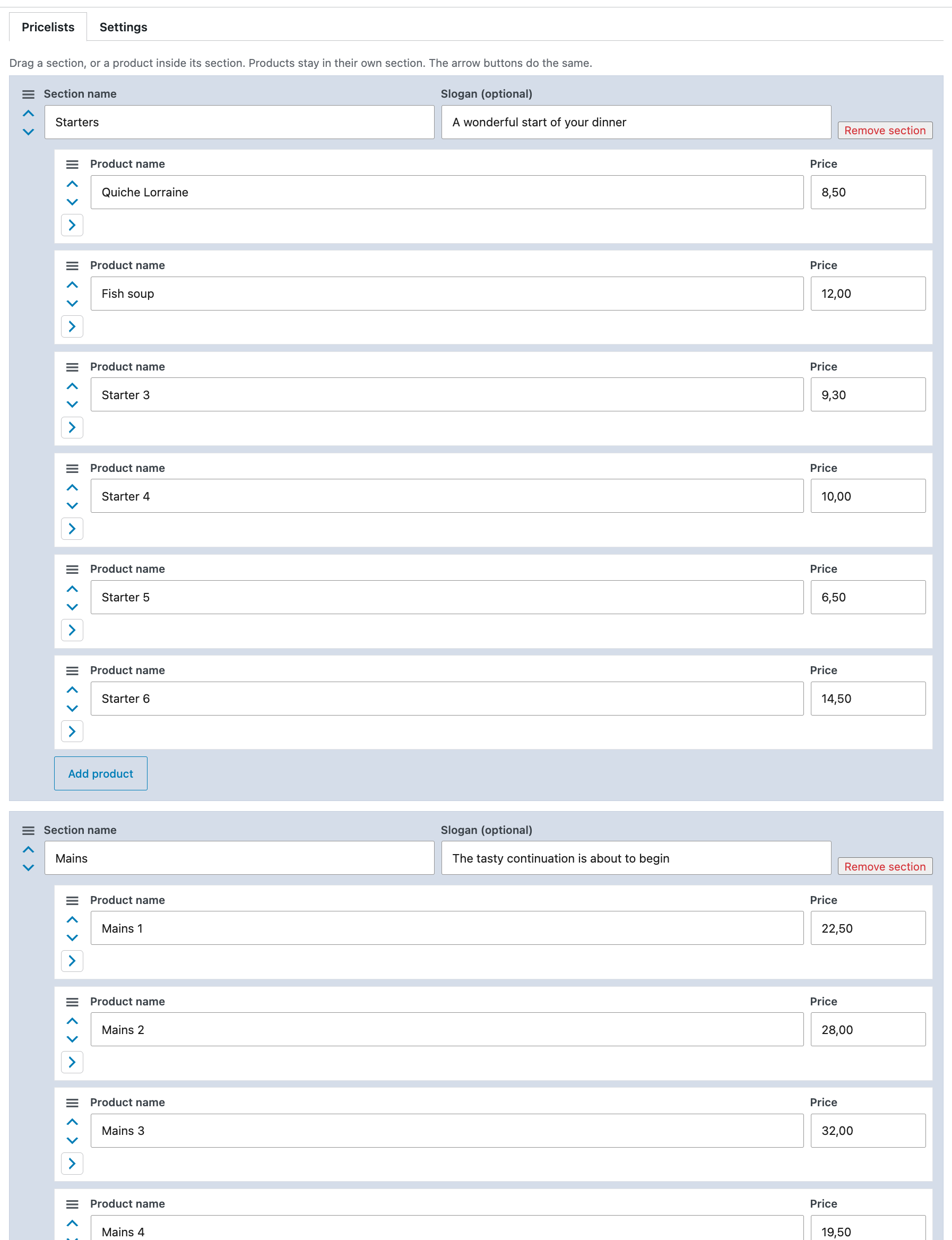
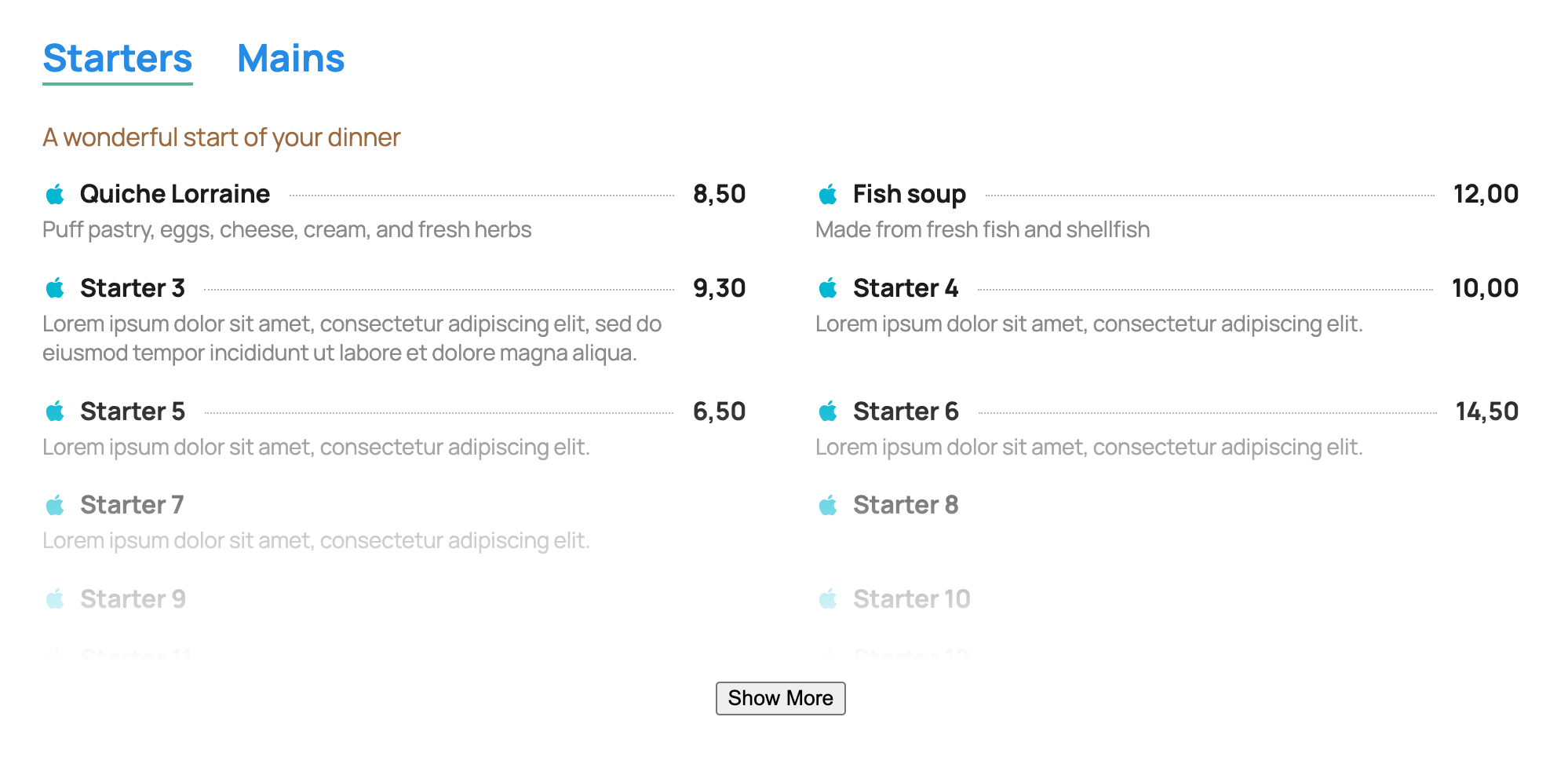
Insight Pricelist is a price list and a restaurant menu. Each list is stored on its own. A list has sections. Each section has an optional slogan and products with a name, an optional description, and a price. The shortcode works in the block editor, the classic editor, and other builders.
Add a published list to a page with:
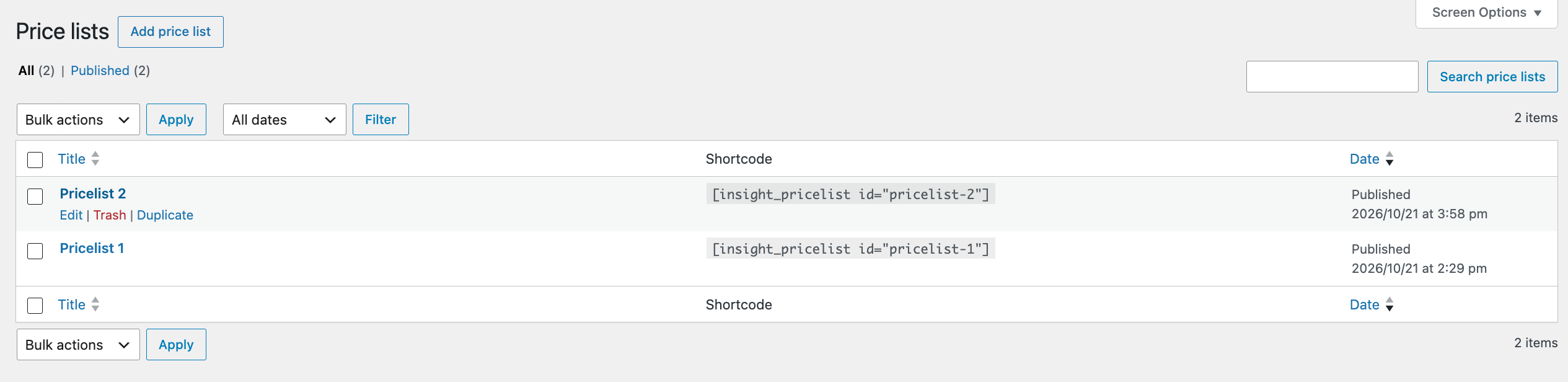
[insight_pricelist id="your-list-slug"]
The id is the list slug, or the numeric id. The name insight_pricelist stays fixed. You can change the id. It selects the list and is saved as its slug. Leave it empty to keep the current slug.
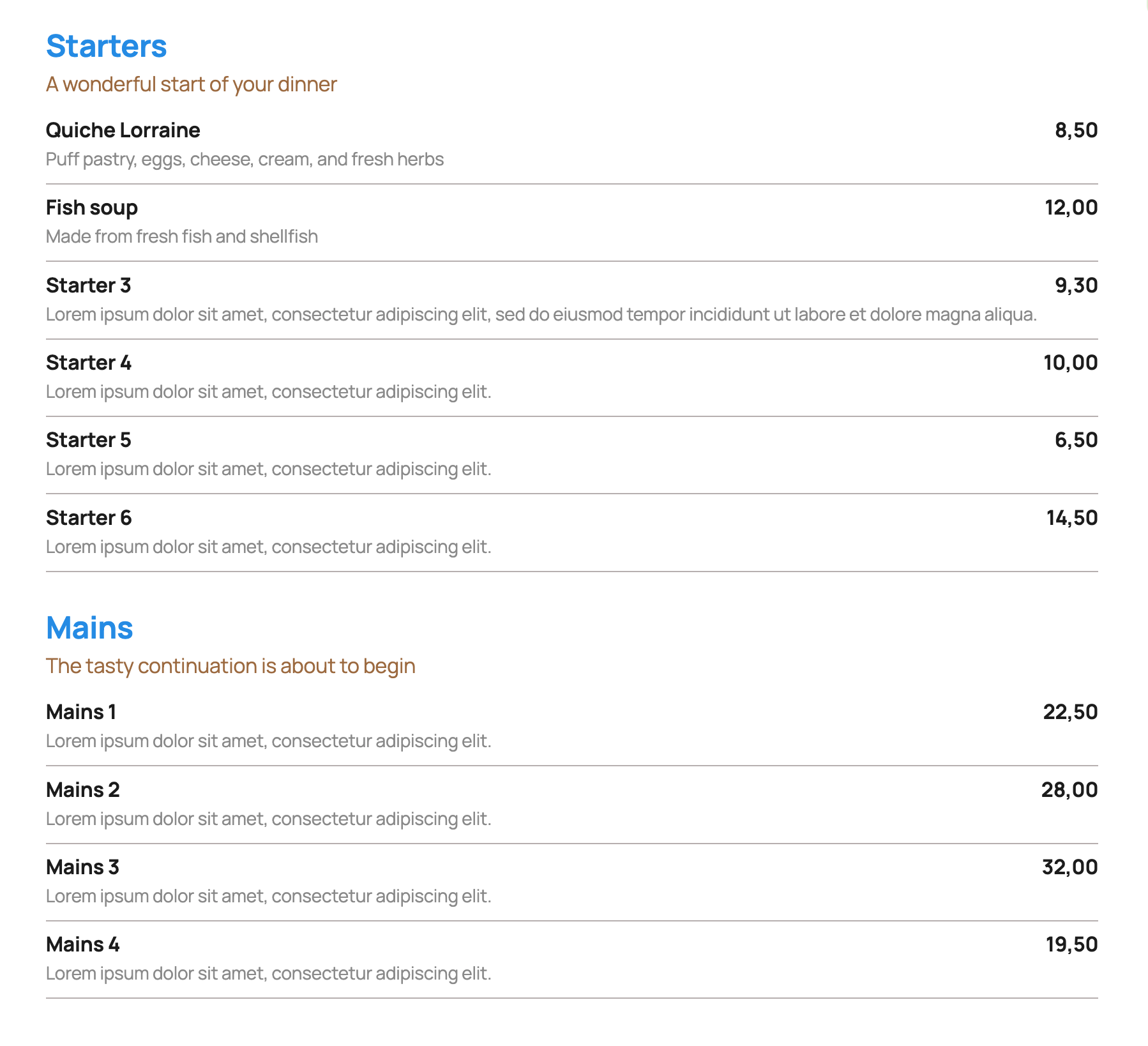
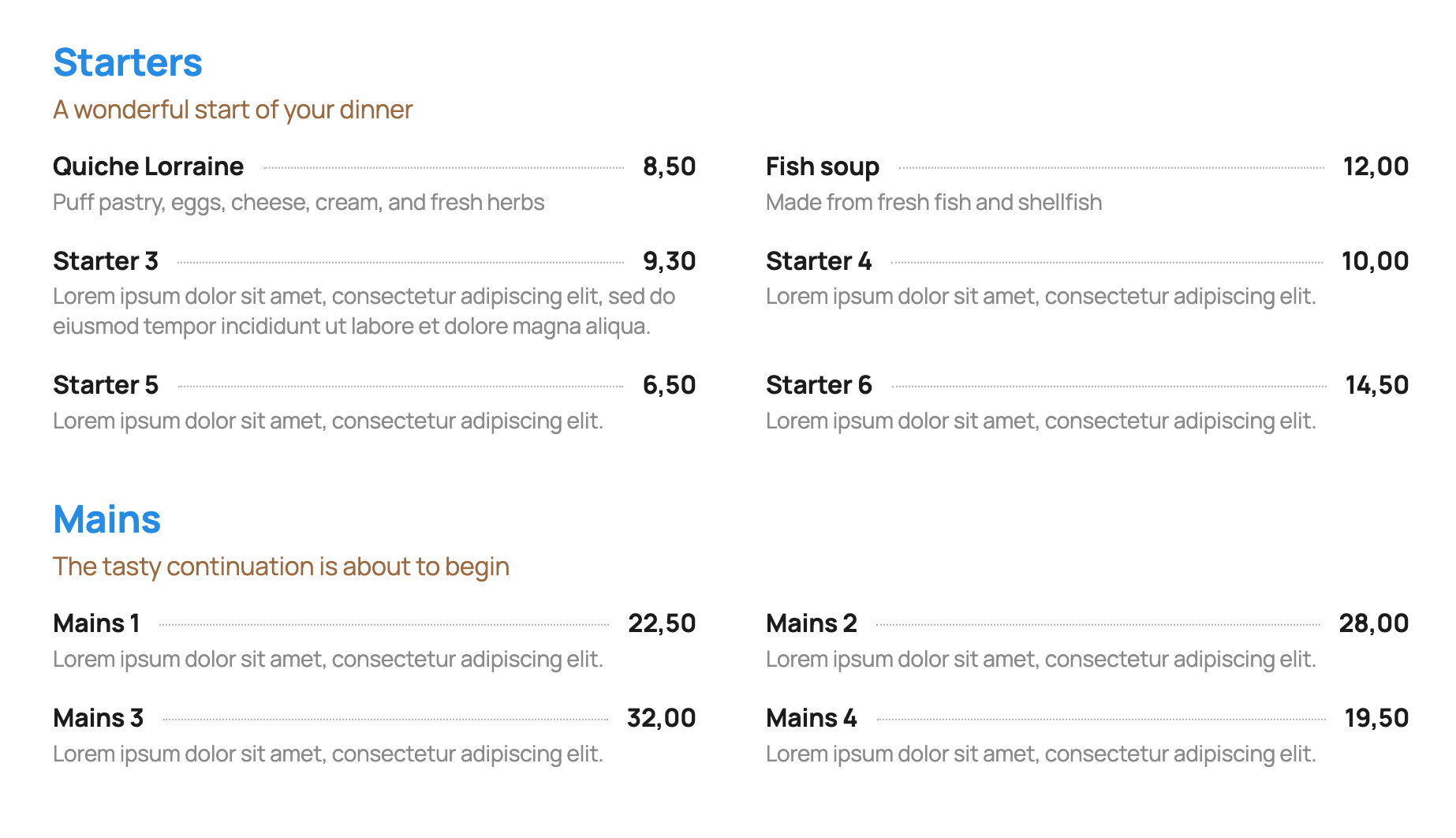
- One column or two columns. Two columns stack on small screens. In two columns, the line under a row runs across both products.
- Show or hide the list name. It is hidden by default.
- Drag sections, and drag products inside a section, to reorder them.
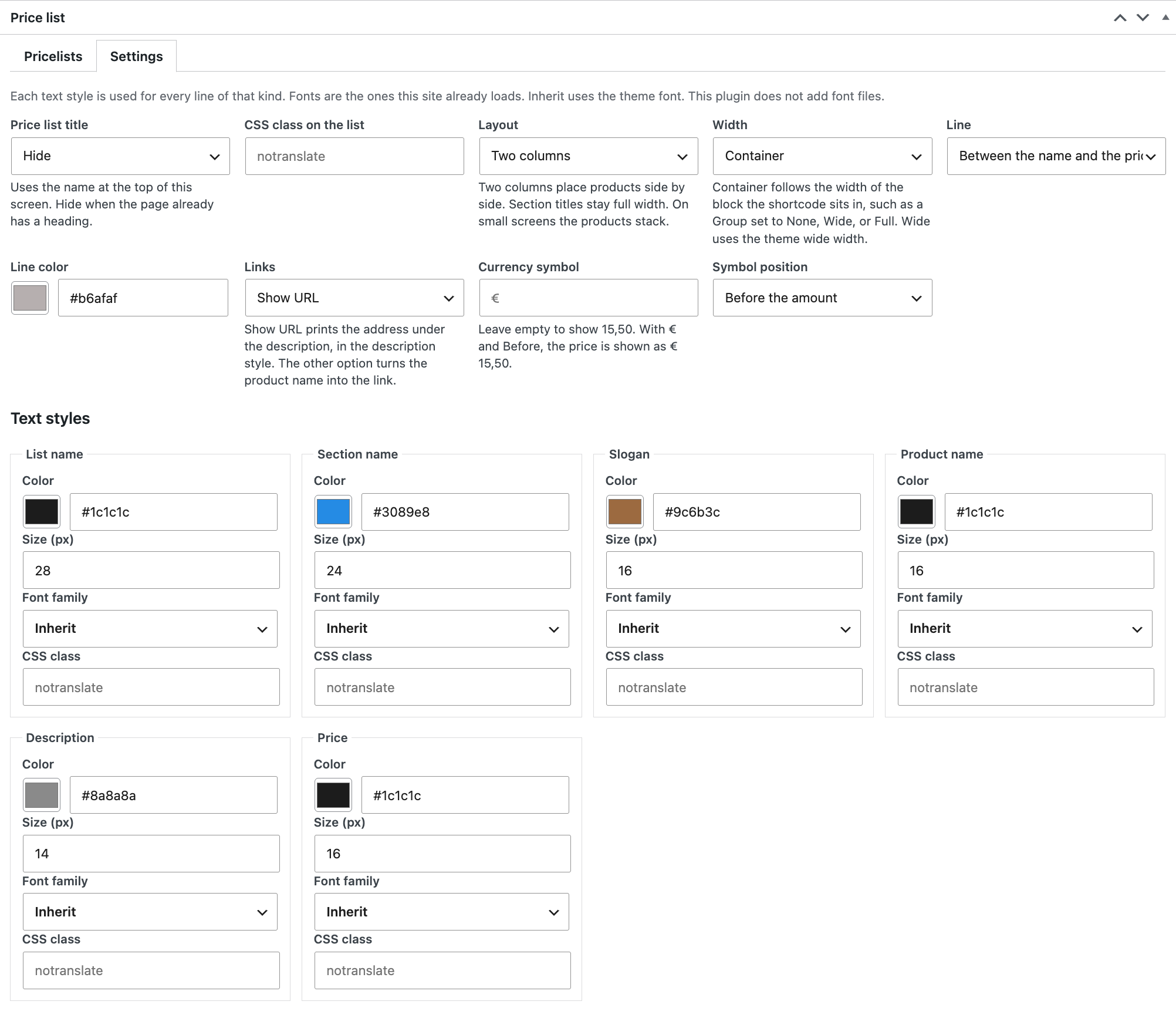
- A line under each product, a dotted line between the name and the price, or no line. One color for both line styles.
- A currency symbol before or after the price. Leave the currency empty to show the amount only. The price itself is free text, and an empty price hides the currency.
- For the list name, section name, slogan, product name, description, and price: color, size, a CSS class, and a font the site already loads. The plugin does not add font files.
- Width follows the block the shortcode sits in, or uses the theme wide width.
- Duplicate a whole list, including its colors and content.
- In the editor, products stay collapsed until opened. Anyone who can edit the list can change its settings and publish it. Uninstall does not delete lists.
Do you need more
See Insight Pricelist Pro for client editing, importing a menu from pasted text, Show more, food allergen icons, and printing the menu to PDF.
- Tab-style layout: sections as tabs, showing the products in that section only.
- Section and slogan left alignment or centered.
- Before each product: a photo, or one icon for the whole list.
- Client mode: edit settings with administrator privileges only.
- URLs (page or an external link) can be added to the product name or shown separately.
- Product Schema output.
- Separate class field for each section name (notranslate, target colors or any other need).
- Export (backup) and import.
- Import sections and products from pasted text.
- Show more: a fade after about five and a half products, and a button to open the rest.
- Export- and import your settings.
- Allergen icons per menu item (with a popup).
- PDF with allergen list (A4).
- A section or the whole pricelist can be printed to PDF (A4, products stay on one page).
Installation
- Upload the plugin folder to
/wp-content/plugins/insight-pricelist. - Activate Insight Pricelist.
- Open Insight Pricelist in the admin menu and add a list.
- Publish the list and paste its shortcode into a page.
FAQ
How light is the plugin?
Insight Pricelist is extremely lightweight. It uses fonts the site already loads. It does not add font files, and it does not call another server for the list. Against a list built by hand, the code on the page is smaller. The comparison below is the measured case.
The free plugin adds one stylesheet, and only on a singular post that contains the insight_pricelist shortcode. That file is 3,214 bytes (902 bytes gzipped). There is no front-end JavaScript. The editor script loads only in the price list editor.
How is the load compared to a manual created list?
Spoiler: against an established builder like Kadence, this 38-row list is about 60% less code in free and about half the code in Pro when the script loads, and about 95% less work. Against other builders the code saving can be larger, up to about 90%.
A realistic comparison with a Kadence table block:
The Kadence table is one table, 38 rows, and contains 40 text blocks and 74 icon blocks. That table’s HTML is about 49KB, including 17KB of inline SVGs copied into every cell, plus about 24KB of per-block CSS.
One Insight Pricelist of the same length is about 25KB of HTML: one product per row, with a name, an optional description, and a price. A photo or the list icon, when you use one, is an image tag, not an inline SVG copied into every row. The stylesheet loads once: free 3,214 bytes (902 bytes gzipped), Pro 7,697 bytes (1,879 bytes gzipped). Pro’s script is 4,912 bytes (1,459 bytes gzipped), and only when tabs or Show more are on.
Totals
Those pieces add up like this for the 38-row list. The 17KB of inline SVGs is already inside the Kadence HTML, so it is not counted twice.
Kadence table: about 74KB, and no JavaScript.
- HTML: 49KB
- CSS written for those cells: 24KB
- Shared table CSS: 0.1KB
- Shared icon CSS: 1KB
Insight Pricelist, same length: about 28KB in free, about 33KB in Pro when no script loads, and about 38KB in Pro when Show more or tabs are on.
- HTML: about 25KB
- Stylesheet, once per page: 3,214 bytes free, 7,697 bytes Pro
- Script: none in free, and none on a normal Pro list. 4,912 bytes only when tabs or Show more are on
Gzipped, the plugin files are smaller still: the stylesheet is 902 bytes free and 1,879 bytes Pro, and that script is 1,459 bytes. The HTML sizes above are the page source, not gzipped.
When are CSS and JS loading?
CSS and JavaScript load only on pages that contain a list, not on every page. Free and Pro only register the files until a list needs them. Free has no front-end script. Its stylesheet is added on a singular post when that post contains the insight_pricelist shortcode. Pro uses the same check for the stylesheet. Pro’s script is added only for a list that uses tabs or Show more. A normal Pro list runs no front-end JavaScript.
Does the shortcode work in any builder?
Yes. Place the shortcode in the block editor, the classic editor, or another builder. The plugin does not add code for one builder.
What does Pro add?
Client editing: an administrator sets the layout, and an editor changes the products. Import a menu from pasted text. Show more fades the list and opens the rest. Food allergen icons sit on each product. Print one section, or the whole pricelist, to PDF on A4. A product stays on one page.
Screenshots



Changelog
1.0.25
- The directory title, tags, and short description name the price list and restaurant menu, and two FAQs cover any builder and Pro.
1.0.24
- The readme lists printing a section or the whole pricelist to PDF.
1.0.23
- The readme lists Pro allergen icons, settings export and import, and the allergen PDF, plus two screenshots.
1.0.22
- While a section or product is dragged, holding the pointer near the top or bottom of the window scrolls the editor.
1.0.21
- The shortcode id can be changed. The name insight_pricelist stays fixed, and the id is saved as the list slug.
1.0.20
- The shortcode note says to paste the shortcode on a page.
1.0.19
- The Pro description includes text import of sections and products.
1.0.18
- The Pro note mentions an icon before each product.
1.0.17
- Price lists with sections, optional slogans, products, descriptions, and prices.
- One or two columns. On a wide screen the line under a two-column row runs across both products. On a small screen the products stack and each keeps its own line.
- Container or wide width. Colors, sizes, classes, and fonts the site already loads. Per list: list name, line style, line color, and currency.
- Drag or move sections and products. Duplicate a whole list. Products in the editor are collapsed until opened.
- Anyone who can edit a list can change its settings and publish it. Uninstall keeps the lists.
- Link to Pro on the Plugins screen and in the price list editor. Product links and administrator-only settings are part of Pro.
1.0.9
- Coding standards: safer text cleaning, no suppressed query filters, and a readme.
1.0.8
- Slightly less space between a product description and its URL.
1.0.7
- URL uses the description style. A list can show the URL or turn the product name into the link.