

Description
Free daily vulnerability scans & WordPress security, powered by WPScan (an Automattic brand) and its 60,000+ vulnerability database. No setup needed!
TOTAL SITE SECURITY FROM WORDPRESS EXPERTS
Jetpack Protect is a free and essential WordPress security plugin that scans your site and warns you about vulnerabilities, keeping your site one step ahead of security threats. It’s easy to use; setup requires just a few clicks!
By upgrading Protect, you also unlock malware scanning with one-click fixes for most issues and instant notifications when threats are detected. Our automated Web Application Firewall (WAF) also protects your site from bad actors around the clock.
Jetpack Protect is created by WordPress experts; our parent company Automattic is behind Jetpack, WordPress.com, WooCommerce, WPScan, and much more. There is no better company to understand the security needs of WordPress sites.
WHAT DOES JETPACK PROTECT (FREE) CHECK FOR?
Jetpack Protect scans your site on a daily basis and warns you about:
– The version of WordPress installed, and any associated vulnerabilities
– What plugins are installed, and any related vulnerabilities
– What themes are installed, and any associated vulnerabilities
What are vulnerabilities? Why do I need to scan my site regularly?
Site vulnerabilities are flaws in a website’s code that weaken the site’s overall security. These can be introduced to a site in various ways, in most cases unintentionally.
Some of the ways vulnerabilities can be introduced to a site are:
– Poorly written site code
– Plugin and theme bugs
– WordPress version bugs
– System misconfigurations
If a bad actor detects a vulnerability on your site, they can exploit it to access sensitive information, update your site, and more to damage your business or brand.
That’s why it’s essential to use a reputable and reliable vulnerability & malware site scanner like Jetpack Protect to safeguard your site.
Can I use Jetpack Scan to fix a site that is already infected?
Jetpack Protect (Scan) detects and prevents attacks, but is not designed to fully clean up sites infected before it was active. If your site has malware, take immediate action to clean it up and remove the malicious code.
To clean up your site, we suggest using a malware removal tool, or if possible restore from a backup taken before the infection. We recommend using Jetpack VaultPress Backup in conjunction with Jetpack Scan to secure your website.
Learn more about cleaning your site
BRUTE FORCE ATTACK PROTECTION
Jetpack Protect blocks unwanted login attempts from malicious botnets and distributed attacks.
Is my site under attack?
Brute force attacks are the most common form of hacking — and hackers don’t discriminate. As the most commonly used Content Management System on the web, WordPress sites make an attractive target for hackers looking to exploit code vulnerabilities unique to WordPress.
Using large networks of computers known as botnets, hackers can try to gain access to your site by using thousands of different combinations of usernames and passwords until they find the right one.
Recently, attackers have found a way to “amplify” these attacks against the WordPress XML-RPC file – making it easier for attackers to try and break into your site.
WordPress brute force attacks can:
– Slow down your site (or cause it to stop responding) because of repeated server requests.
– Allow unauthorized access to your site for hackers to modify your code or insert spammy links.
– Put your site content and data at risk.
That’s where Jetpack Protect comes in. Our state-of-the-art security tools automatically block these attacks, protecting your WordPress site from unauthorized access.
On average, Jetpack blocks 5,193 WordPress brute force attacks over a site’s lifetime. It allows you to protect yourself against both traditional brute force attacks and distributed brute force attacks that use many servers against your site.
UPGRADE PROTECT TO REMOVE MALWARE IN ONE CLICK AND BE PROTECTED BY OUR WAF
By upgrading Protect, you unlock total site security from WordPress experts:
– Automated daily malware scanning in addition to vulnerability checks
– One-click fixes for most issues
– Web Application Firewall (WAF) with automatic rule updates
– Instant email notifications when threats are detected
– Priority support from WordPress experts
What is malware? Why do I need to protect against it?
Malware is malicious code or software that has been created by bad actors to disrupt, damage, or gain access to your site. There are many ways that malware can get onto your WordPress site. The most common method is through attackers using vulnerable plugins or themes to install malware.
Similar to the vulnerabilities listed above, bad actors can use malware to capture sensitive information, damage your site, and harm your business or brand.
Jetpack Protect instantly notifies you of any threats detected, with one-click fixes for most issues.
What is a Web Application Firewall (WAF)?
A web application firewall blocks traffic and malicious requests to your site from known bad actors.
As threats are detected, new rules are added to Jetpack Protect’s firewall, which provides around-the-clock protection for your WordPress site.
OVER 53,500 REGISTERED VULNERABILITIES IN OUR DATABASE
WordPress security is something that evolves over time. Jetpack Protect leverages the extensive database of WPScan, an Automattic brand. All vulnerabilities are entered into our database by dedicated WordPress security professionals and updated constantly as new information becomes available.
ONE PAGE FOR YOUR SITE’S SECURITY
Once your site is connected, Jetpack → Protect shows everything in one place. The Overview tab sums up scan results, the firewall, login protection, and downtime monitoring. The Settings tab is where you change their settings. The page covers:
– Scan results, with the threats found and how to fix them
– The Web Application Firewall, with its IP allow and block lists
– Login protection: brute force attack protection, account protection, and logging in with WordPress.com
– Downtime monitoring, with email alerts when your site goes down
It is the same Protect page the Jetpack plugin shows. If you use both plugins, they share it, so you see one Protect item in the Jetpack menu.
JETPACK PROTECT IS EASY TO SETUP AND USE
There’s nothing to configure – the setup process is as easy as:
1. Install and activate the plugin
2. Set up it with one click.
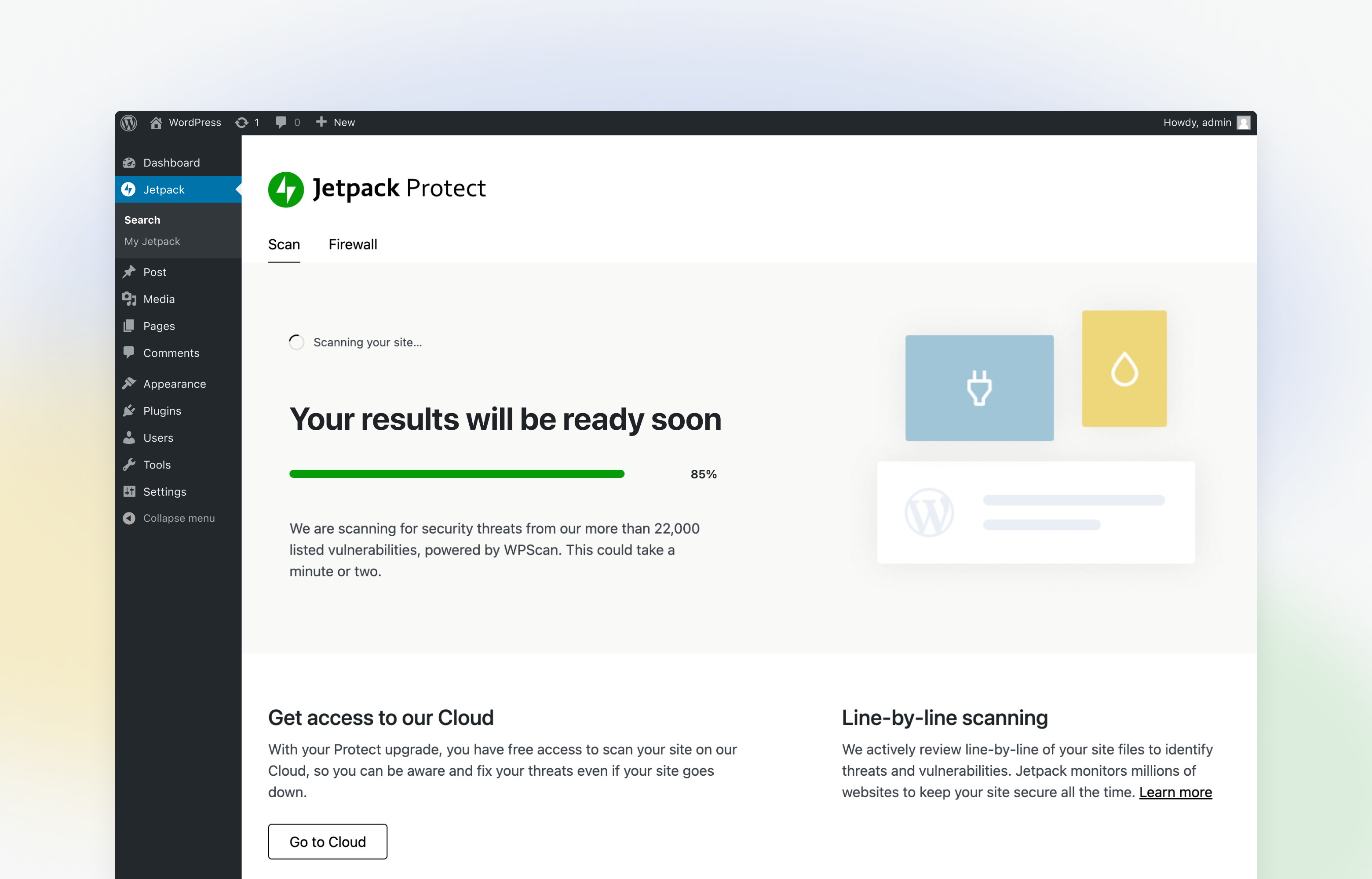
After you activate the plugin, Jetpack Protect will run daily automatic malware scans on your WordPress site and update you on vulnerabilities associated with your installed plugins, themes, and WordPress core.
WITH 💚 BY JETPACK
This is just the start!
We are working hard to bring more features and improvements to Jetpack Protect. Let us know your thoughts and ideas!
FURTHER READING
- Jetpack: Security, performance, and growth tools made for WordPress sites by the WordPress experts.
- You can follow the Jetpack Twitter account to catch up on our latest WordPress security recommendations and updates.
- WordPress Security: How to Protect Your Site From Hackers
- Should You Use Jetpack for WordPress Security?
- Jetpack Acquires WordPress Vulnerability Database WPScan
FAQ
How does Jetpack Protect help your WordPress Site security?
Protect is a free WordPress security scanner plugin that scans your site and lets you know possible vulnerability and other security threats on your installed plugins, themes, and core files.
The free plan scans your site for WordPress version, plugin, and theme vulnerabilities from our extensive vulnerability database (53,500) that is powered by WPScan.
By upgrading Protect, you gain access to WordPress malware scanning with one-click fixes, instant threat notifications, and our Web application Firewall (WAF) that protects your site around the clock.
Does this plugin require the Jetpack plugin to work?
Jetpack Protect does not require the Jetpack plugin to run and secure your site. If you use both, they share the same Protect page under Jetpack → Protect.
What are the differences between Jetpack Protect, Jetpack Scan, and WPScan plugins?
Jetpack Protect is a new WordPress security plugin from Jetpack containing our security features only. You can start with Jetpack Protect’s free vulnerability scanning features and upgrade Jetpack Protect to access automated malware scanning and our web application firewall. By upgrading Protect, you are enabling Jetpack Scan to the plugin.
Jetpack Scan is a product that can be purchased for use in conjunction with the main Jetpack plugin or Jetpack Protect. Jetpack Scan includes automated malware scanning and our web application firewall but does not contain the vulnerability scanning feature from the Protect plugin. If you purchase Jetpack Pro or Jetpack Complete, Jetpack Scan is also included in those bundles.
If you are already a Jetpack Scan, Jetpack Security, Jetpack Pro, or Jetpack Complete customer, you can also take advantage of Jetpack Protect’s vulnerability scanning feature by installing the Jetpack Protect plugin.
WPScan is an enterprise vulnerability scanning solution. It is not recommended for small to medium-sized businesses. If you are an enterprise company looking for custom WordPress site protection solutions, please visit: https://wpscan.com/
For small to medium-sized businesses, you can access our vulnerability scanning solution in the Jetpack Protect plugin.
Will Jetpack Protect work on my local site?
Jetpack Protect requires a publicly accessible site to perform the vulnerability scan.
How will I know if Jetpack Protect has found WordPress security vulnerabilities and malware?
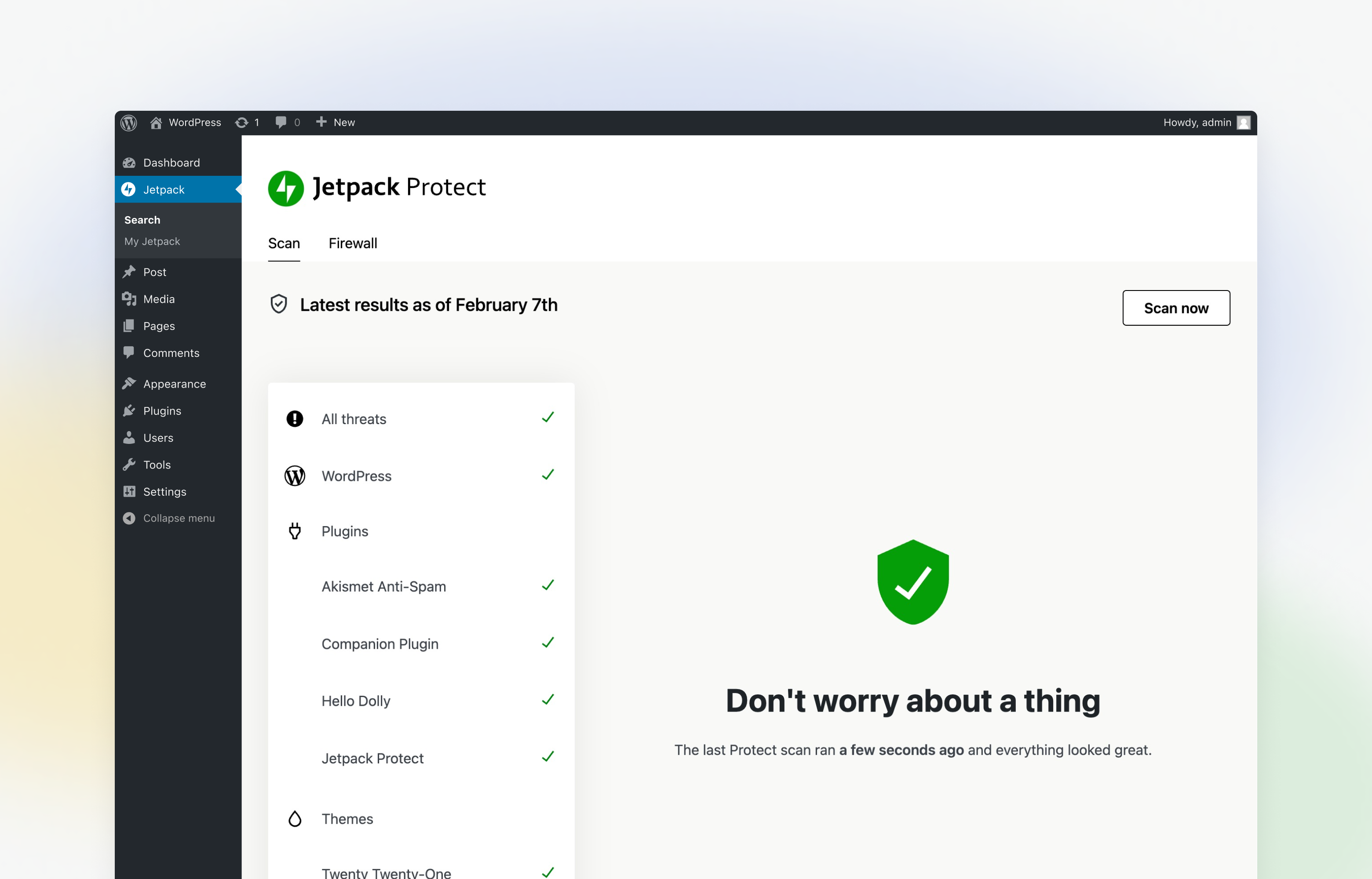
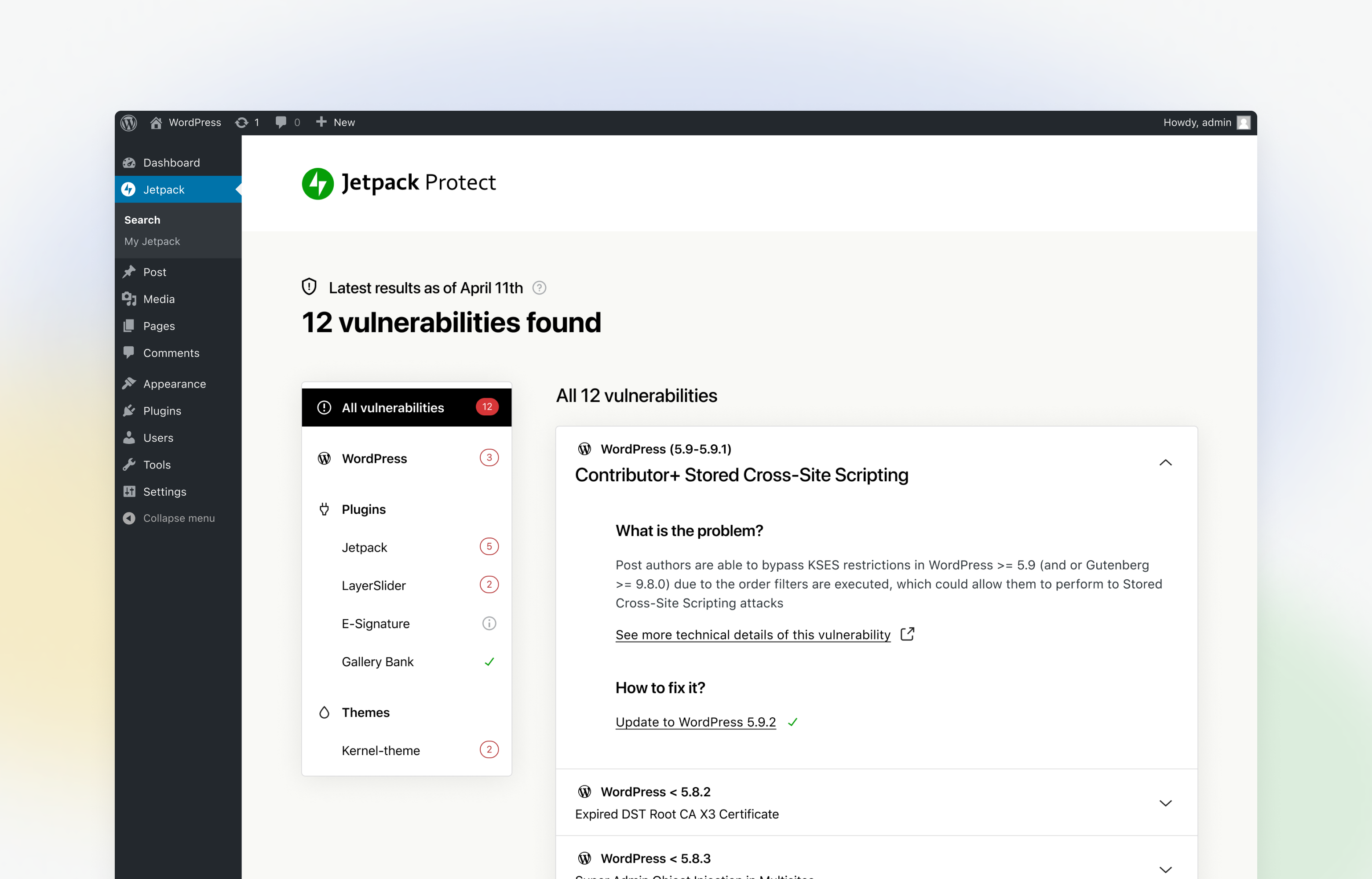
Go to Jetpack → Protect in your WordPress admin panel to see the security threats and malware found by the integrated malware scanner.
What do I do if Jetpack Protect finds a security threat?
When the vulnerability scanner finds a security threat, you can view the recommended actions on the Protect page to secure your sites.
If you have upgraded Protect, your site will also be automatically scanned for malware each day, and you will be notified instantly via email if any threats are detected. You will be able to fix most issues in one click.
Where do I turn on downtime monitoring or logging in with WordPress.com?
On the Settings tab of the Protect page. If you had them on with the Jetpack plugin and then removed it, they stay off until you turn them on there.
Can I set the time of the daily security scan?
It is not possible to set a time for the automated daily scans run by the integrated malware scanner.
Why do I need WordPress security and malware scan?
A hacked WordPress site can cause serious damage to your business revenue and reputation. Jetpack Protect scans your site and lets you know possible malware and security threats on your installed plugins, themes, and core files.
Where can I learn more about WordPress security and malware threats?
To learn how to achieve better WordPress security, see this guide. On the Jetpack Blog, you can find many more articles written by the top WordPress security experts.
Is Jetpack Protect the same thing as the Protect feature in the Jetpack plugin?
The new Jetpack Protect plugin is different from the Jetpack feature formerly known as Protect (now renamed Brute Force Attack Protection).
Screenshots
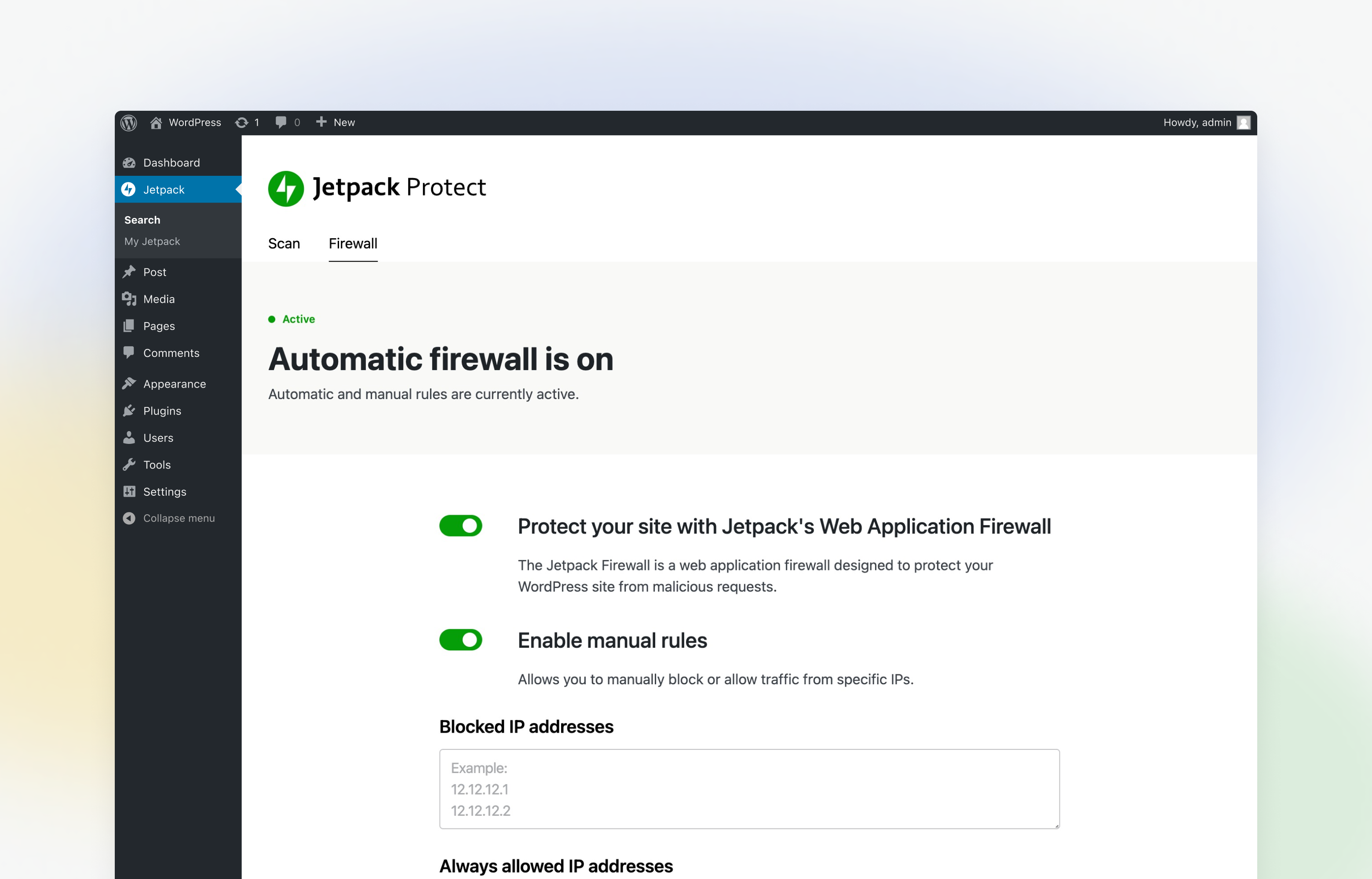
Changelog
7.0.0 – 2026-11-16
Added
- Connection: Add a Connected view to the Users page listing users with a linked WordPress.com account.
- Connection: Note that moving a Jetpack plan is an additional step when transferring connection ownership, and link to the support doc on transferring a plan.
- Connection: Show connection errors on the Connectors card, and keep showing the connection owner when their account connection breaks.
- Connection: Surface SSL certificate verification failures reported by WordPress.com as a connection error notice.
- Connection: Transfer connection ownership to another administrator without leaving your site.
- Connection: Transfer connection ownership to another connected administrator from the Connectors page.
- My Jetpack: Add an Available filter to the Features list.
- My Jetpack: Add catalog-controlled Pro offers and preserve existing plan management.
- My Jetpack: Allow the Automattic for Agencies banner to be dismissed.
- My Jetpack: Recognize Jetpack Pro subscriptions and licenses.
- Site Health: Add Jetpack connection details to the Info tab and the copied site info report.
Changed
- Account Protection: Improve login verification.
- Account Protection: Stop turning the feature on automatically when Protect is activated. Sites where it is already on keep it on.
- Account Protection: Update the breached password notice so it no longer says the feature was activated automatically.
- Activity Log: Show the connection error notice only when a connection error has been recorded.
- Boost: Wait up to four minutes for slow speed tests in My Jetpack instead of timing out after two.
- Charts: follow the WordPress admin color scheme for chart series colors.
- Charts: update chart grid, axis and label colors immediately when the theme changes.
- Connection: Ask for confirmation before disconnecting your user account, and offer to transfer ownership first when you own the connection.
- Connection: Link the connection owner’s name on the Connectors card to their profile, and update the card without reloading the page when a non-owner disconnects their account.
- Connection: Show a clear message when connecting the site to WordPress.com from the Connectors card fails, instead of WordPress.com’s raw error text.
- Connection: Show every connection error in one notice, each with the account it affects, and link to Site Health when a firewall is blocking WordPress.com.
- Connection: Use one wording across My Jetpack and the Connectors screen for the consent notice shown before connecting, for Offline Mode, and for the ownership lock.
- Connection: When disconnecting the site from the Connectors card, list the plugins that will stop working and link to help.
- Connection screen: Show the terms of service line under the pricing table at the WordPress design system’s text size.
- Dashboard: Keep focus on information icons when their tooltips open, announce the content to screen readers, and show a focus ring after clicking them.
- Firewall: Explain to a visitor blocked by the IP block list what happened and that site managers can log in for more information.
- General: Update minimum WordPress version to 7.0.
- Hide the Protect sidebar item when Protect is not active.
- Hide the threat count from the admin menu and admin bar when the host turns off threat notifications.
- My Jetpack: answer module switch clicks immediately, and explain what happened when a change fails.
- My Jetpack: Connect a WordPress.com account from feature cards that need one. Show feature states through switches or buttons instead of redundant Active or Inactive badges, and show host restrictions below descriptions. Leave features out of Available when their only action is an install you cannot make.
- My Jetpack: Highlight expiring and expired plans in the account panel under your avatar, list them first with a renew link, and show other plans as active until their renewal date.
- My Jetpack: Leave the recommendation to install or activate plugins included in a bundle plan out of the Jetpack menu notification badge.
- My Jetpack: Line up notices with the cards below them, and drop the grey background behind the Features grid and list buttons.
- My Jetpack: On sites with Jetpack Pro, replace “Purchase a plan” with “Upgrade to Complete”, which goes straight to checkout.
- My Jetpack: On the Features tab, keep a plugin’s switch busy until its card is up to date after a failed change, or after any change on sites that also run Jetpack.
- My Jetpack: Open Protect instead of Jetpack Cloud to manage Scan.
- My Jetpack: Open supported Modules links in Features when Jetpack is active.
- My Jetpack: Open the Jetpack Connection details on the Connectors screen from the header’s Manage connection link.
- My Jetpack: Refresh Pro availability while preserving existing offers.
- My Jetpack: Remember whether you last picked the grid or the list layout on the Features tab, and open the tab in that layout next time.
- My Jetpack: Restyle dashboard notices to match the WordPress design system.
- My Jetpack: Return to the license screen after you connect your account from “Activate a license”, and show the WordPress.com connection screen made for your site’s plugins.
- My Jetpack: Return to the page you were on after you connect your account or restore the connection from the header, and show the WordPress.com connection screen made for your site’s plugins.
- My Jetpack: Show a Features tab in place of the Products tab.
- My Jetpack: Show product cards flat, without a drop shadow.
- My Jetpack: Show the avatar and connection status control in the header by default, with access to connection and plan details.
- My Jetpack: Show the dashboard in the new rounded admin page frame.
- My Jetpack: Show the Features page on sites in Offline Mode, without connecting to WordPress.com.
- My Jetpack: Show the Jetpack menu notification badge when a connection error is detected.
- My Jetpack: Show the WordPress.com connection screen made for your site’s plugins when you connect your account from the Features tab.
- My Jetpack: Show what Paid Stats actually adds — UTM tracking, device stats, and region & city locations — instead of commercial use.
- My Jetpack: Stop asking to connect a WordPress.com account when nothing in use needs one.
- My Jetpack: Turn a module on once Install Jetpack or Activate Jetpack on its card finishes setup.
- Notices: Restyle to match the WordPress design system.
- Replace the Protect dashboard with the new one shared with the Jetpack plugin, including Downtime Monitor and WordPress.com login settings. If those were on with a Jetpack plugin you have since removed, they stay off until you turn them on from the Protect page.
- Scan: Say the vulnerability check is off, on the Scan page and in Site Health, instead of reporting no vulnerabilities when it is turned off in Jetpack.
- Show the error when connecting from the pricing table fails in a notice above the table, so it no longer pushes the paid plan’s button out of line.
- Sidebar: sort Jetpack menu items alphabetically, pinning My Jetpack to the top and external links and Settings to the bottom.
- Tested up to WordPress 7.1.
- Update dependencies.
- Update package dependencies.
- Update the recommended Jetpack bundles in the plugin description.
- Use “Login protection” and “Firewall” as feature names, including in firewall notices, and say “Jetpack” rather than “Jetpack Scan” for what fixing a threat does.
Removed
- Updated PHP version requirements to PHP 7.4 or newer.
Fixed
- Activity Log: Continue the wp-admin menu color behind the page frame on WordPress.com and third-party admin color schemes.
- Activity Log: Fix the page overlapping the admin menu in right-to-left languages.
- Activity Log: honor the module setting, so the page can be turned off.
- Activity Log: Show an empty date picker on the free plan, instead of a date range it does not apply.
- Activity Log: Stop the frame from flashing while loading and when switching admin pages.
- Admin bar: Match the threat count shield icon’s size to the other toolbar icons.
- Admin dashboards: Keep the page header and content in view when the wp-admin menu is taller than the window.
- Brute Force Protection: Allow the feature to turn on when the configured trusted IP header is empty or holds no valid address.
- Brute Force Protection: Fix correct logins being rejected after the math challenge, and keep the username and login destination when the password must be entered again.
- Brute Force Protection: Let new users set their password from a blocked IP, and stop sending recovery emails to accounts that have not set one yet.
- Charts: draw labels at the design system’s font weight and size.
- Close information tooltips opened on hover when Escape is pressed, wherever focus is.
- Connection: Fix a stale connection error notice that could persist on healthy sites.
- Connection: Fix reconnecting your WordPress.com account so it no longer disconnects other users and clears the broken-connection notice on the first attempt.
- Connection: Fix the connect button staying busy after the connection to WordPress.com fails to start.
- Connection: Hide connection error notices from users who cannot fix the connection.
- Connection: Keep the progress indicator on screen after clicking Restore Connection until the redirect to WordPress.com.
- Connection: Let a second administrator fix a broken connection owner by connecting their own account, which makes them the new owner.
- Connection: Let users without admin access reconnect their own broken account from the connection error notice.
- Connection: Report a broken connection on My Jetpack’s connection card instead of claiming everything looks good, and show a break only the connection owner can repair as a warning, not an error, to everyone else.
- Connection: Show connection owner names containing characters like & correctly.
- Connection: Stop showing a connection error notice for a request signature mismatch, which reconnecting rarely fixes.
- Connection: Stop showing a duplicate account notice when your WordPress.com email differs from your site email only in letter case.
- Connection: Stop Site Health from showing spurious connection failures — remove the redundant outbound HTTP/HTTPS checks, and no longer prompt a reconnect when the WordPress.com connection test is inconclusive.
- Connection: Stop users who cannot set up the site connection from becoming the connection owner when the owner’s connection is missing.
- Connection: Translate the Connectors card’s text on sites that don’t use English.
- Connection: Update wording for some connection error notices.
- Dashboard: Open information tooltips with the keyboard and dismiss them with Escape.
- Firewall: Avoid a 500 error for visitors on the IP block list when the firewall runs before WordPress.
- Firewall: Fix blank Jetpack admin pages when the standalone mode bootstrap loads from an older copy of the plugin.
- Firewall: Show up-to-date blocked request counts on sites with a persistent object cache.
- Firewall and Account protection: Fix turning a feature on or off doing the opposite when the page was out of date.
- Footer: Hide Products and Help links when My Jetpack is unavailable.
- Footer: Show the Features link to administrators only.
- JITM: Fix missing messages and a console error on sites without the Jetpack plugin active.
- Keep admin icons colored after the @wordpress/icons 16 update, which draws them as strokes.
- My Jetpack: always label the license activation link ‘Activate a license’. It previously read ‘Activate a new license’ on sites with a plan, even when no licenses had been activated.
- My Jetpack: Ask for a user connection on the Overview connection card as soon as a plugin that needs one is switched on, without a reload.
- My Jetpack: Bring the first Features results into view after changing the filter or search while scrolled down.
- My Jetpack: Fill checked checkboxes in the Features list with the selected filter’s color, show their focus ring only for keyboard focus, and show one focus ring per control instead of two.
- My Jetpack: Fix overlapping and misaligned stats on the Protect card.
- My Jetpack: Fix the dashboard failing to load on WordPress.com-hosted sites.
- My Jetpack: Fix the layout of the connection screen for right-to-left languages.
- My Jetpack: Fix the Overview showing a product’s old status after a feature is switched on or off on the Features tab.
- My Jetpack: Fix the Security and Growth filters on the Features tab showing no features.
- My Jetpack: Hide other plugins’ notices while the setup screen is open, and stop the full-screen layout breaking when another plugin adds an admin body class first.
- My Jetpack: Keep the Automattic for Agencies banner hidden after dismissing it and switching tabs.
- My Jetpack: Keep the Help tab’s cards inside their column on narrow screens.
- My Jetpack: Keep the Jetpack Pro card on the upgrade screen inside its column and on phone screens.
- My Jetpack: keep the stats chart tooltip under sticky and fixed page elements.
- My Jetpack: Make the connection screen’s Connect button and footer links reachable on shorter screens.
- My Jetpack: Point users who cannot connect the site at an administrator, instead of an onboarding screen they cannot complete.
- My Jetpack: Return to the tab you came from with the back link on product upgrade screens.
- My Jetpack: Show a lapsed Scan purchase as Expired, with a link to resume it and an expired-plan notice, instead of offering an upgrade.
- My Jetpack: Show each notice once instead of twice.
- My Jetpack: Show the correct product status and use the active plugin copy when turning products on or off with both stable and Beta or development copies installed.
- My Jetpack: Show the firewall as on in the Protect card whenever it is running.
- My Jetpack: Show the highest-priority notice first when several are set at once.
- My Jetpack: Show the right product status as soon as fresher plan data is available, instead of reusing an earlier lookup.
- My Jetpack: Stop asking for a user connection on the Overview connection card as soon as the plugin that needed one is switched off, without a reload.
- My Jetpack: Stop offering retired Security and Growth plans while preserving existing subscriptions.
- My Jetpack: Stop repeating the partner lookup request on every page load.
- My Jetpack: Stop reporting an error when switching VideoPress off while the Jetpack plugin is inactive.
- My Jetpack: Stop showing $0 and NaN for paid plans on the Protect upgrade page, and $0.00 on recommendation cards, when prices cannot be loaded.
- My Jetpack: Stop showing an empty account avatar on the Overview connection card on sites without a connection owner when nothing in use needs a user connection.
- My Jetpack: Stop showing an empty account avatar on the Overview connection card when nothing in use needs a user connection.
- My Jetpack: Stop the Stats dashboard from asking which plan you want again after Start for Free was already chosen.
- My Jetpack: stretch the tab content background to the full height of the page.
- Notices: Announce errors to screen readers.
- Recognize Jetpack Pro licenses when connecting.
- Scan: Offer a first scan when none has run, show when the last scan didn’t complete or hasn’t run yet on the My Jetpack Protect card, and stop counting a vulnerability once its plugin or theme is updated to the fixed version. Firewall: Honor CIDR ranges on the trusted IP addresses list, and make
wp jetpack-waf teardownandwp jetpack-waf setupturn the Firewall off and on. - Scan: On WordPress.com, show Personal and Premium sites the vulnerability report and the Scan upgrade, since their plans don’t include Scan.
- Scan: Say when the last scan didn’t complete, or the latest results couldn’t load, on the Scan page and in Site Health, instead of reporting no threats.
- Scan: Sort threats with no severity just above Low, and stop labeling them Low.
- Scan: Stop showing a stray “0” when the scan status can’t load.
- Show Jetpack in-dashboard messages under the tabs, on every tab.
- Show why connecting the site failed under the “Start for free” button.
- Status: Detect a site served on any 127.0.0.0/8 loopback address, or on 0.0.0.0, as a local site.
- Stop the upgrade and details screens from briefly offering Jetpack Security before Jetpack Pro.
- Update the admin bar threat count when threats are fixed, ignored, or a new scan finds none.