

Description
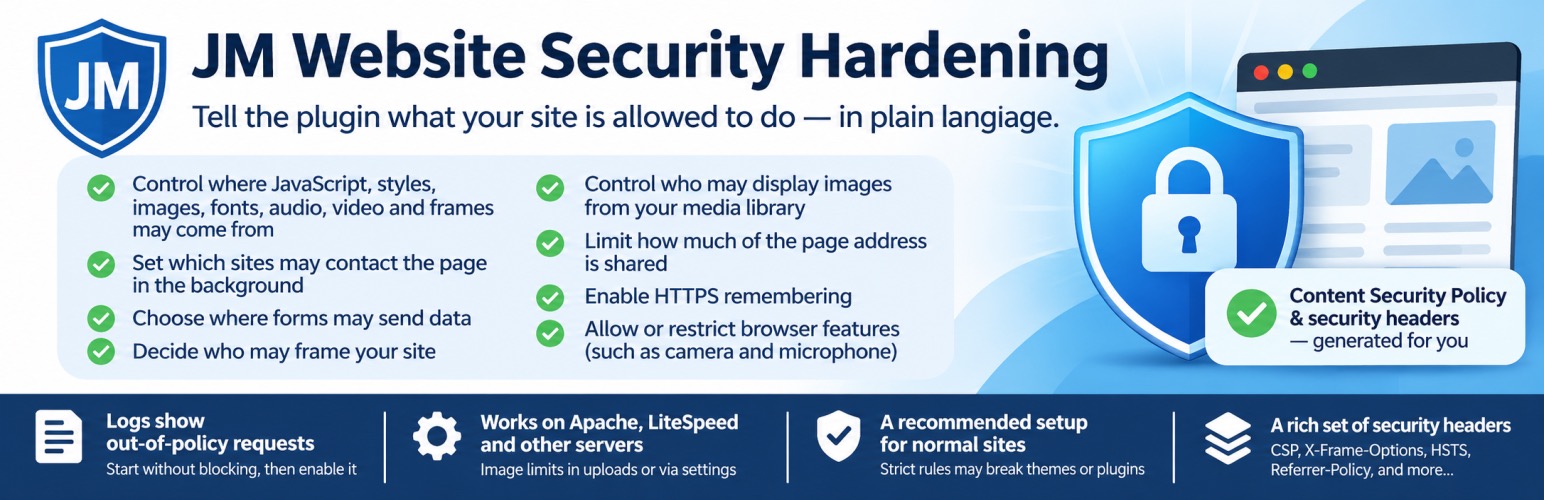
JM Website Security Hardening asks what the site is allowed to do, in plain language, and sends the matching browser rules.
You choose:
- where JavaScript, styles, images, fonts, audio, video, and frames may come from
- which sites the page may contact in the background
- where forms may send their data
- who may place this site inside a frame
- who may display images hosted in the media library
- how much of the page address is shared with the next site
- whether the browser should remember HTTPS
- which browser features, such as the camera and the microphone, a page may use
The plugin writes the Content Security Policy and the related security headers from those answers. A log shows addresses that fell outside the rules, so you can start without blocking anything and turn blocking on when the result looks right.
The recommended answers suit a normal site. Strict answers refuse code written directly in the page and can break a theme, a plugin, the dashboard, or the login screen.
Image hotlinking uses root .htaccess on Apache and LiteSpeed: rewrite lines also go through mod_rewrite_rules, and the full BEGIN JMWSH / END JMWSH block (including Cross-Origin-Resource-Policy in “only this website” mode) is written with insert_with_markers(). On nginx the settings screen shows the matching server-block configuration to paste.
Headers
Depending on the answers, the plugin can send:
- Content-Security-Policy, or Content-Security-Policy-Report-Only
- X-Frame-Options
- X-Content-Type-Options
- X-XSS-Protection
- X-Permitted-Cross-Domain-Policies
- Referrer-Policy
- Permissions-Policy
- Strict-Transport-Security, only on HTTPS
- Cross-Origin-Opener-Policy
- Report-To and Reporting-Endpoints
- Cross-Origin-Resource-Policy, on image files when only this site may display them
Developer hooks
jmwsh_settingsfilters the normalized settings before headers are built.jmwsh_headersfilters the final header names and values.jmwsh_download_hostsfilters the host names allowed to display hosted files.jmwsh_mod_rewrite_rulesfilters the hotlink rewrite lines added throughmod_rewrite_rules.jmwsh_htaccess_rulesfilters the Apache lines written withinsert_with_markers()into the root.htaccessblock for static files.
Installation
- Upload the plugin folder to
/wp-content/plugins/, or install the zip from the Plugins screen. - Activate JM Website Security Hardening.
- Open Settings → Website Security.
- Review the answers. Leave “Allow it, and keep a note” selected at first.
- Turn protection on and save.
- Browse the public site, then read the notes at the bottom of the settings screen.
- Switch to “Block it” when you are ready.
FAQ
Do I need to understand Content Security Policy?
No. The screen asks where files may come from and who may use this site. The policy is built from the answers.
Will this break my site?
It can, if you block code that a theme or plugin writes directly into the page. Start with notes instead of blocking. The recommended answers allow that inline code. The strict answers do not.
Can I see what would have been blocked?
Yes. Choose “Allow it, and keep a note”, turn on “Keep a note when a rule matches”, save, and visit the public site. The settings screen lists the page, the kind of file, and the address.
Who can display images from the media library?
Anyone, only this website, or this website plus the domains you list. A visitor who types the image address can still open it. Browsers that hide the previous page are treated as a direct visit. On Apache and LiteSpeed, saving writes every rule into the root .htaccess. On nginx, paste the configuration shown on the settings screen into the server block.
Are the notes sent anywhere?
No. They are written to wp-content/uploads/jm-website-security-hardening/csp.log. Only the latest notes are kept. Clear them from the settings screen, or delete the plugin to remove the file.
Does each site in a network have its own rules?
Yes. Settings are saved per site.
How do I show the .htaccess debug panels?
Add define( 'JMWSH_HTACCESS_DEBUG', true ); to wp-config.php. The root .htaccess status box and the debug write log appear only while that constant is true.
Changelog
1.1.0
- Distinguish hotlink labels from CSP “load images” labels, and confirm the saved hotlink mode after Save rules.
- Clarify that “Who may display images” is separate from CSP image sources, and leave the debug “force Only this website” checkbox off by default.
- Show the root
.htaccessstatus and debug panels only whenJMWSH_HTACCESS_DEBUGis true in wp-config.php. - Fix hotlink protection on Hostinger/LiteSpeed: write rewrite rules in the site root as well as uploads, disable public LiteSpeed cache for those files, and refuse cross-site image requests even when the browser hides the referrer.
1.0.1
- Fix hotlink protection on LiteSpeed and similar hosts by routing media library images through a check before they are sent.
- Store CSP notes in an uploads log file instead of the database, with a short cap so the file stays small.
- Add Visit pages to open published content and fill the notes log, with pause and stop.
- Add Allow this domain on blocked notes, and show the blocked domain in the notes table.
- Keep one note per image file during a visit, instead of every size and every page that shares it.
- Remove the Nowhere option for who may place this site inside a frame.
1.0.0
- Initial release.