


Description
A new WordPress site leaves a lot of small decisions to you: how strong passwords must be, when updates happen, what the outside world can see, what a copied test site is allowed to do. Keel Defaults makes those decisions sensibly from the start and puts all 46 defaults on one screen, in plain language, where you can change any of them.
Try Keel live in WordPress Playground — a temporary WordPress site opens in your browser with the current release of Keel already switched on. No hosting, installation, or account required.
What Keel does for you
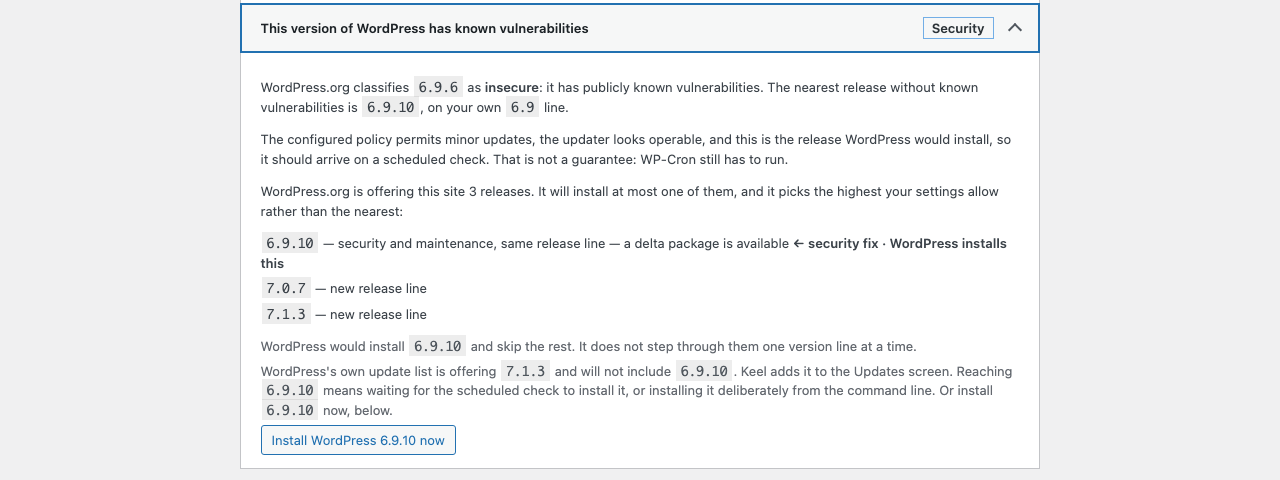
- Tells you when WordPress itself needs attention. If WordPress.org flags your version of WordPress as insecure, Keel says so in Site Health. When a secure fix exists for your version, Keel names it and gives an administrator a button to install it. If no fix exists yet, it tells you that too.
- Makes safer settings routine. Better password protection, less exposed to the outside world, and practical choices for updates and revisions, without a collection of small single-purpose plugins.
- Stops test sites emailing real people. Staging and local copies of your site send no email by default, so a copied database cannot email your customers, members, or clients by surprise.
- Makes update policy plain. The Updates screen says which WordPress release line the site follows, where that policy comes from, and links straight to the setting. Plugin and theme auto-updates get their own controls, which leave WordPress’s per-item choices alone unless you decide otherwise.
- Explains normal WordPress.org update checks. Site Health Info summarizes the categories core normally sends, without collecting or displaying this site’s values or making extra requests.
- Offers optional list-table compaction. Choose Leave unchanged, Tidy existing tables, or Tidy + helper columns. Tidy uses consistent dates and times. Saved Screen Options remain yours.
- Keeps email addresses out of public names. Site Health warns when an account’s public name or author address shows its email address, which WordPress does by default when the username is an email. An optional setting gives new and updated accounts safe public names, and a one-time cleanup fixes existing ones.
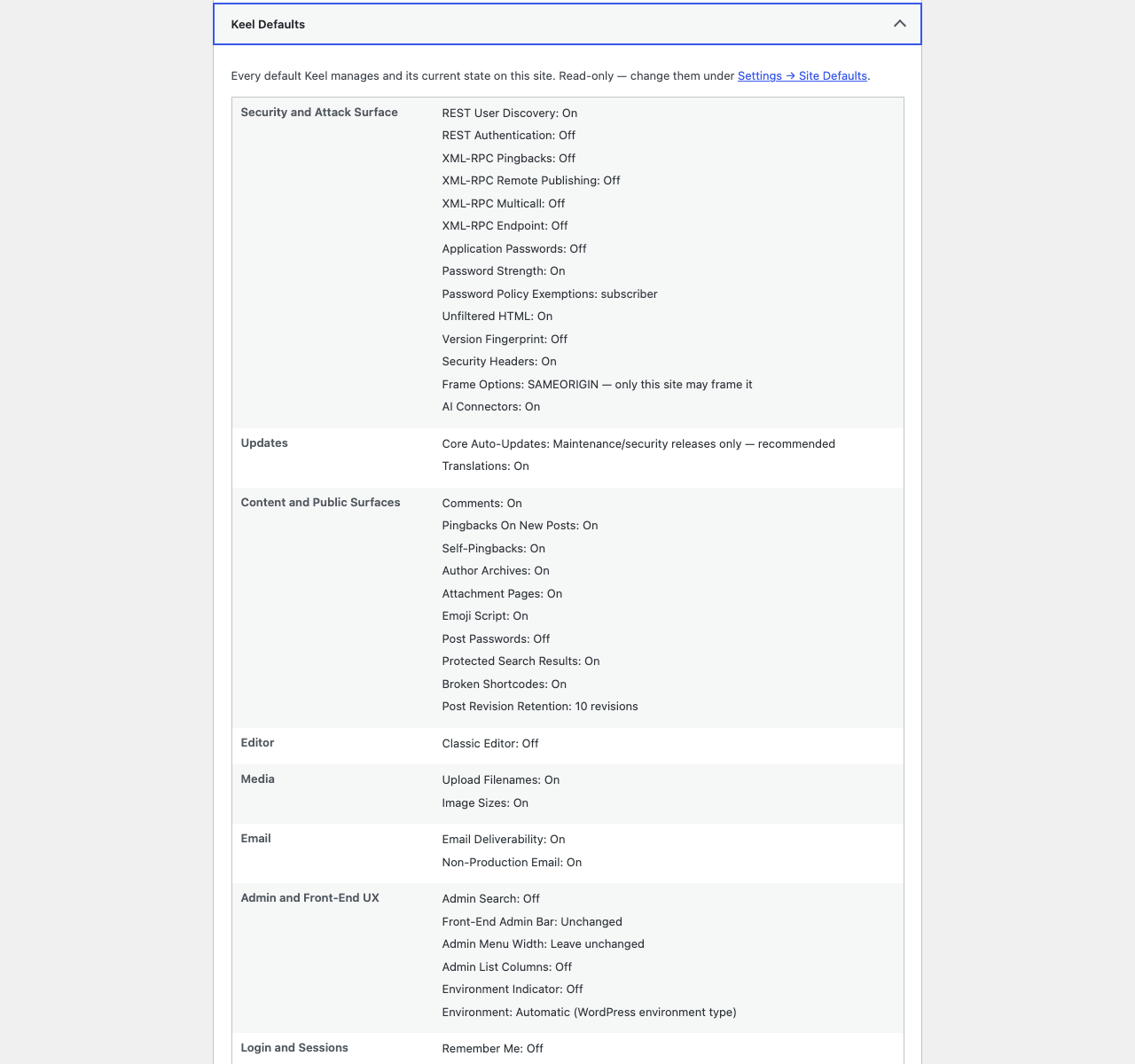
- Shows you exactly what it is doing. One Site Health page lists every setting and its current state, points out likely overlaps with other plugins, checks that Keel’s own protections are still registered, and lists plugins that change who may run WordPress abilities.
- Hands support a clean report. An administrator can download a sanitized JSON report of Keel’s settings and diagnostics, with no user data, site identifiers, option values or file paths in it.
- Keeps a multisite network consistent. A Super Admin can set chosen defaults for every site from one Network Policy screen. Each site’s own choices are kept underneath and come back when the policy is lifted.
Who it is for
Keel is especially useful if you build or look after many sites, as a freelancer, an agency, or the owner of a multisite network. It is just as useful if you have one site that matters too much to leave its basic safeguards to memory.
Safe to try, easy to undo
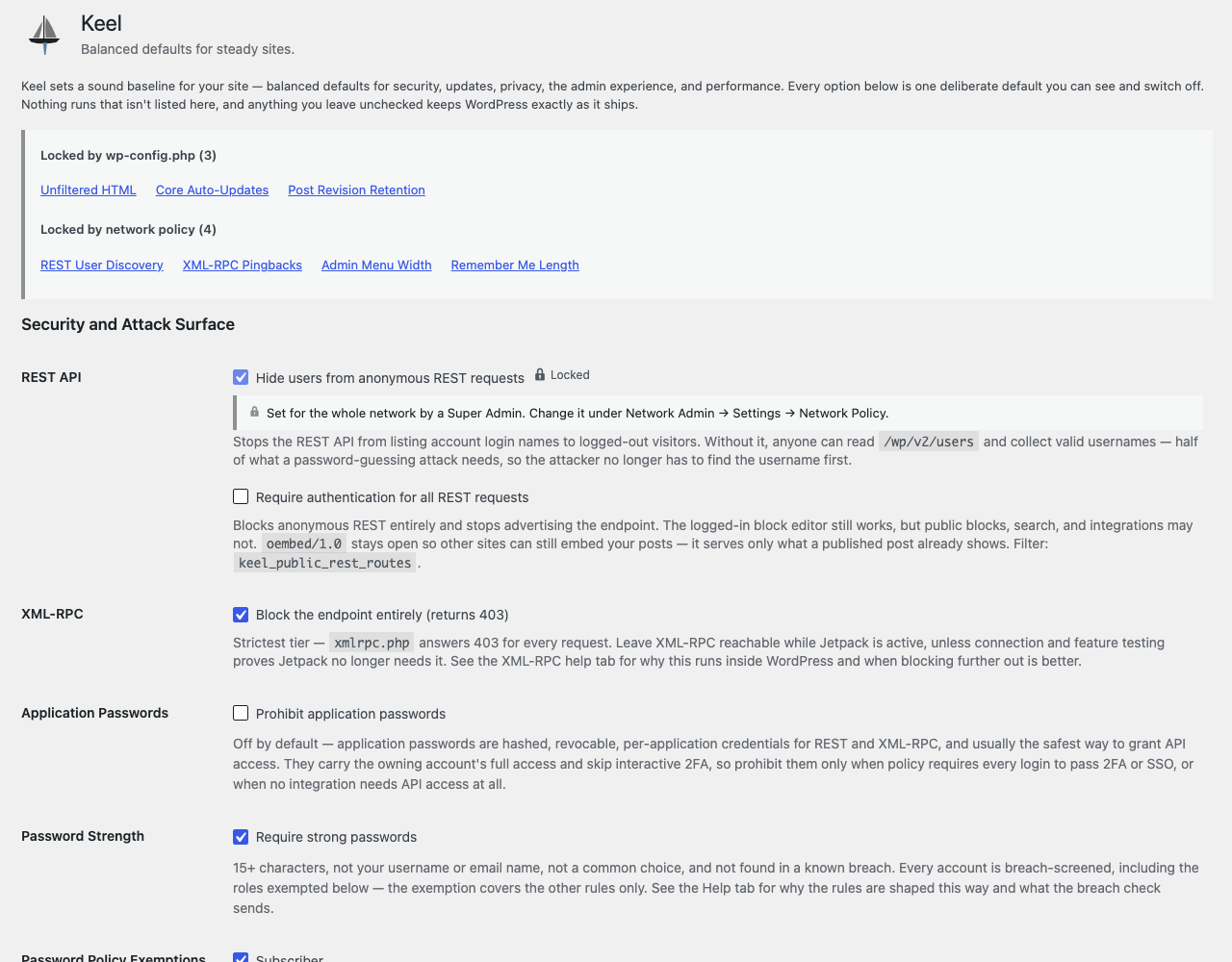
Each setting has a control and an explanation under Settings → Site Defaults. Some settings depend on others or are managed by configuration or network policy. Keel does not edit or delete your existing posts, pages, media, or comments. The one change it makes to files by default is giving new uploads lowercase filenames. Turn a setting off and that behavior returns to WordPress; uninstall Keel and its settings are removed.
Good to know before you activate
Out of the box, Keel turns off comments, trackbacks, and pingbacks, hides public author archives, and stops other sites displaying yours inside a frame. Nothing is deleted, and each of these is a switch you can turn back. The FAQ below explains each one.
External services
Keel contacts two outside services. Neither is sent personal data.
Have I Been Pwned: checking passwords against known breaches
When the Require strong passwords default is enabled, Keel screens new passwords against the Have I Been Pwned Pwned Passwords range API (https://api.pwnedpasswords.com) and rejects passwords found in known breaches. It also re-checks existing passwords when people log in, and warns without blocking.
- What is sent. Only the first five characters of the password’s SHA-1 hash, a method called k-anonymity. Never the password, never the full hash, and no personal data.
- When. Only while the default is on: when a password is being set or changed, and at most once every 30 days per account when someone logs in with a username or email and password (filter:
keel_password_rescreen_interval). Every role is checked; to leave subscribers out, useadd_filter( 'keel_password_rescreen_skip_roles', fn() => array( 'subscriber' ) );. Application passwords, XML-RPC and REST logins are not re-checked. - What is stored about a login re-check. Two user meta timestamps: when the password was last checked, and when it was found in a breach. Both are deleted when the password changes and when the plugin is uninstalled.
- How to turn it off. Turn off the strong-password default, add
define( 'KEEL_DISABLE_HIBP', true );towp-config.php, or use thekeel_disable_hibpfilter. - Bounded checks and local storage. Lookups share an allowance per site, or per network on multisite: initially 10 requests, then one additional credit per minute, with at most two lookup slots in use at a time. Half of the allowance is kept for accounts that can write content or manage the site, so those accounts can still be checked when the rest is used up. A reply from the service answers the check that asked for it and is then discarded. No password, hash, hash prefix or reply is stored. The one stored record is a non-autoloaded database row holding the allowance’s counters and the diagnostic timestamps described below. Rows that earlier versions used to keep replies are deleted after the update.
- If a check cannot run. An unreachable service, invalid response, exhausted allowance or busy lookup slot produces an unknown breach verdict. It does not block a password change; the other local password rules still apply. Site Health reports sampled unavailability and historical live-response evidence. Samples are rate-limited, not counts of every skipped check. Diagnostics contain only the reason and timestamps, never the password or hash prefix. Network managers can review shared evidence; individual site administrators see a generic coverage notice.
Have I Been Pwned is operated by Troy Hunt; see https://haveibeenpwned.com/Privacy and https://haveibeenpwned.com/API/v3 for its terms and privacy policy.
WordPress.org: checking whether your WordPress version is vulnerable
Keel asks WordPress.org whether the installed version of WordPress has known vulnerabilities, using the core stable-check API (https://api.wordpress.org/core/stable-check/1.0/). This is WordPress.org’s own service, on the same host WordPress already contacts for updates and translations, although WordPress itself never queries it.
- What is sent. No site data beyond the user-agent, which identifies the plugin and the site’s home URL in the same way WordPress’s own update requests identify the site.
- How often. Keel keeps the answer for a day. It asks again sooner only when WordPress’s own update check offers a release that answer does not list yet, so a new security release is reported the day it ships.
- If the service cannot be reached. If WordPress.org is unreachable or answers with something unusable, the failure is remembered for five minutes so an outage does not slow down every admin screen, and Site Health reports that the status could not be determined rather than implying the site is fine.
WordPress.org’s privacy policy is at https://wordpress.org/about/privacy/.
Credits
Austin Ginder of Anchor Hosting (anchor.host · @anchorhost) reviewed Keel for security, and the plugin is better for it. Thank you, Austin.
Keel grew out of Better by Default, a WordPress defaults plugin written by the same author (@dknauss) as a teaching version for the Edmonton WordPress meetup, WPYEG: https://github.com/WPYEG/Better-by-Default
Better by Default is published under the GPL-3.0-or-later; its sole author additionally licenses the portions carried over here under the GPL-2.0-or-later. Keel keeps its core architecture and adds further hardening and admin defaults adapted from the Agency Experience plugin (GPL-2.0-or-later).
Agency Experience is itself a hard fork of the 10up Experience plugin by 10up (GPL-2.0-or-later): https://github.com/10up/10up-experience — so several of Keel’s adapted defaults ultimately descend from code first written for 10up Experience. Copyright in that work is retained by 10up and its contributors, and 10up retains its marks; Keel is not affiliated with or endorsed by 10up. See LICENSE for the full GPL-2.0 text.
Support This Plugin
Keel is free and will stay free. If it saves you an afternoon of securing a new site, or keeps a staging server from emailing your client’s customers, you can support its maintenance through GitHub Sponsors.
Bug reports and feature requests are welcome on the issue tracker: https://github.com/dknauss/keel/issues. If you have found a security problem, please report it privately rather than in a public issue — SECURITY.md ships with the plugin and says how.
Installation
- In your WordPress dashboard, go to Plugins → Add New, search for “Keel Defaults”, and install it. You can also upload the zip through Plugins → Add New → Upload Plugin, or copy the plugin folder into
wp-content/plugins/. - Activate it. Keel’s starting choices are applied on activation; nothing changes before that.
- Visit Settings → Site Defaults to review the starting choices and adjust anything for this site.
Settings that could disrupt another service are off until you choose them, with one exception: Keel stops other sites displaying yours inside a frame. If your site is meant to be embedded, for example in an intranet dashboard, a visual-review service, or a kiosk or signage screen, set Frame options to “Leave unchanged” under Security and Attack Surface.
Deactivating stops Keel’s behavior while keeping your choices for a future reactivation. Uninstalling removes its settings.
FAQ
What changes when I activate Keel? Will it break my site?
Keel applies its starting choices and gives you one screen to review them. Comments, trackbacks, and pingbacks are turned off; public author archives are hidden; other sites cannot put yours inside a frame; and new uploads get lowercase filenames. Settings that could affect another service you rely on are left off until you enable them.
Nothing is deleted. Keel does not edit or remove your posts, pages, media, users, or comments. Disabling comments hides them and closes the forms; turning the setting off brings them back. Uninstalling removes only Keel’s own settings.
Everything Keel does is visible and reversible, and each setting explains its practical effect before you change it. The default most likely to surprise you is frame protection: if another site or service is meant to display yours in a frame, that frame will usually show as a blank box. Set Frame options to “Leave unchanged” to allow it. Also review the settings after activation if a service publishes to your site through XML-RPC or depends on a feature you intend to turn off.
Keel says this version is insecure. What should I do?
Read the message in Site Health. Keel tells you whether a secure fix is available for the version of WordPress you are on, whether WordPress is offering it, and whether something is preventing automatic updates. If the install button is offered, an authorized administrator can use it to install that fix. If there is no secure fix, Keel says so clearly; plan an upgrade to a newer version rather than assuming one exists.
Why has email stopped working on my staging site?
Keel blocks outgoing email outside production by default. This protects real customers and clients when a live database is copied to staging or a local machine. It does not block email on your live site. Turn Non-Production Email off in Settings → Site Defaults when your test site needs to send email.
Can I use Keel on client sites or multisite?
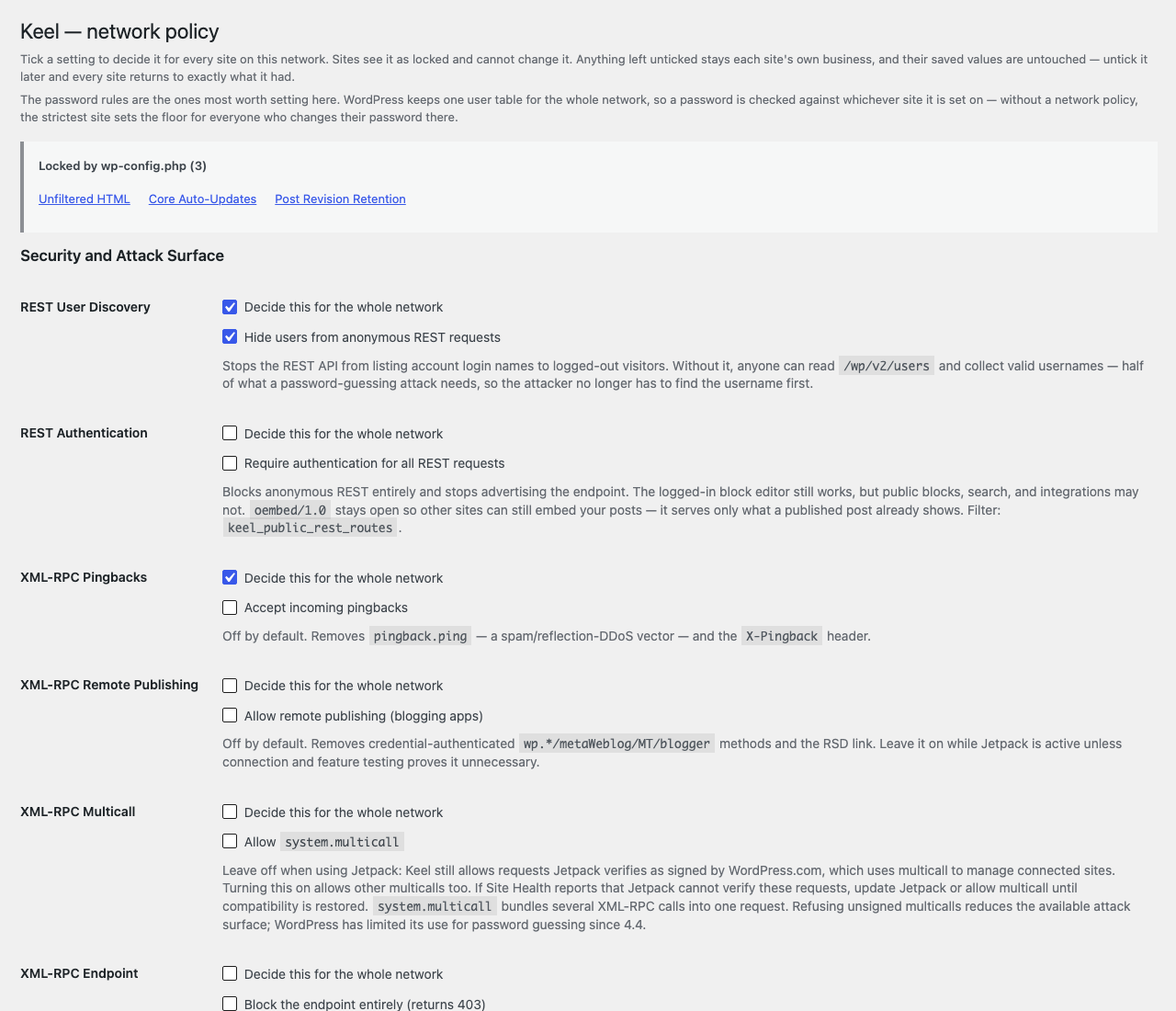
Yes. Keel is built for independent sites, agencies, freelancers, and multisite networks. On a network, a Super Admin uses Network Admin → Settings → Network Policy to choose which defaults apply everywhere. The policy is visible and locked on each site, but it does not destroy the local choices underneath it; remove a policy later and each site returns to its own saved choice.
Passwords are the one setting that works differently on a network. The setting is stored per site, but WordPress keeps one list of users for the whole network, so a password set on any site becomes that person’s password everywhere. For one rule across the network, set the password policy in Network Policy.
Can I use Keel with another security or defaults plugin?
Usually, yes, but choose one plugin to own any particular setting. Keel helps by showing likely overlaps in Site Health, so you can compare the two instead of discovering a disagreement later.
Does Keel control plugin and theme auto-updates?
Yes. Separate plugin and theme controls offer Enabled, Disabled, and Leave unchanged. Both default to Leave unchanged, preserving WordPress’s per-item choices and other filters. Explicit choices do not rewrite those per-item settings; later filters and global update restrictions still apply. There is no minor-only channel for plugin or theme releases. On multisite, network policy wins, otherwise the main site’s Keel setting decides for the shared files, and only a Super Admin can change it. Site Health → Status, under Update diagnostics, reports the cached filter decisions, not installation guarantees.
Why is there no password strength meter?
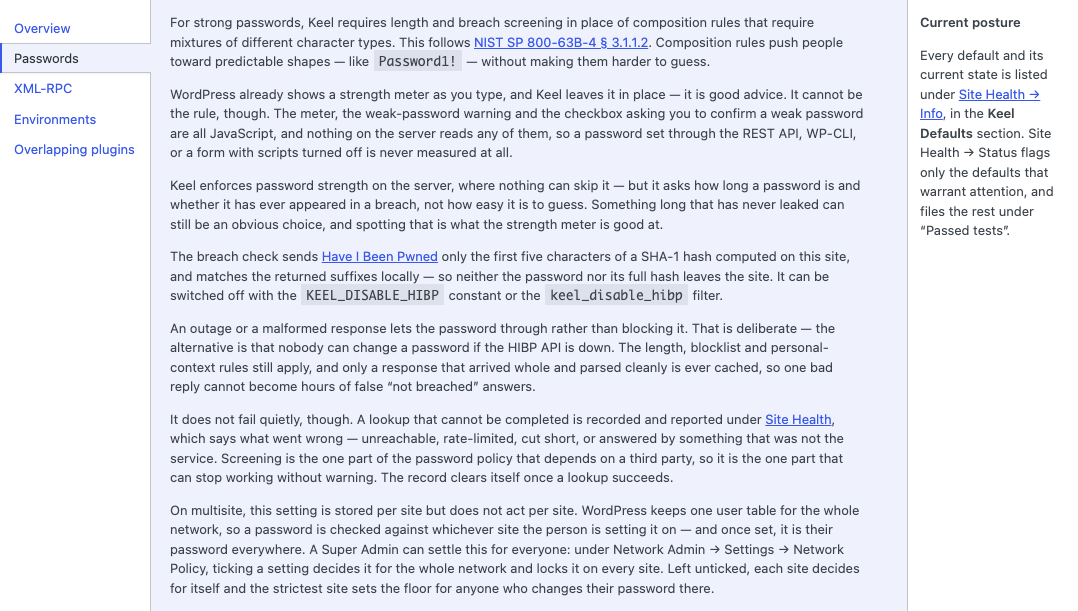
WordPress’s strength meter advises the person typing but cannot refuse a password, and passwords set through the REST API, WP-CLI, or a form without scripts never meet it. Keel instead checks length, known breaches, a blocklist, and personal details such as your own name on the server, where the checks cannot be bypassed.
Can I download a report for support?
Yes. Go to Settings → Site Defaults and use Download JSON under Export Settings and Diagnostics. The authenticated download includes validated policy choices and cached diagnostic summaries, with unknown evidence marked explicitly. It excludes site/user identifiers, raw option records, callback paths and full plugin/theme inventories. On multisite, network-management authority is required. Review the file before sharing it; downloading does not refresh diagnostics or run update checks.
Can I set these in code instead?
Yes. Many defaults can be set with a wp-config.php constant or a filter, for example KEEL_DISABLE_HIBP or KEEL_ALLOW_NONPRODUCTION_MAIL. A constant wins over the settings screen, and the screen shows when a setting is being overridden. The full list is in the plugin’s documentation on GitHub.
Screenshots
Changelog
0.9.2
- Security: on multisite, the main site’s settings that every site shares now need a Super Admin. Where Network Policy leaves them unmanaged, the main site’s three update policies, translation updates and Public Names apply to the whole network. A main-site administrator who cannot manage network options now sees them locked on Site Defaults, and a save keeps the stored values. Other sites, single sites and Network Policy are unchanged.
- Security: breach screening keeps no replies. A reply from Have I Been Pwned answers the check that asked for it and is then discarded, so no password, hash, hash prefix or reply is stored. The 64 rows earlier versions used are deleted when a site first loads this version. Checking the same password in two separate requests now spends the lookup allowance twice.
- Changed: half the breach-lookup allowance is kept for accounts that can write content or manage the site, so they can still be checked when the rest of the shared allowance is used up. With the default policy that is 5 of 10.
- Fixed: the login re-check screens the password as typed. WordPress hands the login form’s password to plugins with slashes added, so a password containing a quote or a backslash was checked in a different form at login than when it was set.
- Changed: the Site Health check for email addresses in public names says whether Public Names is on, and links the setting and the one-time cleanup for people who can use them.
0.9.1
- Added: a Random Post Redirects setting, on by default, including on sites that update. WordPress 7.2 adds
/random/addresses, and?randomon any archive or search, that redirect to a random published post. Each one runs an uncached random-order query, and the author form confirms which author slugs exist even while author archives are off. Keel turns them off and clears the saved rewrite rules. With Author Archives off, random author requests find nothing whatever this setting says. Before WordPress 7.2 the setting does not appear. - Added: a Public Names setting, off by default. When an account is created or updated by any route, a display name, nickname or author slug that repeats its login, email address or the part of the address before the @ is replaced with a safe one. Safe names people chose are kept, and logins, addresses and passwords never change. A one-time cleanup under Users → Public Names fixes existing accounts in resumable batches, and updates their past comments only when asked. Old author addresses are not redirected, because a redirect would confirm which address belongs to an account. On multisite, network policy or the main site’s setting decides, because accounts are shared.
- Added: a Site Health check for email addresses in public names. When a username is an email address, WordPress copies it into the public display name and builds the author slug from it. The check counts affected accounts, lists up to 20 administrators and editors with published posts or approved comments (never by the address), and says which public places Keel’s other settings already hide. It only reports.
- Changed: every setting’s description is now one sentence of 25 words or fewer, so a screen reader no longer reads a paragraph on every control. The full explanations moved to a new Settings in Detail tab under Help, on Site Defaults and on Network Policy.
- Changed: the settings Help tabs are copy-edited, and a new Updates tab explains what the core, plugin and theme update settings decide and what they cannot promise.
- Changed: the auto-hidden admin bar now waits a moment before it appears and before it hides, so a quick move to the browser’s tabs or toolbar no longer pops it open. Keyboard focus still shows it at once.
- Fixed: on WordPress.com, the Help Center hid Keel’s Help tabs on Site Defaults. The Help link is back on that screen; the Help Center is unchanged.
- Accessibility: the Keel update policy title on the Updates screen is now a heading, and the breached-passwords table caption says how many accounts it lists, because VoiceOver did not announce that table’s size.
- Performance: the check that notices another plugin overriding a setting reads Keel’s settings once instead of once per setting, about three times faster, and a test confirms it adds no database queries on a healthy site.
0.9.0
- Added: Plugin Auto-Updates and Theme Auto-Updates settings: Enabled, Disabled, or Leave unchanged. Both default to Leave unchanged, which keeps WordPress’s per-item choices. An explicit choice never rewrites those choices, and later filters still apply. There is no minor-only option, because plugin and theme version numbers carry no enforced meaning. On multisite, network policy decides for the shared files.
- Added: a Keel update policy notice on the Updates screen, just above Current version. It names the release line, explains the core update policy and where it comes from, links to the setting, and says plainly that a policy is not a delivery guarantee. WordPress’s own text is left as it is.
- Added: an Update diagnostics panel in Site Health → Status. Plain tables show the release WordPress would install, the age of the last update-check attempt, scheduled checks, retained failure codes, and plugin and theme auto-update decisions. It is evidence for troubleshooting, not a health verdict or an installation schedule.
- Added: a sanitized JSON report of Keel’s settings and diagnostics, downloaded from Settings → Site Defaults. It leaves out site and user identifiers, raw option records, callback paths and full plugin and theme lists. It is built for the download and never stored or sent anywhere. On multisite, network-management authority is required.
- Added: Site Health → Info lists the categories of data WordPress’s normal update checks send to WordPress.org. It shows none of this site’s values and makes no requests.
- Added: a Keel registration audit in Site Health. It checks that the protections for comment feeds, author feeds, author archives, attachment pages and session length are still registered where they can work. It reports what it finds and never runs other plugins’ code or repairs anything.
- Added: on WordPress 7.1 and later, Site Health lists plugins that override Abilities API permission decisions. One such plugin can change who may run an ability, so each is listed for review, not reported as a fault.
- Changed: Admin List Columns is replaced by one Admin List Tables setting: Leave unchanged, Tidy existing tables, or Tidy + helper columns. Sites that had Admin List Columns on move to Tidy + helper columns, which also sizes post-list columns to their content, shortens known plugin column headings, shows Published dates with times and starts optional columns hidden. ID and Modified stay off until ticked in Screen Options. Saved Screen Options are never changed; choose Leave unchanged in Site Defaults to keep core’s tables. In Tidy modes, Modified is sortable, sort arrows stay beside their headings and long values wrap.
- Fixed: with comments disabled, a comment could still be posted when another plugin reopened comments. Keel hid the form but the comment was stored. Submissions are now refused through the form, REST, XML-RPC and pingbacks; Notes keep working.
- Fixed: when another plugin overrides a setting and Keel can name it, Site Health now says “A setting is not taking effect” and points to that plugin, instead of a vaguer headline and a paragraph saying nothing could be named. The wording no longer assumes the other plugin turned a feature off.
- Fixed: the environment indicator disappeared from the admin bar at 782px and below, because WordPress hides every toolbar item it doesn’t recognize on narrow screens. It now stays as a color-coded icon on phones and narrow windows.
- Changed: the Environments help tab is less than half its old length. The longer reasoning moved to docs/environment-detection.md. It now also says that the Environment setting changes what the indicator says, not whether it appears.
- Added: Password Strength now re-checks existing passwords at login, at most once every 30 days per account. A password found in a known breach still works, but its owner sees a warning on every admin screen until they change it. Administrators see a count and a linked list of affected accounts in Site Health, and a Breached passwords view on the Users screen, with links to each profile and to Send password reset. An unknown result is never recorded, and nothing is shown to anyone who cannot list users. Every role is checked; the
keel_password_rescreen_skip_rolesfilter can leave subscribers out. - Changed: Have I Been Pwned lookups now share an allowance per site, or per network on multisite: 10 requests to start, then one more each minute, with at most two at once. Up to 64 cached range responses are kept for up to 12 hours. When a fresh check cannot run, the breach result is unknown and the password change goes ahead under the other password rules.
- Security: on multisite, the older minor-update action also requires network-management permission, malformed setting values are rejected before conversion, and refused requests now answer with HTTP 403. A lab checks 135 authorization cases through real WordPress requests on every pull request.
- Fixed: locked settings, the update evidence tables and the Site Health cron and breached-account tables can be reached and scrolled by keyboard, with a visible focus outline, and the tables no longer widen the page on a 320px screen.
- Fixed: overlap diagnostics no longer load another plugin’s classes just to name it, and attribution stays within the hook and storage scope it came from. The autoload report now names Keel’s own options and core transients.
- Fixed: the core backport policy action linked to a settings section that no longer exists.
- Translations: every Canadian spelling in Keel now has an en_CA entry.
0.8.0
- Performance: Site Health identifies the ten largest observed autoloaded options, their byte sizes and probable owners with confidence and evidence. Collection runs in bounded, cached background batches. Option values are never exposed or cached; no options are deleted or given different autoload flags.
- Performance: Site Health identifies overdue and frequent stored cron events with probable owners, and relates core-update hooks to offer-cache age and retained failure codes. Arguments and error data are never retained; jobs, schedules and update policy are unchanged. External scheduling and incomplete coverage stay explicit; no update installation time is promised.
- Accessibility: cron report tables scroll in named, keyboard-focusable regions on narrow screens.
- Documentation: describe the 42 controls as configurable settings; some have dependencies or are centrally managed. Correct the release record: the update hook refreshes Keel’s status cache without rewriting core update offers.
0.7.0
- Privacy (new default, also on for existing sites): hide password-protected posts from non-admin searches without access, while preserving per-post editing capabilities and unlocked-password access. Independently toggleable under Protected Search Results; does not change direct links or stored content.
- Content (new default, also on for existing sites): hide recognizable missing-shortcode markup from readers while keeping enclosed text and editors’ evidence. A paired Site Health report lists recently affected posts and missing tag names, without scanning posts or storing content. Bare bracketed words, examples and REST output stay unchanged. Independently toggleable under Broken Shortcodes.
- Admin: locked settings now carry a lock marker beside their label. A summary links to each locked setting and separates configuration locks from network policy. Links reveal hidden dependent controls and move keyboard focus.
- Accessibility: the drop-downs and number fields on the Network Policy screen now have names that screen readers announce. They were read out as unnamed controls.
Entries for 0.6.0 and earlier are in changelog.txt in the plugin’s repository: https://github.com/dknauss/keel/blob/main/changelog.txt. Versions before 0.5.9 were not published to the directory; their entries are the development history that led to the first release.
0.6.9
- Fixed: conflict diagnostics no longer mistake Keel for another plugin when its installation folder is a symlink to a differently named source directory.
- Improved: crowded conflict reports reuse plugin-root attribution work instead of repeating filesystem resolution for every callback. Site and network plugin changes still invalidate the mapping immediately.
- Changed: the vulnerable-core notice now explains when a fix should install automatically, why it may be a newer release than the same-line patch, and where to review the actual selection or upgrade options. It does not promise an installation time.
- Refactored: shared site/network controls, backport handling, password and breach screening, conflict diagnostics and configuration-policy helpers now have clearer module boundaries. Defaults, saved preferences, permissions and PHP 7.4 compatibility are preserved.
- Developer: precise data contracts and scoped PHPStan level-6 analysis cover nineteen modules, with contract regression fixtures and expanded real-WordPress, multisite, browser and installer verification. Development tooling is excluded from the installable package.
- Changed: translatable source strings use US English; translations remain available through WordPress.org language packs.
0.6.8
- Added: an Environment setting under Admin and Front-End UX. Automatic, the default, works as before. Choosing Production, Staging, Development or Local makes Keel use that instead, for the environment label and for holding back email on non-production sites. It applies only on the site where it was chosen, so a copy of the database on a laptop or staging site ignores it and never sends real email as the live site.
- Added: a warning when a live site says it is local. If WP_ENVIRONMENT_TYPE says local on a public address or on WordPress.com, Keel says so on every admin screen, because that label can hold back the site’s email and make other plugins switch features off. A local wp-config.php copied to a live server, as a WordPress Studio push can do, is the usual cause. The warning names where the label comes from, the wp-config.php file Keel found and the WP-CLI command that fixes it. Keel never edits wp-config.php itself.
- Added: if the Environment setting is covering for a wrong label, Keel keeps a warning on screen until wp-config.php is fixed, because WordPress, Jetpack and the host still see the wrong label. Keel’s settings screen also points out a setting that is no longer needed.
- Added: a Site Health check, Environment type, and the same warning in the Network Admin on multisite.
- Added: when Jetpack, not Keel, is setting the admin menu width (as on WordPress.com), the Admin Menu Width setting and Site Health now say so.
- Fixed: the block editor now follows the admin menu width. A wider menu covered the edge of the editor, and a narrower one left a blank strip beside it.
- Added: where Jetpack is active, the AI Connectors setting now says that Jetpack follows it. While it is on, which is the default, Jetpack’s AI Assistant and its other AI features are switched off too.
- Changed: the Site Health report on plugins sharing Keel’s settings now names must-use plugins and themes. On a managed host it used to say the code could not be traced to any plugin.
- Changed: the help for XML-RPC Multicall says to leave it off with Jetpack, because requests WordPress.com signs are still let through. The help for Frame Options says SAMEORIGIN can block previews embedded on WordPress.com.
- Changed: the line under Keel’s name on the settings screen is now “Balanced defaults for steady sites.”
0.6.7
- Fixed: with XML-RPC Multicall off, which is the default, a site connected to WordPress.com through Jetpack could be cut off from it. WordPress.com manages a connected site through multicall, so the plugin list and settings changes failed on WordPress.com while Jetpack still reported itself as connected. Keel now lets through the requests Jetpack verifies as signed by WordPress.com, and still refuses every other multicall.
- Fixed: a refused multicall went out as HTTP 405 instead of an XML-RPC fault, so clients reported a transport error. It is now an ordinary fault (code -32601) on HTTP 200.
- Added: on a site connected through Jetpack, Site Health now reports when Keel’s XML-RPC settings stop WordPress.com from reaching it.
- Changed: the Site Health check for plugins sharing Keel’s settings is rewritten in plain language. Each item now names the Keel setting involved and the other plugins by their names, not their folder names, and the report says outright that sharing a hook is not evidence of a conflict. Settings that are not taking effect are listed by name, with the hook shown for developers.
- Changed: the Site Health check on your WordPress version is titled “This version of WordPress core is not currently flagged as insecure”, and on an older release line it names the line that will eventually be retired, such as “the 7.0 line”.
- Fixed: in a right-to-left admin, dragging the admin menu width slider pushed the content from the wrong side, and the widened menu covered the start of every label. The preview now moves the content from the right.
- Fixed: on the network settings screen, the introduction was held to a narrow column while the settings below it used the full width. The cap is gone, so the introduction follows the Network Admin’s own width like the rest of the screen.
0.6.6
- Security: with comments disabled, the REST API went on serving a single comment by ID (/wp/v2/comments/123). The guard added in 0.6.1 to close that route checked for a function WordPress does not define, so it never ran. It now checks correctly, and the route answers 404.
- Added: the WordPress.org listing has a Live Preview button. The blueprint behind it was in the repository all along, but the deploy held it back from the upload, so the listing never had one.
- Fixed: on the day a security release ships, Site Health could go on reporting your version as the latest for up to a day. Keel cached WordPress.org’s release status for a day; it now fetches it again as soon as WordPress learns of a release the cached answer does not list.
- Fixed: a setting locked in wp-config.php showed the preference stored underneath the lock, not what the constant enforces. With WP_AUTO_UPDATE_CORE set to true, Core Auto-Updates read “Maintenance/security releases only” on a site installing every release. Locked controls now show what is in force, and when background updates are switched off entirely, the note names the constant that did it.
- Changed: a locked setting now looks locked. The note beneath it reads as a statement rather than a hint, the control itself is visibly inactive, and both are styled on the network settings screen too.
- Fixed: a folded admin menu stayed pinned open at a custom width. It now folds, and the width applies only above 960px, where WordPress does not fold the menu automatically. The live preview follows the same rules, so it no longer shows a width that saving would not apply.
- Changed: clearer wording throughout the core update and security patch messages, with constant, filter and file names shown as code.
- Fixed: with automatic updates switched off or held back by an earlier failed update, the Site Health patch panel said Keel would not offer a deliberate install directly above a working Install button. It now says the patch can still be installed deliberately, and keeps the refusal for the cases where Keel’s installer really does refuse.
- Fixed: the security patch panel on Dashboard › Updates said “the update offered above”, but WordPress lists its offers below the panel. It now says “below”.
- Fixed: on the network policy screen, the Admin Menu Width help told a Super Admin to drag a slider that screen does not have. The sentence is gone from both screens.
- Fixed: following a link to a setting highlights its row, and the highlight bar sat directly against the setting’s label. The label now clears it, and in right-to-left languages the bar and the lock note’s rule move to the right-hand side.
- Documentation: the WordPress.org listing showed the settings screen and the patch-status panel under each other’s captions. The screenshots are retaken and numbered to match.
- Documentation: the FAQ now says Keel does not manage plugin and theme auto-updates, and explains why subsite administrators on multisite do not see the auto-update column.
0.6.5
- Fixed: the admin menu width slider stopped previewing the change as you dragged it, on any site that had a width saved. The preview was still there; Keel’s own saved rule was overriding it, because that rule is marked important and the preview was not. The preview now outranks it, as it was always meant to.
- Documentation: the FAQ now states a limit that was unstated. Keel reports a setting that is not taking effect by watching WordPress filters. A plugin, theme or host that restyles the admin with CSS registers no filter, so there is nothing to observe – the admin menu width is the usual case, and a managed host styling the admin to its own design is not a conflict Keel can see or should fight.
0.6.4
- Fixed: the admin menu width slider offered “WordPress default (160px)” as its first stop, but that stop set no width at all – it only made Keel stand down. On a site where a theme, a host, or another plugin had widened the menu, it was the stop you would reach for and the one guaranteed to do nothing. There is now an explicit 160px stop that asserts core’s width, and the first stop says what it does: “Leave unchanged”.
- Fixed: the conflict notice reported settings shared with callbacks it could not trace and sent you to Site Health, where there were no open issues. The finding was there, but filed under a passing test – green, collapsed, and headed “No attributable policy overlap was found”. Untraceable overlaps are now reported as a recommendation, so the notice and Site Health describe the same site.
- Changed: the conflict notice names Keel, drops a sentence the link beneath it already made, and says settings “may be contested” rather than asserting a contest the Site Health test itself declines to assert.
0.6.3
- Added: the security release on your own version line is now offered on the Updates screen, where WordPress sends you to update. WordPress builds that screen with
get_core_updates(), which discards every offer flagged for automatic installation — and a same-line security patch is only ever offered that way. So the screen has always listed the newest release and never mentioned the patch. Keel adds it back, directly below the automatic-update settings that decide which release the site would take. - Fixed: an install started from the Updates screen finished, then sent you to Site Health to find out whether it had worked. Worse, it usually said nothing when you got there: a successful install leaves the site secure, so the panel carrying the result correctly stops rendering. The result now appears on the screen the button was pressed on, once.
- Fixed: the Updates screen offer named the newest release from the WordPress.org stable check, and called it “the update offered above”. That check and the update list WordPress renders refresh on their own schedules, so the two could disagree — or the screen could be offering nothing at all. It now reads the same list the screen does, and says nothing rather than inventing an update above.
- Fixed: the Site Health panel told you the Updates screen would not offer the patch, on sites where Keel had just added it there.
- Changed: the ladder markers are one symbol and one label per rung rather than several, and the plainer wording drops an explanation of release numbering nobody reading two version numbers needs.
- Screenshots retaken against the current wording.
0.6.2
- Fixed: the patch-status panel could promise a scheduled install the ladder directly beneath it contradicted. “Minor updates are permitted and the updater works” does not establish what WordPress would install: a site that also accepts major updates gets the highest release on offer, not the nearest, so the panel could say a patch was scheduled above a ladder marking a different release as the one WordPress would take. The claim is now made only when core’s own selection is that patch, and names the release core would take instead when it is not.
- Fixed: the persistent admin notice repeated the same promise with no ladder beneath it to correct it. It renders on every admin screen, so it cannot afford to ask WordPress which release it would install — it now says automatic updating appears available and sends you to Site Health, which can answer.
- Fixed: the panel offered a deliberate install in states where Keel refuses one, and then, once corrected, claimed no install was possible at all. Both were wrong. Keel refuses a blocked install; a deployment workflow or WP-CLI may still manage it, and the wording now says which of those it is speaking for.
- Fixed: an unexpected
nullfrom WordPress’s upgrader was reported as a successful install. Core documents a version string on success, sonullestablishes nothing. - Added: two live matrix rows that leave the automatic updater operable — one where WordPress would take the same-line patch, one where major updates are permitted and it steps over. Every previous row switched the updater off, so no row had ever rendered the panel in the state these fixes are about.
- Screenshots retaken against a release WordPress.org flags, so the listing images show the current wording.
0.6.1
- Fixed:
/?author=Nstill disclosed the author nicename, and attachment pages still rendered, on sites with those defaults enabled. Both redirects registered ontemplate_redirectat the default priority, where core has already registeredredirect_canonicalduring load — so they lost the tie on registration order every time. Both now run at priority 9. - Fixed: a site with comments disabled still answered
/wp/v2/comments/123. The filter covering every comment listing does not cover the single-item REST route, which reads its row without building a query. - Fixed: the REST password policy resolved any user ID in the request before the route checked authorization, so the policy ran against another account’s login, email and nicename and returned the answer in the validation error. It now resolves only the caller’s own user, or one they may edit.
- Fixed: an empty or over-long password reached the breach-screening network call before anything cheap rejected it.
- Added:
tests/hook-precedence.phpandtests/route-coverage.php, which check that a registration wins its hook and covers its routes rather than merely existing. The first two fixes above were invisible to the previous suite. - Thanks to Austin Ginder of Anchor Hosting for the security review these fixes come from.