


Description
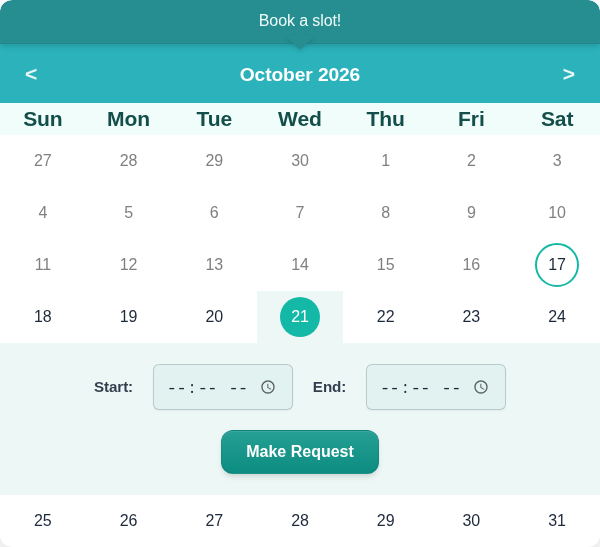
KN Booking is a lightweight appointment booking plugin built for salons, barbershops and other small appointment-based businesses. Clients pick a date and time on a calendar, you approve or decline the request, and everyone gets an automatic email. No account with an external service, no bloat.
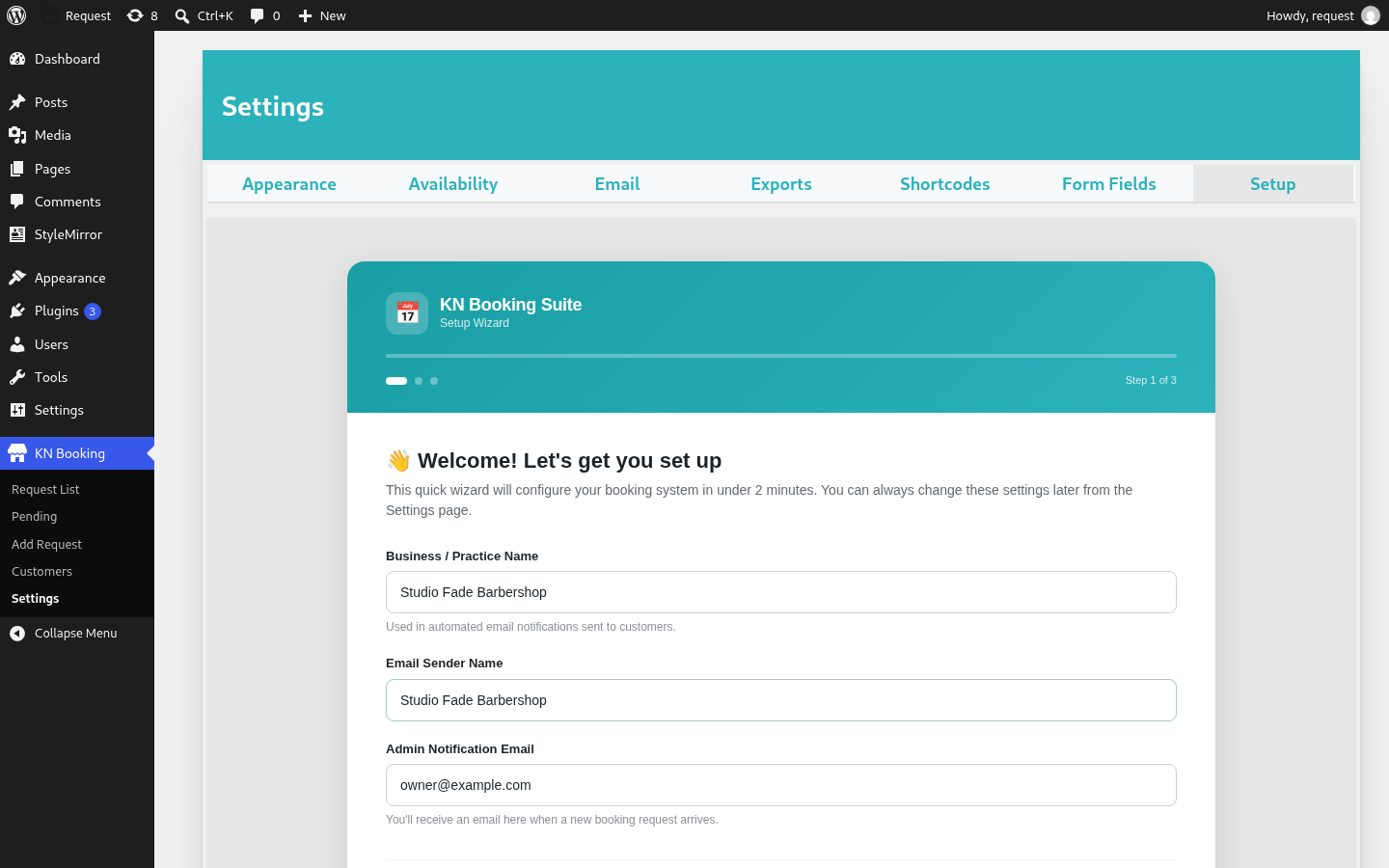
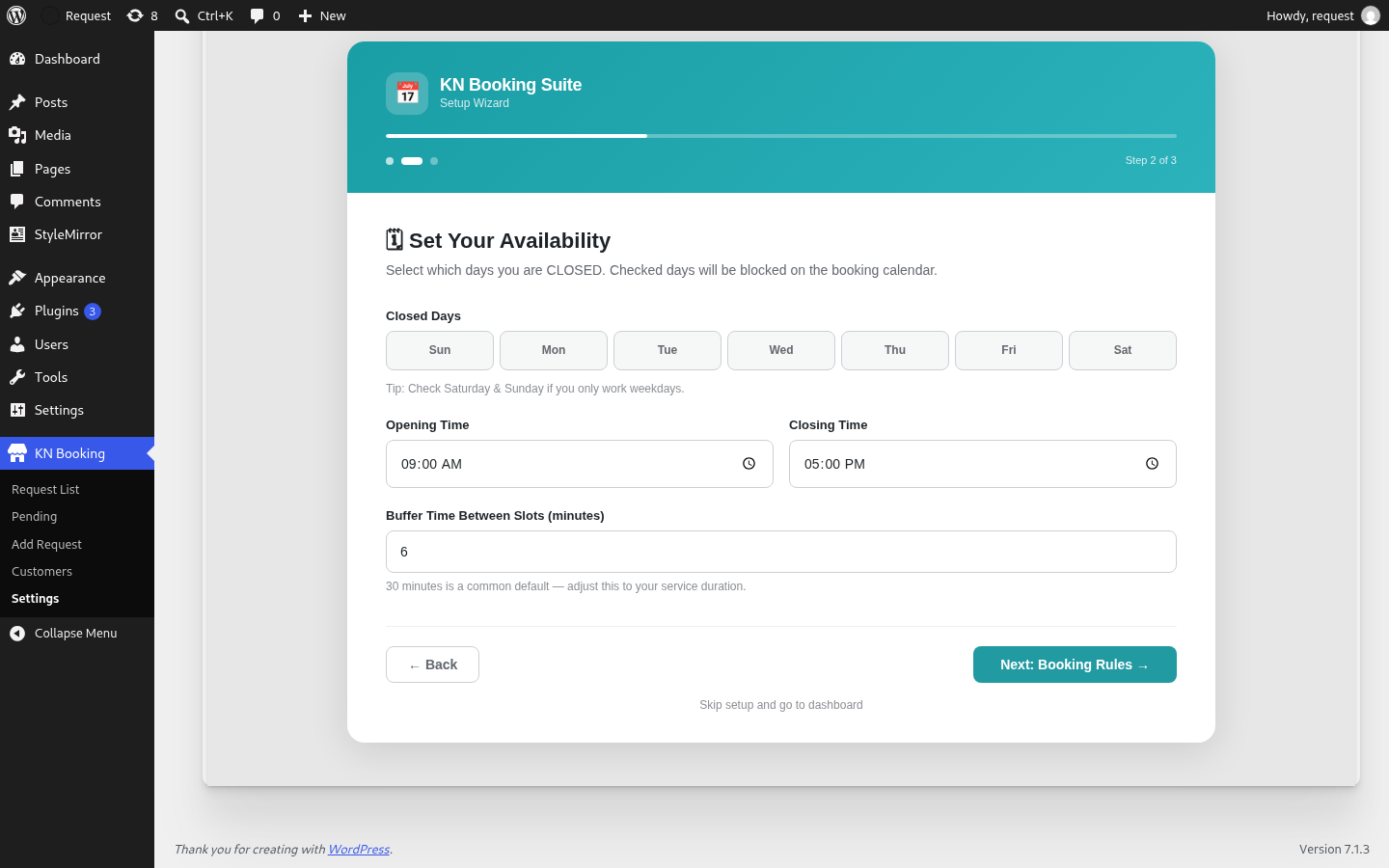
A built-in setup wizard (Settings > Setup) gets you running in about two minutes: enter your business details, choose your open days and hours, and set your booking rules. Then add the [kn_booking] shortcode to any page.
Free Features:
- Interactive calendar with availability management
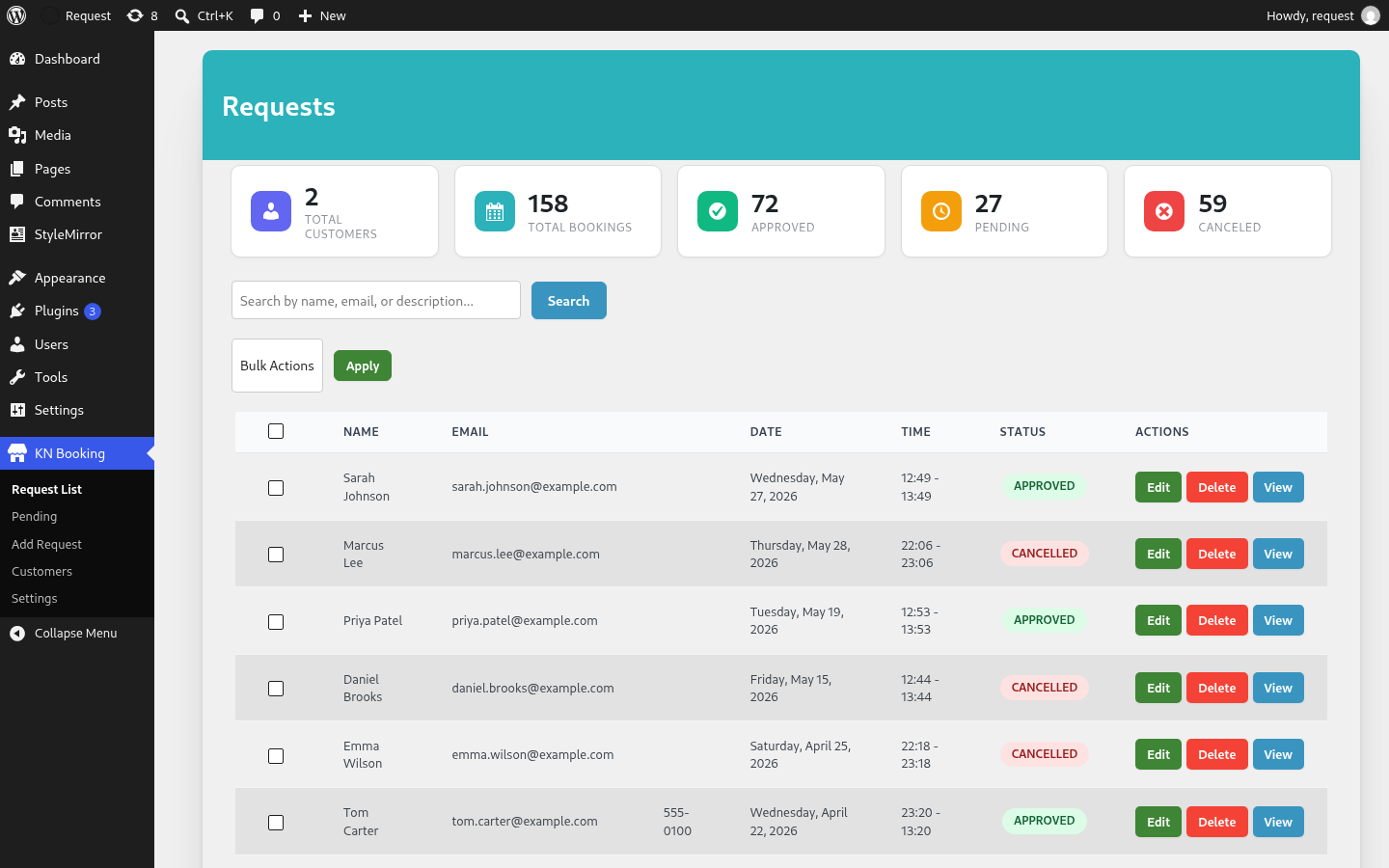
- Booking request management (approve, cancel, delete)
- Automated email notifications (new request, approval, cancellation)
- Customizable booking form with dynamic fields
- Customer profile page for users to view and manage their bookings
- Booking Calendar and Booking Profile blocks for the block editor
- Configurable availability hours and blocked dates
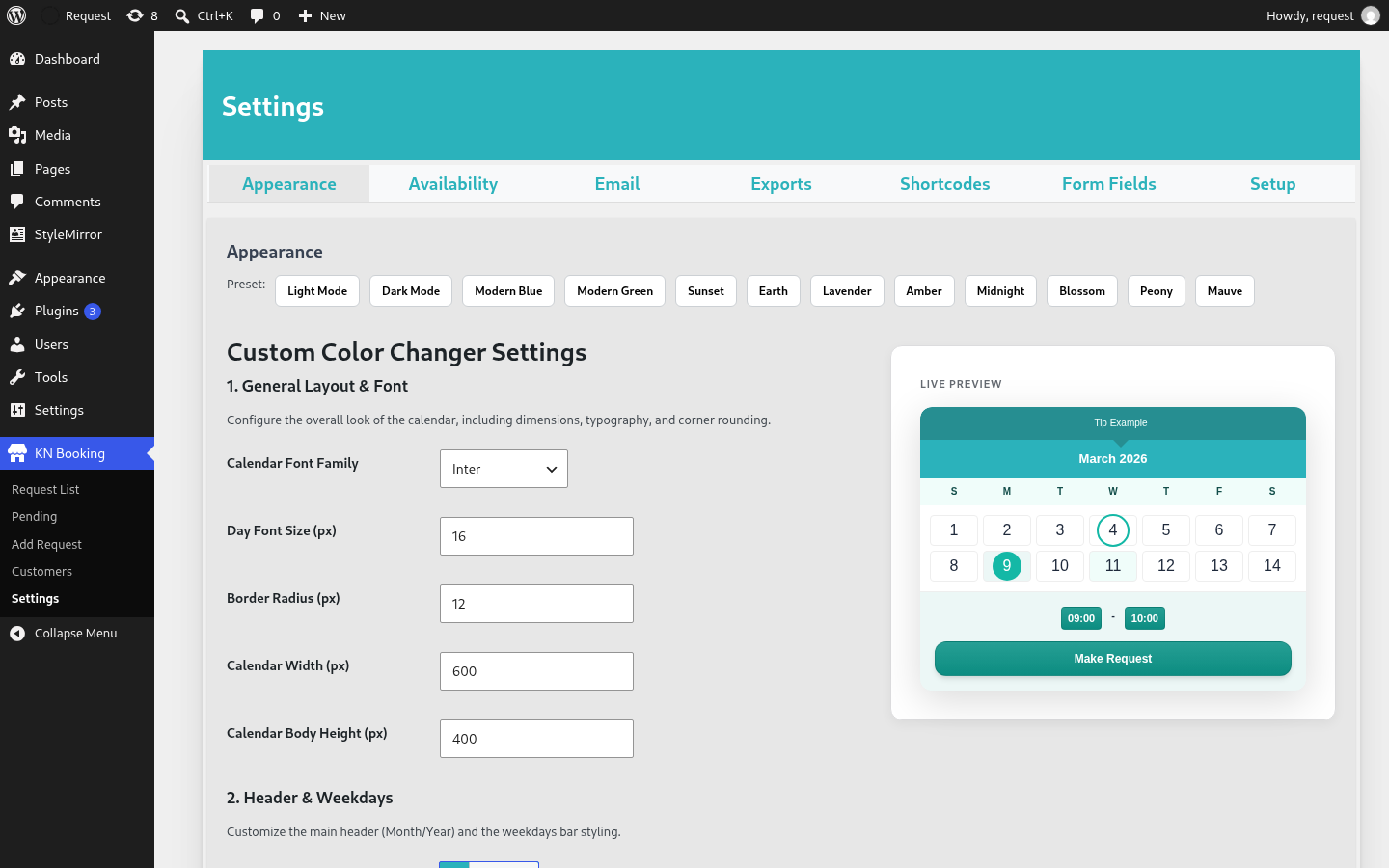
- Color presets and calendar theming options
- CSV export of booking data
- Guest and logged-in user booking support
- Optional WooCommerce payments: take payment at booking (required, or pay now / pay later), with price based on booking length
- Optional AI booking assistant: summarize a request and draft a reply with your own OpenAI API key
- “Add to Google Calendar” link on the booking success message
Step-by-step guides with screenshots: KN Booking documentation
Watch the demo:
Blocks and Shortcodes
Both are also available as blocks in the block editor: search for “Booking Calendar” and “Booking Profile”.
[kn_booking]
Place this shortcode on any page to display the booking calendar.
[kn_profile]
Place this shortcode on a page to allow logged-in users to view and manage their own bookings.
External Services
OpenAI API (optional)
Only if you enter an OpenAI API key under Settings > Integrations, an AI Analyze button appears on bookings. When an admin clicks it, the customer’s name, the requested date and time, and the booking notes are sent to the OpenAI API to generate a summary and a draft reply. Nothing is sent until you click the button, and nothing is sent if no API key is saved.
This service is provided by OpenAI, L.L.C.:
* OpenAI Terms of Use
* OpenAI Privacy Policy
Google Calendar link (optional)
If enabled, the booking success message shows a link to calendar.google.com with the booking details in the URL. No data is sent from your server; the request is only made if the customer clicks the link.
Installation
From your WordPress dashboard:
- Visit Plugins > Add New
- Search for “KN Booking”
- Install and activate the plugin
- Open KN Booking > Settings > Setup and follow the three-step wizard (business info, availability, booking rules)
- Add the
[kn_booking]shortcode to any page to display the booking calendar
FAQ
Does this plugin require WooCommerce?
No. KN Booking works as a completely standalone booking system. If you want to take payment when customers book, install WooCommerce and enable it under Settings > Payment.
How do I take payment for bookings with WooCommerce?
- Install and activate WooCommerce.
- Go to Products > Add New, give the product a name and price, and tick Booking product in the Product data box. Publish it.
- Set the length it covers in the Booking hours and Booking minutes fields (General tab for a simple product, or inside each variation for a variable product).
- Go to KN Booking > Settings > Payment, choose a payment mode (Required, or Optional so customers can pay now or later), and select your product.
- Save. When a customer submits the booking form they are sent to the WooCommerce cart or checkout, and the booking is created once the order is placed.
Booking products are hidden from your shop and search results.
How is the price worked out?
The plugin charges the product, or the variation, whose duration is closest to (and not shorter than) the length the customer booked. For example, with variations of 1 hour and 2 hours, a 90 minute booking is charged the 2 hour price. Tick Show the estimated price in the booking form to display the price before checkout.
Can I approve bookings only after they are paid?
Yes. In Settings > Payment tick Approve the booking only when the order is paid. The booking stays pending until the WooCommerce order is processing or completed, and it is cancelled automatically if the order is cancelled or refunded.
How do I use the AI Analyze button?
Create an API key in your own OpenAI account, then paste it into KN Booking > Settings > Integrations > AI Booking Assistant (OpenAI) and save. An AI Analyze button then appears next to each booking in the Requests and Pending lists. It shows a short summary, a category and a draft reply that you can edit and send to the customer. Usage is billed by OpenAI to your account. The button is hidden if no key is saved.
What data does the AI Analyze button send?
Only when you click it, the customer’s name, the requested date and time, and the booking notes are sent to OpenAI. Nothing is sent otherwise. See the External Services section below.
How do I add the booking calendar to a page?
Add the Booking Calendar block in the block editor, or place the [kn_booking] shortcode on any page. Use the Booking Profile block or [kn_profile] for the customer bookings page.
Can customers manage their own bookings?
Yes. Use the [kn_profile] shortcode on any page to let logged-in users view upcoming and past bookings, and optionally edit or cancel them based on your settings.
Is this suitable for a salon or barbershop?
Yes. Set your open days and hours, a buffer time between appointments and a daily booking limit, and choose whether requests are approved automatically or manually. Clients can book as guests or logged-in users.
How do I run the setup wizard again?
Go to KN Booking > Settings > Setup. You can run it as often as you like; it pre-fills your saved values.
Is the plugin translatable?
Yes. KN Booking is fully internationalized and ready for translation using the knvinny-booking-suite text domain.
Screenshots
Changelog
1.1.7
- New: step-by-step guides with screenshots at https://vinnykib.github.io/kn-booking-docs/ and a Docs link on the Plugins page.
- Improved: AI Analyze now shows the real reason when it fails (invalid key, no credit, rate limit).
- New: an optional one-time notice asking for a review after 10 approved bookings. It can be snoozed or dismissed for good.
- Fixed: a missing space in the booking form price, “Price: KSh 30.00”.
- Updated: new store banner and a consistent “KN Booking” name in the setup wizard.
1.1.6
- New: WooCommerce payments (Settings > Payment). Mark a product as a “Booking product”, set hours/minutes per variation, and choose required, optional or no payment.
- New: AI Analyze button on bookings (Settings > Integrations) using your own OpenAI API key.
- New: “Add to Google Calendar” link on the booking success message.
1.1.5
- New: Booking Calendar and Booking Profile blocks for the block editor.
- Fixed: CSS and JS now use the plugin version for cache busting, so updates load immediately.
1.1.4
- New: Setup wizard under Settings > Setup, shown automatically after activation.
- New: “Get started” card on the Requests page until setup is finished.
- Fixed: Admin footer appearing beside the Requests list instead of below it.
- Updated listing name and description.
1.1.3
- Resolved PHP 8.1+ deprecation warnings in
wp_kses_post()by ensuring inputs are cast to strings. - Improved null-safety for admin pagination and user profile status rendering.
1.1.2
- Shortened the plugin description.
1.1.1
- Resolved issue where Phone Number and Additional Notes fields were displayed by default on new installs.
- Ensured custom field labels have default text values to prevent empty labels.
- Updated settings UI to use [kn_booking] and [kn_profile] shortcodes.
1.1.0
- Branding: Published as KN Booking Suite on WordPress.org.
- Prefixing: Standardized all internal options, AJAX actions, and hooks with
swiftbook_prefix. - CSS: Refactored all UI components to use the
swiftbook-class naming convention. - Refactor: Standardized backend controllers and menu callbacks.
1.0.1
- Security: Added capability checks to all admin AJAX handlers.
- Code quality: Proper output escaping throughout admin templates.
- Updated: Tested up to WordPress 6.7.
1.0.0
- Initial release.