


Description
Labinator Content Types Duplicator copies content so you can start from something that already works instead of rebuilding it by hand.
What it copies
- Posts, pages and custom post types, including patterns and block-theme Navigation menus: anything with a dashboard screen.
- Menus on Appearance → Menus, with their nesting, every item setting, and item data other plugins store.
- Media files: a real second copy of the file, with its sizes regenerated and its alt text kept.
Where the links are
- Clone (copy and stay in the list) and New draft (copy and start editing) under each item in lists.
- Clone in the Bulk actions menu, for many items at once.
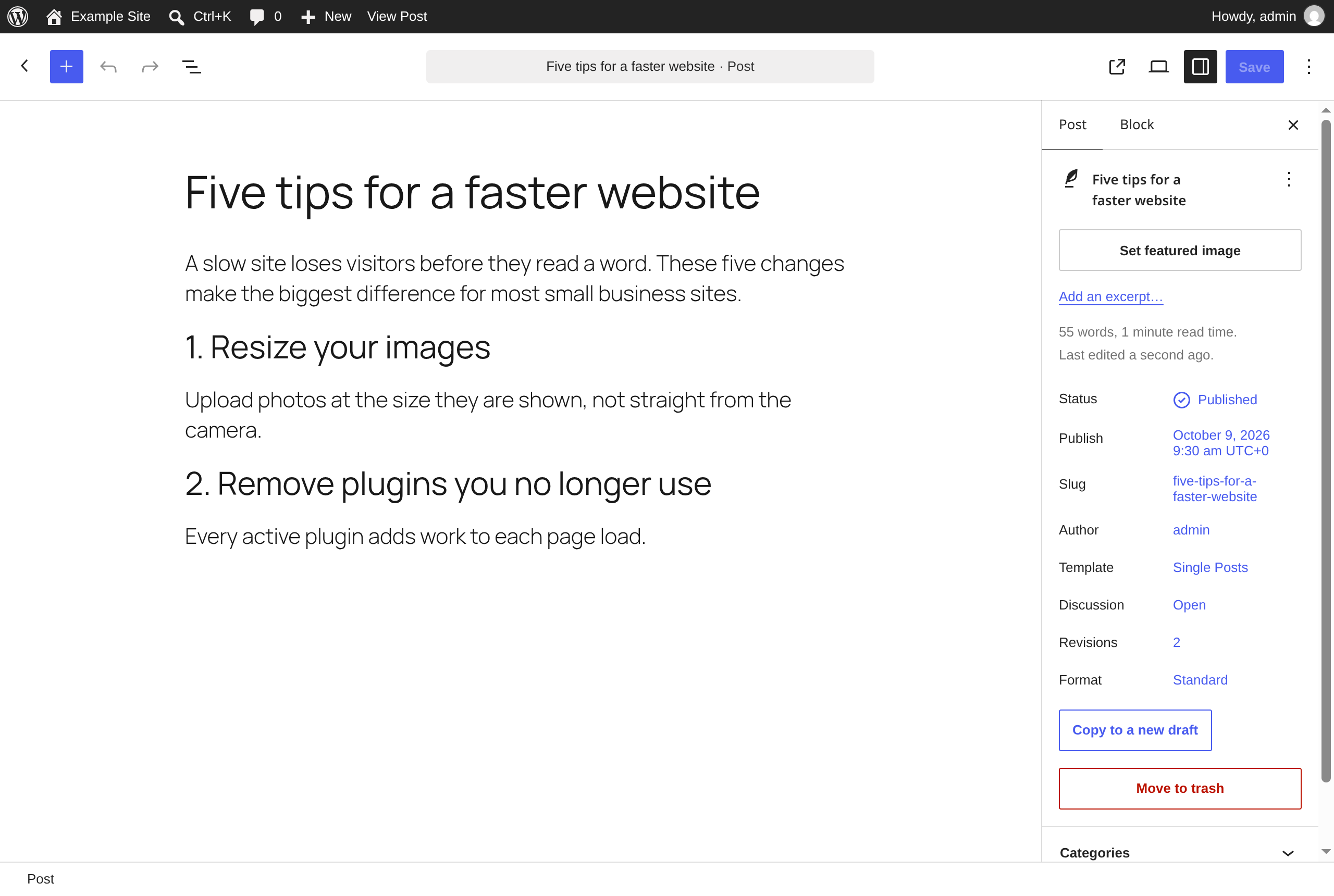
- Copy to a new draft in the block editor’s Summary panel and command palette (Ctrl+K), and in the Classic Editor’s Publish box.
- Copy to a new draft in the admin bar, while viewing a post on the site.
- Copy menu next to Save Menu.
Each place can be switched off.
What a copy carries over
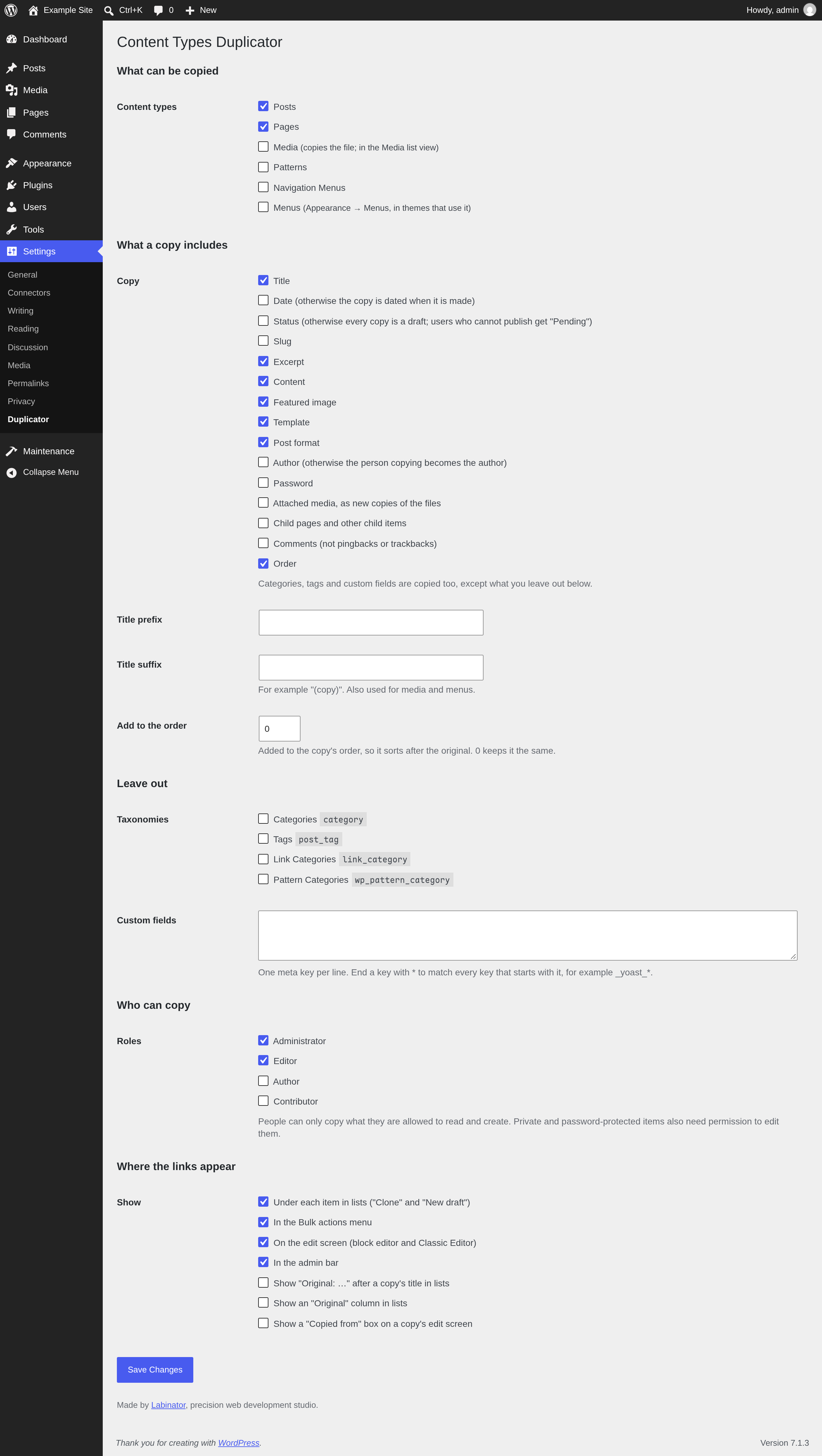
Choose from title, date, status, slug, excerpt, content, featured image, template, post format, author, password, attached media, child pages, comments and order. Categories, tags and custom fields come along too, except any taxonomies or custom fields you leave out. Add a prefix or suffix to copied titles, for example “(copy)”.
Who can copy
Choose the roles that can copy. People can only copy what they are allowed to read and create, and a private or password-protected item also needs permission to edit it, so copying never reveals content someone could not already see.
Minimal
No tracking, no external requests, no upsells. The settings screen uses WordPress’s own interface and loads nothing extra.
Credits
Versions 1.x were built on code from Duplicate Post by Enrico Battocchi (GPLv2 or later). Version 2.0 is a new codebase that keeps Duplicate Post’s _dp_original and copy_posts conventions so existing copies and permissions keep working.
Installation
- Install the plugin from Plugins → Add New, or upload the plugin folder to
/wp-content/plugins/. - Activate it. Administrators and Editors can copy straight away; posts and pages are switched on.
- Change what is copied, and by whom, at Settings → Duplicator.
FAQ
Where is the Copy menu button?
On Appearance → Menus, next to Save Menu, once “Menus” is ticked in the settings. Block themes use Navigation menus instead: tick “Navigation Menus” under content types and copy them like posts.
Can it copy widgets?
Not any more. Since WordPress 5.8 widgets are blocks, and the block widget editor has its own Duplicate command in each block’s options menu.
Does a copy keep its link to the original?
Yes. Each copy records which item it came from. You can show this as a column or after the title in lists, and remove the link from the copy’s edit screen.
I use Yoast Duplicate Post as well. Do they conflict?
No. Both plugins record the original in the same way and use the same copy_posts capability, so copies made by either show their original in both, and uninstalling this plugin leaves the capability in place while Yoast Duplicate Post is active.
Are there hooks for developers?
lct_duplicator_after_copy(action): after a post or media file is copied. Receives the copy’s ID and the original post.lct_duplicator_after_menu_copy(action): after a menu is copied. Receives the new and original menu IDs.lct_duplicator_excluded_meta(filter): the meta keys not copied. A key ending in*matches any suffix.lct_duplicator_get_clone_post_link()andlct_duplicator_clone_post_link(): template tags for a copy link in a theme.
Is there a Pro version?
No. The plugin is free and open source, with no paid tier.
Where do I get support?
Use the plugin’s support forum on WordPress.org.
Screenshots

Changelog
2.0.1
- New: “Copy to a new draft” in the command palette (Ctrl+K), suggested while you edit a post.
- Fixed: the “Copy to a new draft” button in the block editor and the copy button on the Menus screen said the link had expired instead of copying.
2.0.0
Rebuilt from scratch. Your settings and permissions carry over.
- New: Copy to a new draft in the block editor.
- New: copying works for any post type with a dashboard screen, including block-theme Navigation menus.
- New: a menu copy keeps item data other plugins store, and gets a unique name.
- Changed: copying checks that the person may read and create the item, and may edit it when it is private or password-protected.
- Changed: copying a menu or media file now needs a valid security token, like copying a post.
- Changed: a page template is only copied when it is a plain relative file name, never a path that could point outside the theme.
- Changed: the admin bar link appears on the site only. WordPress 7.1 shows the admin bar in the editor too, where the Summary panel already has the link.
- Changed: media files are copied on the server instead of downloaded from the site’s own address, which failed on many hosts.
- Changed: the settings screen uses WordPress’s own interface. It no longer loads a 900 KB interface library or fonts from Google.
- Changed: the 29 separate settings are now one, and are removed on uninstall.
- Removed: widget copying. The block widget editor has its own Duplicate command.
- Removed: copying WPML translations with a post.
- Removed: the “Delete reference to original” Quick Edit field. Use the “Copied from” box on the edit screen.
- Fixed: the dashboard crashed with a fatal error when Yoast Duplicate Post was active too.
- Fixed: translations now load from WordPress.org.
- Requires WordPress 7.1.3 and PHP 8.5.12.
Earlier versions are listed in changelog.txt.