

Description
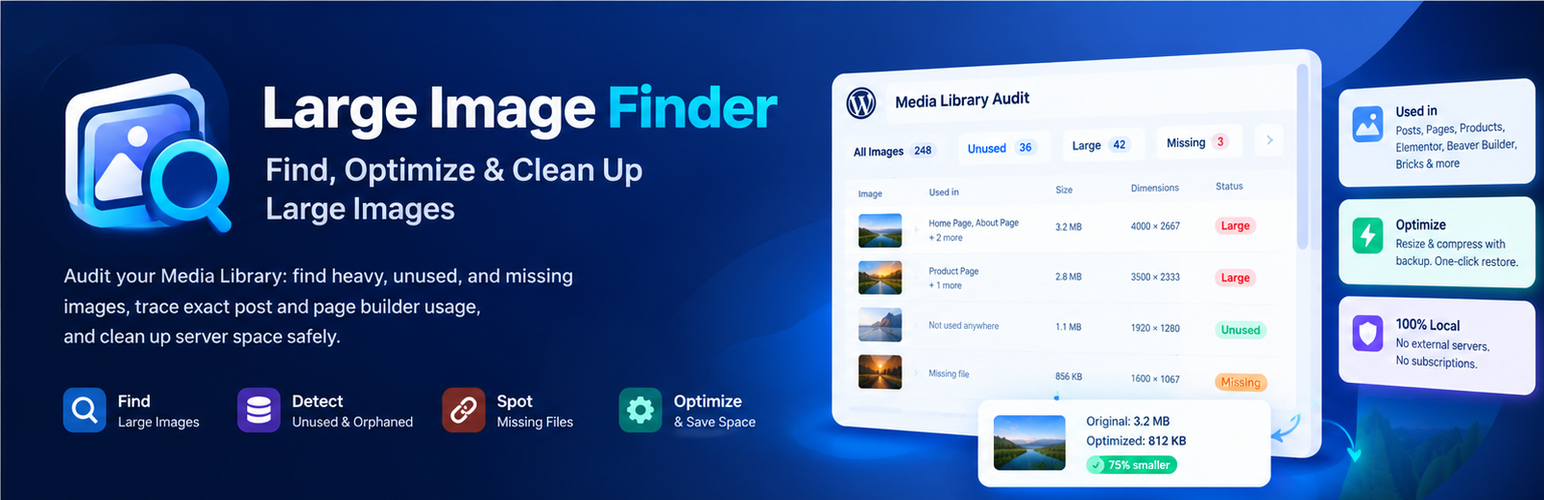
Large Image Finder is a specialized Media Library audit and usage intelligence tool for WordPress. It provides site owners and developers with a complete, transparent overview of media storage: pinpointing oversized files, mapping exactly where every image is embedded across content and page builders, identifying unused orphaned media, and detecting broken attachments.
Unlike generic image compressors that simply batch-process files without context, Large Image Finder solves the underlying media management problem: understanding which images are actually needed, where they live, and which files can be safely optimized or removed to reclaim gigabytes of disk space and boost Core Web Vitals (LCP).
How Large Image Finder is Different
- Deep Media Usage Mapping: See every place an image is used (posts, pages, WooCommerce product galleries, Elementor, Beaver Builder, Bricks, site logo, icon, and widgets) before touching it.
- Unused & Orphaned Media Audit: Detect images not linked to any content so you can safely clean up disk space.
- Broken File Detection: Find database attachment records whose physical media files were deleted or lost.
- Image Audit: See how much space your images use, the largest images, unused image storage, format and dimension breakdowns, WebP/AVIF detection and duplicate images, all read from your last scan.
- Duplicate Image Finder: Find identical files, even when the file names differ, and delete unused copies safely. One copy of every image is always kept.
- Missing Alt Text Finder: List every image without alt text and fix them one by one or all at once, right from one screen.
- 100% Local & Private: No third-party APIs, no monthly subscriptions, and no external servers. Everything runs locally on your own server.
- Safe On-Demand Optimization with Rollback: Resize and compress on request using WordPress’s built-in image tools, with original files backed up for instant one-click restoration.
Deep Media Usage Tracking
- The Used in column shows the exact count of places where an image is used and links directly to each post, page, or product edit screen.
- Detects featured images, in-content images, upload parent posts, WooCommerce product gallery images, custom logos, site icons, header images, and widgets.
- Full compatibility with modern page builders including Elementor, Beaver Builder, and Bricks.
- Sort the report by usage count to prioritize high-visibility media first.
Find Unused & Orphaned Images
- The Unused images tab lists media not referenced anywhere in known content, allowing you to identify clutter without risking broken layouts.
- Review unused media safely and delete unnecessary files permanently with built-in confirmation guards.
Audit Oversized & Heavy Media
- Set your own audit threshold: 500 KB (default), 1 MB, 2 MB, or custom KB value. Toggle thresholds instantly without re-scanning.
- View every oversized image with thumbnail preview, exact dimensions (width × height), file size, format, and attachment ID.
- Review disk usage of generated thumbnail sizes and full-size originals.
- Actionable hints: flags overly wide images (e.g. “4,000 px wide — resize to 2,560 px”) and heavy formats.
Detect Missing & Broken Media Files
- The Missing files tab flags Media Library database records whose physical files are missing from the server.
Local On-Server Optimization (With Backup)
- On-demand optimization right from the report for single images or bulk selections.
- Resizes images wider than your Max width (default 2,560 px) and recompresses them using your configured Quality settings.
- Uses the native WordPress image engine (Imagick or GD) — completely free and unlimited.
- Replaces files in-place with identical names and URLs so existing posts and pages automatically serve smaller files without rewriting content.
- Originals are safely backed up to
wp-content/uploads/large-image-finder-backups/and can be restored at any time. Optionally enable “Delete original after optimizing” if backups are not needed.
Audit storage, formats and duplicates
The Image Audit tab (Media → Large Image Finder → Image Audit) turns your last scan into numbers you can act on. It has its own Run new scan button and never changes anything by itself.
- Storage: total image storage (originals plus generated sizes), how much of it is unused, and how much space the plugin’s optimizer has saved.
- Largest images: every image from the biggest down, with file size, total size including generated sizes, dimensions and whether it is in use.
- Before / after optimization: each optimized or compressed image with its size before and after, and the total saved.
- Image formats: number of images and storage per format, the share of WebP and AVIF, and whether your server can create WebP and AVIF. Warns about formats that browsers or WordPress handle poorly, such as BMP, TIFF, HEIC or PSD.
- Image dimensions: how many images fall into each size range (under 500 px up to 3,000 px and larger).
- Duplicate images: groups of identical files, including copies uploaded under different names, with thumbnail, View and Edit links and the space the extra copies take. You can delete unused copies. Images that are in use cannot be deleted here, and at least one copy of every image always stays.
- Long tables are paginated.
Duplicates are found by comparing a checksum of each file, which is calculated during the scan. Images scanned before version 1.3.0 are included after you run a new scan. Files larger than 64 MB are not checked.
Fix missing alt text
Alt text describes an image for people who use screen readers and helps search engines understand it. The Image Alt Text tab (Media → Large Image Finder → Image Alt Text) helps you add it quickly:
- A separate Scan for missing alt text button. It does not need the large-image scan and is fast, even on big libraries.
- See how many images have no alt text and your overall alt text coverage.
- Missing tab: images with no alt text. Type the text in the field and click Update, or fill in several fields and click Save all.
- Needs review tab: images whose alt text probably is not helpful, because it is too short, longer than 125 characters, looks like a file name (for example
IMG_1234.jpg), or is the same on several images. - Suggestions built from the title or file name (for example
team-photo-scaled.jpgbecomes “Team photo”). Names that mean nothing, such as camera names or random codes, get no suggestion. Suggestions are only filled in when you ask for it and are never saved without your click. - No title tab: images with an empty title in the Media Library. Fill all of them from their file names with one click; titles that already exist are never changed.
- A character counter with a warning when the text gets too long.
- Search by file name or title.
- An Alt text column in Media → Library that shows which images are missing alt text or need a review.
- A Check image alt text box on the main screen.
Alt text is saved in the standard WordPress field, so it works with every theme and plugin. Nothing is sent to an external service.
See where each image is used
- The Used in column shows how many places use the image and links to each post, page or product.
- Detects featured images, images inside post and page content, the post an image was uploaded to, WooCommerce product galleries, the site logo, the site icon, the header image and widgets.
- Reads page builder layouts from Elementor, Beaver Builder and Bricks.
- Sort by usage to fix the most visible images first.
Find unused images
- The Unused images view lists images that are not used anywhere the plugin can check, so you can clean up your Media Library and save disk space.
- Nothing is deleted automatically. You stay in control.
Find missing image files
- Lists Media Library items whose file no longer exists on the server (broken images).
Fast and safe on large Media Libraries
- Scans in small batches with a progress bar, so even libraries with tens of thousands of images do not time out.
- Interrupted scans can be resumed.
- Safe when the scan is started from two browser tabs.
- After the first scan, the report updates itself when images are uploaded, edited or deleted, and when posts are saved.
Search, filter, export
- Search by file name.
- Filter by format (JPEG, PNG, WebP, GIF…), minimum file size, minimum width and minimum height.
- Sort by file size, file name, width, usage or ID. Show 20 or 50 images per page.
- Export the report — or only selected images — to a CSV file for Excel or Google Sheets. Exports are protected against spreadsheet formula injection.
- Step through selected images in the built-in WordPress image editor, one after another, to scale them down yourself.
Everywhere in your admin
- A File size column and an Alt text column in Media → Library. File size is highlighted when an image is over your threshold, and Alt text shows missing or doubtful alt text.
- A Dashboard widget with the number of large, unused and missing images.
- An upload warning when someone uploads an image larger than your threshold. The upload itself is never blocked.
- A scan history, so you can watch the number of large images go down.
Free, private and lightweight
- 100% free. No API key, no account, no upsell.
- No external requests. Your data never leaves your site.
- Adds no scripts, styles or database queries to your front-end pages.
- Multisite compatible.
- Translation ready.
Installation
- In your WordPress admin, go to Plugins → Add New and search for “Large Image Finder”.
- Click Install Now, then Activate.
- Go to Media → Large Image Finder and click Start scan.
Manual installation: upload the large-image-finder folder to /wp-content/plugins/ and activate the plugin from the Plugins screen.
FAQ
How do I find large images in WordPress?
Install and activate the plugin, open Media → Large Image Finder and click Start scan. All images larger than your threshold (500 KB by default) are listed, largest first.
What is a good maximum image size for a website?
For most photos, 100–300 KB is a good target, and anything above 500 KB is worth checking. Hero and background images can be a little larger. Start with the 500 KB default and lower it as you optimize.
How do I find unused images in the Media Library?
After a scan, open the Unused images view. It lists images that were not found in posts, pages, featured images, page builder layouts, WooCommerce galleries, widgets, the site logo or the site icon.
Is it safe to delete the images in the “Unused images” list?
Not automatically. Images can also be used in places no plugin can see reliably — theme files, CSS, custom fields of other plugins, emails or other websites. Check each image and always keep a backup before deleting. Large Image Finder never deletes anything on its own: you select the images and confirm every deletion, and only images that were not found in use can be deleted.
How do I find duplicate images?
Run a scan, then open Image Audit and scroll to Duplicate images. Files with identical content are grouped together, even when their names differ. Select the unused copies you do not need and click Delete selected duplicates. Images that are in use are never deleted, and one copy of every image is always kept.
Why does it say some images have not been checked for duplicates?
Duplicates are found with a checksum that is calculated during the scan. Images scanned with an older version, and files larger than 64 MB, do not have one yet. Run a new scan to include them.
Does the plugin convert images to WebP or AVIF?
Not yet. Image Audit shows how many of your images are already WebP or AVIF, whether your server can create these formats, and which formats may cause problems. Optimization keeps the original format.
Where do the Image Audit numbers come from?
From your last scan, so they are fast to load even on big libraries. After you upload, edit or delete images the report updates itself. Run a new scan at any time from the Image Audit screen to refresh everything.
Where did the Image Alt Text and Image Audit menu items go?
There is now one Media → Large Image Finder menu item. Large Image Finder, Image Alt Text and Image Audit are tabs at the top of the screen.
How do I optimize (compress) large images?
In the report, hover over an image and click Optimize, or select several images and choose Bulk actions → Optimize selected. Set the maximum width and quality in the Optimization box first.
Does optimizing change my images?
Only when you click Optimize. Scanning never changes anything. When you optimize, the image file is replaced by a smaller version with the same name, and the original is saved as a backup unless you turned on Delete the original after optimizing.
Where are the originals stored, and how do I restore one?
In wp-content/uploads/large-image-finder-backups/, in the same year/month folders as your uploads. Click Restore original under the image in the report to put it back. Deleting an image from the Media Library also deletes its backup.
Do I need to update my posts after optimizing?
No. The optimized image keeps the same file name and URL, so every post, page and widget that uses it shows the smaller file straight away. If a page still shows the old size, clear your page cache or CDN cache.
Does optimizing need an API key or an external service?
No. Images are processed on your own server with the image library WordPress already uses (Imagick or GD). There are no limits and no data is sent anywhere.
Which formats can be optimized?
JPEG, PNG and WebP, when your server’s image library supports them. GIFs are skipped so animations are not lost. Only the main image file is optimized; the generated thumbnail sizes are already small.
Will it slow down my website?
No. The plugin adds nothing to your front-end pages. Scans run in small batches from the admin page, and the report is only updated when media or posts are changed.
Does it work with Elementor, WooCommerce and other page builders?
Yes for Elementor, Beaver Builder, Bricks and WooCommerce product galleries, and for any builder that stores images in the post content (such as Divi and WPBakery). Builders that store layouts elsewhere may show some images as unused.
How do I find images without alt text?
Open Media → Large Image Finder and click the Image Alt Text tab. The Missing tab lists every image without alt text. Type a short description, then click Update for one image or Save all for everything you filled in. You can also click Scan for missing alt text at any time to recount.
Do I need to run the large-image scan first?
No. The alt text screen reads the alt text straight from WordPress, so it works without scanning and is always up to date.
What does “Needs review” mean?
These images already have alt text, but it may not help: it is shorter than 4 characters, longer than 125 characters, looks like a file name or camera name, or is exactly the same on several images. Some repeated alt text is fine, for example on product variants, so use your judgment.
Does the plugin write alt text for me?
It offers a suggestion based on the image title or file name, and only when that name looks like real words. You decide whether to use it, and nothing is saved until you click Update or Save all. No AI or external service is used.
Which file size is reported?
The size of the main image file WordPress serves (for big uploads, the “-scaled” version). The space used by the generated sizes and the unscaled original is shown below it but does not count towards the threshold.
Images stored on Amazon S3 or another cloud service are listed as missing. Why?
The plugin only scans files stored on your own server. Cloud storage (offloaded media) is not supported yet.
Who can use the plugin?
Administrators (users with the manage_options capability). The File size column and the upload warning are also shown to other users who can upload media.
What is removed when I uninstall the plugin?
All plugin settings, the scan history and the scan results, on every site of a multisite network. Your images are not affected. Backups of optimized images in uploads/large-image-finder-backups/ are kept, because they are your original files — delete that folder yourself if you no longer need them.
Can I change the scan speed?
Developers can use these filters:
large_image_finder_batch_size— images per request (default 50).large_image_finder_batch_time_limit— seconds per request (default 10).large_image_finder_max_useful_width— width in pixels above which a resize is suggested (default: the Max width setting).
Changelog
1.3.0
- New: Image Audit screen with total image storage (originals and generated sizes), largest 20 images, unused image storage and before/after optimization statistics.
- New: image format report with WebP and AVIF detection, server support check and warnings for formats that browsers or WordPress handle poorly.
- New: image dimension analyzer that groups your images by size range.
- New: duplicate image detection, including identical files with different names. View, edit or delete unused copies; one copy of each image is always kept. Run a new scan after updating to check existing images.
- New: “No title” tab on the Image Alt Text screen, with a one-click action to fill empty titles from file names.
- Improved: Large Image Finder, Image Alt Text and Image Audit now share one Media menu item and are switched with tabs at the top of each screen.
- Improved: scan can be started from the Image Audit screen.
1.2.0
- New: Image Alt Text screen (Media → Image Alt Text) to find images without alt text and fix them one by one or in bulk, with its own scan button.
- New: “Needs review” tab for alt text that is too short, too long, looks like a file name or is repeated on several images.
- New: alt text suggestions from the image title or file name, and a character counter with a length warning.
- New: “Alt text” column in Media → Library, “Missing alt text” summary card and “Check image alt text” box on the main screen.
- Improved: pagination now uses the standard WordPress style, at the top and bottom of the list.
- Improved: clearer wording on the Scan box, which now also shows the last scan time. The separate “Last scan” card was removed.
- New: one-click image optimization (resize + recompress) on your own server, for single images or in bulk.
- New: collapsible accordion layout for Optimization Settings to keep the report easily accessible without long scrolling.
- New: clickable summary cards that quickly navigate and jump directly to the relevant image list.
- New: permanent deletion for unused images (single row action and bulk action) with strict safety checks and confirmation prompts.
- New: originals are kept as backups with Restore original and Delete backup actions.
- New: optional setting to delete the original after optimizing (off by default).
1.0.0
- New: Max width and Quality settings.
- New: “Unused images” view and summary card.
- New: “Used in” shows the number of places and the full list of posts, pages and products, and can be sorted.
- New: usage detection for page builders (Elementor, Beaver Builder, Bricks), WooCommerce galleries, widgets, site logo, site icon and header image.
- New: usage count in the CSV export.
- Improved: usage counts update when posts are saved.
- New: “Used in” column showing the posts and pages that use each image.
- New: optimization suggestions.
- New: size of generated image sizes.
- New: format filter.
- New: bulk actions — export selected to CSV, step through selected in the image editor.
- New: scan history.
- New: “File size” column in Media → Library, Dashboard widget and upload warning.
- New: report updates automatically when images are uploaded, edited or deleted.
-
Improved: faster queries and CSV export on large libraries; safe when a scan runs in two tabs; multisite clean-up.
-
First release.