

Description
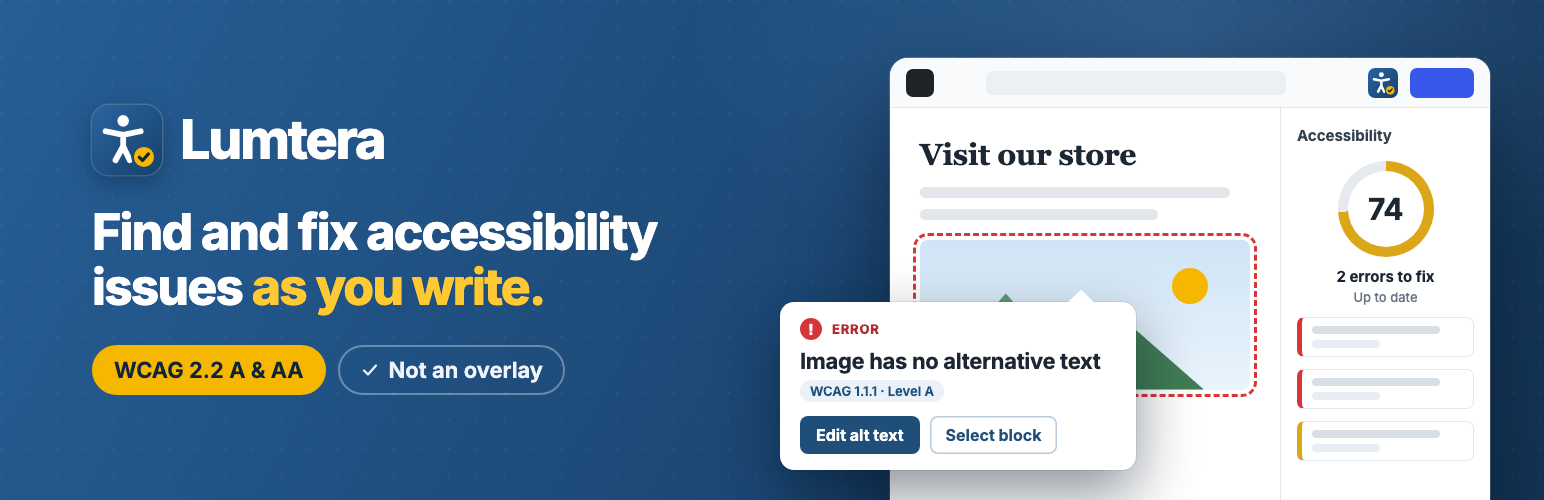
Lumtera is an accessibility checker for WordPress. It checks your posts, pages and products against WCAG 2.2 while you write. It also tests the live page the way keyboard and screen reader users meet it. Then it helps you fix each problem in the content itself. You see every change before it is saved, and you can undo it.
It is built for the people who publish: site owners, editors, online shops, agencies and public bodies working towards the ADA, the European Accessibility Act (EAA), Section 508 or EN 301 549.
No account. No overlay. Every check in this plugin is free.
Watch Lumtera find and fix issues, in just over a minute:
Documentation · Quick start · Free vs Pro · Support forum
The problem
Most accessibility problems start in everyday content: an image with no alt text, a “click here” link, a heading picked for its size, pale text on a colored button. A toolbar added on top doesn’t change that content; fixing the content and the theme does. Lumtera shows you what to fix first, and says plainly what a person still has to check.
- The European Accessibility Act (EAA) has applied since 28 June 2025 to many products and services sold in the EU, online shops included.
- ADA Title II: US state and local governments must meet WCAG 2.1 AA by 26 April 2027 if they serve 50,000 people or more, and by 26 April 2028 if they are smaller or a special district.
- ADA lawsuits: 3,117 website accessibility lawsuits were filed in US federal courts in 2025, up 27% on 2024 after two years of decline (Seyfarth Shaw).
What makes Lumtera different
- It checks where you work. In the block editor (Gutenberg) as you type, in its own Elementor panel, in the classic editor, and on the live page with your theme.
- It tests what a scan of the code can’t. Review mode walks the page from the keyboard and opens menus, dialogs, tabs and accordions to test them.
- It shows what a screen reader gets. You see the headings, landmarks, links and form fields a screen reader lists, and the page read in order.
- You approve every fix. Each change is shown before and after. It is saved as a revision, checked again, and can be undone.
- Fix once, at the source. An issue in a header, footer, menu, template part or synced pattern is fixed there, once.
- It is honest about what it covers. When a machine can’t be sure, the issue says “Needs review”. A coverage meter shows which WCAG criteria the checks look at.
Find issues
- 88 checks mapped to WCAG 2.2 in the block editor, the classic editor, Elementor and other page builders: images and alt text, links and buttons, headings, forms, tables, media, contrast, ARIA, language and more.
- 38 whole-page checks in review mode, theme included: contrast (gradients, text over images, focus indicators), landmarks, skip link, heading outline, target size, reflow, zoom, text spacing and reading order.
- The rendered page, from the editor: after each save, the block editor checks the page as it renders, with your theme’s real colors, and lists what the content check can’t see. Saving is not held up, and each person can turn it off.
- Keyboard walk: every Tab stop is numbered, with checks for visible focus, focus hidden under sticky headers, focus order and possible keyboard traps.
- Color blindness and low vision previews, an images list and a color tester in review mode. Check a page at desktop or phone size from the Overview.
- Check all content in one click. The Content report lists every post and page worst first, with filters by issue, severity and type, CSV export and a column in your post lists.
- Site parts: menus, widget areas, template parts, synced patterns and navigation are checked too, and each issue shows where it comes from.
- Clear explanations: “Why is this flagged?” explains every finding in plain words.
- Guided checklists for what only a person can judge, recording who checked what and when.
Fix them
- One-click fixes in the block editor for common problems, and guided fixes for alt text and contrast, with passing colors from your theme palette.
- Fix without opening the post from the Content report, always with a preview and undo.
- Alt text manager: describe an image once in the Media Library, and Lumtera offers that text to every post that shows the image without it.
- 19 optional site fixes for common theme problems: skip link, focus ring, pinch-zoom, link underlines, form labels, read-more links, menus that open a new tab, file details on links and more. Each one is off until you turn it on, and they make way for WP Accessibility where it does the same job.
- Theme colors: when text from your theme fails contrast on the rendered page, approve one CSS rule in the nearest passing color. It never changes your theme or content, and Undo takes it away.
- Optional AI drafts of alt text, link text, headings and a plain-language summary, through the AI provider you connect to WordPress. A person reviews every draft.
Show your work
- Coverage meter: with review mode, Lumtera’s automated checks cover 38 of 55 WCAG 2.2 A/AA criteria (fully or in part). It sits next to the score and is never merged into it.
- Accessibility statement generator with templates for the W3C model, the EAA, UK public sector, ADA Title II and AODA. Known problems are filled in from your results.
- Accessibility feedback form (a block and a shortcode) with an inbox, reference numbers, replies and a retention period you choose.
- ADA Title II exception tags: record which exception you believe applies, without hiding the item from any total or report.
Stay on top
- Checks on every save, and a check before you publish in the block editor.
- Weekly email summary: your score, new errors and what you fixed this week, sent by your own site.
- Weekly home page check, off by default and one click to turn on, on your own server.
- Your rules: set any check to Error, Needs review, Tip or Off, and choose which roles see reports, dismiss issues and use review mode.
How accurate it is
We measure Lumtera against the W3C’s ACT rules test cases and against pages that meet WCAG, and publish the method and full results, including what it misses. These are our own tests, not an independent audit.
Works with
- Page builders and block libraries: Beaver Builder, Divi, Bricks, WPBakery, Spectra, Kadence Blocks, GenerateBlocks and more (full list).
- WooCommerce: product descriptions are checked, and review mode checks product, cart and checkout pages as rendered.
- Advanced Custom Fields, Polylang, WPML and TranslatePress.
- Developers: WP-CLI with exit codes, baselines, SARIF and JUnit for CI, a REST API, hooks for your own checks, and WordPress Abilities for AI assistants.
- Multisite, with network defaults new sites follow, and each site choosing whether deleting the plugin keeps or removes its data.
- Site Health, and settings you can export to a file and import elsewhere, with a preview and undo.
Our promises
- No account.
- No overlay: nothing is added for visitors unless you add it.
- Nothing leaves your site unless you turn on your own AI provider or the Akismet spam check.
- No tracking and no usage data.
- Every fix is shown before it is saved, and can be undone.
- No nags: nothing pops up by itself. Pro appears in the menu, on preview screens and an Upgrade button, as at most one short tip on a screen, which you can dismiss, and as one line in the optional weekly email, which you can leave out.
- Every check in this plugin, and fixing issues one at a time, stays free.
A score of 100 means “no automated issues found”, never “compliant”.
Lumtera Pro
Everything above is free, on as many sites as you like. Nothing has moved from free to Pro.
Lumtera Pro is an optional add-on for keeping watch when you’re not there: scheduled checks of many pages, rendered checks in a browser you control, form tests and PDF checks.
It also keeps a tamper-evident evidence log, applies fixes in bulk from a queue you approve, sends issues to your tracker, and writes client and conformance reports.
External services
Lumtera does not contact any external service by default and sends no usage data. The services below are used only after a site administrator turns them on.
AI provider you connect (optional)
If an administrator turns on any AI suggestion under Lumtera → Settings → AI suggestions, Lumtera uses the WordPress AI Client and the AI provider connected under Settings → Connectors (for example OpenAI, Anthropic, Google, or a local model server). Lumtera stores no API keys and runs no servers of its own.
What is sent, and only when a user clicks a button for that feature (each feature is off until an administrator turns it on):
- “Suggest alt text” (for one image, or each image selected on the Alt text screen), and “Draft with AI” for an alt text fix: the image file, its file name and caption, and — from a post that uses the image and that the user can read — the post title, the nearest heading, the nearby text and whether the image is a link.
- “Suggest link text” (block editor), and “Draft with AI” for a link text fix: the link text, where the link points as site and page path only (no query string, fragment, email address or phone number), the sentence and paragraph around the link, the post title, and the title of the linked page when it is a public page on the same site.
- “Suggest heading” and “Suggest subheadings” (block editor), and “Draft with AI” for a heading fix: the post title and the bold line with the text after it and the heading before it; or, for subheadings, the text of the post’s paragraphs, lists and quotes.
- “Draft a plain-language summary” (block editor, when content reads above the target grade): the post title and the visible text of the post as it is in the editor, up to about 3,000 words.
These requests can only be made by people who can edit the post. Each click is one request to your provider, which may charge for it. Nothing is sent for visitors or in the background.
The provider’s own terms and privacy policy apply, for example:
- OpenAI: terms, privacy policy
- Anthropic: terms, privacy policy
- Google Gemini API: terms, privacy policy
AI suggestions are drafts. They are never applied without a person’s approval and do not make a site compliant on their own.
Akismet spam check for the feedback form (optional)
If an administrator turns on “Check messages with Akismet” in the feedback settings, each message sent through Lumtera’s accessibility feedback form is checked for spam by Akismet, through the Akismet plugin. What is sent: the message, the sender’s IP address and browser, and the name and email address if the sender gave them. It is off by default and can only be turned on when the Akismet plugin is active and connected. Akismet’s terms and privacy policy apply.
Links you choose to follow
“Report a false positive”, the Docs buttons and the links to Lumtera Pro are ordinary links. They open the WordPress.org support forum, the documentation or the MantraBrain website in your browser; links to the website carry tags naming the Lumtera screen they were on. A site developer can point “Report a false positive” elsewhere with a filter. Nothing is sent from your site; a false-positive report is only posted if you post it yourself.
Requests to your own site
To check a page, WP-CLI’s wp lumtera check --page, the weekly home page check, the site fixes’ theme check and a Site Health test fetch pages from your own site. They refuse other addresses. The editor’s rendered check and Check a page load your own site’s pages in your browser, and send the results only to your own site.
Services Lumtera recognises but never contacts
The plugin’s code contains the web addresses of some well-known services so its checks can give accurate advice about content already on your site. It compares these addresses with your own content and page HTML; it never loads, calls or sends anything to them:
- Video and audio hosts (for example YouTube, Vimeo, Wistia, Spotify, SoundCloud and podcast hosts), to check for captions and transcripts.
- CAPTCHA services (reCAPTCHA, hCaptcha), maps (Google Maps, OpenStreetMap) and social or booking embeds, to name embedded frames.
- Chat widgets (Tawk.to, Intercom, Crisp, Drift, HubSpot, Tidio, LiveChat, Zendesk, Zoho SalesIQ), so a page with one isn’t reported as having no way to get help.
Installation
- In your WordPress admin, go to Plugins → Add New Plugin, search for Lumtera, then click Install Now and Activate.
- Open Lumtera → Overview. A short getting-started checklist walks you through the first steps.
Your first three things to do:
- Check your whole site. On the Overview, click Check all content. Every post and page is checked in small batches, and the Content report lists what to fix first.
- Try review mode on your home page. While logged in, view your home page and choose Accessibility in the admin bar. Open the Keyboard tab and try Test menus and pop-ups.
- Get the weekly email. Turn it on with one click from the checklist, or under Lumtera → Settings → Email summary.
After that, open any post and click the Lumtera Accessibility button in the editor’s top bar to see its issues as you write. The quick start has the same steps with pictures.
Requirements: WordPress 6.6 or later, PHP 8.1 or later with the DOM extension (on almost every host).
FAQ
Will this make my site ADA or WCAG compliant?
No tool can do that on its own, and you should be wary of any that claims to. Lumtera finds the problems automation can reliably detect, explains them and helps you fix them. Meeting WCAG also needs manual testing (Lumtera’s guided checklists help), an accessible theme and ongoing care. A score of 100 means “no automated issues found”, nothing more.
Is Lumtera an overlay or an accessibility widget?
No. An overlay adds a toolbar or script that changes your pages in each visitor’s browser. It doesn’t fix the underlying content, and it can get in the way of the assistive technology people already use. Lumtera adds no widget or script for visitors: it finds problems in your content and theme, explains them, and helps you fix them at the source. The optional site fixes change the HTML your server sends, the same for everyone, and each one is explained.
Does Lumtera check WCAG 2.2?
Yes. Lumtera checks against WCAG 2.2 at levels A and AA, which builds on WCAG 2.1 and 2.0. Its checks include criteria that are new in WCAG 2.2: focus not obscured (2.4.11), dragging movements (2.5.7), target size (2.5.8), redundant entry (3.3.7) and accessible authentication (3.3.8). Each finding names the success criterion it relates to, and the check reference lists them all.
What is checked automatically, and what needs a person?
WCAG 2.2 has 55 success criteria at levels A and AA. With review mode’s whole-page checks, Lumtera’s automated checks cover 38 of 55 of these criteria, fully or in part. The checks of saved content alone cover 26 of 55 criteria. “Covers” means a check looks at that criterion; it does not mean your site meets it.
The rest need a person: for example, whether alt text is accurate or captions match the audio. Lumtera’s guided checklists walk you through these, and record who checked what and when.
Does it help with the European Accessibility Act (EAA)?
Yes. The EAA has applied since 28 June 2025 to many products and services sold in the EU, online shops included, and it points to EN 301 549, whose web requirements are WCAG 2.1 AA. Lumtera checks against WCAG 2.2 A/AA, which builds on 2.1, and adds the two things the EAA asks you to publish:
- Accessibility statement: WCAG 2.1, WCAG 2.2 or EN 301 549 as the standard, with templates for the EAA, UK public sector (PSBAR), ADA Title II and AODA. Known problems are pre-filled from your results. You choose the conformance status; it never says “fully conformant” on its own.
- Accessibility feedback form: a block and the
[lumtera_feedback]shortcode. It works without JavaScript, has spam protection, and stores messages on your site in a Feedback inbox with reference numbers, statuses, replies and a retention period you choose.
These tools support your conformance work. They are not legal advice.
What about ADA Title II (state and local government)?
The US Department of Justice’s Title II rule asks state and local governments to meet WCAG 2.1 AA on their websites. The dates were moved in 2026: 26 April 2027 for entities serving 50,000 people or more, and 26 April 2028 for smaller ones and special districts. Lumtera checks against WCAG 2.2 A/AA, which builds on 2.1. It also has an ADA Title II statement template and exception tags: record which exception you believe applies to a post or file, with a note. Tagged items stay in every total and report, marked “Exception claimed”.
What about Section 508 and EN 301 549?
The web requirements of both point to WCAG: WCAG 2.0 AA for the US Section 508 standards, and WCAG 2.1 AA for EN 301 549. Lumtera checks against WCAG 2.2 A/AA, which builds on both versions, and the statement generator can name EN 301 549 as the standard. Lumtera Pro’s conformance report has WCAG, Revised Section 508 and EN 301 549 editions, from the same evidence.
How accurate is it? Will it give false alarms?
In our own tests, Lumtera reports 296 of the 393 failed examples in the W3C’s ACT rules test cases, 121 of them as errors. That first figure is generous: many of those findings only ask a person to review, so they’re not a verdict. On 532 pages that meet WCAG 2.2 AA or nearly so, review mode raised no false errors after our own triage; the editor’s check of raw content raised 8, on markup a script changes after the page loads. Where a check isn’t sure, it says “Needs review” rather than raising an error, with one exception: an Image block with empty alt text and no sign of being decorative is an error, because that’s often a field left empty. Mark the image decorative and it clears. See the method and full results.
Does it slow down my site?
No. A visitor’s page view loads three small Lumtera files, runs no Lumtera database query and loads no Lumtera script or stylesheet, unless you add one of its blocks or shortcodes, the optional statement link in the footer, an optional site fix or an approved theme color. Review mode’s scripts load only for logged-in users who can edit the page, and only when they open it. Checks run in the admin: when a post is saved, and in batches when you click Check all content. The weekly jobs run through WP-Cron.
Does it work with the block editor (Gutenberg), Elementor, Divi and other page builders?
Yes. In the block editor, Lumtera has a sidebar that checks as you type, jumps to each block and offers one-click fixes. Elementor gets its own panel in the editor, which checks unsaved changes. Tested on real installs: Elementor, Beaver Builder, SiteOrigin Page Builder, Brizy, Visual Composer Website Builder, Live Composer, Zion Builder, and the block libraries Spectra, Kadence Blocks, GenerateBlocks, Stackable, Otter, Essential Blocks, Greenshift and Kubio. Divi 4 (Divi 5 layouts are blocks), Bricks, Oxygen 2–4 and WPBakery are supported through their documented APIs. Other builders that output their layout through WordPress’s content filter are checked too. Oxygen 6 and Breakdance aren’t supported yet; review mode still checks their pages as rendered. Advanced Custom Fields values are checked with the post.
Lumtera doesn’t change content a page builder manages; it tells you what to fix in the builder.
Does it work with WooCommerce?
Yes. Product descriptions and short descriptions are checked like posts, and review mode checks product, cart and checkout pages as rendered, with your theme. Lumtera Pro adds scheduled checks of the shop, cart and checkout, classic checkout form tests with safeguards so no order is created, and checks signed in as a customer.
Does it work on multisite?
Yes. Lumtera works on each site of a network, and a network administrator can set defaults that sites follow until they save their own. When it is deleted, each site keeps its data (the default) or removes all of it, as set in Lumtera → Settings → General.
Does it send my data anywhere? Is it GDPR-friendly?
Not by default. Checks, reports, fixes and the feedback inbox run and are stored inside your WordPress. There is no account, no tracking, and no cookie for visitors. The weekly email is sent by your own site with wp_mail(), like a password reset, and the weekly home page check fetches the page from your own server.
Data leaves your site only if you turn on AI suggestions (content goes to the AI provider you connected to WordPress, and only when someone clicks a button such as “Suggest”) or the Akismet spam check for the feedback form. See “External services” below.
For your privacy policy, Lumtera adds suggested text under Settings → Privacy. The feedback form doesn’t store the sender’s IP address: a scrambled form of it is kept for up to an hour to limit repeat messages. Names, email addresses and messages are deleted after the retention period you choose. Feedback messages and dismissal notes are included in WordPress’s personal data export and erase tools.
Is it really free? Do I need an account?
Yes, and no account. Every check and tool in this plugin is free, with no page or site limits: the editor checks, review mode, fixes, the statement generator, the feedback form, the weekly email and WP-CLI. Nothing has moved from free to Pro, and the free plugin never asks you to sign up.
What’s the difference between Free and Pro?
The free plugin checks your content as you write, checks all of it in one click, checks any page live in review mode, and fixes issues one at a time with a preview and undo. Lumtera Pro is a separate add-on that keeps checking when you’re not there: scheduled checks of many pages at desktop and phone width, as a visitor or a signed-in test user (one role on every plan, any number on Agency and Unlimited), form tests, hover and focus contrast, carousel, consistency and PDF checks. It adds a tamper-evident evidence log, scan comparison, test sessions and a fixes queue to review, apply and undo fixes in bulk. For reporting it has alerts, issue trackers, branded client reports, a VPAT 2.5 conformance report on every plan, a client portfolio (Growth plan and up) and multisite tools (Agency plan and up).
See the Free vs Pro comparison and the Pro documentation.
Which Pro plans are there?
Personal (1 site), Growth (5 sites), Agency (25 sites) and Unlimited (no site limit). Every plan includes every Pro feature, with these exceptions: consistency checks, AI rules, white-label reports, client emails, share links and the client portfolio start at Growth; signed-in checks as more than one role, an approval rule for fixes, the multisite network overview and network settings sync start at Agency. Higher plans also check more pages in each scheduled run and apply more fixes in each queue run. Personal, Growth and Agency are sold yearly or lifetime; Unlimited is yearly. Every purchase has a 14-day refund. See plans and pricing.
What happens if my Lumtera Pro license ends?
Pro keeps working on the sites where it is active, and your settings and results stay. Only updates and support stop until you renew. The free plugin is not affected either way.
Is there a video?
Yes. Watch Lumtera check content in the editor and the live page, and fix issues with a preview and undo. Watch Lumtera Pro for scheduled checks, the evidence log and the VPAT report. Each is just over a minute long.
What does Lumtera check?
In your content: images and alt text, links and buttons, headings, forms, tables, audio and video (captions, transcripts, autoplay), moving content, sensory-only instructions, structure and text, color contrast, ARIA and language.
On the live page, in review mode: page title and language, landmarks and skip link, heading outline, contrast (including gradients, text over images and non-text contrast), focus visibility, focus hidden under sticky headers, focus order, possible keyboard traps, menus, dialogs and tabs from the keyboard, target size, reflow, zoom, text spacing and reading order.
The check reference explains every check.
How do I check a page as visitors see it?
Use review mode. View a post or page you can edit and choose Accessibility in the admin bar. Review mode outlines each issue on the live page, theme included, and has tabs for:
- Whole page: checks of the page as rendered.
- Keyboard: every Tab stop numbered on the page. Test menus and pop-ups opens and closes them from the keyboard, then puts the page back as it was.
- Screen reader: the headings, landmarks, links and form fields a screen reader lists, and the page read in order. It is a preview; real screen readers remain the reference.
You can also simulate color blindness or low vision. Whole-page results are saved to your reports only if you tick Save results to reports.
Why did I get more items to review after updating?
Version 1.3.0 adds checks, and the block editor now looks at the rendered page too. Check your content again to see the new findings. The score still covers a post’s content only, and the sidebar lists the rendered page on its own line.
Can I turn off the check after each save?
Yes. Each person can switch off Check after each save in the Lumtera sidebar. For a whole site, use the lumtera_editor_page_check_after_save filter; lumtera_editor_page_check removes the rendered check from the editor altogether.
How do fixes work? Can I undo them?
Choose Fix on an issue in the Content report or the editor. Lumtera shows the change before anything is saved; you can edit it, approve it or cancel. Approved fixes are saved as a new revision, checked again, and can be undone from the same place.
When an issue comes from a shared part, such as a template part, synced pattern or menu, you can fix it once there, and Lumtera checks the pages that use it again.
Does it check my theme, menus and footer?
Yes. Menus, widget areas, template parts, synced patterns and navigation are checked when they are saved, and listed under Site parts in the Content report. Review mode, and the check after each save in the block editor, look at the whole rendered page. Someone who can’t edit the theme sees its findings set apart, in one group that says who can fix them.
Can I use it on client sites?
Yes. The free plugin works on as many sites as you like, with no account or license. Under Lumtera → Settings → Permissions you choose which roles see reports, dismiss issues and use review mode. For a reporting dashboard, the “Lumtera Reporter” role can only read the site’s accessibility summary. Lumtera Pro adds branded client reports, white-label and a client portfolio across sites.
Can I get a weekly email?
Yes, free. Turn it on with one click from the getting-started checklist, or under Lumtera → Settings → Email summary. It is sent by your own site and shows your score, new errors, what you fixed this week and the result of the weekly home page check, if that is on. Each email links to the page where you can turn it off.
Does Lumtera use AI?
Only if you turn it on. AI suggestions are off by default, and every check works without them. When on, content is sent only when someone clicks a button such as “Suggest” or “Draft with AI”, and only to the AI provider you connected to WordPress. Every AI draft is shown to a person, who edits and approves it before it is saved.
What happens to my data if I delete Lumtera?
It is kept by default, so feedback messages, results and settings come back if you install Lumtera again. To remove everything instead, choose “Delete everything” under Lumtera → Settings → General → When Lumtera is deleted. You can download every feedback message as a CSV file from the Feedback inbox first.
Can I use Lumtera in CI?
Yes. wp lumtera check --page=/ checks a page of your site and exits with an error code when it finds problems. It writes SARIF for GitHub code scanning, or JUnit for other CI tools. Record today’s issues with --write-baseline=<file>, then run with --baseline=<file>, so the build fails only on new issues. See WP-CLI.
Does it work in my language?
Lumtera is ready for translation. Reading level is measured in English, Spanish, French, German, Italian and Dutch, and vague links such as “click here” are found in English, German, French, Spanish, Italian, Dutch and Portuguese. With Polylang or WPML, each post’s reading level uses the language set for it.
Can I turn off a check, or make it stricter?
Yes. Under Lumtera → Settings → Checks, you can set any check to Error, Needs review, Tip or Off.
How do I report a false positive or get help?
Open Why is this flagged? on the issue. Under “Report a false positive”, Lumtera prepares a short report with the check and the markup, with email addresses, long numbers and query strings taken out. Edit it, then follow the link to the support forum and post it yourself; nothing is sent from your site. For anything else, ask in the same forum, or read the documentation.
Screenshots


Changelog
1.3.0
- New: the block editor checks the rendered page, with your theme’s real colors, after each save. Saving is not held up. To turn it off, switch off “Check after each save” in the Lumtera sidebar, or use the
lumtera_editor_page_check_after_savefilter for a whole site. - New: 19 new content checks and 5 new whole-page checks, for 88 and 38: required ARIA states and values, custom controls and click handlers the keyboard can’t reach, nested controls, locked text spacing, table headers, passages in another language, scroll boxes, clipped text and locked orientation.
- Changed: you will see more items to review after you check your content again, because of the new checks and the rendered page. The score covers a post’s content only, and the sidebar now names each count on its own line.
- Changed: the coverage meter counts only what ran. Content checks count once content is checked; whole-page checks count once a review mode result is saved with nothing open; focus checks that need the keyboard walk don’t count. Its number may go down.
- Changed: a Cover block’s default empty alt text is now a tip; footnote links and Image block lightboxes are no longer flagged.
- Changed: an Image block with empty alt text is an error again, unless something suggests it is decorative (a theme or pattern image, a template, icon size, an ornament file name or a caption).
- Changed: site fixes step aside when WP Accessibility really has the same fix on, and the Settings screen says so. That covers its skip links (when they have a target), focus outline, zoom and form labels.
- New: theme text that fails contrast can be fixed with one approved CSS rule in the nearest passing color, with Undo. Nothing in the theme or content changes.
- New: color fixes keep the hue where they can, grouped findings can be fixed together, and each rendered finding links to its check’s documentation.
- New: 12 more optional site fixes, for 19, including read-more links, document links, menus that open a new tab, form labels, empty searches and a PDF warning.
- New: export and import settings with a preview and undo; network defaults for multisite; Site Health tests; Check a page at desktop or phone size; an images list, a color tester and optional AAA tips in review mode.
- New: a first-run flow with one step at a time, and an Upgrade to Pro screen. Pro tips now use what your site really has, at most one per screen, and can be dismissed.
- Faster: a logged-out visitor’s page loads 3 Lumtera files instead of 132.
- Fixed: on PHP 8.1, a failed page-feature query could stop with a type error.
- Fixed: Elementor images are reported as missing alt text, not empty; links to documents accept “(PDF, 200 KB)” inside the link or just after it.
1.2.2
- New: when you add alt text to the posts that show an image, you choose which posts get it, so decorative copies (such as Cover backgrounds) can be left out.
- Fewer false alarms in colour contrast: modern CSS colours (color-mix(), oklch(), lab()) are read correctly, and text beside an icon, in a collapsed panel or under an image or video overlay is no longer flagged.
- Fewer false alarms in the keyboard check: focus shown on a checkbox’s label, a switch’s track, or a button’s inner text or icon is recognised.
- Content checks no longer report markup that is never shown (
<noscript>,<template>,inert). Hidden slides, drawers and menus are Needs review instead of errors. - Links in menus, trees and tabs, menu links to “#…”, and theme search buttons are no longer reported.
- Changed: more than one H1 is a tip. A dialog without a name, symbol icons, an autoplaying video that isn’t muted, and an Image block with empty alt text are Needs review instead of errors.
- The dialog and pop-up check defaults to Needs review on Settings → Checks, as its findings are reported.
- Security: the feedback form refuses messages sent from another website’s page.
- Saved code snippets no longer keep security tokens from the page address, so they never reach reports or share links.
- Keyboard focus stays in place after “Show all findings” in the editor, while the fix dialog applies or undoes a fix, in review mode (Check again, Dismiss, Restore, the Manual tab) and when hiding a tip.
- The editor toolbar counts match the sidebar when possible issues are hidden, and the dismiss form’s help text meets AA contrast.
- The Dismissed view says why Restore is missing, and review mode says when a page has no menus or pop-ups to test.
- WP-CLI:
wp lumtera issuesexits with 2 for an unknown –rule or –post_type, and its help explains JUnit failures, –fail-on and exit codes. - The lumtera/site-summary ability returns the coverage summary its description promises.
1.2.1
- After “Check all content”, your results appear first, with a summary of what was found and a link to what to fix.
- Review mode works on the blog home page, archives, search and the shop page, and the weekly home page check opens it.
- New: a “Dismissed” view in the Content report shows who dismissed each issue, when and why, with Restore.
- New: choose what happens to your data when Lumtera is deleted (keep it by default, or delete everything), with a feedback export.
- Feedback replies use your statement’s contact email as Reply-To, and include the reference number and the original message.
- Contrast is checked for text on a Cover block whose overlay is set to 0%.
- Issues anywhere in a synced pattern link back to their block.
- “Fix at the source” counts only the pages that use that part.
- WP-CLI:
wp lumtera issues --fail-onsets the exit status in every format, with or without--baseline. - Editor: the toolbar button names its counts, Escape closes the dismiss form, dismissing can be undone, and the summary block starts in its text.
- Clearer wording throughout.
1.2.0
- Faster, lighter Overview, coverage, weekly email and abilities on sites with many saved whole-page results: each saved result now keeps a small summary, so site-wide numbers no longer load every finding into memory. Results saved before this version get their summary in the background, a few at a time; the numbers are the same.
- The “Fixed this week” count no longer counts a fix that was undone.
- For add-on developers: new filters
lumtera_page_result_summariesandlumtera_page_result_load, andPageResults::index(),summaries(),walk()andwith_issues().lumtera_page_result_sourcesstill works.
1.1.1
- Output buffers used while checking content always close back to where they started, even when a block, widget or shortcode leaves its own buffer open.
- No longer loads WordPress admin files it doesn’t use.
- The readme lists the chat widgets Lumtera recognises in your page’s HTML, and confirms it never contacts them.
1.1.0
- New: a weekly home page check, off by default and one click to turn on. Your home page is checked every week on your own server; new errors show on the Overview and in the weekly email.
- Weekly email: a “Fixed this week” count, the home page check result and an accessible HTML layout, plus an optional one-line note about Lumtera Pro that you can switch off.
- Getting started checklist: two new steps, trying review mode on your home page and turning on the weekly email with one click.
- A clearer Free vs Pro page (the weekly summary is free; support is in the WordPress.org forums), and 4 Pro preview screens in the menu instead of 10.
- Short tips about Lumtera Pro at relevant moments, which you can dismiss and which are hidden when Pro is installed. A one-time request for a review once you’ve made progress, which you can snooze or turn off.
- The admin menu is now called “Lumtera”, and the editor button “Lumtera Accessibility”.
- Works on SQLite, including WordPress Playground.
- Nothing moved from free to Pro: every check and tool stays free.
1.0.0.3
- Tested feature by feature in Chrome, Firefox and Safari’s engine, with fixes for what that found:
- Review mode’s keyboard check can be stopped with Escape and continues after a reload.
- Skip link fixes on block themes.
- Document-link labels on sites with a port.
- Keyboard focus in the checklist and the Elementor panel.
- Contrast over SVG images in Firefox, text spacing in Safari, and system focus rings.
- Elementor panel asks for an optional reason when dismissing, like the block editor.
- Feedback: a confirmation before deleting a message, and a warning for recipient addresses that are not valid.
- Content report CSV follows “Show possible issues”; widget areas no longer produce list false positives.
1.0.0.2
- More accurate checks, measured against the W3C ACT test cases: images and SVGs named only by ARIA, form fields built with ARIA roles, invalid language codes, blocked zoom and autocomplete values are now found; disabled controls, text shadows, short or controllable audio and menu toggle links no longer raise false errors.
- New check: autocomplete value is not valid (WCAG 1.3.5).
- “Check all content” can continue where it stopped, and lists any item that could not be checked.
- A dismissed issue that comes back says why (“Showing again”).
- The weekly email summary shows when sending failed, and can be tested.
- Faster reports on large sites, and tighter permission and privacy checks.
1.0.0.1
- Every inline script and style is added with wp_enqueue_script(), wp_enqueue_style(), wp_add_inline_script() and wp_add_inline_style(); nothing is printed as a raw
<style>or<script>tag. - Database queries use fixed SQL with placeholders only.
- Plugin name shortened to “Lumtera – Accessibility Checker”.
1.0.0
First public release.
- 69 checks mapped to WCAG 2.2, built to avoid false alarms: checks a machine cannot decide are marked “Needs review”, and “Why is this flagged?” explains each finding.
- Block editor sidebar with live checks, one-click quick fixes, jump to block, dismiss with a reason, and a pre-publish check. Also in Elementor and the classic editor.
- Review mode on the live page, with 33 whole-page checks of the rendered page: title, language, landmarks, skip link, headings, contrast, target size, zoom, reflow, text spacing and reading order.
- Contrast everywhere: gradients, text over images, non-text and focus-indicator contrast, and suggested passing colours from your theme palette.
- Keyboard walk: every Tab stop numbered, with checks for visible focus, focus hidden under sticky headers, focus order and possible keyboard traps.
- Widget tests: menus, disclosures, dialogs, tabs and accordions operated from the keyboard, with the page restored afterwards.
- Screen reader preview of headings, landmarks, links and form fields.
- Fixes you approve: a before-and-after review, a revision for every change, a re-check after saving, and undo.
- Fix at the source: fix an issue once in a template part, synced pattern, navigation or classic menu, and re-check the pages that use it.
- Site parts: menus, widget areas, template parts, synced patterns and navigation are checked, and each issue shows where it comes from.
- Honest coverage meter: how many WCAG 2.2 A/AA criteria the enabled checks cover, shown next to the score, never merged into it.
- Guided checklists for the criteria that need a person, with results saved per page and per criterion.
- Accessibility feedback form block and shortcode, with an inbox, reference numbers, statuses, replies, retention and optional Akismet.
- Accessibility statement with WCAG 2.1, WCAG 2.2 and EN 301 549 options and EAA, PSBAR, ADA Title II and AODA templates.
- ADA Title II exception tags that never hide an item from totals or reports.
- Content report with My content, Site parts and Compliance views, grouping of the same issue across pages, CSV export and a column in your post lists.
- Whole-page results saved to reports when you choose.
- Page builders and custom fields: Beaver Builder, SiteOrigin, Brizy, Visual Composer, Live Composer, Zion Builder, Divi, Bricks, Oxygen, WPBakery and Advanced Custom Fields, plus a fallback for builders that use the content filter.
- Block libraries: Spectra, Kadence Blocks, GenerateBlocks, Stackable, Otter, Essential Blocks, Greenshift and Kubio; WooCommerce product descriptions.
- Alt text manager for the Media Library.
- Optional AI drafts through the WordPress AI Client: alt text (also for many images at once), link text, headings and a plain-language summary, always approved by a person.
- Optional server-side site fixes for common theme problems (skip link, focus ring, zoom, link underlines, form labels, new-tab and document-link text), off by default.
- Blocks: Accessibility statement link, Accessibility feedback form and Plain-language summary;
[lumtera_statement_link]and[lumtera_feedback]shortcodes. - WP-CLI with exit codes, baselines that fail only on new issues, SARIF and JUnit output, and site part scans.
- REST API, hooks, and WordPress Abilities for AI assistants: read-only, plus a fix proposal that waits for a person.
- Reading level in six languages, and vague-link checks in English, German, French, Spanish, Italian, Dutch and Portuguese.
- Permissions, a “Lumtera Reporter” role for agency hubs, an optional weekly email summary and a dashboard widget.
- Personal data export and erase for dismissals and feedback; fix history is exported and anonymised.
- Multisite support, including clean uninstall across a network.