


Description
Mador measures how often AI assistants (ChatGPT, Gemini, Perplexity, Claude and others) name a business when a customer asks, and writes the pages that help them name it. This plugin brings that work onto the business’s own WordPress site.
It does five things, and nothing else:
- Site verification. It adds
<meta name="mador-verifica">to the head of every page, so Mador can confirm the site belongs to your account. Nothing to paste. - Questions and answers.
[mador-faq]prints the questions and answers written for your business, withFAQPagestructured data. They update on their own when you correct them in the Mador area. - Badge.
[mador-badge]shows your latest measurement, linking to the certificate. - Certificate.
[mador-certificato]embeds the full measurement certificate. - Your pages, published here (Growth plan). The pages Mador writes for your business can be published on this site as regular pages or posts, live or as drafts. Off until you connect the site with a one-time code from your Mador account. A page you edit in WordPress is never overwritten without your say, taking a page down puts it back to draft, and nothing is ever deleted.
No API key, no account password, no tracking, no JavaScript, no stylesheets, no external libraries. The only setting that identifies anything is your report code, which is already public. Publishing your pages uses a key pair created on your site: the secret half never leaves it, and every page Mador sends is checked against Mador’s signature before it is saved.
The plugin adds no links to your public pages on its own. The badge and the certificate appear only where you place their shortcodes. The “Measured and written with Mador” credit link under the questions and answers is off until you turn it on in Settings → Mador.
The plugin needs a Mador account: it shows what Mador has measured and written for your business. See the “External services” section below for what it exchanges with mador.ai.
The admin screens are in English, with Italian and Spanish on their way through the language packs of translate.wordpress.org. What visitors see follows the language you choose in the settings (Italian, English or Spanish).
External services
This plugin connects to Mador (https://mador.ai), the service it belongs to and is operated by Khlumen. It does not work without it. The plugin contacts mador.ai only in the cases below, and only once a report code is saved in Settings → Mador.
- Questions and answers (
[mador-faq]): when a page with the shortcode is rendered and nothing is cached, your server requestshttps://mador.ai/api/pubblicazioni/{report code}.json. The request carries the report code in the address and the plugin version in the user agent; it sends no personal data, no visitor data and nothing else about your site. The answer is cached for a day (five minutes after a failure). - Badge (
[mador-badge]) and certificate ([mador-certificato]): on the pages where you place them, the visitor’s browser loads the imagehttps://mador.ai/r/{report code}/badge.svgand the pagehttps://mador.ai/r/{report code}/certificato(in an iframe). Like any image or embedded page, this sends the visitor’s IP address, browser details and the address of the page to mador.ai. - Settings page: Settings → Mador shows your real badge, so the administrator’s browser loads
https://mador.ai/r/{report code}/badge.svgwhile that page is open, with the same details as above. - Verification: the meta tag is read by Mador when you press the verify button in the Mador area; the plugin itself sends nothing.
- Publishing your pages (only after you connect the site in Settings → Mador with a one-time code): at connection, your server sends
https://mador.ai/api/wp/collegathe code, a public key generated on your site, your site address and the plugin version. Then, once an hour and when you press “Check now”, your server sendshttps://mador.ai/api/wp/sincronizzaa signed request with, for each page the plugin published, its id, version, WordPress status, address and whether it was edited; the answer contains the pages to publish, update or take down. Mador may also call/wp-json/mador/v1/campanelloon your site, with no content, to bring the next check forward. Mador also reads each published page, like a visitor, after it goes online and then once a week, to confirm it is still there. No visitor data is sent. Disconnecting stops all of this.
Mador terms of service: https://mador.ai/en/termini
Mador privacy policy: https://mador.ai/en/privacy
Installation
- In WordPress: Plugins → Add New Plugin, search for “Mador”, Install Now, then Activate. You can also upload the zip from mador.ai/plugin with Upload Plugin.
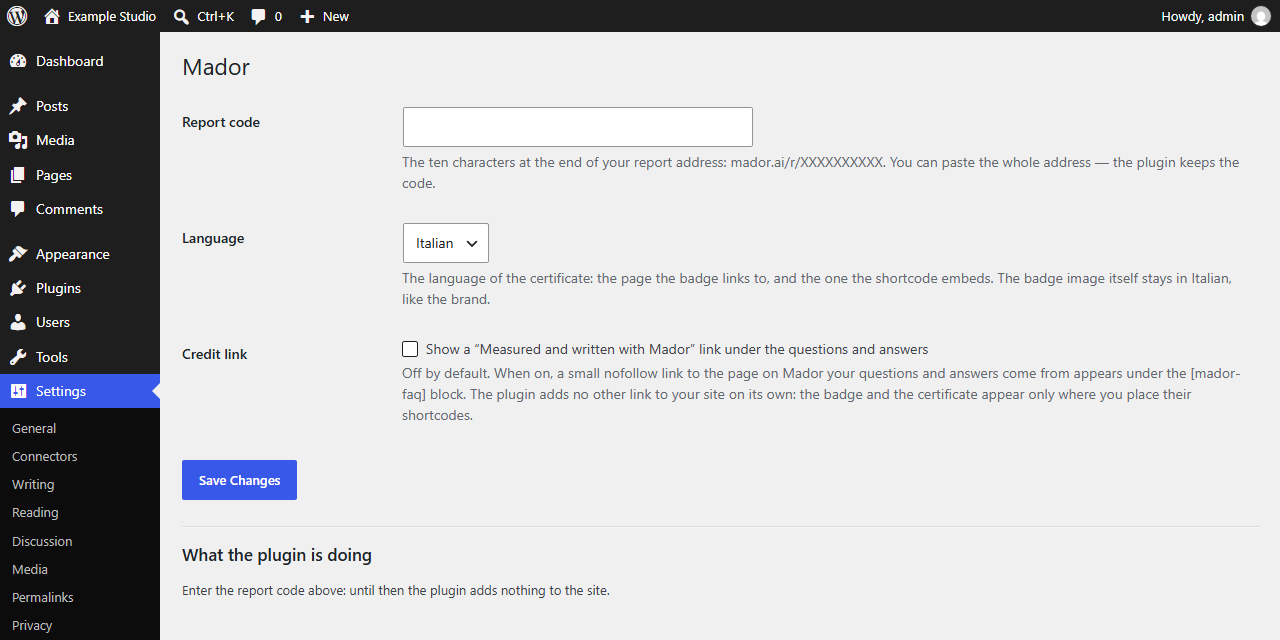
- Go to Settings → Mador, paste your report code (the ten characters at the end of your report address,
mador.ai/r/XXXXXXXXXX; the whole address works too), pick the language and save. - In the Mador area, under “Connect your site”, press Check the meta tag: the tag is already on every page.
- On the page that should carry your questions and answers, add a Shortcode block with
[mador-faq]. - Optional:
[mador-badge]where the badge belongs (the footer is the usual spot),[mador-certificato]on the page that should carry the certificate. - Optional: tick Credit link in the settings if you want the “Measured and written with Mador” link under the questions and answers.
Shortcode attributes
Without attributes, the settings apply.
[mador-badge larghezza="180"]: badge width in pixels (60 to 1000).[mador-certificato altezza="1800"]: certificate height in pixels (300 to 5000).[mador-faq titolo="no"]: without the section heading.codice="..."andlingua="it|en|es"on any of the three: for a site that shows more than one business or another language.
FAQ
Do I need a Mador account?
Yes. The plugin shows on your site what Mador measured and wrote for your business: without a report code it adds nothing to the site.
Where do I find the report code?
At the end of the report address Mador sent you: mador.ai/r/XXXXXXXXXX. Ten characters. You can paste the whole address: the plugin keeps the code.
Does the plugin add links to my site?
Only where you ask for them. The badge links to your certificate, and the certificate has an “Open the certificate” link, but both appear only where you place their shortcodes. The credit link under the questions and answers is off by default; you can turn it on in Settings → Mador. When on, it is marked nofollow.
Why does `[mador-faq]` show nothing?
The questions and answers appear once your article is published on Mador. Until then the shortcode prints nothing: visitors see nothing, administrators see a notice saying why.
Does the badge stay frozen at the day I installed it?
No. The badge image is generated by Mador and cached for a day, so it always shows the latest measurement.
Does it slow the site down?
No. It adds one <meta> tag; the badge and the certificate load lazily, and only where you put them. The questions and answers are fetched from the server and kept for a day.
What happens when I delete the plugin?
It removes its settings and its cached questions and answers, on every site of a network.
My site is not on WordPress.
You can connect it by hand, or send the instructions to whoever manages it, from the Mador area.
Where is the source code?
On GitHub: github.com/vladIDH/mador-wordpress. Issues and pull requests are welcome.
Screenshots
Changelog
1.2.0
- With the Growth plan, the pages Mador writes can be published on your site as pages or posts, live or as drafts. Off until you connect the site with a one-time code from your Mador account.
- Signed exchange with Mador: a key pair is created on your site and Mador only holds the public half; every page Mador sends is checked against Mador’s signature.
- Pages you edit in WordPress are never overwritten without your choice in the Mador account; taking a page down puts it back to draft; uninstalling leaves every page in place.
- Posts published by Mador arrive with comments closed; you can open them in WordPress. Pages keep your site’s setting.
<meta name="mador-pagina">and the page’s structured data in the head of the pages the plugin published.
1.1.1
- Translations now come only from translate.wordpress.org: the plugin no longer ships its own
languages/folder.
1.1.0
- The “Measured and written with Mador” link under
[mador-faq]is now optional and off by default: turn it on under Settings → Mador → Credit link. - Translations load through WordPress (language packs and the bundled
languages/folder), without a manual loading call. - readme: external services, privacy policy and terms of service; code documentation brought to the WordPress coding standards.
1.0.0
- First public release: site verification tag,
[mador-faq]with FAQPage structured data,[mador-badge],[mador-certificato], settings page in English, Italian and Spanish, full cleanup on uninstall.