


Description
Maestro lets you orchestrate the appearance of the WordPress admin menu. Rename admin menu items, reorder them, change their icons, and hide admin menu items from the roles and people who don’t need them. Do it all within the admin menu directly with no separate settings screen.
Every WordPress install accumulates menu clutter. A dozen plugins each claim a top-level slot, submenus sit in an order nobody chose, and clients meet a dashboard full of tools that aren’t theirs. Maestro is how you customize the admin menu back into shape: declutter it for a client site, rename cryptic plugin labels into the words your team actually uses, reorder the admin menu so what you touch daily is at the top, and hide admin menu items per user role — or from one named person — so everyone sees only their own work.
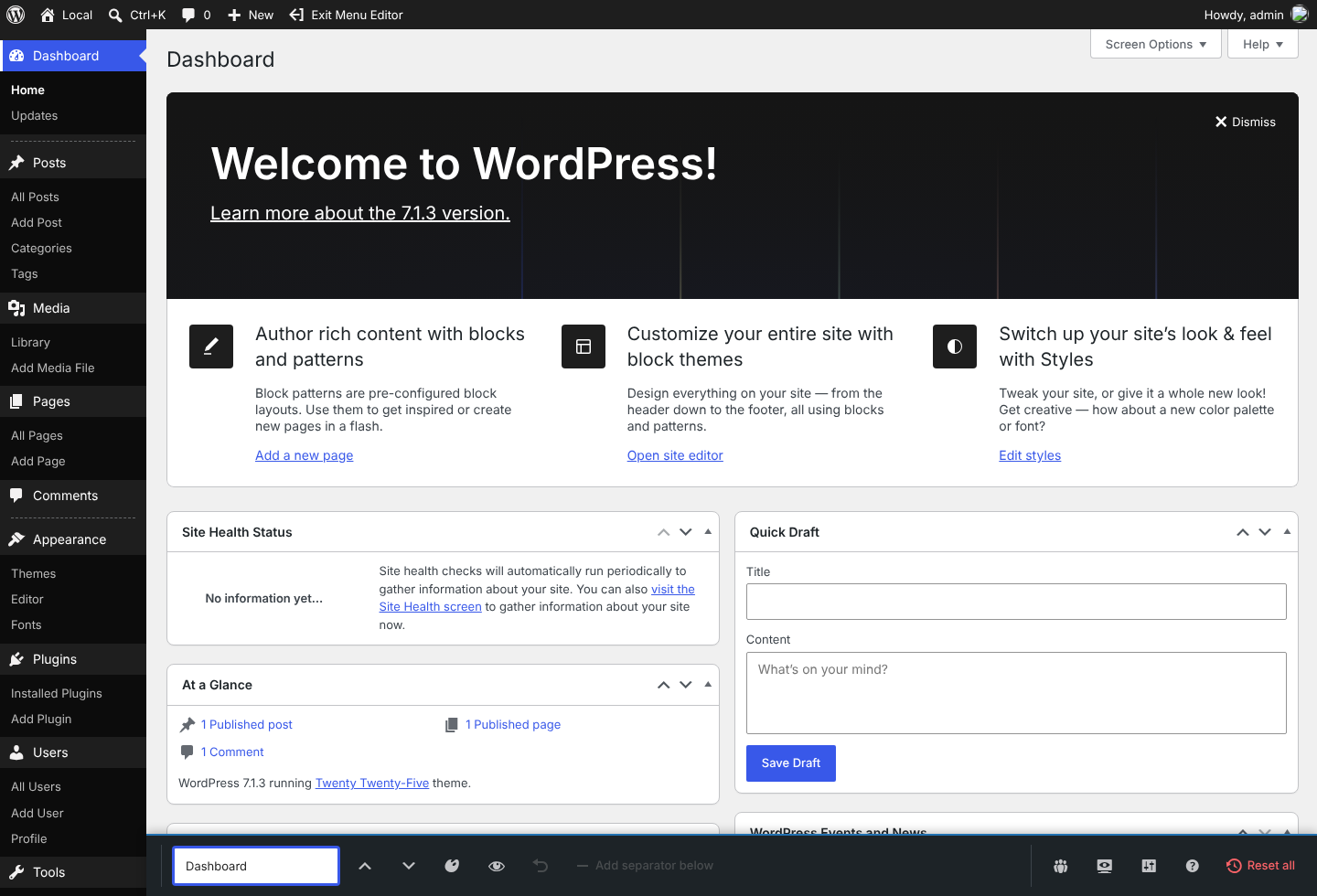
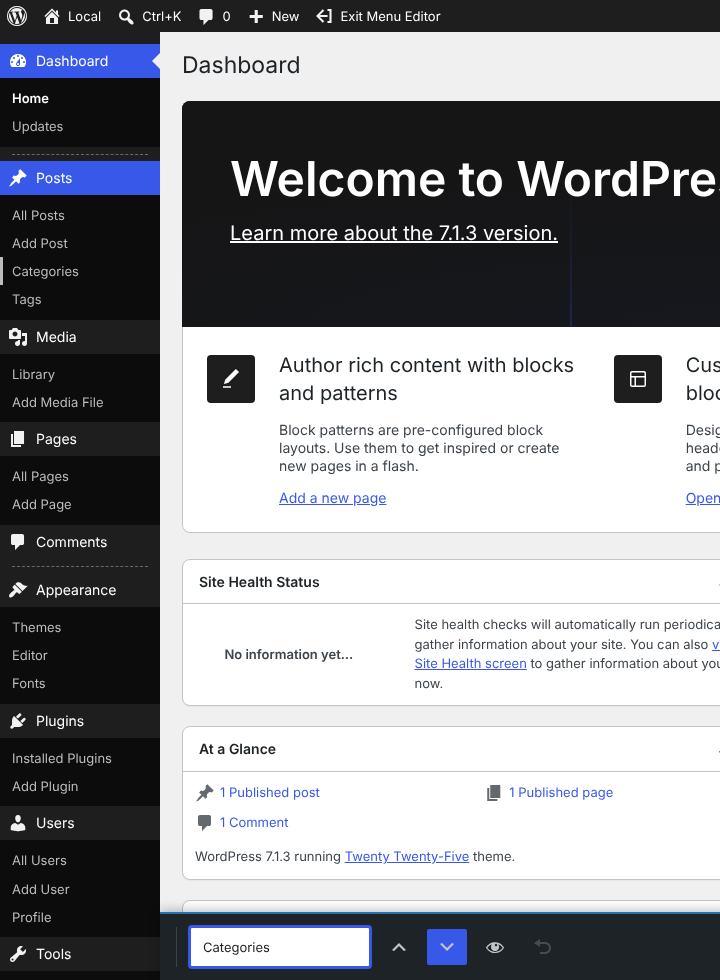
Instead of a separate settings screen, Maestro turns the admin menu into something you edit in place — right where it lives. Toggle Edit Menu from the admin bar, and the menu becomes editable. Click a menu item to rename it, hide it from selected user roles, or change its icon. Drag submenu items and whole menu groups to reorder them. Nothing to configure first, and nothing to learn: the menu you are editing is the menu you are looking at.
And it stays out of the way. Maestro adds no autoloaded options and does no work at all on the front end, so a menu you tidied for the dashboard costs your visitors nothing (see Performance & footprint below).
Try Maestro right here. Launch a demo in WordPress Playground — it boots a throwaway site with the plugin active in edit mode, plus User Switching with a one-click admin-bar user switcher and named test users (Adam Admin, Emma Editor, Andy Author, Carrie Contributor, Steven Subscriber; password password) so you can try per-role visibility by switching to another user’s account.
What you can do — as a site administrator
Maestro’s enhancements are only activated for logged-in users with an Administrator role. They can:
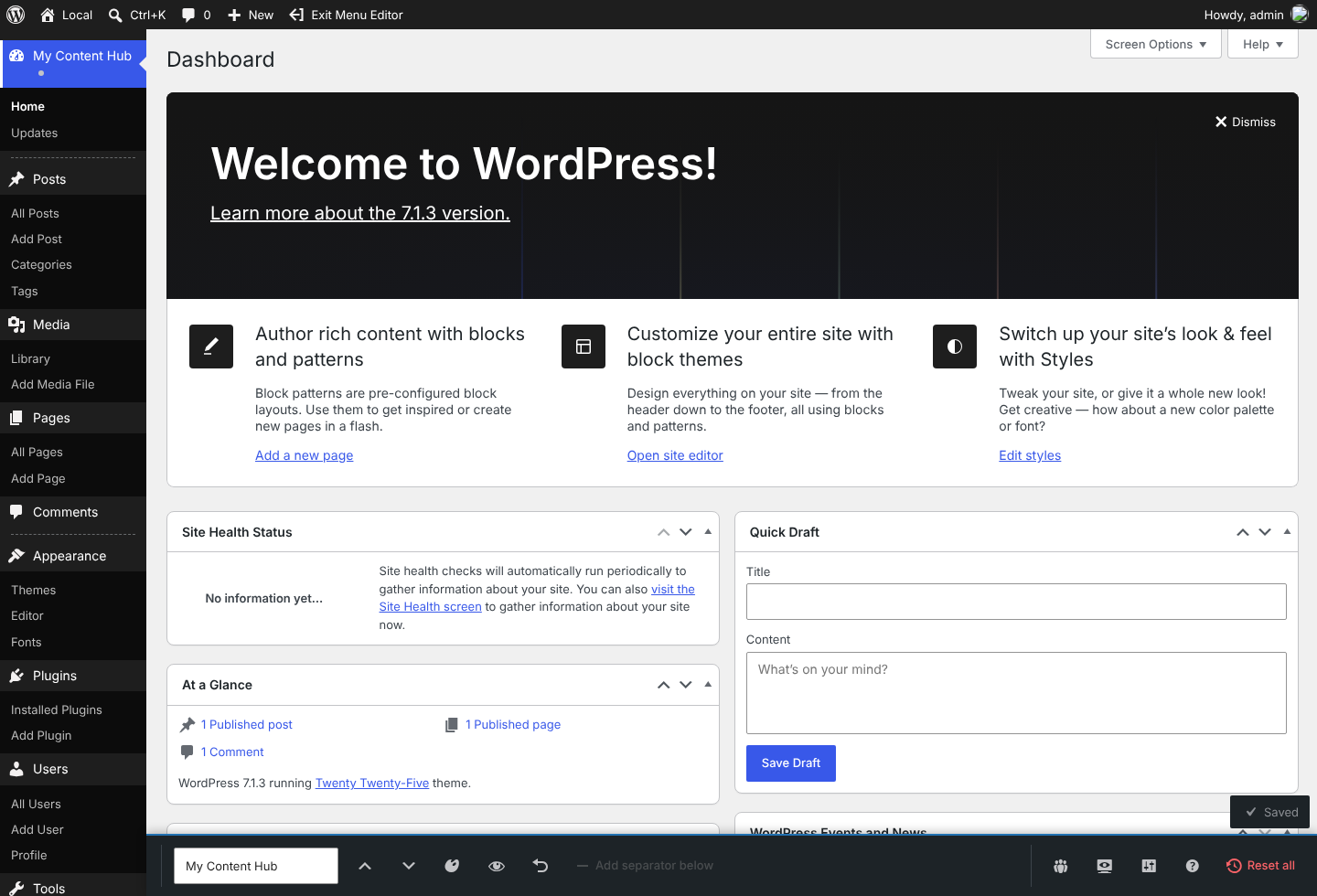
- Rename any top-level or submenu item — just click the label.
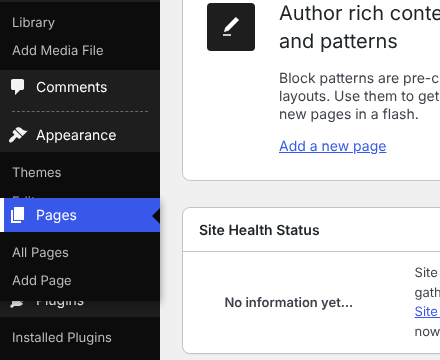
- Reorder items by dragging (top-level items among themselves, submenu items within their parent), or with the keyboard (
Alt+Arrow). - Group the menu with separators: move or remove the existing ones, or add a new separator below any top-level item.
- Swap icons on top-level items. The icon picker offers all 342 Dashicons and 437 bundled Bootstrap Icons, grouped and searchable by admin topic, and on WordPress 7.1+ the icons in WordPress’s icon library, including any other plugins register. SVG icons take the menu’s colours in every admin colour scheme, just like a Dashicon. It accepts any of WordPress’s four native icon forms (dashicon, “none”, base64 image data-URI, or an image URL).
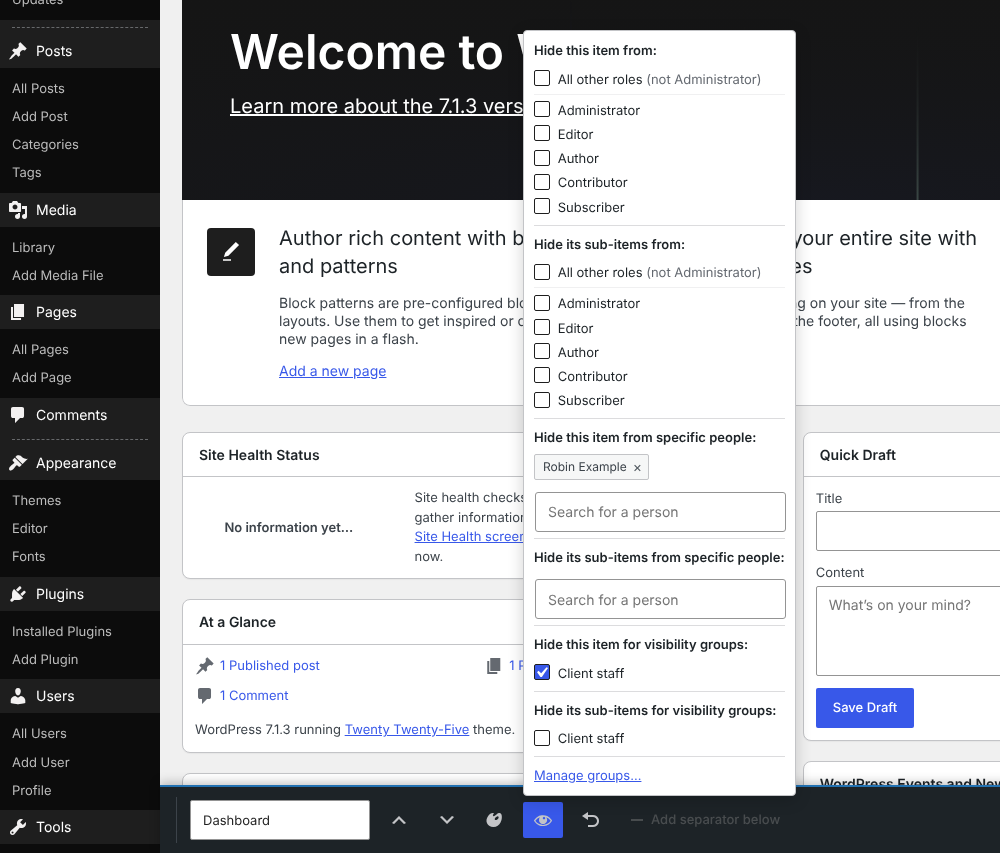
- Hide items from chosen roles — including administrators. All other roles at the top of the list ticks every role except your own in one step. Custom roles registered by other plugins (User Role Editor, Members, etc.) appear automatically.
- Hide items from specific people, by name, when a role is the wrong unit — one person on a shared role who doesn’t need a particular tool. Search for someone in the visibility popover and add them; a parent’s sub-items can be hidden per person too, with the parent left visible. Like every other hide in Maestro, this is cosmetic only: the page still loads by URL for anyone authorized to see it.
- Hide items from a named group of people with a visibility group — say “Reduced view” for the client’s staff. Make the group once under Visibility groups in the editing toolbar, add people to it, then tick it in any item’s visibility popover. Change who is in it later and every item it hides follows. A group is not a role: WordPress never sees it, and it grants or removes nothing. It is cosmetic only, like every hide in Maestro: the page still loads by URL for anyone authorized to see it.
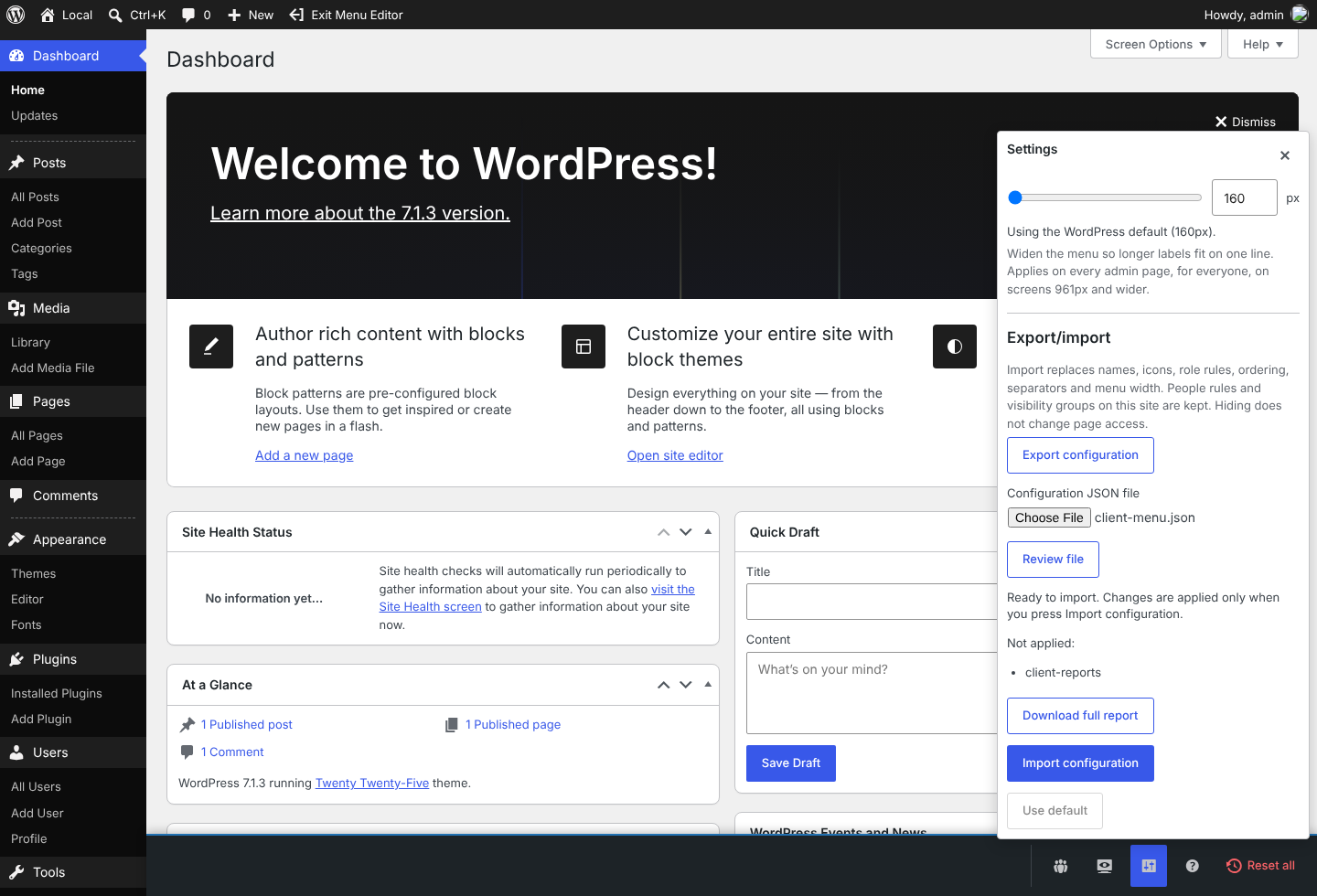
- Widen the menu so longer labels fit on one line. Drag the menu’s edge while editing, or set an exact width under Settings (the gear in the editing toolbar). The width applies on every admin page, for everyone, on screens 961px and wider. If another plugin already sets the menu width, that plugin wins and Maestro tells you so.
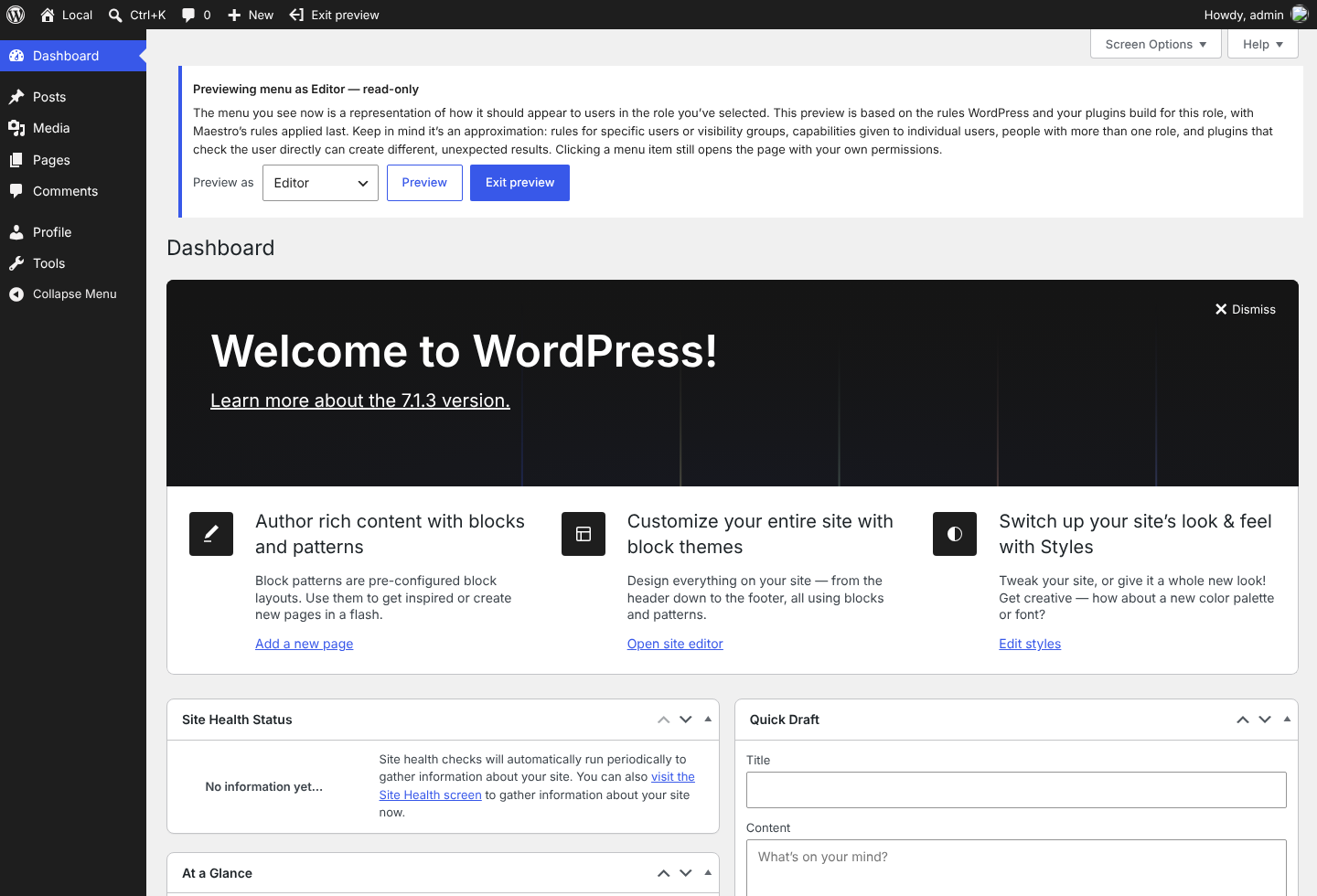
- Preview the menu as a role. Press Preview as, choose a role, and the Dashboard shows that role’s menu under a read-only banner. You stay signed in as yourself, and nothing is saved.
- Copy a menu to another site with export/import under Settings. Export a JSON file of names, icons, role rules, ordering, separators and menu width, then review it on the destination before anything changes. Rules for named people and visibility groups never leave the site.
- Reset a single item to its WordPress default, or reset everything at once.
Changes are global — one configuration applies to everyone. Your custom menu configuration is stored as a sparse delta (just the differences) layered over the menu WordPress builds on each load. Nothing is rebuilt or duplicated, so a reset simply removes the delta, and the original menu returns.
Important: visibility is cosmetic, not access control
Hiding a menu item only declutters the menu. The underlying admin page still loads for anyone who knows or types its URL if they’re authorized to see it. That’s because a page’s own registered capability is the true lock. Maestro operates on the menu (presentation), which is a different plane from authorization.
If you need to actually prevent access, pair Maestro with a capability manager like PublishPress Capabilities**. It’s menu-aware, and its Pro tier can block admin pages by URL.
The maestro_capability filter lets such a plugin hand editing rights to a custom capability instead of the default manage_options.
Accessibility and localization
The editor is keyboard-operable end to end — select with Enter/Space, reorder with Alt+Arrow, and every move and save is announced to screen
readers. Modified items carry a non-color indicator with screen-reader text, so their state is never indicated by color alone.
Maestro uses the maestro-menu-editor text domain and ships a translation template plus starter language packs for Spanish (es_ES), German (de_DE), Japanese (ja), French (fr_FR), Portuguese – Brazil (pt_BR), and Italian (it_IT). WordPress.org language packs override and extend these; native-speaker and WordPress Polyglots reviews are welcome.
Architecture (for developers)
Config— reads/writes/sanitizes a single option (maestro_config) holding only the deltas. Reset = delete the option; the natural menu returns automatically.Replay— on a lateadmin_menupass, applies rename/icon/visibility to the$menu/$submenuglobals and reorders submenus. Top-level order uses the corecustom_menu_order+menu_orderfilters. Resilient to missing slugs (orphans are skipped) and new items (appended at the end).Rest—maestro/v1/config(GET/POST/DELETE), capability-gated,X-WP-Nonce.- The editor JS is driven by a localized model (with DOM ids), not DOM scraping, and diffs against captured pristine defaults so the stored config stays sparse.
- Localized editor labels are passed from PHP to JavaScript in
maestroData.i18n; the runtime zip includes the bundled POT template and starter catalogs.
Performance & footprint
Unlike other admin menu editors, Maestro won’t hurt your site’s performance. It’s small enough that there is nothing to compress, optimize, or tune.
Maestro is built to stay out of the way:
- Nothing added to
alloptions— the one that matters. WordPress loads every autoloaded option into memory on every request that boots it, including front-end pages served to logged-out visitors. A menu configuration is admin-only data, so an autoloaded one is a tax on traffic that will never read it — and a bloated autoloaded bundle is a classic cause of a sluggish site. Maestro’s option is explicitly non-autoloaded. Check it on your own site:wp option list --autoload=onwill not listmaestro_config. - Zero extra database queries on the front end. Not merely “light” — inert. Every hook is admin-gated, so a public page load reads nothing at all.
- One extra query on an admin page — a single, non-autoloaded option (
maestro_config), read once per request and cached, no matter how many parts of the plugin ask for it. With a persistent object cache (Redis / Memcached) that drops to zero. This is a deliberate trade: one query where the data is actually used, so that public traffic — the bulk of what a live site serves — pays nothing. - A wider menu costs one CSS rule. If you set a menu width, admin pages get one small inline style and no extra query. A site that never sets one gets nothing.
- Storage tracks your edits, not your plugin count. Maestro stores a sparse delta: three renamed items are three renamed items, whether the site runs five plugins or fifty. A typical configuration is 5–15 KB, with a hard 1 MB ceiling.
- Minimal storage. One
wp_optionsrow, created only when you first save a change — a fresh install stores nothing. No custom tables, no post or user meta, no transients, no cron jobs. Uninstalling deletes that single row. - Measured, not asserted. At a typical configuration size Maestro adds roughly 0.1 ms to an admin page load; even a pathological config at the 1 MB ceiling adds about 1 ms. Menu changes are applied in memory during the
admin_menupass, not through extra queries. Method and full numbers: config size vs. page-load cost. - Small install — roughly a 290 KB download. Nearly a third of that is the Bootstrap Icons set, which the editor fetches only when you first open its tab in the icon picker.
(Size figures are a v1.10.0 snapshot; timings were measured 2026-08-03 on WordPress 7.0 / PHP 8.3.)
Known limits / deferred to v2
- Reparenting (moving an item between a top-level position and a submenu) is not included. Top-level items reorder among top-level items, and submenu items reorder within their current parent. Reparenting needs hand-splicing of the globals plus
parent_file/submenu_filehighlighting fixes — a known minefield, parked deliberately. - Separators are top-level only; WordPress has no submenu separator. Core also drops a separator that directly follows another one or ends the menu, so one placed there will not show.
- Renaming an item drops any core-appended count badge (e.g., pending comments) from that label, since the badge lives inside the title string.
- Submenu sort relies on items registering by the late
admin_menupass; a plugin that registers submenus on an unusually late hook may not be captured.
Credits
Bundled Bootstrap Icons are © The Bootstrap Authors, licensed under the MIT License. They are recoloured to WordPress
menu grey and stored as data-URIs in assets/icons-bootstrap.json; see bin/generate-bootstrap-icons.mjs.
Support This Plugin
If Maestro saves you time or brings you or your clients the joy of a tidy admin menu, you can support its ongoing maintenance through GitHub Sponsors.
Installation
- In your dashboard, go to Plugins → Add New, search for “Maestro: The Inline Admin Menu Editor”, and click Install Now, then Activate.
- Or upload the plugin zip via Plugins → Add New → Upload Plugin, then activate it.
- Or, manually: unzip into
wp-content/plugins/maestro-menu-editorand activate from Plugins. - After activating, click Edit Menu in the admin bar to start editing the admin menu in place.
FAQ
Can I copy a configuration to another site?
Yes. In Edit Menu, open Settings, export the JSON file, then review and import
it on the destination. Import replaces portable menu settings and reports
missing roles and menu items. People rules and visibility groups are excluded
from exports; those already on the destination are preserved. Hiding remains
cosmetic and does not change page access.
Does hiding a menu item block access to that page or disable its features?
No — and this is important. Hiding an item is cosmetic: it removes the link from the admin menu but does not stop anyone from reaching the page by typing or
bookmarking its URL. Real access is governed by each page’s registered capability. To truly block all access to a page, use a capability manager such as
User Role Editor or PublishPress Capabilities.
Do my changes affect everyone, or just me?
Everyone. Maestro stores one global configuration that applies to all users. Visibility is the exception: you can hide items from chosen roles, or from
named individuals, so what each person sees can differ. The rename/reorder/icon changes themselves are global.
Can I see the menu the way an Editor would?
Yes. Press Preview as (the screen button in the editor toolbar), choose a
role and press Preview. The Dashboard shows that role’s menu, with your rules for the role
applied, under a read-only banner with Exit preview. You stay signed in as
yourself and nothing is saved. It is an approximation: rules for specific
people or visibility groups, capabilities given to individual users, people with several
roles, and plugins that check the user directly can differ. Network super
admins on multisite cannot preview.
Can I hide something from just one person?
Yes. Alongside the role lists, the visibility popover has a search box for
people. Type a name, pick them, and the item disappears from that person’s menu
only — everyone else with the same role still sees it. You can target several
people, and on an item with children you can hide the sub-items per person while
the parent stays visible.
Use it when a role is the wrong unit: one editor on a team of editors who
doesn’t need a particular tool. If you find yourself adding the same person list
to many items, a role is probably the better fit.
Two notes. Targeting your own account is allowed — Maestro warns you, and you
can always get back in, because the Edit Menu control lives in the admin bar and
no hide rule can remove it. And on a multisite network, network super admins are
exempt from person-targeted hides (role-targeted hides still apply to them, as
they always have).
What is a visibility group, and when should I use one instead of a role?
A visibility group is a named list of people that you can tick in any item’s
visibility popover, the way you tick a role. Create it under Visibility groups
in the editing toolbar, add people with the same search box, and tick it on the
items it should hide. Who is in it is read on every page load, so adding or
removing someone takes effect right away on every item the group hides,
without touching those items.
A visibility group is not access control. It sounds more like a permission
than a role checkbox does, so to be plain: it only removes links from those
people’s admin menu. They can still open every one of those pages by URL, and
no capability is granted or removed. If people must not reach a page, use a
capability manager.
Use a group when a role is the wrong unit and you would otherwise add the
same few people to many items, for example a client’s staff who share the
Editor role with your own team. If a role already matches the people you mean,
use the role: it is simpler, and it is how WordPress itself groups people.
Groups are made and edited by people who can list users (administrators, by
default); anyone else using the editor does not see them, and their saves leave
groups alone. On a multisite network, network super admins are exempt from
group hides, as they are from person-targeted hides.
Can I hide items from administrators, too?
Yes. The hide by role feature includes the administrator role. However, you have to be an administrator to use Maestro’s features, so if you hide a menu item from administrators, you are hiding it from yourself as well.
Remember that this is cosmetic, not a permission change, and you can reset any or all of the changes made in Maestro at any time.
Does it work with custom roles from other plugins?
Yes. Any role registered on the site — including custom roles from User Role Editor, Members, and similar plugins — appears automatically in the visibility
control.
Can I use it alongside Admin Menu Editor?
It will run, but the two will fight. Admin Menu Editor rebuilds the menu from its own saved settings, so its order, names, icons, and hidden items can override the changes you make in Maestro, and the reverse. Use one menu editor at a time. While Admin Menu Editor is active, Maestro shows a warning in edit mode.
Is the editor keyboard accessible?
Yes. You can select, rename, reorder (Alt+Arrow), open the icon and visibility controls, and reset items without a mouse. Saves and moves are announced to screen readers.
What happens when I deactivate or reset the plugin?
The admin menu returns to exactly what WordPress and your active plugins generate. Your customizations live in a single option as a sparse delta; Reset All deletes that option, and deactivating the plugin stops it from being applied.
Can I move an item between a top-level position and a submenu?
Not yet. Reparenting is deliberately deferred (see “Known limits” below). Top-level items reorder among top-level items, and submenu items reorder within
their current parent.
Screenshots

Changelog
1.11.0
- New: WordPress icons. On WordPress 7.1 and later, the icon picker has a third tab, WordPress, with every icon in WordPress’s own icon library, plus any icons another plugin adds to it. Icons from another plugin name their source in the tooltip. A chosen icon follows the menu colours like the others, and keeps showing if the plugin that added it is removed. The tab loads the first time you open it. Below 7.1 the picker is unchanged.
- Improved: separators. Selecting a separator now puts focus on its move-up button, not on Remove separator, so pressing Enter twice can no longer remove one by accident. A move that would put two separators together, or a separator at the end of the menu, is refused with the reason, because WordPress would hide the separator there. Removing a separator also removes any hidden twin in the same place, so nothing reappears. The separator line is now visible on light colour schemes, and the add and remove separator buttons show only their icons at every width, keeping their names for screen readers and as tooltips.
- New: a notice when the browser has old editor files. If the browser is still running the menu editor’s files from an earlier Maestro version, Edit Menu says so and offers Reload, which fetches the current files and reloads the page. This mostly happens on sites where something removes the
?ver=from plugin files in the admin, which stops browsers noticing an update. - Improved: save feedback. After “Saved” fades, a small muted check stays in the editing toolbar, with the tooltip “All changes saved”, until your next change. Screen readers now hear each save once instead of twice.
1.10.0
- New: copy a menu configuration to another site. In Edit Menu, open Settings and use Export/import. Export downloads a JSON file of names, icons, role rules, ordering, separators and menu width. Rules for individual people and visibility groups are never exported. On the destination, Review file lists anything that cannot be applied before Import configuration changes anything; the destination’s own people rules and visibility groups are kept. Long reports can be downloaded in full. Settings, and so export/import, is available on screens 961px and wider. Hiding stays cosmetic.
- Improved: the icon picker. Dashicons and Bootstrap Icons now show in square cells in one colour. The Bootstrap set grows from 87 to 437 icons, grouped and searchable by admin topic, and loads the first time you open its tab. The picker opens on the tab of the item’s current icon. Icons you already chose are unchanged.
- Fixed: SVG menu icons now follow the menu colour. A Bootstrap or other SVG icon set from Maestro takes the menu’s idle, hover and current colours in every admin colour scheme, like a Dashicon (#172).
- Fixed: in right-to-left languages, a dialog’s close button no longer covers its title.
1.9.0
1.8.0 was never released on its own, so this release carries its changes too.
- New: preview the menu as a role. Press Preview as (the screen button in the editing toolbar), choose a role and press Preview. The Dashboard then shows that role’s menu with your rules applied, under a read-only banner with Exit preview. You stay signed in as yourself, nothing is saved, and anything still pending is saved before the preview opens. It is an approximation: rules for specific people or visibility groups, capabilities given to individual users, people with several roles, and plugins that check the user directly can differ. Previews run on the Dashboard only, for roles that can reach the admin. Network super admins on multisite cannot preview.
- New: “All other roles” in every role list. One checkbox at the top ticks or clears every role except your own. It shows a mixed state when only some are ticked. If ticking it would go past the 50-role limit for a list, nothing changes and Maestro tells you why, rather than saving part of the list.
- New: visibility groups. A visibility group is a named group of people, such as “Reduced view” for a client’s staff. Open Visibility groups (the people button in the editing toolbar), give the group a name and add people to it. Then tick it in any item’s Visibility popover under “Hide this item for visibility groups:” or, on an item with children, “Hide its sub-items for visibility groups:”. If you add or remove someone later, every item the group hides follows right away. Deleting a group tells you how many items and people it affects first. The dialog and the help tour explain what a saved group does.
- A visibility group is not a role. WordPress never sees it, and it grants or removes nothing. Like every hide in Maestro it is cosmetic, so a hidden page still opens by URL for anyone allowed to see it. Up to 20 groups, with up to 50 people each.
- Only people who can list users (administrators, by default) see or edit visibility groups. Anyone else editing the menu keeps the stored groups as they are. On a multisite network, network super admins are exempt from group hides, as they already are from hides that name a person.
- Fixed: people who can edit the menu but not list users were sent the user IDs named in per-user hides. This only matters when a site gives Maestro editing to a role without the
list_userscapability. Those editors now get the menu without that data, and saving keeps the hides they cannot see. - Improved: phones and tablets. Tapping a menu item to select it no longer opens the on-screen keyboard. While you rename an item, the editing toolbar rises above the keyboard, and a typed name is kept when you tap another item or turn the device. Dialogs on a phone get a header with a close button. Tablets and other touch screens wider than a phone get the same touch handling.
- Improved: the help tour gives every editing control its own tip, and on a narrow screen it skips controls that are not shown.
- Improved: dialogs look and behave alike. Every editor dialog and the help tour share the same button shapes. A focus outline appears when you use the keyboard, not after a tap, and labels name controls the way the toolbar does.
- Fixed: deleting an empty visibility group said its people would see items again. The confirmation now gives the real counts, such as “It hides 0 items from 0 people”, and no longer promises that items reappear when another rule still hides them.
- Fixed: on a phone, choosing another toolbar tool left the first dialog open. The new tool’s dialog now replaces it, and only the open tool is highlighted.
- Changed: Preview as has its own icon, a screen with an eye, so it no longer looks like the Visibility button.
- Improved: dialogs that save as you go (Visibility groups, Menu settings and the help tour) have a close button in their header, and save messages float above the editing toolbar instead of covering it. Toolbar hover colours follow your admin colour scheme.
- Improved: a save error that stays on screen can be dismissed with the × beside it. That only hides the message: the save still counts as failed, Preview still waits for a good save, and the message comes back with the next save attempt.
- Improved: the Visibility popover and the Visibility groups dialog scroll inside themselves on a short screen instead of running off it.
- Fixed: on a phone, the help tour jumped from its second tip to its last. Tapping Next closed WordPress’s phone menu, which took the editing toolbar with it, so the tour had nothing left to point at. Every tip now shows, and the count leaves out only the width handle and Menu settings, which phones do not have.
- Fixed: on a phone, a tap inside the icon picker or the Visibility popover closed the editor. The same cause as the tour. On a phone on its side, the icon picker also opened below the bottom of the screen; it now fits above the toolbar and scrolls.
- Improved: the editing toolbar is smaller on phones. Upright, it takes at most two rows, even with an item selected, and on its side it takes one. A row that does not fit scrolls sideways instead of wrapping, so every button keeps a full-size touch target. The help tour button is left out on phones. The add and remove separator buttons and, on a phone held upright, Reset All show only their icons there, and keep their names for screen readers and as tooltips.
- Changed: Menu settings (the gear) shows only on screens 961px and wider. Its one setting, the menu width, applies only there, so on phones and small tablets it opened a control that changed nothing you could see. A width saved on a wider screen still applies there.
- Fixed: on a phone on its side, edit mode let the page scroll sideways under the open menu, so phone browsers zoomed the whole screen out.
1.7.0
- New: set the admin menu’s width. In edit mode, open Menu settings with the gear button in the toolbar and pick a width from 160px (the WordPress default) to 320px, with the slider or by typing a number. You can also drag the menu’s right edge (left edge in right-to-left languages), or focus that edge and use the arrow keys. Shift moves 20px at a time, Home goes back to the default and End to the widest. Long menu names get room instead of wrapping, and the width applies on every admin page, not just while editing. Use default sets it back, and so does Reset All. Reset Item leaves it alone.
- The width applies only where WordPress shows the full menu: 961px and wider, with the menu expanded. Folded menus and phones keep WordPress’s own layout.
- If another plugin already sets the menu width (Keel or PX, for example), Maestro leaves it alone. Menu settings shows the other plugin’s width, even when it changes while you edit, and dragging the edge saves nothing.
- Fixed: in right-to-left languages, the editing toolbar sat under the menu. It reserved space on the left and ran under the menu on the right. It now starts where the menu ends, on the correct side.
- Fixed: on a narrow screen the editing toolbar stacked every control on its own line. Settings, Help and Reset All now get their own row, and the other controls sit side by side.
- Fixed: in right-to-left languages, untranslated editor text showed its punctuation in the wrong place. Text still in English now keeps its own left-to-right order, so its punctuation and the tour’s step counter sit where they should.
- Fixed: on a phone, edit mode hid the first menu row under the admin bar and shrank the touch targets. Edit mode now keeps WordPress’s own narrow-screen menu layout.
- Fixed: submenu text in edit mode started 2px further in than the open submenu’s. Every submenu now lines up.
1.6.0
- New: add, move, and remove menu separators. In edit mode, separators show as dashed rows you can select. Move one with ▲/▼, Alt+Arrow, or drag. Remove it with Remove separator. To add one, select a top-level item and choose Add separator below. Separators are top-level only, as in WordPress itself.
- Fixed: separators disappeared after you reordered the menu. Saving a top-level order in 1.5.4 or earlier moved every separator to the end of the menu, where WordPress deletes them. They now come back after this update, each closing the group it belongs to. You don’t need to do anything.
- New: a warning when Admin Menu Editor is active. Admin Menu Editor rebuilds the menu from its own settings, so the two plugins can override each other’s changes. Edit mode now names it in a notice you can dismiss.
- Fixed: a new icon did not show on plugins that ship an image icon. For plugins such as UpdraftPlus, the plugin’s own picture stayed on top. For plugins such as Yoast SEO and Smush, the old logo came back the next time you hovered. The new icon now shows straight away and stays. The icon picker also offers every Dashicon (342), not a short list.
- Fixed: the editing toolbar covered a widened admin menu. When another plugin makes the menu wider than WordPress’s 160px, the toolbar now starts where the menu ends.
- Fixed: submenus did not line up in edit mode. Edit mode shows every submenu at once. All but the current one sat slightly indented, and on a widened menu each stuck out past the menu’s right edge, leaving a jagged edge. They now line up with the menu.
- Fixed on multisite: the network admin menu could pick up a site’s menu order, and editing there could overwrite that site’s settings. Maestro now stays out of the network admin and user admin screens. It never offers edit mode there and never changes the order of those menus.
- Accessibility: focused toolbar buttons stay readable. Since WordPress 7.1, a focused button in the editing toolbar turned a dark blue that was hard to read on the dark toolbar. It now keeps its normal colour, and the focus ring shows which button has focus.
1.5.4
- Fixed: moving Google Site Kit in the menu did nothing. Site Kit moves its menu item back under Dashboard on every page load. It did this after Maestro applied your order, so your move never showed. Maestro now applies your saved order last. Items you have not moved keep the order other plugins give them.
- Changed: Edit Menu is gone from the post editor, and so is the unsaved-post handling 1.5.3 added there. 1.5.3 showed Edit Menu in the post editor when fullscreen mode was off, and saved your unsaved post before you entered or left the menu editor. Both directions still meant leaving a post mid-edit, and the admin menu is one click away on every other screen, so Edit Menu no longer appears in the post editor in either fullscreen state, and there is nothing to save on the way in or out. A bookmarked Edit Menu link opened there no longer starts the editor behind your post either. The site editor keeps its Edit Menu button, which still autosaves your work before taking you to the Dashboard. The Classic Editor is unaffected.
1.5.3
- WordPress 7.1 support. 7.1 keeps the toolbar on screen in the post and site editors, where it used to be hidden. Maestro’s Edit Menu button appeared there too — on screens with no admin menu to edit. It now appears only where it can actually do something.
- Fixed: Edit Menu on a phone or narrow window opened the editor without opening the menu. WordPress hides the admin menu at narrow widths behind the toolbar’s menu button. Edit mode started anyway, so you got the editing toolbar and no menu, with nothing saying to tap the menu button first. It now opens the menu for you, and the menu button keeps working normally while you edit.
- Fixed: in the site editor, Edit Menu led nowhere. The site editor never shows the admin menu and has no way to bring it back, so the button had nothing to act on. It now takes you to the Dashboard with the editor already open.
- Fixed: your unsaved post could raise a browser warning when entering or leaving Edit Menu. Both are ordinary page loads, so an unfinished post triggered the browser’s “Leave site?” prompt. Maestro now saves your work first, the same way WordPress’s own autosave does. It never publishes anything — a draft stays a draft and a published post keeps the version your readers see.
- Fixed: the Collapse menu button did nothing during editing. Collapsing is not possible while the menu is being edited, but the button was still there to click. It is now hidden until you finish.
1.5.2
- Fixed: an override could silently stop applying when the same menu item was saved under two spellings of its address. Some items can be addressed more than one way — with or without a version number or tracking parameter, for instance. If a single save carried two such spellings of the same item, Maestro stored both, then read the item as ambiguous and applied neither. A rename or a visibility rule would stop working while still appearing in your settings, which is the worst way for something to break. Maestro now keeps one entry per item, so the situation cannot arise.
- This also closes a way for someone who can edit the menu but cannot list users to undo a per-person visibility rule set by an administrator. As always, hiding is cosmetic: no capability was granted or removed, and the affected page stayed reachable by URL throughout for anyone allowed to open it.
1.5.1
- Fixed: the edit-mode toolbar no longer shifts while a change saves. The save status now sits in a reserved slot, so the rename field stays where it is instead of sliding sideways every time a save cycles through “Saving…” and “Saved”.
- Accessibility: a locked sub-item role is now reachable, and says why it is locked. When a role is already hidden at the parent level, that role’s checkbox under “Hide its sub-items from:” is shown as locked. It was previously skipped by keyboard and screen-reader navigation entirely — so the explanation was written for assistive technology but could never actually be heard. It is now reachable and announces its reason. The value still cannot be changed.
- Accessibility: dismissing the visibility popover by clicking outside it now returns focus to the button that opened it, matching what pressing Escape already did. Previously focus fell to the top of the page and a keyboard user had to tab back.
- The focus outline on edit-mode toolbar buttons is lighter, giving a clearer ring against dark admin colour schemes.
- Fixed: an override could look applied in the editor when it was not being applied. On a site where two menu rows resolve to the same address — the same screen registered twice with different version or tracking parameters — the visibility popover could show roles as checked while the menu itself ignored the rule, and saving from that state could store what the popover showed. The editor now applies nothing for an ambiguous row, exactly as rendering the menu already did.
- Internal: a stored override key carrying an HTML-encoded
>is now classified consistently as a top-level or a sub-item key.
1.5.0
- New: hide menu items from specific people, not just roles. The visibility popover now has a search box for people alongside the role lists. Type a name, pick them, and the item disappears from that person’s admin menu only — everyone else with the same role still sees it. You can target several people, and on an item with sub-items you can hide the sub-items per person while the parent stays visible. Use it when a role is the wrong unit: one editor on a team of editors who doesn’t need a particular tool.
- Still cosmetic, exactly like hiding by role. This changes what someone sees, never what they can do. A hidden page still opens normally for anyone who types its URL and holds the capability it requires, and no capability is added or removed by any rule. If you need to actually restrict access, pair Maestro with a capability manager — hiding a menu item is not a security measure.
- Targeting your own account is allowed. Maestro warns you inline, and you can always undo it: the Edit Menu control lives in the WordPress toolbar where no rule can reach it, and a row you have hidden from yourself still appears while you are editing so you can remove the rule.
- Targeting people requires the ability to list users. If you have handed Maestro to a custom role via the
maestro_capabilityfilter and that role cannot list users, the person search is hidden and hiding by role continues to work as before. - Known limitation: on a multisite network, network super admins are not affected by person-targeted hides. Role-targeted hides still apply to them, unchanged.
1.4.1
- Fixed: editing a top-level item no longer changes a submenu item that happens to share its slug. WordPress and many plugins register a submenu under the same slug as a top-level item — the “All Products” self-link under a custom post type, or a plugin shortcut that points at an existing top-level screen. Renaming or hiding the top-level item could carry to that submenu row as well. It now applies only to the item you edited. This completes the fix started in 1.4.0, which covered the reverse direction (editing a submenu never touched its parent).
- Configs are now stamped with a schema version, so Maestro can tell an override you saved recently from one saved before submenu items could be addressed individually. Overrides saved by earlier versions keep behaving exactly as they did until you next save.
- If a submenu item was already renamed along with its parent, that name is kept when you upgrade, so nothing changes under you unexpectedly. Select that submenu item and use Reset Item once to restore its original label.
1.4.0
- Hide sub-items independently of their parent. The visibility popover now offers a second role list, “Hide its sub-items from:”, on any item that has children — so a parent can stay visible while its sub-items are hidden from the roles you choose. A role already hidden at the parent level shows as implied and is never stored twice.
- Renames keep count bubbles and badges. Renaming an item that carries a count bubble or a “NEW” badge (WooCommerce order counts, plugin notification badges) now preserves that markup instead of stripping it. The stored title stays plain text; the badge is re-read from the live menu on every request.
- Editing a submenu no longer changes its same-slug parent. WordPress registers some submenu items under the same slug as their top-level parent (the “All Products” style self-link under a custom post type). Renaming or hiding that submenu row now applies to that row alone. Editing the top-level item still carries to a same-slug submenu row until you give that row an edit of its own — that is deliberate, so overrides saved by earlier versions keep behaving exactly as they did.
- Better coexistence with other menu plugins. Maestro no longer overrides another plugin’s
custom_menu_orderwhen it has no ordering of its own to apply. - Hiding a top-level item is now strictly cosmetic by construction: Maestro only removes a row the current user could already reach, so WordPress core’s own permission check still fires on every page. Hiding can never widen access.
- Internal hardening: the stored config is bounded (slug length, icon URL length, sub-order parents, and a 1 MB aggregate ceiling), and an over-size payload is rejected whole rather than partially written.
- Accessibility: the two role lists in the visibility popover are now programmatically grouped and named, so screen-reader users can tell “hide this item” from “hide its sub-items”.
- Fixed: a very long menu name written in a multibyte script (Japanese, Chinese, emoji) is now shortened on a character boundary instead of being cut mid-character.
1.3.1
- Editor restyle: the edit-mode toolbar and controls now look native to wp-admin — quiet, borderless icon buttons replacing the coloured-outline toolbar introduced in 1.2.0. Colour is now reserved for errors and the destructive “Reset All”.
- Exit is a single control: the admin-bar “Exit Menu Editor” toggle (the duplicate Exit button in the bottom toolbar is gone). Clicking it saves any pending change before leaving edit mode.
- Quieter save status — a muted “Saved” confirmation, with red shown only when a save fails.
- The controls panel, the icon/visibility popovers, and the first-run tour adopt core wp-admin styling; the first-run banner’s text and button are now vertically centered.
- Accessibility: improved contrast for the “Reset All”, “Save failed”, and “Saved” indicators on dark admin colour schemes (e.g. Midnight).
1.3.0
- Saved overrides now keep applying even when your site moves to a new host, when a plugin updates and changes a version number in its menu URL, when UTM tracking parameters drift on external-tool links, and when a taxonomy slug is stored with
&encoding instead of&(or vice versa) — no manual re-save needed. - Edit-mode toolbar: the Exit and Reset All controls now use clearer, more consistent icons (Exit matches the admin-bar toggle).
- New: a first-run guided tour walks you through editing the menu — selecting an item, the rename/icon/visibility controls, reordering, autosave, and exit. A “?” button in the edit-mode toolbar replays it anytime. (It replaces the previous one-time menu highlight.)
- Fix: while editing, the menu’s group separators no longer show as a stray dark band between sections (most noticeable above the Posts group); they collapse so items sit flush. The normal menu is unchanged.
1.2.0
- Redesigned edit-mode toolbar: every control is now a compact icon button in one consistent system, with colour signalling meaning — green for editing/saved, amber for unsaved changes, red for Reset All. Fully accessible: each control keeps its name for screen readers and shows a tooltip on hover.
- Mobile: the editor is reachable on phones now — the admin-bar “Edit Menu” toggle stays visible at small screen widths (it was hidden before), and the toolbar and controls are sized for touch.
- “Edit Mode” indicator: a persistent, glanceable cue that you’re editing, plus a one-time first-run hint highlighting the menu.
- Rename: the field shows a placeholder label, and the transient “Saved” confirmation now clears itself after a moment so the toolbar stays quiet.
- Reorder: keyboard (Alt+Arrow) and the new ▲/▼ buttons leave menu separators in place; the per-item Reset button is disabled when there’s nothing to undo.
- Robustness: Maestro engages WordPress’s menu-order machinery only when you’ve actually reordered top-level items (otherwise it stays out of other plugins’ way); the stored configuration is size-bounded; and concurrent save / reset / exit actions are race-safe.
- Fix: the “modified” indicator now sits on the changed row’s label for items that have submenus.
1.1.1
- Editor: the selected item’s name is now screen-reader-only — the visible breadcrumb duplicated the rename field and ate horizontal space, and the controls are self-explanatory. Screen-reader users still get the item/submenu context.
- Editor: shorter reset button labels — “Reset Item” and “Reset All”.
1.1.0
- Keyboard reordering: select a menu item, then press
Alt+ArrowUp/Alt+ArrowDownto move it. Each move is announced to screen readers (politely for success, assertively when already at the boundary). No mouse required. - Modified indicator: changed items show a non-color glyph (•) with screen-reader text “(modified)” in edit mode. The indicator refreshes live on every rename, icon change, visibility change, and reset.
- Discoverable per-item reset: the Reset this item button in the controls panel is now keyboard-reachable (Tab + Enter/Space) and is visually emphasised whenever the selected item has unsaved overrides.
- Solid bundled icons: the Bootstrap Icons set now uses solid (
*-fill) variants, so it mixes naturally with WordPress’s dashicons in the picker. - Edit-mode polish: clearer toolbar grouping, a more scannable icon grid, and a dismissible first-run hint.
- Native save status: the saving / saved / error states now use WordPress dashicons (a spinner, a check, a warning) instead of emoji glyphs that some platforms recoloured or dropped; the idle state shows no icon.
- Fixes: the saved status no longer renders a double check mark; the rename field no longer shifts as the title length changes; toolbar controls wrap instead of overlapping on narrow screens.
- Listing: rewritten description and FAQ, plus a “Try it first” link to a live WordPress Playground demo.
1.0.0
- Initial release: rename, reorder, per-role visibility, reset.
- Icons: accepts all four native WordPress forms (dashicon, none, base64 image data-URI, image URL); picker bundles dashicons + curated Bootstrap Icons with search, keyboard accessibility, and mobile-sized touch targets.
- Editor: click-to-select with a shared panel, debounced single-flight autosave, and folded-mode neutralization.