


Description
▶ Live demo · Documentation · Get Pro
Magic Product Video for WooCommerce adds videos to your WooCommerce product gallery, next to your product photos. Upload your own clip, convert it to MP4 and WebM, choose a poster frame and attach it to a product. Or paste a YouTube, Vimeo or TikTok video link, or an Instagram Reel. The standard gallery integration needs no shortcode or theme edits.
Shoppers cannot touch what they buy. A short video shows size, movement, fabric and detail in seconds, right where they decide: on the product page.
- Your files stay on your hosting. Uploaded clips play in your own player. External video players load only after Play unless you enable Pro autoplay.
- Two playback formats. Convert your clips to MP4 (H.264) and WebM so browsers can choose a supported format.
- Fits your store. Works with the standard WooCommerce gallery (FlexSlider and PhotoSwipe), block themes and custom templates.
- Made for stores. Video library, poster frames, a background conversion queue and per-product control.
- YouTube, Vimeo, TikTok and Instagram too. Add a video by its link: only its poster loads until the shopper presses Play.
Why self-hosted instead of a YouTube embed
A YouTube embed uses Google’s player, which can set cookies and display branding or suggestions. A self-hosted product video is a file on your own site: it looks like part of the store, keeps the shopper on the page, and needs no cookie consent for a third-party player.
How it works
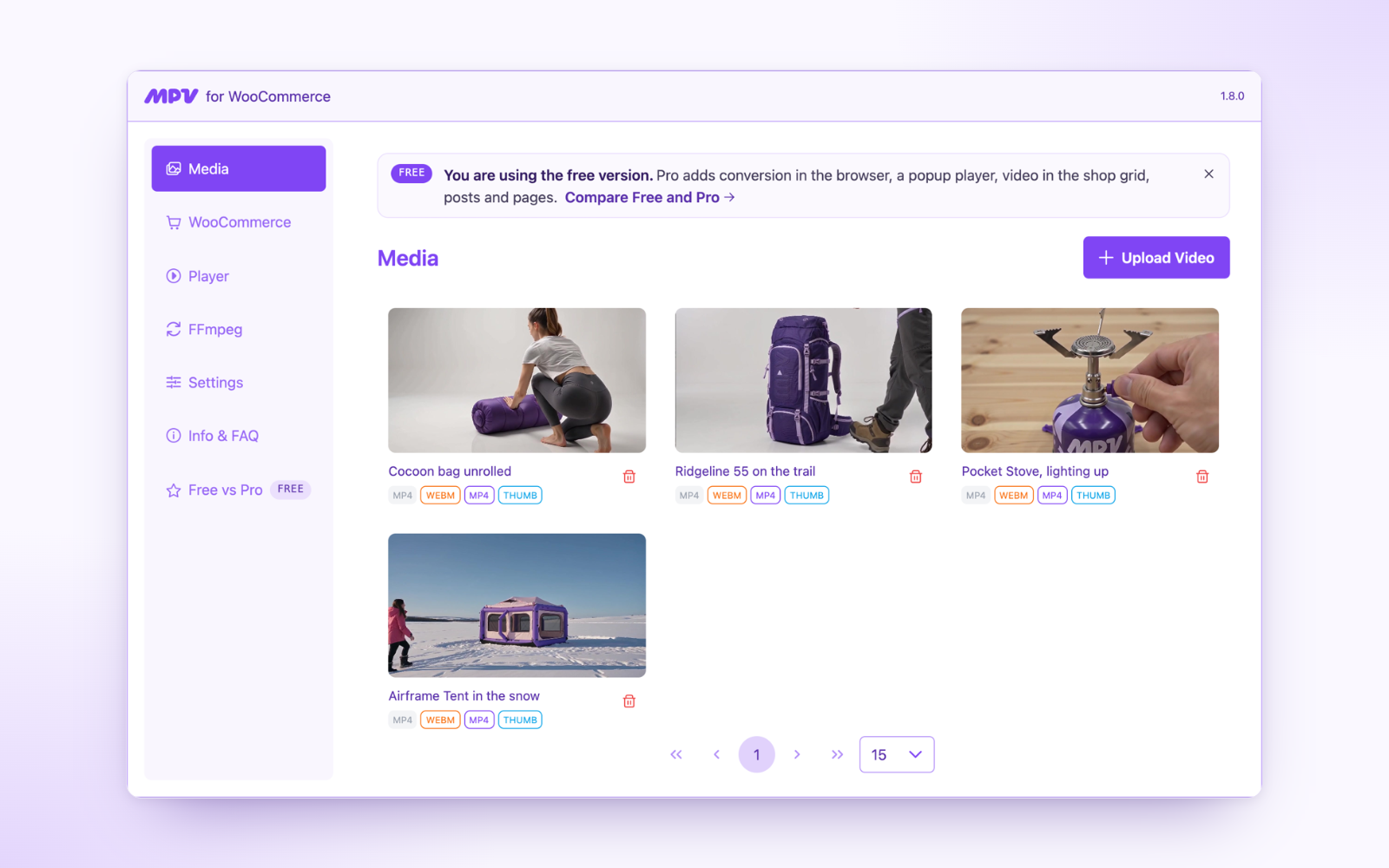
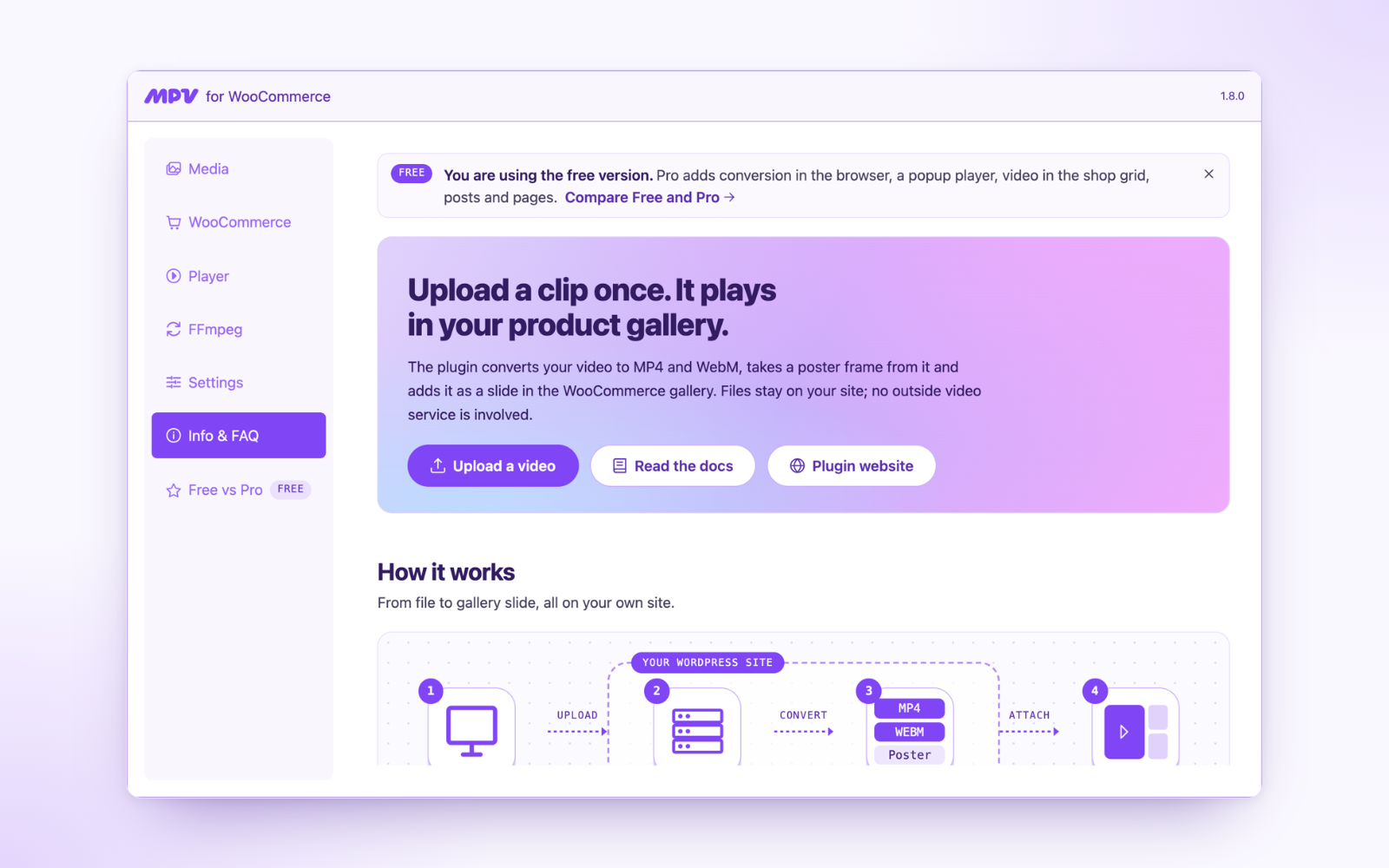
- Upload a clip into Magic Media, from a computer, phone or tablet.
- Convert it with FFmpeg on your server in a background queue, or in your admin browser without server FFmpeg. Keep the tab open for browser conversion. Or skip conversion and attach MP4 and WebM files you already have.
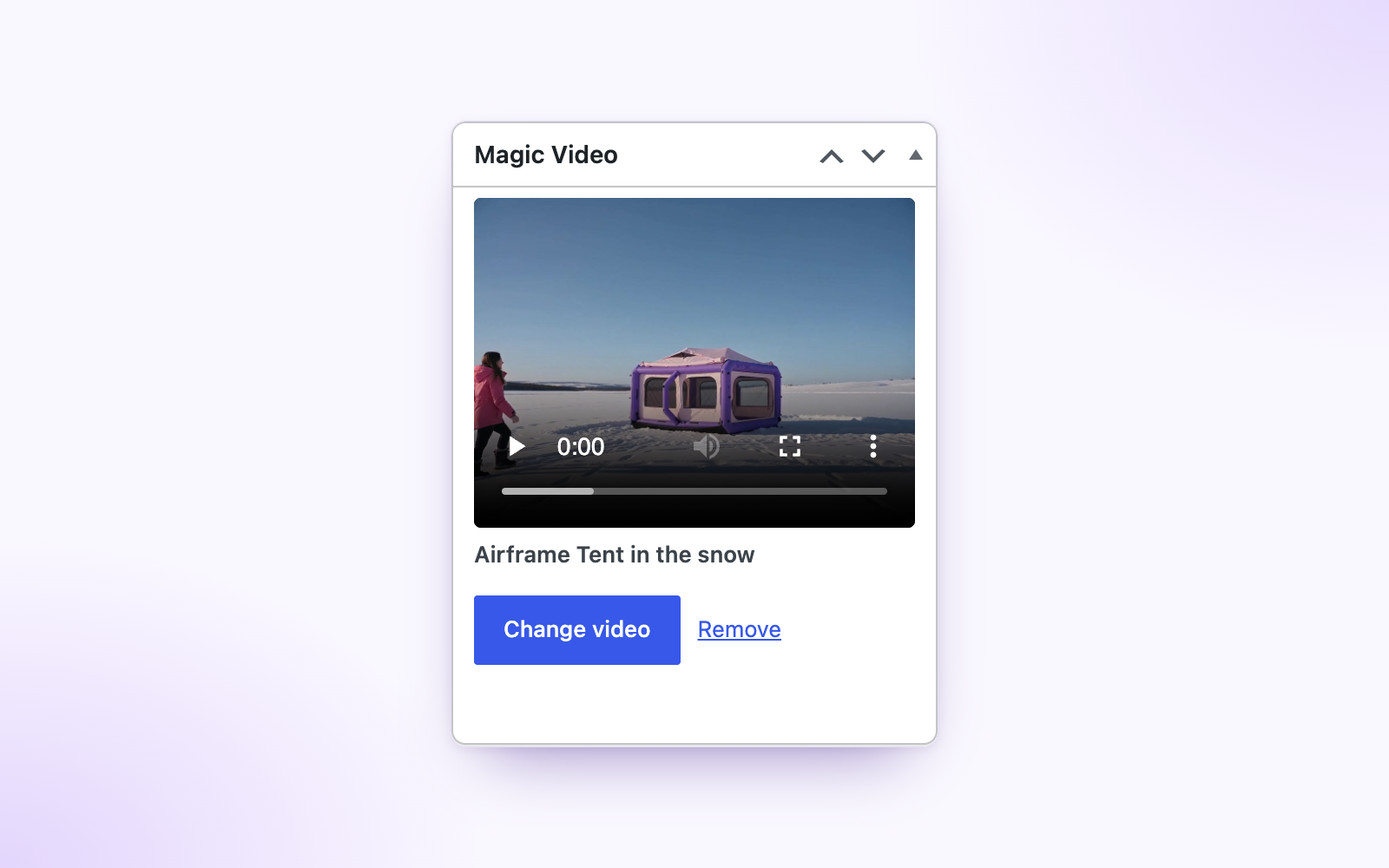
- Attach the video in the Magic Video box on the product edit screen.
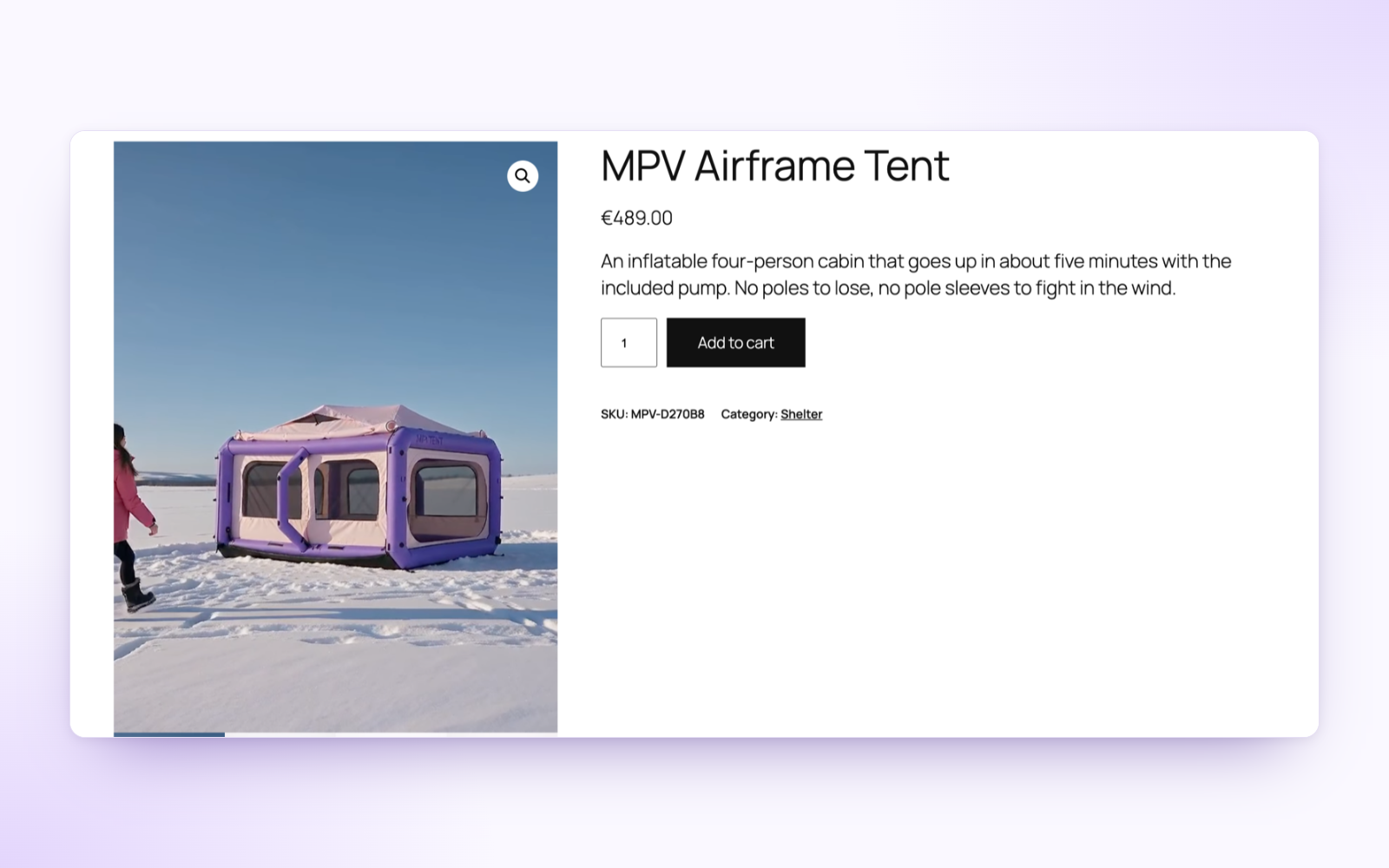
- Show. It plays as a slide in the product gallery, first or last.
Product video in the WooCommerce gallery
The video is a real gallery slide, not a pop-up bolted on top. It sits first or last among the product images, works with thumbnails, swipe and the lightbox, and keeps the layout of your theme. Choose autoplay, sound, loop and controls, how the video fills the frame, and the background behind it.
YouTube, Vimeo, TikTok and Instagram, loaded only on Play
Already have the video on YouTube, Vimeo or TikTok, or as an Instagram Reel? Paste its link in Magic PVW → Media → Add video link. The plugin copies the title and poster into your media library and shows the video as a gallery slide like any other. Until the shopper presses Play, the page loads only that poster from your own site; then the player loads from youtube-nocookie.com, from Vimeo with “do not track”, or from TikTok or Instagram. The slide keeps the video’s own proportions (16:9, or a vertical Short, TikTok or Reel) over a blurred poster, plays in the WooCommerce lightbox too, and follows the loop and controls settings of your player.
Only videos are accepted: a TikTok photo slideshow or an Instagram photo post is refused when you add the link. Instagram’s player shows the account and the comments line around the video and cannot start by itself or loop, so a Reel always waits for the shopper’s click.
Featured video for any product
Attach a video to a single product from the product edit screen, or reuse one clip on several products. The poster frame is taken from the first second of the clip; open the video in Media and pick any other frame if you want a better cover.
Self-hosted video, no third-party service
Your videos live in wp-content/uploads on your own hosting. Nothing is sent to YouTube, Vimeo, TikTok, Instagram or any other service unless you add a video from them by link (see Third-party services below). You decide who sees what, and the files stay yours if you ever change themes or plugins.
Convert on your server, or in the browser
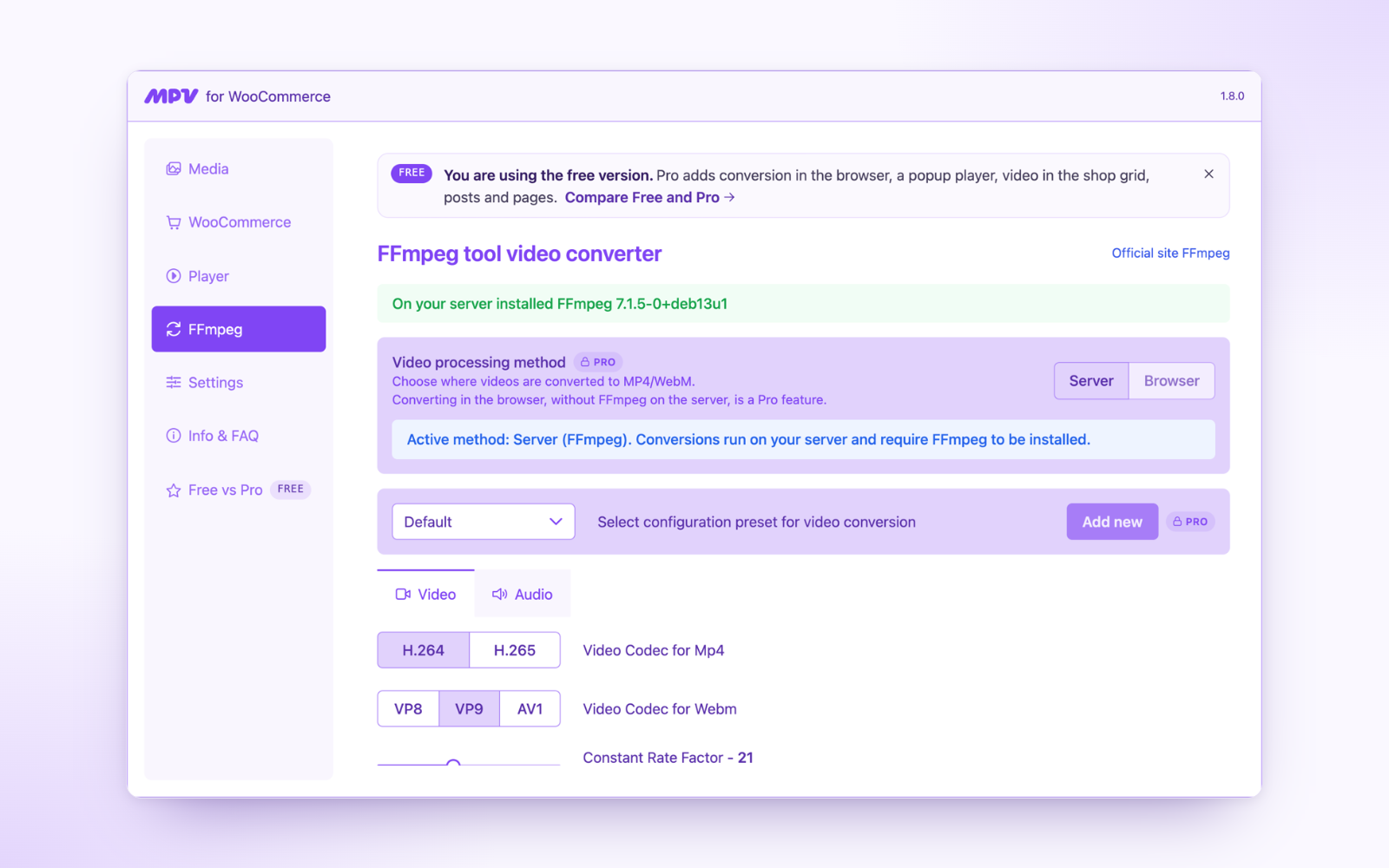
The video library converts clips to MP4 and WebM. Server conversion uses FFmpeg, in a background queue that keeps running after you close the tab. No FFmpeg on your hosting? Convert right in your admin browser instead (WebAssembly, no exec() needed), keeping the tab open until conversion and upload finish. Both conversion methods are included in the free plugin. You can also attach ready MP4 and WebM files.
Free features
- Video slide in the WooCommerce product gallery, first or last
- Server conversion to MP4 and WebM with FFmpeg, in a background queue
- Conversion in the browser (WebAssembly) for hosting without FFmpeg or
exec(): the clip is converted in your admin browser and the finished files are uploaded - Attach MP4 and WebM files you already have, with no conversion
- Poster frame from the video and a frame picker
- YouTube, Vimeo and TikTok videos and Instagram Reels by link, next to your own files: only a poster loads until the shopper presses Play, then the player loads in privacy mode; in the gallery, the lightbox and the Magic Video box
- Video library (Magic Media) for all your clips, upload from desktop or phone
- Player settings: autoplay, controls, sound, loop, aspect ratio, fill mode, background
- Gallery position: video first or last
- WooCommerce product edit screen box (Magic Video)
- One editable conversion configuration in Free; Pro adds saved custom presets
- Admin interface and plugin messages in English, Ukrainian, German, Spanish, French and Polish
- Optional “delete all data on uninstall”
Pro features
Magic Product Video Pro adds:
- Custom FFmpeg presets: quality, size, codecs and audio per preset
- Your own poster image for any video, uploaded or added by link (also without FFmpeg)
- YouTube, Vimeo and TikTok without a click: start them muted as soon as they are shown, also in the shop grid; hide the Vimeo title
- Popup player: a poster with a Play button that opens a fullscreen player
- Video in the shop grid: product videos instead of thumbnails on shop and category pages
- Posts, pages and other post types, with the
[mpvw_video]and[mpvw_magic_video]shortcodes and thempvw_the_video()template function - WPML: one video for all translations of a product
- Updates and email support
Pro replaces the free plugin in place; your videos and settings stay as they are. Yearly plans for 1, 3 or unlimited sites, with a 30-day refund on mpvw.org.
Works with your stack
WordPress 6.6 to 7.1, WooCommerce 9.6 to 11.2, PHP 7.4 and up. HPOS and block checkout are supported. Tested with the default WooCommerce gallery, block themes and classic themes.
Requirements
- WooCommerce 9.6 or newer, active
- PHP 7.4 or newer (8.0+ recommended)
- FFmpeg 5.1.6 or newer on the server for server-side conversion. Optional: without it the plugin converts in the browser, or you attach ready files.
Third-party libraries
The plugin uses the following open-source libraries, bundled with it (nothing is loaded from an outside server):
- Video.js v8.22.0, Apache-2.0: the player in the product gallery
- Angular v20, MIT: the admin app
- PrimeNG v20, MIT: admin interface components
- RxJS v7, Apache-2.0
- Tailwind CSS v4, MIT: admin styles (build time)
- ffmpeg.wasm (@ffmpeg/ffmpeg v0.12.15, @ffmpeg/util v0.12.2, @ffmpeg/core v0.12.6), MIT: in-browser conversion, in
assets/ffmpeg-core/. The core is FFmpeg compiled to WebAssembly with x264 and libvpx (GPL-2.0-or-later); its source and build scripts are at https://github.com/ffmpegwasm/ffmpeg.wasm
The full license texts are in admin/app/3rdpartylicenses.txt. Server conversion runs the FFmpeg you have installed on your hosting; the plugin does not ship a server FFmpeg.
Third-party services
The plugin contacts YouTube, Vimeo, TikTok or Instagram only when you add a video from them by its link:
- When an admin adds the link, your server asks YouTube (youtube.com, i.ytimg.com), Vimeo (vimeo.com, vimeocdn.com), TikTok (tiktok.com, tiktokcdn.com) or Instagram (instagram.com, cdninstagram.com) for the video’s title and poster; for TikTok and Instagram it reads them from the public video page. No data about your visitors is sent. Terms: YouTube, Vimeo, TikTok, Instagram. Privacy: Google, Vimeo, TikTok, Meta.
- When a visitor presses Play on such a video, the visitor’s browser loads the player from youtube-nocookie.com, player.vimeo.com, tiktok.com or instagram.com. The service then receives the visitor’s IP address and may set cookies. Nothing is loaded from the service before the click, unless you turn on “Start without a click” (Pro; never for Instagram).
Links
Roadmap
- Conversion through the mpvw API: MP4 and WebM with no FFmpeg on your hosting
- AI video from product photos, and a poster made by AI
Recently shipped: TikTok videos and Instagram Reels by link (1.10.0); YouTube and Vimeo videos by link (1.9.0); your own poster image (Pro, 1.9.0); in-browser (WebAssembly) conversion; the MPVW video library; pre-saved FFmpeg presets.
Installation
Minimum Requirements
- PHP 7.4 or greater (PHP 8.0 or greater is recommended)
- WooCommerce 9.6 or greater
- FFmpeg 5.1.6 or greater on the server for server-side conversion. Without FFmpeg the plugin converts in the browser, or you attach ready MP4 and WebM files.
Installation
- In your WordPress dashboard go to Plugins → Add New, search for “Magic Product Video” and click Install Now.
- Activate the plugin.
- Open Magic PVW in the admin menu, upload a video in Media, and attach it to a product on the product edit screen.
FAQ
How do I add a product video to a WooCommerce product?
Upload the clip in Magic PVW → Media, wait for the conversion to finish, then open the product, pick the video in the Magic Video box and update. The video appears in the product gallery.
Can I use YouTube, Vimeo, TikTok or Instagram links?
Yes: Magic PVW → Media → Add video link. The video stays on the service; the plugin copies its title and poster into your media library, and the shopper loads the service’s player (youtube-nocookie.com, Vimeo with do-not-track, TikTok or Instagram) only after pressing Play.
Why is my Instagram or TikTok link refused?
Only videos can be added. A TikTok photo slideshow (tiktok.com/@account/photo/…) and an Instagram photo or carousel post are refused; for Instagram, copy the link of the Reel. A private or deleted video is refused too. TikTok short links (vm.tiktok.com/…) work.
Can I add more than one video to a product?
One video per product, shown as one slide in the gallery. The same clip can be attached to several products.
Can each variation have its own video?
Not yet. The video belongs to the product, not to a single variation.
Does the plugin set cookies or track visitors?
For uploaded, self-hosted clips, the player and video files are served from your own site. Videos added by link load their provider’s player after Play, or earlier if you enable Pro autoplay. That provider then receives the visitor’s IP address and may set cookies. Pro also contacts mpvw.org for licensing and updates. See Third-party services for details.
Does the video autoplay on mobile?
Autoplay follows the player settings, and phones only allow it for muted video. Turn on autoplay and mute in Magic PVW → Player for it to start by itself on mobile.
Does it slow down my product pages?
The video file is requested when the shopper plays it or when the slide is shown, and the poster is an ordinary image. Smaller files from the FFmpeg conversion keep it light; the CRF and size settings let you trade quality for weight.
Which video files can I upload?
Any video WordPress accepts. For conversion the plugin takes MP4, MOV, AVI, MKV, HEVC and WebM.
Which files does the player use?
Every product video gets two files, MP4 (H.264) and WebM. The browser picks the one it plays best.
Where does the gallery preview come from?
The plugin takes a frame from the first second of the video. To use another moment, open the video in Media and pick a new frame. Without FFmpeg, the WooCommerce placeholder is used.
My hosting has no FFmpeg. Will the plugin work?
Yes. The free plugin converts videos right in your admin browser (WebAssembly) and uploads the finished MP4 and WebM files. No server FFmpeg or exec() is needed. Keep the tab open until conversion and upload finish; the first conversion downloads the converter (about 30 MB) once. You can also attach MP4 and WebM files you already have, or add a YouTube, Vimeo or TikTok video or an Instagram Reel by link.
Will it work with my theme?
Yes. The video goes into the standard WooCommerce gallery; some themes need a few lines of CSS. If your theme replaces the gallery template, get the video files with:
mpvw_get_product_video_data( $product_id )
It returns an array with mp4, webm and thumbnail_id, or false when the product has no video.
Is browser conversion included in the free plugin?
Yes. Free and Pro use the same browser converter and have no edition-specific conversion limit. In Free you can edit one default configuration, including quality, size and audio. Pro lets you save and switch between custom configurations. The encoding-speed setting called “Preset” (Slow, Fast and similar) is available in both editions.
What changes when I switch between Server and Browser?
Server conversion runs FFmpeg on your hosting in a background queue and continues after you close the admin tab. Browser conversion runs on your computer with WebAssembly and uploads the finished files. Keep that tab open until conversion and upload finish. Both methods use the same library and product attachments. Browser WebM uses VP8 when VP9 is selected; server conversion can use VP9.
Are there upload or video-length limits?
The plugin does not impose a separate Free-tier conversion quota. Uploads are still limited by your WordPress and hosting configuration. Browser conversion also depends on available memory and device performance, so start with short clips. Native server FFmpeg is usually the better choice for large files.
Which languages are included, and why does WordPress.org list fewer?
The plugin bundles its admin interface and messages in English, Ukrainian, German, Spanish, French and Polish. WordPress.org’s Languages list depends on approved translations and generated language packs on translate.wordpress.org; it can show fewer languages than the files included in the plugin. The listing description and FAQ are translated separately from the plugin’s interface.
Do linked videos set third-party cookies before Play?
By default, the gallery shows a poster stored on your site and loads the external player only after the shopper presses Play. That service then receives the visitor’s IP address and may set cookies. Pro’s “Start without a click” loads YouTube, Vimeo or TikTok sooner when enabled. Instagram always waits for a click. Review your store’s consent setup before enabling external autoplay.
How do I get Pro?
Buy a license on mpvw.org, download the Pro plugin from your account there, install it and enter your license key under Magic PVW → Activate license. The free plugin is deactivated automatically; your videos and settings stay as they are. Pro updates then arrive on the WordPress Updates screen while the license is active.
Screenshots

Changelog
1.10.0
- Fix: restore padding inside the upgrade-step cards on the Free/Pro comparison page
- Fix: clear outdated FFmpeg and WooCommerce notices when dependencies become available; PHP banners and AJAX use the same live check
- Fix: keep conversion settings editable in browser mode without server FFmpeg, and refresh saved preset lists immediately
- Clarified: browser conversion is identical in Free and Pro; Free has one editable configuration and Pro adds saved custom presets
- New: in-browser video conversion is included in the free edition, with no server FFmpeg or PHP exec() required; keep the admin tab open until conversion and upload finish
- New: German, Spanish, French and Polish translations for the admin interface and PHP messages; updated Ukrainian translations, including video-link and license messages
- New: add a TikTok video or an Instagram Reel by its link (Magic PVW → Media → Add video link), also TikTok short links. Photo posts are refused; the title, poster and proportions come from the public video page
- New: Instagram’s player is laid out at its own size (account above, comments line below) and scaled to the slide; it waits for a click, also with “Start without a click”
- New (Pro): TikTok videos start without a click and play in the shop grid, like YouTube and Vimeo
- The video library, the Magic Video box and the video details show TikTok and Instagram with their own tags and players
1.9.1
- Fix: on hosting where PHP exec() is disabled the plugin could not be activated (“Call to undefined function exec()”); the FFmpeg screen and the conversion queue failed the same way. Every FFmpeg check now looks for exec() first
- The notice shown when FFmpeg is missing now says what still works: a YouTube or Vimeo link, or MP4 and WebM files you already have, with a link to the video library
1.9.0
- New: add a video from YouTube or Vimeo by its link (Magic PVW → Media → Add video link), next to your own files. The title and poster are copied into the media library; the service’s player loads only after Play, from youtube-nocookie.com or Vimeo with do-not-track
- New: the video library marks videos added by link, and the Magic Video box previews them with their poster
- New (Pro): upload an image of your own as the poster of any video (no FFmpeg needed for it); products with the video get the new poster
- New (Pro): start YouTube and Vimeo videos without a click, also in the shop grid; hide the Vimeo title
- New: in a gallery without FlexSlider the video is a tile with its poster that plays in the lightbox; at “start” it comes right after the main photo
- New: the plugin’s admin menu opens the video library
- Fix: a regenerated poster frame now reaches the products that show the video (they kept the deleted old poster)
- Fix: picking a video in the Magic Video box was undone by Update when the Custom Fields box was open
1.8.1
- New: after your third uploaded video the plugin screens show a slim note asking for a WordPress.org review. Choose “Maybe later” (asked again once, after 30 days) or “Don’t ask again”; filters
mpvw_review_prompt_enabledandmpvw_review_prompt_after_uploadschange or turn it off - New: plugin name and description now say what it is: self-hosted product video gallery for WooCommerce
- Docs: new plugin page description, screenshots and FAQ
1.8.0
- New: Pro licenses and Pro updates come from mpvw.org: license key in the form MPVW-XXXX-XXXX-XXXX-XXXX, plans for 1, 3 or unlimited sites, local development sites are not counted. Freemius is removed
- New: Activate license page: activate the key, open your account on mpvw.org, deactivate the license on this site to move it
- New: the license is checked again when you open the plugin admin, so a site removed in your account or a revoked license shows up right away
- New: Pro updates appear on the WordPress Updates screen like any other plugin, with the changelog in “View details”
- New: Info & FAQ links to the plugin website, the docs and the support form
- The free version contains no license code and connects to no outside service
1.7.0
- New: “Delete all plugin data when the plugin is deleted” option in Settings (off by default, asks for confirmation). Deleting the plugin now keeps your videos and settings unless you turn it on
- New: free version on WordPress.org and Pro version with a license (browser conversion, custom presets, popup player, shop-grid video, posts and pages with shortcodes, WPML)
- New: Info & FAQ page rebuilt around the real workflow (upload, convert, attach, show)
- Fix: popup (modal) mode in the product gallery: lightbox list, slide height and stray icons
- Fix: server conversions failing when the PHP working directory is not writable, and a false “ready” status after a failed conversion
- Fix: saving the WooCommerce settings page reset the video processing method to Server
- Fix: admin app layout on phones (menu as a scrollable row, content flows with the page)
- Hardening: FFmpeg preset width and height are cast to integers before they reach the command line
1.6.0
- New: in-browser (WebAssembly) video conversion as an alternative to server-side FFmpeg — convert with no server FFmpeg and no exec() required
- New: “Video processing method” switch (Server / Browser) in Settings → FFmpeg, with an active-method indicator
- In-browser converter engine is bundled and served from the plugin (self-hosted, no external service); WebM uses VP8 in the browser (VP9 on the server)
- Browser conversions are serialized and survive navigation; the server queue keeps running after closing the tab (WP-Cron)
- In-browser uploads honour the same WordPress maximum upload size as the server
- Docs: server vs browser comparison, FFmpeg install guide, speed & file-size recommendations
1.5.0
- Robust product-gallery video across WooCommerce configurations (FlexSlider, lightbox, block/FSE themes, custom galleries)
- New player option “Open in modal on click”; WooCommerce options for gallery position (start/end) and showing the video in the product list
- New shortcodes: [mpvw_video] (by post) and [mpvw_magic_video] (by Magic Video ID); post↔video picker on enabled post types
- Pass WordPress Plugin Check (errors and warnings)
1.3.8
- Fix field without audio for ffmpeg
1.3.7
- Fix portrait field settings
- Fix responsive style for dashboard
1.3.6
- Add option for change fill video in viewport
- Fix problem with background color in player
1.3.5
- Bugfix
1.3.4
- Support different post-types in an admin panel
- Style bug fix
1.3.3
- Add full supporting WPML translations
- Add the option to sync video between translated products
1.3.2
- Support with WPML – add option sync translations of product
- Fix warnings in plugin code
- Fix rewrite style from admin app
1.3.1
- Tested with WordPress 6.8.1
- Support WooCommerce 9.8.3
- Fix with default ffmpeg settings – when first time init
1.3.0
- Add FFmpeg user settings 🎉
- Add dashboard with FAQ
- Add translations
- Fix player volume from settings
- Fix converting original video to all required formats
- Fix multy players on page
- Disabled dark mode for setting page (will fix 1.9.x)
1.2.0
- Integrated player for proper video rendering and fine-tuning
- Added plugin settings page and component configuration
- Bugfix for incorrect video format display
- Support WooCommerce 9.8.2
- Tested with WordPress 6.8
1.1.2
- Support WooCommerce 9.6.2
- Tested with WordPress 6.7.2
- Fix translations (En)(Uk)
1.1.1
- The first stable version that automatically displays video in the product gallery of the WooCommerce theme.