


Description
Mailster for WooCommerce connects your WooCommerce store to Mailster so shoppers can join your newsletter lists when they place an order. Use it to grow your email audience from real customers, assign them to the right lists, and trigger Mailster automation workflows after a purchase.
This plugin requires Mailster and WooCommerce. Automation triggers need Mailster 4.1.4 or newer.
Newsletter signup at WooCommerce checkout
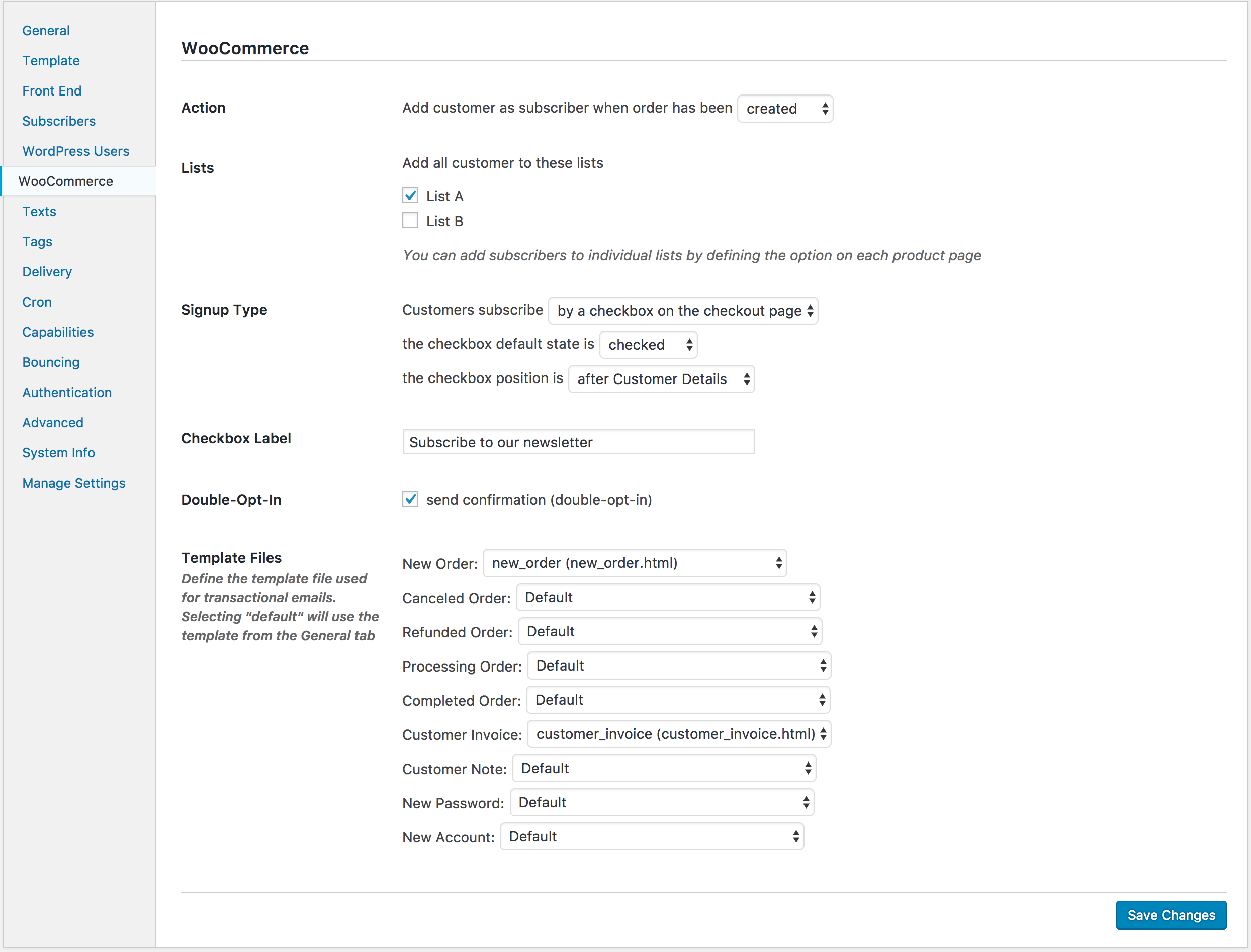
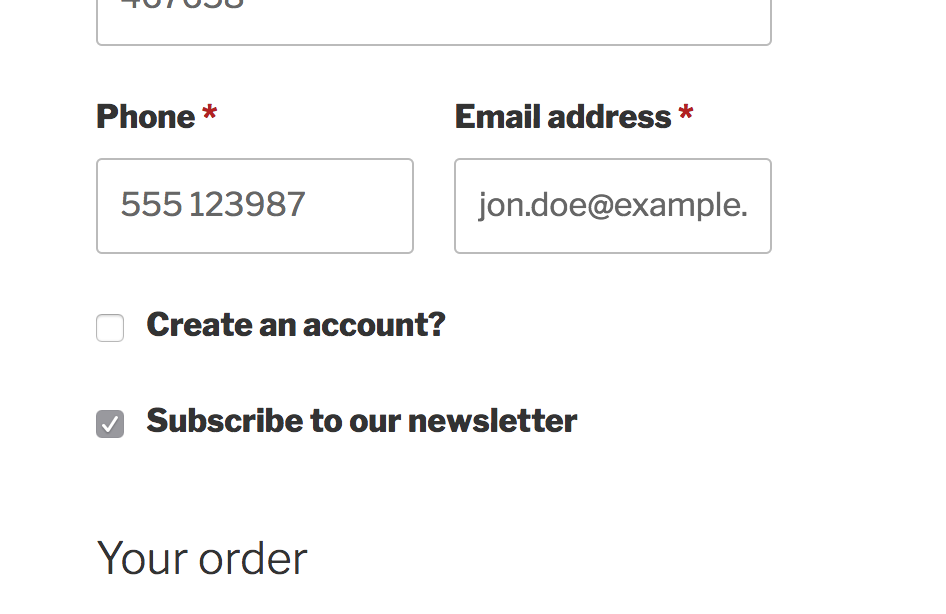
- Checkout subscribe checkbox — Let customers opt in on classic and block-based checkout (or auto-subscribe when you choose that mode).
- Add on order created or completed — Control whether subscribers are created when the order is placed or only after it is completed.
- Double opt-in — Optionally require confirmation before activating new subscribers.
- Skip known subscribers — Hide the checkbox for logged-in users or customers who are already on your list.
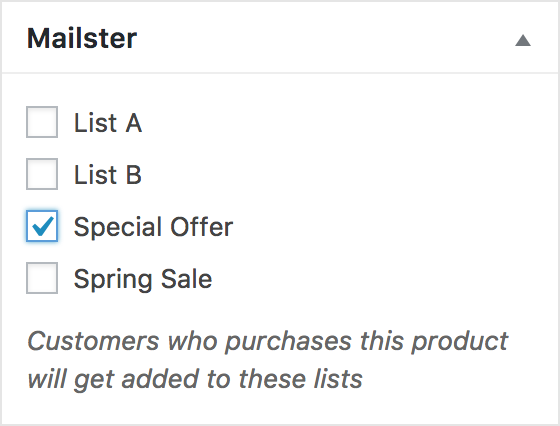
- Global and per-product lists — Assign default lists in settings, and override lists on each product edit screen.
Mailster automations and transactional email
- Bought product — Start a Mailster workflow when an order includes specific products (and optionally matches an order status).
- Bought in a product category — Trigger workflows when purchases fall in selected product categories.
- Create subscriber if missing — Optionally add the buyer to Mailster when a workflow runs and they are not a subscriber yet.
- System mail templates — When Mailster sends WordPress/WooCommerce system emails, choose Mailster template files for common transactional messages (new order, processing, completed, invoice, and more).
- Optional WooCommerce email CSS — Remove WooCommerce’s email styles so messages look more like your Mailster template.
- Coupon tags — Use WooCommerce coupons as Mailster dynamic content tags in campaigns.
How it works
- Install and activate Mailster for WooCommerce with Mailster and WooCommerce.
- Open Newsletter → Settings → WooCommerce.
- Choose signup type (checkbox or automatic), when to add subscribers, default lists, and optional double opt-in.
- Optionally set Mailster lists on individual products and map transactional email templates.
- For automations, add the Bought product or Bought product in a category trigger to a Mailster workflow (Mailster 4.1.4+).
More detail: Mailster and WooCommerce in the knowledge base.
Installation
- Upload the
mailster-woocommercefolder to/wp-content/plugins/, or install from the WordPress plugins screen. - Activate the plugin under Plugins.
- Ensure Mailster and WooCommerce are installed and active.
- Go to Newsletter → Settings → WooCommerce and configure signup type, lists, and timing.
- (Optional) Edit products to assign Mailster lists for buyers of those items.
- (Optional) Enable Mailster system mails if you want to pick template files for WooCommerce transactional emails.
- (Optional) Create automation workflows with product or category purchase triggers (requires Mailster 4.1.4+).
FAQ
Does this plugin work without Mailster or WooCommerce?
No. It is an addon that requires both Mailster and WooCommerce.
When are customers added to my Mailster lists?
Under Newsletter → Settings → WooCommerce, choose whether subscribers are added when the order is created or when it is completed. With the checkbox signup type, only customers who opt in (or auto-signup mode) are added.
Does it support the WooCommerce block checkout?
Yes. The addon registers a subscribe field for block-based checkout and still supports classic checkout checkbox placement. Some older checkbox positions are deprecated because they do not work with the block checkout.
Can I put buyers of a specific product on a different list?
Yes. On the product edit screen, use the Mailster metabox to choose lists for customers who purchase that product. Those lists are merged with your global WooCommerce list settings.
What Mailster version do automation triggers need?
The Bought product and Bought product in a category workflow triggers require Mailster 4.1.4 or newer. Older Mailster versions can still use checkout signup and list features.
Does this send customer data to a third-party email service?
No. Subscribers are stored in Mailster on your WordPress site. Order and billing data used for signup come from WooCommerce on your site. You remain responsible for consent and applicable marketing law (use the checkbox and/or double opt-in as needed).
Where can I get support?
See the Mailster and WooCommerce knowledge base article and mailster.co.
Screenshots
Changelog
2.0.2
- fixed: correctly loading ‘load_plugin_textdomain’ hook
2.0.1
- fixed: PHP Warning-
- fixed: subscribers no longer unintentionally get unsubscribed on checkout submission
2.0.0
- new: Trigger for Mailster automations “Bought product”
- new: Trigger for Mailster automations “Bought in a product category”
- improved: better support for checkbox in new block based checkout
- some checkbox placement were deprecated as they no longer work on block based checkout
- new trigger require Mailster version 4.1.4 or above
1.7.1
- fixed: coupons are not displayed correctly in dynamic edit bar
- fixed: checks if current session has a customer before getting the subscriber by email
1.7
- added coupons to supported post types
- added coupons to tags list
1.6
- new: option to disable WooCommerce style in email
1.5
- fixed: use of deprecated method on order object
- updated markup of signup checkbox
- now requires WooCommerce 3.0 or above
1.4
- new option to skip checkbox for registered users
1.3
- fixed: admin url in referer
1.2
- updated file structure
- additional checkbox positions
1.1
- added: option to choose position of checkbox on the checkout page
- wrapped checkbox in label tag for better UX
1.0
- Initial Release