

Description
Split with Maytes lets a customer pay their share of an order and invite their mates to pay theirs. The order is paid once everyone has paid, and you receive the full amount through Maytes.
The plugin adds three things to your store:
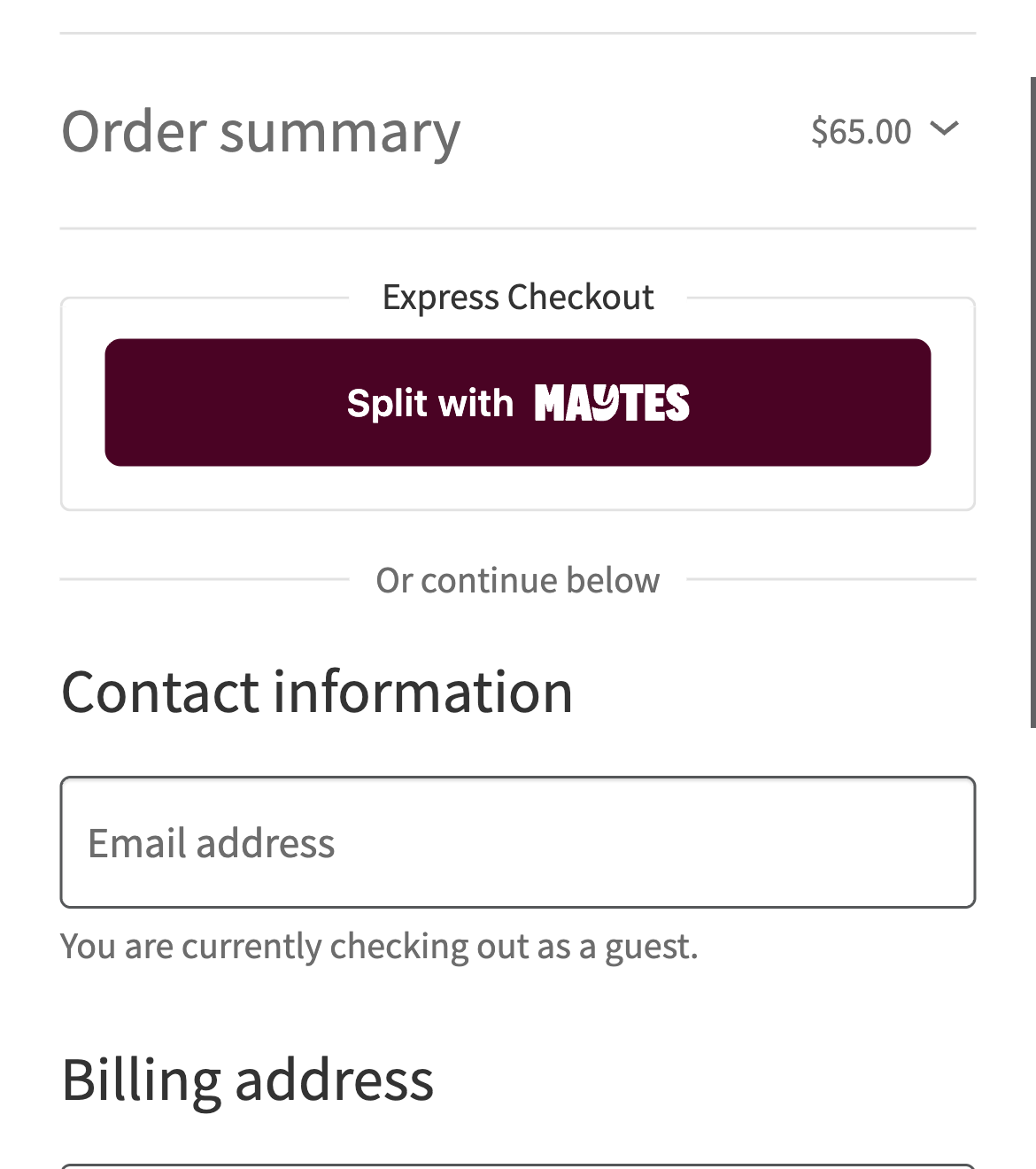
- Split with Maytes as a payment method, listed under WooCommerce → Settings → Payments. When a customer chooses it, the Split with Maytes button takes the place of “Place order”. The same button can also sit in a full-width row under the express checkout buttons (Apple Pay, Google Pay, Link), and on the cart when nothing in it ships. It works on the classic checkout and cart, and on the Checkout and Cart blocks. It can also sit on product pages, under the add to cart button, for products that don’t ship.
- A checkout route on your site that turns the cart into a pending WooCommerce order and a Maytes checkout.
- A webhook route on your site that captures the payment and marks the order paid, so your usual order emails go out.
Your theme, your Stripe setup and your card checkout stay exactly as they are.
What you need
- A Maytes merchant account, with sandbox and production credentials from the Maytes merchant portal.
- WooCommerce, with AUD as the store currency.
- A public HTTPS site, so Maytes can deliver webhooks.
The full setup guide is at developers.maytes.co/woocommerce.
External services
This plugin connects your store to Maytes, the service that runs Split with Maytes. It’s needed to take Split with Maytes payments.
- Maytes checkout button script, loaded from
https://js.maytes.coon the checkout, cart and product pages where the button shows. It draws the button and opens the Maytes checkout. As with any script, the customer’s browser sends standard request information, such as its IP address and user agent. - Maytes API (
https://api.maytes.co, orhttps://sandbox-api.maytes.cowhile testing), called from your server only:- when a customer clicks Split with Maytes, to create the checkout. It sends the order ID, the total, the currency, the name, quantity and price of each line, the return and cancel URLs on your store, and the customer’s billing name, email address and phone number, so the Maytes checkout can pre-fill them;
- when Maytes reports a payment, to capture or release it. It sends the checkout ID, the order ID, the total and the currency;
- when you refund an order in full, to refund it. It sends the checkout ID, a reference made from the order ID, and the reason you typed.
Your OAuth client ID and secret are sent to/oauth/tokento get an access token, also when you save the settings, to check the connection. The customer’s postal address is never sent.
- Maytes checkout, the page the button opens, where the customer and their mates pay. The customer’s payment details are entered there, with Maytes.
Maytes terms and conditions and privacy policy.
Installation
- Install and activate the plugin.
- Go to WooCommerce → Settings → Payments → Split with Maytes. Keep the environment on Sandbox and paste your sandbox client ID and secret under Sandbox credentials.
- In the Maytes merchant portal, subscribe the webhook URL shown on that page to the
checkout.authorized,checkout.voided,checkout.refundedandcheckout.refund.failedevents. Paste the signing secret it shows under Sandbox credentials, and save. The status at the top of the page says when Maytes is connected and when the last webhook arrived. - Pay with a sandbox test card. Then fill in Production credentials the same way and switch the environment to Production. Your sandbox credentials stay saved for later testing.
No change to wp-config.php is needed. The secrets are saved in your WordPress database, never sent to the browser, and never shown again on the settings page.
To keep them in code instead, define them in wp-config.php: MAYTES_ENV, and MAYTES_SANDBOX_CLIENT_ID, MAYTES_SANDBOX_CLIENT_SECRET, MAYTES_SANDBOX_WEBHOOK_SECRET and their MAYTES_PRODUCTION_ twins. A constant always wins over the settings page, and its field shows as locked. The constants from 1.1 (MAYTES_CLIENT_ID, MAYTES_CLIENT_SECRET, MAYTES_WEBHOOK_SECRET) still work, for the environment in use.
FAQ
Do I need a Maytes account?
Yes. The plugin connects your store to Maytes, which runs the split payment. Your credentials are in the Maytes merchant portal.
Does it work with the Checkout block?
Yes. On both checkouts, Split with Maytes is a payment method whose button replaces “Place order”. The optional express button sits in a full-width row under the other express buttons on the Checkout block, and directly under the WooCommerce Stripe Gateway’s express buttons on the classic checkout.
Does it change my Stripe setup?
No. Maytes payments stay outside Stripe. They don’t appear in your Stripe dashboard, and the money arrives through Maytes settlements.
Why does the button ask for my customer’s details first?
Maytes doesn’t return the customer’s name, email or address, and your order emails need them. If a required field is empty, the customer sees the checkout’s usual error and fills it in first.
Does the button show on the cart?
Yes, with the express button on, when nothing in the cart needs shipping (digital products, tickets, bookings). If the store doesn’t have the customer’s name, email and mobile yet, a short form asks for them before Maytes opens. A cart that ships goes through the checkout, where the customer gives an address.
Does the button show on product pages?
Yes, if you turn on “Button on product pages”. It shows under the add to cart button for simple and variable products that don’t need shipping. The customer pays for that product straight from its page; anything already in their cart is replaced by it. It uses WooCommerce’s standard product template, so a theme or page builder that replaces that template may not show it.
Where are refunds made?
Refund the whole order, or what’s left of it, with WooCommerce’s Refund button, via Split with Maytes. To refund part of it, click “Partial refund in Maytes” on the order: it opens just that order from the Maytes merchant portal in a small window. Refunds made in the portal are recorded on the WooCommerce order once Maytes confirms them.
Which currencies are supported?
AUD. The button stays hidden for other currencies.
Can the Maytes checkout open in a popup?
Yes. By default the button takes the customer to the Maytes checkout and back. To open it in a popup instead, add this to your theme’s functions.php or a small plugin:
add_filter( 'maytes_woo_client_config', function ( $config ) {
    $config['button']['mode'] = 'popup';
    return $config;
} );
Can I stop a payment before the money is taken?
Yes. Return false from the maytes_woo_can_fulfil filter, for example when a booking has just filled up. The customer’s funds are released, nothing is captured, and the order is marked Failed.
Screenshots
Changelog
1.3.0
- New: Split with Maytes on product pages. Turn on “Button on product pages” and the button shows under the add to cart button, for simple and variable products that don’t need shipping. The customer pays for that product without visiting the cart or checkout.
- The product page’s button is off until you turn it on.
1.2.2
- “Refund the rest via Maytes” now refunds the items on the order, as WooCommerce’s own refund does, with a “Restock refunded items” box.
- It opens a form on the order page for the reason and restocking, in place of browser pop-ups, and shows any error there.
- On the classic checkout, Split with Maytes now places the order through WooCommerce’s own checkout, as every other payment method does, so your store’s checkout rules and other plugins’ checks apply unchanged.
- The express checkout button and the button on the cart now have a setting each. Both keep what your express setting said until you change them.
- Once a payment is captured, the store page behind the Maytes popup moves to the order received page on its own, while the customer carries on inviting mates.
- Fixed: clicking Split with Maytes again on the checkout page left behind the popup, after the order was paid, could create and charge a second order. The customer now goes to the order they paid for.
- The order page shows what Maytes collected, and warns when the order was changed after payment and its total no longer matches.
- Fixed: the note under the Maytes refund buttons now sits on its own line.
1.2.1
- Orders complete even when Maytes’ webhooks can’t reach the store: when the store sees a webhook has failed, it checks the payment with Maytes itself and captures it, while the customer is still in the Maytes popup.
- While Maytes’ webhooks aren’t getting through, every admin screen says so and why.
- “Send test webhook” on the settings page sends the test itself, now that Maytes’ API supports it.
- On an order paid with Maytes, WooCommerce’s own Refund button is replaced by “Refund the rest via Maytes” and “Partial refund in Maytes”. Its form let you enter part amounts that Maytes could only refuse.
- A refund Maytes can’t make now leaves a note on the order.
1.2.0
- Split with Maytes is now a payment method customers choose at checkout. When it’s chosen, its button takes the place of “Place order”. The express button at the top of the checkout stays, and can be turned off.
- Set up from WooCommerce → Settings → Payments → Split with Maytes: sandbox and production credentials kept separately, the webhook URL with a copy button, and a status line that shows the connection and the last webhook received. No change to
wp-config.phpis needed. Stores set up inwp-config.phpkeep working. - On the pay-for-order page, “Place order” takes the customer to Maytes and back.
- A pending Maytes order is kept from the unpaid-order auto-cancel for 60 minutes, the life of a Maytes checkout.
- A repeated payment notification for an order already paid no longer adds a misleading note.
- The settings page says when Maytes’ webhooks aren’t getting through, and why: it reads Maytes’ delivery log and checks the webhook route itself, so a security plugin, firewall, maintenance mode or permalink setting that blocks them is named.
- “Send test webhook” on the settings page, once Maytes’ API supports it; until then it points to the portal’s test.
- “Refund the rest via Maytes” on the order page refunds what’s left in one click, without filling in each line.
- The Maytes checkout pre-fills the customer’s name, email and mobile from the order, so they aren’t asked twice.
- Split with Maytes on the cart, classic and block, when nothing in the cart ships. A short form asks for the customer’s name, email and mobile if the store doesn’t have them yet.
- The Maytes logo shows next to Split with Maytes in the checkout’s payment list, and with test mode and “needs setup” in WooCommerce’s Payments list.
- Refunds: refund the whole order, or what’s left of it, from WooCommerce’s Refund button. “Partial refund in Maytes” on the order opens it in the Maytes merchant portal. Refunds made in Maytes are recorded on the order from the
checkout.refundedwebhook, and a refund that couldn’t go back to a buyer adds a note.
1.1.0
- Faster checkouts and webhooks: the plugin keeps its Maytes access token until shortly before it expires, instead of asking for a new one every time.
- A webhook delivered twice at the same moment is acted on once.
- A customer can start Split with Maytes up to 10 times in 10 minutes, so repeated clicks can’t pile up unpaid orders.
- The order received page says the payment is being confirmed while Maytes finishes it.
- New
maytes_woo_client_configfilter, for example to open the Maytes checkout in a popup. - Deleting the plugin removes its cached tokens and settings. Orders keep their Maytes notes.
- The code is split into small classes. Hooks and their callbacks, routes, order data, the public
Maytes_Woomethods and themaytes_woo_can_fulfilfilter are unchanged, so code that moves the button or calls the plugin keeps working.
1.0.1
- Fixed: on the classic checkout, the button now keeps clear of the “Billing details” heading when no other express button is showing.
- Fixed: a paid order now has one payment note, not two, on WooCommerce 10.4 and later.
- Fixed: your store’s own checkout checks (minimum order amounts, address checks, coupons, stock, and rules added by other plugins) now also run when a customer chooses Split with Maytes.
- Fixed: when the last item sells out while the order is being placed, the customer now sees the out-of-stock message instead of a general error.
- Fixed: the order page now says “Payment via Split with Maytes”, and Split with Maytes is listed under WooCommerce → Settings → Payments with a link to the setup guide.
- Fixed: product names with “&” or quotes now show on the Maytes checkout as written, not as “&”.
1.0.0
- First release: Split with Maytes on the classic checkout and the Checkout block, with capture on the webhook.