

Description
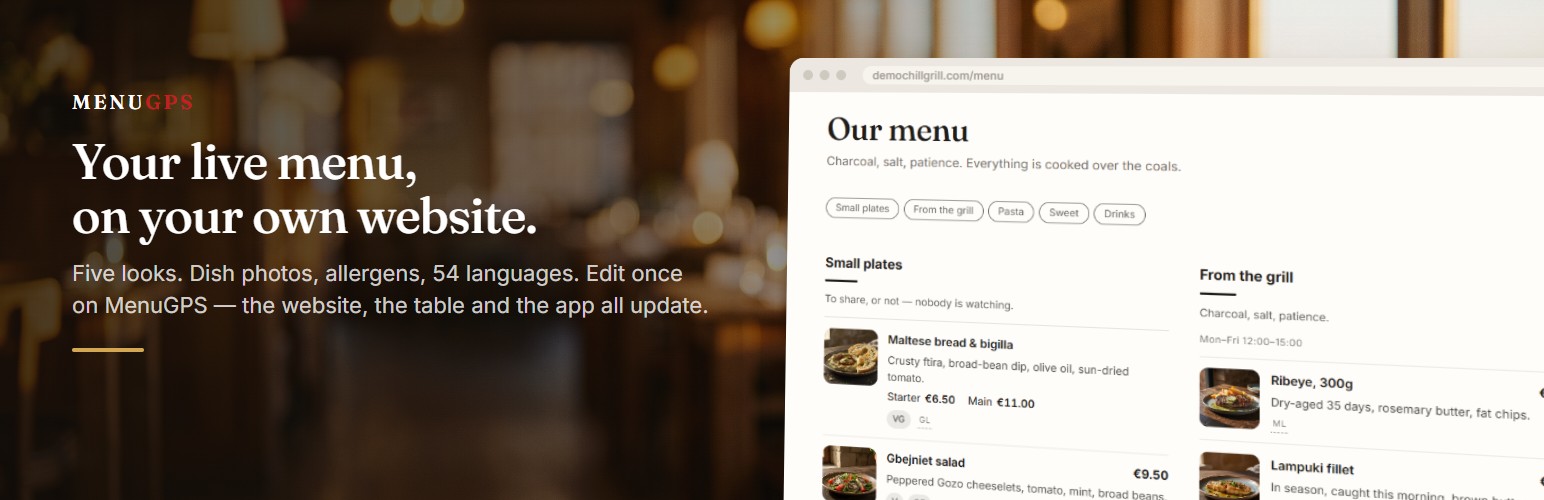
MenuGPS hosts your restaurant menu: dishes, prices, photographs, allergens and translations, kept in one place and shown from a QR code on your tables.
This plugin puts that same live menu on your own WordPress website. You edit the menu on MenuGPS and every page embedding it updates straight away, so your website can never drift out of date with the menu on the table.
- Connect your existing MenuGPS account in a couple of clicks
- Add your menu to any page with the
[menugps]shortcode or the “MenuGPS menu” block - The menu is rendered into your page in your own theme’s fonts and colours — and search engines can read it
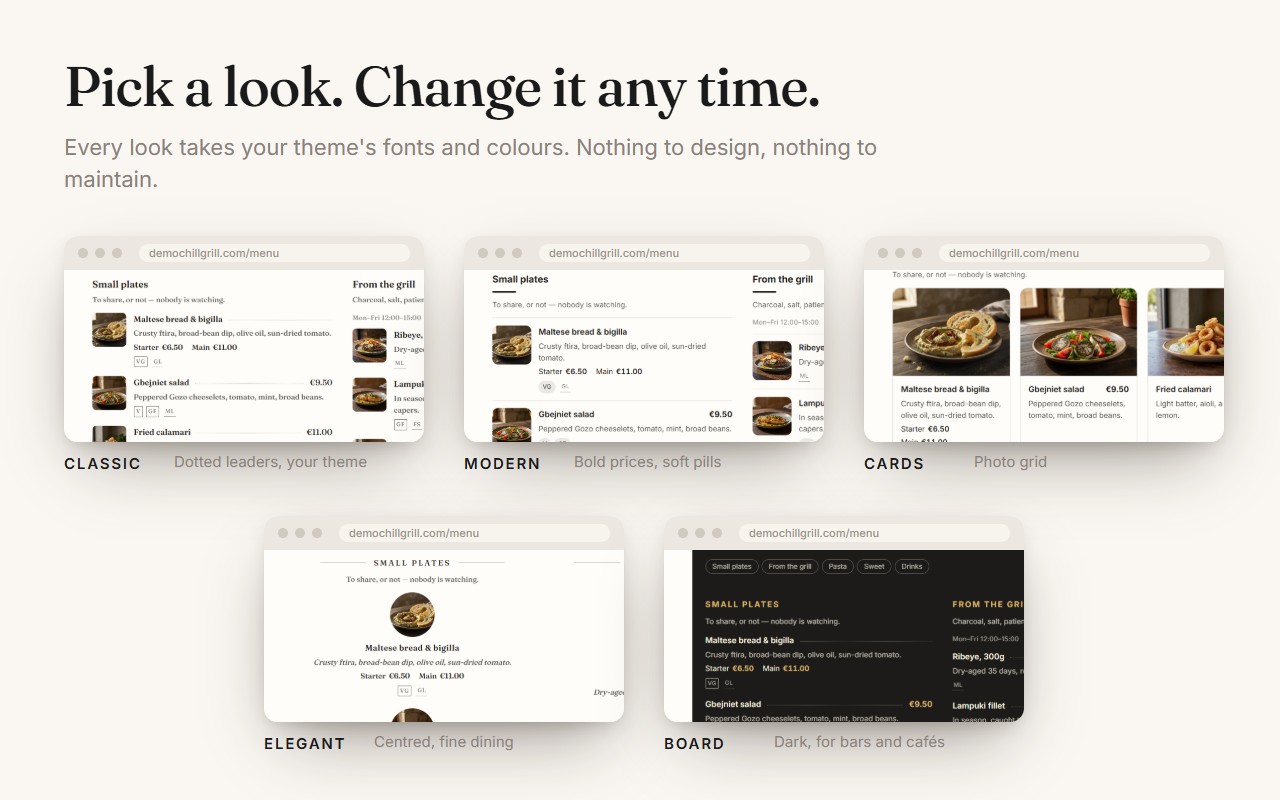
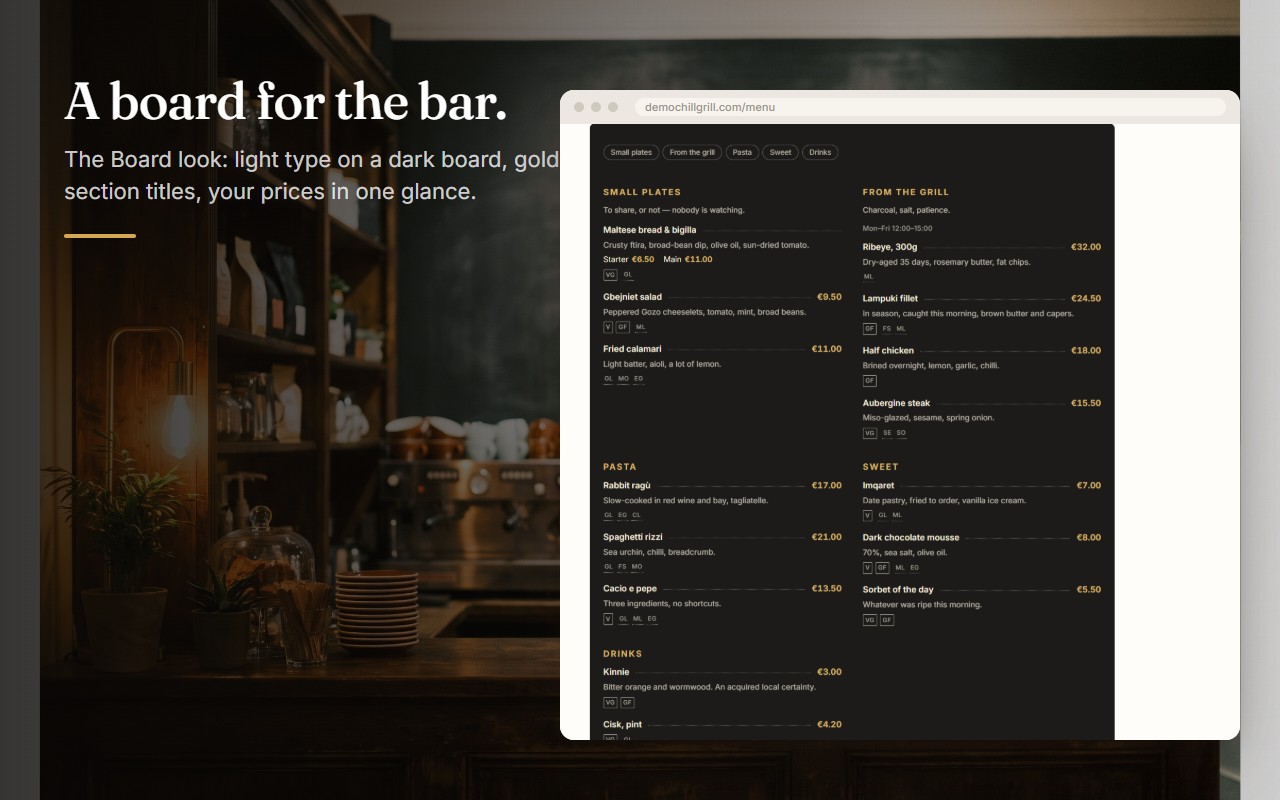
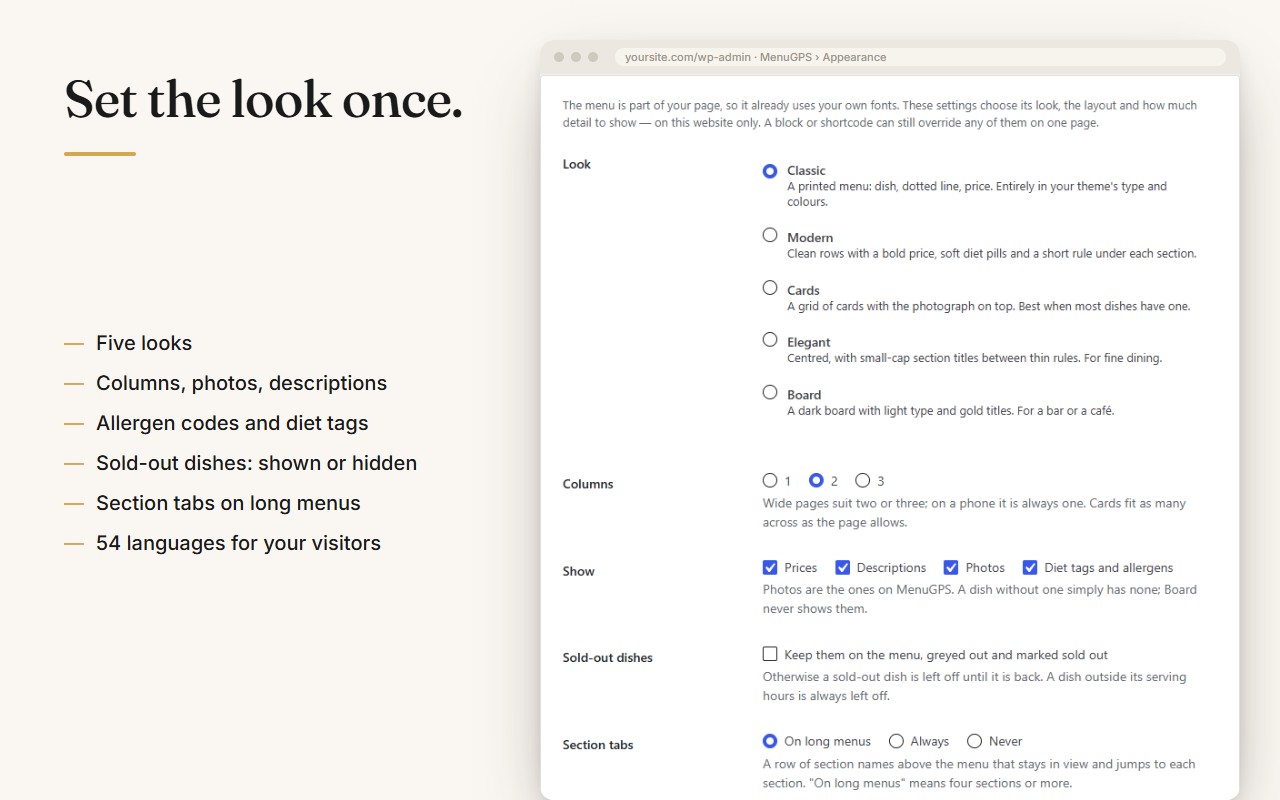
- Five looks: Classic, Modern, Cards (with your dish photos), Elegant and Board — pick one for the site, or per page
- Section tabs on long menus, allergen codes, diet tags, several prices per dish, and sold-out dishes shown or hidden as you prefer
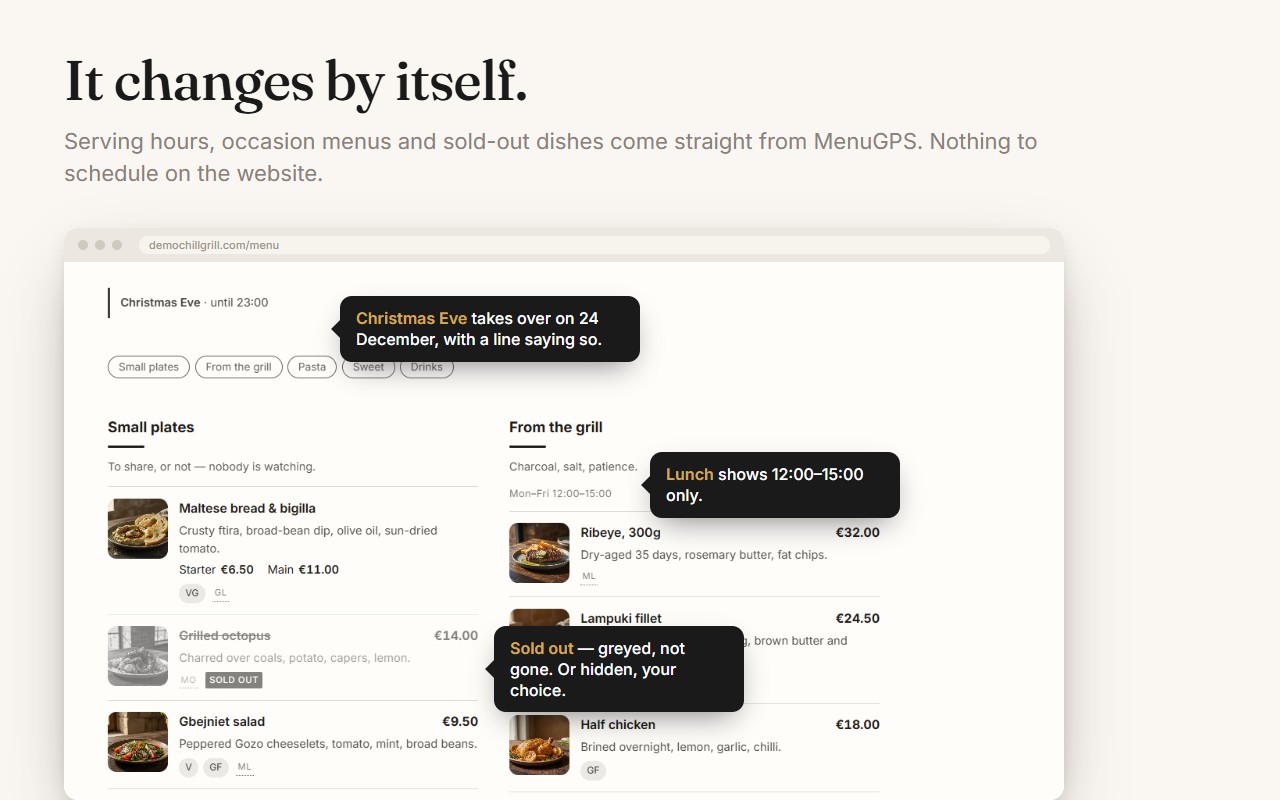
- Breakfast, lunch and dinner sections appear in their own hours; a Christmas Eve or Sunday brunch menu takes over on its day
- Show just one section —
[menugps section="Drinks"]— on the page that needs it - Nothing about your menu is copied into WordPress, so there is nothing to keep in sync
You need a MenuGPS account. Creating one is free.
External services
This plugin connects to MenuGPS (menugps.com), operated by DINE, to display and edit your restaurant menu.
It sends: your OAuth authorisation when you connect the site; thereafter your access token, in order to read the venues your account manages and your menu; and any changes you make to a dish, its price or its availability from the plugin’s Menu screen. If you create an account from inside WordPress it also sends the name, email, phone and city you type into that form, together with this site’s address. The menu is fetched by your website’s server and printed into the page as ordinary HTML, cached for a few minutes. Your visitors’ browsers do not contact MenuGPS at all.
No visitor data is sent to MenuGPS by this plugin.
- Terms of service: https://menugps.com/terms
- Privacy policy: https://menugps.com/privacy
Installation
- Install and activate the plugin.
- Open MenuGPS in the WordPress admin menu and choose Connect to MenuGPS.
- Sign in and approve this website.
- Pick which venue this website should show, if your account has more than one.
- Edit dishes and prices under MenuGPS → Menu, and set the layout under Appearance.
- Add
[menugps]to a page, or insert the “MenuGPS menu” block. The block’s sidebar can give one page its own look, columns or section.
FAQ
Do I need a MenuGPS account?
Yes. The plugin shows a menu that lives on MenuGPS; it does not create menus inside WordPress.
Where do I edit the menu?
On MenuGPS. The plugin’s settings screen links straight to it. Changes appear on your website immediately.
Can I show just the drinks, or just one section?
Yes — [menugps section="Drinks"], or several: [menugps section="Starters, Mains"]. The block has the same setting in its sidebar.
Does the menu change by time of day?
Yes. A section or dish given serving hours on MenuGPS (breakfast until 11, lunch 12–15) appears on your website only in those hours, and a temporary menu for an occasion — Christmas Eve, a weekly Sunday brunch — replaces the whole menu on its day. Nothing to schedule in WordPress.
Can I show more than one venue?
Yes — pass the venue to the shortcode, for example [menugps venue="my-other-restaurant"].
Is anything stored in WordPress?
Only the connection to your account, which venue this site shows, and your display preferences. The menu is fetched from MenuGPS and cached for a few minutes, never copied in.
Screenshots


Changelog
1.1.0
- Five looks to choose from under Appearance: Classic, Modern, Cards, Elegant and Board.
- Dish photos, allergen codes (with the full name on hover), and several prices per dish — Starter, Main — each shown on its own.
- Section tabs that stay in view on long menus.
- Sections and dishes with serving hours appear only in those hours; an occasion menu (Christmas Eve, Sunday brunch) replaces the menu on its day with a line saying so.
- Sold-out dishes can be kept on the menu, greyed out and marked, instead of left off.
section="Drinks"on the shortcode, and a sidebar on the block for look, columns, section, photos, sold-out dishes and tabs — anything not set follows Appearance.
1.0.1
- The menu now follows your site’s language, including on WPML and Polylang sites.
- Menus are cached per language, so a multilingual site never shows the wrong one.
1.0.0
- First release: connect a MenuGPS account, choose a venue, and embed the live menu with a shortcode or block.