


Description
The classic menu editor (Appearance > Menus) always adds new items at the very bottom. On a big menu you then drag every item up, and to the right, under its parent. MenuNest removes that hassle and keeps your menus safe while you work.
Build menus faster
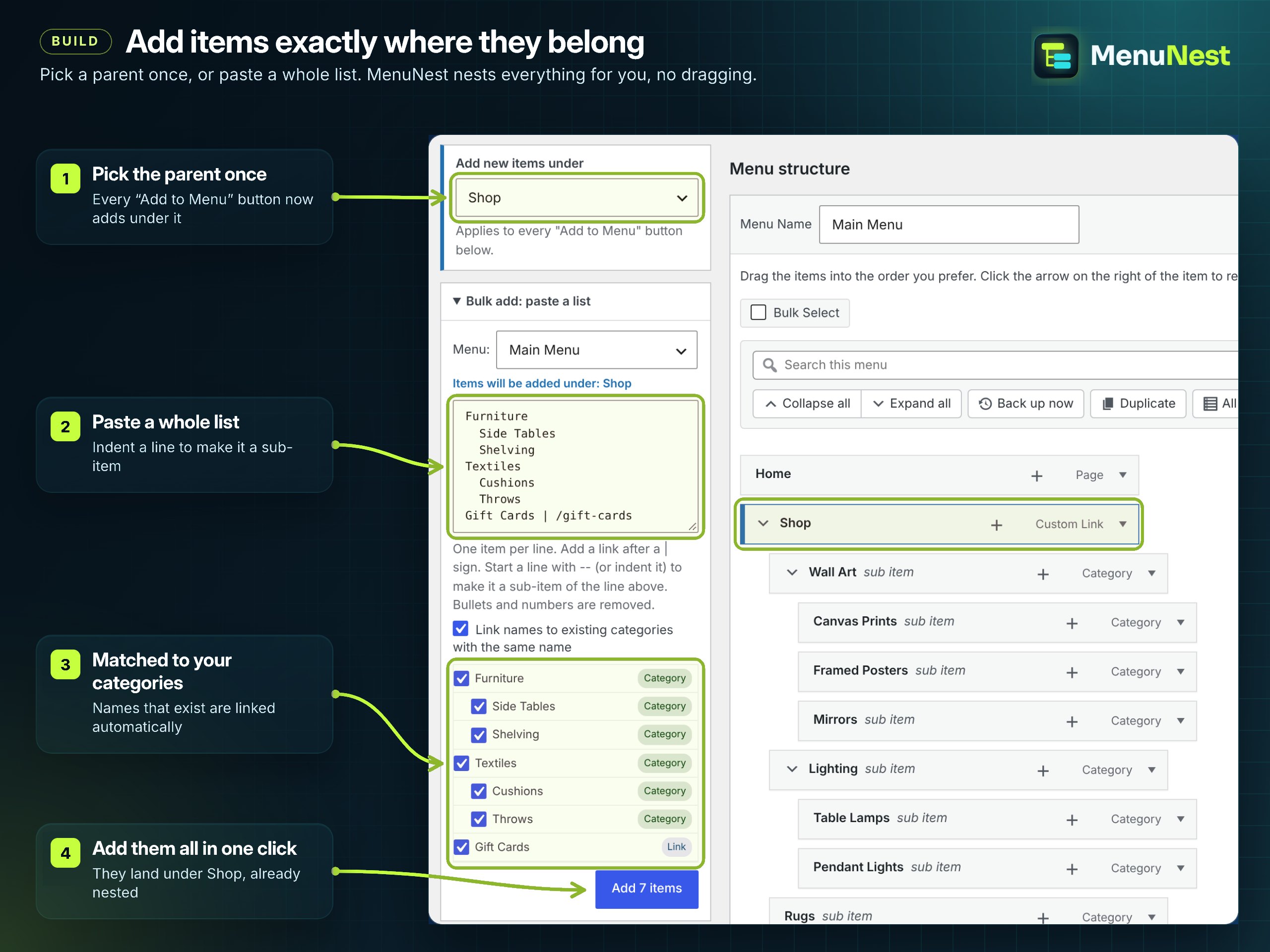
- Add new items under a parent. Pick the parent once. Every “Add to Menu” button (custom links, pages, posts, categories, product categories) puts new items straight under it.
- Add a sub-item from the item itself. Click the plus button on any menu item and search for a page, post, product, category or product category. Click a result and it is added right under that item. Prefer a custom link? Switch to Custom link, type the text and URL, press Enter. Add several in a row either way.
- Bulk add from a pasted list. Paste a list of names from an email, a document or a website. See a preview, untick what you don’t need, and add everything in one click. Add links with “Name | https://…”, indent lines to make sub-items, and names that match an existing category are linked to it automatically.
- Add a category with all its subcategories. Tick one category, for example a WooCommerce product category, and its whole tree is added, already nested.
Find your way around big menus
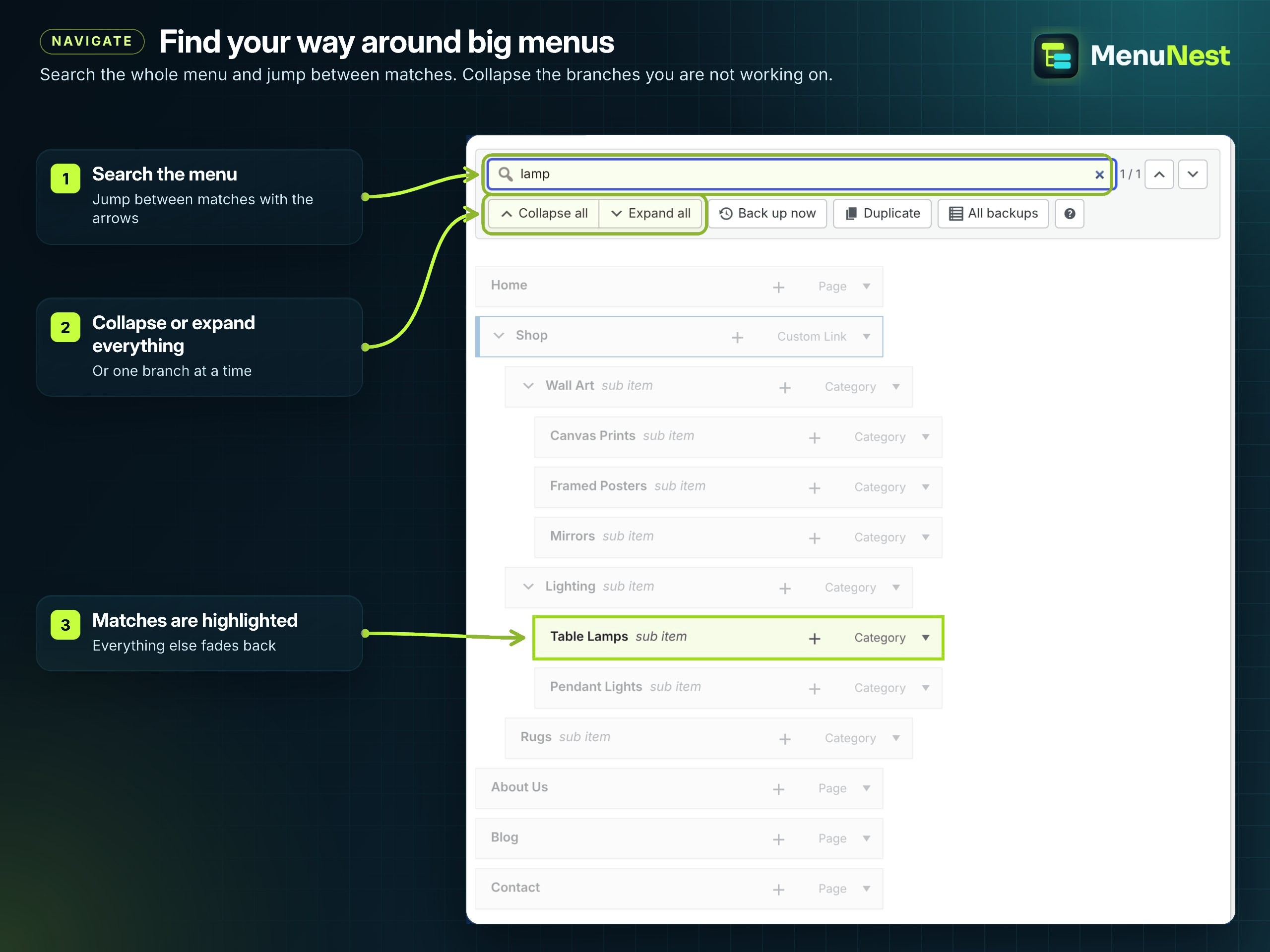
- Collapse and expand any branch, or the whole menu at once.
- Search the menu and jump between matches.
Keep menus safe
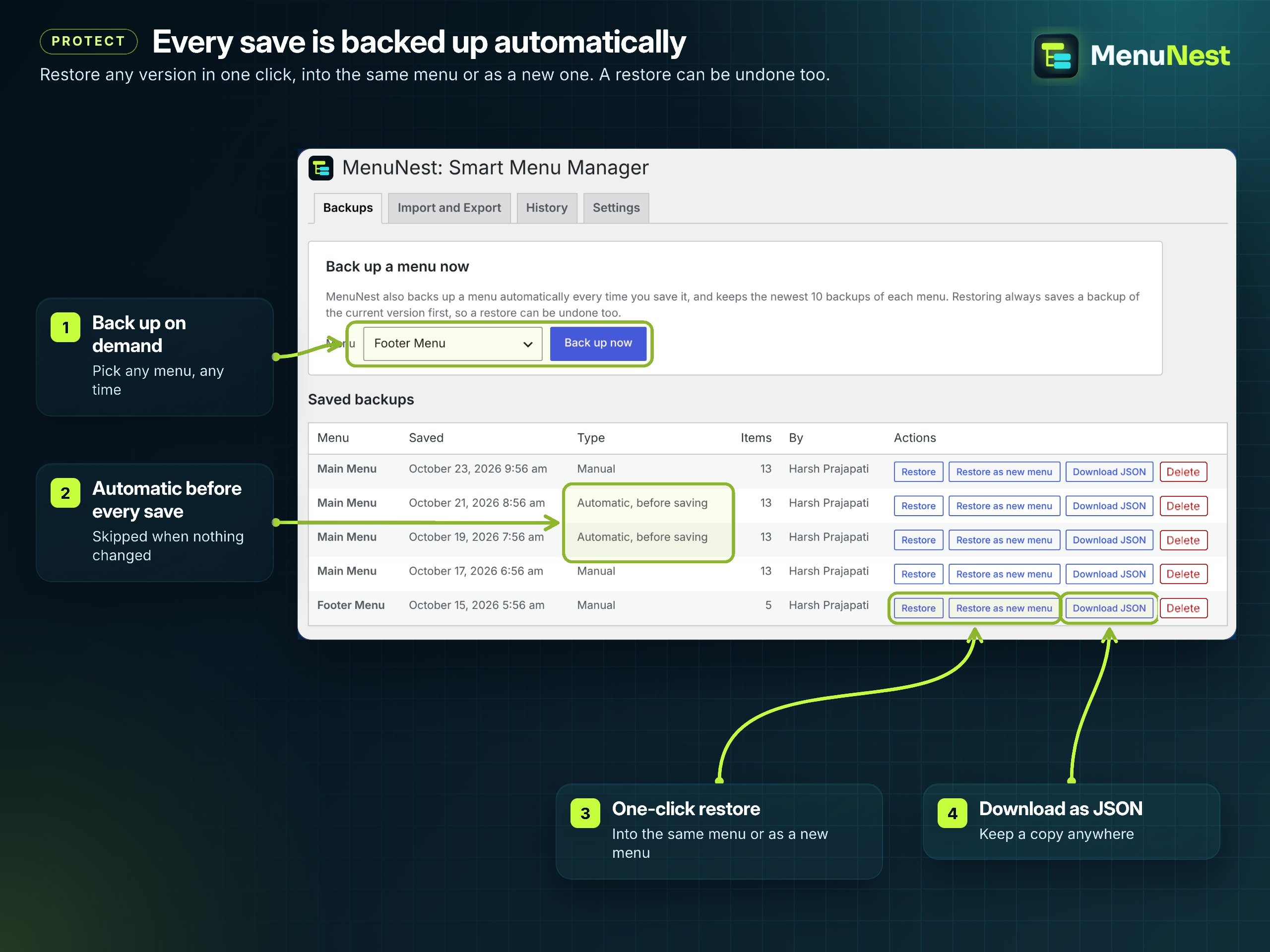
- Automatic backups every time you save a menu (skipped when nothing changed).
- Back up now with one click from the Menus screen.
- One-click restore, into the same menu or as a new menu. The current version is backed up first, so a restore can be undone.
- Download any backup as JSON.
- Choose how many backups to keep per menu.
Move menus between sites
- Export any menu as a JSON file, including extra item settings from your theme and plugins.
- Import with a full preview before anything is created: menu name, number of items, source site, export date, and which items matched.
- Smart matching of pages, posts and categories by their address (slug), so links point to the right content on the new site. Links to the old site are updated to the new address.
- Manual mapping. Choose what any item should link to, right in the preview.
- Clear warnings for missing content types, items that become custom links, and theme locations.
- Progress bar for big menus. Imports always create a new menu, so existing menus are never changed.
Know what happened
- History log of every import, export, backup, restore and duplicate: who did it, when, and what happened.
- Download the history as JSON or plain text, or clear it.
Built the WordPress way
- Uses the native WordPress admin design. No page builders, no external services, no tracking.
- Loads only on Appearance > Menus and Appearance > MenuNest.
- No custom database tables.
- Asks you to take a backup before you first use it, and nothing changes on your site until you click Save Menu.
- Translation ready.
- Tested with 172 automated tests on PHP 7.4 to 8.4, checked with PHPStan level 8 and the WordPress Coding Standards.
Contribute
The code is on GitHub. Bug reports and pull requests are welcome.
Installation
- Go to Plugins > Add New, search for “MenuNest”, click Install Now, then Activate.
- Open Appearance > Menus. Read the backup notice and click Continue.
- Find backups, import, export, history and settings under Appearance > MenuNest.
FAQ
Can I add WooCommerce products and product categories with the plus button?
Yes, since version 1.1.0. Click the plus button on any menu item, type a few letters of a product, product category, page, post, category or tag, and click the result. It is added right under that item. Use “Search in” to look only at products or only at product categories, and tick “Include subcategories” to add a category with its whole tree, already nested.
Does the plus search add a real menu item or a custom link?
A real menu item, the same as the left panel adds. If you later rename the product or change its address, the menu follows. Custom links are still there: switch to the Custom link tab in the same form.
Why can’t I find something in the plus search?
The search shows published and private content of every type that can be added to menus, up to 20 items and 20 categories at a time. Type a few more letters, or pick one type in “Search in”. Drafts are not shown, and neither are content types that their plugin hides from menus.
Does it work with other content types, like events, portfolios or courses?
Yes. Anything that shows up in the left panel of Appearance > Menus can also be found with the plus search.
Does it work with block themes and the Site Editor?
MenuNest improves the classic menu screen, Appearance > Menus, used by classic themes and by many page builders and WooCommerce themes. Block themes edit navigation in the Site Editor, which can already add submenu items directly.
Will it change my site by itself?
No. The editor tools work inside the Menus screen, and changes go live only when you click Save Menu, exactly as before. Imports create a new menu that is not shown anywhere until you assign it to a location.
What format does Bulk add use?
One item per line. Bullets (-, *) and numbers (1., 2)) are removed. Put a link after a | sign: “Wall Art | https://example.com/wall-art”. Indent a line with spaces or a tab, or start it with “–“, to make it a sub-item of the line above. Lines without a link are linked to a category with the same name if one exists, otherwise they get “#” (no link).
Where are backups stored?
In your own WordPress database, as private entries that are never shown on your site. Nothing is sent anywhere.
How do I undo a mistake?
Before saving: reload the page without saving. After saving: go to Appearance > MenuNest > Backups and click Restore next to the backup you want.
Can I import menus exported by other plugins?
Not in this version. MenuNest imports files exported by MenuNest.
What happens to my data when I delete the plugin?
By default backups and history are kept, in case you reinstall. Turn on “Remove data” in Appearance > MenuNest > Settings to delete them with the plugin. Your menus are never touched.
Screenshots



Changelog
1.1.0
- New: the plus button on a menu item can now search your site. Find any page, post, WooCommerce product, product category, category or tag and add it as a sub-item in one click. Thanks to the reviewer who asked for it.
- New: choose where to search (everything, or only products, product categories, pages and so on), and add a category with all its subcategories from the same box.
- New: use the arrow keys and Enter to pick results, and add several in a row.
- Improved: the plus form remembers whether you last used Search or Custom link.
- Improved: subcategories in search results show their parent categories, so two categories with the same name are easy to tell apart.
- Improved: when WooCommerce and blog categories share a name like “Category”, search results and Bulk add say “Product Category” or “Post Category”.
1.0.0
- First release.