


Description
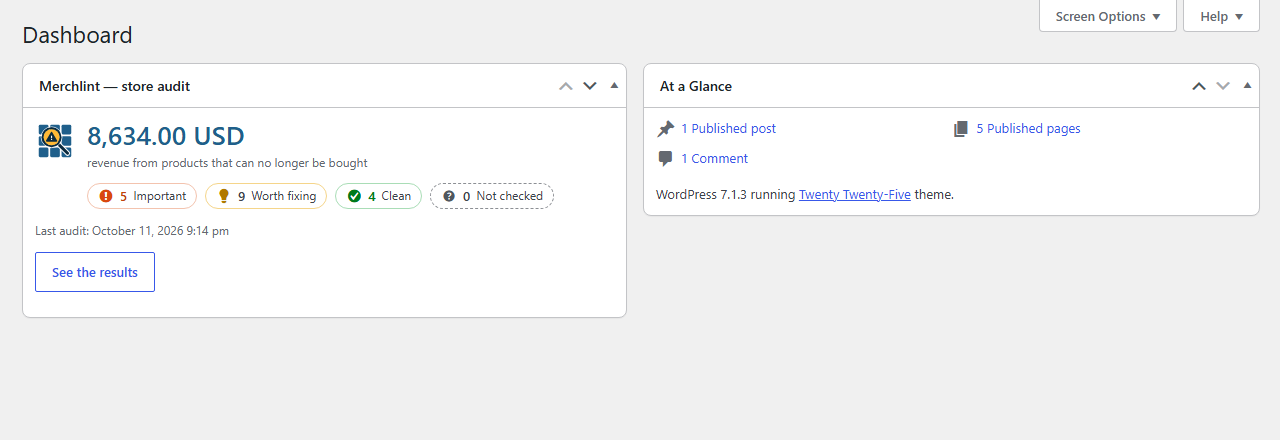
Merchlint finds the products that sold last year and can no longer be bought. It finds the
products with no GTIN, or with one that another product also carries, and the product photos
smaller than the 500 × 500 pixels Google Merchant Center requires from January 31, 2027. Each
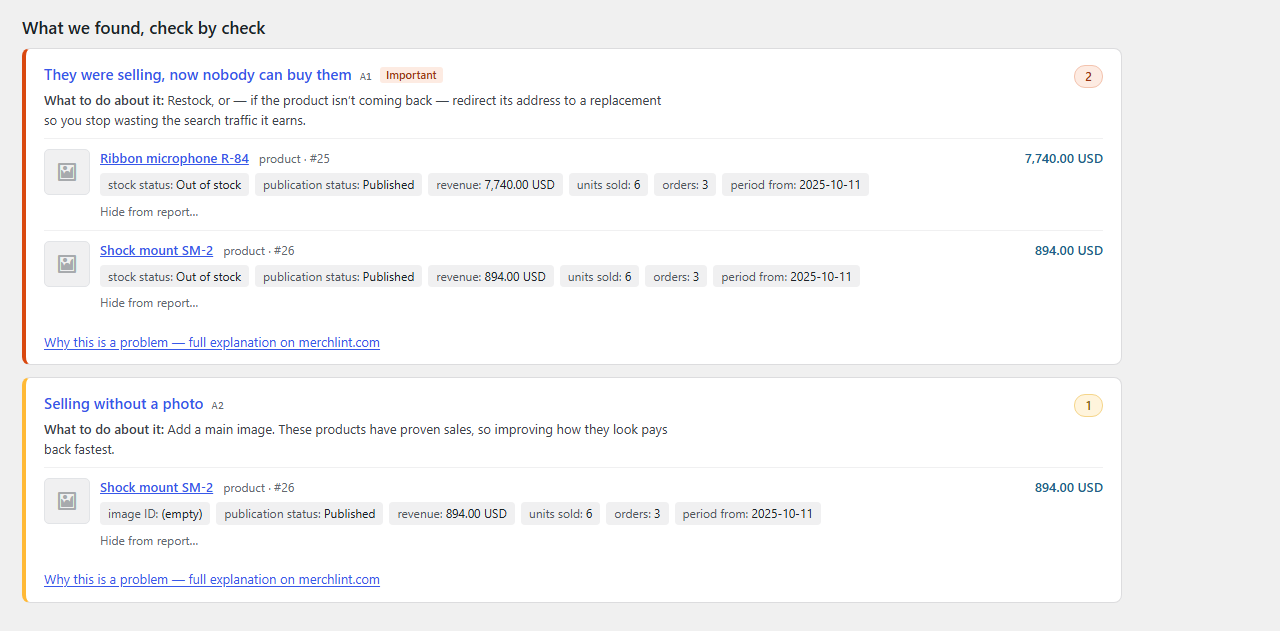
finding comes with the field and value it rests on, the money the product brought in over the last
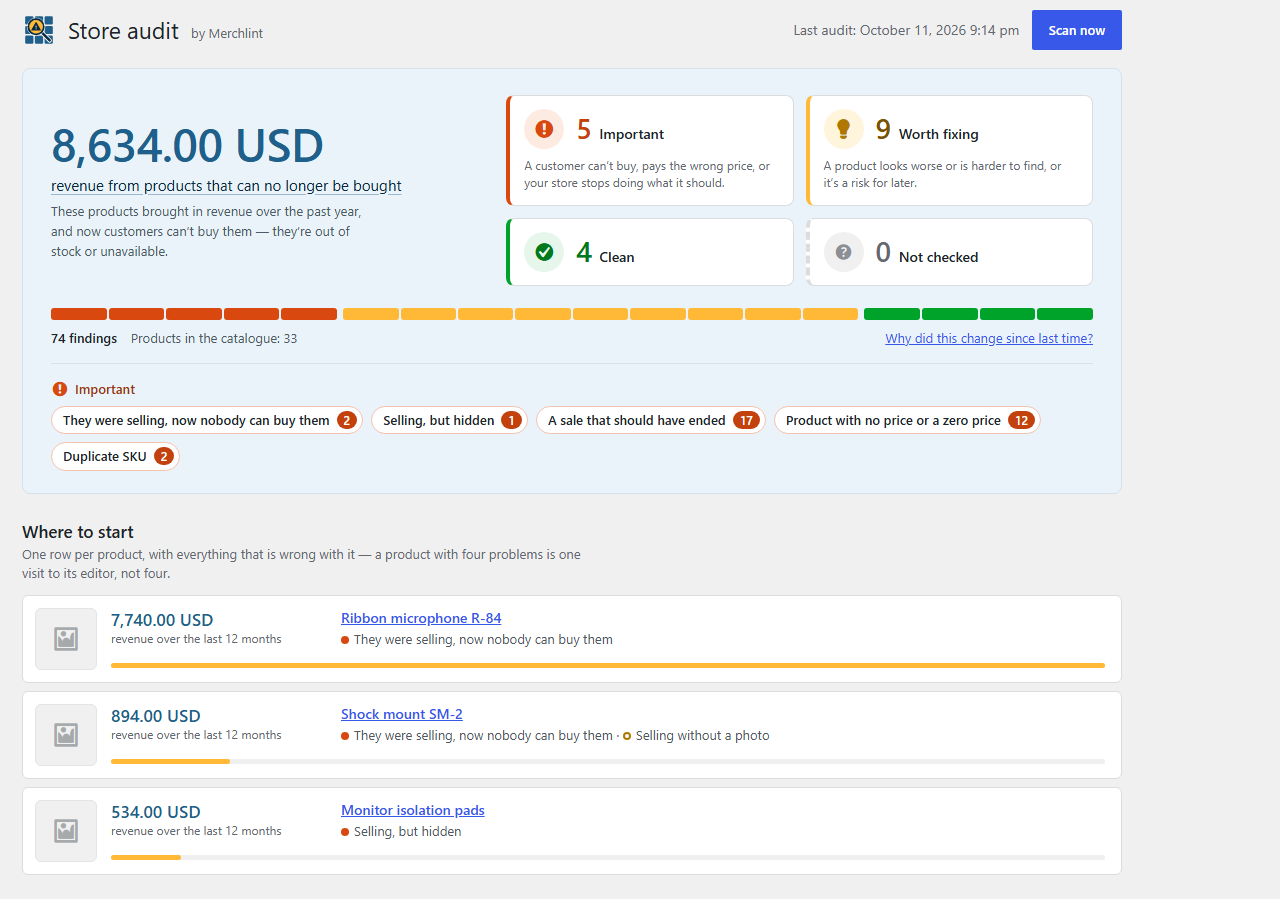
twelve months where it sold, and a link to the product. The three with the most money at stake
come first.
It changes nothing. No product, no price, no stock level, no order. Every fix is yours to make, in
your own admin.
All twenty-three checks are free, on every product, with no cap and no account.
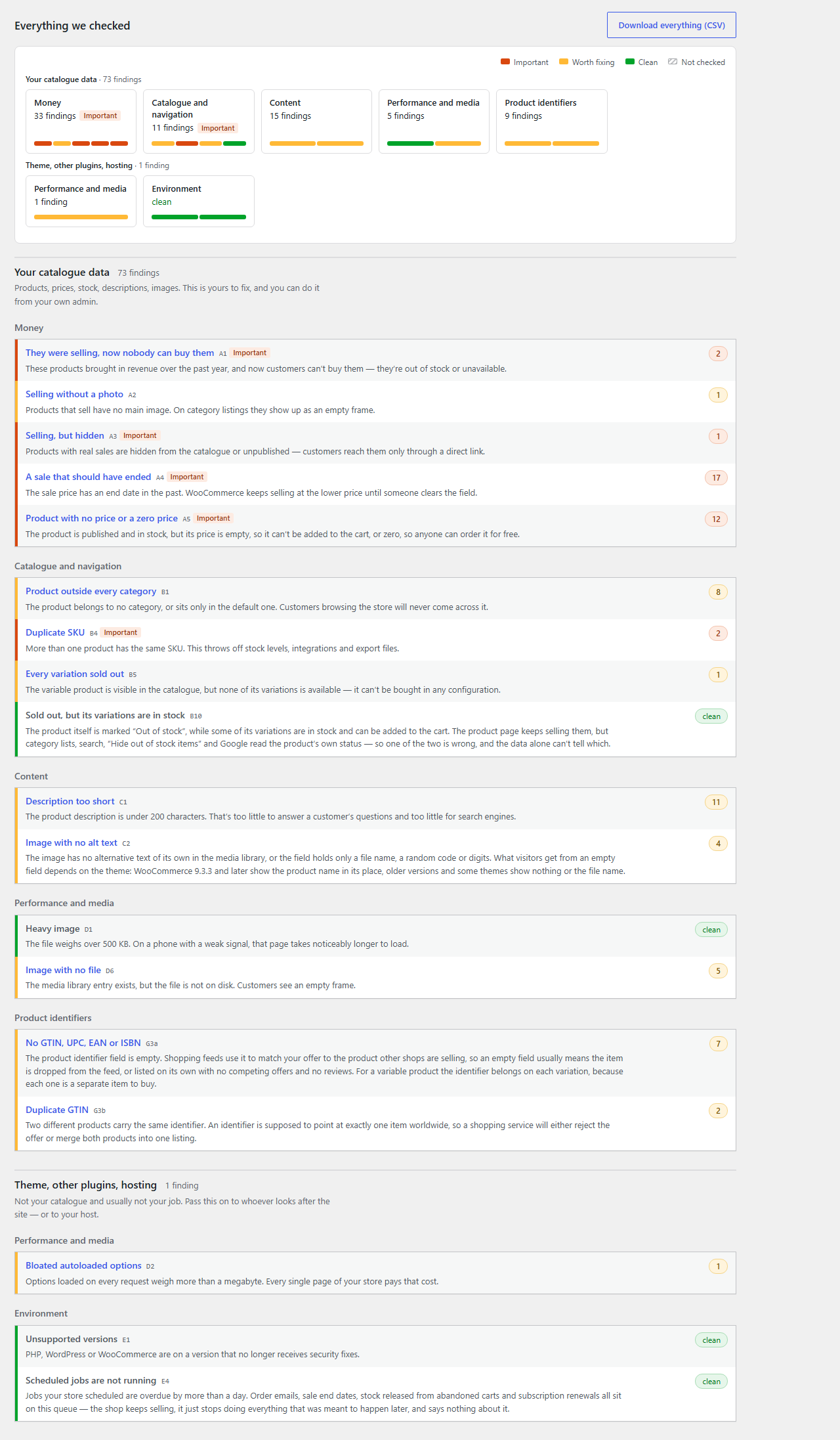
Twenty-three checks, grouped by what they cost you
Sales you are losing or giving away
- They were selling, now nobody can buy them: sold in the past year, out of stock today. The
revenue they brought in is the amount at stake. - Selling, but hidden: sold in the past year, yet unpublished or hidden from the catalog.
- A sale that should have ended: the sale price is still running past its scheduled end date.
- Product with no price or a zero price.
- Every variation sold out.
- Sold out, but its variations are in stock: the shop says “out of stock” while the product
page still sells a variation. - Published, but the shop doesn’t show it: since WooCommerce 11.1, a product whose parent entry
doesn’t exist or isn’t published disappears from the shop, categories and search, while the
admin shows it as published.
Products that shopping feeds and Google will not take
- No GTIN, UPC, EAN or ISBN and Duplicate GTIN: the usual reason an offer quietly drops out
of a shopping feed, and nothing in WooCommerce says a word about it. - Photo too small for Google: below the 500 × 500 pixels Google Merchant Center requires from
January 31, 2027. - Product pages send Google no product data: a product page template that skips WooCommerce’s
product summary—from a page builder, a theme, or a block template without the short
description—shows the price and the Add to cart button, while Google gets nothing to show. - Your store asks Google not to show it: the WordPress setting “Discourage search engines from
indexing this site” left on after launch, or Yoast SEO or Rank Math set to keep every product out
of search results. - Selling without a photo.
- Duplicate SKU: two products with one code. WooCommerce itself refuses to save a duplicate, so
these come from imports and migrations.
A store that looks worse than it could
- Description too short to answer a customer’s question.
- Image with no alt text: a file name or digits in the field count as none.
- Product with no category.
- Heavy image: a product photo over 500 KB.
- Image with no file: a media entry whose file is missing from disk.
The store itself
A store can have faultless product data and still lose money here.
- Scheduled jobs are not running: WP-Cron and Action Scheduler, reported separately. A stalled
queue is what stops the end of a scheduled sale, the cancelling of unpaid orders that hold stock,
and subscription renewals, and nothing on the storefront says so. - Unsupported versions: PHP, WordPress or WooCommerce past security fixes, with an early warning:
PHP 60 days before its fixes end, WooCommerce one release before. - No public refund and returns policy page: from WooCommerce 11.3, the page selected as your
returns policy tells search engines where to find it, but only once it is published. WooCommerce
creates that page as a draft. - Bloated autoloaded options: over 1 MB loaded on every page.
What makes it different
- It tells you where to start. The three products with the most money at stake come first,
before the full list. - Every finding shows its evidence. Not “12,636 problems” but the field we read, the value we
found and the threshold we compared it against, in WooCommerce’s own words. - A zero means “checked, clean”. A check that could not run says so instead of quietly
reporting nothing. - What is not a problem in your store stays hidden. Seasonal stock, spare parts, goods sold by
phone: hide an item once, with a reason, and it stays hidden across scans and plugin updates.
Every check has its own page that says when the finding is not a problem, and how to fix it
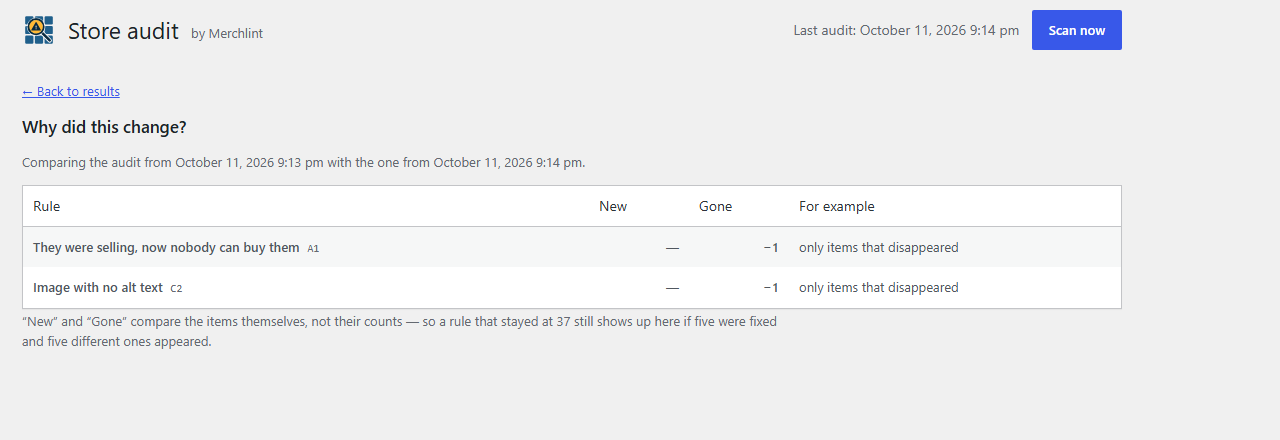
when it is. - Two scans of an unchanged store give the same result. When something changes, a separate
screen says what, and whether it came from your store or from a rule of ours that got smarter. -
It never adds up currencies. A store selling in euros and dollars gets a separate figure for
each. - Why there is no “Fix it” button
- What a finished report looks like
Your data stays yours
The plugin works entirely on your server. No account, no sign-up, no phoning home. During an audit
it opens up to three of your own product pages, at your own store’s address, the way a visitor
does, to see what Google gets from them. It connects nowhere else, and an automated check enforces
that on every build.
Links to merchlint.com are ordinary links. The address carries the language of your admin, so a
Polish store gets the Polish page, and nothing else: not your store’s address, its version or any
identifier. Without a click, nothing leaves your store.
An AI assistant can read the audit only if you connect one to your store yourself; see the FAQ.
From the same author
Merchgain is a free profit report for WooCommerce from
the same author. This audit shows the revenue at stake; Merchgain shows how much of what you sell
you actually keep: gross profit and margin per product, category and period, from the cost of
goods field built into WooCommerce 10.3 and newer. Like Merchlint, it only reads.
If Merchgain is not installed, a short note about it appears at the very bottom of the audit
screen, below the results. “Don’t show again” hides it for good, and it never appears anywhere
else in your admin.
Installation
- Install and activate the plugin. WooCommerce must be active first—WordPress enforces this for
you. - Open Store audit in the admin menu.
- Click Scan now. A store with 50,000 products takes about eight minutes on the hardware
we measure on; a slower host takes longer. You can stop the scan at any point.
The audit reads your catalog and writes only to its own tables. Removing the plugin removes them.
Short PHP time limit? Nothing to do—the audit reads your host’s own limit and sizes each chunk
to fit inside it, then schedules the next one itself. A shorter chunk means more of them, not less work:
the audit still finishes, and it still resumes from where it stopped.
If your host reports a limit it does not actually enforce, you can set the chunk yourself in
wp-config.php:
define( 'MERCHLINT_BUDGET_SECONDS', 8 );
FAQ
What does it cost?
Nothing. All twenty-three checks are free, on every product, with no cap, no time limit and no
account. Twelve more checks are being prepared as a paid add-on; the free plugin does not depend
on it.
Does it change anything in my store?
No. It reads your catalog (catalogue, in British spelling) and reports what it finds. Every change
is made by you, in your own admin. This is enforced in the code, not just promised: an automated
check refuses to build the plugin if it calls any function that would modify products, categories,
media or orders.
Will it slow my store down?
The scan runs in the background, in short slices, on the admin side. On the storefront it only
opens up to three of your product pages per scan, the way a visitor does. If the scan is
interrupted—a server restart, a deployment—it picks up where it left off and gives the same
result as an uninterrupted run.
Some of the findings do not apply to my store.
Then hide them. Every rule’s page explains when the finding is not a problem—seasonal goods,
spare parts, products sold only by phone—and hiding takes two clicks, with an optional reason.
The decision survives future scans, and the hidden items stay visible as a count and in a list
you can restore them from, so nothing disappears silently.
Can I see it before installing?
Yes. Live Preview on this page opens a demo store in your browser with an audit already run:
24 products, orders from the last twelve months and the findings they produce. Nothing is
installed on your site.
Can I audit a store with tens of thousands of products?
Yes. A scan of 50,000 products completes in about eight minutes and the results are paginated, so
a rule with twelve thousand findings still opens instantly.
Does it work with multilingual stores?
Yes. Translations of one product are counted as one product: their SKU is shared deliberately, and
their stock is one physical stock, so we never report the same goods twice or double the amount at
stake. Polylang is tested with the plugin itself; WPML is recognized through its translation table,
which we test against the same data it produces.
Does it work with HPOS (High-Performance Order Storage)?
Yes, with HPOS on and off. Both modes give identical results, amounts included.
Why does it check WP-Cron and Action Scheduler?
Because a stalled queue fails quietly. WP-Cron and Action Scheduler are what WooCommerce and its
extensions book later work on—the end of a scheduled sale, the cancelling of unpaid orders that
hold stock, subscription renewals, follow-up emails—and neither your storefront nor your order
list will tell you they stopped. The store keeps selling. It just stops doing everything that was
meant to happen later.
The two queues are reported as separate findings, because they stop for different reasons and are
fixed in different places. What the rule measures is the age of the oldest overdue action, not how
many are waiting: a store with no visitors always has a queue full of them and is perfectly
healthy, because the first visitor clears it. Anything overdue by more than a day is not quiet, it
is broken. A developer can change that threshold with the merchlint_scan_settings filter.
Can I run it from the command line, or for several stores?
Yes. wp merchlint scan runs the audit, wp merchlint status --format=json gives the counts
per check, wp merchlint findings and wp merchlint export the results. wp help merchlint
describes the commands in English; their output is in Polish for now.
With WP-CLI aliases, wp @all merchlint scan audits every store you manage in one go.
Where do I ask a question, or report a result that looks wrong?
In the support forum. Every finding shows
the field and value it rests on, so paste them with your question.
Can an AI assistant read my audit?
Only if you connect one yourself. On WordPress 6.9 or later Merchlint registers two read-only
abilities through the WordPress Abilities API: the audit summary and the list of findings. An AI
assistant you connect to your store, for example through an MCP plugin, can call them as a
logged-in user with the manage_woocommerce permission, and gets the same results as the Store
audit screen. Merchlint itself sends your data nowhere and changes nothing in your store.
Screenshots
Changelog
0.3.11
-
Disabled variations are judged the way your shop treats them. A variation with Enabled
cleared cannot be bought or picked, so “Variation the customer can never pick”, “Variations with
no price or code” and “No GTIN, UPC, EAN or ISBN” no longer report it. “Every variation sold out”
now reports a product whose only variations in stock are disabled. -
“Product with no category” recognizes the default category on every store. Where
WooCommerce saved the default category under a different ID than the category itself, which can
happen after a migration, products that sat only in that category were not reported. -
Clearer wording on the audit screen and the check pages.
Older releases: changelog.txt in the plugin folder, or merchlint.com/changelog/.