


Description
From January 31, 2027, the Google Merchant Center image requirements raise the minimum size of
product images to 500 × 500 pixels, for the main image (image_link) and for the additional
images (additional_image_link).
Merchant Center already shows the warning “Image too small for upcoming enforcement” on offers
whose images are smaller. Google may reject such an image or replace it with an enlarged copy.
A shop that has been adding products for years can have hundreds of such images and no way to see
them: WordPress shows every picture as a neat thumbnail. This plugin measures every image that goes
to Google and tells you which products need attention, and how much work each one is.
What it checks
- The main image of every published product and the image of every variation that has its own.
- Gallery images, up to 10 per product—Google takes up to 10 additional images.
- A product with no main image: the first gallery image, because that is the one Google for
WooCommerce sends as the main image.
The size is read from the image file itself, the full-size file that feeds send to Google.
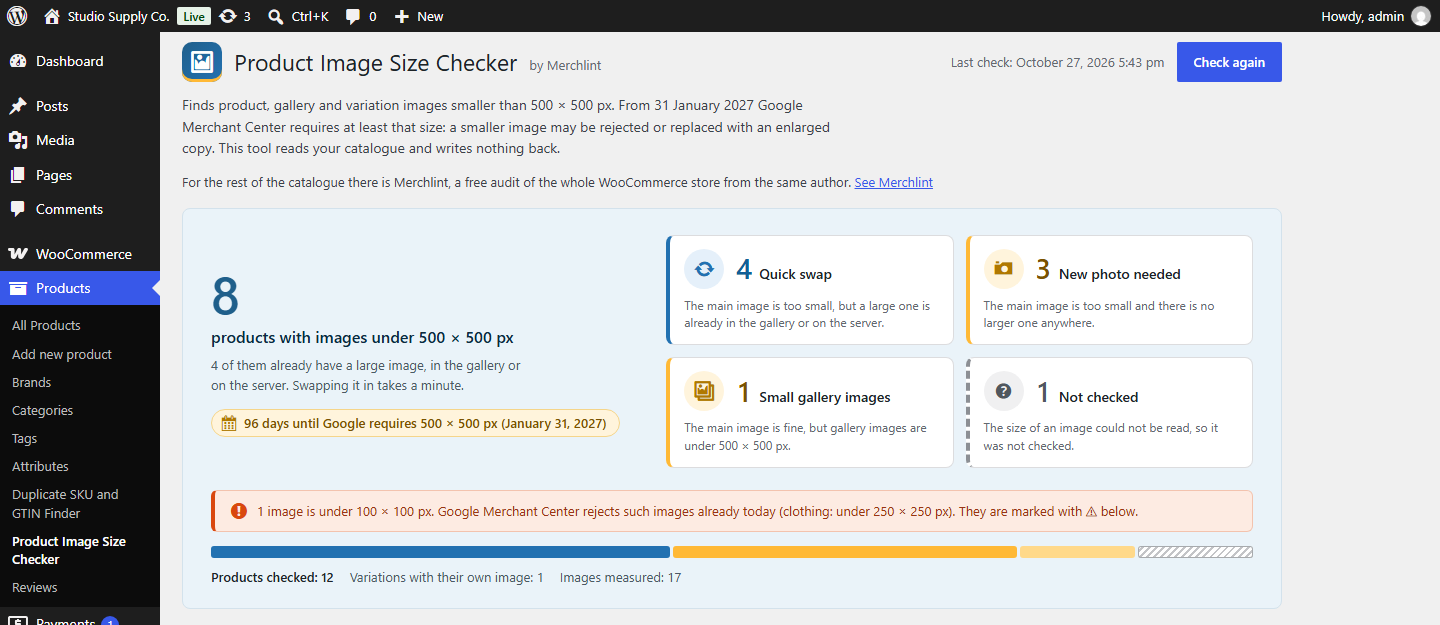
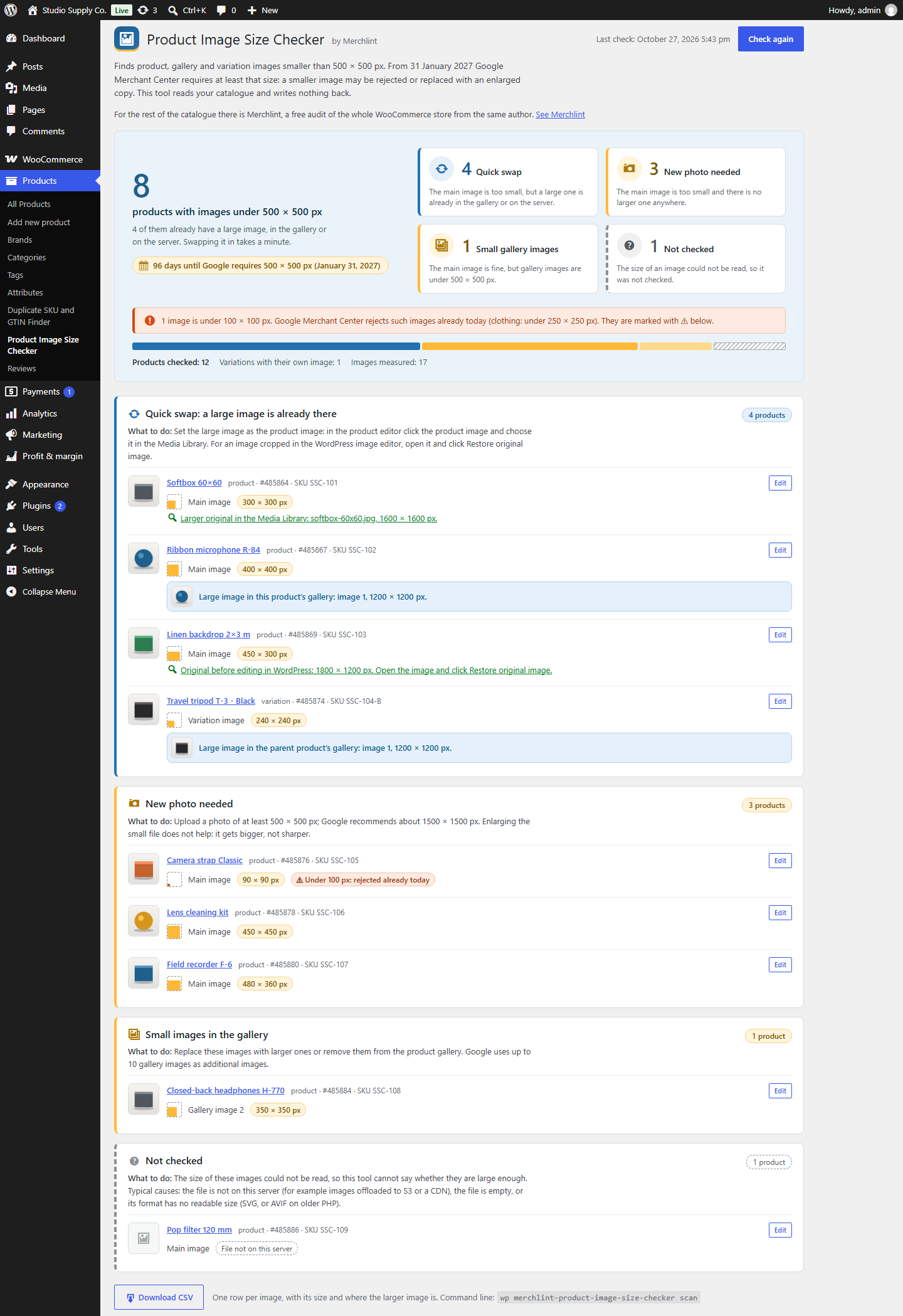
A verdict for every product
- Quick swap: the main image is too small, but a large one is already there: in the product
gallery or on the server. - New photo needed: the main image is too small and there is no larger one anywhere.
- Small gallery images: the main image is fine, but some gallery images are under 500 × 500 px.
- Not checked: the size of an image could not be read, so the plugin does not guess.
Images under 100 × 100 px are marked separately: Google Merchant Center already rejects those today
(clothing: under 250 × 250 px).
Larger originals already on the server
Very often a small product image is a thumbnail—a file whose name ends in -300x300—that was
uploaded or imported as an image of its own, while the full picture is still there. The plugin
looks for:
- the full image with the same name in the Media Library;
- the full image as a file in the same folder, outside the Media Library;
- an image cropped in the WordPress image editor, whose untouched original WordPress keeps
(“Restore original image”).
Where you see the result
- One screen under Products: the number of products to fix, the days left until January 31, 2027,
and a card for each verdict with thumbnails, sizes, where the large image is, and a link to edit
the product. - A CSV file with one row per image: product, SKU, size, verdict, and where the larger image is.
Semicolon-separated, opens in Excel and Google Sheets. - WP-CLI:
wp merchlint-product-image-size-checker scan, with--export=file.csvfor the full
list.
What it does not do
It never changes your products or images. It does not enlarge images and does not add frames:
an enlarged small picture gets bigger, not sharper. Every finding shows the size that was read, so
you can check the claim before you act on it.
The check runs in a single request, so on a very large catalog it can run into your host’s time
limit—the screen says so when that becomes likely, and the WP-CLI command has no such limit.
A small part of Merchlint
This plugin comes from the author of Merchlint, a free
audit of the whole WooCommerce catalog: products that sold in the past year and can no longer be
bought, products with no price or no photo, duplicate SKUs, sale prices that should have ended, and
images with no alt text. For products that sold, it shows the money at stake. Merchlint reports
main images under 500 × 500 px too, so you do not need both plugins just for that. This plugin adds
gallery images and finds the products whose larger image is already in your store. It carries its
own copy of the scanning engine with its own class names, so both can run side by side.
Installation
- Install and activate.
- Open Products → Product Image Size Checker, or click Check image sizes next to the
plugin on the Plugins screen. - Click Check images now.
For large catalogs, there is a WP-CLI command: wp merchlint-product-image-size-checker scan.
FAQ
What does “Image too small for upcoming enforcement” mean?
It is a warning in Google Merchant Center: the image of this offer is smaller than 500 × 500 pixels,
the minimum Google applies to all products from January 31, 2027. Until then, the old minimum applies:
100 × 100 pixels, or 250 × 250 for clothing. The rules are on
Google’s help page for the image_link attribute.
Does Google for WooCommerce show this warning?
It can, but only after the products have been sent to Google. Google for WooCommerce lists the
issues that Merchant Center reports for your products in the Issues to resolve card on its
Product Feed page. Before sending, it checks that the image link is valid, not how large the
image is. If there is any error in that list, for any product or for the account, the card shows
only the errors, and warnings like this one are not listed. This plugin gives you the list before
anything is sent: which image it is (main, gallery, or variation), its size, and a larger original
if there is one. This describes Google for WooCommerce 3.9.6.
Will Google reject every image this plugin lists?
Not necessarily. Google says it will optimize some images smaller than 500 × 500 automatically, and
it does not say which. A listed image may be rejected or replaced with an enlarged copy. Images
under 100 × 100 px are already rejected today; the plugin marks them separately.
My original image is large, but Merchant Center still says it is too small.
The plugin checks the full-size file. Some feed plugins let you choose which image size goes into
the feed; if yours sends a smaller size, Google gets that smaller image. Set the feed to the full
size.
Which images are not checked?
Images whose file is not on this server (for example, images offloaded to S3 or a CDN), empty files,
and formats whose size PHP cannot read (SVG, or AVIF on older PHP). They are listed as “Not checked”
with the reason, instead of being guessed. Drafts and private products are not checked: they do not
go to Google.
Can I just enlarge the small images?
The plugin does not do it, and it does not help: an enlarged small picture gets bigger, not sharper.
Use a larger original or a new photo. Google recommends about 1500 × 1500 pixels.
Does it change anything in my shop?
No. It reads products and image files and never writes to them. It stores the last result in one
option, and up to three marks per user that keep closed things closed: the notice on the Plugins
screen, the box about Merchlint, and the review request. Deleting the plugin removes the option and
all the marks, on every site of a network.
Screenshots

Changelog
0.1.2
- Clearer wording on the screen and in this description.
0.1.1
- The screen has moved from Tools to Products → Product Image Size Checker. The old address
under Tools still opens it. - The plugin row on the Plugins screen has a Check image sizes link. After activation, one
notice on that screen says where the plugin is; it goes away for good once you dismiss it or open
the screen. - A link to the support forum at the bottom of the screen.
0.1.0
- First release.