

Description
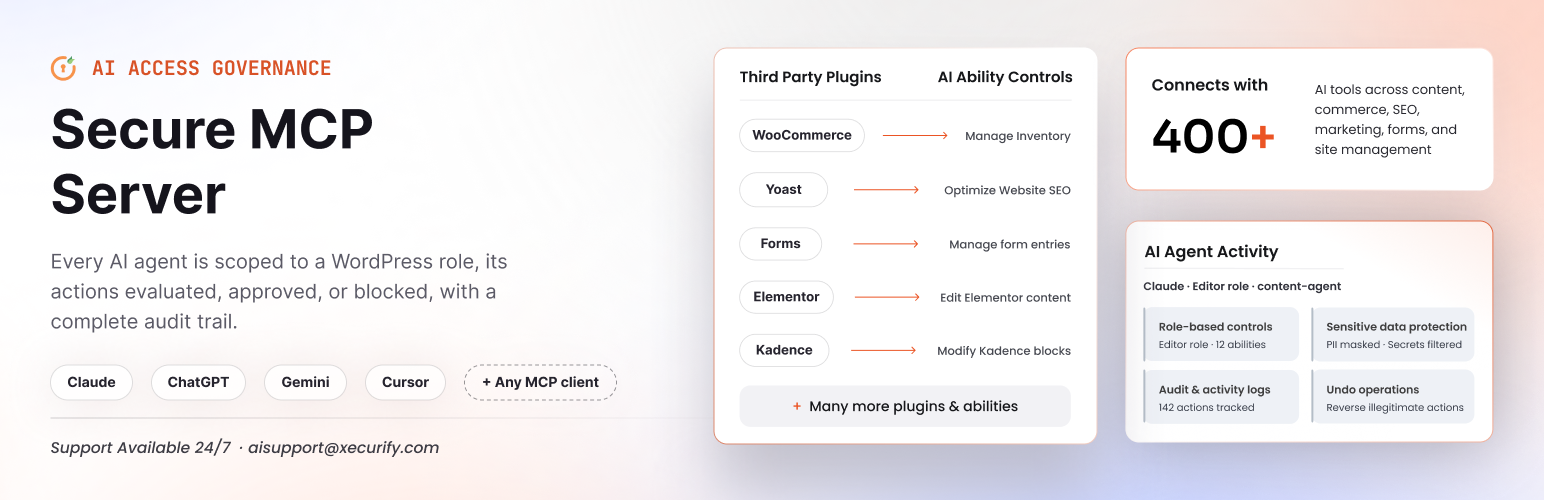
miniOrange Secure MCP Server is a complete WordPress MCP server plugin that turns your WordPress site into a fully working Model Context Protocol (MCP) server. Once installed, you can connect Claude to WordPress, connect ChatGPT to WordPress, or link any MCP-compatible AI in just 2 minutes.
Ask AI to write blog posts, edit Elementor and Kadence page layouts, manage custom post types and their custom fields, upload media, update WooCommerce products, manage Yoast SEO, moderate comments, handle contact form submissions, and much more, all through simple chat. With Governed REST API Access, AI can even use REST endpoints from your other plugins, under the same permissions.
Unlike other WordPress MCP server plugins that give AI full admin access, we put you in complete control. Role-based AI permissions, Turn each tool on or off, self-hosted OAuth 2.1 login, and full activity logs are all included, with no restrictions.
Quick Links
Official Website | ChatGpt Setup Guide | Claude Setup Guide | Documentation | Book a Demo
Key Features of the Secure WordPress MCP Server
Built security-first, so you can let AI work on a live site with confidence:
- Every user connects their own AI – each person uses their own ChatGPT or Claude, limited to the tools you allow their role.
- 483 MCP tools in 34 categories – WordPress core, the block editor, menus and widgets, WooCommerce, Yoast SEO, Rank Math, Advanced Custom Fields, Elementor, Kadence, Contact Form 7, WPForms, Gravity Forms, Fluent Forms and more.
- Role-based MCP adapter – abilities that other plugins register appear in the Agent Registry, ready to grant per role.
- Block-by-block page editing – AI changes one heading, paragraph or button and leaves the rest of the page exactly as it was.
- Changes show straight away – page caches are cleared automatically after every AI change, and drafts can be shared with an expiring preview link.
- Governed REST API access – AI can use any WordPress REST endpoint, including those from your other plugins, with route-by-route, role-based permissions.
- Agent Registry – decide, per WordPress role, exactly which tools an AI agent can use.
- Self-hosted OAuth 2.1 with PKCE – the AI never sees your WordPress password.
- Every call checked against WordPress capabilities – an AI can never do more than its user can do in wp-admin.
- Full audit log – every call, allowed or refused, is recorded.
- Safe theme and code editing – changes go to a draft, are syntax-checked and previewed, and publish with automatic backup and rollback.
- Built-in troubleshooting – a Troubleshooting page finds out why an AI client can’t connect and tells you what to fix.
Everything runs on your own server. No third-party relay sits between your AI client and your site. When you connect through the miniOrange Gateway, your AI client’s requests pass through the gateway on their way to your site; the tools still run, and every permission is still checked, on your own WordPress site.
How to Install the WordPress MCP Server (2 Minutes)
- Log in to your WordPress admin dashboard.
- Go to Plugins → Add New.
- Search for Secure MCP Server.
- Click Install Now, then Activate.
Create Your First AI Agent
- Open Secure MCP Server from the WordPress admin sidebar.
- Click Register your first agent.
- Enter an agent name and click Next.
- Choose which abilities each user role can use, then click Create & Continue.
- Click Continue. You’ll see Connect your AI client.
How to Connect ChatGPT to WordPress
- Under Connect your AI client, select ChatGPT. A setup panel opens.
- Copy Your Site URL from the panel.
- Click the MCP Server for WordPress link in the panel. It opens the app in ChatGPT.
- Click Install Plugin.
- Enter your WordPress Site URL and click Continue.
- Click Allow Access. Now start chatting with your site through ChatGPT.
Full guide: Set up ChatGPT with WordPress using MCP
Each team member can connect their own ChatGPT the same way.
How to Connect Claude to WordPress
- Under Connect your AI client, select Claude. A setup panel opens.
- Open the connector page miniOrange MCP for WordPress and click Connect.
- Enter your site’s address. You’ll land on the sign-in gateway — paste your site’s URL there.
- Log in with your WordPress account and click Allow access. Your approved tools now appear in Claude – start chatting with your site.
Full guide: Connect WordPress with Claude using MCP
Video: Connect Claude to WordPress Using Secure MCP Server
Connect Gemini, Cursor, Windsurf & Any MCP Client
The plugin follows the open Model Context Protocol standard, so it works with Gemini, Cursor, Windsurf, and any MCP-compatible client. Connect several AI clients at once, each with its own permissions and audit trail.
Your MCP server endpoint:
https://gateway.miniorange.ai/v2/mcp
What Your AI Agent Can Do
483 tools in 34 categories. Integration tools appear only when the related plugin is active.
WordPress Content
- Posts & Pages (56 tools) – Create, publish, schedule, duplicate, set templates and featured images, trash and restore.
- Categories, Tags & Media (45 tools) – Manage taxonomies, upload media from a URL or file, update alt text and captions, crop and resize images.
- Revisions (9 tools) – List, compare and restore revisions and autosaves.
- Comments (21 tools) – Moderate, reply, search, mark spam and view counts.
- Custom Post Types & Fields (19 tools) – Discover any custom post type and edit its items, terms and fields.
- Content Find & Replace (6 tools) – Change part of a post, custom field or setting without rewriting it.
- Block Editor (12 tools) – Edit one block at a time: change its text or settings, insert, move, duplicate and delete blocks and patterns, and detach synced patterns.
- Preview Links (2 tools) – Expiring links to share a draft without signing in.
Users & Site Management
- Users & Roles (38 tools) – Create users, assign roles, update profiles, send password reset links.
- Settings, Plugins, Themes & Updates (34 tools) – Site title, tagline, homepage, timezone, plugin activation and updates, auto-updates, site health.
- Maintenance (8 tools) – Clear caches, refresh permalinks, run cron events, read the error log.
- Theme Editing (41 tools) – Block templates, global styles, patterns and theme files, logo, site icon, Additional CSS and Customizer settings, with draft, preview, publish and restore.
- Menus & Navigation (16 tools) – Build and reorder menus, assign locations, and edit block-theme Navigation menus.
- Widgets & Sidebars (8 tools) – Add, update, move and delete widgets, including block widgets.
- Site Overview (1 tool) – Tells the AI how your site is built and which tools it may use.
Plugin Integrations
- WooCommerce (41 tools) – Products, orders, refunds, customers, coupons and sales reports.
- Advanced Custom Fields (25 tools) – Field groups, repeaters, flexible content, relationships, options pages.
- Yoast SEO & Rank Math (17 tools) – SEO titles, meta descriptions, focus keywords, canonicals, schema, Open Graph, plus read-only SEO reports.
- Forms & Leads (54 tools) – Contact Form 7 (Flamingo), WPForms, Gravity Forms and Fluent Forms entries, with CSV export.
- Elementor (12 tools) – Read, edit, style, move and duplicate Elementor elements, and patch large HTML widgets
- Divi 4 & Divi 5 – Read and edit Divi Builder layouts, modules, text, images and styling. Divi support is part of the Pro plan.
- Kadence Blocks (18 tools) – Build Kadence pages, insert rows, columns, headings, buttons and images.
Governed REST API Access: Go Beyond Built-in Tools
AI can use any WordPress REST API endpoint – core, WooCommerce, Yoast or any other plugin – with no plugin update needed.
- Read-only by default – a new AI agent can read posts, pages and media; any write needs your approval.
- Granular control – allow each route and method (read or write) per user role, all logged.
- Site-wide write switches – turn all create, update or delete REST calls off for the whole site in one click.
- Dangerous routes stay blocked – plugin and theme installs, activations, batch and blueprint-import routes can never be granted.
Your Role-Based MCP Adapter for Plugin Abilities
Other plugins can add their own abilities through the WordPress Abilities API. As your MCP adapter, Secure MCP Server lists each one in the Agent Registry, where you decide which roles may use it. Every call to them is recorded in the audit log, just like the built-in abilities.
WooCommerce MCP Server
Run your store through chat. Create and update products, attributes, categories and tags. Look up, create and update orders, change order status, add order notes and issue refunds. Manage customers, view purchase history and customer segments, and create or update coupons. Get sales, orders, products, customers, coupon usage and top-seller reports.
SEO MCP: Yoast SEO & Rank Math
Bulk-update SEO titles and meta descriptions, set focus keywords, mark cornerstone content, and control robots meta, advanced robots directives, canonical URLs, breadcrumb titles and sitemap inclusion. Manage Open Graph, Twitter/X cards and schema types. Rank Math SEO metadata is supported too.
Advanced Custom Fields (ACF) MCP
Read and update any ACF field value, in bulk or one at a time. Work with repeater rows, flexible content layouts, relationship fields and options pages. Create field groups, add fields, update location rules, check conditional logic, and validate a value before it is saved. You can also search posts by ACF field value.
Page Builder MCP: Elementor, Divi & Kadence
Elementor: read a page layout, change element text, images, links and styling without breaking the design, move, duplicate or delete elements, look up widget schemas and preview the rendered result.
Divi 4 & Divi 5: read Divi Builder layouts and update modules, text, images, links and styling through chat, without opening the visual builder. (Pro plan.)
Kadence Blocks: build new Kadence layout pages, insert rows, columns, headings, buttons, icons and images, update block text and styling, and set page layout options.
Forms & Leads MCP
Work with Contact Form 7 (via Flamingo), WPForms, Gravity Forms and Fluent Forms. List forms and fields, read and count entries, mark them read or unread, trash, restore or delete them, and export entries as CSV. Inspect form settings and notifications, and for Fluent Forms you can create, update and test notifications and confirmations.
Safe Theme & Code Editing
AI can now edit your theme safely:
- Edit block templates, template parts, global styles, style variations and patterns.
- Read, search and edit theme files – PHP, CSS, JavaScript and theme.json.
- Nothing touches the live site directly. Every change goes into one private draft.
- PHP is checked for syntax errors, JSON for validity, and templates for broken blocks before a change is accepted.
- Preview the draft, and test that the site still loads before it goes live.
- Publishing takes an automatic backup. If the site fails, everything rolls back automatically.
- Undo any publish later with one restore.
Site Management & Maintenance
Update site title, tagline, homepage, posts page, timezone and privacy page. List, activate, deactivate and update plugins and set auto-updates. Check WordPress core, plugin and theme updates, site health and server information. Clear caches, refresh permalinks, inspect and run scheduled (cron) events, and read the site error log to troubleshoot problems.
Smart Content Editing
- Find & replace inside posts, custom fields and settings – change one sentence without rewriting the whole page.
- Page lock – edits are refused if the page changed after the AI read it.
- Revision restore – roll back any post to an earlier version.
Agent Registry: Role-Based Access for Every AI Agent
The Agent Registry controls what each AI agent may do.
- Create named agent policies that map WordPress roles to allowed tools.
- Tools outside a role’s grant are hidden from the AI client and cannot be called.
- Turn an agent on or off without losing its configuration.
- Revoke an AI client’s access instantly.
- Use the role/ability matrix editor to manage everything in one place.
So an editor’s AI can write content but cannot install plugins, and a shop manager’s AI can update orders but cannot touch site settings.
Troubleshooting: Find Out Why an AI Client Can’t Connect
If an AI client can’t reach your site or sees no tools, open the Troubleshooting tab. The plugin checks your site and the connection from outside, and shows only the problems that are likely to be real.
- Each problem is explained in plain language, with who can fix it and the exact change to make.
- Detects firewall, CDN, caching and reverse-proxy issues, and servers that strip the Authorization header.
- Copy-paste Apache and Nginx fixes for the most common causes.
- Copy for support gives you a redacted report to send to our team.
Three Layers of Security on Every Call
- The connection is a real WordPress user. OAuth 2.1 (PKCE) tokens are bound to the user who approved the connection and to your site. Expired, revoked or wrong-site tokens are refused.
- Role-scoped AI grants. Only the tools allowed for that role through the agent Registry are visible and callable.
- WordPress capability checks. Each call is checked exactly like wp-admin, down to the individual post, page, comment
Plus:
- Per-tool on/off toggles for every tool. Tools are switched on or off per agent and per WordPress role in the Agent Registry.
- Prompt-injection detection and behavioral anomaly detection.
- Rate limits and quotas per AI client, enforced by the miniOrange Gateway.
- Data rules & DLP that mask emails, phone numbers and secrets (Business plan; you define the rules).
- Human-in-the-loop approval for sensitive actions (Business plan).
- Clear answers when a tool is off – the AI is told the tool is switched off for the role, not that it does not exist.
- Destructive actions need confirmation, and every tool tells the AI client whether it is read-only or destructive.
- Activity audit log that records the user, AI identity, client, tool, outcome and time, filterable by agent, status, tool, user and date.
Dashboard & Monitoring
See active agents, executions, success rate and latency at a glance. Members can open “Your AI Access” to see which tools their role allows and how to connect.
Need Help?
Ask in the support forum – our team responds quickly. For private or enterprise questions, email info@xecurify.com or use the Contact Support button inside the plugin.
Installation
Requirements
- WordPress 6.9 or newer (Abilities API required)
- PHP 7.4 or higher (PHP 8.0+ recommended)
- HTTPS enabled (for OAuth login)
From your WordPress dashboard
- Go to Plugins → Add New Plugin.
- Search for miniOrange Secure MCP Server.
- Click Install Now, then Activate.
- Open Secure MCP Server from the admin sidebar and click Register your first agent.
- Name the agent, set ability access by user role, and click Create & Continue.
- Under Connect your AI client, choose Claude, ChatGPT or another client and follow the setup panel.
- Sign in to WordPress and click Allow Access. Done!
Manual installation
- Download the plugin zip.
- Go to Plugins → Add New → Upload Plugin and upload the zip.
- Activate the plugin and continue from step 4 above.
FAQ
What is an MCP server for WordPress?
MCP (Model Context Protocol) is an open standard that lets AI assistants use tools. This plugin makes your WordPress site an MCP server, so AI clients like Claude and ChatGPT can safely read and update your site through tools you control.
Does Secure MCP Server include an MCP adapter?
Yes. Alongside its own MCP server, which Claude, ChatGPT and other assistants reach over OAuth 2.1, this WordPress MCP plugin includes an MCP adapter that offers them the abilities your plugins register, next to its own 483 abilities.
How do I connect ChatGPT to my WordPress site?
Install and activate Secure MCP Server, create an AI agent, and choose ChatGPT under Connect your AI client. Open the MCP Server for WordPress app in ChatGPT, enter your site’s address and click Allow Access. It takes about two minutes, and ChatGPT can then write posts, edit pages, manage WooCommerce products and more, using only the tools you allowed.
Can each person on my team connect their own ChatGPT or Claude?
Yes. Every WordPress user connects their own AI client with their own login, so each person’s AI works as them, is limited to their role, and is recorded under their name in the audit log. Team members find their connection steps under My AI Access in wp-admin.
Can I limit what an editor’s AI can do?
Yes. In the Agent Registry you choose, for each WordPress role, which tools an AI agent may use: for example, editors’ AI can write and edit posts but not install plugins or change settings. Every call is also checked against the person’s own WordPress permissions, so an AI can never do more than its user could do in wp-admin.
Which AI clients are supported?
Claude, ChatGPT, Gemini, Cursor, Grok, Windsurf and any MCP-compatible client.
How many tools are included?
483 tools in 34 categories, covering WordPress core, the block editor, menus, widgets, WooCommerce, Yoast SEO, Rank Math, Advanced Custom Fields, Elementor, Divi, Kadence, Contact Form 7, WPForms, Gravity Forms, Fluent Forms, theme editing and site maintenance. Integration tools appear only when the related plugin is active.
What are some example prompts?
These are just examples of what you can ask. Your AI can do anything that the abilities allowed for your role can do.
- “Write a blog post about our summer sale, add it to the News category and schedule it for Monday 9 AM.”
- “Find all products under ₹500 and put them on a 20% sale until Sunday.”
- “Write meta descriptions for every post that doesn’t have one.”
- “Export this month’s Gravity Forms entries as CSV.”
- “Change the footer text in my theme, preview it, then publish.”
- “Why aren’t my scheduled posts publishing? Check cron and the error log.”
- “Use the REST API to list this week’s bookings from my booking plugin.”
- “Change the heading in my homepage hero to ‘Spring Collection’.”
- “Add our new Pricing page to the main menu, right after About.”
Is it safe to give AI access to my WordPress site?
Yes. Access uses self-hosted OAuth 2.1 with PKCE, so the AI never sees your password. Every call is limited by role through the agent Registry, checked against WordPress capabilities, rate-limited and logged. You can require human approval for sensitive actions and mask sensitive data. Rate limits are enforced by the miniOrange Gateway; human approval and data masking are part of the Business plan.
Can the AI do more than my WordPress user can?
No. Every tool runs as the WordPress user who approved the connection, and every call is checked against that user’s capabilities exactly as in wp-admin.
Can the REST APIs of my other plugins be converted into WordPress MCP abilities?
Yes. Secure MCP Server becomes your MCP adapter for every REST route you allow, without any coding. AI can discover and call any WordPress REST route, including those from WooCommerce, Yoast and other plugins, with no plugin update needed. A new agent starts with read-only access to core WordPress content. Writes and routes outside it need an explicit, per-role grant, and you can switch off all create, update or delete REST calls for the whole site. Plugin and theme install, activate, batch and blueprint-import routes are always blocked.
Can AI break my theme or site?
Theme changes never touch the live site directly. They go into a draft, PHP is syntax-checked and JSON validated, and you can preview the draft. Publishing takes a backup and rolls back automatically if the site fails to load, and you can restore any earlier publish.
Does it work with WooCommerce?
Yes. 41 tools cover products, attributes, orders, order notes, refunds, customers, coupons and sales reports.
Does it work with Yoast SEO and Rank Math?
Yes. 14 Yoast SEO tools cover titles, meta descriptions, focus keywords, cornerstone content, robots, canonicals, breadcrumbs, Open Graph, Twitter/X cards, schema and sitemaps. Rank Math SEO metadata is also supported.
Can a read-only AI agent read SEO data?
Yes. The read-only SEO tools need only permission to read a post, so you can give them to a role such as Subscriber and keep the AI strictly read-only. They show each post’s SEO title, meta description and focus keywords, both as saved and as search engines see them, and can list posts with SEO issues such as a missing meta description. They work with Rank Math and Yoast SEO, and with All in One SEO and SEOPress on the Pro plan.
Does it support Advanced Custom Fields (ACF)?
Yes. 25 ACF tools cover field values, repeaters, flexible content, relationships, options pages, field groups and location rules.
Does it support Elementor, Divi and Kadence?
Yes. Elementor (12 tools), Divi 3 and Divi 4, and Kadence Blocks (18 tools) are supported, so AI can read, edit, style and build layouts. Divi support (Divi 4 and Divi 5 layouts) is part of the Pro plan.
Can AI edit just one part of a page?
Yes. For pages and posts made in the block editor, the AI can list the blocks on a page and change one heading, paragraph, button, image caption or setting, insert new blocks or patterns exactly where you ask, and move, duplicate or delete a block, while every other block stays exactly as it was. Each change saves a revision you can restore. Pages built with Elementor, Divi or another page builder are edited with that builder’s own tools instead.
Can AI manage my menus and widgets?
Yes. The AI can create and rename menus, add pages, posts, categories and custom links, reorder and nest items, assign menus to your theme’s locations, and edit the Navigation menus used by block themes. It can also add, update, move and delete sidebar and footer widgets.
Why don’t I see the AI’s change on my site?
Page caches are cleared automatically after each AI change, for the most common cache plugins, managed hosts and CDNs. If a cache the plugin does not recognise still shows the old page, clear it from that cache’s settings, or ask the AI to clear the caches. A changed page is cleared straight away; to keep busy sites fast, the whole cache is cleared at most once a minute, so a site-wide change such as a menu edit can take up to a minute to show.
Which form plugins are supported?
Contact Form 7 (with Flamingo for submissions), WPForms, Gravity Forms and Fluent Forms, including CSV export of entries.
Can I disable specific tools?
Yes. Every tool has a global on/off toggle, and the agent Registry controls tools per role. Developers can also limit exposed tools with the MOSMCP_EXPOSED_PREFIXES constant. Tools are switched on or off for each agent and WordPress role in the Agent Registry’s role/ability matrix; a tool that is off for a user’s role is hidden from their AI client, and the AI is told how it can be turned on.
How do I revoke an AI client’s access?
Click Revoke in the agent Registry. Access ends immediately.
Can I connect multiple AI clients at the same time?
Yes. Connect as many as you need, each with separate permissions and its own audit trail.
What happens if an AI edit goes wrong?
Page lock blocks edits to content that changed after the AI read it, post revisions can be restored, theme changes publish with automatic backup and rollback, and destructive actions require confirmation.
Does my data go through a third-party server?
No. The MCP server and OAuth server run on your own WordPress site. Your AI client connects directly to your site. If you connect through the miniOrange Gateway (gateway.miniorange.ai), your AI client’s requests pass through the gateway on their way to your site; the tools still run, and every permission is still checked, on your own site.
Why does my AI client say it cannot reach my site?
AI clients need a public HTTPS URL. Sites on localhost or behind a firewall cannot be reached. Also make sure your CDN or cache is not caching the MCP endpoint. Open the Troubleshooting tab in Secure MCP Server to run a connection test; it lists the likely causes with the fix for each.
Do I need to know how to code?
No. Install, follow the onboarding checklist, and paste one URL into your AI client.
Screenshots


Changelog
1.5.7
- Fixed plugin REST routes: your AI’s connection token is no longer sent to plugin routes, so plugins that reject tokens they don’t recognise no longer block AI calls.
- Added Read REST Route: a read-only tool for the REST API routes you have allowed. It sends only GET requests, so it cannot change anything. Agents that could already call REST routes get it automatically.
- Added multisite support: Network Admin lists every site with a link to its settings, plugin tools are offered only to people who can manage plugins for the network, and users who do not belong to a site can no longer be looked up from it.
- Added Italian and Japanese: the admin, the approval screen and the deactivation form follow each person’s WordPress language. What AI sees stays in English.
1.5.6
- Added exact edits for Elementor: change a line of code in a large HTML widget, or a sentence in a long text block, without sending the whole widget back. Several edits can be made at once; they all apply or none do, and when a phrase is not found the AI is shown the closest text.
- Added a full read of one Elementor element, so long HTML and text are no longer cut short when the AI reads them.
- Added read-only SEO tools: read each post’s SEO title, meta description, focus keywords and indexing, as saved and as search engines see them, or list the posts with SEO issues. They need only permission to read the post, so a Subscriber’s AI can review SEO without editing rights. Works with Rank Math and Yoast SEO.
- Hardened custom field and setting edits: code a user is not allowed to add, such as scripts, iframes or onclick handlers, is now refused with the reason, as it already was for posts and Elementor.
1.5.5
- Added logo and site icon: 3 abilities to see the site’s logo and icon, and set or remove them from the media library or a web address. A site icon is cut to a 512 × 512 square the way the Customizer does it, keeping the part you name.
- Added Additional CSS and theme settings: 4 abilities to read and change the site’s custom CSS, and every setting your theme offers in the Customizer, including Astra’s. Each value is checked by the theme’s own rules and saved through the Customizer when published.
- Added synced pattern tools: see everywhere a pattern is used, turn one use into ordinary blocks, and delete a pattern safely by turning each remaining use into ordinary blocks, so no page loses its content.
- Added image editing: crop by shape (16:9, square and so on) keeping the part you name, rotate, flip and resize, as a new image or in place with the original kept. Restore an original, and make missing image sizes.
- Added upload links: the AI gives you a link to upload a file, such as a logo or a photo, straight into your media library. It works only for your account, behind your normal sign-in.
- Logo, icon, CSS and theme settings wait in the theme draft, so you can preview them before anything goes live, and publishing backs them up for one-step undo.
- The approval screen, Connect page and AI Agents page now show that each person connects their own AI with their own WordPress account and gets only the abilities their role allows. The AI Agents page opens with a short guide to role-based AI access, which you can dismiss.
- Team members whose role has abilities get a dashboard widget showing their role, how many abilities their AI gets and three steps to connect, with links to the connect steps and to Your AI Access. Administrators do not get it.
- Added setup steps for Gemini, Perplexity, Grok and Antigravity to the dashboard’s connect guide, including the plan each app needs to add a custom connector. The Connect page links to the Grok and Antigravity setup guides.
- After a menu is assigned to a location or a widget is added to an area, the AI now checks the site’s pages and says when the theme does not show it yet, and where to switch it on.
- WooCommerce, ACF, Yoast SEO, forms and Kadence changes now clear page caches automatically too.
- On sites that accept SVG files, SVGs added by AI are cleaned of scripts, outside links and CSS that could load files from other sites, and a drawing built to freeze the browser of whoever opens it is refused.
- Theme checks now use their short-lived sign-in only on this site’s own pages and always remove it when they finish, so a post whose address points to another site (with Page Links To, for example) can no longer receive it.
- Fixed the role matrix on the AI Agents page offering abilities to roles that cannot use them, such as deleting pages for a Subscriber, or WooCommerce’s own product and order abilities for every role. WordPress still refused those calls, and grants like that are now flagged so you can turn them off.
- Fixed an agent that was switched off losing its claim to the abilities it owns, which could let two agents own the same ability for a role. Saving now names the agent that already owns an ability.
- Fixed the MCP Server plugin page showing blank, or letting you click away, before the setup guide appeared on a first visit.
- Fixed a warning on menu links to a #section of a page.
- Minor bug fixes in the WordPress MCP Server.
1.5.4
- Added block editor editing: 11 abilities to list, find and read the blocks of any page or post, change one block’s text or settings, and insert, replace, move, duplicate and delete blocks, including patterns and synced patterns. Every other block stays exactly as it was, blocks are only placed where they are allowed, and every change saves a revision.
- Added menus and navigation: 16 abilities to create, rename and delete menus, add, update, remove and reorder menu items, assign menu locations, and edit block-theme Navigation menus, with undo.
- Added widgets and sidebars: 8 abilities to list widget areas and widgets, and add, update, move and delete widgets, including block widgets.
- Added shareable preview links: an expiring link lets anyone view a draft without signing in, and can be cancelled at any time.
- Added a site overview ability that tells the AI how the site is built (theme, page builder, plugins in use, caches) and which tools it may use.
- Page caches, host caches and CDNs are now cleared automatically after every AI change, so changes show straight away.
- To keep busy sites fast, the whole page cache is cleared at most once a minute; a changed page is always cleared straight away.
- When a tool exists but is not switched on for a user’s role, the AI is now told so, and how to turn it on, instead of “unknown tool”.
- The AI is now told when page content it writes would be saved as one Classic block, and how to write it as editable blocks instead.
- Fixed REST routes that plugins such as Media File Renamer only offer to signed-in users not being available to AI clients.
- Fixed write requests made through the REST API arriving without data in plugins that read the request body as JSON.
- REST routes added by another plugin are now picked up without reactivating it, and a route that is not available to the current user is explained instead of returning “No route was found”.
- Fixed Kadence headings and buttons failing to insert into an empty column.
- Fixed tools that take no inputs failing with “input is not of type object” when an AI client connected directly leaves the input out.
- Minor bug fixes in the WordPress MCP Server.
1.5.3
- Fixed AI clients being disconnected when a token refresh was interrupted by a timeout or restart. A retried refresh now succeeds instead of forcing a reconnect.
- Fixed AI client replies breaking when another plugin prints PHP notices or warnings during MCP and OAuth requests.
- The Debug Log now always records failures, even while capture is off, without usernames or IP addresses. Entries carry the gateway’s request ID so a failed call can be traced end to end.
- AI clients now get a log reference instead of a broken reply when a tool crashes.
- Troubleshooting: a gateway check that could not be completed is now shown as inconclusive instead of a failure on your site.
- Minor bug fixes in the WordPress MCP Server.
1.5.2
- Fixed AI clients failing to connect, or not seeing a new agent, on sites using LiteSpeed Cache or another page cache. MCP and OAuth responses are no longer cached.
- Fixed AI edits removing forms, scripts and styles and dropping backslashes, which broke pages with custom code such as calculators. AI edits to pages, posts, custom content, Elementor, Kadence, Fluent Forms messages and media now follow the same rules as editing by hand: anyone allowed to add HTML there keeps it exactly as written, and markup a user is not allowed to add is refused with a reason instead of being silently removed.
- Fixed Kadence block edits damaging links and settings in other blocks on the same page. Pages already affected can be restored from WordPress revisions.
- Fixed the Kadence duplicate and delete abilities reporting an error even though the change was made.
- Minor bug fixes in the WordPress MCP Server.
1.5.1
- Improved the Troubleshooting page to show only likely connection problems.
- Minor bug fixes in the WordPress MCP Server.
1.5.0
- Added support for REST APIs in the WordPress MCP Server.
- Added a Troubleshooting page.
- Improved MCP connection reliability with AI providers.
- Minor bug fixes in the WordPress MCP Server.
1.4.14
- Added theme editing for block themes: templates, template parts, global styles, style variations and patterns.
- Added theme file editing: read, search and change theme code in a private draft.
- Every theme change now waits in a draft you can preview before it goes live. Before publishing, the site is checked with the draft applied, publishing backs up first, and every change is rolled back automatically if the site breaks.
- Improved: AI assistants are now told which inputs each tool requires and why a change was refused, including the closest matching text when wording is not found.
- Minor Bug Fixes in the WordPress MCP Server
1.4.13
- Added surgical content editing: change part of the text in a post, a custom field or a setting without rewriting the whole thing.
- Added 8 maintenance abilities covering scheduled events, permalinks, caches, and the site error log.
- Added Fluent Forms support: 14 abilities for forms, fields, confirmation messages, email notifications and submissions.
- Minor Bug Fixes in the WordPress MCP Server
1.4.12
- Added 34 site administration abilities covering site settings, plugin management, theme details, and update and Site Health checks.
- Minor bug fixes in the WordPress MCP Server
1.4.11
- Security and performance improvements to the MCP connection flow.
- Added SEO post meta update ability for Rank Math.
- Added product sale schedule date fields to the WooCommerce abilities.
1.4.10
- Fixed: the health endpoint is no longer cacheable. Page and edge caches (e.g. LiteSpeed, Cloudflare) could previously serve a stale “no agent” state, causing a connected client to report “No agent configured” even after an agent was enabled.
- Minor bug fixes in the WordPress MCP Server
1.4.9
- Debug logging framework: a built-in diagnostic log for MCP and OAuth activity.
- Minor bug fixes in the WordPress MCP Server
1.4.8
- Minor bug fixes in the WordPress MCP Server
1.4.7
- Elementor integration: Added 10 MCP Server abilities to read and edit Elementor pages, posts, and custom post types, including layout elements, text, images, links, widget types, and rendering changes for verification.
- Elementor editing: Update text, images, links, and selected styling without affecting the rest of the design, with separate tablet/mobile values.
- Custom post types: Added 19 abilities to read and edit items and custom fields, manage taxonomies, featured images, status, duplication, trash, and restore. Unsupported fields remain read-only with clear reasons.
- Media uploads: Upload files from public URLs or supplied content, validate the real file type, and use attachment IDs for featured images or Elementor widgets.
- Duplication: Copies now retain layout, theme settings, taxonomies, and featured images while clearing the canonical URL.
- Yoast SEO: Added more editable fields, including breadcrumb title, canonical URL, SEO title, focus keyphrase, social/X cards, robots directives, cornerstone content, and schema types.
- Slugs: Posts, pages, and custom post type slugs can now be edited with warnings about changed URLs and redirects.
- Minor bug fixes in the WordPress MCP Server.
1.4.6
- Kadence integration: Added 17 abilities to the MCP Server for AI clients to read, edit, and build Kadence Blocks pages, including reading nested blocks, block settings, and searching blocks by type or text.
- Edit Kadence blocks: Update text across 16 fields in 9 block types, styling and responsive attributes across all 59 block types, and duplicate or delete blocks with unique IDs.
- Build layouts: Insert rows, columns, headings, images, and buttons; create draft pages with pre-built layouts; or build nested row-and-column structures in one request.
- Added abilities to read and set Kadence per-page theme layout options.
- Safe editing: MCP Server edits change only the targeted block, preserve the rest of the page, support optional page locks, and return previous and new values for verification.
- Kadence-compatible markup: Inserted blocks match Kadence editor markup and CSS.
- Unsupported block types are declined with a duplicate-and-edit option.
- Minor bug fixes.
1.4.5
- ChatGPT is now shown first when connecting a client, with a direct link to the official plugin listing and clearer, more accurate setup steps.
- Added a warning, shown across the plugin, when the site is only reachable on localhost — AI clients running elsewhere can’t connect to it until it’s made publicly reachable.
- Refreshed the sign-in (OAuth authorization) screen to match the rest of the plugin’s design.
- Fixed the connection dialogs occasionally rendering behind the WordPress admin toolbar.
- Fixed a brief flicker on the dashboard when it first loads.
1.4.4
- Onboarding UI improvements in the MCP Server plugin.
1.4.3
- Minor bug fixes in the MCP Server plugin.
1.4.2
- Redesigned the role & ability editor as a matrix: abilities are grouped by resource down the left, with every role shown as its own column, so you can compare what each role can do without switching roles one at a time. Includes quick select all / clear controls for an entire role or an entire resource category.
- Added a guided onboarding checklist for new installs: register an agent, add the MCP URL to your AI client, and approve the connection, shown on the dashboard until setup is complete.
1.4.1
- New ability — “Update Page”: edits the title and/or content of an existing page.
1.4.0
- New — MCP Server abilities library: 260+ ready-to-use, security-reviewed WordPress abilities exposed as MCP tools, covering core content, users & roles, comments, WooCommerce, Advanced Custom Fields, Yoast SEO, Contact Form 7, WPForms, and Gravity Forms. Plugin-specific abilities activate automatically when available.
- All abilities are capability-gated with MCP tool annotations and full input/output JSON schemas, and are accessible only through the governed MCP Server endpoint, never the public REST API.
- Security hardening: Protected user-meta keys cannot be accessed, role grants require existing caller capabilities, and CSV exports are protected against spreadsheet formula injection.
Fixed: Object-level abilities no longer show false capability conflicts in the role & ability editor. Runtime permission checks remain unchanged. - Test Connection: Checks AI-client access and sign-in from both your server and an external location to detect firewall, CDN, and reverse-proxy issues.
- Troubleshooting guide: Provides common AI-client connection fixes, including copy-paste Apache/Nginx solutions, with likely causes highlighted automatically.
- Reliability: OAuth and MCP Server endpoints now use Cache-Control: no-store to prevent CDN/edge caching issues that can disrupt AI-client connections.
1.3.1
- Minor fixes and reliability improvements in the MCP Server plugin.
1.3.0
- Execution activity log: a full audit trail of every tool call, filterable by agent, status, or time range, with per-event detail including latency and error context.
- Dashboard redesign: four focused metrics — Active Agents, Total Executions, Success Rate, and Average Latency — for an at-a-glance view of MCP server health.
- Activity timeline on the agent overview: the last 5 executions appear inline on each agent overview tab.
- Denied and unknown-tool calls are now correctly attributed to the responsible agent , so the audit log is never missing an agent name.
1.2.3
- Clearer role & ability editor: a single Select all / Clear all control (instead of separate All and None buttons), role names shown in each Agents summary, and a smoother role & ability layout.
- Refined the admin/member view switcher to a clearer segmented control.
- Fixed the support form’s country picker so it no longer shifts the page or scrolls unexpectedly when opened.
- General UI polish across the agent Registry and connection screens.
1.2.2
- Agent Registry is now role-based: grant abilities to each WordPress role, with live capability-conflict detection. A request receives the abilities its user’s role(s) are granted across all enabled agents.
- Added a “My AI Access” member view so any logged-in user can see the tools available to their role, with an admin/member view switcher for administrators.
- Rebuilt agent create/edit as full-screen pages (guided create wizard ending in a connection step); removed the cramped modal editor.
- Existing agents are migrated automatically and keep working; review each one to scope its abilities per role.
- Support and deactivation-feedback emails now include the customer’s email address in the subject line.
- Added a Settings link to the plugin’s row on the Plugins page.
1.2.1
- Added a floating Contact Support button, available throughout the admin app.
- Added a Setup Guide link in the toolbar for quick access to the connection guide.
- Redesigned the deactivation feedback prompt with a clearer, on-brand layout, guided reason selection, and the option to get help instead of deactivating.
1.2.0
- Added agents Registry: a new admin screen to view and manage all non-human identity (AI client) registrations, including OAuth client details and token status.
- Added per-ability toggle to enable or disable individual abilities from being exposed as MCP tools.
- Revamped the plugin UI.
1.1.1
- Added in-plugin support form and deactivation feedback modal.
1.1.0
- Added a remote MCP server endpoint that exposes registered abilities as MCP tools.
- Added a self-hosted OAuth 2.1 authorization server with Dynamic Client Registration, PKCE, and discovery metadata so ChatGPT and Claude can connect.
1.0.0
- Initial release: read-only viewer for abilities registered through the WordPress Abilities API.