

Description
MJC Designs AI uses the WordPress AI Client and configured provider models to propose Bricks page changes for your review before applying them. Its optional Style Manager guides designs in the Main Workspace and Content to Pages Workspace with browser-session colors and variables. On selected WordPress pages, an optional Page SEO editor can save supported Yoast SEO or AIOSEO fields and the WordPress slug after explicit review, or move an eligible page to recoverable WordPress Trash after confirmation. Main and Content to Pages can create a draft page manually. The HTML and CSS workspace creates drafts for manual pasting into Bricks. Content to Pages also extracts final copy from DOCX or text-based PDF files, creates WordPress draft pages, prepares separate Bricks designs for review, and can edit existing Bricks templates. The plugin is independent of Bricks Builder, Yoast SEO, and AIOSEO; it is not affiliated with or endorsed by their developers. This alpha release is for evaluation: review each proposal and keep a backup before applying changes.
Visit the MJC Designs AI YouTube channel. The About subpage also links to video tutorials and updates. YouTube content is not loaded in the plugin page.
Requirements
- WordPress 7.0 or later with the WordPress AI Client.
- A compatible AI provider integration installed and configured under Settings > Connectors.
- Bricks 2.4 or later, with
get-page-elements,set-page-elements, andget-element-schemaabilities enabled under Bricks > AI > Abilities. - PHP 7.4 or later.
- PHP Zip and XML extensions for DOCX extraction, and zlib for compressed PDF text in Content to Pages.
Features
- List editable WordPress pages and Bricks templates, including pages without existing Bricks elements. Blog posts are not available for editing.
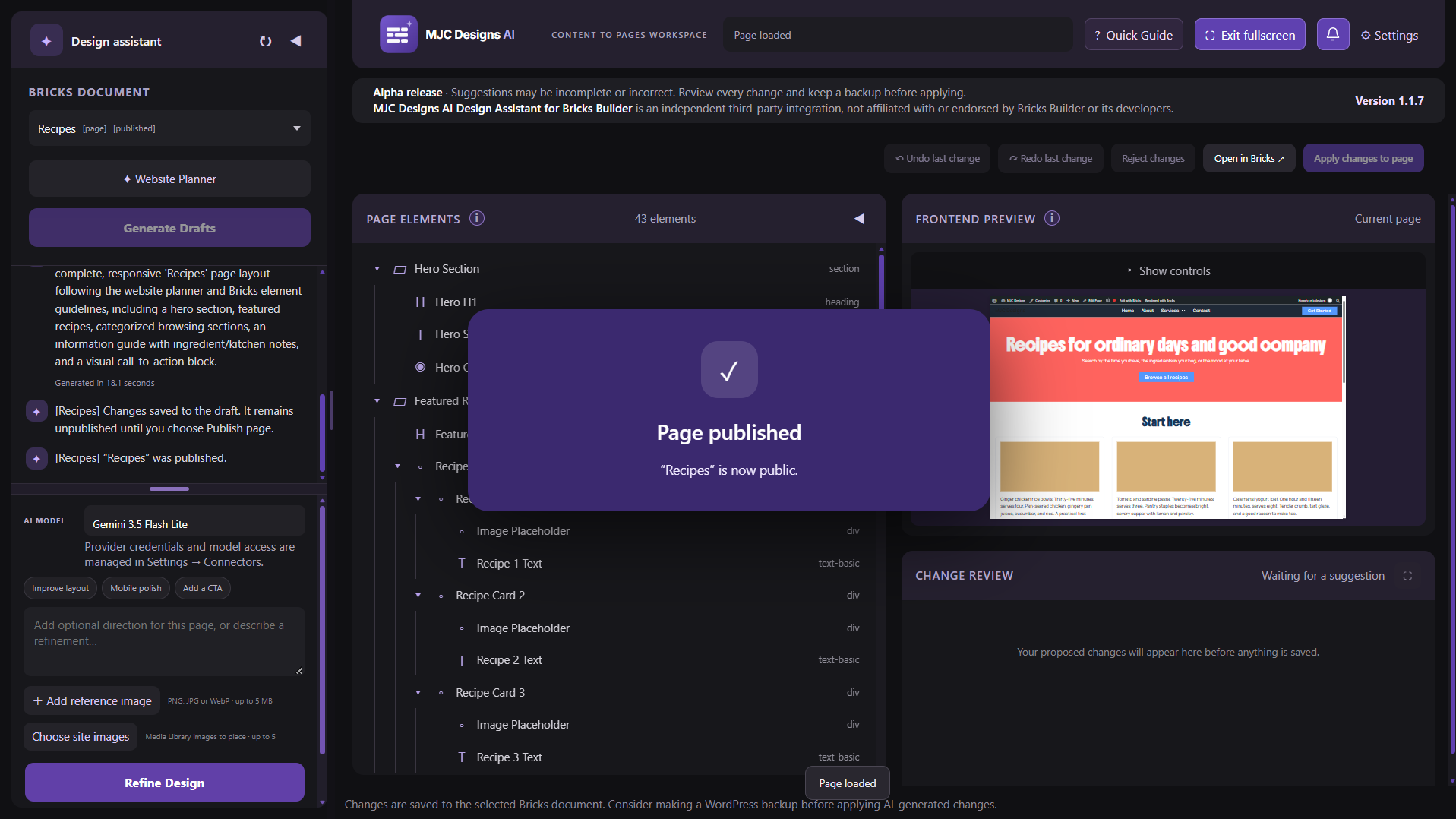
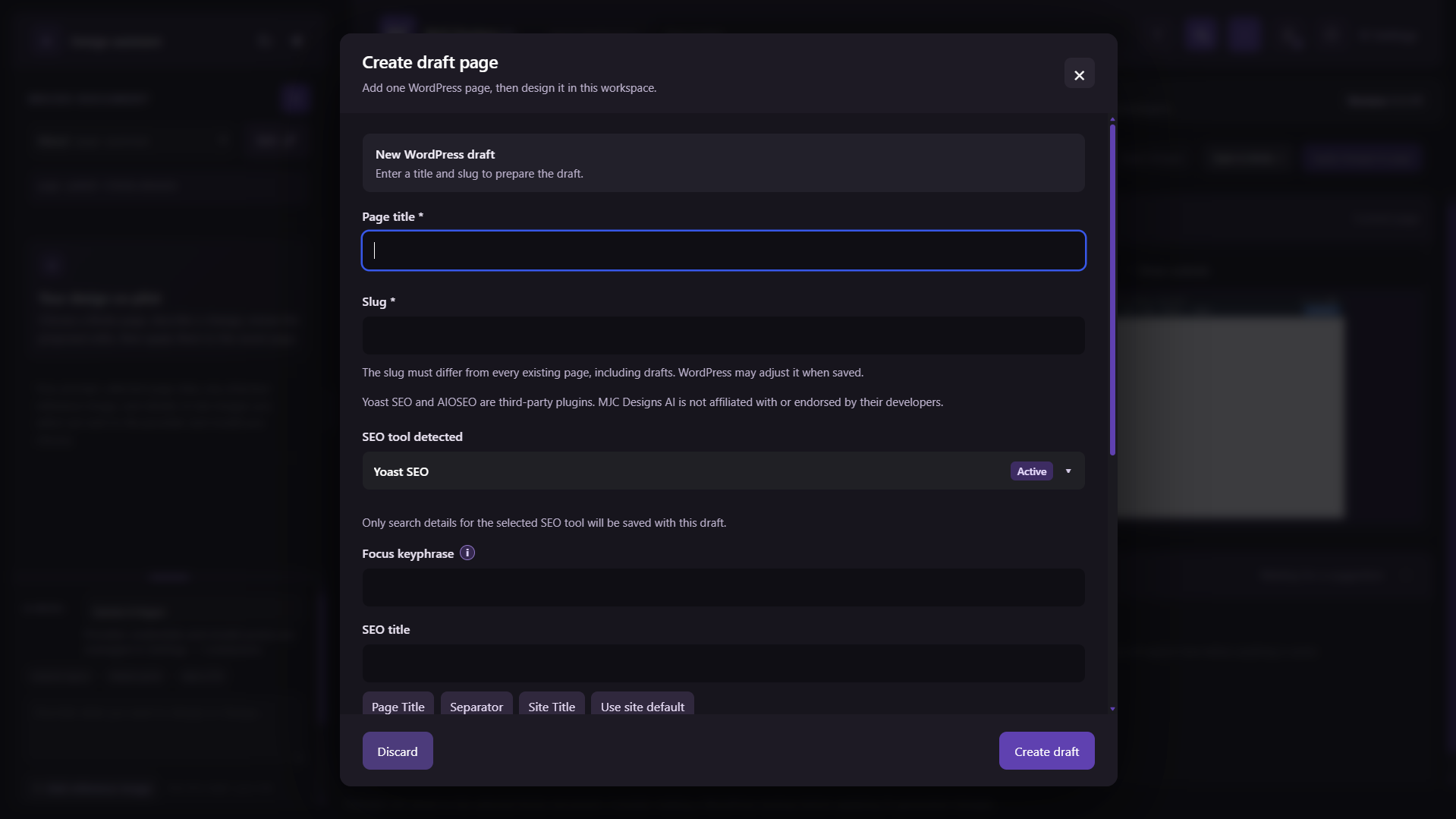
- Use the plus icon beside Bricks Document in Main Workspace or Content to Pages to create one ordinary WordPress draft page with a title, unique slug, and optional supported SEO details. The new draft is selected automatically. Unfinished form details stay in this browser tab, and a styled prompt appears before changing pages or leaving. The Main Workspace can apply reviewed designs to drafts and publish saved designs with a separate confirmation. Content to Pages still needs matching uploaded copy before generating a design.
- Select among compatible AI provider models configured through WordPress Connectors; the user’s model preference is saved to their account.
- Use compatible vision models with optional JPG, PNG, or WebP reference images up to 5 MB.
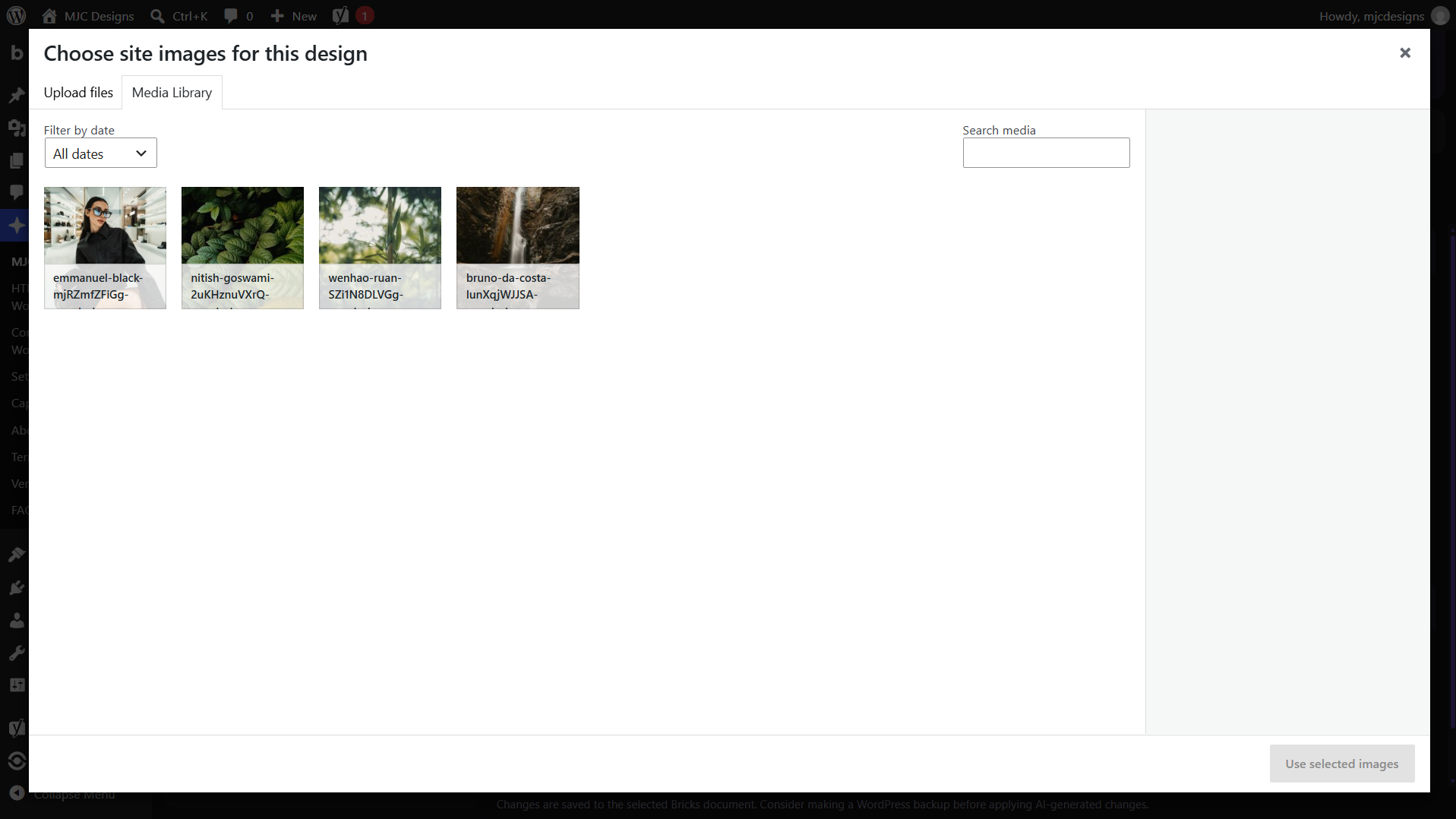
- Choose up to ten existing WordPress Media Library images for placement in proposed Bricks designs, or reserve image placeholder blocks when none are selected. Selected image titles, alternative text, dimensions, and IDs are sent to the chosen AI provider; image files are not sent by this feature.
- Read the selected page’s element tree and propose focused edits. Validate setting names and choices against the live Bricks control schema before preview or apply. For registered gradient controls, the angle is stored as a unitless numeric string from 0 to 360 (for example “90”, not “90deg”).
- Change only registered native Bricks controls. AI proposals cannot write code controls or Custom CSS.
- Choose one of five plugin interface color themes from the header in any workspace. The choice lasts only in the current browser tab and does not change Bricks page colors or Style Manager palettes.
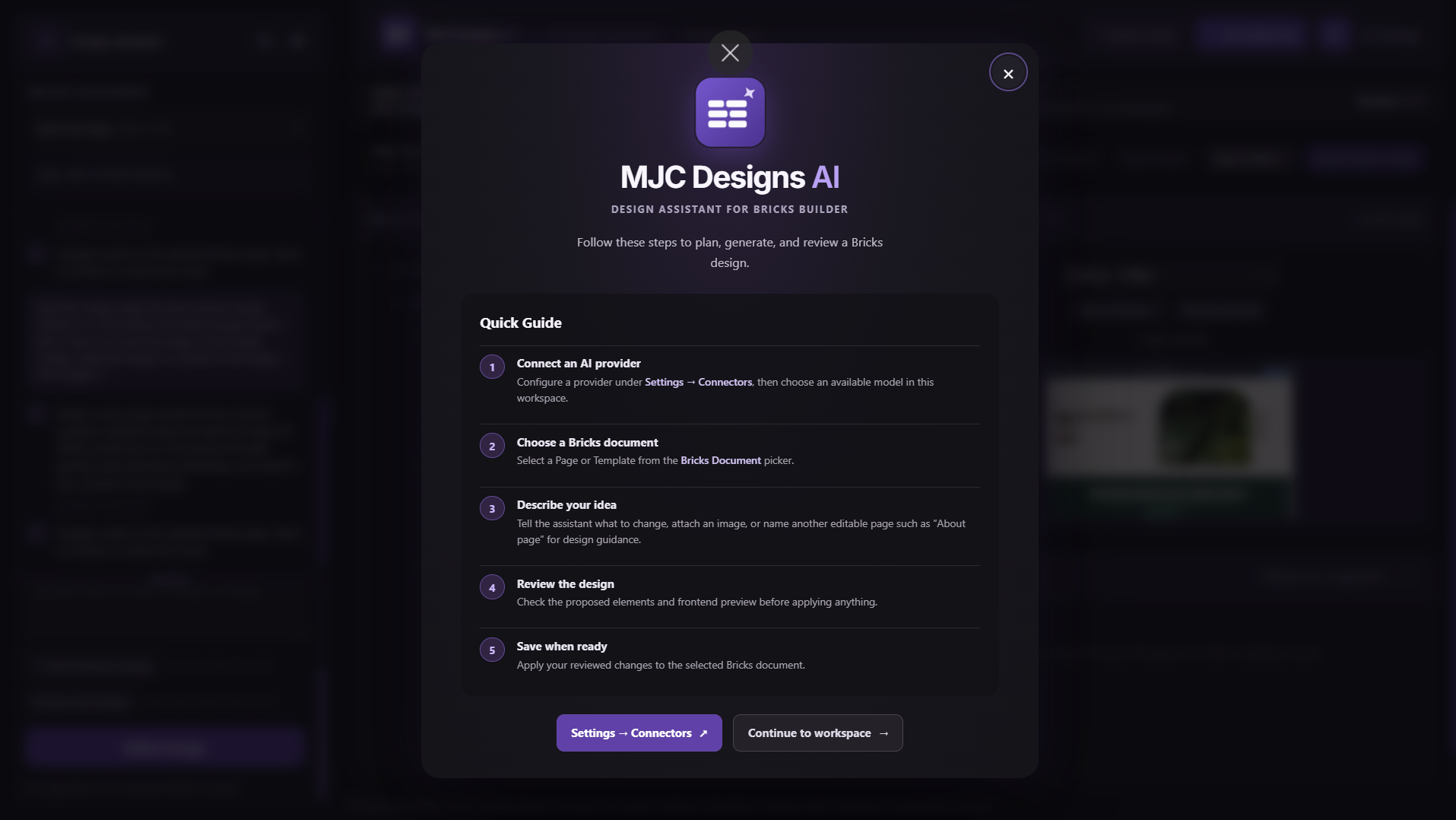
- Keep the Main Workspace conversation for each selected Bricks document in the current browser tab until it closes. Use the same Generate Design and Refine Design action styling across the three workspaces. Each workspace header has a Quick Guide button; the guide also appears automatically when no compatible provider is connected.
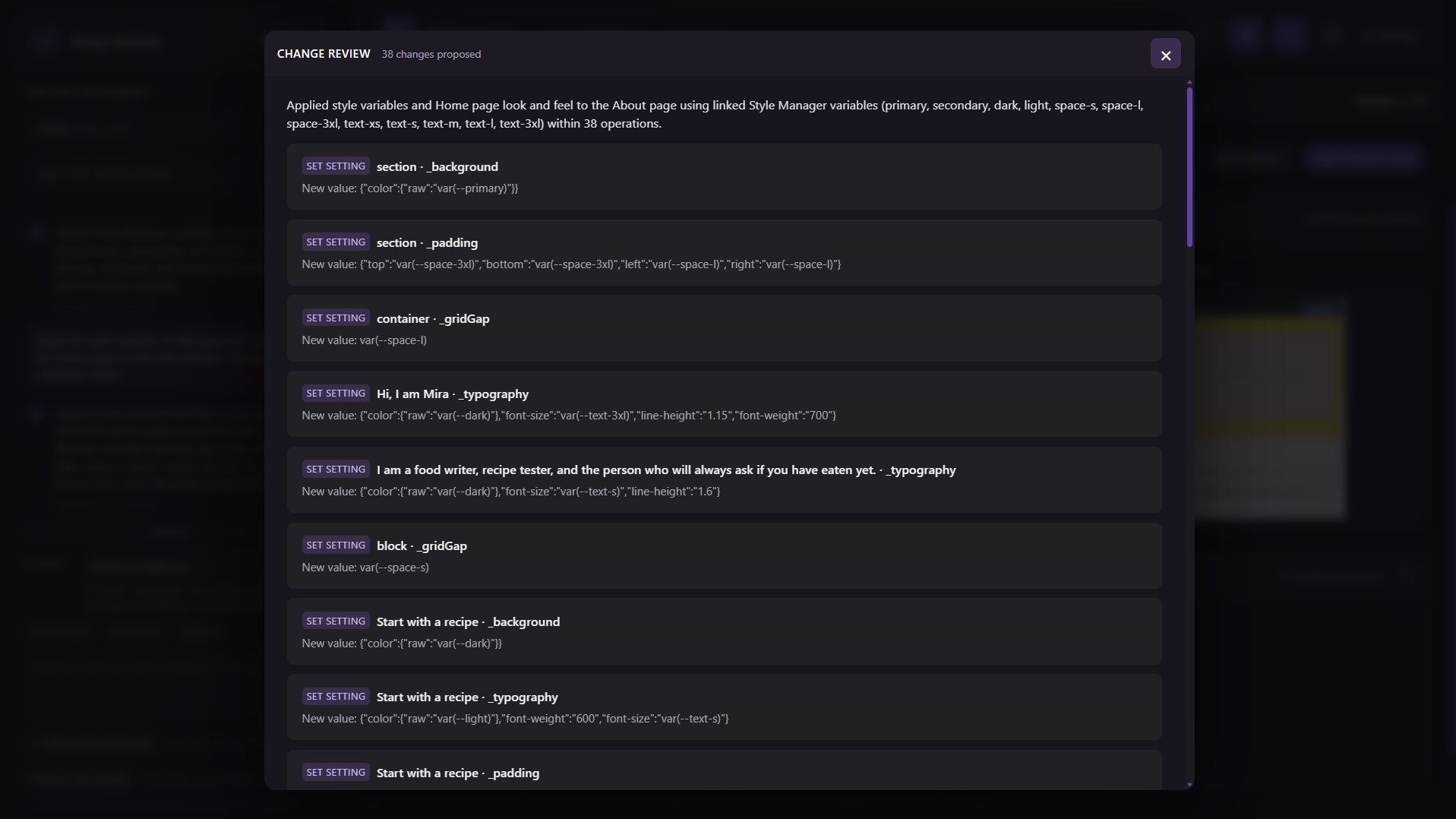
- Name one other editable page in a Main Workspace or Content to Pages prompt, such as “match this page to the About page”, to use a compact summary of its native Bricks layout and style settings as a reference. Only the selected page can receive proposed changes; its copy stays its own.
- When an unattended workspace finishes or fails a design request, mark its browser tab title with an unread count. Enable optional desktop alerts from the workspace header; they require browser permission and a secure connection. The tab must stay open until the request ends.
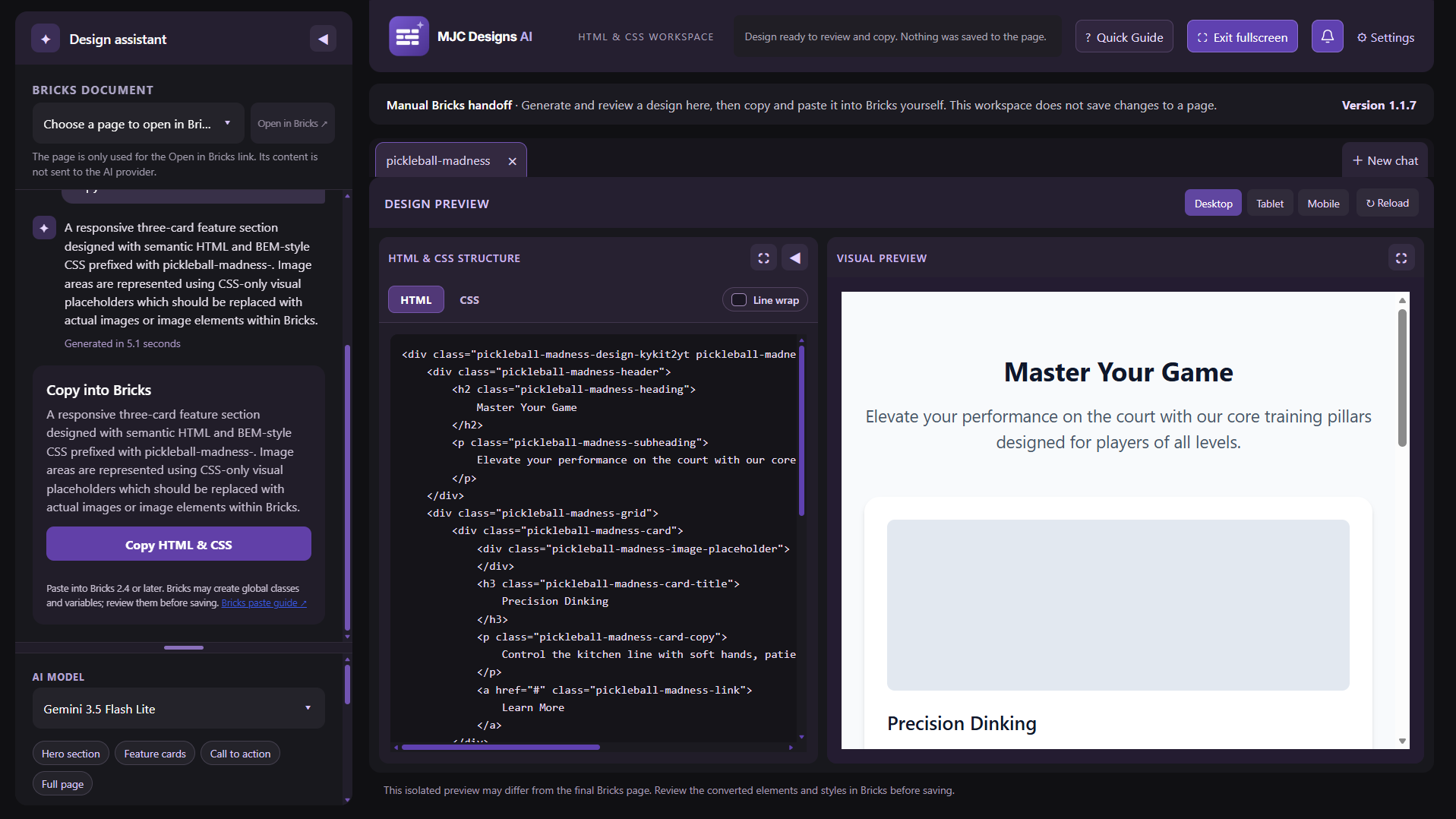
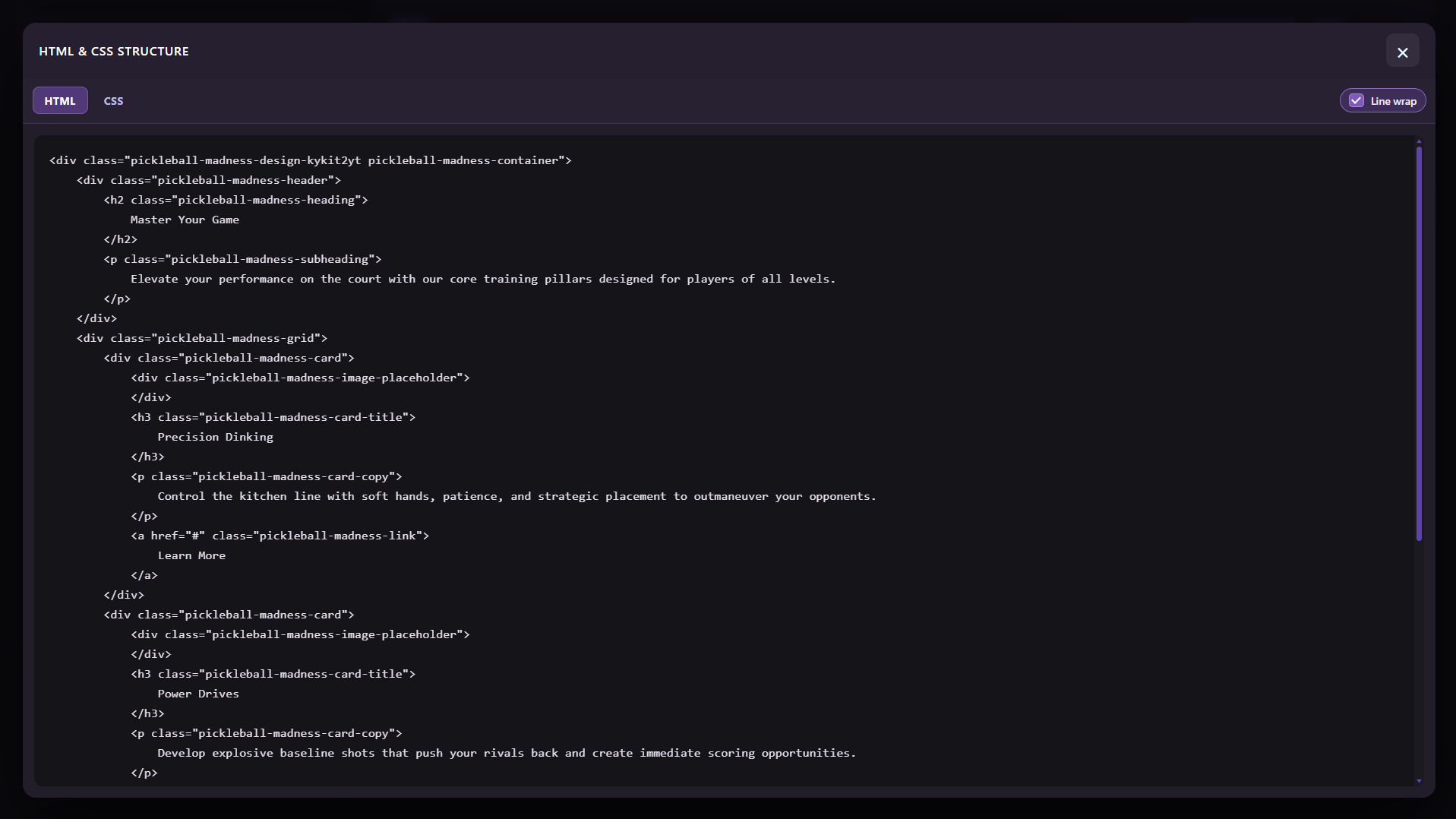
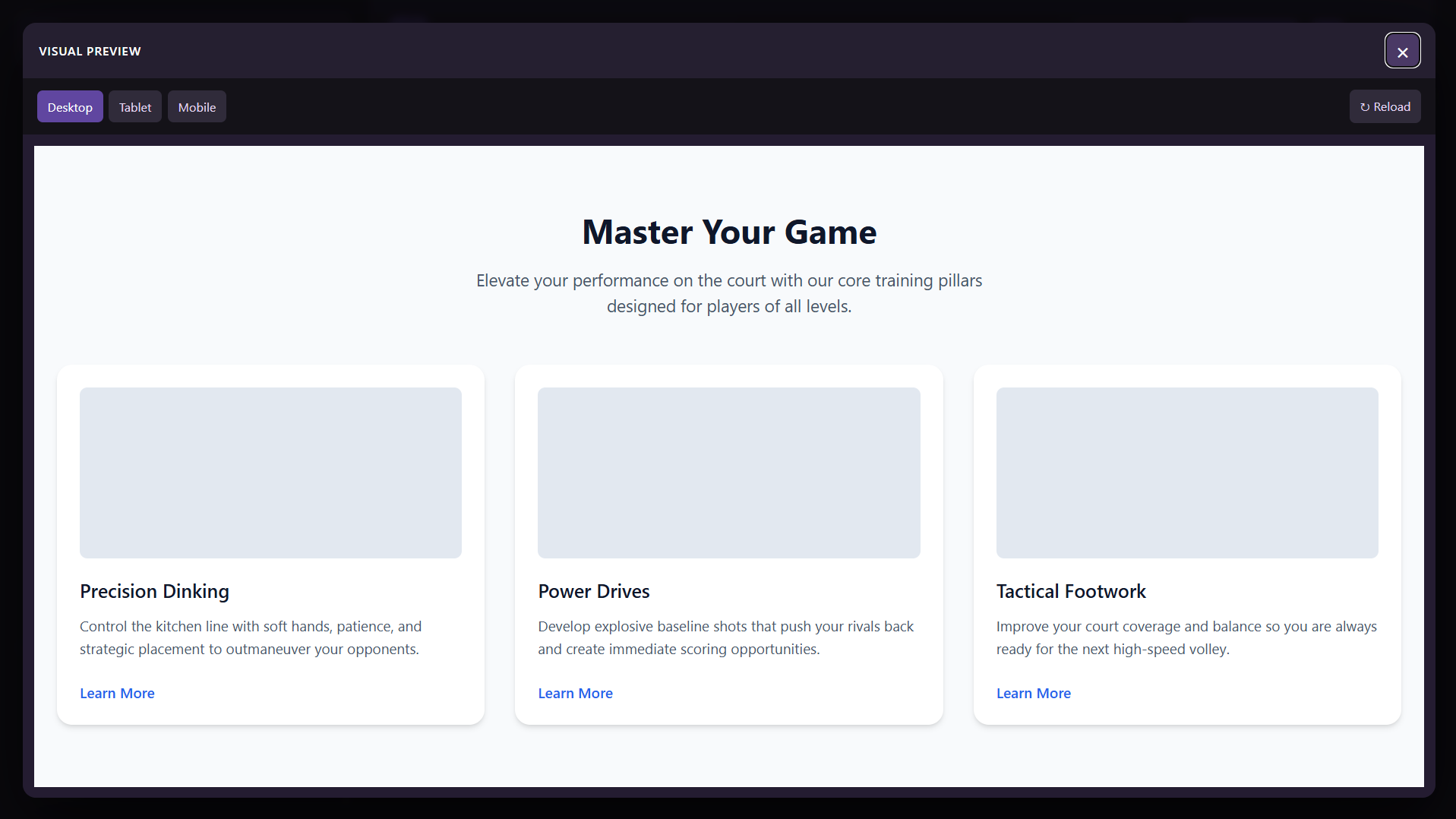
- Generate and refine static HTML and CSS drafts in up to five browser-session chats. Use code tabs, line wrapping, responsive previews, fullscreen controls, an adjustable conversation area, and a vertically resizable design request field. Copy drafts into Bricks manually; this workspace does not save a page or execute generated scripts.
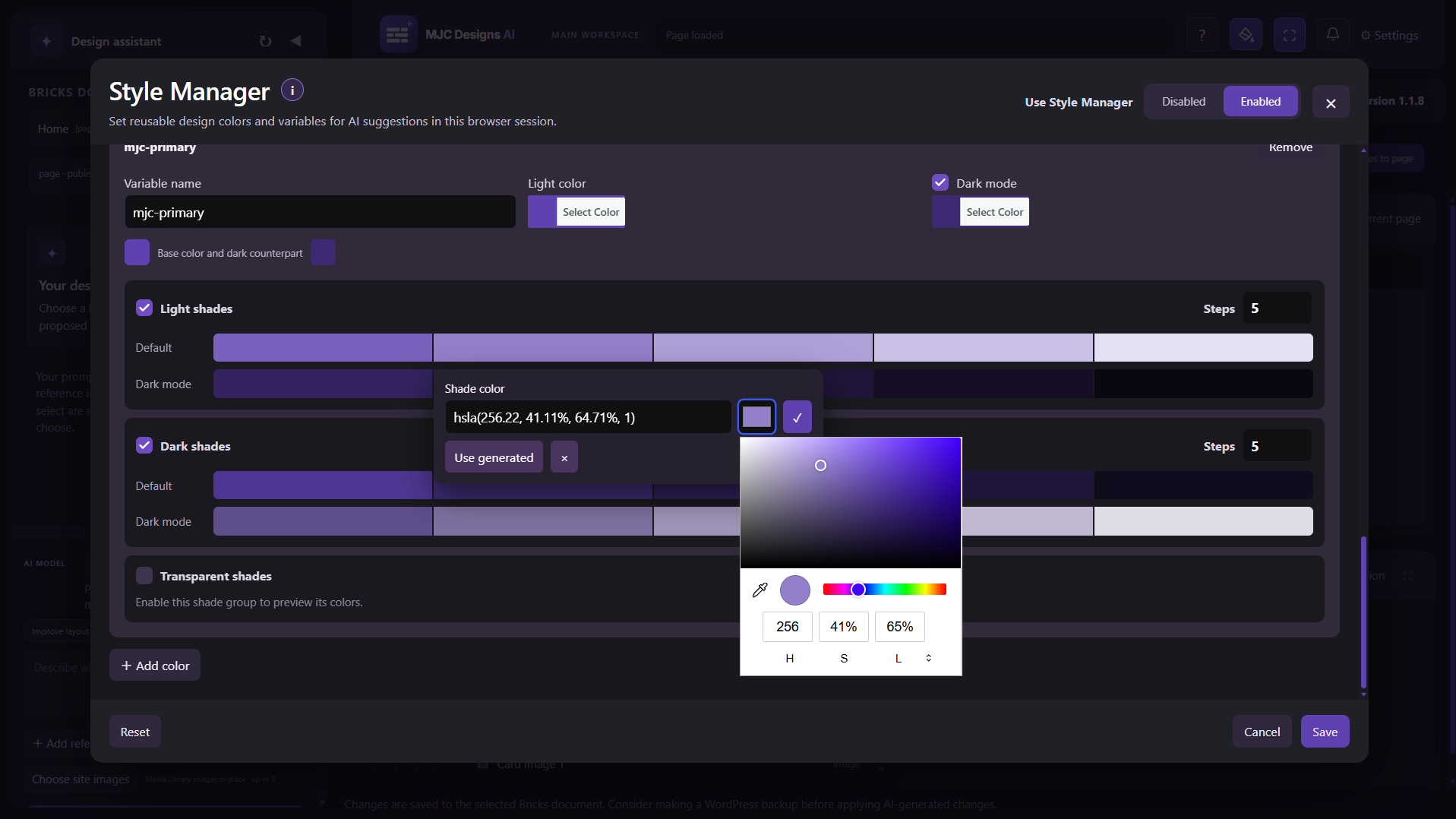
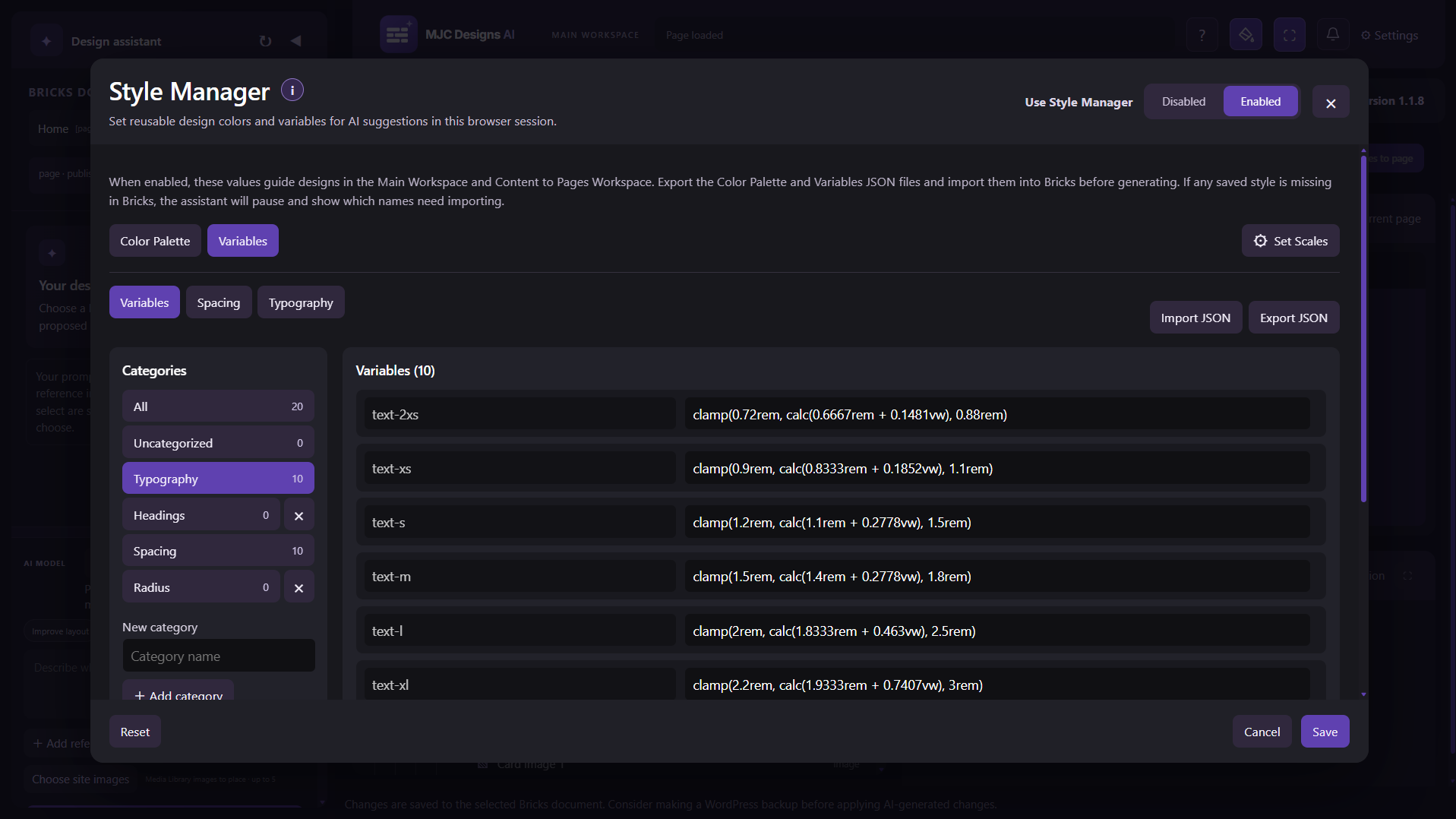
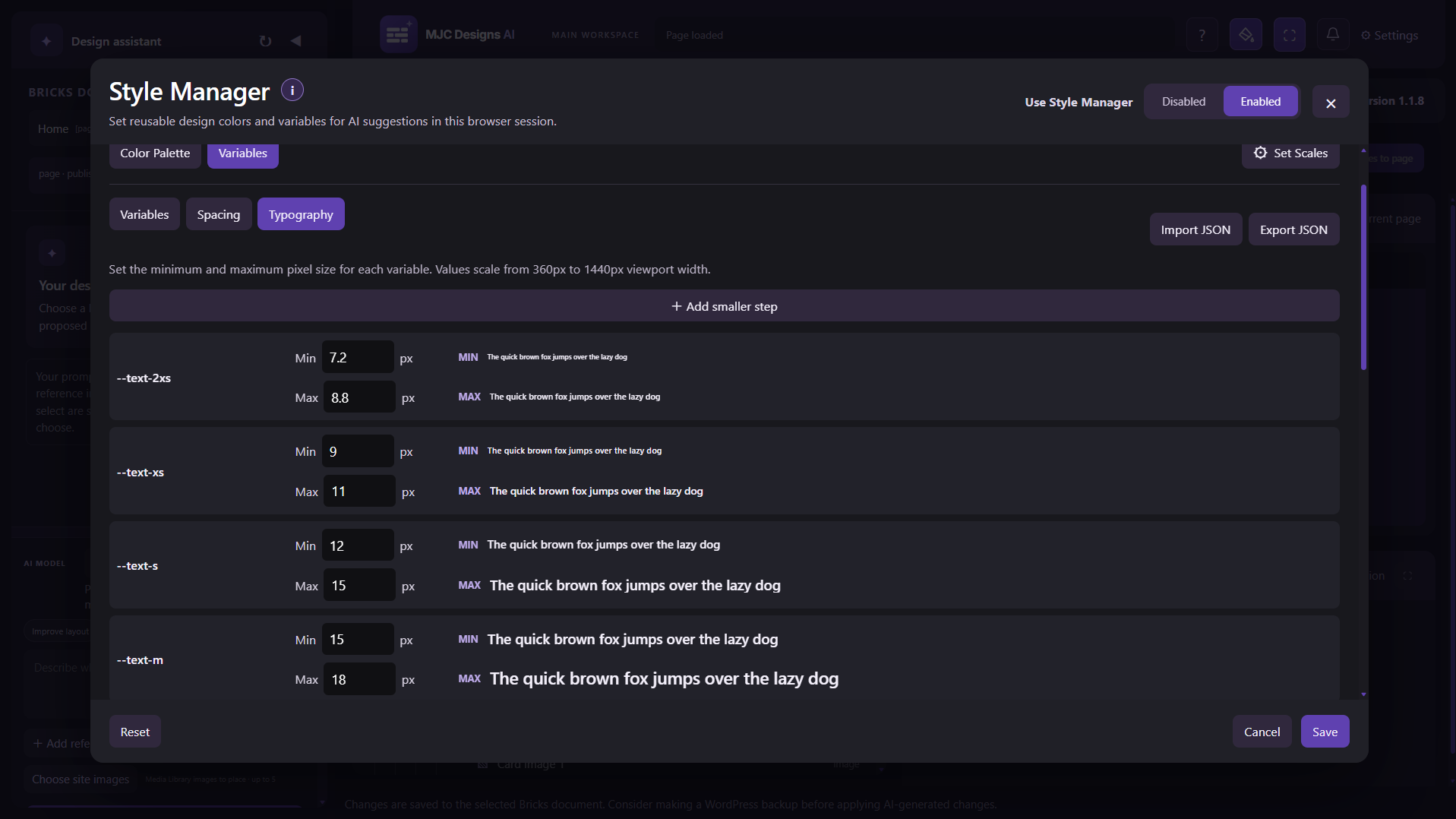
- Use optional Style Manager in the Main Workspace and Content to Pages Workspace to guide designs with shared colors, variables, and fluid scales for this browser tab. Import or export Bricks palette and variable JSON, then import the exported styles into Bricks before generating. The assistant checks that saved names exist in Bricks and pauses with an import reminder when they are missing. It uses compatible names in registered controls where suitable, while explicit fixed values and color directions take priority. Style Manager does not write global Bricks settings and does not apply to the HTML and CSS workspace.
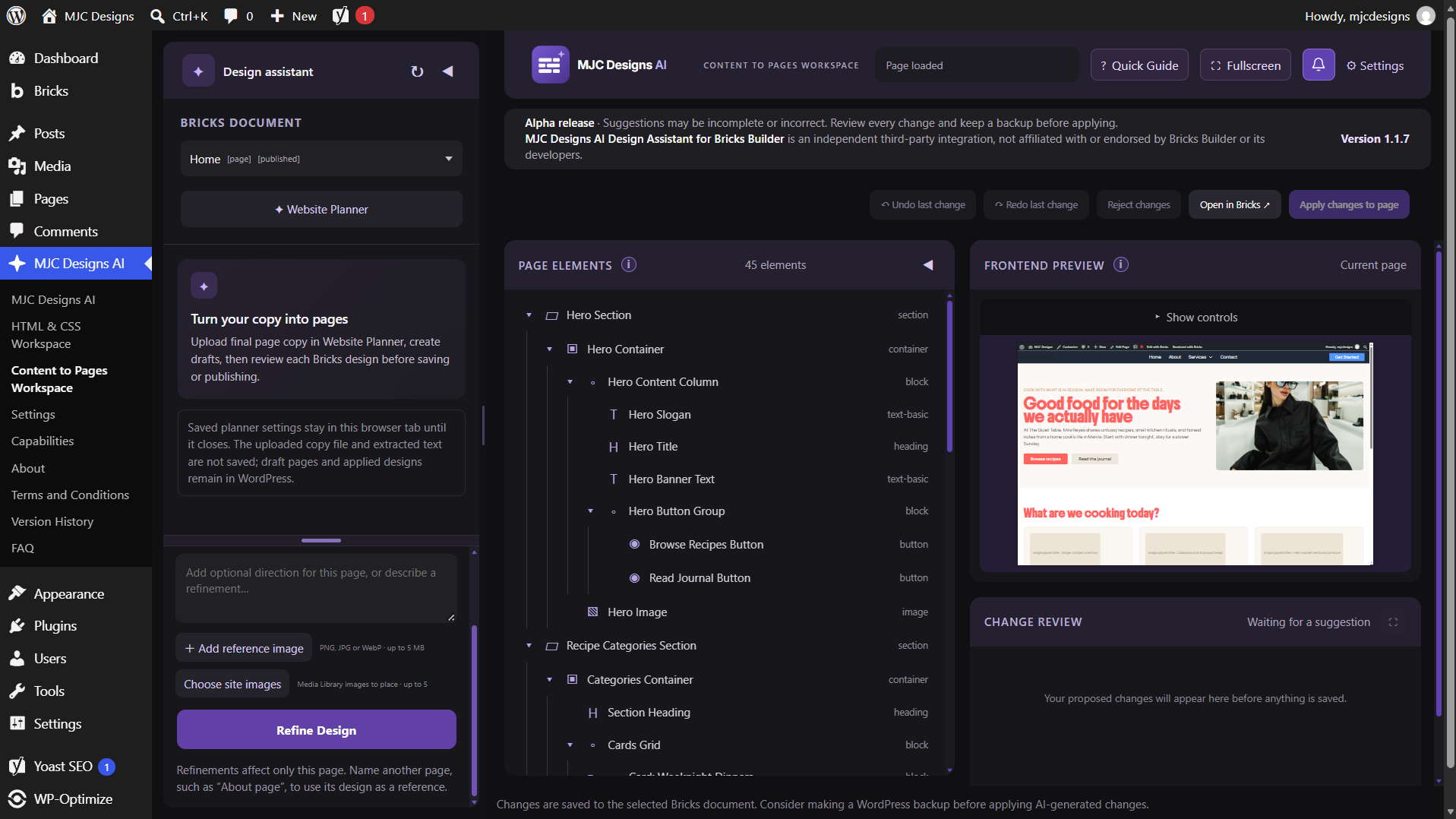
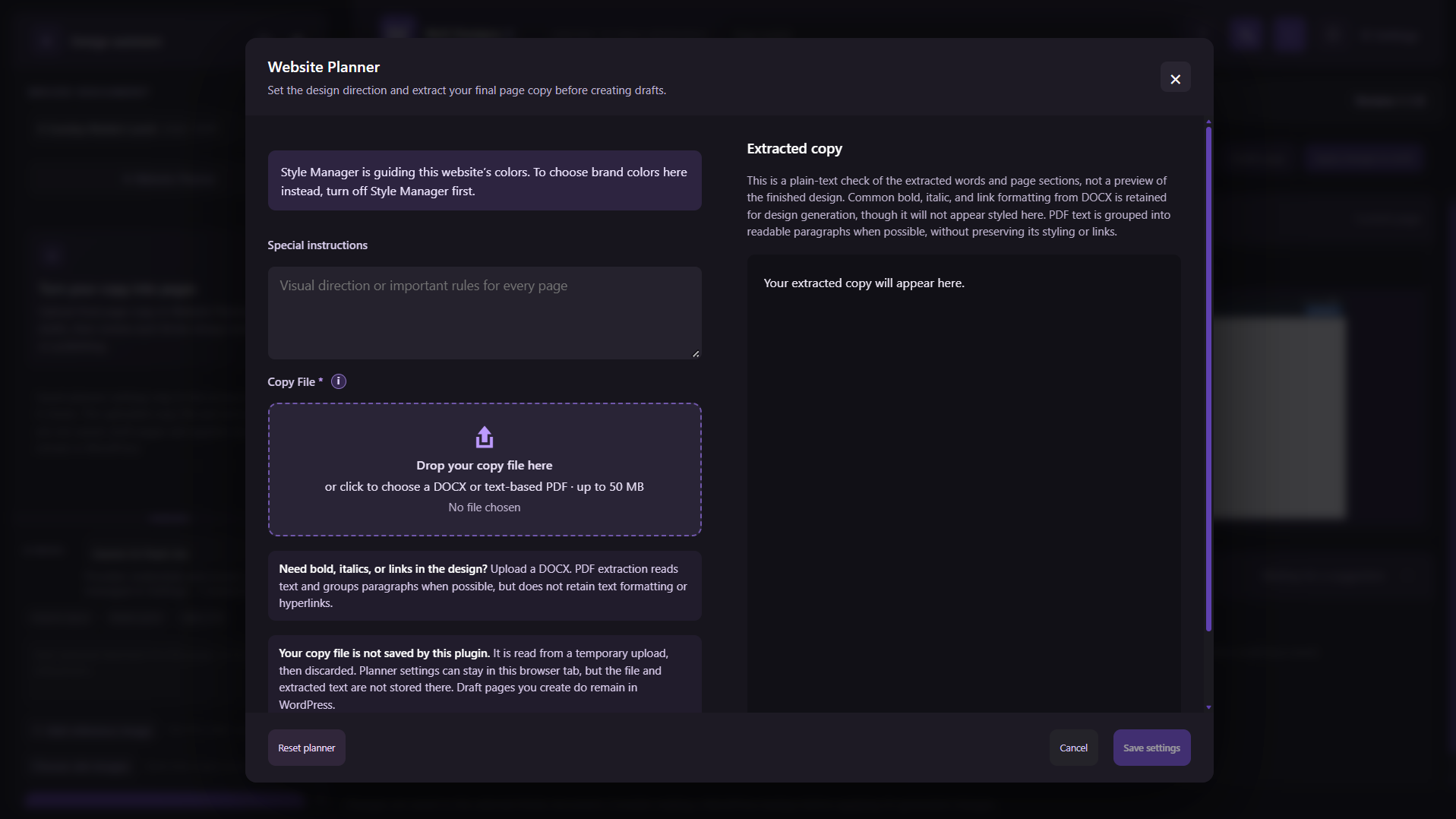
- Use Content to Pages to extract a DOCX or text-based PDF copy file up to 50 MB, set brand colors, create draft pages, and review a separate native Bricks design for each page. Use
Page: Title,HP - Home,CP - Contact, numbered markers such as2P - About, Word Heading 1, or a plain title followed by two labeled SEO fields to identify pages. DOCX extraction retains common bold, italic, and safe links for design proposals; the extracted-copy preview is plain text. PDF extraction groups readable text where possible but does not preserve styling or links; image-only scans and unsupported encodings may require another export. The planner can skip existing page titles after confirmation, use up to ten selected Media Library images, or reserve labeled image placeholders. The site’s PHP upload limit may be lower than 50 MB. - When returning to Content to Pages in the same browser tab, choose whether to continue any saved planner settings, chat, or enabled Style Manager settings, or start a new session. Starting new clears those browser-session settings, including Style Manager, but leaves WordPress pages unchanged. Re-upload the copy file to continue, because the plugin does not save the file or extracted text. Generate Drafts appears after planner settings are saved and stays unavailable until copy is extracted.
- Refine a selected section or the overall Content to Pages layout through a reviewed Bricks proposal. The AI can regroup native elements while preserving the planner rules and final page copy.
- Select an editable page or existing Bricks template in Content to Pages. Page drafts remain drafts after design changes, and publishing a page requires a separate confirmation and permission. Templates use the user’s prompt and saved planner settings when available; naming an existing page in the prompt can supply its Bricks layout and matching uploaded copy as reference without editing that page. Use Page SEO to review and apply supported Yoast SEO or AIOSEO page details; the editor does not change Bricks templates or template conditions. Saved colors and instructions stay in the current browser tab until it closes. The plugin does not save uploaded copy files or extracted text as a WordPress project or in browser session storage; re-upload the copy after leaving or reloading the workspace.
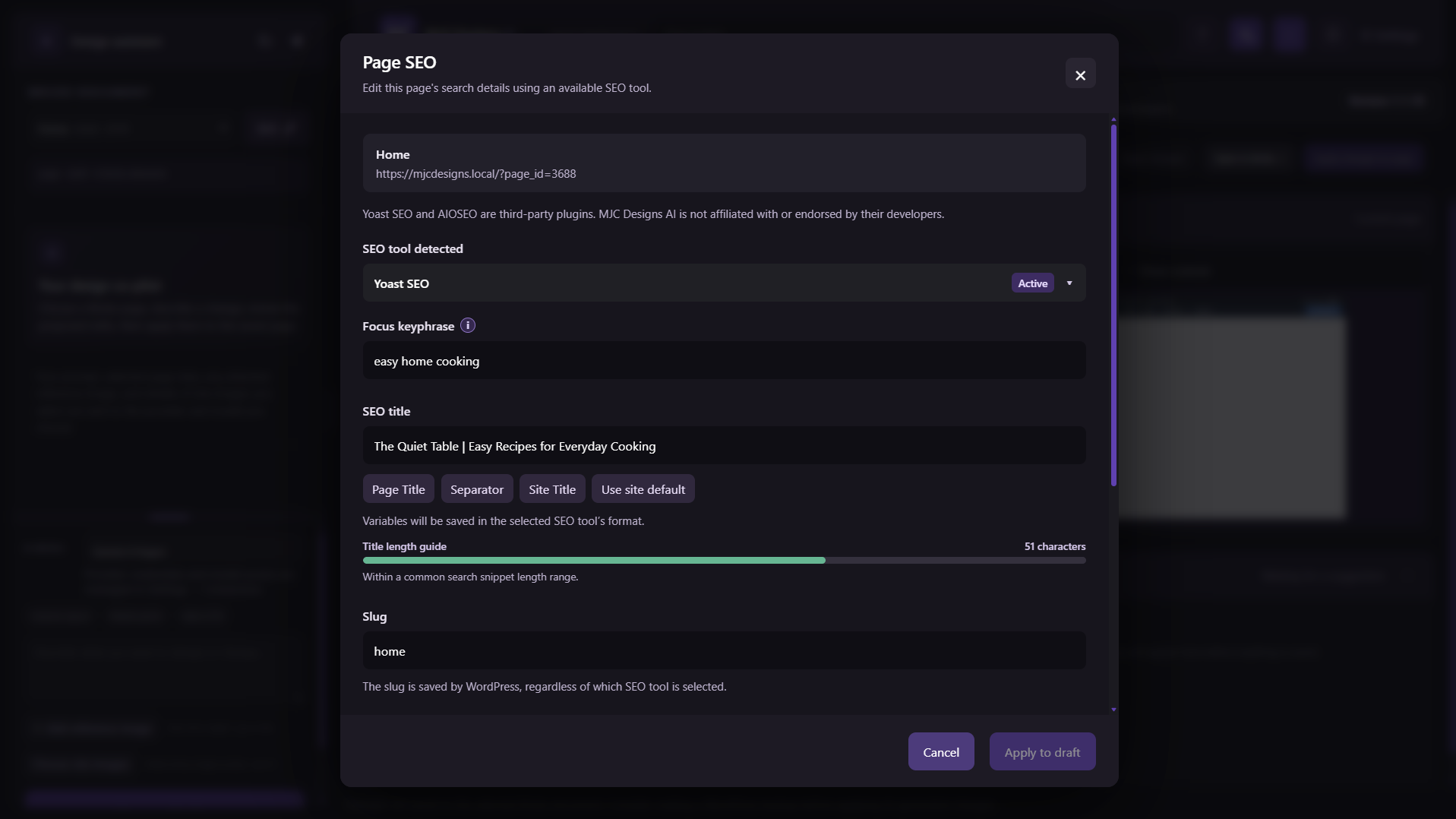
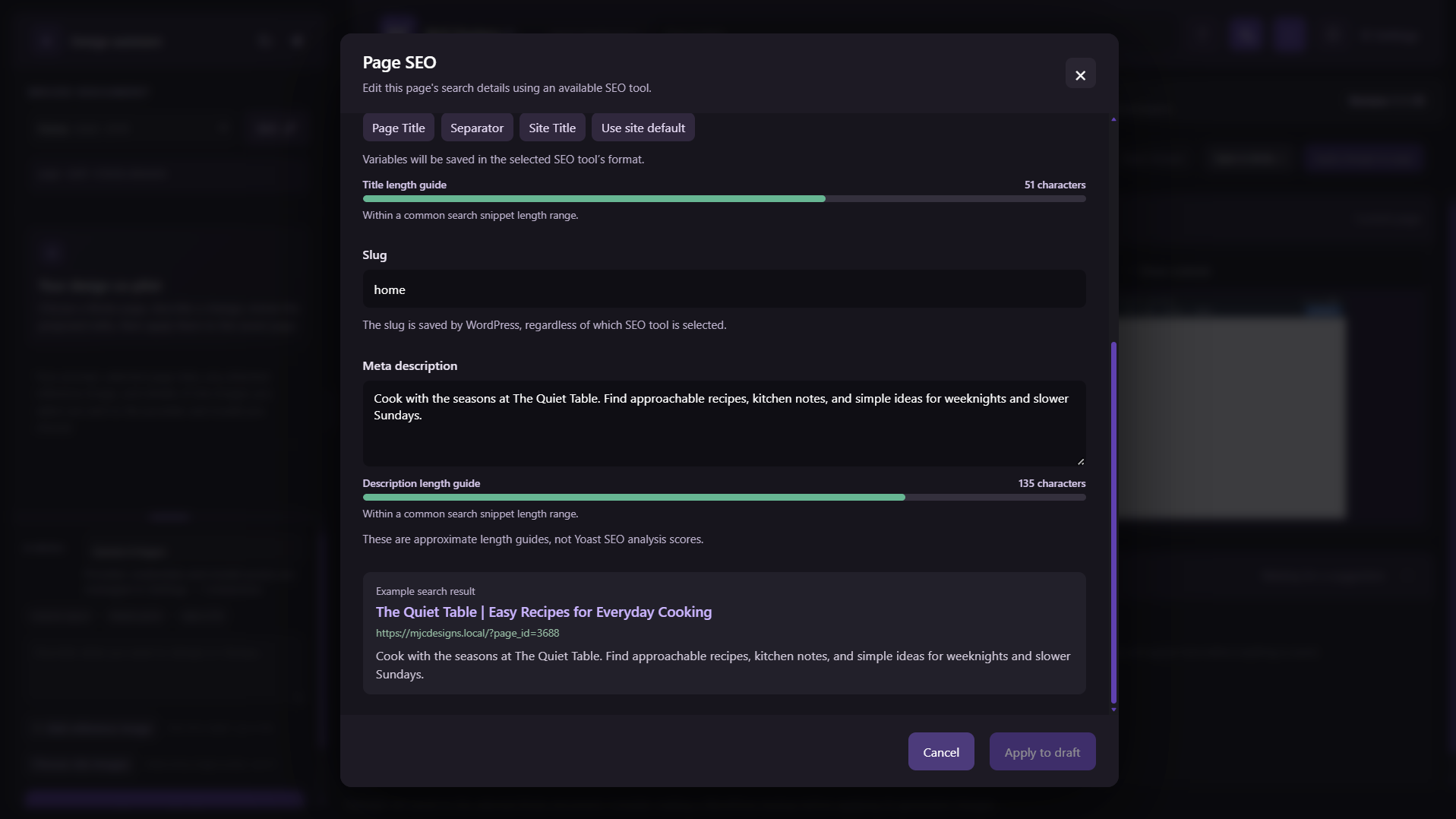
- Use Page SEO on selected WordPress pages in Main Workspace or Content to Pages to review supported Yoast SEO or AIOSEO fields and the WordPress slug. Closing with X or Escape keeps unsaved inputs. Cancel discards them and restores the saved page values. The editor asks before switching pages or leaving. It displays fields supported by the active tool and account, with a preview whose length bars are estimates. Changing a published slug requires confirmation and may need a redirect. Content to Pages can suggest labeled SEO details from uploaded copy and save them to one active supported SEO tool on a newly generated draft; later edits require Apply. Page SEO warns when both SEO tools are active. If you can delete the selected page, Move to Trash asks for confirmation and shows a loading panel before refreshing the workspace. WordPress Trash must be enabled; the page can be restored until Trash is emptied. This action is unavailable for Bricks templates and the HTML and CSS workspace.
- Page SEO rejects a changed slug already used by another saved page, including a draft. Content to Pages can still generate drafts with imported slugs; Publish page in either workspace blocks a duplicate and opens a styled prompt to edit the slug before publishing.
- Add registered Bricks elements, including supported nested elements; move and remove elements while preserving IDs and child data.
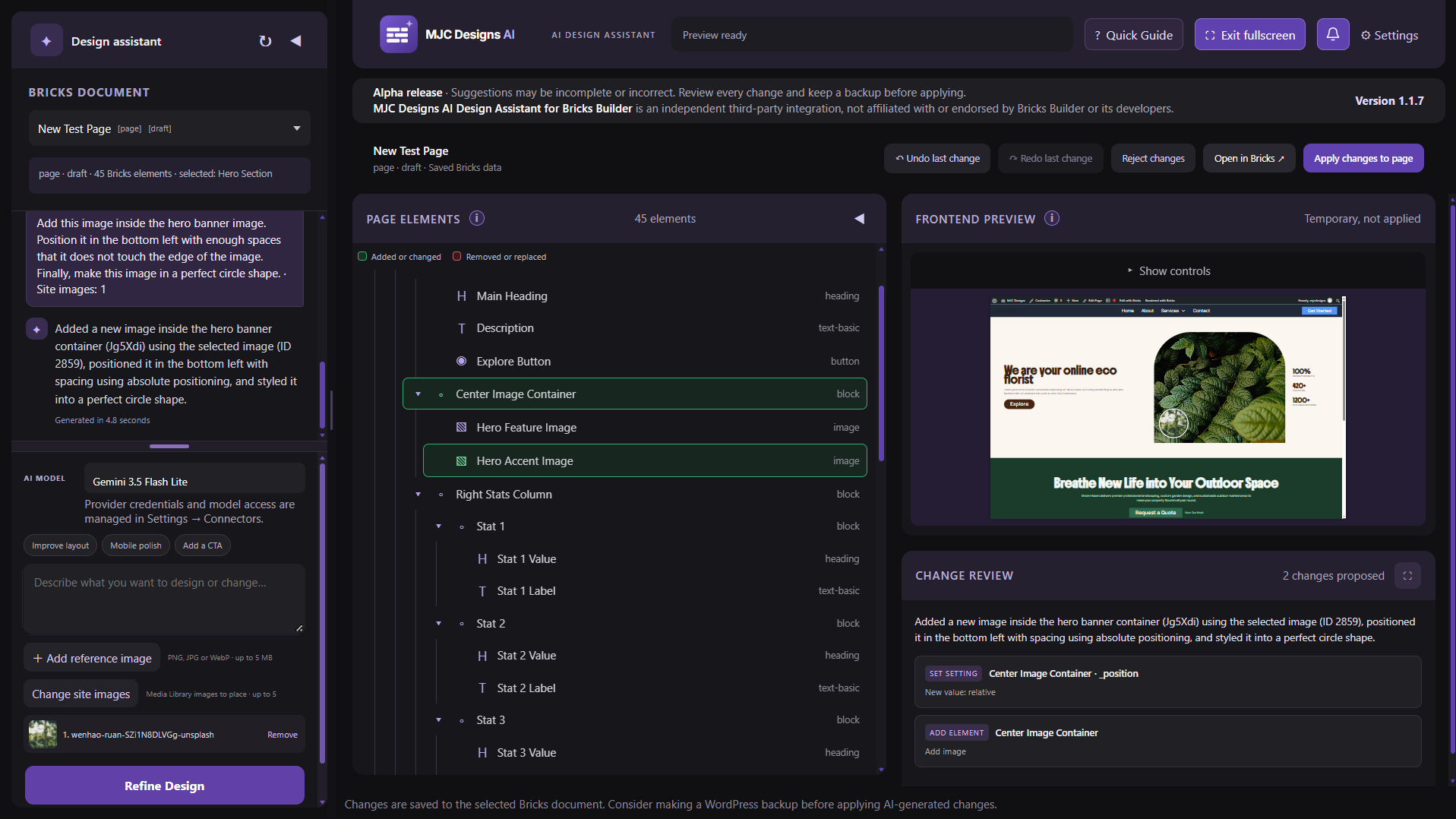
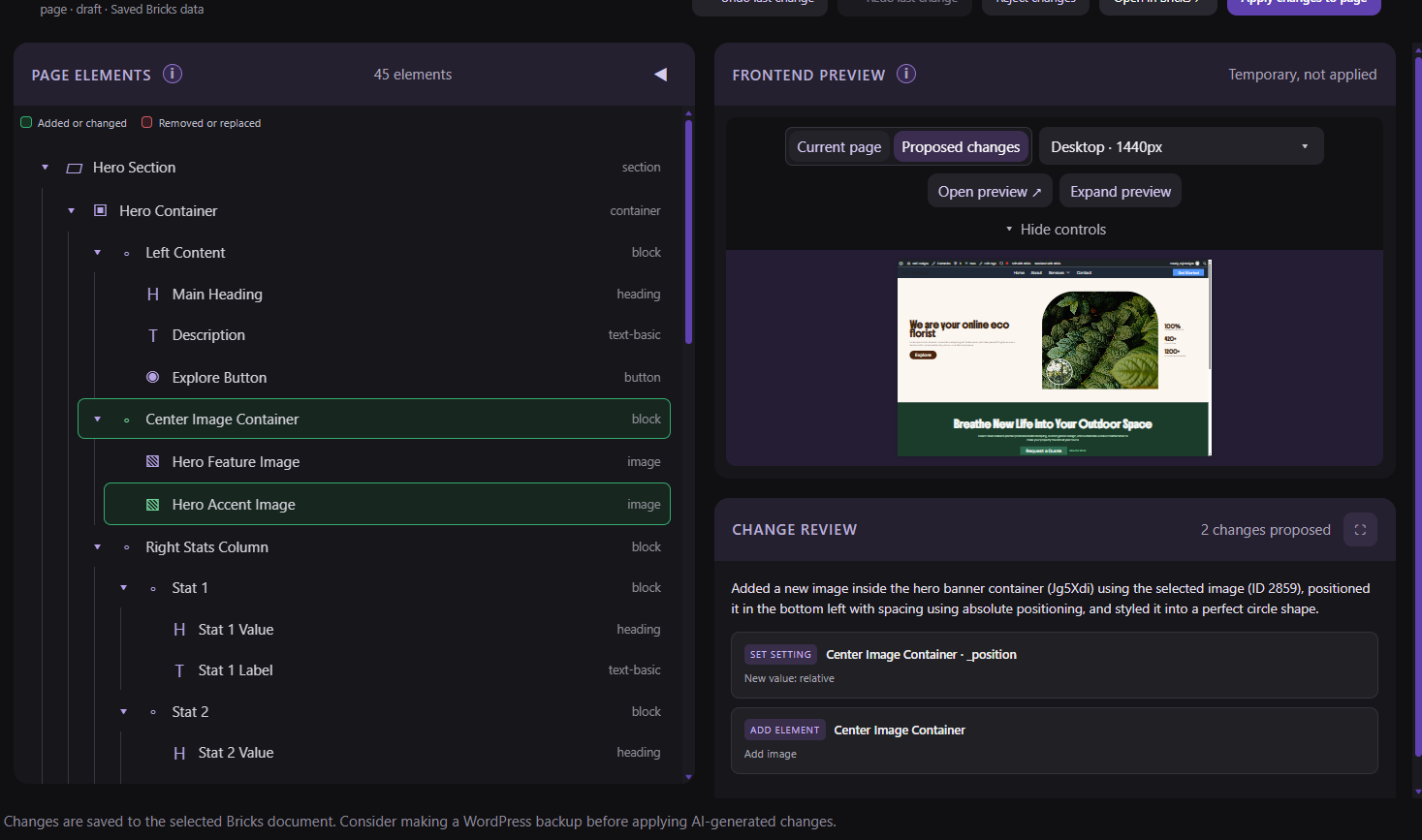
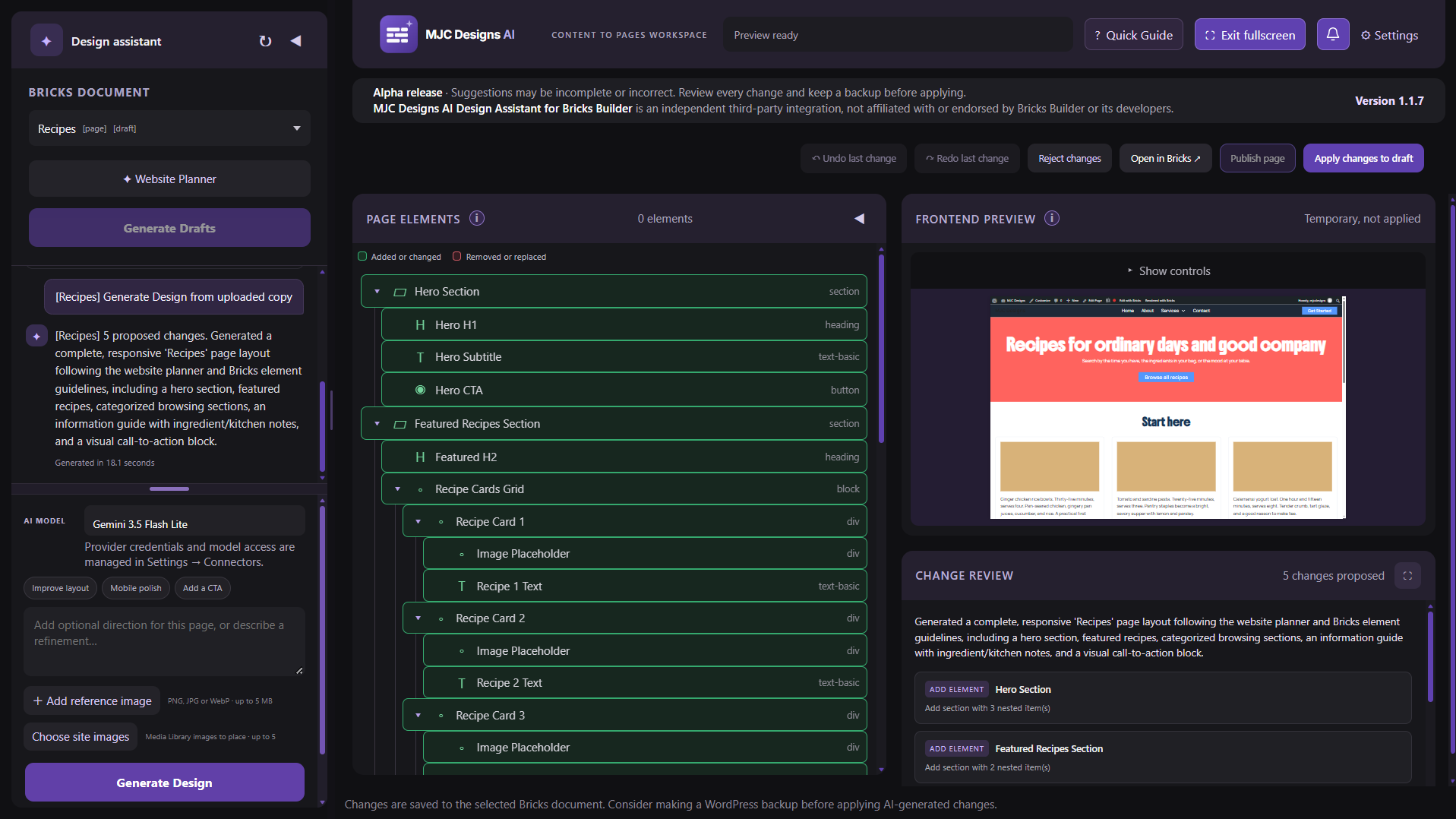
- Review temporary frontend previews at the site’s Bricks breakpoints, expand the preview, or open it in a new tab before applying.
- Expand Change Review in the Main Workspace and Content to Pages Workspace when a proposal contains edits, to inspect them in a larger dialog before applying.
- Open the selected page in Bricks Builder and undo the most recent assistant change.
- Provide About, Settings, Capabilities, FAQ, Version History, terms, and privacy guidance in WordPress admin.
Provider access, costs, quotas, and data handling vary; administrators should review current terms. Bricks validates final data and permissions. Some responsive-only changes may not create a native Bricks revision; use the assistant’s Undo action to reverse them.
Source Code
The plugin ships human-readable PHP, JavaScript, and CSS source. Its PHP entry point is mjcdesigns-ai-design-assistant-bricks.php. The PHP code is grouped under includes/admin/ for admin pages and workspace loading, includes/design/ for Bricks proposals and Style Manager, includes/content/ for Content to Pages, includes/pages/ for page creation and SEO, and includes/structure/ for the HTML and CSS workspace.
JavaScript and CSS are loaded directly without a build step. The native Bricks workspaces use assets/js/app.js, assets/css/admin.css, assets/js/admin-notices.js, assets/js/tab-notifications.js, assets/js/style-manager.js, and assets/css/style-manager.css. The HTML and CSS workspace uses assets/js/structure-workspace.js and assets/css/structure-workspace.css. Content to Pages uses assets/css/content-workspace.css. The Page SEO editor uses assets/js/seo-editor.js and assets/css/seo-editor.css. Single draft creation uses assets/js/new-page.js and assets/css/new-page.css. Interface themes use assets/js/theme-presets.js and assets/css/theme-presets.css. Branding images are in assets/images/. Interface images and code are packaged locally, not loaded from a remote asset host. Browser alerts use built-in browser APIs without an external notification service or library.
Privacy
The Main Workspace sends the prompt, selected Bricks document content, optional reference image, and selected Media Library image metadata (IDs, titles, alternative text, and dimensions) through the WordPress AI Client to the chosen provider. Content to Pages can send the same metadata for images you select, along with the selected page’s extracted copy, brand colors, special instructions, prompt, and current Bricks document elements. When Style Manager is enabled, its colors, variables, scale settings, variable roles, and matching names found in Bricks global settings are sent with Main Workspace and Content to Pages Workspace design requests. When you name another editable page as a design reference, a bounded summary of its native Bricks layout and visual settings is also sent. When you name an existing page as a template reference, its Bricks elements and matching uploaded copy may also be sent to the selected provider. Selected Media Library image files are not sent. The HTML and CSS workspace sends the prompt and optional reference image; refinements also send the current HTML and CSS. When a public website URL is included in a design prompt or Website Planner instructions, the WordPress server requests that URL and up to two same-host stylesheets without running JavaScript. The URL and a compact extracted design summary are sent to the selected AI provider with the design request. The referenced website may receive the request from the WordPress server. Provider terms govern data handling and costs; review them before submitting sensitive information.
The plugin does not save chats to WordPress, store reference image files in browser session storage, upload them to the Media Library, or send telemetry to its author. The selected plugin interface theme is stored only in the current tab’s session storage. It is cleared when the tab closes and is not sent to an AI provider or saved in WordPress. Main Workspace chats are stored per selected Bricks document; HTML and CSS chats and Content to Pages chat messages also remain in the current tab’s session storage until the tab is closed. Content to Pages keeps saved brand colors and special instructions in this tab’s session storage. Unfinished title, slug, and optional SEO details in the single draft page form also stay in this tab session until the draft is created or the form is discarded; the form does not send them to an AI provider. Enabled Style Manager colors, variables, and scale settings are shared by the Main Workspace and Content to Pages Workspace in the same tab and are cleared when disabled or when a new Content to Pages session starts. Unfinished Style Manager edits are also kept in this tab so they can be restored after closing the modal or changing pages. Only saved, enabled settings are sent with design requests; discarding the edits or ending the tab session clears the unfinished draft. They are not written to Bricks global settings. The plugin reads an uploaded copy file from PHP’s temporary upload; it does not save that file or extracted text to WordPress, the Media Library, or browser session storage. Draft pages made from the copy, their explicitly labeled SEO details when one supported SEO tool is active, and applied designs do remain in WordPress. Private temporary previews are removed when replaced, when leaving the workspace, or after one hour. Site backups and logs follow the site’s policies. Administrators configure providers under Settings > Connectors and should review the suggested privacy text in Settings > Privacy.
An unread count in the workspace tab title appears only when a design request ends while the tab is unattended. Optional desktop alerts require a click on the Alerts button and browser permission. The on/off choice is kept only in that tab’s session storage. Alert text is generic and includes no prompt, copy, page title, or image. The plugin sends no notification data to an outside service.
Installation
- In WordPress, go to Plugins > Add New Plugin > Upload Plugin.
- Upload and activate the MJC Designs AI Design Assistant for Bricks Builder ZIP file.
- Install and configure a compatible AI provider under WordPress Settings > Connectors. Provider setup and credentials are managed by the site administrator.
- In Bricks > AI > Abilities, enable
get-page-elements,set-page-elements, andget-element-schema. - Open MJC Designs AI, choose a configured provider model, select a page or Bricks template, enter a design request, review the preview and proposed edits, then apply them when ready.
FAQ
Does the assistant edit blog posts?
No. It edits eligible pages and Bricks templates. It can configure supported Query Loops that display posts, but it does not edit posts.
How do I connect an AI provider?
An administrator configures a compatible provider under Settings > Connectors. Users choose from its compatible models. This plugin does not store provider credentials.
Does using a provider cost money?
Costs, free tiers, and quotas depend on the provider and model. Check the provider’s current terms before use.
What information is sent to the provider?
The Main Workspace sends the prompt, selected Bricks document content, optional reference image, and metadata for selected Media Library images. When Style Manager is enabled, its colors, variables, scale settings, variable roles, and matching names found in Bricks global settings are also sent with Main Workspace and Content to Pages Workspace design requests. The HTML and CSS workspace sends the prompt and optional image; refinements also send the current draft. Selected Media Library image files are not sent. See Privacy below for storage and retention details.
Can I change the plugin color theme?
Yes. Select the color drop button between Fullscreen and Alerts in any workspace. Choose Classic Purple, Ocean Blue, Forest Green, Strawberry Milk, or Saffron Yellow. The theme follows plugin screens and reloads in the current browser tab, then resets when the tab closes. Panel backgrounds, FAQ accordions, and modal surfaces follow the preset. It does not affect Bricks designs or Style Manager colors.
Can I reference a website by URL?
Yes. Paste one public HTTP or HTTPS page URL in the design prompt or Website Planner special instructions. WordPress retrieves the page’s static HTML and, when available, up to two same-host stylesheets using its safe HTTP API; it does not run JavaScript. A compact summary of the page title, description, heading hierarchy, layout landmarks, and CSS design tokens is sent to the selected AI provider as untrusted visual guidance. The assistant does not copy the reference site’s text, code, or assets. Main and Content to Pages use registered Bricks elements and controls only. HTML and CSS produces static code within its existing safety rules. Dynamic sites may provide limited reference details; attach a screenshot when you need stronger visual guidance.
Can I use images from the Media Library?
Yes. Choose up to ten existing images and describe where to place them. The assistant uses suitable selected images first and can make labeled native Bricks placeholders for image slots without an available image. The provider receives selected image titles, alternative text, dimensions, and IDs, but not the image files. Review the proposed placement before applying.
Can I create a page directly from a workspace?
Yes. Use the plus icon beside Bricks Document in Main Workspace or Content to Pages. Enter a page title and unique slug, then choose Create draft. The workspace loads the new draft. You can add a reviewed Bricks design, apply it to the draft, and use Publish page when your account has permission. Optional SEO details are saved through the supported SEO tool selected in the form. Unfinished form details stay in this browser tab; the plugin asks you to discard them or keep editing before switching pages or leaving. Resolve unfinished Page SEO edits before creating a new page.
Can I move a page to Trash from the workspace?
Yes. In Main Workspace or Content to Pages, select a WordPress page, open Page SEO, then choose Move to Trash on the left side of the footer. The button appears only when your account can delete that page and WordPress Trash is enabled. The confirmation has a Cancel option; after you confirm, a loading panel appears while the page moves to Trash and the workspace loads another available document. A trashed page can be restored from WordPress Pages > Trash until the site empties its Trash. Unapplied Page SEO edits and design proposals for that page are discarded when you confirm. Bricks templates and the HTML and CSS workspace do not have this action.
What happens if a page slug is already used?
Page SEO checks a changed slug against other saved WordPress pages, including published pages and drafts. A styled warning asks for a different slug before any SEO fields or the new slug are saved. This applies in Main Workspace and Content to Pages Workspace. Manual draft creation asks for a different slug before saving. Content to Pages can still generate drafts from uploaded copy with duplicate slugs, but Publish page in either workspace keeps a draft unpublished until its slug is unique. If a draft has no saved slug, publishing checks the slug WordPress would make from its title. The check excludes the selected page, temporary previews, and trashed pages; it applies across pages with different parents. Change the slug in Page SEO or the WordPress editor, then publish again.
Are previews permanent?
No. Main Workspace and Content to Pages previews are private temporary drafts removed when you leave, replace them, or after one hour. HTML and CSS drafts appear in an isolated browser frame without creating preview posts. Ordinary draft pages remain in WordPress until you publish them, move them to Trash, or remove them through WordPress.
What can the assistant change?
The Main Workspace and Content to Pages Workspace propose changes to registered native Bricks elements and controls. Both can place suitable site images explicitly selected from the Media Library; when no image is available for a needed slot, they can build labeled placeholders with native Bricks elements. Neither workspace can write Custom CSS or code controls, or manage global styles or the Media Library. The HTML and CSS workspace creates a draft for manual copying only.
To reference another page’s style, select the page to change and name one other editable page in your prompt, such as “Match this page’s visual style to the About page.” The assistant reads a bounded summary of that page’s native Bricks layout and visual settings. It does not copy the source page’s text or images, change the source page, or inspect its full rendered appearance or global styles. Review the proposal before applying it.
How do I use the HTML and CSS workspace?
Choose a model and class prefix, describe a layout, and optionally attach a reference image. Review the preview, refine it in the same chat, then copy the HTML and CSS into Bricks. Up to five chats remain in this browser tab. The chosen document is not sent or modified; add real images and review converted classes and styles in Bricks before saving.
How does Style Manager work?
Enable Style Manager in the Main Workspace or Content to Pages Workspace to share palette colors and variables for this browser tab. Import existing Bricks JSON or create styles in the editor, then export and import the JSON into Bricks. The assistant checks that the names exist in Bricks before requesting a design; it does not install global styles itself. Suitable names are used in registered controls, while explicit fixed values and color directions in your prompt or saved special instructions take priority. The HTML and CSS workspace does not use Style Manager. Turning Style Manager off clears its shared settings and restores the Website Planner brand-color controls.
How do I use Content to Pages Workspace?
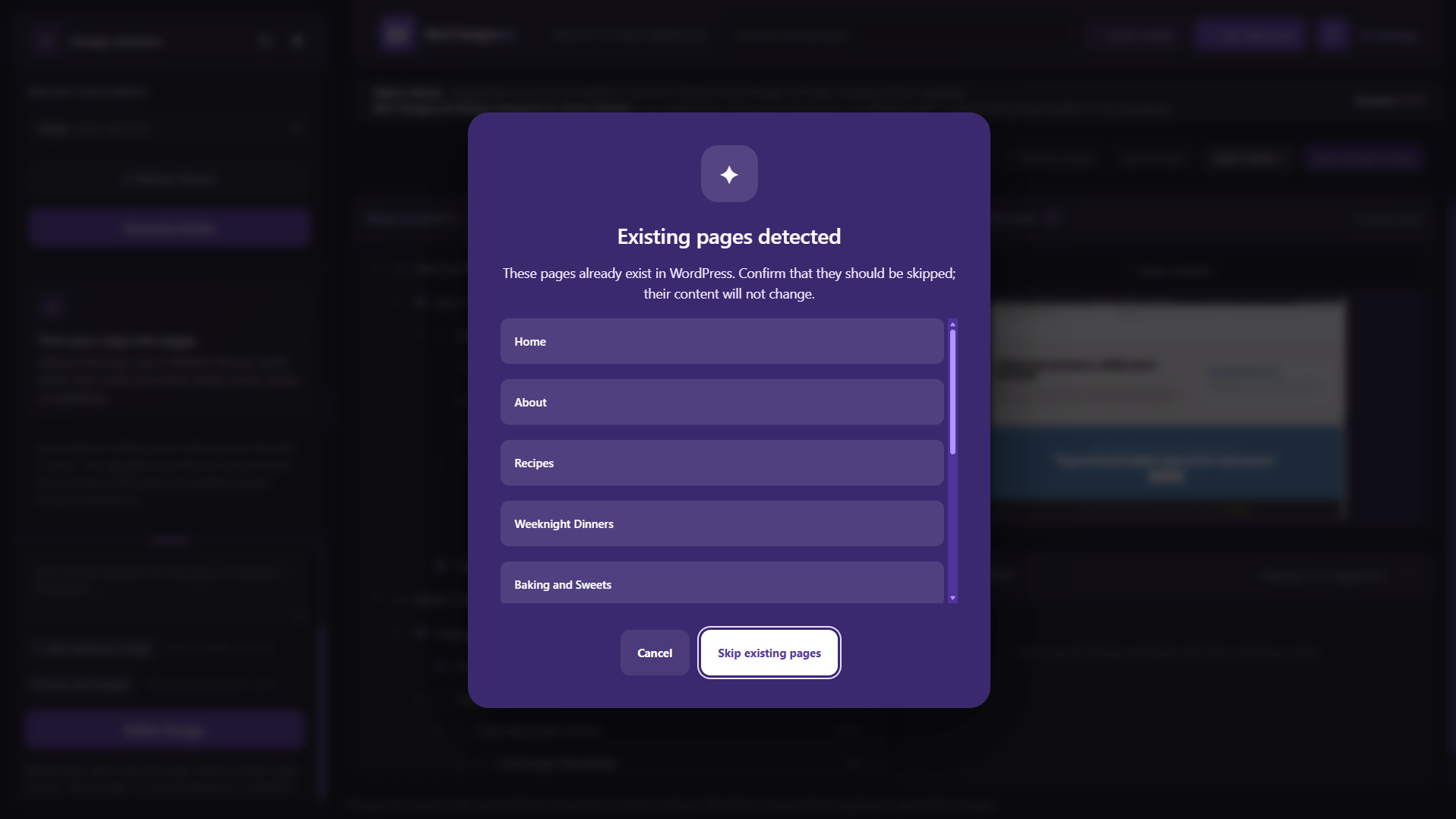
Prepare final copy with a clear heading for each page, such as Page: Home, HP - Home, CP - Contact, or 2P - About, followed by that page’s copy. A plain title immediately followed by two explicit SEO fields can also start a page. Long visual divider lines of dashes between pages are ignored as separators. You can include labeled SEO details within each page section, for example SEO title:, Meta Title:, Focus keyphrase:, Keywords:, Slug:, and Meta description:; they can appear after the page title or later in the section. These recognized lines are kept out of the design copy, suggested in the matching page’s SEO editor, and saved with a newly created draft when one supported SEO tool is active. Include the brand name in the copy when it should appear in the design. Mark content headings H1: through H6:, [H1] through [H6], literal <h1> through <h6> tags, or Word heading styles to preserve their intended hierarchy. Review the detected page structure in the extracted-copy preview before creating drafts. Keywords: uses the existing focus keyphrase field; some SEO tools may treat a comma-separated list as one phrase. Optional labels such as Slogan:, Hero banner text:, and CTA Graphical Block: distinguish visible words from layout direction. Use DOCX when inline bold, italic, or hyperlinks matter; PDF extraction groups readable text into paragraphs but does not preserve those styles or links. In Website Planner, upload a DOCX or text-based PDF, review the extracted copy, set brand colors and instructions, then create drafts. Page count is not capped; the 50 MB document limit applies. If a page title already exists, confirm that it should be skipped; only missing pages become new drafts. Reset planner clears the current inputs and uploaded copy without deleting WordPress pages. Cancel restores the planner form, uploaded file, and extracted copy to how they were when the modal opened; X or Escape only closes it. Select a page, optionally choose existing Media Library images, generate its design, review and apply the proposal, and publish only when ready. You can also select an existing Bricks template, describe its design in a prompt, and name an existing page to use its design and matching uploaded copy as reference. Only the selected template receives proposed changes. The workspace does not create templates or set template conditions. Use Page SEO beside the selected page to review and edit supported SEO fields and its WordPress slug; templates have no Page SEO editor. Pages, templates, and applied designs persist in WordPress. Saved colors and special instructions remain in the current browser tab until it closes. The plugin does not save the uploaded copy file or extracted text to WordPress or browser session storage; re-upload and extract the file after a reload. A page without matching copy cannot be generated from that file.
When Style Manager is enabled, Website Planner hides its brand-color controls and uses the saved palette instead. Turn Style Manager off to choose brand colors in Website Planner again. If saved planner settings, chat, or shared Style Manager settings are found when you return to this workspace, a dialog lets you continue or start new. Continuing keeps those settings, then you upload the copy again. Starting new clears the shared Style Manager settings as well as the planner and chat; it does not delete WordPress draft pages.
Will a PDF preserve bold, italics, and hyperlinks?
No. The PDF extractor reads supported text and groups paragraphs when possible, but it does not retain text formatting or links for design generation. Use a DOCX when those details matter. The extracted-copy preview is plain text for both file types.
Does MJC Designs AI include the full Bricks Skills package?
No. It uses the WordPress Abilities API for page operations and does not load the external Bricks Skills package or WordPress MCP Adapter.
Screenshots







Changelog
1.1.14
-
Interface refinements · Alpha · 2026-11-18 12:24:20 PHT
- Add controls to expand or collapse all Page Elements in Main Workspace and Content to Pages.
- Add built-in syntax coloring to the Page Elements inspector and HTML and CSS structure panels; space the inspector over a blurred backdrop.
- Group header icon controls across workspaces with consistent 8px spacing; use consistent Settings icon buttons and correct their navigation links; add a tooltip to HTML and CSS status messages, and delay hover and focus tooltips by 0.5 seconds.
- Make the HTML and CSS workspace assistant panel resizable with pointer and keyboard controls, matching the other workspaces’ minimum widths and smooth transitions.
1.1.13
-
Improvements · Alpha · 2026-11-14 05:24:59 PHT
- Recognize more page, SEO, and heading formats in Content to Pages copy and show the detected structure before creating drafts.
- Clarify the Plugins screen description and refine WordPress.org tags.
1.1.12
- Improvements · Alpha · 2026-11-05 02:21:03 PHT
- Improved internal code organization and tightened safeguards to make the plugin easier to maintain.
- Increased the maximum number of selectable site images from five to ten.
1.1.11
-
Interface refinements · Alpha · 2026-10-28 22:26:34 PHT
Remove the redundant footer Close buttons from Style Manager and the Create draft form; use their top-right X controls. -
Move a page to Trash · Alpha · 2026-10-28 22:26:34 PHT
Add a confirmed Move to Trash action to the Page SEO footer in Main Workspace and Content to Pages. Show loading while WordPress moves the selected page to recoverable Trash, then refresh the workspace. -
Create a draft page · Alpha · 2026-10-28 22:26:34 PHT
Add a plus icon beside Bricks Document in Main and Content to Pages, with a protected draft form, unique slug check, active SEO tool selector and title variables, automatic page selection, and Main Workspace draft publishing. -
Modal Cancel behavior · Alpha · 2026-10-28 22:26:34 PHT
Cancel discards unsaved Page SEO edits and restores Website Planner inputs, uploaded copy, and extracted text to their state when the modal opened. -
Page slug safeguards · Alpha · 2026-10-28 22:26:34 PHT
Reject duplicate page slugs when saving Page SEO, creating one page manually, or publishing a draft in either workspace. Draft creation from uploaded copy remains unchanged. -
Website link references · Alpha · 2026-10-28 22:26:34 PHT
- Use one public website URL in design prompts or Website Planner special instructions as static design guidance across the workspaces.
- Keep native Bricks proposals within registered elements and controls, and HTML and CSS drafts within the workspace’s existing static-code safety rules.
- Document public-page retrieval, provider data handling, and limitations for dynamic websites.
- Specify that Bricks gradient angle values use unitless numeric strings (for example “90”), normalize AI degree suffixes, and validate the stored angle range.
-
Interface color themes · Alpha · 2026-10-28 22:26:34 PHT
Choose from five interface color themes for this browser tab.
1.1.10
- Style Manager fixes · Alpha · 2026-10-26 20:46:26 PHT
- Keep palette color picker presets and drags aligned with the selected and saved color.
- Show transparent shades over a neutral white and gray checkerboard, including on hover.
- Unsaved edit safeguards · Alpha · 2026-10-26 20:46:26 PHT
- Retain unfinished Style Manager edits in this browser tab, restore them after closing or navigating, and add a Discard edits action.
- Confirm navigation with the plugin’s styled modal when Style Manager or Page SEO has unsaved edits, including a combined warning when both do. Keep the Page SEO document-switch prompt and use the browser warning for refresh, Back, or tab close.
1.1.9
- SEO editor · Alpha · 2026-10-25 20:22:28 PHT
Add basic Page SEO editing in the Main Workspace and Content to Pages Workspace. The initial integration supports Yoast SEO and AIOSEO for SEO titles, meta descriptions, supported focus keyphrases, and WordPress slugs. Labeled SEO details from uploaded copy can also be saved with new drafts.
1.1.8
- Video guides · Alpha · 2026-10-24 03:00:49 PHT
Add a direct YouTube tutorial and update link to the About subpage without embedding video or loading third-party assets. - Style Manager · Alpha · 2026-10-24 03:00:49 PHT
- Add optional session colors and variables for the Main Workspace and Content to Pages Workspace, with Bricks-compatible JSON import and export.
- Add overlay palette color pickers, editable shade steps, dark counterparts, fluid typography and spacing controls, and custom variable categories. Set root font size and viewport widths for clamp calculations. Show HSLA picker values by default while supporting other common color formats.
- Use Style Manager colors in Website Planner while enabled, and include shared settings in the continue-or-start-new session choice.
- Keep the workspace header controls compact with icon-only Quick Guide and fullscreen buttons.
- Center spacing and typography scale rows, separate variable navigation, and keep Style Manager open after saving with clear Bricks import guidance.
- Export typography and spacing variables in the same order as their manual scale steps so Bricks preserves the intended small and large sizes when regenerating them.
- Use confirmed Bricks variable names in compatible controls, prioritize exact primary and secondary palette colors in new Content designs, and make one correction attempt when they are underused.
- Name the Main Workspace consistently and clarify Style Manager import and export and responsive design guidance across the plugin pages.
- Disable Style Manager Reset while the editor is off, and show dismissible Website Planner errors inside its modal.
1.1.7
- Content to Pages Workspace · Alpha · 2026-10-21 06:30:07 PHT
- Extract final copy, create draft pages, and prepare Bricks designs for review before saving or publishing.
- Improve planner controls, focus page requests, preserve DOCX formatting, and detect existing pages.
- Keep saved planner details in the browser tab until it closes; the plugin does not save uploaded copy files.
- Allow selected Media Library images in Content to Pages designs while retaining placeholders for missing visuals.
- Let refinements reshape a section or page while preserving planner guidance and final copy.
- Edit existing Bricks templates with optional planner guidance and a named page as design context; template creation and conditions remain separate.
- Group readable PDF text into paragraphs without retaining formatting or links.
- Offer a continue-or-start-new choice for saved browser sessions; show Generate Drafts after planner settings are saved.
- Workspace improvements · Alpha · 2026-10-21 06:30:07 PHT
- Match HTML and CSS workspace tooltips, image-drop guidance, and Bricks document labels across workspaces.
- Align Generate and Refine buttons and keep Main Workspace conversations for the browser session.
- Reserve labeled image placeholders with native Bricks elements when no site image is selected in the Main Workspace.
- Expand Change Review only when edits are proposed; show the HTML and CSS setup guide when no provider is connected.
- Open Quick Guide from every workspace header, and resize the HTML and CSS design request field vertically.
- Reduce Bricks schema data sent to AI, especially for new Content to Pages designs, while retaining full proposal validation.
- Allow more time for Bricks design proposals to return before the provider request times out.
- Use native Bricks color values, check complete copy and formatted DOCX labels, and report proposals with no edits accurately.
- Show completed requests in the tab title and offer optional browser alerts when a workspace is unattended.
- Let an editable page’s native Bricks layout and visual settings guide another page without changing the reference page.
Earlier release notes are included in changelog.txt and the dashboard’s Version History.