


Description
Before you install, you need: WooCommerce 8.2 or newer with compatibility mode off (WooCommerce → Settings → Advanced → Features), so orders live in one place only. Both order storages work: High-Performance Order Storage (HPOS) and the classic storage in wp_posts / wp_postmeta (since 0.2.0). Make a database backup before the first run.
Stores with years of orders get a slow Orders screen, slow searches and heavy database queries. On shops without HPOS it is worse: every order adds dozens of rows to wp_postmeta, the table the whole site reads. Nextial Order Archive moves old, finished orders out of the live WooCommerce order tables into archive tables, so WooCommerce works on the orders that matter today.
- Works without HPOS too: on the classic storage the orders, their meta, items and notes leave wp_posts and wp_postmeta. In our test shop with 18,600 orders, archiving 15,593 of them took wp_postmeta from 647,958 to 98,111 rows; restoring brought every order back identical.
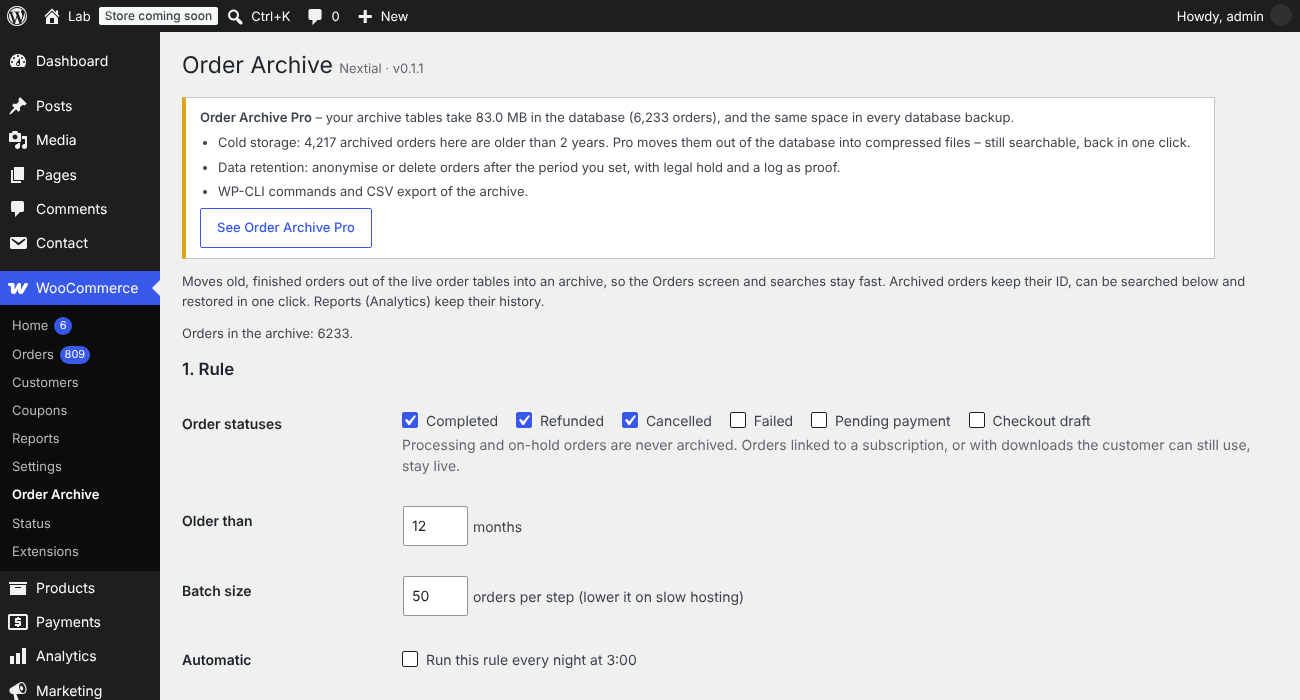
- Rules: choose the statuses (completed, refunded, cancelled, failed…) and the age, for example “completed orders older than 12 months”.
- Preview first: see how many orders match, and which ones stay live, before anything moves.
- Background batches: Action Scheduler moves small batches one after another, so the store never slows down. Stop at any time.
- Automatic: optionally run the rule every night.
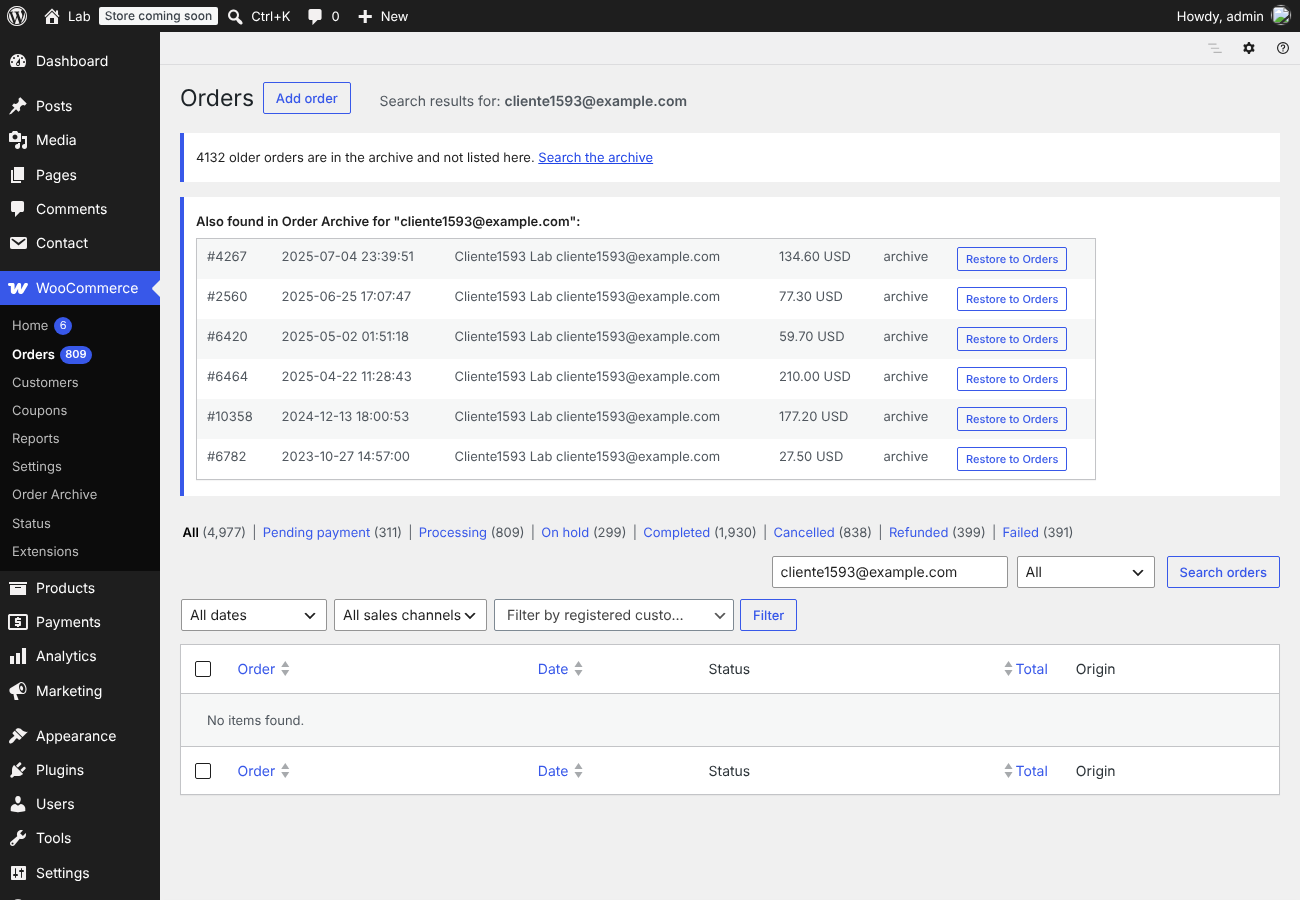
- Search the archive by order number, e-mail or customer name – also from the normal WooCommerce → Orders search: archived matches appear above the list with a “Restore to Orders” button that brings the order back and opens it. Staff never need to know where an order is.
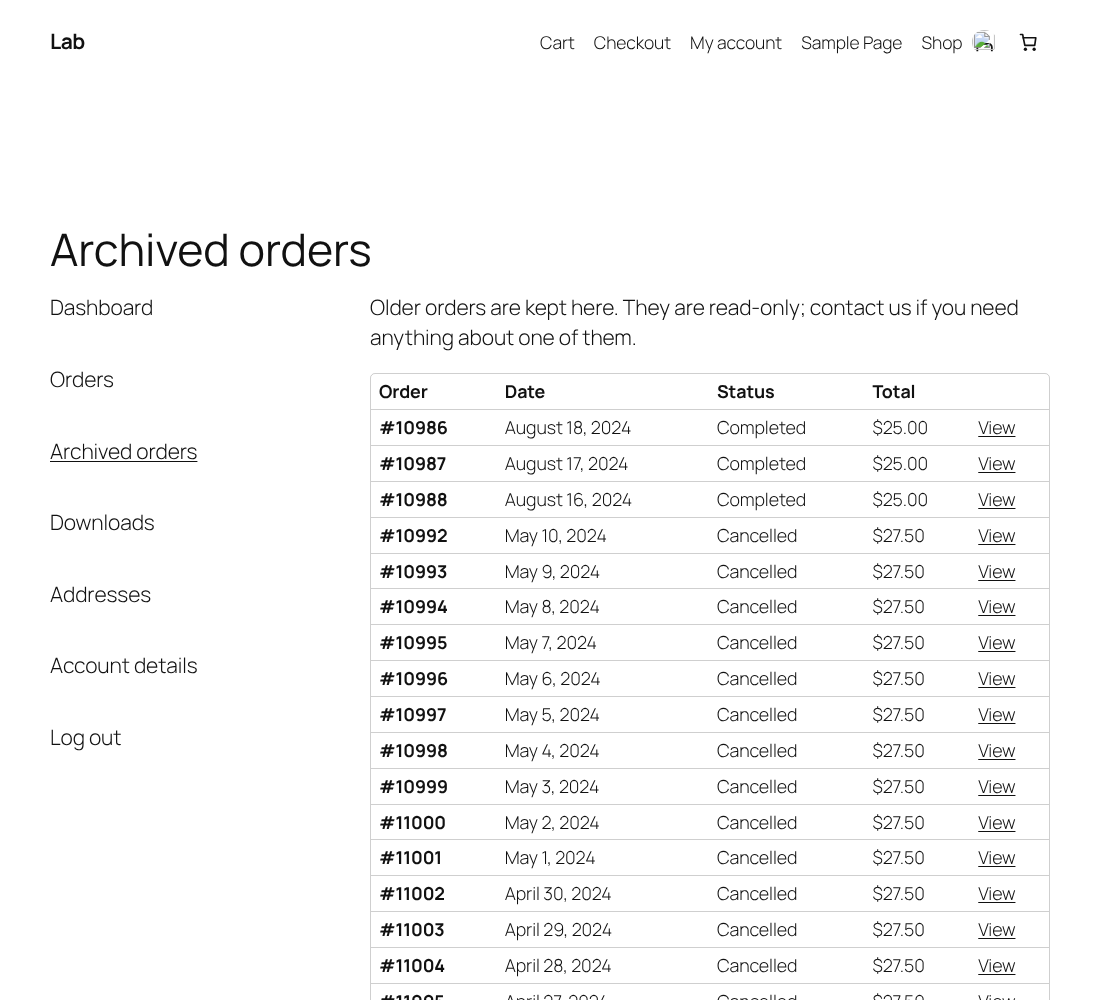
- Customers still see their old orders: an “Archived orders” tab in My Account lists them, read-only, with items, totals, refunds and addresses. Only the customer’s own orders, and only if they have any. You can switch it off.
- Restore in one click, or in bulk: tick the orders you want back, or restore every order matching your search (or the whole archive) in background batches. Orders come back with the same ID, items, notes and refunds, and a restored order is never archived again automatically.
- Reports keep their history: WooCommerce Analytics tables are not touched.
- Privacy requests include archived orders: the WordPress tools under Tools → Export/Erase Personal Data find archived orders too, with the same rules WooCommerce uses for live ones.
Safe by design
- Every batch runs inside one database transaction: rows are copied, every row count is checked, and only then are the live rows removed. Any difference rolls the batch back and nothing is moved.
- An order moves with everything that belongs to it: addresses, operational data, meta, line items and their meta, order notes and child refunds.
- With HPOS, order IDs stay reserved (the placeholder posts are kept), so a restored order gets its own ID back and no new order can take it. On the classic storage WordPress does not reuse IDs; if an ID were ever taken, that order is skipped on restore and nothing is overwritten.
- Orders linked to WooCommerce Subscriptions and orders with downloads the customer can still use are never archived. Processing and on-hold orders are never archived.
- Compatibility mode (sync between HPOS and the posts tables) must be off, so orders live in one place only. The plugin checks this and does nothing otherwise.
- If you switch between HPOS and the classic storage, restore the archive first: the plugin refuses to mix the two.
- Uninstalling the plugin never deletes the archive.
What to know
- Archived orders are not shown in WooCommerce → Orders, and in My Account they appear only in the “Archived orders” tab (not under Orders). Guest orders (no customer account) are not shown to customers. Restore an order to show it everywhere again.
- Other plugins that keep their own data about orders (for example invoices or shipping labels) keep it; they will not find the order while it is archived.
- Make a database backup before the first run.
Installation
- Install and activate the plugin, then open WooCommerce → Order Archive.
- Choose statuses and age, then press Save and preview: nothing is moved.
- Make a database backup, then press Archive matching orders now.
- Optional: tick Run this rule every night.
FAQ
Does it work without HPOS?
Yes, since 0.2.0. On the classic storage orders are archived out of wp_posts, wp_postmeta, the order items tables and the comments tables, with the same transaction and row-count checks. Compatibility mode must be off. Developers can switch this off with the filter nextial_oa_legacy_storage (return false).
Can I get an order back?
Yes, from WooCommerce → Order Archive → Archived orders → Restore. It returns with the same ID and all its data.
What happens to product stock when I archive or restore an order?
Nothing: stock is not touched. Archiving and restoring move the order’s rows between tables; the order keeps its status, and no status change or stock event is fired, so WooCommerce does not reduce or increase stock again. Tested on HPOS and classic storage (stock identical before archiving, after archiving and after restoring).
Can I restore many orders at once?
Yes, free: tick several orders and press “Restore selected”, or press “Restore all … archived orders” (with a search term: all the orders that match) and they come back in small background batches, like archiving. If one order cannot come back — for example its ID is taken by a new order — it is skipped and listed, and the others still return.
What happens to reports?
Nothing: WooCommerce Analytics keeps its own tables, which this plugin never changes.
What if I uninstall the plugin?
Settings are removed, the archive tables are kept. Reinstall the plugin to search or restore archived orders.
Can customers see their archived orders?
Yes. From 0.1.1 an “Archived orders” tab appears in the customer’s My Account page, only if they have archived orders. It is read-only and shows only their own orders. Orders placed as a guest (no account) are not shown. You can switch the tab off in WooCommerce → Order Archive.
What about GDPR requests (export and erase personal data)?
Archived orders are included. WordPress → Tools → Export Personal Data adds a section “Archived orders” with the order, its items and the addresses. Tools → Erase Personal Data anonymises archived orders exactly when WooCommerce would anonymise live ones: only if “Remove personal data from orders on request” is on in WooCommerce → Settings → Accounts & Privacy. Totals, items, dates and country stay, so reports and accounting still add up.
Is it safe on a big store?
Each batch runs in one database transaction and every row count is checked before the live rows are removed; if anything differs, the batch is rolled back. Use the preview first and make a database backup before the first run.
Screenshots

Changelog
0.3.0
- New, free: the normal search on WooCommerce → Orders also finds archived orders (by order number, e-mail or name), with a “Restore to Orders” button that brings the order back and opens it. Works with HPOS and the classic storage. Before, this was only in Order Archive Pro.
0.2.0
- New: works on shops without HPOS (classic storage in wp_posts / wp_postmeta), the most requested case for big old stores. Archive, preview, search, bulk restore, the customer “Archived orders” tab and the privacy tools all work there.
- Tested on WooCommerce 11.3 with 18,600 orders: 15,593 archived and restored identical, wp_postmeta from 647,958 to 98,111 rows.
- HPOS shops: nothing changes.
0.1.4
- New: the WordPress privacy tools (Tools → Export/Erase Personal Data) now include archived orders. Without this, an access or erasure request silently skipped them.
- Erasing follows the WooCommerce setting “Remove personal data from orders on request” and anonymises the same fields; totals, items, dates and country are kept.
0.1.3
- New: bulk restore from the admin screen, free. Tick orders and press “Restore selected”, or restore everything matching the current search (or the whole archive) in background batches.
- Orders that cannot be restored (for example an ID now used by a new order) are skipped and listed; the rest still come back. Nothing is ever overwritten.
0.1.2
- The “See Order Archive Pro” button now opens the secure checkout directly.
0.1.1
- New: “Archived orders” tab in My Account, so customers keep seeing their old orders (read-only, on by default, can be switched off).
- Faster preview and batches on large stores: the exclusion rules run as one SQL query (6,363 orders: 5.9 s → 0.07 s in our test).
- New hook nextial_oa_admin_after for add-ons.
0.1.0
- First release: rules by status and age, preview, background batches with transaction and row-count checks, nightly runs, archive search, one-click restore.