

Description
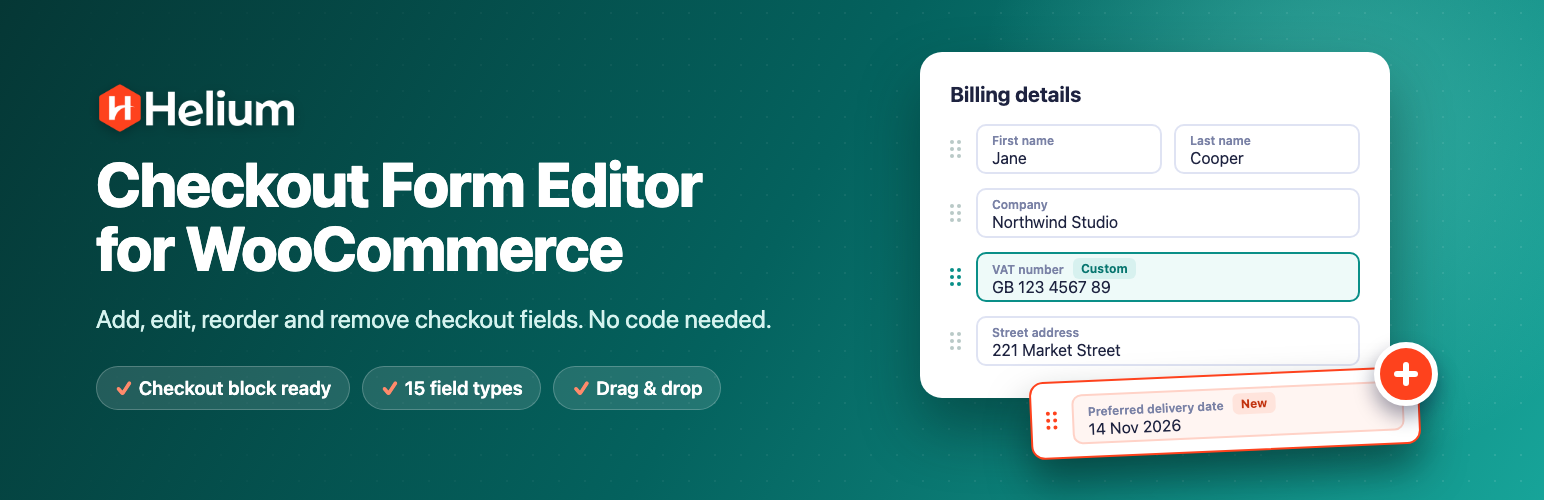
Helium Checkout Form Editor is a free WooCommerce checkout field editor. It lets you add custom checkout fields, edit or hide the default billing and shipping fields, and drag fields into the order you want. You don’t need to write code.
It works with the WooCommerce Checkout block, the default checkout in new WooCommerce stores, as well as the classic shortcode checkout. Many checkout field editors still only support the classic checkout.
Use it to collect what your store needs at checkout, such as a VAT or tax number, a delivery date, a gift message, a company PO number or a “How did you hear about us?” question. You can also remove the fields you don’t need, so checkout is quicker for your customers.
Why store owners choose Helium Checkout Form Editor
- Works with the Checkout block and the classic checkout. Your custom fields, field order and field widths apply on both.
- Built like WordPress itself. The screens use standard WordPress list tables, tabs and settings pages, and follow your admin color scheme.
- Fast and lightweight. Settings load with the page, and the checkout only loads a small stylesheet.
- Translation-ready. Field labels, placeholders and options can be translated with WPML or Polylang.
Edit WooCommerce checkout fields
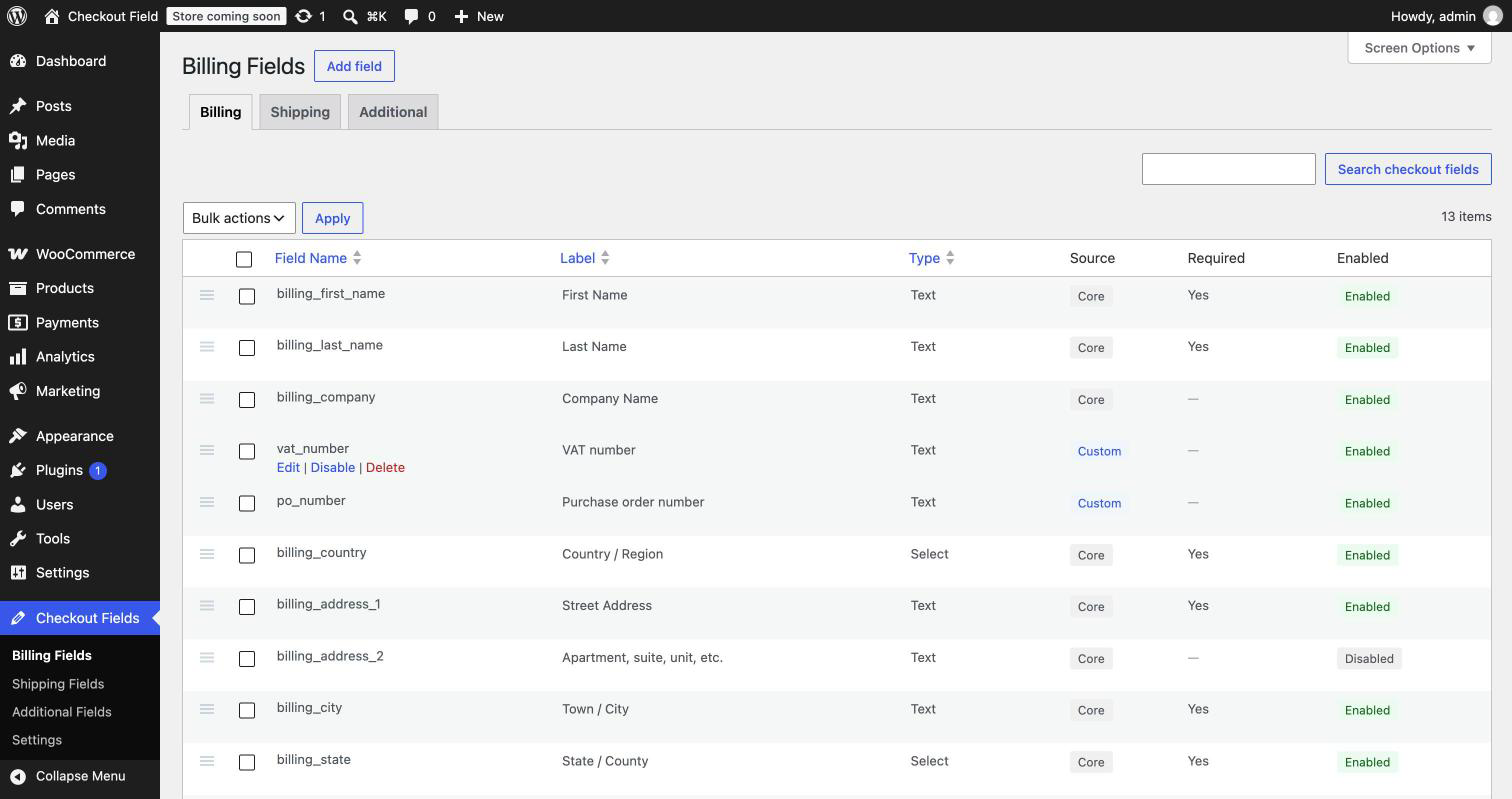
- Edit the default billing fields, shipping fields and additional fields (order notes).
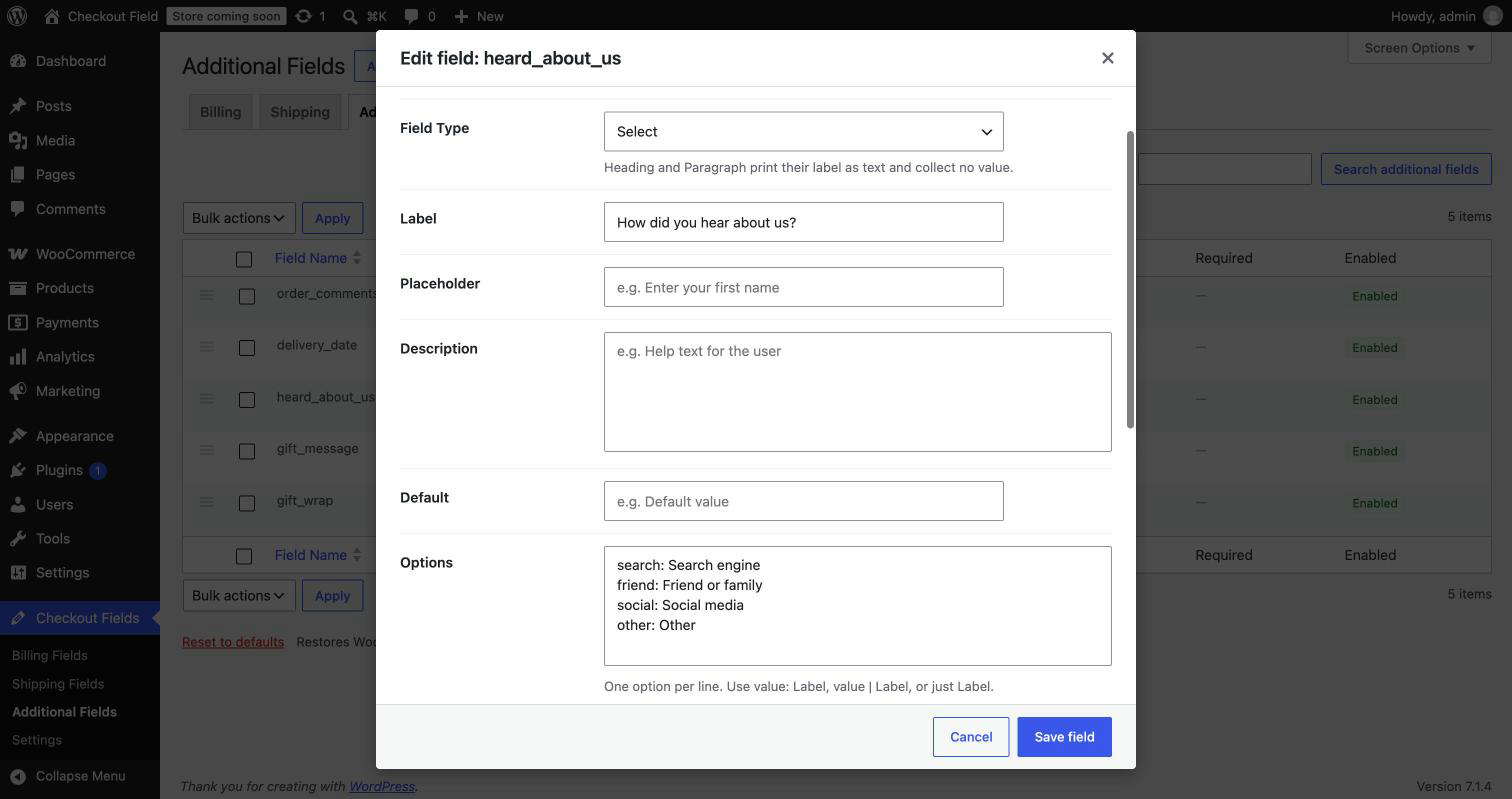
- Change a field’s label, placeholder, description, default value and autocomplete attribute.
- Make a field required or optional.
- Disable checkout fields you don’t need, such as Company or Address line 2.
- Drag and drop to reorder checkout fields, including WooCommerce’s own fields.
- Set each field to half width or full width.
- Add your own CSS classes to any field.
- Enable, disable or delete several fields at once, and search your fields.
- Reset a section to WooCommerce’s default fields at any time.
Add custom checkout fields
Add as many custom fields as you need, with 15 field types:
- Text, Textarea, Number, Email, Telephone and URL
- Date
- Select (dropdown), Multi-select and Radio buttons
- Checkbox and Checkbox group
- Hidden field, for passing a fixed value with the order
- Heading and Paragraph, for adding titles and notes to your checkout form
Checkout field validation
- Built-in validation for email, phone, postcode, state, number and URL fields.
- Write your own error messages for each validation rule.
- Required fields are checked on the server, so they can’t be skipped.
Show custom field values where you need them
For each field, choose where its value is shown:
- In order emails, to the admin, the customer, or both
- On the order received (thank you) page and the customer’s order details
- In the billing address or shipping address
- On the admin order screen, so your team sees every value with the order
WooCommerce Checkout block support
Custom fields are added through WooCommerce’s own checkout fields API, so they look and behave like the rest of the Checkout block.
- Billing and shipping fields appear in the address form, and additional fields in the order information section.
- Your field order and half/full widths apply, and fields still stack nicely on mobile.
- Values are saved with the order and shown in emails and on order pages, the same as on the classic checkout.
The Checkout block supports fewer field types than the classic checkout. Text, Number, Email, Telephone, URL, Date, Select, Radio and Checkbox fields work on both checkouts, and Textarea shows as a single-line field on the block. Multi-select, Checkbox group, Hidden, Heading and Paragraph fields work on the classic checkout only.
Translate your checkout fields
Every label, placeholder, description and option you type is registered with WPML String Translation or Polylang. You can then translate your checkout fields for each language your store supports.
Settings
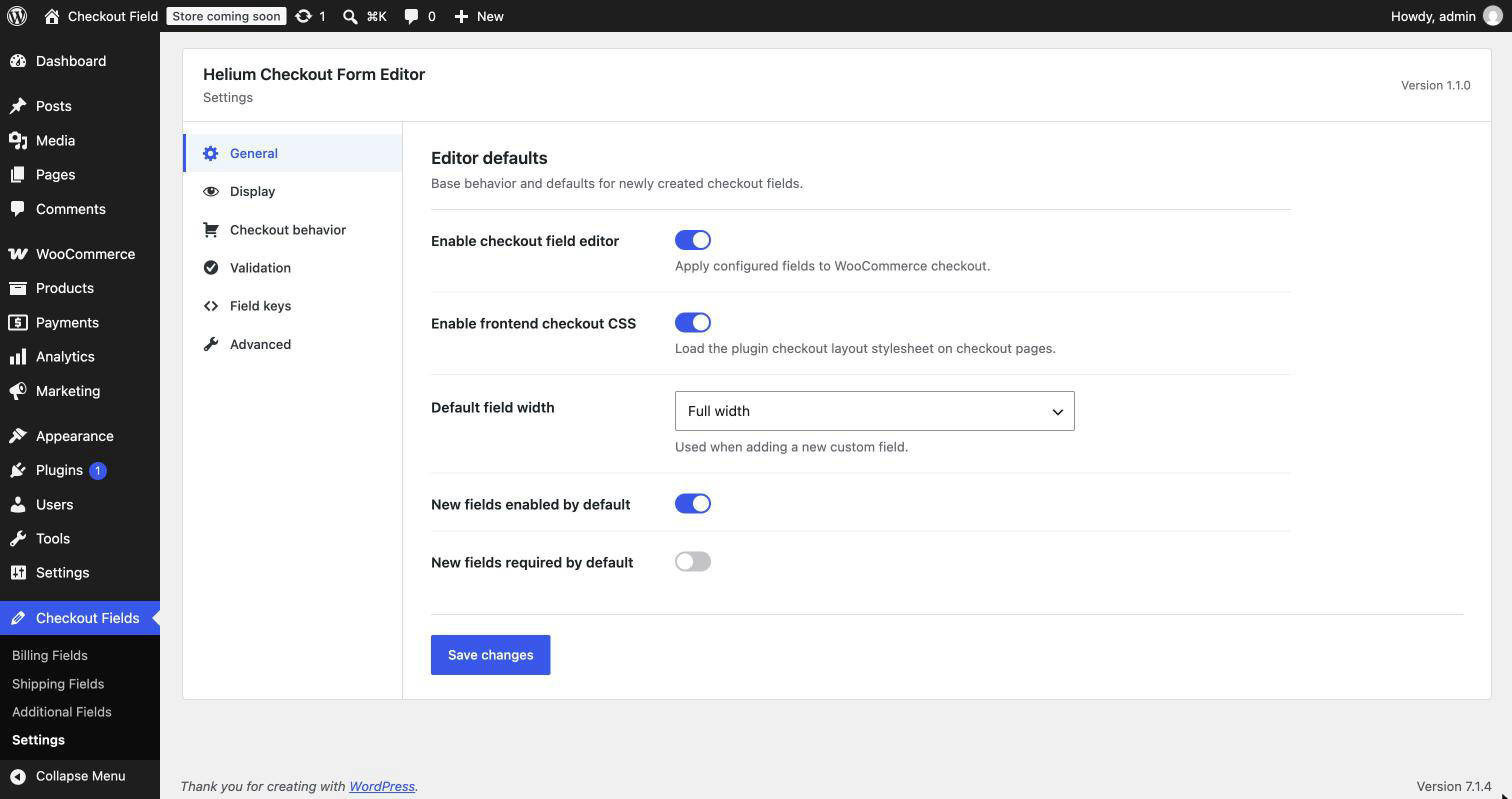
- Turn the checkout field editor on or off without deactivating the plugin.
- Choose the default width, required status and display options for new fields.
- Keep the values of disabled address fields, so tax and shipping still work.
- Rename the custom fields section on order pages.
- Choose whether to delete all plugin data when you uninstall.
Installation
- In your WordPress admin, go to Plugins → Add New.
- Search for Helium Checkout Form Editor, then click Install Now and Activate.
- Make sure WooCommerce is installed and active.
- Go to Checkout Fields in the admin menu to start editing your billing, shipping and additional fields.
To install manually, upload the nexus-checkout-form-editor folder to /wp-content/plugins/, then activate the plugin on the Plugins screen.
FAQ
Does it work with the WooCommerce Checkout block?
Yes. Custom fields, field order and field widths work on the Checkout block as well as the classic shortcode checkout. A few field types (Multi-select, Checkbox group, Hidden, Heading and Paragraph) work on the classic checkout only, because the Checkout block doesn’t support them yet.
How do I add a custom field to the WooCommerce checkout?
Go to Checkout Fields, choose the Billing, Shipping or Additional tab, and click Add field. Choose a field type, enter a label, and save. The field appears on your checkout straight away.
Can I remove or hide default checkout fields?
Yes. Disable any default field, such as Company, Address line 2 or Phone, and it no longer shows at checkout. You can enable it again at any time.
Can I change the order of checkout fields?
Yes. Drag fields up or down in the list to reorder them. This works for WooCommerce’s default fields and for your custom fields.
Can I make a checkout field required or optional?
Yes. Open the field, switch Required on or off, and save.
Where can I see the values customers enter?
On the admin order screen, under the billing address, the shipping address or the order details. You can also show the values in order emails, on the thank you page and in the customer’s account.
Can I translate checkout field labels?
Yes. With WPML String Translation or Polylang active, all your field labels, placeholders, descriptions and options are listed for translation under “Helium Checkout Form Editor”.
Will it work with my theme?
It should work with any theme that uses the standard WooCommerce checkout. Custom fields use WooCommerce’s own field markup, so they match your theme’s styling.
Does it slow down my checkout?
No. The plugin only adds the fields you create. On the checkout it loads one small stylesheet, which you can turn off in the settings.
Can I undo my changes?
Yes. Each section has a Reset to defaults link below its list of fields. It restores WooCommerce’s default fields and removes that section’s custom fields.
Does this plugin require WooCommerce?
Yes. WooCommerce must be installed and active.
Is my data sent anywhere?
No. Field settings are stored in your WordPress database, and the values customers enter are saved with their orders. The plugin doesn’t send data to any outside service.
Screenshots


Changelog
1.2.0
- Fix: The Checkout block now rejects invalid email, phone, number and URL values instead of saving them empty.
- Fix: New custom fields no longer appear above WooCommerce’s default fields on a fresh install.
- Fix: Half and full width now apply to dropdown fields on the Checkout block, and fields line up in the order information section.
- Fix: Country keeps its spacing on the Checkout block when address fields are reordered.
- Fix: Half-width fields sit side by side on the classic checkout.
- Fix: Labels in the field editor no longer sit far above their inputs on narrower screens.
- Fix: Fields shown in an address are no longer listed twice on the admin order screen.
- Fix: Uninstall also removes values saved by the Checkout block, and no longer touches meta named after WooCommerce’s own fields.
- Fix: Field names are limited to 64 characters, and negative or non-numeric lengths are ignored.
- Improved: The field list shows readable type names.
- Improved: Every PHP file is protected against direct access.
1.1.0
- Initial release.
- Edit, disable, reorder and resize the default billing, shipping and additional checkout fields.
- Add custom checkout fields with 15 field types.
- Support for the WooCommerce Checkout block and the classic checkout.
- Validation rules with custom error messages.
- Show field values in emails, order pages, addresses and the admin order screen.
- Reset each section to WooCommerce’s default fields.
- WPML and Polylang support for field texts.