

Description
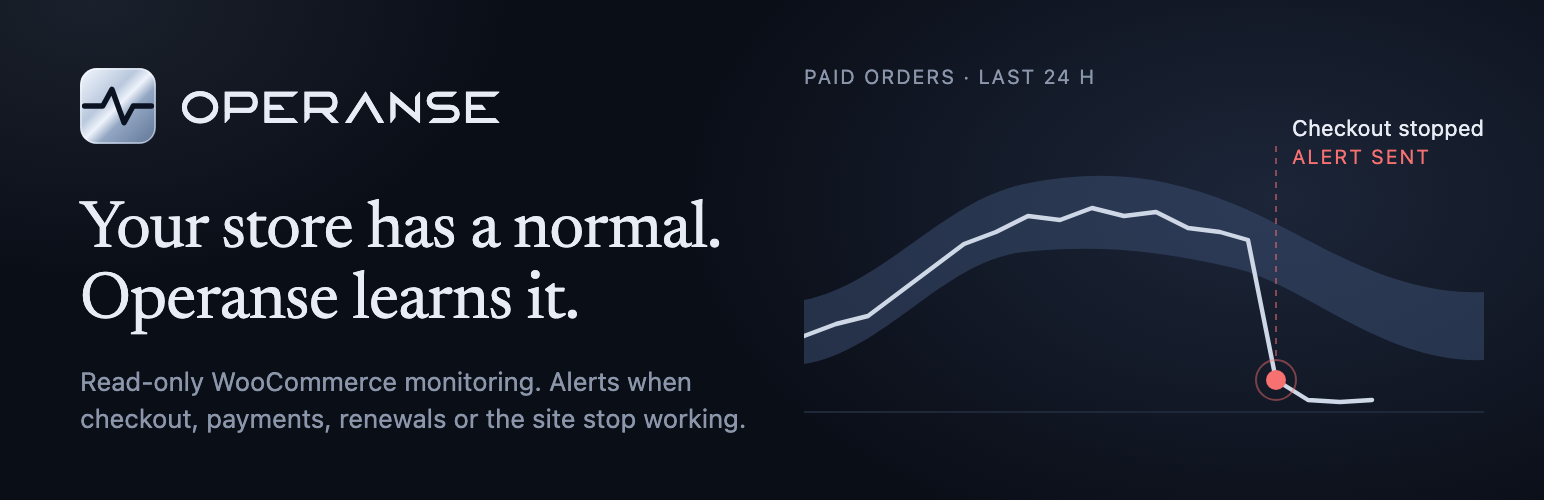
A WooCommerce store can look fine and still be losing money. Renewals have been failing since a gateway update, background tasks stalled overnight, or someone switched off the last payment method. Uptime checks miss all of this. Operanse watches the activity behind your store and tells you when something stops working.
Free, on Watch: one store, uptime every five minutes, and email alerts when the store can no longer take an order, background tasks (Action Scheduler, WP-Cron) stall, or subscription renewals fail. Includes a weekly report.
Paid, on Monitor and Insight:
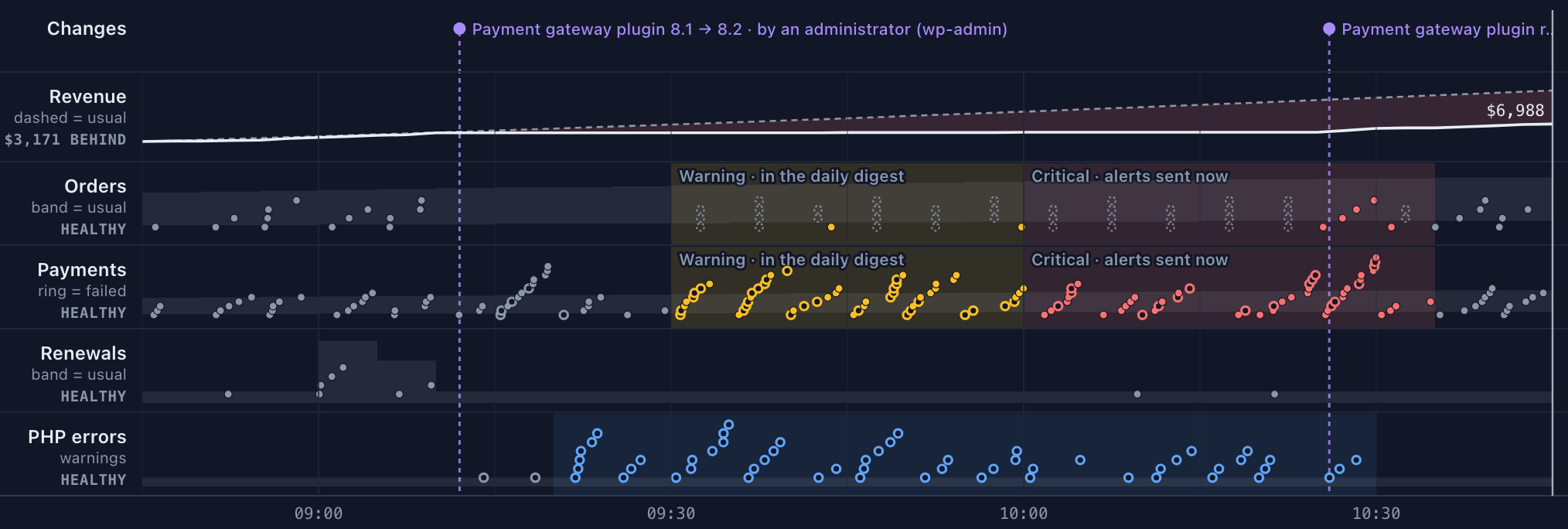
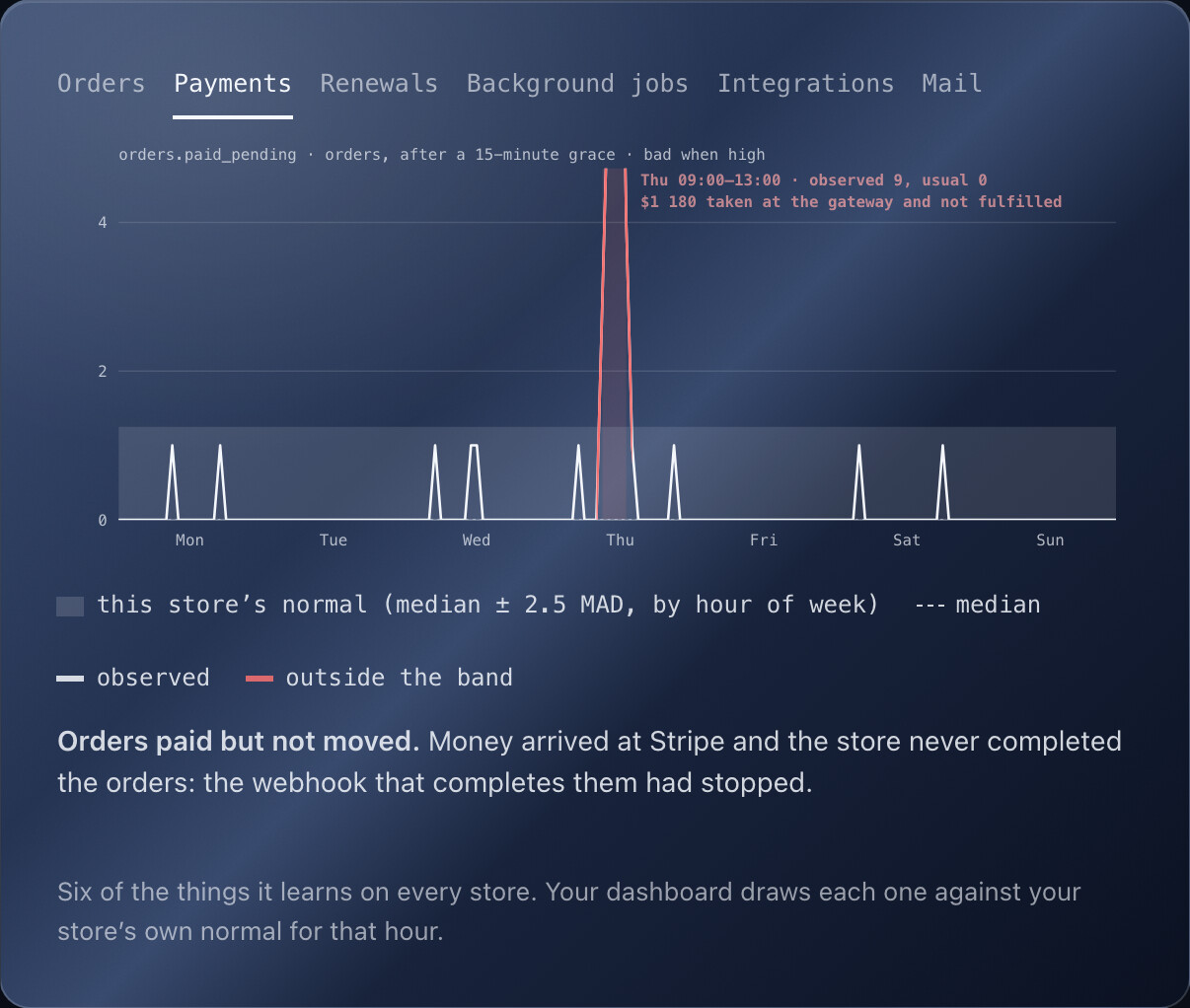
- Learns your store’s normal hour by hour and alerts on unusual payments, orders, refunds and renewals.
- Estimates the revenue each incident affects.
- Shows what changed before a problem, and replays any day with Playback.
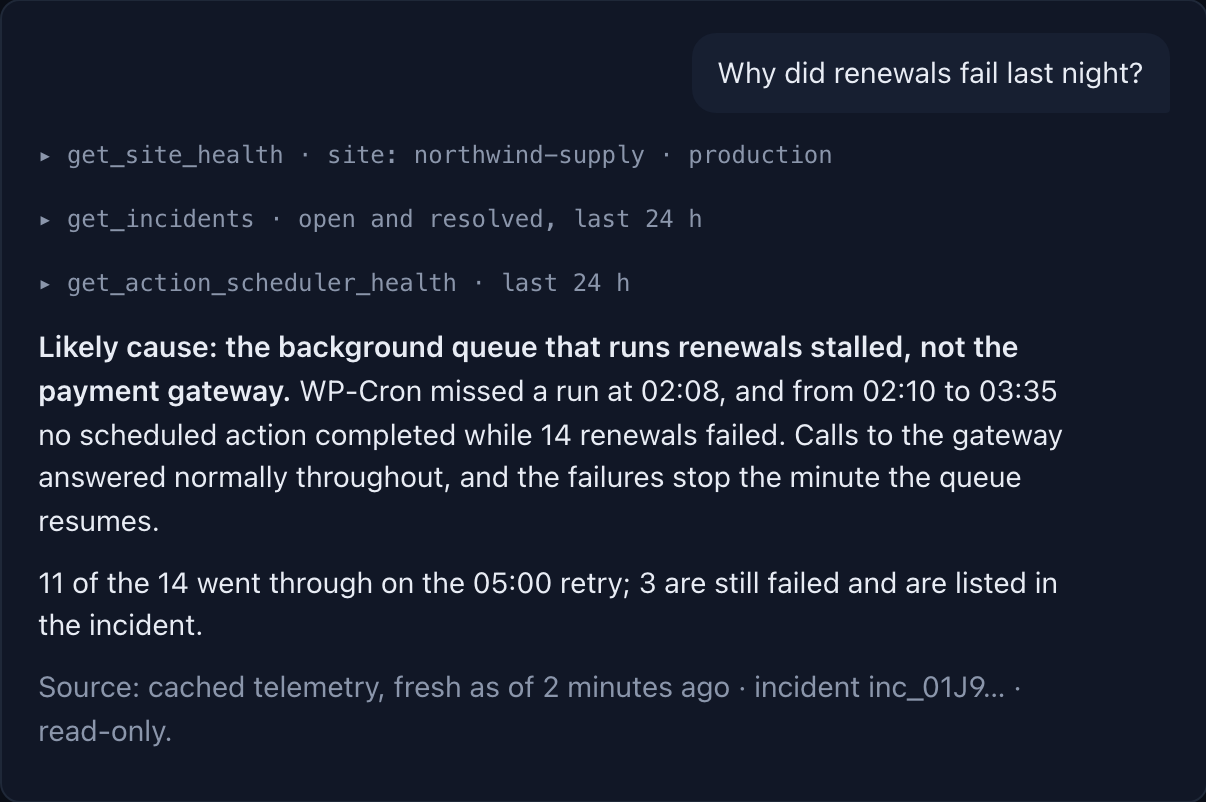
- Answers your own AI assistant (Claude, ChatGPT, Cursor) about your store over a read-only connection.
- Alerts by email, Slack, SMS and WhatsApp.
- Insight adds server monitoring and an AI review of each critical incident.
New accounts get 14 days of Insight with no card required, then move to free Watch unless you add a payment method. See the pricing page.
Works with your plugins automatically, with deep integrations for the most common ones
You don’t need to set anything up for your other plugins. Operanse watches orders, payments, renewals, outgoing email, background tasks and every call your site makes to an outside service, whichever plugin is behind them, and it works with any WooCommerce payment gateway. For the plugins below it goes further and reads what the plugin itself knows about why something failed.
- Stripe, with the official WooCommerce Stripe Payment Gateway or Payment Plugins for Stripe WooCommerce: Stripe’s reason for each refused payment, so an ordinary card decline is told apart from a saved card that no longer works or a problem with your Stripe setup. Stripe monitoring
- WooCommerce PayPal Payments: PayPal’s webhooks that stop reaching your store. Checkout keeps working without them, so nothing looks wrong, but payments PayPal holds for review stay On hold, approved payments are never collected, and refunds or disputes made in PayPal don’t show in WooCommerce. PayPal Payments monitoring
- WooCommerce Subscriptions: failed renewals, with retries kept apart from first attempts, and renewals that never ran. Subscriptions monitoring
- Action Scheduler: background actions that stop running, pile up or fail. Action Scheduler monitoring
- WP Mail SMTP, FluentSMTP and Post SMTP: emails your email provider refused, and an email plugin left set not to send, which often happens after a staging copy goes live. WP Mail SMTP, FluentSMTP, Post SMTP
- WPForms, Gravity Forms and Contact Form 7: submissions and failures for each form, named by the page it is on. WPForms, Gravity Forms, Contact Form 7
Free Watch includes the Action Scheduler and failed-renewal checks. The rest of this list needs Monitor or Insight.
Safe by design
- Read-only: it never changes your content, orders, products or settings.
- Your visitors never wait for Operanse. Events upload later from a local buffer.
- It sends no customer names, email addresses, IP addresses or card data.
- It records nothing until you connect it to an Operanse account.
External services
This plugin connects to the Operanse API (https://api.operanse.com), run by JES WEB PTY LTD. It needs an Operanse account and sends nothing until an administrator pairs the site.
After pairing, it sends operational data. This includes counts, statuses and timings; order and subscription numbers, totals and currency; plugin, theme and settings changes (names only, never values); PHP error lines and server resource figures; and the structure of active plugins (hook names, never source code). It never sends customer names, email or postal addresses, phone numbers, IP addresses, card data or cookies. Free text is redacted on your server first. Operanse also requests your home page and a status URL to check uptime. On Insight, redacted evidence about a critical incident is sent to Anthropic to write the AI review.
The full list of what is sent, why, and how long it is kept is in the FAQ under “What exactly is sent to Operanse?”. Data is processed under the Operanse Terms of Service and Privacy Policy, with the providers listed on the Sub-processors page.
Installation
- Install and activate the plugin.
- Create an account at operanse.com and add your site. You will get a pairing code.
- In WordPress, go to Settings → Operanse, paste the pairing code and choose the 14-day trial or the free Watch plan.
Within a few minutes, Settings → Operanse and your Operanse dashboard show the site as connected. Uptime and Watch’s checks start straight away. On the trial and the paid plans, learned monitoring becomes useful as the store’s first days of activity come in.
Recommended, for busy or important stores
Both settings involve your server, so you may want your developer or host to set them up. Settings → Operanse tells you if either would help your site and shows the exact line to use.
- Run WP-Cron from a system cron. WordPress normally runs scheduled tasks only when someone visits the site, so on a quiet site the plugin’s uploads, and your store’s own background tasks, can run late. Add a system cron job and
define( 'DISABLE_WP_CRON', true );. - Optional: keep the plugin’s buffer outside your web root. You don’t need to do anything for this: the plugin creates its own folder,
wp-content/operanse-agent-data, and its files can’t be read over the web. If you prefer a folder outside your web root, adddefine( 'OPERANSE_DATA_DIR', '/path/outside/webroot/operanse-data' );with a directory the web server can write to.
FAQ
Is the free plan really free?
Yes. Watch has no end date and needs no card. It covers one store and one user, with alerts to one email address. A second store, teammates, Slack, SMS, WhatsApp or AI access need a paid plan.
What does each plan include?
Prices are in US dollars, per live store. Staging and development copies are free on the paid plans.
- Watch, free: one store and one user. Uptime every five minutes. Alerts when a configuration change stops the store taking orders (last payment method switched off; checkout, cart or shop page unpublished; every product out of stock), when Action Scheduler or WP-Cron stall or fail, and when subscription renewals fail. Alerts to one email address, a weekly report, an optional public status page and 7 days of history.
- Monitor, US$39 per store per month: everything in Watch on every store, with uptime every minute. Learned monitoring of payments, orders, refunds and renewals; supported forms, outbound services and outgoing email; revenue estimates; recent changes and Playback; read-only access for your own AI assistant; alerts by email, Slack, SMS and WhatsApp; unlimited users and 30 days of detailed history.
- Insight, US$99 per store per month: everything in Monitor, plus server monitoring (CPU, memory, disk, database and PHP) and an automatic AI review of each critical incident, giving the likely cause and its evidence, labelled as AI inference. Six reviews per store per day are included. Extra reviews cost US$1.50 each, only if you allow them, up to a daily limit you set (zero to start). Higher SMS and WhatsApp allowances and 90 days of detailed history.
Annual billing, allowances and limits are on the pricing page.
What happens when the trial ends?
If you have added a payment method, you continue on the plan you chose. If not, your account moves to Watch and keeps its settings. If you have more than one store, you choose which one Watch covers. The others stay connected but paused, so nothing needs reinstalling if you upgrade later.
Does it change anything on my store?
No. It observes activity through WordPress and WooCommerce hooks and reads a few status values. It does not change content, orders, products, settings, other plugins or files. It writes only its own data: its options, its two tables, its scheduled events and its buffer.
What exactly is sent to Operanse?
Nothing is sent before an administrator pairs the site from Settings → Operanse (or wp operanse pair). Pairing sends a one-time pairing code, your site URL, and the plugin, WordPress and PHP versions. After pairing, the plugin sends the same data on every plan. Your plan decides what the service does with it.
- Heartbeat, every five minutes, used for Watch’s checks and connection status. It contains the plugin, WordPress and PHP versions; the site URL; whether WP-Cron is running; the buffer’s state; Action Scheduler past-due and failed counts and the age of the oldest past-due action; and renewal orders created and failed in the last six hours. It also reports whether the store can take an order: how many payment methods are switched on, the status word (such as draft or trash) of the checkout, cart and shop pages, how many products are published and not out of stock, and when each was last seen working. It carries counts and status words only, with no order or customer details, page titles or ids.
- Orders, payments, refunds and subscriptions, used to learn the store’s normal and estimate revenue affected. For each event it sends the order or subscription number, status, payment method, created-via, total, currency and item count; refund amounts; and a subscription’s total and billing period. Nothing about the customer is sent with them. When Stripe refuses a payment, it sends Stripe’s short reason code (for example
insufficient_funds), never Stripe’s message, the customer or the card. With WooCommerce PayPal Payments, it sends how long ago PayPal’s last webhook arrived, how many PayPal orders were paid since then and their total, and whether the webhook is registered for your site’s current address (never the address itself). - Integrations, used to notice when something the store depends on stops working. This covers submissions and failures of WPForms, Gravity Forms and Contact Form 7 forms, counted per form; whether WordPress handed outgoing mail to your mailer (counts and error classes, never addresses or content); the host names your site calls, with outcome and timing (never the path, query, headers or body); and your WooCommerce webhooks’ topic, status, delivery host and consecutive failures (never the name, full URL, secret or payload).
- Changes and who made them, used to show what changed before a problem. This covers plugins, themes and WordPress itself; saves of WooCommerce, payment, shipping, tax, permalink, site-address, caching and SMTP settings (the setting’s name and which fields changed, never a value); a product’s status, price or stock status changing (not the amount); whether the cart, checkout, my-account and shop pages were published or edited (never their content); and role changes. Each change records the WordPress user id, role and route (wp-admin, REST, WP-CLI or cron), with no login names, display names or email addresses.
- Request timings for a 2 % sample of requests: route type, duration and status code.
- PHP errors: new lines from the PHP error log (at most 1 MB per run), redacted on your server before they are buffered.
- Server resources, used for Insight’s server monitoring: CPU, load and memory from
/procand cgroup files, free disk space, database status counters and settings (SHOW GLOBAL STATUSandSHOW GLOBAL VARIABLES), PHP OpCache status, and the PHP-FPM pool’s worker counts. - Structure discovery, used to tie a failure to the plugin involved. The plugin parses your active plugins’ and theme’s PHP files for structure only: hook names, REST routes, scheduled hooks, external domains called, database table names, and class and function names. It never sends source code, and never reads
wp-config.phpor.envfiles. For each page a form is on, it sends the page’s id, title and address, which any visitor can already see. - Answers to remote requests (paid plans only, see below). To investigate a specific order, an answer can include its line items (product id, quantity and line total) and up to ten of its internal order notes, redacted on your server first. Notes are free text, so redaction is a safeguard rather than a guarantee: avoid writing card or identity details into order notes.
Retention. Raw events are kept for 30 days on Watch and Monitor, and 90 days on Insight. Aggregated metrics are kept to provide baselines and history. Evidence for an incident is kept with the incident. On Watch the dashboard shows 7 days and alerts come from the heartbeat and uptime checks only. The rest of the data is kept to improve detection in general and so an upgrade can build your baseline straight away, and none of it is sent to an AI provider. On Insight, labelled and redacted evidence about a critical incident is sent to Anthropic to write the review, and our agreement does not allow it to be used to train models.
Operanse also contacts your site. Our servers request your home page and a status URL (/?wc-api=operanse-probe, which answers only when the site is paired) to check uptime. If you choose the optional direct-inbound connection mode, Operanse sends signed requests to the REST route operanse/v1/read. By default the plugin polls for requests instead, and no inbound route is used.
What can Operanse access remotely?
Operanse can ask the plugin questions, for example “how many scheduled actions failed in the last hour?”. Each request names one capability from a fixed, read-only list built into this plugin, such as get_action_scheduler_summary or get_order_state. The plugin checks the request’s parameters before answering, and requests are signed with a key created when you pair. A request cannot carry code. The plugin has no capability that writes data, runs SQL, PHP or shell commands, or changes a setting. These requests are used on the paid plans to investigate incidents. Watch makes none.
Will it slow my site down?
Visitor requests never wait for Operanse. Work in a visitor’s request is limited to recording events into the local buffer and timing a 2 % sample of requests. Uploads, discovery and the heartbeat run in scheduled tasks.
What happens if Operanse or the plugin fails?
Your site keeps working. The plugin’s hooks and scheduled tasks are wrapped in error handling designed to keep a monitoring failure from reaching WordPress or WooCommerce, and errors it catches are logged locally. If Operanse is slow or unreachable, events wait in the local buffer, which has a fixed size limit, and upload when the service is back. Like any plugin, it runs inside your site, so test updates on a staging copy, which is free on the paid plans.
What can’t it catch?
Watch’s order checks look for a change from a working state. They catch specific configuration changes that stop orders, not every way a checkout can fail, and a problem that existed before you installed the plugin may not trigger an alert. Learned monitoring needs history: checks for something that has stopped completely work from day one, most of a store’s normal is learned in 48 hours, and quieter stores take longer. A problem only in a visitor’s browser, such as a broken script on the checkout page, is outside what the plugin observes.
Which plugins and services does it understand?
Any WooCommerce payment gateway, outgoing email sent through WordPress, WP-Cron, WooCommerce webhooks and any call your site makes to an outside service, with no setup. Deep integrations, which also read why something failed, cover Stripe (the official plugin and Payment Plugins for Stripe WooCommerce), WooCommerce PayPal Payments, WooCommerce Subscriptions, Action Scheduler, WP Mail SMTP, FluentSMTP, Post SMTP, WPForms, Gravity Forms and Contact Form 7. The list is in the Description above. Your own code can report forms, events, timings, integration calls and errors through six WordPress actions. They are documented at operanse.com/how-it-works.
Where does the plugin store data on my server?
In its own folder, wp-content/operanse-agent-data/spool, which the plugin creates itself. The files there end in .php and start with a line that stops PHP straight away, so anyone who opens one in a browser gets an empty page. This is the same approach Wordfence uses for its own files. If your server sends PHP files in wp-content as plain text, the plugin notices and doesn’t use the folder. If wp-content isn’t writable, it uses a protected folder under wp-content/uploads once it has confirmed that folder can’t be fetched over the web, and otherwise a size-limited table in your database. If you set OPERANSE_DATA_DIR, it uses that directory instead. It never creates a directory outside your web root by itself.
How do I delete my data?
Deleting the plugin removes everything it stored on your site: its options, its two tables, its scheduled events and its buffer directory (only if that directory holds nothing but the plugin’s own files). Deleting the plugin does not delete your data on Operanse. To delete it there, open the site in the Operanse dashboard and use Settings → Delete this site. To close your account, use Account → Close account. Both disconnect the plugin and remove the stored data. If you cannot sign in, email privacy@operanse.com.
Screenshots

Changelog
1.0.0
- The plugin now keeps its buffer of events in its own folder,
wp-content/operanse-agent-data, which it creates itself. You no longer need to create a folder or addOPERANSE_DATA_DIRto wp-config.php. If you already set it, nothing changes. - The buffer’s files end in
.phpand start with a line that stops PHP straight away, so anyone who opens one in a browser gets an empty page. This works on nginx as well as Apache, so stores on nginx no longer fall back to keeping the buffer in the database, and page speed is measured again on those stores. - Running a
wpcommand as a different user from your website (for example over SSH on Cloudways) no longer moves the buffer into the database. - Events already buffered in the old place are moved to the new folder at the next check. None are lost.
0.9.9
- If you use WooCommerce PayPal Payments, Operanse now notices when PayPal’s webhooks stop reaching your store. Checkout keeps working without them, so nothing looks wrong, but payments PayPal holds for review stay On hold, customers who approve in PayPal and don’t come back to your store are never charged, and refunds or disputes made in PayPal don’t show in WooCommerce. Operanse reads the time PayPal Payments recorded for the last webhook it received and counts the PayPal orders paid since then. It also checks that the webhook is registered for your site’s current address. Only counts, totals and times are sent; never your webhook address or any order details.
- Fixed: on stores using WooCommerce’s newer order storage (HPOS), orders that were paid but left on Pending payment were not being counted. They are now.
0.9.8
- Stripe’s reason for a refused payment now also comes from Payment Plugins for Stripe WooCommerce, not only the official WooCommerce Stripe Payment Gateway. Operanse can then tell an ordinary card decline from a saved card that no longer works or a problem with your Stripe setup, for checkout payments and subscription renewals. Only Stripe’s short codes are kept (for example
insufficient_funds), never Stripe’s message, the customer or the card. They are read from the error the plugin already received from Stripe, in memory, with no extra query or call, and the plugin’s own handling of the error is left unchanged. - The plugin page lists the plugins Operanse has deep integrations with.
0.9.7
- Your dashboard now shows which plugin made each call to an outside service. Before, it guessed from which plugins mention that service in their code, and the guess could name the wrong plugin. When a call to a payment provider, an update server or an API fails, you now see the plugin, theme or WordPress core that actually made it. Only the plugin’s or theme’s name is sent, never a file, a line of code or anything from the call itself. It is read after the call has finished, so it never slows down or changes the call.
0.9.6
- Contact Form 7 forms are now matched to the page they are on, so your dashboard can name the page (“Contact”, “Get a quote”) and link to it. Since Contact Form 7 5.8, its shortcode identifies a form by a short code instead of its number, and the site scan only looked for the number. The scan now looks for both. It reads only your published pages’ content and the form’s own settings, on the plugin’s schedule, never in a visitor’s request.
0.9.5
- Email failures are now counted correctly with WP Mail SMTP and Post SMTP. When WP Mail SMTP sends through a provider’s API (SendLayer, Brevo, Mailgun, Postmark, SendGrid, Amazon SES, Gmail, Outlook and others) and the provider refuses an email, it is now counted as refused; before, it was counted as sent. Post SMTP’s refused emails were not counted at all and now are. FluentSMTP was already counted correctly.
- An email plugin set not to send is now noticed: WP Mail SMTP’s “Do Not Send”, Post SMTP’s “Log only” and “No Action” delivery modes, and FluentSMTP’s “Simulate Emails”. These settings report every email as sent while none leave, often after a staging copy goes live. The emails are counted as refused because sending is switched off. As before, Operanse records only counts, the email plugin’s name and a short failure category: never an address, subject, message or attachment.
0.9.4
- Operanse can tell when your PHP pool is too big for your server’s memory, or full. A sampled request and Operanse’s signed uptime check read the PHP-FPM pool’s own counts: busy and total workers, the most at once, how often it hit its limit, the queue and how many requests it has served. Only numbers: never the pool’s name, a script, an address or a user. The uptime check gets them only when Operanse signed it with your site’s key, so nobody else can see how busy your server is. Read from FPM’s status in memory, with no query, file or call, and nothing on servers that do not run PHP-FPM.
0.9.3
- The site scan now records the title and address of each page a form is on, so your dashboard can name the page (“Checkout”) and link to it instead of showing a post number. A page’s title and address are what every visitor already sees in the browser; they are not visitor data, and they are redacted and length-limited like everything else the plugin sends. Two WordPress lookups per page, on the scan, never in a shopper’s request.
0.9.2
- A failed Stripe payment or renewal says why Stripe refused it, as Stripe’s own short codes (for example
insufficient_fundsorresource_missing). Operanse uses them to tell an ordinary card decline from a failure that should not happen, such as a saved Stripe customer that no longer exists, and tells you about the second. Never Stripe’s message, the customer, the card or the amount. Read from the error Stripe’s gateway already raised, in memory, with no extra query or call.
0.9.1
- The heartbeat lists the store’s WooCommerce webhooks: each one’s topic, the host it delivers to, its status and how many deliveries in a row have failed, and when WooCommerce switched one off for failing. Operanse alerts when WooCommerce disables a webhook by itself, which otherwise stops the deliveries silently. A webhook you pause or disable yourself is shown as a change and never alerted. Never the webhook’s name, full URL, secret or payload. One read of WooCommerce’s webhook list, on the plugin’s own schedule, never in a shopper’s request.
0.9.0
- The heartbeat says whether the store can still take an order: how many payment methods are switched on, whether the checkout, cart and shop pages are published, and whether any published product is in stock, each with when the plugin last saw it working. Operanse alerts when one of them stops working, and never when a store has simply never used it. Two small queries and one read of WooCommerce’s payment settings, on the plugin’s own schedule, never in a shopper’s request.
0.8.4
- The plugin does the same work on every plan. Nothing in it is switched off by the account’s plan any more; what the service keeps is decided by the service.
- Its folder under
wp-content/uploadsis now namedoperanse-agent, after the plugin. A site using the old folder moves its buffered events to the new one at the next daily check, with nothing discarded. - Every request value the plugin reads is sanitized before use, every table name in a query is a prepared identifier, and the inbound REST route is addressed through WordPress’s own REST URL.
0.8.3
- A role change is recorded only when the old or the new role can manage the store, its users, plugins, theme or content. A shopper registering or becoming a customer is not recorded.
0.8.2
- A history of the changes that explain an incident, with who made them: saves of WooCommerce, payment, shipping, tax, permalink, site, caching and SMTP settings by name (which fields changed, never a value), product status, price and stock status changes, edits to the cart, checkout, my-account and shop pages (whether the content changed, never the content), and role changes, each with the user id, role and path. Shown in the Operanse dashboard under Changes and on Playback.
0.8.1
- The database-buffer notice no longer appears on the free Watch plan or before pairing, when nothing is recorded.
0.8.0
- Licensed GPLv2 or later.
- Admin notices appear only on Settings → Operanse, the Dashboard and the Plugins screen, and a dismissed notice stays dismissed for the same condition.
- The plugin no longer creates a directory outside the web root by itself. Sites that used one move their buffered events to the new location at the next daily check, with nothing discarded.
- Every PHP file refuses direct access.
0.7.0
- The free Watch plan: a heartbeat and nothing else.
- Nothing is recorded before pairing, and the buffer starts empty when a site pairs.