


Description
See why visitors leave. Fix it. Prove it. On your own WordPress server.
Opti-Behavior adds click heatmaps, click tracking, conversion funnels and A/B testing to WordPress for free, and stores visitor data in your own WordPress database and files. Session recordings, scroll heatmaps and rage-click detection are in Pro.
🚀 Try the Live Demo – explore the full dashboard in one click, no signup required.
Visitors rarely explain why they leave. They click, scroll, hesitate, abandon forms, hit errors or drop out of checkout. Opti-Behavior records those silent signals, and Smart Insights tells you which problem to fix first, why, and whether your fix worked.
Comparing tools? Read Google Analytics alternatives for WordPress and cookieless visitor tracking in WordPress.
🔄 How it works: one loop, not a pile of dashboards
- Collect – traffic, heatmaps and funnels in the free plugin; session recordings, errors, forms and user journeys in Pro.
- Understand – Smart Insights reads them together and writes one card per problem: what is wrong, on which page or funnel step, how many visitors it costs, and since when.
- Fix – each card gives one next action and opens the report that shows the problem: the heatmap, the funnel step, the recording.
- Prove – mark the card as fixed: Opti-Behavior compares the period before and after your change and shows the result. Test bigger changes with an A/B test.
The How it works page shows this loop with your own numbers, a first-days checklist, the latest release notes and a Setup check: are visits received, is a caching or optimization plugin blocking a tracker, are your own visits counted? Each item has a button to fix it.
✅ Free features
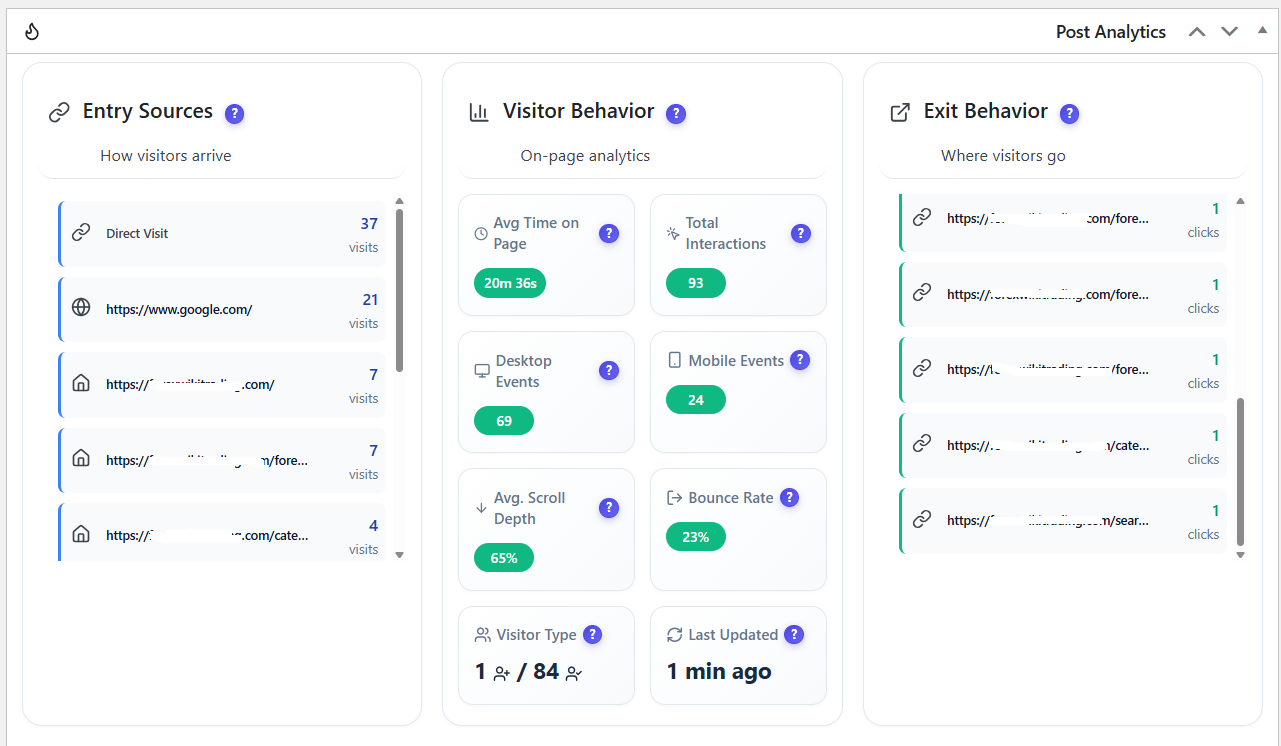
- Real-time traffic – visitors, sessions, pageviews, bounce rate, scroll depth, top pages, traffic sources, devices and visitor map, with visit duration, visited pages, referrers and outbound links.
- “AI Assistants” channel – visits from ChatGPT, Perplexity, Claude, Copilot, Gemini, Mistral, DeepSeek, Grok, Meta AI and You.com are counted on their own instead of inside Organic Search or Referral.
- AI on your site – on the Traffic screen, which AI robots read your site (by company), the pages they read most, why they visit, and how many visitors AI assistants sent to each page. AI passes are kept 12 months as daily counters, with no IP address or user agent. The site report has the same AI section.
- Click heatmaps for desktop and mobile. Point at a hot area to see how many clicks it received (“N clicks in this area”).
- Unlimited conversion funnels with multi-step drop-off analysis and device filtering. Opti-Behavior detects your site type (WooCommerce, Easy Digital Downloads, blog, lead-gen, signup, membership, LMS, booking) and proposes ready-made funnels built from your own URLs: create one in a click or edit it first. Nothing is created without you asking.
- A/B testing – page-split experiments, variant previews, conversion goals and winner application.
- Smart Insights – one card per problem, ranked by visitors lost, with a confidence level from the visits measured, the next action, a before / after result and notifications.
- Page X-Ray preview – your three most visited pages of the period, each with a health score and its first problem.
- Shop for WooCommerce – product views, adds to cart, checkouts and paid orders, and the visits each product loses (viewed, not added to cart), worst product first. The shop counters store no order number, customer name, e-mail address or coupon code.
- Site report – print or save as PDF a report of any period from Opti-Behavior > Reports: traffic, the three most costly issues and, when your site has them, shop, clicks, funnels, busiest hours and A/B tests. A “Site report” link in Traffic and Smart Insights opens it for the same period.
- Scheduled e-mail reports, daily, weekly or monthly – visits, page views, time per visit and bounce with their change, the three most costly issues, top sources, devices, most viewed pages and, on WooCommerce sites, a Shop block with up to three products that lose the most visits.
- Visitor country from a local database shipped with the plugin (DB-IP Lite): it works right after activation, and the visitor IP address is not sent to a geolocation service.
- Bot and spam filtering – visits from headless browsers and automation tools (detected by their user agent) are refused at collection, and browsers driven by an automation tool (navigator.webdriver) are marked as automated traffic. Setting “Enable automated traffic detection” in Traffic & Behavior settings, on by default.
- Settings & privacy controls – consent, storage, reports, cleanup, languages and debugging in one place.
- Multilingual admin – English, French, German, Spanish, Portuguese and Italian.
💎 Pro features
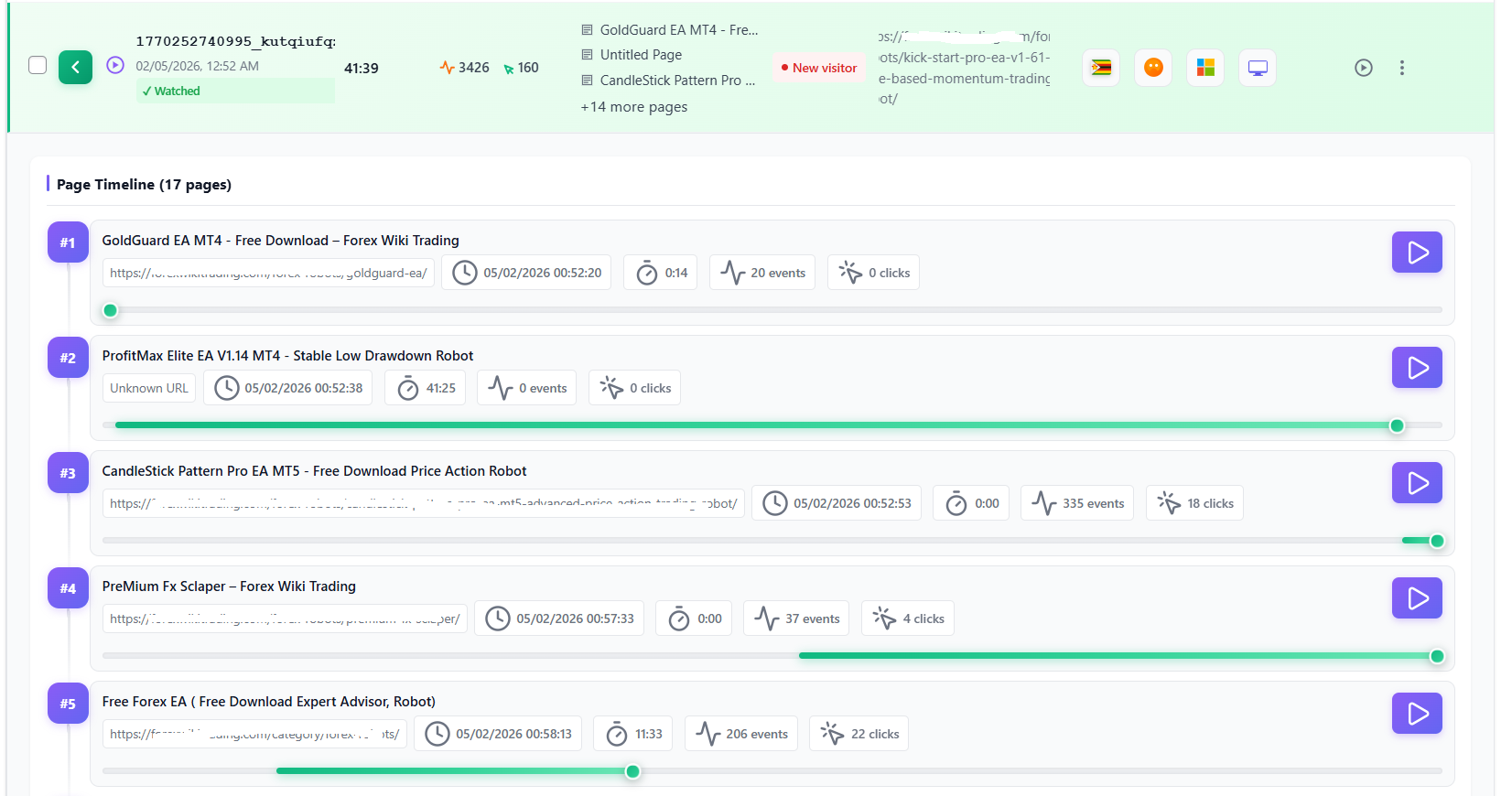
- Session recordings – watch real visits: hesitation, scrolling, navigation, rage and dead clicks. Filter by problem: JavaScript error, click friction or abandoned form.
- Scroll, move and attention heatmaps – how far visitors scroll, where the mouse moves and where attention stays. Heatmap filters by country, browser, device, visitor type and date.
- Errors & performance – JavaScript errors, network issues, broken links and Core Web Vitals problems.
- Friction detection – rage clicks and dead clicks that signal frustration (how rage and dead click detection works).
- Form analytics – field-level effort, errors, abandonment, refill behavior and completion time.
- User journeys – Sankey-style view of common paths and exits; turn high-value journeys into funnels.
- Page X-Ray – one report per page: health score, a “Where visitors click” table (rage clicks, dead clicks and JS errors per element), where visitors come from and go next, a page audit, “What changed?” against the previous period, “I fixed this” with a 14-day before / after, desktop or mobile view, and an action plan.
- Full reports – full site report (a card for each of your most visited pages, up to 10 page reports in annex) and a one-page Page X-Ray report with the click map of the page, printed or saved as PDF. On the site report: your client’s name and the sections you choose to hide.
- Shop – estimated lost sales per product (an indicative range, from your conversion rate and average order), payment errors by error type and payment method, and shop events (add to cart, checkout, payment failure) in session recordings, recorded only in Full Tracking mode after the visitor’s consent.
- Advanced A/B testing – visual edits, targeting, scheduling, WooCommerce tests and revenue attribution.
- More Smart Insights signals – errors, rage and dead clicks, slow pages, broken links and abandoned forms feed Smart Insights and Page X-Ray, with a session recording as proof when one exists.
🎁 All of Pro, free for 6 months. Then free up to 1,000 sessions a month.
- All Pro features on 1 site for 6 months, after a quick sign-up with your e-mail. No credit card.
- Then Pro stays free up to 1,000 recorded sessions a month (spam and bot visits included). When the limit is reached, new session recordings pause until the next month: nothing is deleted, and the other Pro features and the free features keep working.
- The Free plugin stays unchanged. Paid Pro plans have no session limit.
See Pro plans and prices | 🚀 Live Demo
🛡️ Privacy & Performance by Design
- Self-hosted: visitor data stays on your own server. No third-party analytics cloud: analytics data is not sold or shared with external behavior platforms.
- Privacy controls – cookie-free anonymous tracking by default, IP anonymization, retention settings and uninstall cleanup options. Full Tracking mode uses cookies only after the visitor accepts the consent banner, and the
[opti_behavior_cookie_settings]shortcode lets visitors change or withdraw their choice at any time. - Hybrid Storage – high-volume analytics events are stored in files instead of the database. Database size measured on one production site.
- Lightweight tracking – minified trackers loaded with
defer. We measured PageSpeed on a test page with the plugin on and off: see the article. - WooCommerce ready – analyze product pages, carts, checkout funnels and revenue-focused experiments.
External Services
This plugin may connect to external services in limited circumstances:
Country database (DB-IP Lite, db-ip.com)
Purpose: The free DB-IP Lite country database finds a visitor’s country on your own server. It is included in the plugin (assets/geo/) and renewed with each version, so no download is needed; the plugin can also download a newer file. IP geolocation by DB-IP.
When Used: Never on its own. db-ip.com is contacted only when an administrator clicks “Update now” in Settings > Traffic & Behavior, or ticks “Check for a newer database every month” there (off by default).
Data Sent: Only the database file is downloaded and no visitor data is sent to db-ip.com; the request sends the user agent “Opti-Behavior/”, without your site address.
Privacy:
* Service: https://db-ip.com/ – Terms and licence: https://db-ip.com/db/lite.php (CC BY 4.0)
OpenStreetMap Tiles
Purpose: Displays the interactive visitor location map in your WordPress admin dashboard.
When Used: Only when YOU (the admin) view the real-time visitor map. Not used on the frontend.
Data Sent: Your browser makes direct requests to OpenStreetMap tile servers (standard HTTP headers only).
Privacy:
* Service: https://www.openstreetmap.org/ – Tile Policy: https://operations.osmfoundation.org/policies/tiles/
* Privacy Policy: https://wiki.osmfoundation.org/wiki/Privacy_Policy
OptiUser API (api.optiuser.com)
Purpose: Handles the optional daily status message (site URL, versions, one admin email; only after you accept it on the welcome screen) and deactivation notifications. Licence validation and update checks are made by the Pro plugin itself, once installed.
When Used:
* Install tracker: A heartbeat once every 24 hours after activation: site URL, WordPress, PHP and plugin version, plugin type (free/pro), and one administrator contact email when a valid contact exists. No visitor data.
* Deactivation: Notifies the API when the plugin is deactivated so installation records stay up to date.
* Announcements: Optional short news banners on the plugin’s own screens, asked at most once every 6 hours, and only after you accept the daily status message or while Pro is active. Data sent: only the licence type (free, pro, trial or expired); no site URL, domain or email. Closing a banner is stored on your site only.
Data Sent: Site URL, WordPress admin username when applicable, and one best available administrator contact email (a single valid contact, never a list of administrator emails). No visitor analytics data is ever sent to the API, which stores installation metadata (site URL, plugin version) for licence management only.
Privacy:
* Service: https://api.optiuser.com/ – Website: https://optiuser.com/
* Terms of Service: https://optiuser.com/terms-of-service/ – Privacy Policy: https://optiuser.com/privacy-policy/
OptiUser Pro trial sign-up (api.optiuser.com/pro-signup)
Purpose: Creates your free Pro trial (account, licence key and the email that holds them) without leaving WordPress, when you use the “Start my free 6-month Pro trial” form on a Pro feature page of the plugin.
When Used: Only when an administrator fills that form and clicks the button. Nothing is sent when the page is displayed, and the plugin never asks on its own. The form is the only place that triggers this call.
Data Sent: The email address shown in the form (which you can change), your site address, the plugin version and the name of the screen the button was on. Nothing else; no visitor data. The email address is not stored in your WordPress options.
What You Get Back: A message telling you to check your inbox, or the reason the request was refused. The e-mail from optiuser.com holds the licence key, a download link valid 24 hours and a link to set your password. The free plugin never downloads, installs or activates the Pro plugin by itself.
Privacy:
* Service: https://api.optiuser.com/
* Terms of Service: https://optiuser.com/terms-of-service/
* Privacy Policy: https://optiuser.com/privacy-policy/
OptiUser Website (optiuser.com)
Purpose: Hosts the Opti-Behavior Pro trial page and the sales / feature pages. Every “Upgrade to Pro” / “Try Pro” link of the plugin opens the same Pro trial page on optiuser.com in a new tab.
When Used: Only when an admin clicks one of these links. The plugin itself sends nothing: the browser opens the page.
Data Sent: Only your site address and the place of the link (utm parameters) travel in the link. No username, email or visitor analytics data is sent.
Privacy:
* Service: https://optiuser.com/
* Privacy Policy: https://optiuser.com/privacy-policy/
Important Note: Visitor analytics data (pages, clicks, sessions) is stored locally on your WordPress server. The services above serve only the optional geographic features (optional update of the included DB-IP Lite country database, OpenStreetMap tiles), the optional daily status message and announcements, and Pro licence management. The visitor’s IP address is not sent to any geolocation service: the country is looked up on your own server.
Privacy Policy
Opti-Behavior collects user interaction data to provide analytics insights:
- Page URLs and titles, click coordinates and target elements, mouse movement patterns, scroll depth, session timestamps, referrer URLs, browser and device information
- IP addresses (can be anonymized)
- Approximate location: the country only. It comes from the Cloudflare header when present, otherwise from the visitor’s IP address, looked up on your own server in the local DB-IP Lite country database, in every privacy mode. Without Cloudflare and without the database, no country is recorded (the screens show “Unknown”). The browser language and the time zone are never used to guess a country.
Data Storage: All analytics data is stored locally in your WordPress database or file system. Nothing goes to external analytics servers, and the visitor’s IP address is not sent to any geolocation service: the country is found on your own server (see “External Services” above). Opti-Behavior does not sell visitor data. You are the data controller.
Usage Tracking: With your explicit consent, given on the first-run welcome screen, the plugin sends usage statistics to api.optiuser.com once every 24 hours: site URL, plugin, WordPress and PHP version, and one administrator contact email when a valid contact exists. They serve only to understand adoption, support licence / trial e-mails and improve the product. Nothing is sent before you click “Accept & Continue”. Full data practices: https://optiuser.com/privacy-policy/
User Rights: You have full control over data retention and deletion. Users can request data deletion at any time.
When using this plugin, ensure your site’s privacy policy discloses what data is collected, how long it is retained, who has access to it, how users can request deletion, that analytics data is stored locally on your server, and that the visitor’s IP address is used on your own server to determine the country (DB-IP Lite database) and is not sent to any third party.
Third-Party Libraries
This plugin bundles the following open-source libraries:
- Chart.js 4.4.0, MIT License, https://www.chartjs.org/ – analytics charts and graphs
- Leaflet 1.9.4, BSD 2-Clause License, https://leafletjs.com/ – real-time visitor map
- heatmap.js 2.0.5, MIT License, https://www.patrick-wied.at/static/heatmapjs/ – visual heatmaps of user interactions
- Lucide 0.554.0, ISC License, https://lucide.dev/ – icons of the …
Installation
Automatic Installation
- Log in to your WordPress admin panel
- Navigate to Plugins > Add New
- Search for “Opti-Behavior”
- Click “Install Now” and then “Activate”
Manual Installation
- Download the plugin zip file
- Log in to your WordPress admin panel
- Navigate to Plugins > Add New > Upload Plugin
- Choose the downloaded zip file and click “Install Now”
- After installation, click “Activate Plugin”
After Activation
- Navigate to Opti-Behavior in your WordPress admin menu. The menu has two groups: Your data and What to fix.
- The plugin starts tracking automatically – no configuration required!
- Open How it works: the Setup check confirms that visits are received and offers to exclude your own visits.
- Visit Traffic to see real-time visitor activity and Heatmaps to see where visitors click.
- Open Funnels: Opti-Behavior proposes ready-made funnels for your site type, created in one click.
- Check Smart Insights: the first cards usually come after about 100 visits on a page, and the menu light turns red, yellow or green.
- Adjust Settings to customize tracking behavior and privacy options.
That’s it! Opti-Behavior works out of the box with smart defaults.
FAQ
What happens after the 6-month Pro trial?
All of Pro is free for 6 months on 1 site, after a quick sign-up with your e-mail, with unlimited sessions and no credit card. Then Pro stays free up to 1,000 recorded sessions a month (spam and bot visits included). When the limit is reached, new session recordings pause until the next month: nothing is deleted, and the other Pro features and the free features keep working. Paid Pro plans have no session limit. Your visitor data is stored on your own server. See the plans
Is there a live demo I can try?
Yes! You can explore the full Opti-Behavior dashboard instantly at demo.optiuser.com – no installation, no account, no credit card required. Browse real heatmaps, funnels, A/B tests, and Smart Insights before installing.
How do I add a heatmap to my WordPress site?
- Install and activate Opti-Behavior from Plugins > Add New (search “Opti-Behavior”).
- Nothing to paste: tracking starts on its own. Heatmaps are recorded for posts, pages, products, home and shop.
- When visitors have clicked, open Opti-Behavior > Heatmaps and choose the page. On small sites the Heatmaps list is up to date right away.
- No data yet? Open How it works: the Setup check tells you whether visits are received and whether a caching or optimization plugin blocks the tracker.
Click heatmaps are free. Scroll, move and attention heatmaps are in Pro. Step-by-step guide: How to add a heatmap to WordPress.
My heatmap stays empty after installing a caching plugin. Why?
Caching and optimization plugins (WP Rocket, LiteSpeed Cache and others) can delay, combine or block tracking scripts. Open Opti-Behavior > How it works: the Setup check tells you whether visits are received and whether a caching or optimization plugin blocks a tracker, with a button to fix each item. Plugin-by-plugin fixes: Heatmap not working after installing a cache plugin.
Can I share a heatmap with a client or my team?
Yes. On the heatmap page, the download button saves the heatmap as a PNG image, with the clicks where the screen shows them. Send it or paste it into your report. This is in the free plugin.
What does click tracking record in the free plugin?
Each click on your tracked pages: where it happened and which element was clicked, shown on the click heatmap for desktop and mobile. Clicks on links to other sites are recorded too. The data is stored in your own WordPress database and files.
Does the free plugin record sessions?
No. The free plugin records clicks, traffic and funnels. Session recordings (session replay), scroll heatmaps and rage-click detection are in Opti-Behavior Pro, a separate plugin.
Which WooCommerce products lose sales, and where do shoppers drop off?
Open Opti-Behavior > Shop (free, on WooCommerce sites): product views, adds to cart, checkouts and paid orders, and for each product the visits it loses (viewed, not added to cart), worst product first. Funnels proposes a ready-made shop funnel built from your own URLs, so you see the step where shoppers leave. The scheduled e-mail report has a Shop block with up to three products that lose the most visits. The shop counters store no order number, customer name, e-mail address or coupon code.
In Pro: estimated lost sales per product (an indicative range), payment errors by error type and payment method, and shop events in session recordings (Full Tracking mode only, after the visitor’s consent).
Can I send a report to my client?
Yes. Opti-Behavior > Reports prints or saves as PDF a site report for any period: traffic, the three most costly issues and, when your site has them, shop, clicks, funnels, busiest hours and A/B tests. Scheduled e-mail reports send the key figures daily, weekly or monthly. A “Made with Opti-Behavior” line at the end of a report is optional and off by default.
In Pro: the full site report (a card for each of your most visited pages, up to 10 page reports in annex) with your client’s name and the sections you choose to hide.
How does Smart Insights decide what to fix first?
By the visitors each problem costs. Every card counts the visits it touches and the visitors it loses, compares the page with your site average, and gets a confidence level from the number of visits measured. A card is “Critical” only with enough visits, high confidence and a loss that matters on your site; cards built on few visits are marked “Provisional”. Money is shown only for a checkout funnel with at least 20 orders or a form with your own value of a conversion. When you fix a problem, mark the card as resolved: Opti-Behavior measures the period after your change and shows the result.
Most “insight” tools raise alarms. Smart Insights counts.
- Ranked by visitors lost, not by alarming words. “Critical” must be earned: enough visits measured, high confidence, and a loss that matters on your site.
- Confidence comes from the visits measured. A card built on few visits says “Provisional · N visits” instead of pretending.
- Money only when it is real. An amount “at risk” is shown for a funnel that ends at the checkout (with at least 20 orders over the period) or for a form priced with your own value of a conversion. Every other card shows the visitors it loses.
- Funnel cards name the step visitors leave: “between Product and Cart, 60 of 90 visitors leave”.
- One card per problem. Cards with identical data are merged, and a card the rules no longer confirm is closed, never counted as a win.
- No lift promises without a published source.
- Results you can check. A resolved card shows before, after and the verdict. The admin menu light shows where you stand at a glance: red = a Critical problem, yellow = High or Medium, green = nothing to fix.
The first cards usually come after about 100 visits on a page. Nothing to set up.
Why don’t I see any insights yet?
Smart Insights needs data first: the first cards usually come after about 100 visits on a page. Open How it works: its Setup check tells you whether visits are received, whether a caching or optimization plugin blocks a tracker, and whether your own visits are counted (exclude them for cleaner data).
What is Page X-Ray?
Page X-Ray is the per-page report of Smart Insights, in Opti-Behavior Pro. It answers “why doesn’t this page convert?” with a health score, what the page is for and whether visitors reach its main button, a behavior map, a page audit (clarity, buttons, trust, content, sharing), the WordPress changes that came before a problem, a before / after comparison and an action plan. In the free plugin, the tab previews your three most visited pages with a health score and their first problem.
Pick a page and get one report built from every module:
- Health score with the share of each module, and a page list ranked from the one to fix first.
- What the page is – its type (sales page, product, article, lead page…), its goal and how often visitors reach its main button. Choose the buttons that matter by clicking them on the page.
- Behavior map – the page in ten parts: viewing time, visitors still there, clicks, and where to move or repeat the main button.
- Page audit – the conversion checklist of its type: clarity, buttons, trust (reviews, guarantee, payment signs, contact), content and sharing. Each check says what was found on the page and what to do.
- What changed – plugin, theme and core updates and page edits are marked on every chart; a problem that starts right after a change names it: “started 1 day after Plugin X was updated”.
- Evolution – 14 days before against 14 days after each change, with a noise test so a random swing is never reported as a result.
- Action plan – in order: check the measurement, fix the defects, then test each change with an A/B test only when the page has the traffic to conclude.
In the free plugin, the Page X-Ray tab shows a preview of your three most visited pages; the full report is in Opti-Behavior Pro.
Does this plugin slow down my website?
The tracking scripts are minified and loaded with defer, events are sent in batches, and the Hybrid Storage engine can store high-volume analytics events in files instead of writing every interaction directly to MySQL. We measured PageSpeed on a test page with the plugin on and off: see the article. As with any analytics tool, the result on your site depends on your hosting, traffic volume and settings.
What privacy controls does it include?
Self-hosted: recordings and behavior data are stored on your own server. Opti-Behavior includes IP anonymization, data retention controls, cookie-free anonymous tracking by default, a built-in consent banner (or your consent plugin) before Full Tracking sets any cookie, and the [opti_behavior_cookie_settings] shortcode so visitors can change or withdraw their choice at any time. These controls do not make a site compliant on their own: update your privacy policy and check your setup with your own legal adviser.
Does it work without cookies?
Yes. Anonymous mode, the default, sets no cookie: visits are counted on your own server. Full Tracking mode uses cookies only after the visitor accepts the consent banner. Whether your site still needs a consent banner depends on everything it loads, not only analytics: see WordPress analytics without a cookie banner and check with your data protection adviser.
How is this different from Microsoft Clarity?
Clarity is a cloud service from Microsoft: behavior data is processed on Microsoft’s servers under its terms. Opti-Behavior runs inside WordPress: recordings and behavior data are stored on your own server. It also includes funnels, scheduled reports, bot filtering, A/B testing, and Smart Insights that ranks what to fix first and checks whether your fix worked. See Microsoft Clarity alternatives for WordPress.
How is this different from Hotjar?
Hotjar is a cloud service: behavior data is stored on Hotjar’s servers. Opti-Behavior keeps behavior analytics inside WordPress, on your own server. Click heatmaps and funnels are in the Free plugin; recordings, scroll / move / attention heatmaps, form analytics, journeys, errors and advanced A/B testing are in Pro. See Opti-Behavior vs Hotjar.
How is this different from Matomo?
Matomo is a self-hosted web analytics platform. Opti-Behavior focuses on behavior analytics and conversion work inside WordPress: heatmaps, funnels and A/B testing in Free; recordings, forms, journeys and friction insights in Pro.
Are there any session or pageview limits?
The free plugin has no session cap: your practical limit is your own server storage, database capacity and retention settings. Pro is free for 6 months on 1 site with unlimited sessions, then free up to 1,000 recorded sessions a month. Paid Pro plans have no session limit.
Can I export my data?
Yes. The Traffic dashboard exports its data to CSV.
Does this work with caching plugins?
Yes. Opti-Behavior is designed to work with common WordPress caching plugins such as WP Rocket, LiteSpeed Cache, W3 Total Cache, Autoptimize, SG Optimizer, and WP Super Cache.
Will this work on multisite?
Opti-Behavior works on multisite: each site keeps its own tables and data folder. After network activation, open each site’s dashboard once. Multisite is not yet in our test suite, so please test on a staging copy first.
Does this plugin call any external services?
Yes, only for specific supporting features such as an optional update of the country database (only when you ask for it, no visitor data sent), admin map tiles, an optional daily status message (site URL, versions, one admin email) after you accept it on the welcome screen, optional announcements (licence type only, same condition), and user-initiated OptiUser website links (the Pro trial page included). See the External Services section below for details.
How do I remove the Opti-Behavior HTML comment and X-Analytics header?
On the public pages where the tracker runs, the plugin leaves two technical marks for developers who inspect a site: the HTML comment <!-- This site uses Opti-Behavior - https://optiuser.com --> in the page head and the HTTP header X-Analytics: Opti-Behavior. Nothing is visible to your visitors and no version number is published. To remove both, add this line to your theme functions file or to a small plugin:
add_filter( 'opti_behavior_signature_markup', '__return_false' );
The console line is separate: it confirms that the tracker loaded and which mode is active, and you can switch it off under JavaScript Debug Settings in Settings > Debug & Logging (or with the filter opti_behavior_signature). Removing the marks changes nothing else in the plugin.
What data does this plugin collect?
Depending on settings, Opti-Behavior can collect page views, URLs, click positions, scroll depth, session timestamps, referrers, device/browser data, anonymized IP data, approximate location signals, and interaction metadata. It does not collect form field values by default, and analytics data is stored locally in your WordPress database or file system.
Can I delete all data when uninstalling?
Yes. Enable Delete all data on uninstall in Settings to remove stored plugin data when the plugin is uninstalled.
My host is busy or shared — how do I keep the plugin light on the server?
Two settings make the biggest difference. First, run WP-Cron from a real server cron instead of inside visitor page loads: add define( 'DISABLE_WP_CRON', true ); to wp-config.php and have your host call wp-cron.php every 5 minutes. Cleanup, reports and database upkeep then never run inside a visitor request. Second, keep the default “Posts & Pages Only” heatmap scope and the default data retention so tables stay small. All heavy maintenance (index changes, table conversion, OPTIMIZE) is size-capped and time-boxed, and every frontend tracking request is rate-limited so concurrent visitors cannot pile up on the database.
Does it work with WooCommerce?
Yes. Use Opti-Behavior to analyze product pages, cart behavior, checkout funnels, CTA clicks, and revenue-focused A/B tests while keeping customer behavior data under your control.
Does it work with page builders?
Yes. Opti-Behavior works with Gutenberg, Elementor, Divi, Beaver Builder, WPBakery, and other major WordPress builders.
What is the Hybrid Storage Engine?
Hybrid Storage is Opti-Behavior’s performance-focused storage approach. Instead of pushing every click, scroll, and pageview directly into MySQL, high-volume events can be stored in optimized files and aggregated for faster reporting. This helps reduce database bloat on busy sites.
Which questions does Opti-Behavior help answer?
Most site owners already have traffic numbers. The hard part is understanding the human reason behind the numbers.
Opti-Behavior helps answer practical conversion questions:
- Which parts of the page attract attention?
- Where do visitors hesitate or lose confidence?
- Which funnel step causes the biggest drop-off?
- Which form field creates too much effort?
- Which CTA, layout, product page, or message should be tested next?
- Are bots, spam, errors, or slow pages distorting your decisions?
The goal is not more dashboards. The goal is better decisions.
How do I get support?
Free users can use the WordPress.org support forum. Pro users get priority support through OptiUser.
Hotjar is a trademark of Hotjar Ltd. Microsoft and Clarity are trademarks of Microsoft Corporation. Opti-Behavior is not affiliated with or endorsed by them.
Screenshots






Changelog
1.11.0 – 2026-11-09
- Feature: Opti-Behavior Pro stays free after the 6-month trial, up to 1,000 recorded sessions a month on 1 site. When the limit is reached, all Pro data collection pauses until the next month: the Pro screens and the data already collected stay visible, nothing is deleted, and the free features keep working.
- Feature: Pro in one click: give your e-mail address and your site address, and the trial key, the download link and a link to set your password arrive by e-mail.
- Feature: Traffic: new “Audience Insights / AI” row with three widgets. “Which AIs read your site” shows the AI robots by company. “What AI reads and who it sends” lists the 50 most-read pages (with the total number of pages read), the AI passes of each page and the visitors that AI assistants sent to it. “Why AIs visit” shows the intent of the AI passes. The filter panel narrows “Visitors sent”. A robot has no country or device, so AI passes follow the period only.
- Feature: AI passes are kept as daily counters for 12 months (one row per day, AI robot and page; no IP address, no user agent, no referrer) instead of the 30 days of the crawler log. On update, the 30 days still in the crawler log are copied in once.
- Feature: Site report: an AI section with the AI companies that read your site, the real number of pages they read and the visitors who landed on those pages from an AI assistant. It says “to answer questions” only when that intent was measured. It gives the first day of AI data on your site and explains in one line what AI passes, pages and visitors sent count.
- Feature: Traffic: visits from Gemini, Mistral, DeepSeek, Grok, Meta AI and You.com are counted in the “AI Assistants” channel instead of Organic Search or Referral (Google AI Overviews arrive from google.com and stay in Organic Search).
- Feature: Traffic: the traffic source, Referrers and Screen resolution tables show the change of each row against the previous period.
- Feature: Tracker status: on public pages where the tracker runs, the browser console shows “[Opti-Behavior] tracker loaded”, the page carries the HTML comment “” and the response carries the header “X-Analytics: Opti-Behavior”. The console line has its own checkbox, “Show tracker status in the console” (on by default), in Settings > Debug & Logging > JavaScript Debug Settings. The comment and the header can be removed with the filter opti_behavior_signature_markup.
- Feature: Spam: a built-in list of 56 known spam referrer domains (for example forexwikitrading.com). A visit they send is counted as spam in Traffic, Referrers and the site report, past visits included. New “Extra spam domains” setting, one domain per line.
- Feature: Site report: a “Signals by module” section, the same blocks as the report e-mail (Pro rows carry a PRO tag).
- Feature: Site report on WooCommerce sites: “Carts without an order” section, with the products whose carts most often ended without an order and what to check.
- Feature: Smart Insights: the weekly summary also lists the pages that lose the most visitors. The summary and this list share one card.
- Feature: Front-end stats bar: a “Page X-Ray” button opens the Page X-Ray of the page you are looking at (with Opti-Behavior Pro; a locked “PRO” button without it). It is shown on single public pages, posts, products and the shop.
- Feature: Reports: a waiting page with a progress bar while a site report is built, and the report reads are cached so it is built faster.
- Enhancement: The site report and Page X-Ray are always built, with or without every Pro module. When one is missing, a notice at the top says the report is not complete and gives a Pro button.
- Enhancement: The trust bar shows the real WordPress logo, and the “6 months” wording is no longer repeated on the same screen.
- Enhancement: Site report in one click: the waiting page shows “Page N of M” while page scores are computed in small steps, and the document opens only when they are done. A page that could not be measured is named; “Partial report” and “generate it again” are gone.
- Enhancement: Smart Insights: a line says “Likely cause” only when a cause was really measured. Otherwise it says “Observation” (recordings to watch, a concentration in one segment) or “Evidence”, and the list is titled “Observations and evidence”.
- Enhancement: Site report: one funnel recommendation, chosen from the goal of the page; a funnel that does not follow the page goal is never advised first, and the table says so.
- Enhancement: Reports: “The 3 issues to look at first” replaces “most costly”. The report notes the time it was read and that a figure can still move (new visits, sessions later classed as spam).
- Enhancement: Shop: a second add to cart on a product already in the cart (block themes, Store API) is counted; a lower quantity is not. Each success is counted once, and orders at 0 are kept out of paid figures. A warning line appears above the tiles when the adds to cart look too high for the visits of the period.
- Enhancement: Smart Insights and reports: funnel figures say “sessions that left at this step” instead of “lost”, estimates and advice say what they are based on, and checks name the pages and sample sizes they use. The “Low scroll depth” help says the figure is an average.
- Enhancement: Site report and report e-mails: a figure measured on too few visits is no longer shown as a result. Key figures carry the name of the screen they come from, and dated sections say their period. A warning appears when a funnel step matches every page of the site.
- Enhancement: A/B tests: the screen and the site report give the same verdict (winner, loser, not enough data, no clear winner, check the goal), based on participation figures; “Check goal tracking” counts different visitors.
- Enhancement: Report e-mail: times are rounded to the nearest second like the Traffic screen, top pages show visits next to views, unresolved errors are counted like the Errors Tracking screen, and colours and names follow the plugin design.
- Enhancement: Smart Insights page: “How it works” first, then the weekly summary, then the tabs. The fold of the loop is remembered for each user, and the tab bar works with the keyboard.
- Enhancement: Loading, empty and error states on dashboard panels. Storage Stats measures the plugin files in steps with a progress bar, stops after 30 seconds with a Retry button, and an error can be resumed.
- Enhancement: Settings > Danger Zone > Full reset: nothing is checked when the page opens, the size of the selection is shown, and the delete button stays off until a category is chosen.
- Enhancement: Setup check: a module that has simply been quiet is no longer reported as blocked; a blocked collection is reported only when it is confirmed.
- Enhancement: Funnels: the counting rules and the period are shown on the funnels screen.
- Enhancement: Clearer welcome screen choices, consent notice buttons with one style, new deactivation survey design, new design of the agency screen in Reports.
- Enhancement: Pro: Errors Tracking separates severity from action priority; a group seen on few visits gets a low-priority badge. Network failures are classified by kind.
- Enhancement: Pro: User Journeys and the full report count multi-page visits against visits with a recorded journey.
- Enhancement: Pro: Page X-Ray scores pages on their detected goal until it is confirmed, and says what the health score counts.
- Enhancement: Pro: Recordings show the measured number of tracked sessions without a replay.
- Fix: Traffic: the Bot Traffic panel no longer shows a made-up “+100 %” change. The crawler log is kept 30 days, so when the previous period falls outside it the change reads “—” with an explanation, in the header and on each crawler row.
- Fix: AI page list: page addresses with non-Latin characters are stored and shown correctly.
- Fix: Heatmap detail: the page preview no longer waits forever; scroll heatmaps use a robust page height; UTM filters list campaign, source and medium.
- Fix: Heatmap engagement rate is the share of visits with at least one interaction.
- Fix: Time on page in reports uses the same formula as Top Pages and excludes spam in every case.
- Fix: Shop: an add to cart from a plain link is counted only when a person clicks it (no more counts from link prefetch or robots).
- Fix: UTM tags are kept when your pages are served from a page cache.
- Fix: The Apply button of the date filter works again on the dashboard and on funnels.
- Fix: Pro: the “Where visitors click” panel of Page X-Ray no longer shows an empty broken image on pages without a saved picture.
1.10.1 – 2026-10-20
- New: Shop screen for WooCommerce sites (menu Opti-Behavior > Shop): product views, adds to cart, checkouts and paid orders, and the lost visits of each product (product views that did not lead to an add to cart), worst product first. The shop counters store no order number, customer name, e-mail address or coupon code.
- New: “Shop” block in the scheduled e-mail report on WooCommerce sites: product views, adds to cart, paid orders and failed payments of the report period compared with the period before, the three products that lose the most visits and a link to the Shop screen. No block when nothing was counted.
- New: Print or save as PDF a site report from Opti-Behavior > Reports. It opens with a Summary (traffic tiles and the three most costly issues), then one section for each part of your site that has data: Traffic, Shop, Clicks and errors, Busiest time, Journeys and funnels, A/B tests. Charts have round graduations. A “Site report” link in the header of Traffic and Smart Insights opens it with the same period.
- New: Optional “Made with Opti-Behavior” line at the end of a report, off by default.
- New: The country of a visitor now comes from a free local database (DB-IP Lite) included in the plugin, in every privacy mode: the visitor IP address is no longer sent to ip-api.com / ipwho.is. Countries work right after activation, with no download; an optional monthly update is in Settings > Traffic & Behavior > Country database. IP Geolocation by DB-IP.
- New: Traffic Channel filter: visits from ChatGPT, Perplexity, Claude and Copilot have their own channel, “AI Assistants”. They were counted in “Organic Search”, which goes down by the same number, also for past periods (nothing is lost, the visits are reclassified when the report is read). A link carrying utm_source=chatgpt.com, perplexity, claude.ai or copilot.microsoft.com counts there too, even without a referrer; a paid click stays in “Paid Ads”.
- New: Smart Insights: without Pro, the “Page X-Ray” tab now shows a real preview: your three most visited pages of the period (20 visits or more), each with a health score and the headline of its first problem, computed from the data the free plugin collects (bounce, scroll depth, clicks, funnels). The full report stays in Opti-Behavior Pro.
- New: Traffic and Heatmaps: during the first days, a box at the top says whether visits are received (waiting, warning or error, with the action to take); a site installed for more than 7 days that has visits shows no box. The License & Quota tab gets an “Already have a Pro trial or license?” block with an “Open My account” link (no address and no parameter in the link).
- New: With Opti-Behavior Pro installed, when its licence could not be confirmed, the Recordings, User Journeys, Errors and Forms pages show the reason, a “Re-check licence” button and a link to the License & Quota tab, instead of an empty or upgrade page. The menu shows an amber dot.
- New: Scheduled e-mail report, new design: the key figures first (visits, page views, time per visit, bounce, with their change), the three most costly issues, top sources, devices and most viewed pages, the most clicked element with a link to its heatmap, the Shop block and an A/B test block, each with one “What it means / What to do” sentence. A summary subject line and inbox preview, a plain-text version, a layout for phones and dark mode.
- New: Top Pages shows the page views of each page. The Traffic export includes the campaigns.
- New: The Opti-Behavior brand mark at the top of the Opti-Behavior screens, of the reports and of the report e-mails.
- Improved: Deactivation survey: a “Skip & Deactivate” button, a sentence that says what is sent to optiuser.com if you submit, and two new reasons. The Deactivate click never waits when optiuser.com cannot be reached.
- Improved: Clearer wording and layout: “Anonymous Mode” is now “Cookieless mode (pseudonymised, 24 h)” with a note that GDPR still applies, the heatmap “AI Insights” panel is “Top Clicked Elements”, the Setup check puts an action that is needed on its own band, Danger Zone shows one card per action with the size of each Full Reset category, and the Country database card shows its status, a monthly-update switch and an “Update now” button.
- Improved: Smart Insights: severity is the coloured left edge of a card, the floating Insights button keeps your choice, and the “How it works” strip is open on the first visit only. On WooCommerce sites the data-retention line also names the store events.
- Improved: Review request: shown only after an administrator has seen their own data (a heatmap with clicks, or a funnel report with entries), never before 48 hours after install and never next to another Opti-Behavior banner, with “Leave a review”, “Maybe later” and “Don’t ask again”.
- Improved: Traffic, reports and report e-mails: the change of a rate (bounce, scroll depth) is in points, the change of a count in percent, and “new” replaces a made-up +100% when the previous period has too few days.
- Improved: Funnels created by the plugin itself are marked “Suggested” with a “Confirm” button, and are not counted in Smart Insights, Page X-Ray or the reports until you confirm them. Smart Insights funnel step names are readable, each card links to its main report, and an open card that an updated rule no longer finds is closed.
- Improved: Display: the realtime map fits every visitor, the Traffic chips are never cut, the Heatmaps list has clearer folder and device labels with one sort arrow, and every new screen, report and e-mail text is translated in French, German, Spanish, Italian and Brazilian Portuguese.
- Fix: www.example.com and example.com are now one page in Top Pages and in the Page X-Ray preview. Another sub-domain stays its own site.
- Fix: An address under the search permalink base (for example /search/term/) is a search page, like ?s=. It leaves the Page X-Ray preview and its heatmap follows the archive rule.
- Fix: The country is no longer guessed from the browser language (it was often wrong, e.g. “United States” for any en-US browser). Without Cloudflare and without the country database it shows “Unknown”. The language itself is still recorded.
- Fix: Time per page and per visit: a page view counts 30 minutes at most and a visit 4 hours at most, so a tab left open no longer inflates the averages. Older data is read the same way; nothing is rewritten.
- Fix: Same figures everywhere: funnels count entries from real visits only (spam setting of the site), the admin menu, the Smart Insights screen and the site report show the same number of open problems, “the three most costly issues” uses the open cards that overlap the period, and the report e-mail matches the Traffic screen for scroll depth, referrers and Top pages rows.
- Fix: Traffic: the Top Page and Top referrer chips show the first row of their widget. Shop: an add to cart from a plain link (?add-to-cart=) is counted when the visitor comes from a page of your site, and a product with adds to cart but no measured product view shows “Not measured” instead of 0.
- Fix: The short site report no longer shows the Pro line when Opti-Behavior Pro is active, and the “could not initialize” card of the License & Quota tab is only shown when Pro is loaded.
- Privacy: Without consent, nothing personal is read or stored: the tracker no longer reads the time zone or the browser language on the device (the language comes from the Accept-Language header), the anonymous daily salt is random and deleted the next day, and the cached region, city and time zone of another visitor on the same IP address are never reused. Pro session-linked shop events need Full mode and consent; anonymous mode keeps daily counters only.
- Privacy: IP addresses: the bot log and the older session-start path keep the whole address only in Full Tracking mode (elsewhere the network part only, IPv4 /24, IPv6 /48), the geolocation cache key is no longer the bare address, and realtime visitors, the Traffic export and Top Engaged Users never show a whole address or a login name.
- Privacy: Page addresses: WooCommerce order numbers and parameters with a secret name (password reset key, reset token, API key…) are removed from stored addresses, Top Pages and exports. The pages are still counted, so a funnel step on the order received page keeps working.
- Docs: The readme, the settings and a new suggested privacy policy text (in the WordPress privacy guide) describe the local country database (DB-IP Lite).
1.10.0 – 2026-10-10
- New: Smart Insights “Things to check”: page, funnel, engagement, scroll, mobile bounce and traffic spike cards list the checks behind the problem, each measured on your own data (“Not measured” when there is not enough traffic yet). Cards have a clearer design: severity colour, key figures in tiles, a short story per signal family and a detail panel.
- New: Spam filter: automated visits (headless browsers, scripts) are refused at collection and filtered from every report, even when they arrive with a referrer.
- New: Heatmap detail: hovering a click area shows “N clicks in this area” in the free plugin too, following the Count Bar Display setting. On small sites the Heatmaps list is up to date right away. The Pro feature pages (Recordings, User Journeys, Errors, Forms) explain what each feature does, with the trial button first, and the Pro trial notice can be closed for good.
- Changed: Pro trial: every “Try Pro” / “Upgrade to Pro” link opens the same Pro trial page on optiuser.com in a new tab. The plugin no longer starts a trial in one click and no longer downloads or installs Opti-Behavior Pro; only your site address travels in the link.
- Changed: Welcome screen: the data-sharing question is asked right after activation, only when Free runs alone, and you can decline it; the Pro trial is a separate choice. Settings show “Installation status: Shared / Not shared” with a Change link. Announcement banners are fetched only after you accept the daily status message, or with Pro active.
- Changed: The per-audience segment breakdown and the Weekly CRO Summary are now part of Opti-Behavior Pro. In “How it works” the lines from the active modules to Smart Insights are animated, and an A/B test click goal that is not a CSS selector is refused with a clear message.
- Security: Admin screens (Traffic browsers / referrers / top pages, Smart Insights, A/B test builder) now escape quotes in every value they display, so a crafted browser name, referrer or page title sent by a visitor can no longer run script in the admin. A leftover debug branch of the heatmap data endpoint was removed.
- Privacy: Personal data (e-mail, user name, tokens, keys) is removed from tracked page addresses. Addresses already stored are cleaned in the background.
- Performance: wp-admin no longer waits when api.optiuser.com cannot be reached: the daily status message is sent in the background and the deactivation survey never holds the Deactivate click. Dashboard widget caches are cleared without heavy database queries.
- Fix: Same numbers everywhere: Traffic visitors, new / returning and Top Pages use one set of visits; Smart Insights, funnels and Page X-Ray count the same visits; Top Pages shows one row per page; the Heatmaps list and detail show the same click count.
- Fix: Smart Insights figures: each card shows the loss of its own gap (exit rate, scroll, segment vs all visitors), related cards never repeat the main card’s figure, traffic spikes show no loss figure, and old figures are cleared on recalculation.
- Fix: Smart Insights: cards are regenerated once after each plugin update, the briefing stacks on phones, the Severity filter and sort work in every admin language, the Reset button appears with “All statuses”, and the detail window moves keyboard focus.
- Fix: Traffic: “% vs last period” shows “—” when there is no previous period, an idle tab no longer inflates the visit duration, the Traffic Channel filter classifies visits exactly like the dashboard, and the review reminder only appears on the plugin’s own screens.
- Fix: Heatmaps: Refresh really clears the cached heatmap, deleting data keeps the device and type you were looking at, Reset puts the period back to All time, switching views never shows the previous numbers, heatmaps taken over by URL query variants (?utm=…) are repaired and grouped, a page number past the last page shows the last page, searching keeps your sort and the first click on a column sorts high to low.
- Fix: Funnels: editing a paused funnel keeps it paused, a deleted funnel cannot be saved back, a step without a URL is refused, the report of a paused funnel opens, a failed Re-scan no longer locks the button, and changing period never shows the old numbers.
- Fix: A/B tests: “Declare Best Performer” no longer crowns a variant on a tie or without data, numbers and dates follow your admin language, filter profile labels are translatable, and the onboarding popup sends its answer once.
- Fix: Heatmap image download — on long pages the downloaded PNG showed the clicks shifted and paler than the heatmap on screen. The image now shows every click exactly where the screen does, and very long pages no longer produce an empty image.
- Fix: With Opti-Behavior Pro on a renewed trial (or a licence bought after the trial), the red “Your Pro Trial Has Ended” banner could appear while Pro was working. It is no longer shown when the licence server confirms the licence is active.
- Fix: Smart Insights — “Visitor Confusion Pattern” now compares a page’s button clicks with a site average in the same unit, and “quick visit” signals respect the minimum session duration of your spam filter.
- Fix: The code passes the WordPress.org Plugin Check without errors, and the plugin name is the same in the plugin list and on its WordPress.org page.
1.9.2.1 – 2026-09-25
- Security: Hardening from the WordPress.org security review: funnel events are tied to the visitor’s own session cookie and limited per visitor IP, forwarding headers are trusted only from Cloudflare or a reverse proxy on your own network, and no IP address went to a geolocation service before consent.
- Fix: Translation files no longer contain pieces of source code in their translator comments. Translations are unchanged.
Earlier versions
Full changelog: changelog.txt (in the plugin folder) / https://optiuser.com/opti-behavior/changelog/